

Knowledge bases — train the AI on your documents and website
🎯 Goal
Give the AI the facts about your business, so it answers customers correctly and only from your information.
🧰 What you need
- An AI key (AI providers), ideally one that can embed (Gemini, OpenAI, Mistral, Azure)
- Your material: price lists, FAQs, policies, brochures, website
Sources you can add
Section titled “Sources you can add”| Source | Details |
|---|---|
| File | PDF, DOCX, TXT, MD, CSV or XLSX, up to 20 MB. Scanned PDFs (images only) have no text to read; OCR them first |
| Page | One web page URL (Page URL) |
| Website | A Website or sitemap URL. Uses the site’s sitemap.xml when it has one; otherwise follows links on the same site. Optionally Only paths starting with /help, Up to (pages), and Re-sync automatically every day, week or month |
| FAQ | A title and question + answer pairs you type (+ Question adds one) |
| Text | A title and free text, such as opening hours or delivery rules |
| Products | Upload a CSV or XLSX file and choose Product catalogue — one product per row (name, price, url, description…). The other choice, Plain table — every row is a fact, reads any table |
Everything you add is stored privately and only used to answer your customers.
- Open AI & Knowledge → Knowledge bases and click Knowledge base. Name it, for example Store info.
- Click the knowledge base, then Add source. Pick a tab (File, Page, Website, FAQ or Text) and add your first source, for example your price list PDF. You see Added — indexing now.
- Add more: the FAQ page of your website, a delivery-policy text, your product spreadsheet.
- Wait until each source shows ready (or failed, with the reason). Click the eye icon to see The passages the bot searches (first 50). FAQ, text, page and website sources can be edited; saving re-indexes them.
- Connect the knowledge base to a bot (AI bots) and try it in the Playground.
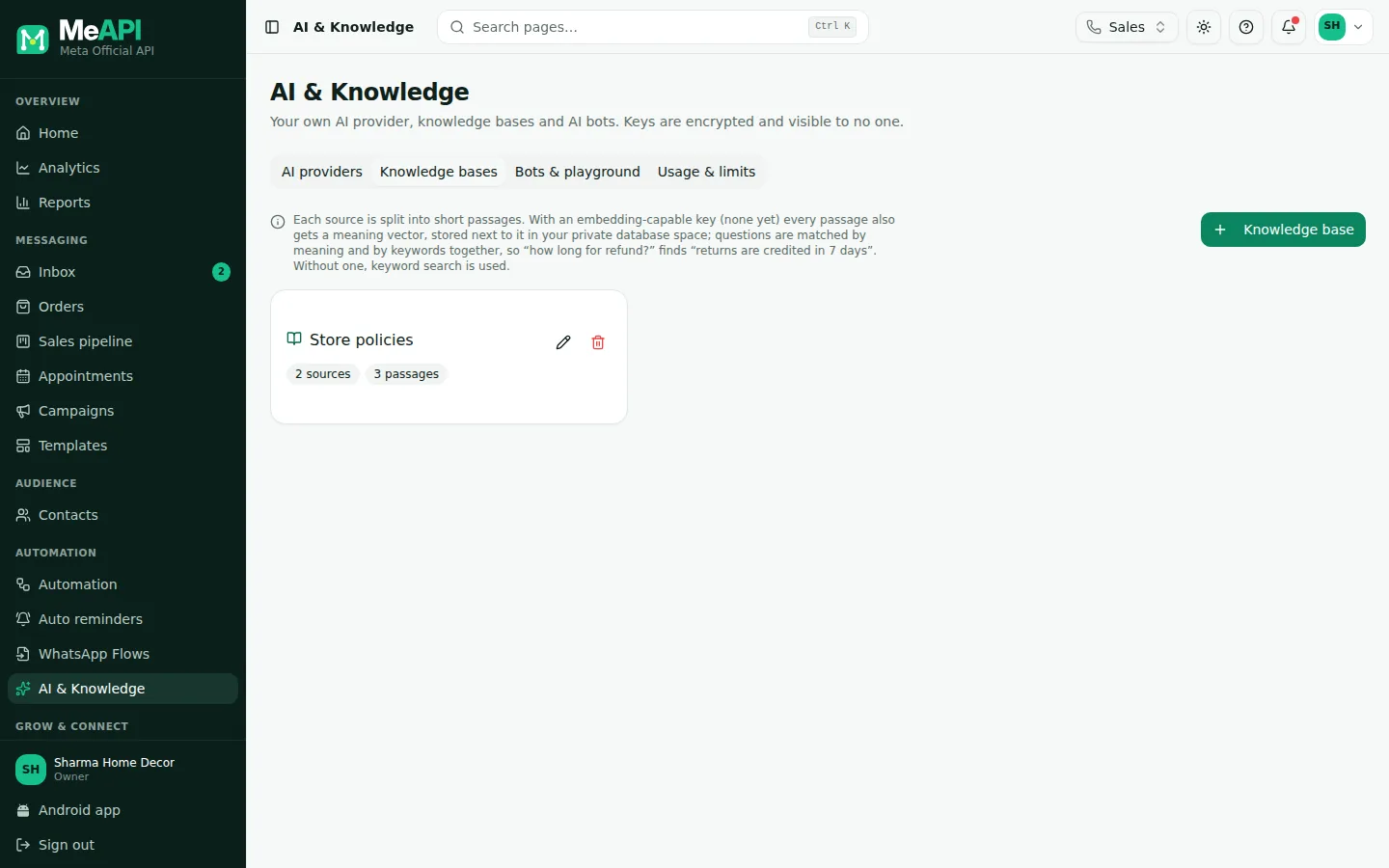
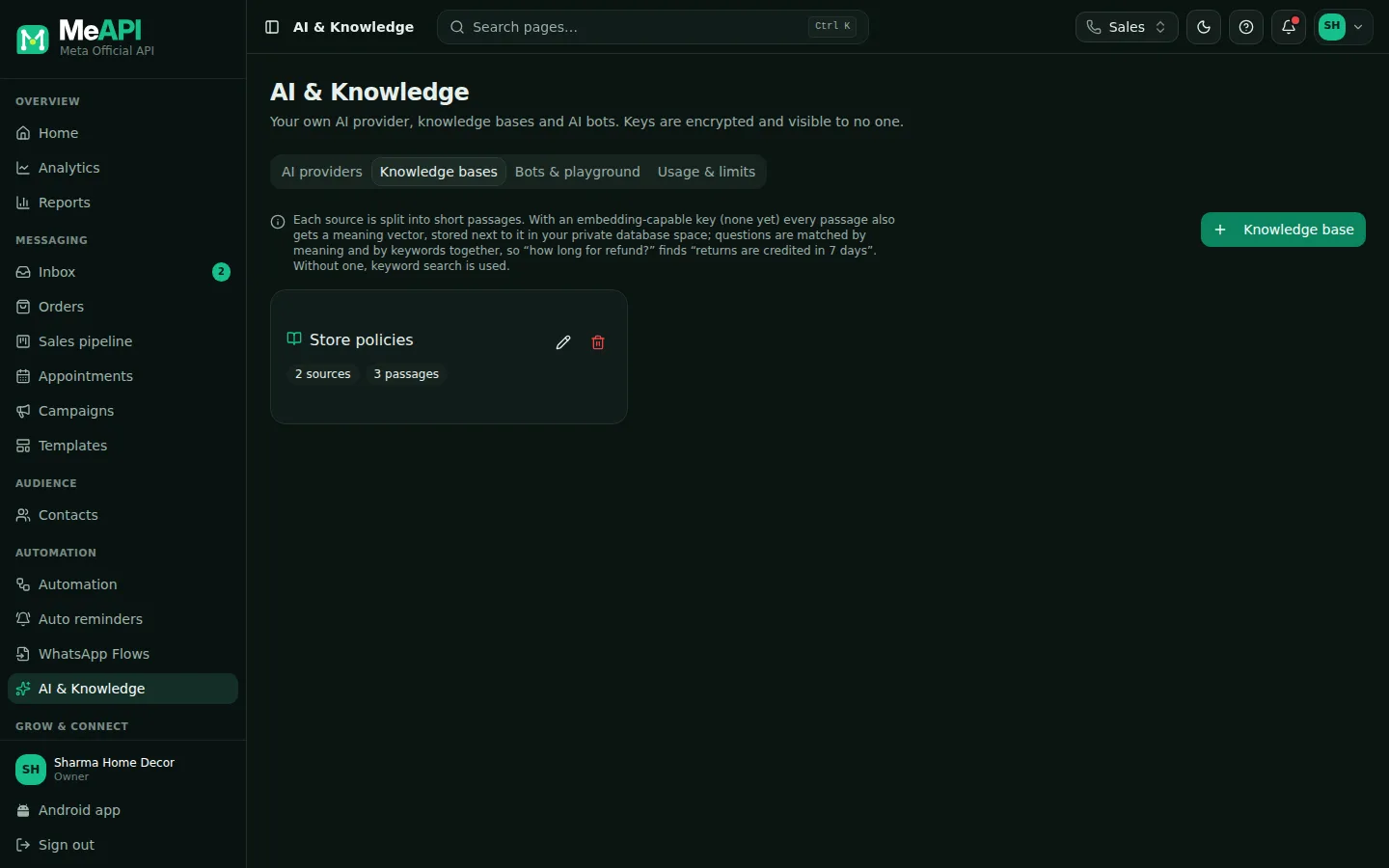
- An open knowledge base: Knowledge bases (back), its name, Add source, and Re-index all when some passages still lack embeddings.
- One row per source with its type, title and size (passages, pages or products) and a status badge: queued, processing, ready or failed.
- Row buttons: see what was extracted, edit (FAQ, text, page, website), re-index or re-sync, delete.
How search works (in plain words)
Section titled “How search works (in plain words)”Your material is split into short passages. When a customer asks something, MeAPI finds the passages that best match the meaning of the question (using your embedding key) and its words (keyword search). It gives only those passages to the AI to write the answer. If nothing matches well enough, the bot hands over to a person instead of guessing.
Fixing wrong or missing answers
Section titled “Fixing wrong or missing answers”- Unanswered questions (Bots tab) lists what the bot handed over or got a 👎 on. Type the right answer and it’s added to a knowledge base, so the bot learns.
- Wrong facts usually come from old documents. Delete the outdated source, or update it and re-index. Websites can be re-synced by hand with the round arrow.
- Too vague? Add an FAQ entry with the exact question customers ask.
Common mistakes
Section titled “Common mistakes”- Scanned PDFs. They contain no text. Use the original file, or OCR it first.
- Changing the embedding provider without re-indexing. Click Re-index all (it shows while some passages have no embeddings).
- Mixing languages in one answer. Keep separate knowledge bases per language if your content differs.
What’s next
Section titled “What’s next”Was this page helpful?
Thank you — we read every comment.
Could not send right now. Please try again later.
© 2026 MeAPI by TheWebStore028 · RADHAMADHAV WEBSTORE LLP · GSTIN 27ABJFR6148J1ZO · Contact us ·Cookie settings