

Sales pipeline — deals on a Kanban board
🎯 Goal
Every enquiry that could turn into money becomes a deal. You see all of them on one board, move them along as the conversation goes, and know what is likely to close this month.
🧰 What you need
- A MeAPI API Panel login whose role includes Sales pipeline
The board
Section titled “The board”Open Sales pipeline in the left menu (under Messaging). The first time, MeAPI creates a pipeline called Sales with six stages:
New lead → Contacted → Qualified → Quote sent → Won / Lost
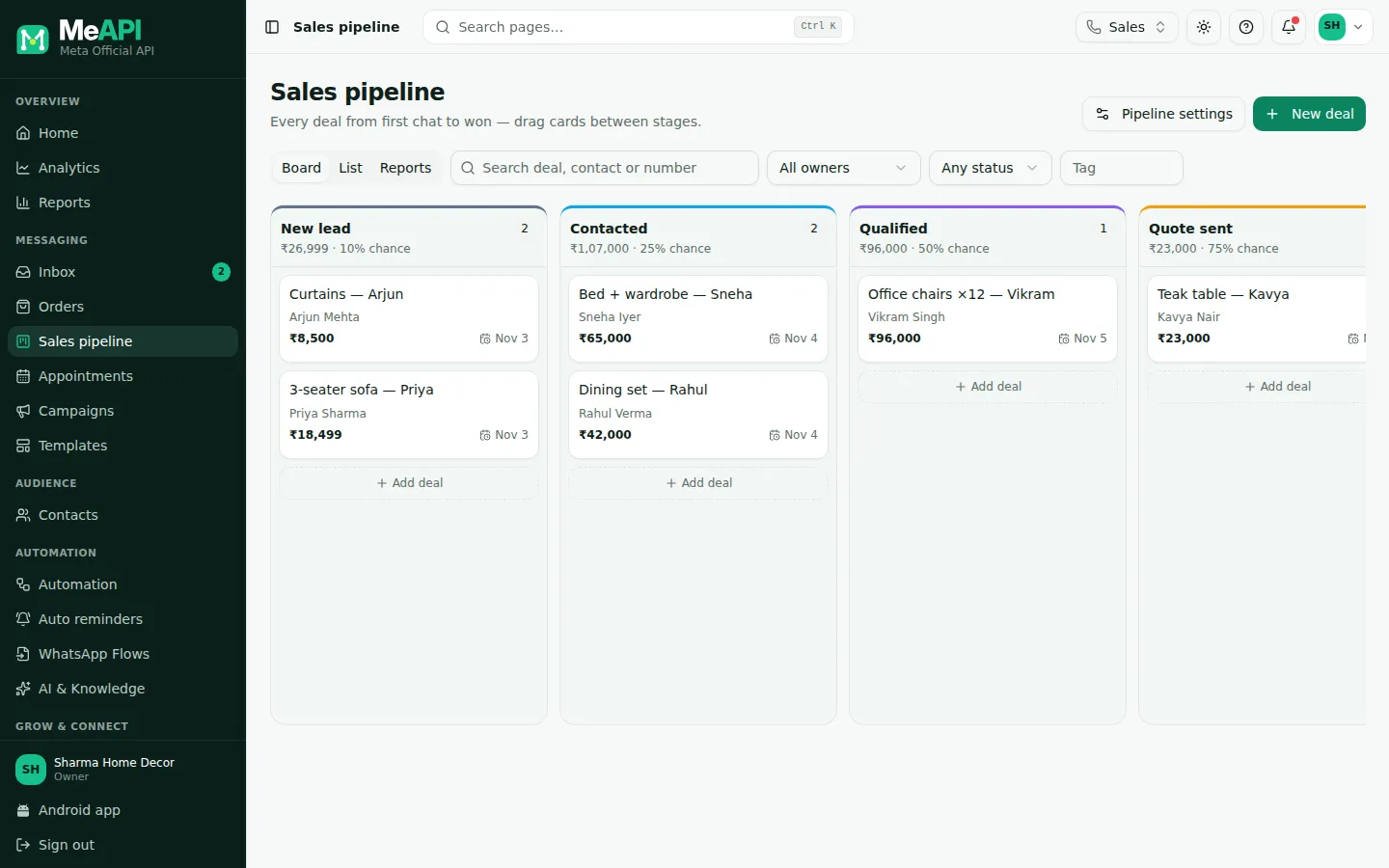
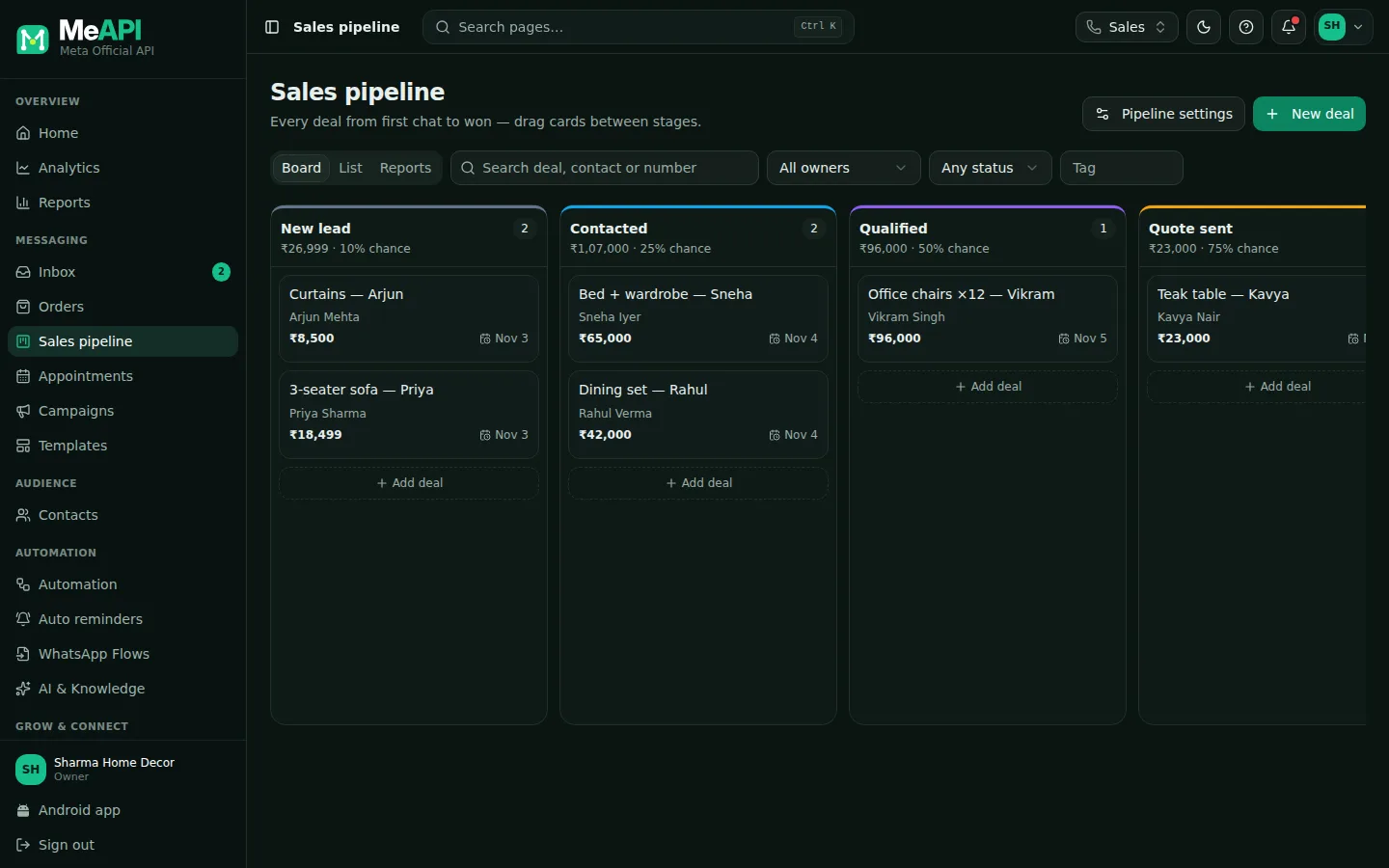
- Top right: Pipeline settings (roles with Pipelines & deal fields) and New deal.
- Tabs Board, List and Reports, then search, owner, status and tag filters.
- Each column is a stage, with its number of deals, total value and win chance.
- A deal card: title, contact, value, expected close date (red when overdue), owner and tags. Drag it to another column.
- Drag a card to another column to move the deal. Drop it on another card to place it above that card.
- Dropping a deal on Won or Lost asks why: pick a suggestion (Best price, Too expensive, Chose a competitor…) or type your own. Reasons you used before are suggested first, and they feed the Why deals were lost report.
- On a phone, open the deal and change its Stage instead of dragging.
Create a deal
Section titled “Create a deal”- Click New deal (top right) or Add deal at the bottom of an open stage’s column.
- Fill in Title (for example Website redesign for Sharma Traders), Value (₹) and Expected close.
- Contact: type a name or number and pick the customer. A deal with a contact links back to the chat (Open chat) and can start flows.
- Owner (roles that see every deal): Account owner or an agent.
- Add Tags, your custom fields and Notes, then Create deal.
From a chat, in one click
Section titled “From a chat, in one click”In the Inbox, the contact panel beside the chat has a Deals box. Click Create deal: the deal is created at once in your default pipeline’s first stage, titled with the customer’s name, and owned by you. Change its stage right there, or click the deal title to edit value, close date and the rest without leaving the chat.
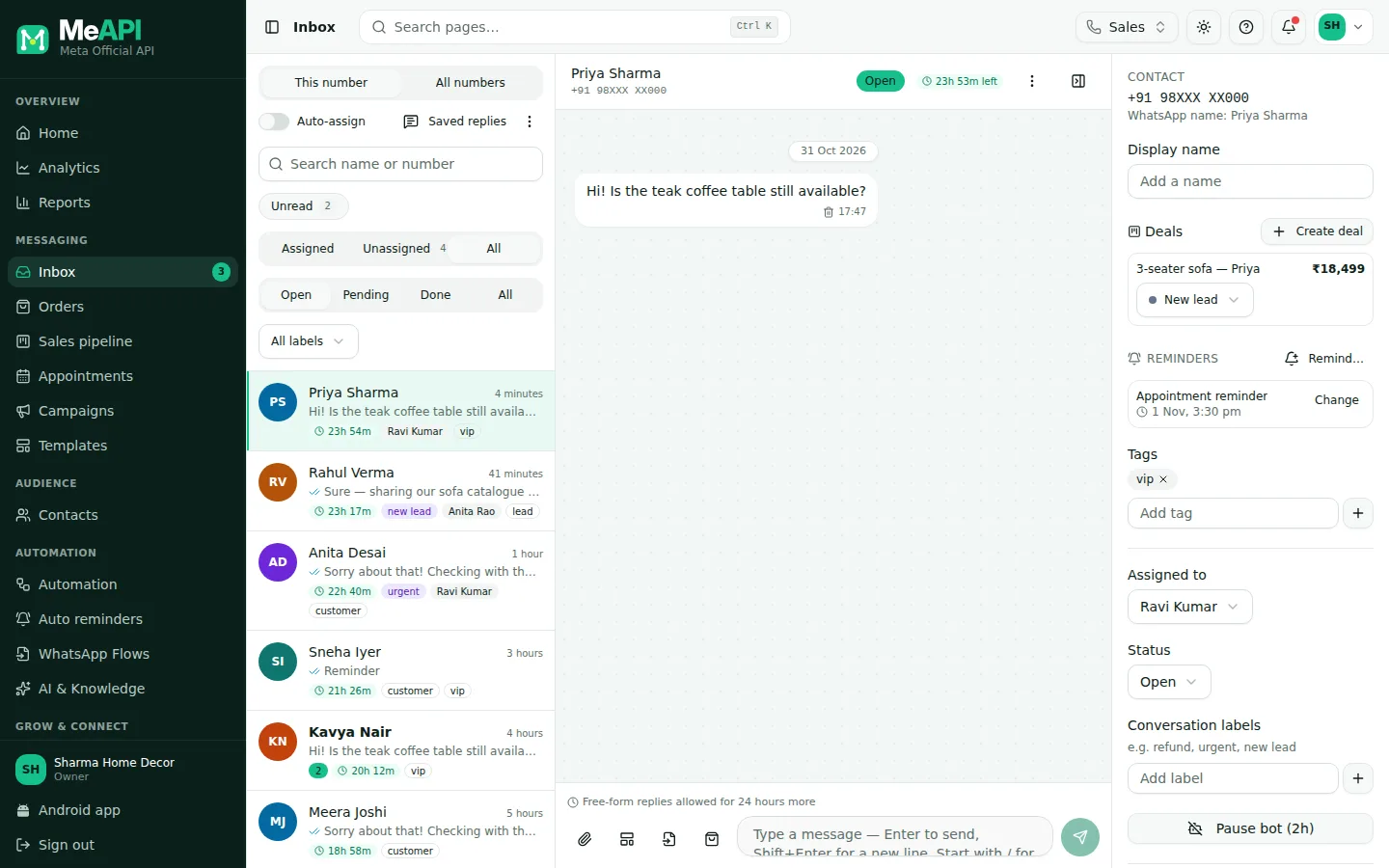
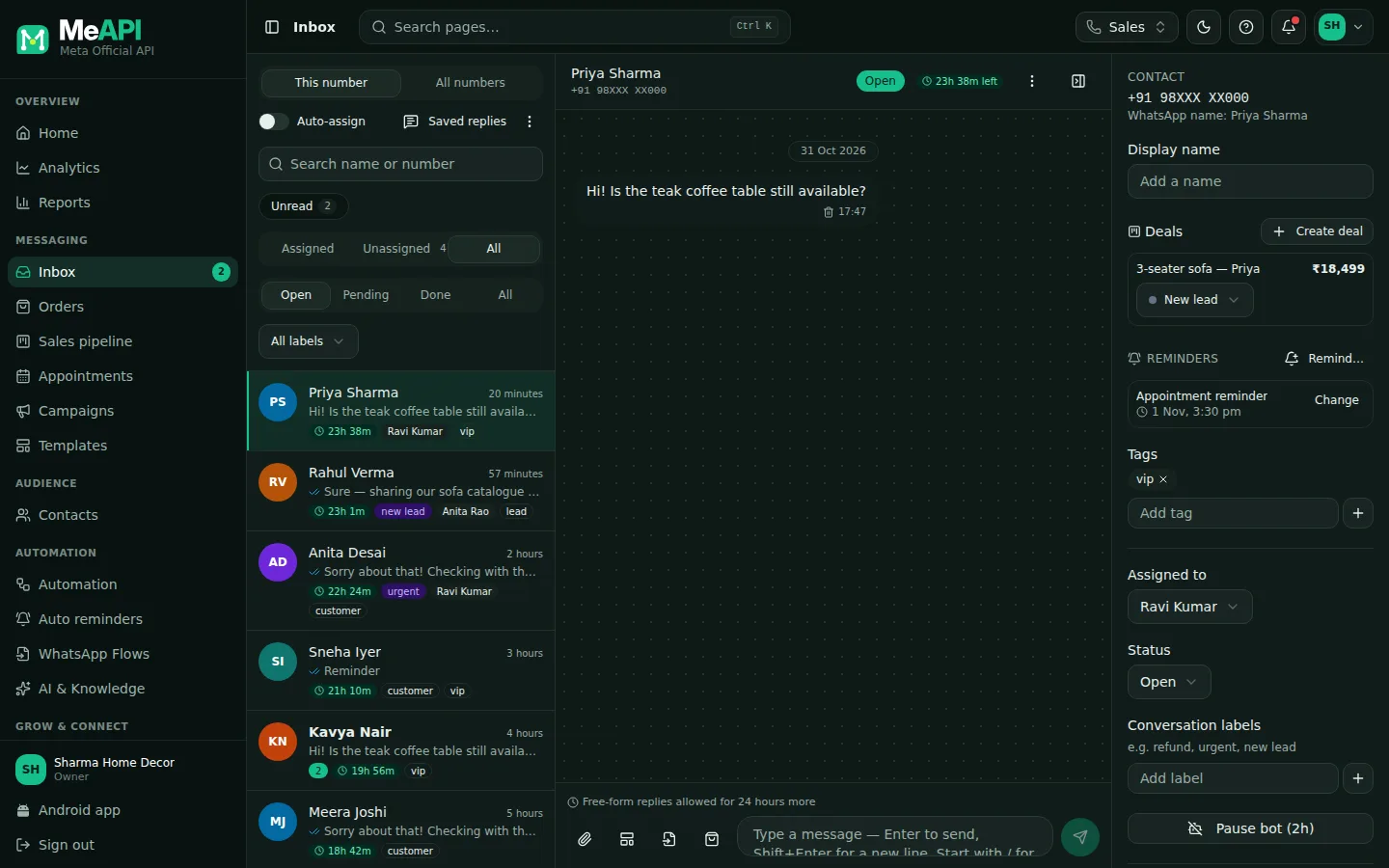
- A chat in the inbox, with the contact panel on the right.
- The Deals box in the contact panel lists this customer's deals, with Create deal for a new one in one click.
- Change a deal's stage right there, or click its title to open the full deal.
The deal panel
Section titled “The deal panel”Click any card or list row to open the deal on the right:
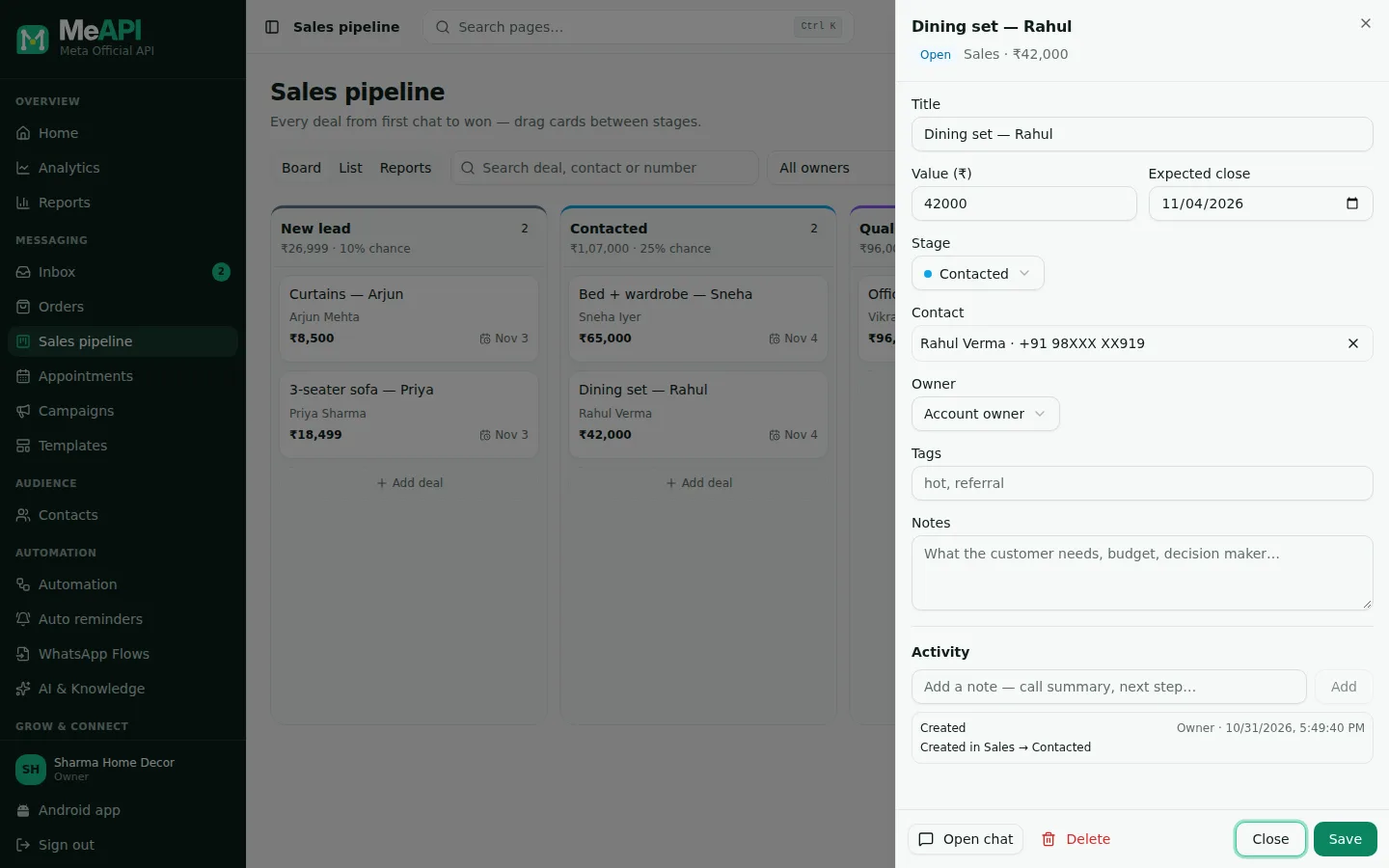
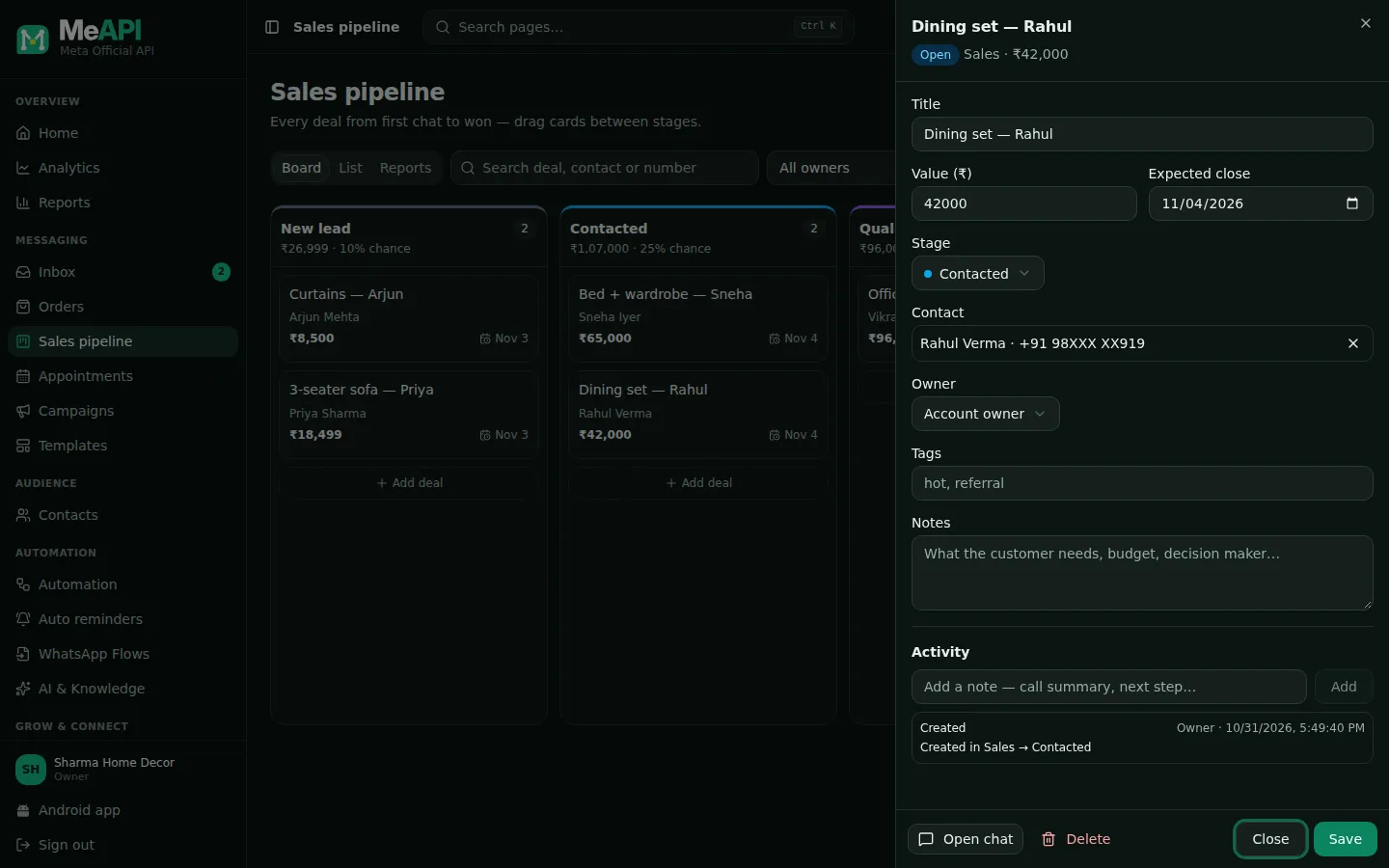
- The deal panel: Title, Value (₹), Stage, Contact, Owner, Expected close, Tags and your deal fields.
- Notes for the long-lived description.
- Activity: every change with who made it and when, and a box to add a note.
- Open chat and Delete at the bottom.
- Stage: move it to any stage, in any of your pipelines. A won or lost deal also shows its Won reason / Lost reason, which you can correct.
- Contact, Owner, Tags, Expected close and your custom fields.
- Notes: the long-lived description (needs, budget, decision maker).
- Activity: every change with who made it and when, Created, Stage, Won, Lost, Reopened, Owner, Updated, plus notes you add (call summary, next step…) with Add. Changes made by a flow show as Automation, changes from the Developer API as API.
- Open chat jumps to the customer’s conversation; Delete removes the deal and its history. Deleting needs the Delete deals permission, which Agent (chat only) does not have.
Moving a deal cancels the old stage’s follow-ups
Section titled “Moving a deal cancels the old stage’s follow-ups”When a deal moves to another stage, what the stage it left had started is cancelled, so the customer never gets a “proposal” reminder after they said yes:
- Auto reminders that stage started for the deal (rules on A deal reaches a stage), and rules set to The deal leaves this stage.
- Chatbot delays and drips started by a Deal stage changed trigger for the earlier stage, and chatbots from that stage still waiting for the customer’s reply.
- Won or Lost cancels everything still waiting for the deal, whatever the stage.
The new stage’s own reminders and chatbots start as usual. The deal’s timeline gets a Cancelled entry, for example Cancelled because the deal moved to Negotiation: 1 reminder (Proposal follow-up); 1 chatbot delay (Quote drip). A reminder about the deal that isn’t tied to a stage (say its expected close date) keeps running while the deal is open.
List view and filters
Section titled “List view and filters”List shows the same deals as a table: deal, contact, stage, value, owner, expected close (red when overdue), status and last update. The filters work on both views:
- Search by deal title, contact name or number.
- Owner: All owners, Account owner or one agent (roles that see every deal).
- Status: Any status, Open, Won or Lost.
- Tag: deals carrying that tag.
Pipeline settings
Section titled “Pipeline settings”The owner and roles with Pipelines & deal fields see Pipeline settings:
- Stages: rename the pipeline and its stages, pick a colour, set the win chance % (used for the weighted value in Reports), drag to reorder (or use the arrows), Add stage or remove one, then Save stages. Won and Lost always stay last; you can rename them. A stage that still holds deals can’t be removed. Move them first.
- Pipelines: type a name and click New pipeline (for example Partnerships or Renewals). It starts with the default stages. Make default picks the pipeline used by Create deal in the inbox. A pipeline can be deleted once it has no deals. With two or more pipelines, a picker at the top of the page switches between them.
- Deal fields: extra fields every deal can carry, Text, Number, Date or Dropdown (for example Source: Website, Ad, Referral).
Who sees what
Section titled “Who sees what”| Who | Sees | Can change |
|---|---|---|
| Owner | Every deal | Everything, including pipeline settings |
| Role with See every deal (Admin, Manager) | Every deal on their numbers | What the role allows; settings need Pipelines & deal fields |
| Other roles (e.g. Agent (chat only)) | Only deals they own | Their own deals. A deal they create is theirs |
An agent limited to some WhatsApp numbers sees only deals for contacts on those numbers (plus deals with no contact). See Roles and permissions.
Deals belong to your licence: no other MeAPI customer can ever see them.
Common mistakes
Section titled “Common mistakes”- No contact on the deal. It can’t link to the chat or start flows. Pick the contact in the deal panel.
- Everything left in “New lead”. Move deals as soon as something happens, otherwise the reports can’t tell you where deals get stuck.
- Lost deals deleted. Mark them Lost with a reason instead. That is how you learn why you lose.
What’s next
Section titled “What’s next”Was this page helpful?
Thank you — we read every comment.
Could not send right now. Please try again later.
© 2026 MeAPI by TheWebStore028 · RADHAMADHAV WEBSTORE LLP · GSTIN 27ABJFR6148J1ZO · Contact us ·Cookie settings