

Tutorial: collect a payment in chat
🎯 Goal
An agent agrees a price in the chat, sends a “pay here” link in two clicks, and the chat shows when the money arrives. The customer gets a thank-you automatically.
🧰 What you need
- A Razorpay account (activated for live payments)
- The owner login once, to connect Razorpay
- Agents whose role can Send products & payment links
Payments go straight to your own Razorpay account. MeAPI only creates the link and hears when it’s paid.
This tutorial is about links your team sends by hand. For a chatbot that sells and takes payment on its own, with paid and failed / expired paths, follow Tutorial: collect payments in a WhatsApp chatbot.
Step 1: connect Razorpay (owner, once)
Section titled “Step 1: connect Razorpay (owner, once)”- Integrations → Razorpay — payment links in chat. Paste your Razorpay Key ID and Key secret and save.
- Copy the Webhook URL — add it in Razorpay. In Razorpay add a webhook with that URL, choose a secret (paste the same secret in MeAPI), and tick
payment_link.paid,payment_link.expired,payment_link.cancelledandpayment.failed.
Only the account owner can connect Razorpay. Full steps: Payment links.
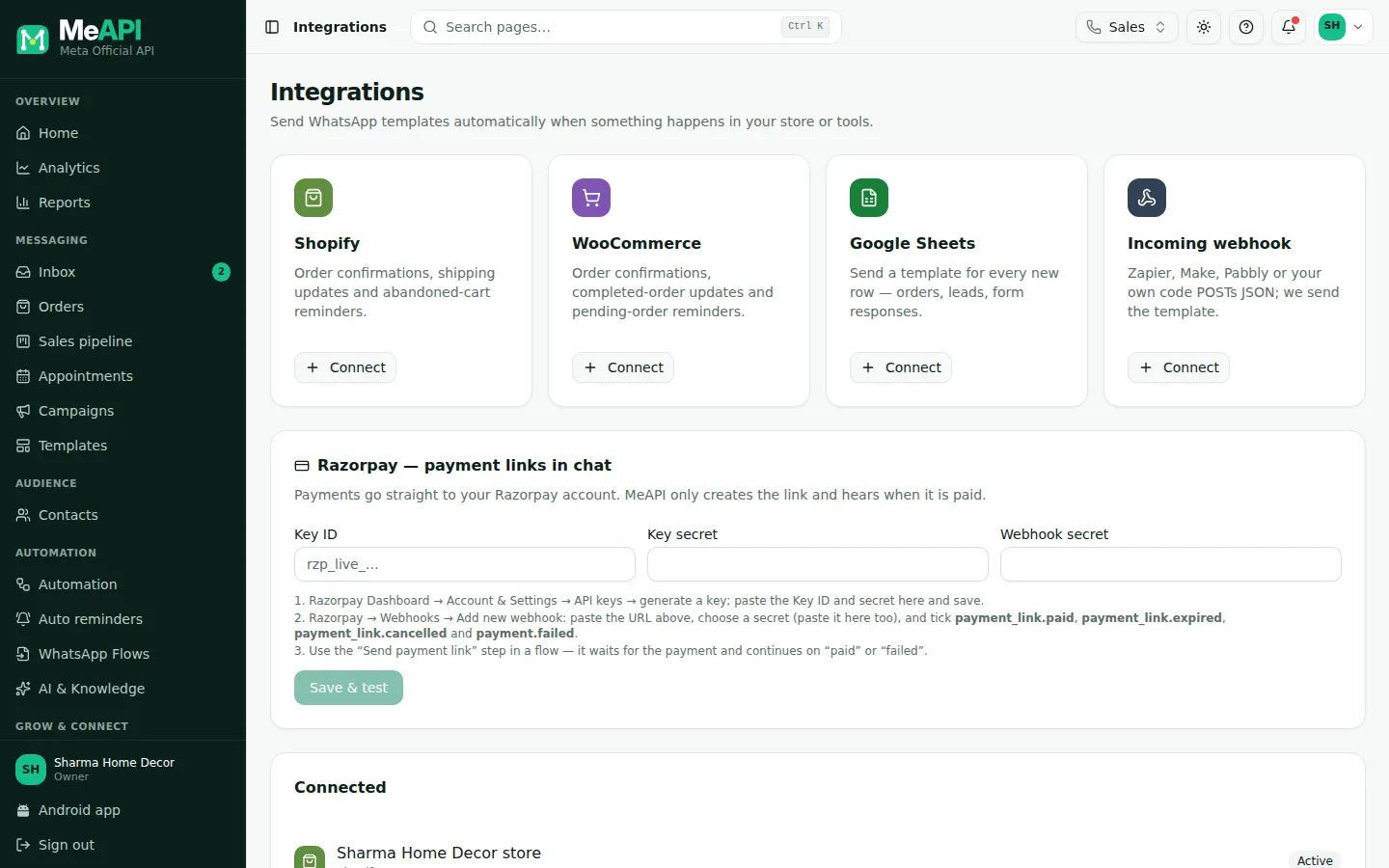
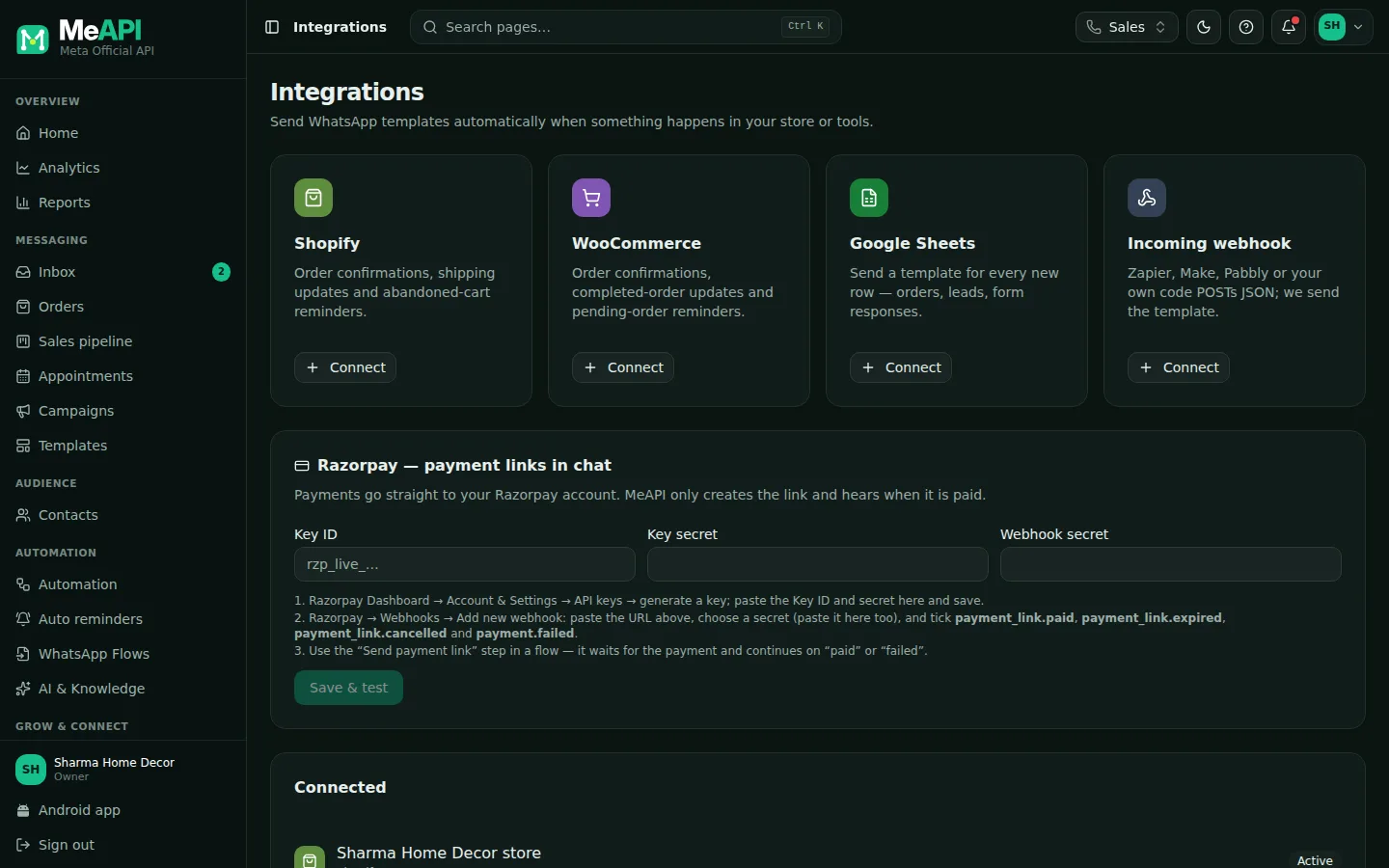
- The Integrations page, with the Razorpay — payment links in chat card.
- The card shows the key, the webhook URL to add in Razorpay, and the webhook secret.
Step 2: send a link from the chat
Section titled “Step 2: send a link from the chat”- Open the chat in the Inbox.
- In the composer, click the shopping bag (Products and payments) → Payment link.
- Amount (₹):
1499. For:Advance for order #123. - Click Send link. Payment link sent — you will see it here when it is paid.
The customer gets a message with what it’s for, the amount and the link. The link is valid for 24 hours. They pay by UPI, card, net banking or wallet on Razorpay’s page.
The link in the customer's chat.
Step 3: see when it’s paid
Section titled “Step 3: see when it’s paid”When Razorpay confirms the payment, an internal note from Payments appears in the chat:
💰 Payment of ₹1,499 received (pay_…) — Advance for order #123If the link expires or the payment fails, the note says so instead. Only your team sees notes.
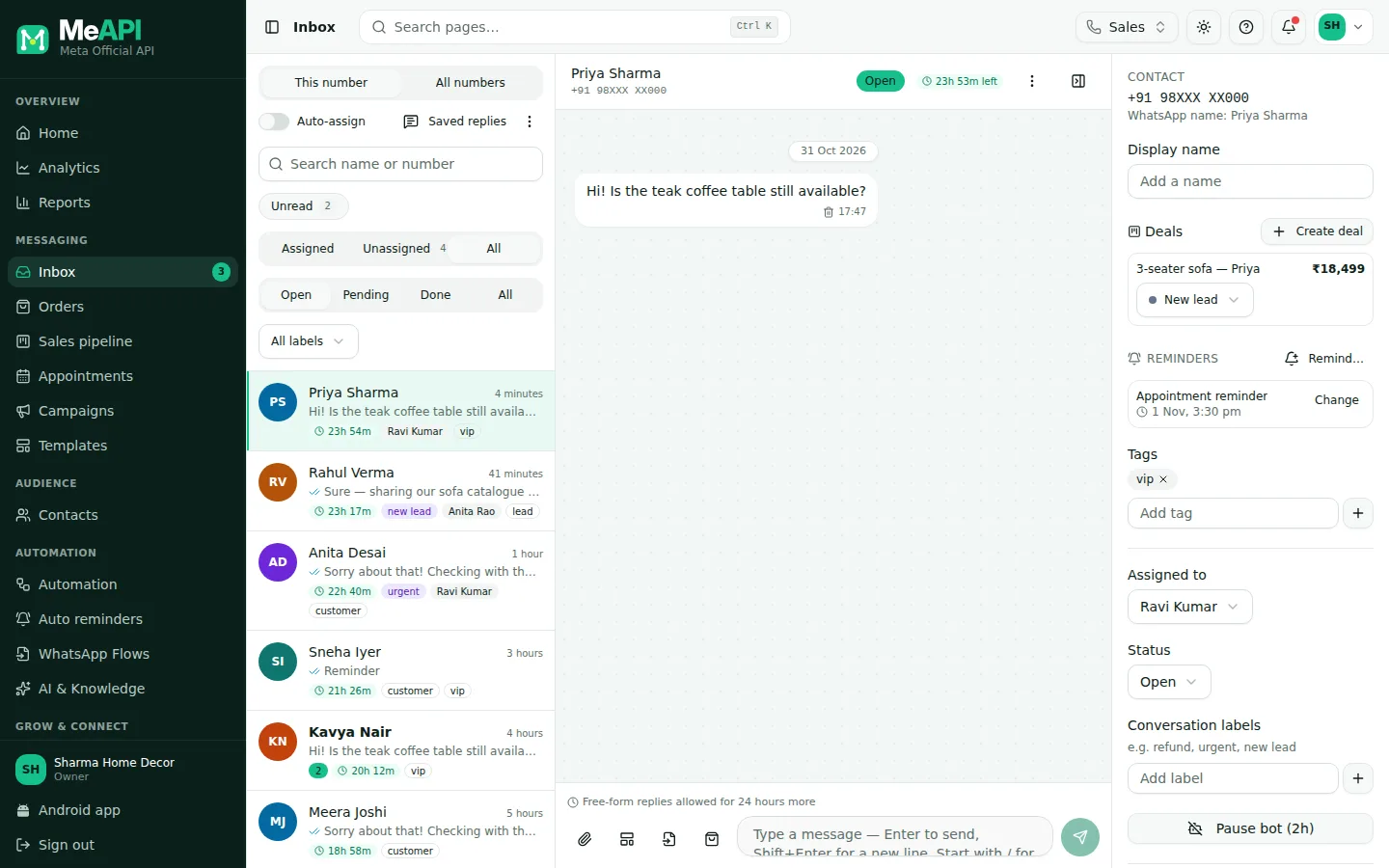
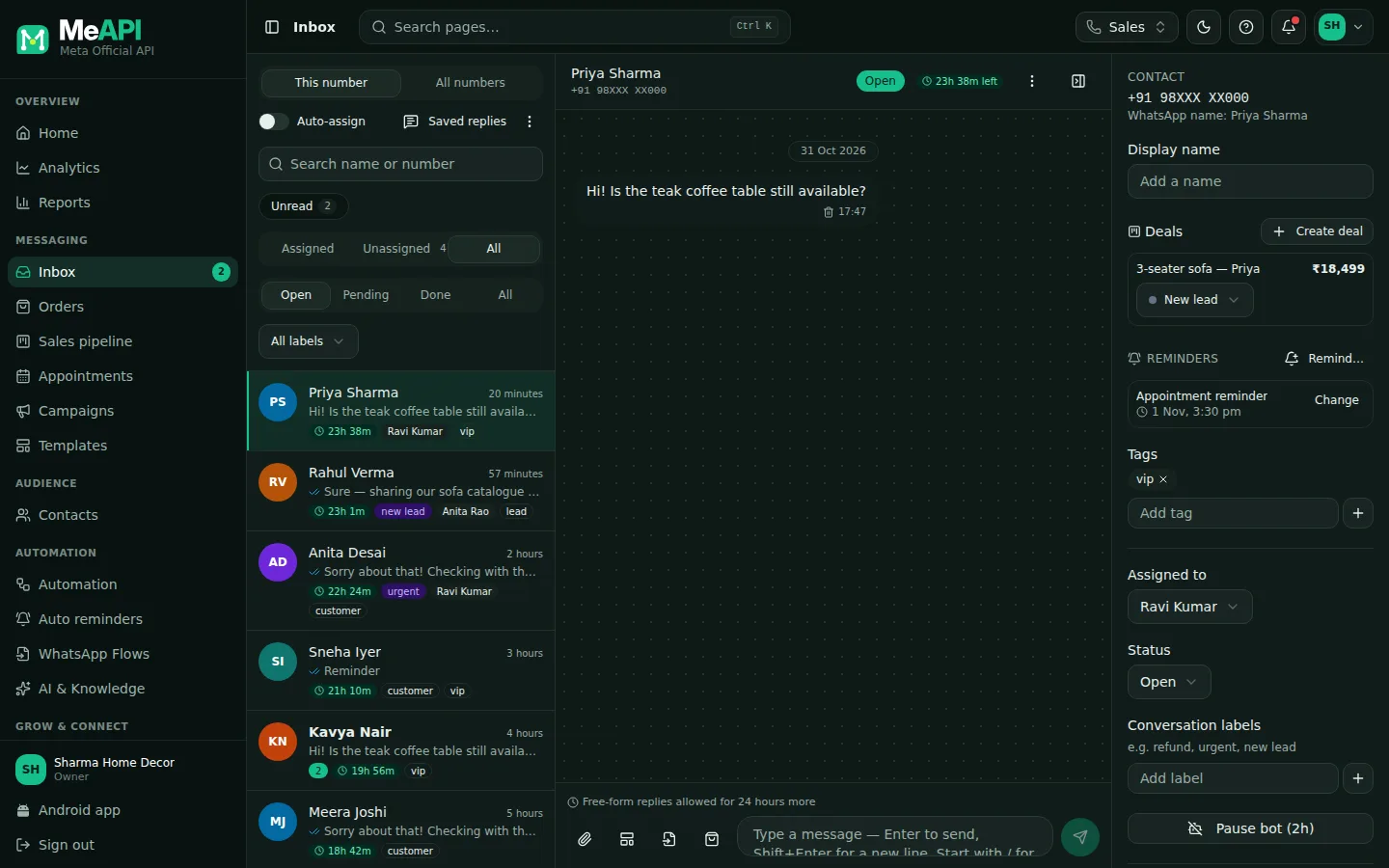
- The chat, with the composer at the bottom: the shopping bag holds Send products and Payment link.
- Payment notes appear in the chat, visible only to your team.
Step 4: ask for payment on an order
Section titled “Step 4: ask for payment on an order”For an order placed from your WhatsApp catalog, go to Orders and click Send payment link on the order. The amount is the order total, and the link goes to the customer’s chat with Order #…. The order then shows the link’s status.
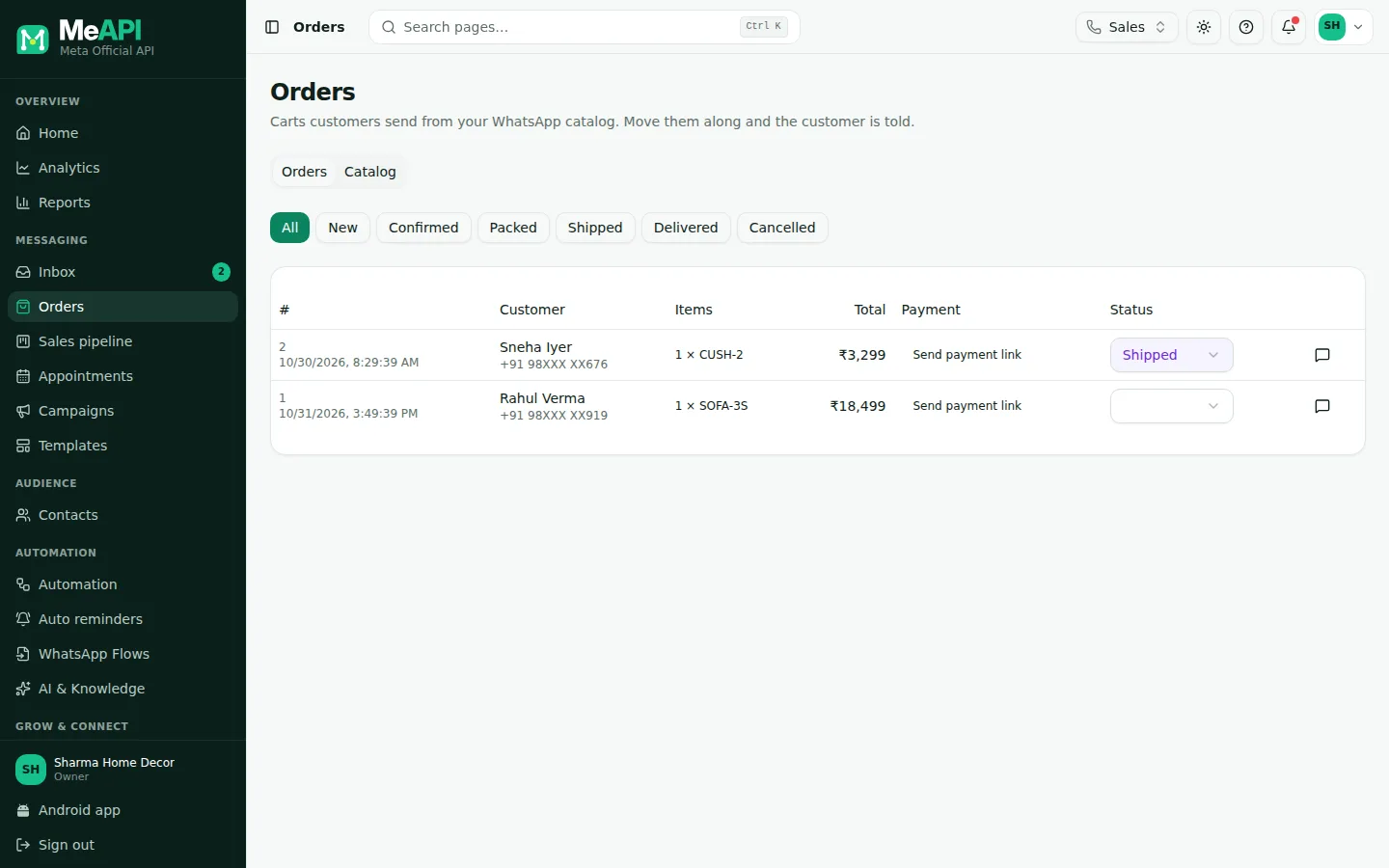
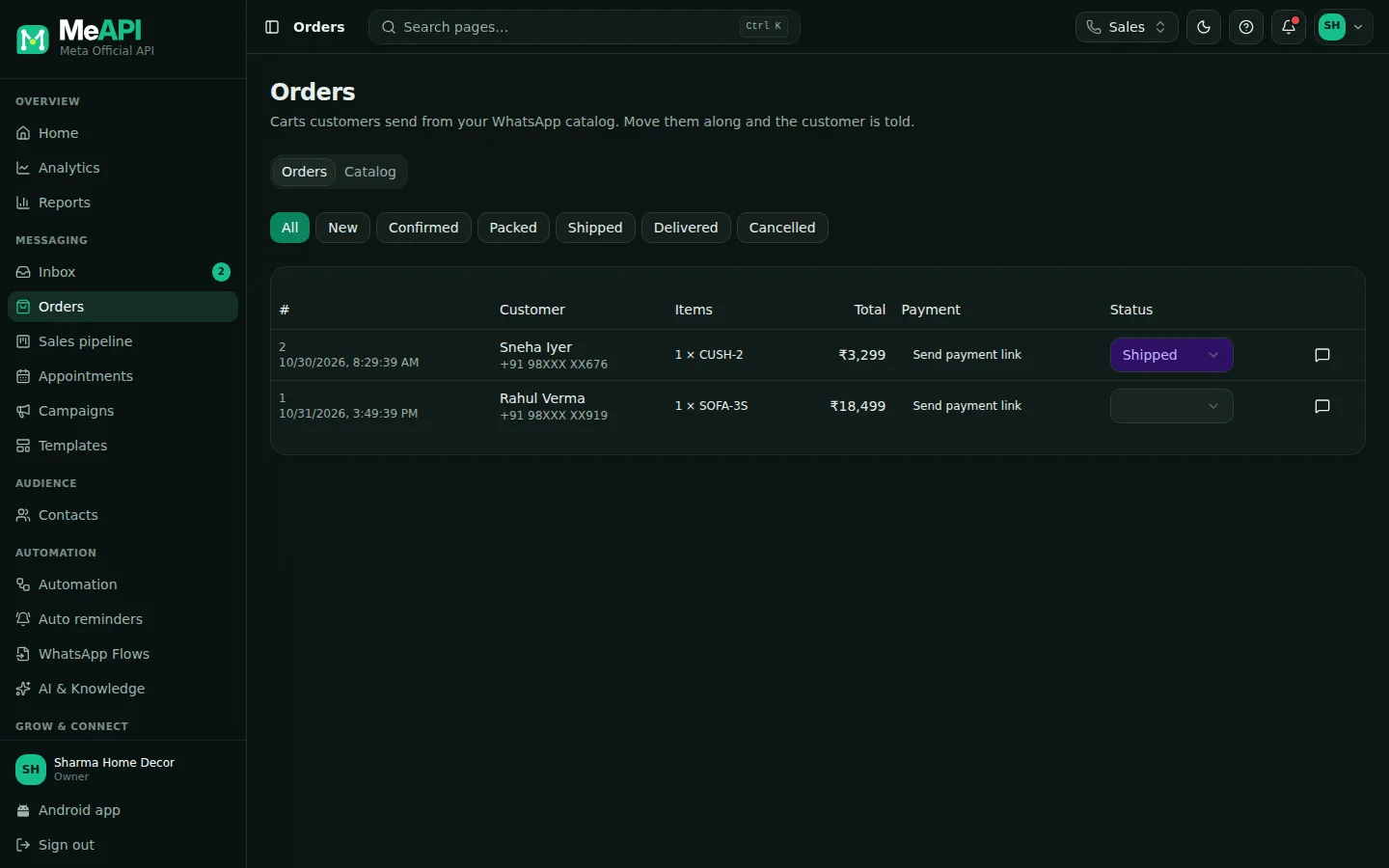
- Orders from your WhatsApp catalog, with their status.
- Send payment link sends a link for the order total in the customer's chat.
Step 5: an automatic thank-you
Section titled “Step 5: an automatic thank-you”Every link, from the inbox, Orders or a flow, fires the Payment trigger.
- Automation → New rule, name
Thanks for paying. - Click the Trigger card → Payment, When the payment: is paid.
- Click + → Send message:
Thank you, {{first_name}}! We received ₹{{payment_amount}} (ref {{payment_id}}). 🙏
- Click + → Set / remove tag
paid. - Check, then Publish.
For a reminder on unpaid links, make a second rule with When the payment: fails or expires.
Step 6 (optional): let a chatbot take the payment
Section titled “Step 6 (optional): let a chatbot take the payment”Inside a chatbot, the Send payment link step (Bot actions → Commerce & apps) sends the link and waits. The flow continues on paid or failed / expired by itself. It only works in chatbots, not rules, because it waits for the customer. Build one in Tutorial: collect payments in a WhatsApp chatbot.
Common mistakes
Section titled “Common mistakes”- Webhook not added in Razorpay, or a different secret. The link works, but MeAPI never hears it was paid: no note, no thank-you.
- Test keys (
rzp_test_) left in. Customers can’t really pay. Switch to live keys after testing. - An agent’s link fails to send. Their role needs Inbox → Reply and Orders, catalog & payment links → Send products & payment links (Tutorial: set up roles).
What’s next
Section titled “What’s next”Was this page helpful?
Thank you — we read every comment.
Could not send right now. Please try again later.
© 2026 MeAPI by TheWebStore028 · RADHAMADHAV WEBSTORE LLP · GSTIN 27ABJFR6148J1ZO · Contact us ·Cookie settings