

Tutorial: move leads through your sales pipeline
🎯 Goal
Every serious enquiry becomes a card on one board. Your team moves it forward as the conversation goes, and at the end you know what you won, what you lost, and why.
🧰 What you need
- A connected number with some customer chats
- A role with Sales pipeline permissions (owner, Admin, Manager, or Agent (chat only) for their own deals)
This tutorial is the hands-on part. To let flows create and move deals by themselves, follow Tutorial: automate your WhatsApp sales pipeline afterwards.
Step 1: open the pipeline
Section titled “Step 1: open the pipeline”Open Sales pipeline. The first visit creates the default pipeline with six stages:
New lead → Contacted → Qualified → Quote sent → Won / Lost
Won and Lost always come last. To rename stages or add your own, use Pipeline settings → Stages.
Step 2: create a deal from the chat
Section titled “Step 2: create a deal from the chat”- In the Inbox, open the customer’s chat.
- In the contact panel on the right, find Deals and click Create deal.
- A deal appears in the first stage, titled with the contact’s name. Click Edit in the Deal created notice, or click the deal, to open it.
- In the deal panel set the Title (
Rahul — dining set for 6), Value (₹) (42000), Expected close, Owner and Tags, then Save. Owner only shows for roles that see every deal; a deal an agent creates is theirs.
You can also click New deal on the Sales pipeline page and pick the contact there.
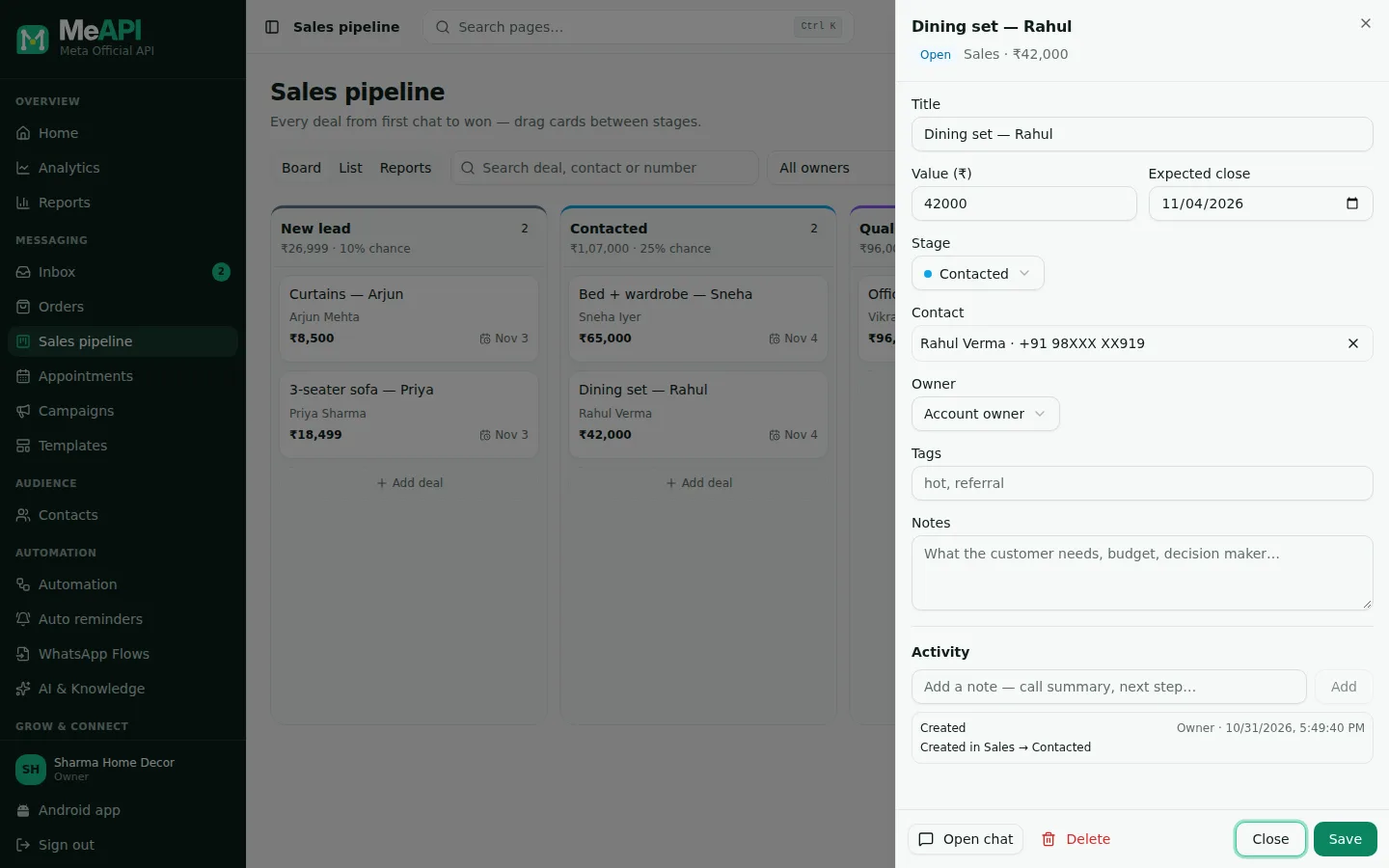
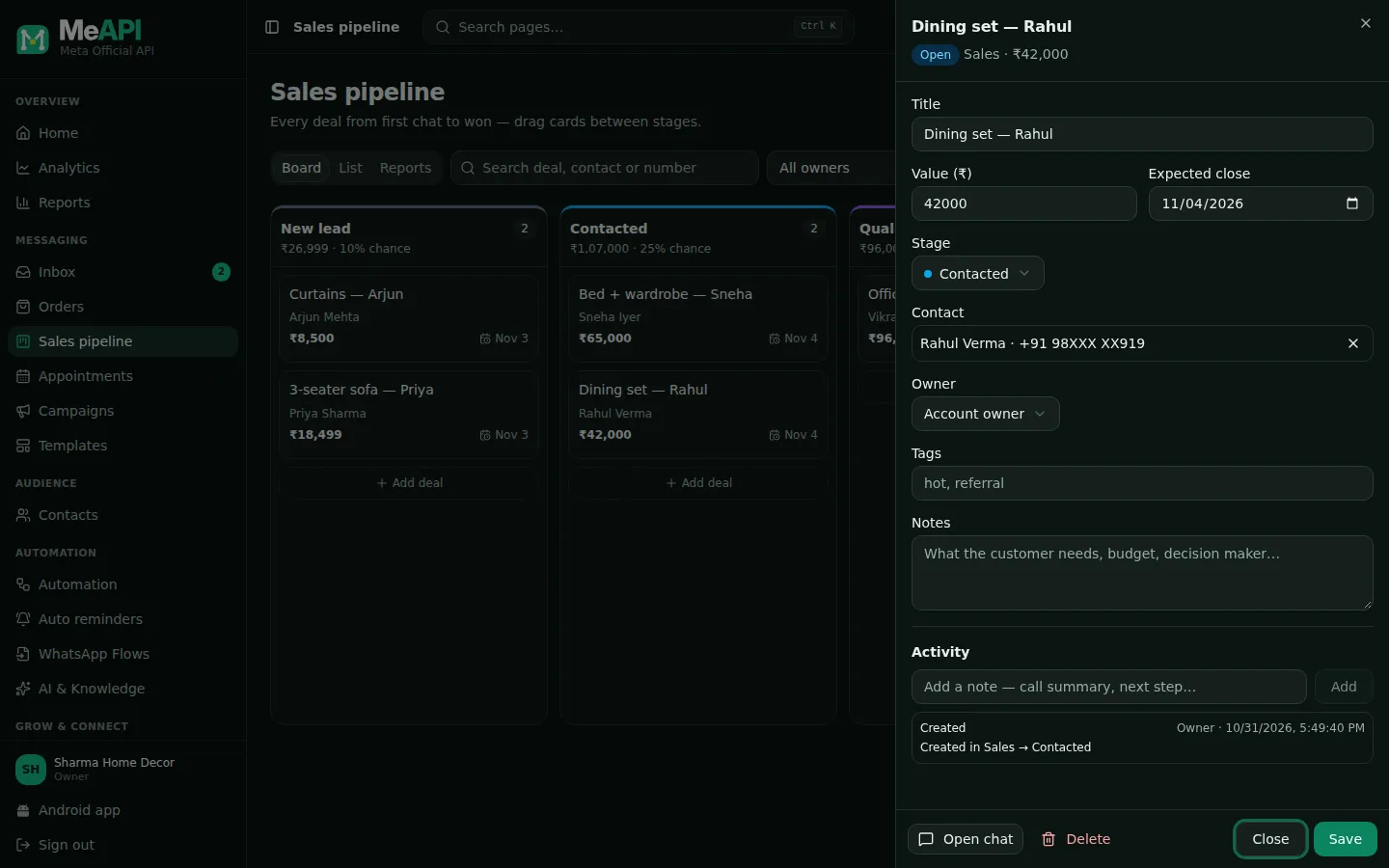
- The deal panel: title, value, expected close, stage, contact, owner and tags.
- Notes and the Activity history: every change, with who made it.
- Open chat jumps back to the customer's conversation.
Step 3: move it across the board
Section titled “Step 3: move it across the board”On Board, drag the card from New lead to Contacted when you first reply, to Qualified once you know they’re serious, and to Quote sent after the quote.
From the chat, you can do the same without leaving it: change the stage in the deal’s dropdown in the Deals box.
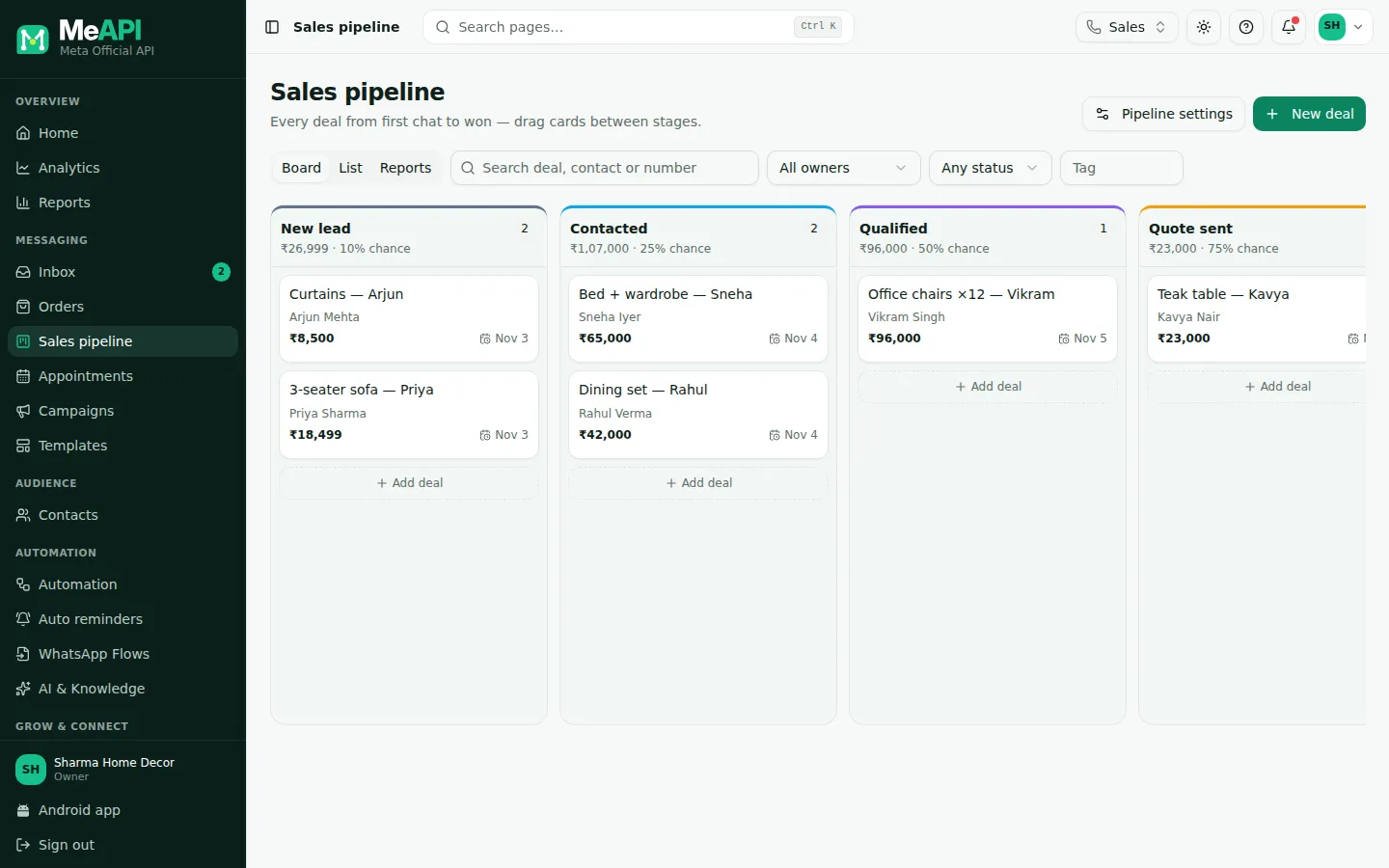
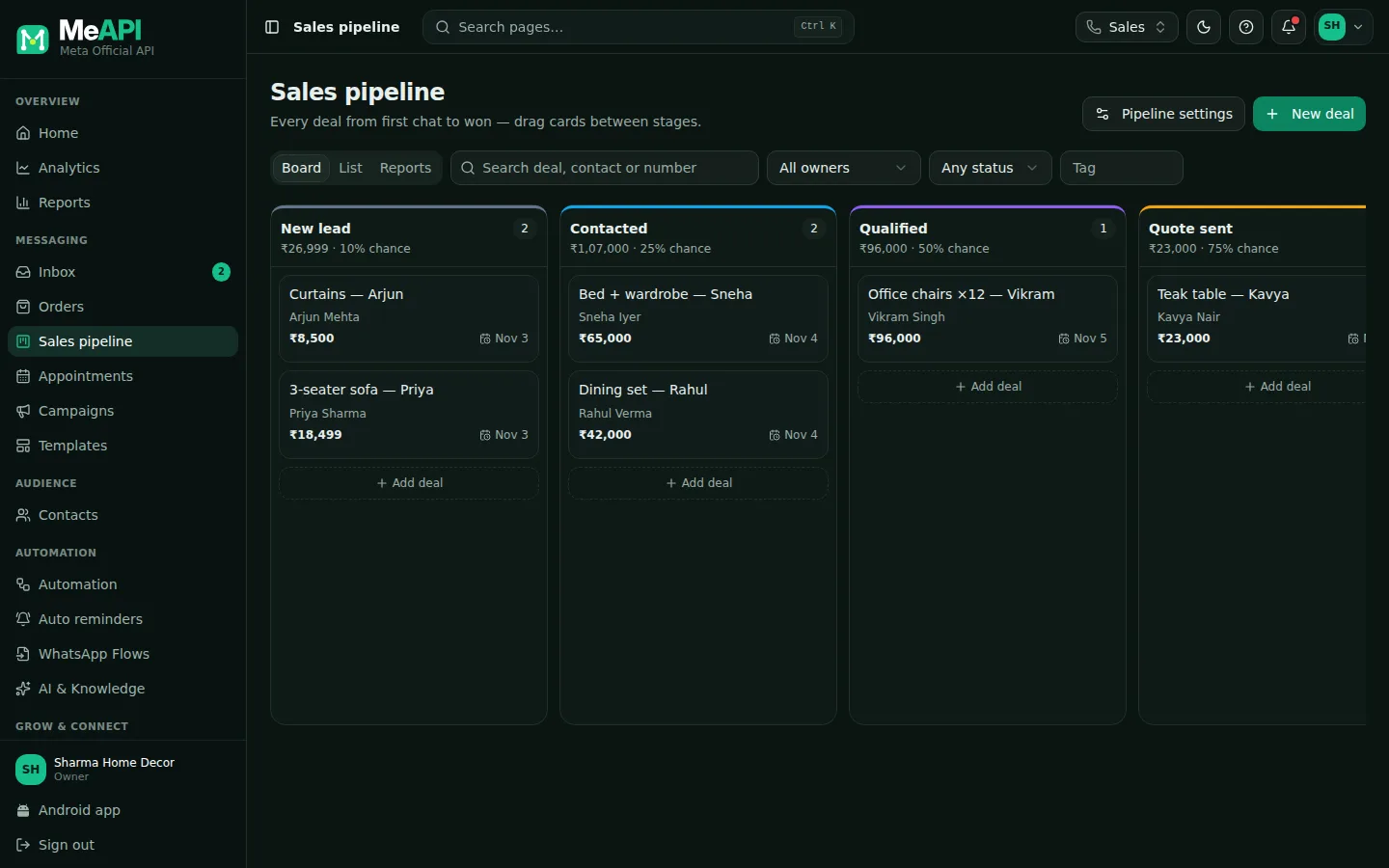
- One column per stage, with the number of deals and their value.
- Drag a card to another column to move the deal.
- Board, List and Reports views, with search and filters for owner, status and tag.
Step 4: close it as won or lost
Section titled “Step 4: close it as won or lost”Drag the card to Won or Lost (or pick that stage in the chat). MeAPI asks why:
- Deal won 🎉: What made it work? Pick a suggestion such as Best price, Fast reply, Product fit or Referral, or type your own. Click Mark as won.
- Deal lost: Why was it lost? For example Too expensive, Chose a competitor, No reply, Not ready yet or Not a fit. Click Mark as lost.
The reason is optional, but it’s what makes the reports useful. Reasons you’ve used before are suggested first.
Step 5: read the reports
Section titled “Step 5: read the reports”Open Sales pipeline → Reports:
- Pipeline value by stage: what’s still open, and where.
- Time in stage: where deals wait too long.
- Deals per agent: open, won, lost and win rate per owner.
- Why deals were lost: the reasons from Step 4, counted.
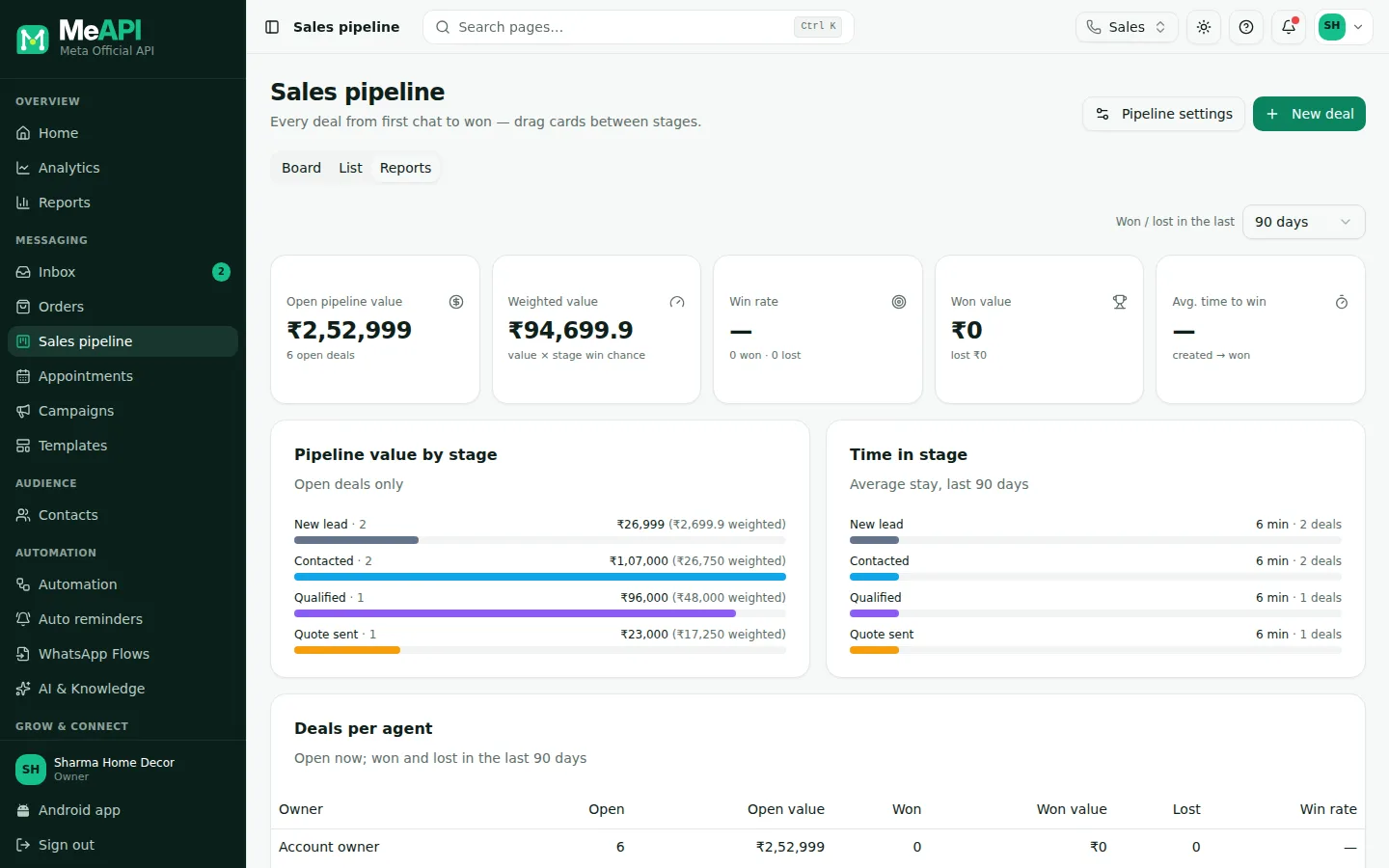
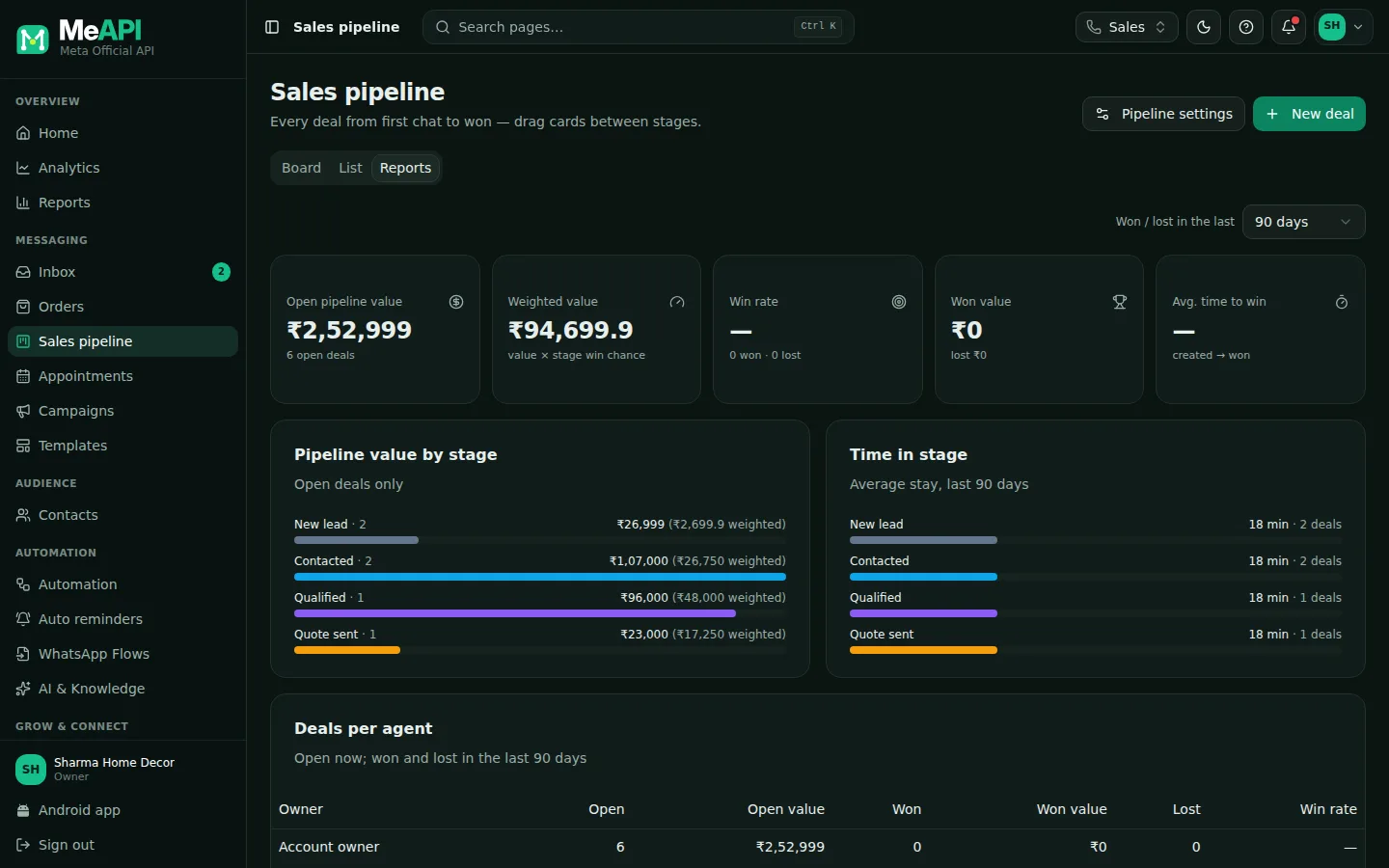
- Won and lost deals for the chosen period.
- Pipeline value by stage, time in stage and deals per agent.
- Why deals were lost: the reasons your team picked.
Step 6: let flows do the routine moves
Section titled “Step 6: let flows do the routine moves”Once the manual flow feels right, automate the repetitive parts in Automation:
- Create deal step (Bot actions → Sales): a chatbot that asks for the requirement creates the deal itself, with Stage, Deal title, Value (₹), Owner and Tags. Later steps can use
{{deal_id}},{{deal_title}}and{{deal_stage}}. - Move deal stage step: for example, after a payment, move the deal to Won with the reason
Paid online. It has a moved path and a no deal path. - Deal stage changed trigger: start a flow when a deal reaches a stage, such as a follow-up template two days after Quote sent. Deal created works the same for new deals.
Step-by-step: Tutorial: automate your WhatsApp sales pipeline.
Common mistakes
Section titled “Common mistakes”- Leaving Value empty. Reports count value by stage, so empty deals show as ₹0.
- Skipping the lost reason. Why deals were lost stays empty, and you can’t see what to fix.
- One deal per message. Create one deal per real opportunity. Check the Deals box in the chat before creating another.
What’s next
Section titled “What’s next”Was this page helpful?
Thank you — we read every comment.
Could not send right now. Please try again later.
© 2026 MeAPI by TheWebStore028 · RADHAMADHAV WEBSTORE LLP · GSTIN 27ABJFR6148J1ZO · Contact us ·Cookie settings