

Triggers — what starts a flow
🎯 Goal
Start each flow at exactly the right moment, and never at the wrong one.
🧰 What you need
- A flow open in the builder (click the Start step to open the trigger panel)
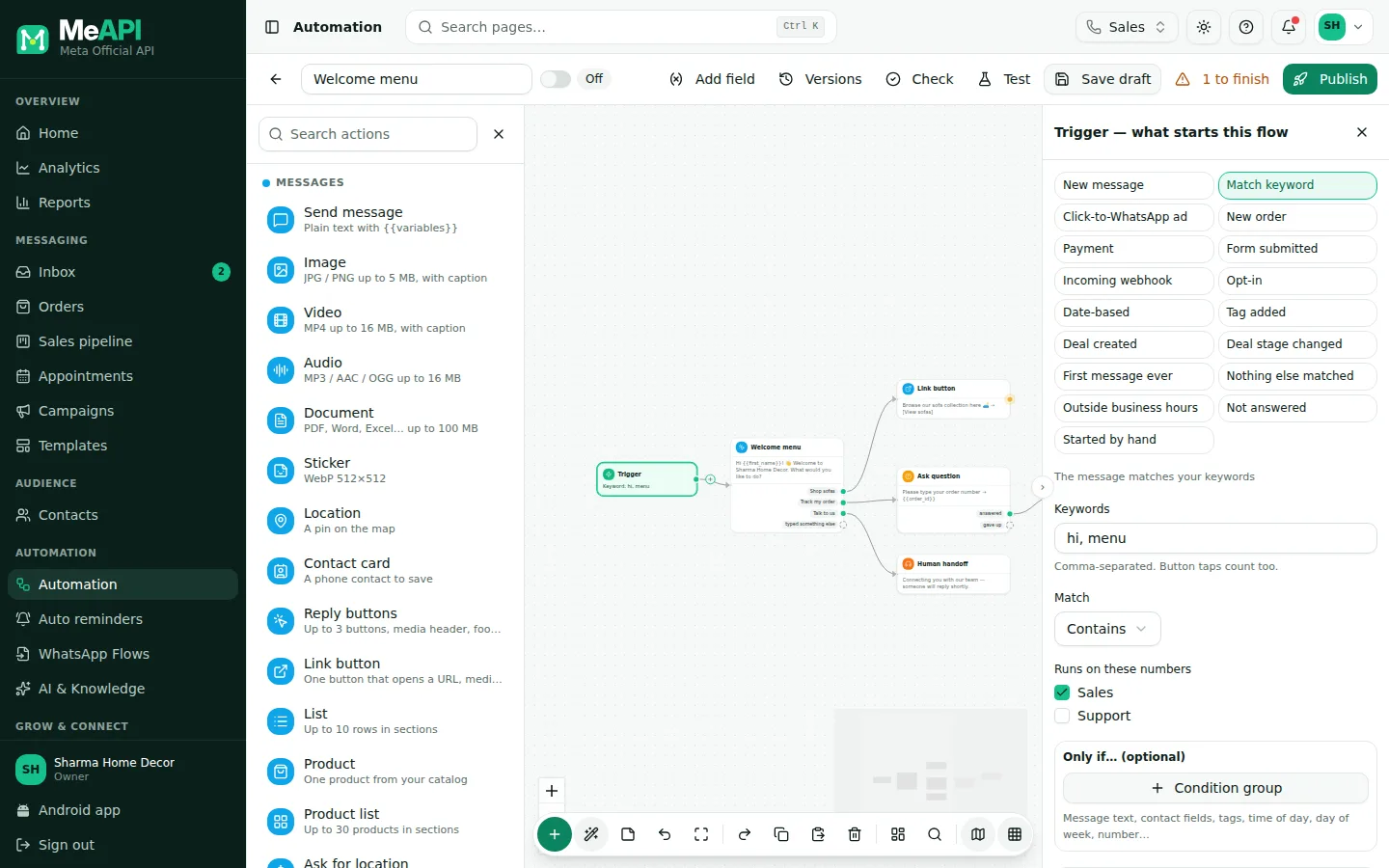
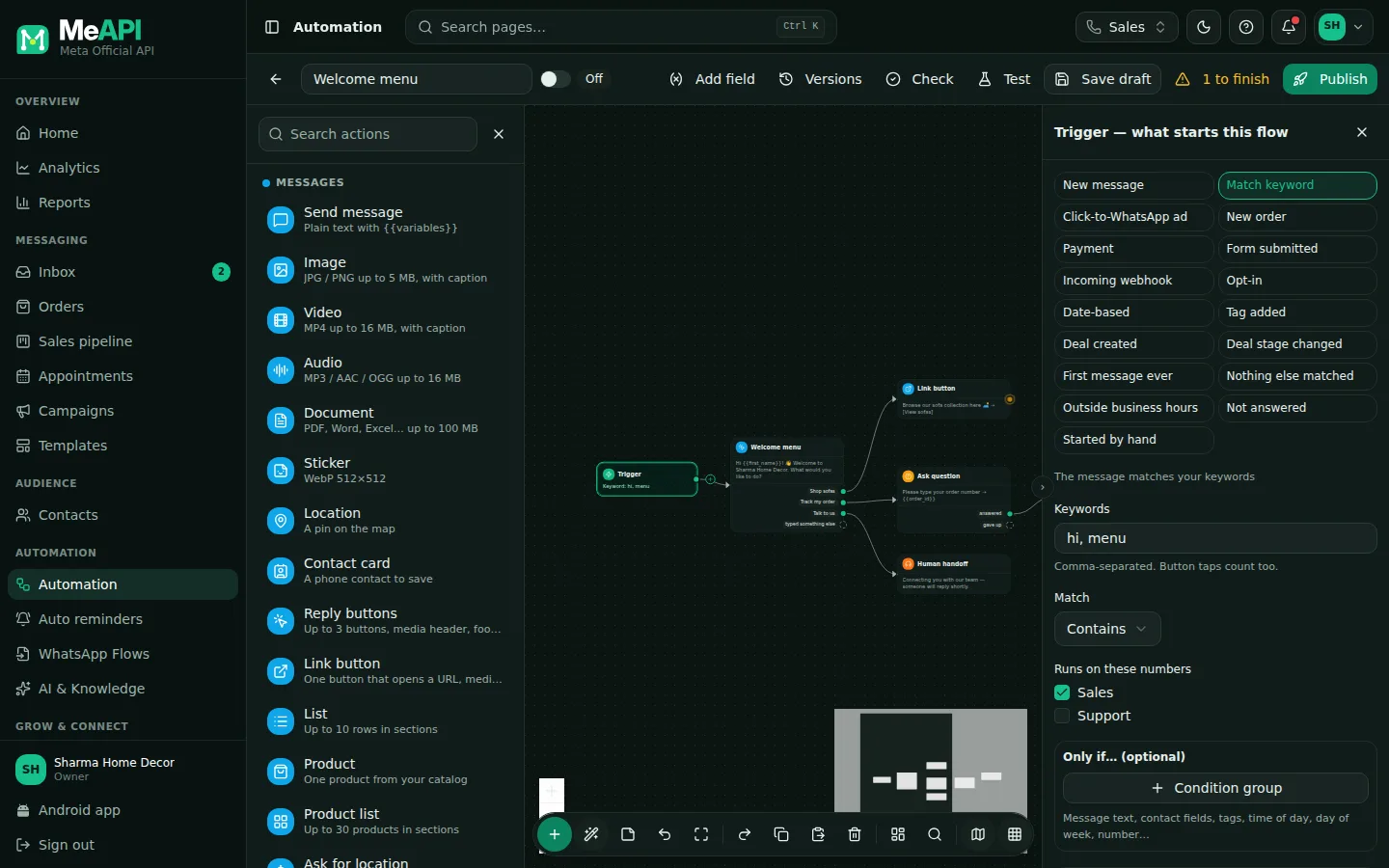
- Click Start on the canvas to open Trigger — what starts this flow on the right.
- A grid of 17 trigger tiles. Hover a tile for a one-line hint.
- Settings for the chosen trigger, here Keywords and Match.
- Runs on these numbers (when you have more than one number).
- Only if… (optional): conditions in groups, each group All of these (AND) or Any of these (OR).
- Background rule (runs next to chatbots) makes the flow a background rule; Stop other rules after this one appears when it is on.
All triggers
Section titled “All triggers”The tile names in the panel are short. The flow card on the Automation page shows the longer name.
| Tile | Starts when… | Settings | Example use |
|---|---|---|---|
| New message | Every incoming message, unless another flow is already talking | — | Background tagging rule |
| Match keyword | The message (or a tapped button) matches your keywords | Keywords (comma-separated), Match: Exactly, Contains, Starts with, Regular expression | menu, price, track |
| Click-to-WhatsApp ad | The customer came from a Facebook / Instagram ad | Only these ad IDs (optional) | Ad-specific offer |
| New order | A Shopify / WooCommerce order event | Store; Event: New order, Order fulfilled (Shopify) or Order completed (WooCommerce), Abandoned checkout, Any event | Order confirmation, cart recovery |
| Payment | A payment link is paid, or fails / expires | When the payment: is paid, fails or expires, either | Thank-you, or retry |
| Form submitted | A WhatsApp Flow form came back | Form: one form or Any form. Answers are available as {{field}} |
Booking confirmation |
| Incoming webhook | Your system POSTs to the flow’s URL | POST to URL and Header X-MeAPI-Secret (shown after you save the draft) | Start a flow from your CRM or website form |
| Opt-in | A customer opts in: sends START after opting out (after the confirmation), ticks the consent box on your website widget, opens an opt-in link or QR code, writes first from a Click-to-WhatsApp ad, or your system sets opted_in: true through the API. The trigger panel shows which of these are active and lets you pick |
— | Welcome-back or “thanks for subscribing” message |
| Date-based | A date in a contact field arrives | Contact field with the date; Every year (birthday), Every year (anniversary) or Once on that date; Days before; At (time) | Birthday wishes, renewal reminders |
| Tag added | A tag is added to a contact (inbox, API or flow) | Tags (optional), empty = any tag | Tag hot-lead → notify sales |
| Deal created | A sales pipeline deal is created for the contact | Pipeline (or any) | Send the brochure |
| Deal stage changed | A contact’s deal moves to another stage (Won and Lost too) | Pipeline, Moved to stage (or any) | Won → thank-you + invoice |
| First message ever | A new customer writes for the first time | — | Welcome flow, language picker |
| Nothing else matched | Catch-all, only when no other flow started | — | “Sorry, I didn’t get that. Here’s the menu” |
| Outside business hours | A message arrives while you are closed | At most once every (hours), default 12 | Away message + collect details |
| Not answered | Nobody replied to the customer in time | Unanswered for (minutes), default 60 | “We’re a bit busy” + alert a manager |
| Started by hand | Agents start it from the inbox, or another flow jumps to it | — | Feedback survey, KYC collection |
Incoming webhook body
Section titled “Incoming webhook body”{ "phone": "+919812345678", "vars": { "order_id": "1042" }, "id": "unique-ref" }Send the secret in the X-MeAPI-Secret header. The values in vars are available as {{order_id}} and so on. This trigger starts a whole flow; the Incoming webhook integration only sends one template.
Narrowing a trigger
Section titled “Narrowing a trigger”- Runs on these numbers: with several numbers, choose which ones this flow serves.
- Only if… (optional): add conditions, alone or in Condition groups joined by All of these (AND) / Any of these (OR). Example: Keyword
offeronly if Contact tag hasvip. - At most once every (hours) on Outside business hours, so a customer doesn’t get the away flow again and again.
Run alongside (rules)
Section titled “Run alongside (rules)”Switch on Background rule (runs next to chatbots) to turn the flow into a background rule. It runs on the message even while a chatbot is talking, but it can’t wait for answers. Stop other rules after this one prevents later rules from also acting on the same message.
Common mistakes
Section titled “Common mistakes”- Two chatbots on the same keyword. Only one wins. Give each a distinct keyword, or use one menu flow.
- “New message” as a chatbot. It would grab every chat. Use it for run-alongside rules, or use Nothing else matched for a catch-all.
- Date trigger on a field holding text like “5th May”. Store dates as
YYYY-MM-DD.
What’s next
Section titled “What’s next”Was this page helpful?
Thank you — we read every comment.
Could not send right now. Please try again later.
© 2026 MeAPI by TheWebStore028 · RADHAMADHAV WEBSTORE LLP · GSTIN 27ABJFR6148J1ZO · Contact us ·Cookie settings