

Connect a new WhatsApp number
🎯 Goal
Your number runs on Meta’s official WhatsApp Business Platform, connected to MeAPI and ready to send and receive.
🧰 What you need
- The MeAPI account owner login, or an agent whose role may connect numbers
- A Facebook account. A Meta Business portfolio helps, but the popup can create one
- A phone number that is not on WhatsApp or the WhatsApp Business app. It can be a mobile or landline that receives an SMS or voice call
- The phone nearby, to receive the 6-digit code
- Your business name, website (optional) and category
You don’t need a Facebook Page, and you don’t have to add the number to Meta Business Manager first — the popup does that. Business verification can wait: you can connect unverified, with lower messaging limits until you verify.
-
In the API Panel open Connection (left menu → Account). If no number is connected yet, you see the Connect WhatsApp Business card.
-
Click Connect a new number. A Facebook window opens. If nothing happens, allow popups for login.meapi.in and turn off ad-blockers for this page, then try again.
-
Log in to Facebook and click Get started.
-
Choose your business portfolio or create one. Enter the legal or trading name of your business, a business email, and the country.
-
Choose or create a WhatsApp Business Account (WABA). If you have none, choose Create a WhatsApp Business account. This account holds your numbers and templates.
-
Create the WhatsApp Business profile:
- Display name: what customers see. It must match your business, for example “Sharma Sweets”, not “Best Sweets Offers”. See Display name rules.
- Category and optional description and website.
-
Add the phone number. Enter it with the country code and choose Text message or Phone call to receive the code. Type the 6-digit code. (Meta is rolling out a version of the popup that asks for the number near the start — same screens, different order.)
-
Review the permissions MeAPI asks for (manage and message on your WhatsApp account) and click Confirm / Finish. Wait for the popup to close by itself.
-
Back in the panel you see Connected: phone number, verified name, WABA ID, phone number ID, Connected since and the quality badge. Sync re-reads the number from Meta; Disconnect removes it from MeAPI. Done!
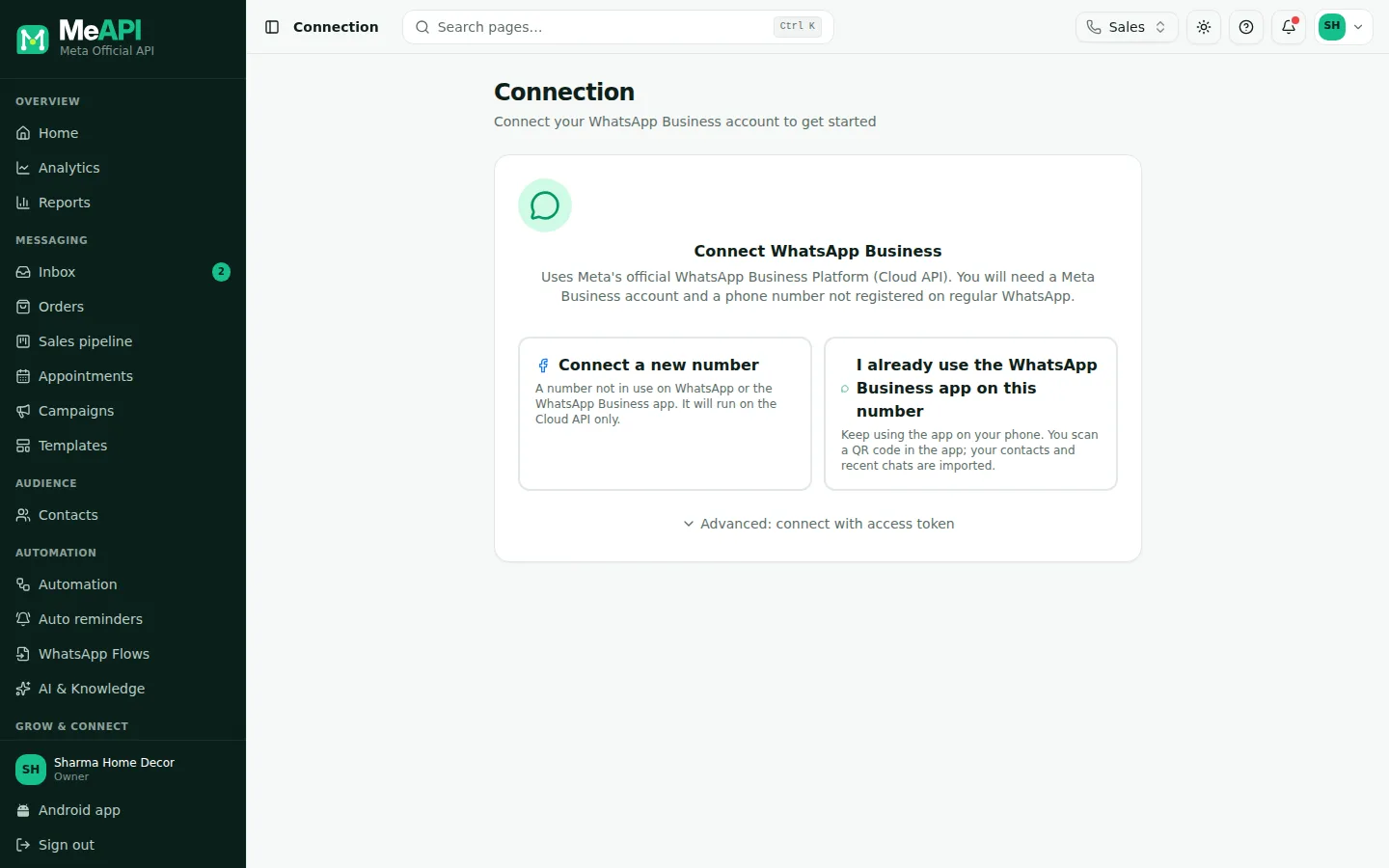
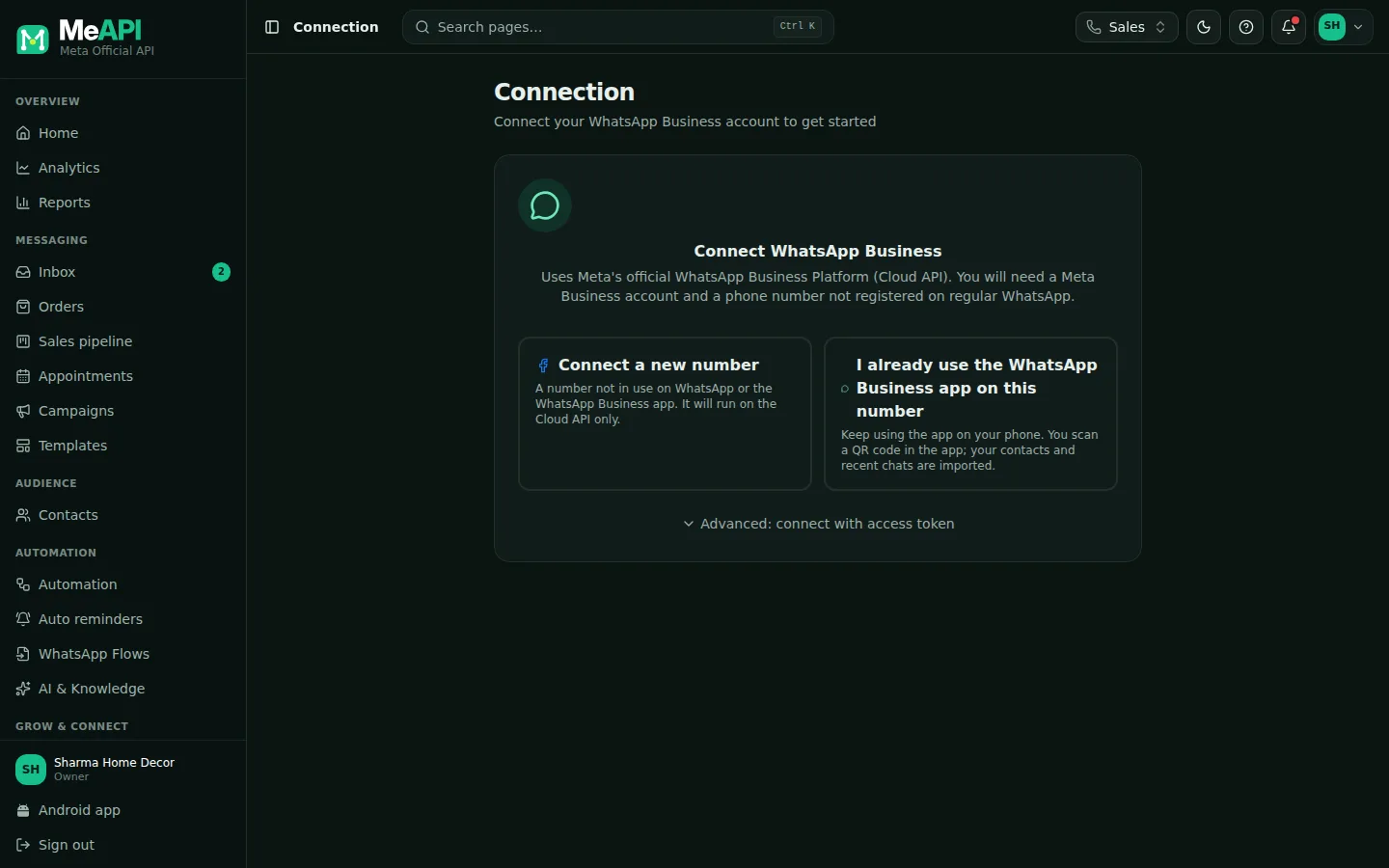
- Connect a new number: Cloud API only. I already use the WhatsApp Business app on this number: coexistence.
- Under them, Advanced: connect with access token.
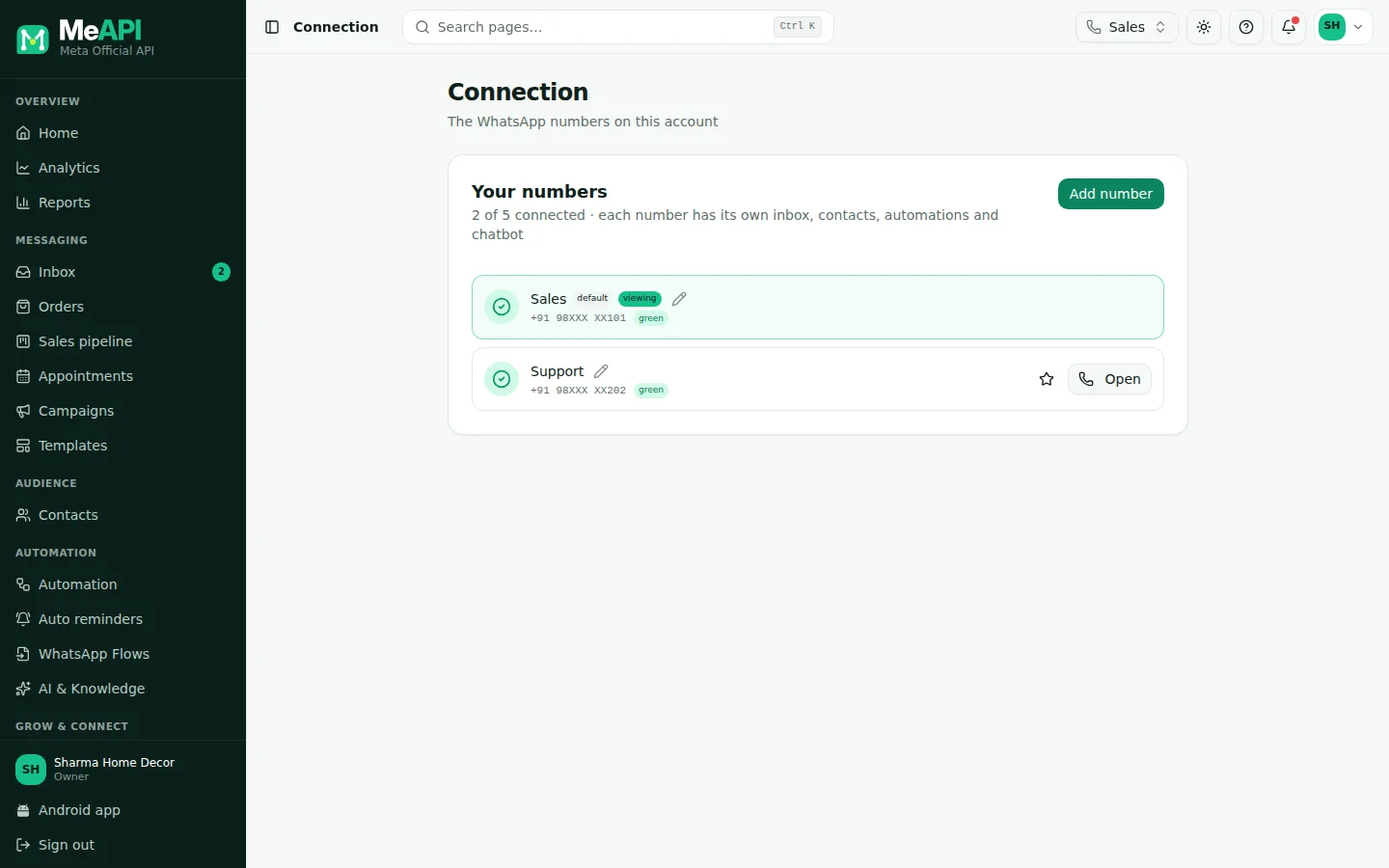
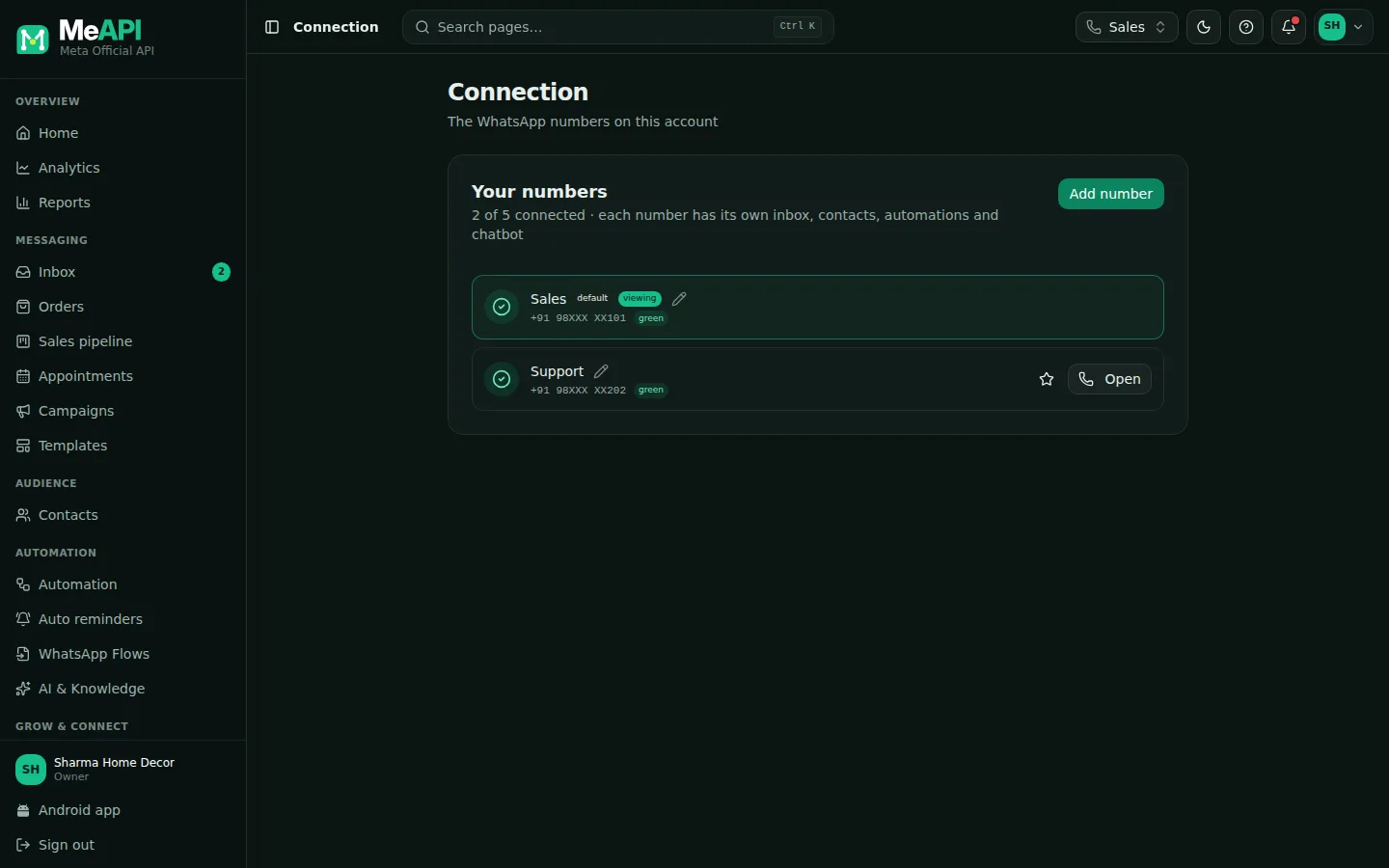
- Your numbers: every number on this licence with its quality badge. default marks the number the panel opens on, viewing the one in the number switcher.
- Add number opens the connect card. At your plan’s limit the button reads Plan limit reached.
Adding another number
Section titled “Adding another number”A licence can hold as many numbers as your plan allows (see Subscription → WhatsApp numbers).
- Open Connection and click Add number under Your numbers. If it reads Plan limit reached, upgrade on Subscription first.
- Run the same popup. Choose the same WABA if the new number should share templates, or a different one.
- Switch between numbers with the number switcher at the top of every screen. Contacts, campaigns, flows and analytics belong to the number shown there.
- Each number has its own inbox. In Inbox, the All numbers tab lists every number’s chats together, each with a badge naming its number. See Inbox basics.
- Give agents only the numbers they work: Agents & roles → the pencil (Role and numbers) next to the agent. See Roles and permissions.
With two or more numbers, Connection shows only the Your numbers list. Rename a number there, or make one the default (the number the panel opens on).
Advanced: connect with an access token
Section titled “Advanced: connect with an access token”Use this only if you manage your own Meta app, for example for a migration:
- In Meta’s Business Settings → System users, create a system user and give it your WABA with full control.
- Generate a permanent token with
whatsapp_business_managementandwhatsapp_business_messaging. - In MeAPI open Connection → Advanced: connect with access token. Paste the Access token, the WABA ID and the Phone number ID (both are in WhatsApp Manager → Phone numbers), then click Connect manually.
- Add a payment method in Meta. Meta charges template messages, and service replies beyond 1,000 per number a month, to the card on your WABA (WhatsApp Manager → Payment settings). Without one, templates fail and service replies stop after the free 1,000.
- Verify your business soon after. It raises your messaging limit and lets you publish WhatsApp Flows. See Business verification.
- Write down the two-step PIN if Meta asks you to set one. You need it to make a new display name live.
Common mistakes
Section titled “Common mistakes”- “This number is already registered on WhatsApp.” The number is on WhatsApp or the WhatsApp Business app. For the Business app, use I already use the WhatsApp Business app on this number (coexistence); for personal WhatsApp, delete that account first.
- “Already registered on the WhatsApp Business Platform / API.” The number is connected to the API through another provider. Disconnect or release it there first, then connect here.
- The popup closes with “Signup cancelled”. Nothing was connected. Run it again and finish every screen.
- “Your business account was shared without a phone number.” You skipped the number step. Run the signup again and add the number.
- The code never arrives. Choose Phone call instead of SMS. Check that the number can receive international calls and SMS.
- Popup blocked or blank. Allow popups for login.meapi.in and turn off ad-blockers or privacy extensions for the page.
What’s next
Section titled “What’s next”Was this page helpful?
Thank you — we read every comment.
Could not send right now. Please try again later.
© 2026 MeAPI by TheWebStore028 · RADHAMADHAV WEBSTORE LLP · GSTIN 27ABJFR6148J1ZO · Contact us ·Cookie settings