

Tutorial: set up roles for your team
🎯 Goal
A Night shift support role: it replies to chats and adds notes, sees only its own and unassigned chats, never sees full phone numbers, signs every reply with the agent’s name, and can only log in during the night shift.
🧰 What you need
- The owner login (or an agent whose role can Invite, edit, roles)
- A list of your teammates and what each one should do
How roles work: a role is a list of ticked permissions. An agent can do only what their role ticks. Billing, AI provider keys and the Razorpay account always stay with the account owner. No role can grant them. Full reference: Roles and permissions.
Step 1: look at the ready-made roles
Section titled “Step 1: look at the ready-made roles”Open Agents & roles → Roles. Four ready-made roles are there:
- Admin: everything except managing agents and connecting numbers. Sees all chats.
- Manager: the whole inbox, contacts, pipeline, orders, auto reminders and analytics. Reads campaigns, templates and automation. Sees all chats.
- Agent (chat only): views and replies to chats, resolves, writes notes, updates contacts and tags, sends products and payment links, works their own deals, sees auto reminders. Sees chats assigned to them plus unassigned ones. Exports are blocked from the start.
- Marketing: campaigns, templates, contacts, auto reminders and analytics. No inbox: it has no View chats permission.
Each card shows Ready-made or Custom, the number of permissions, which chats it sees, and how many agents use it.
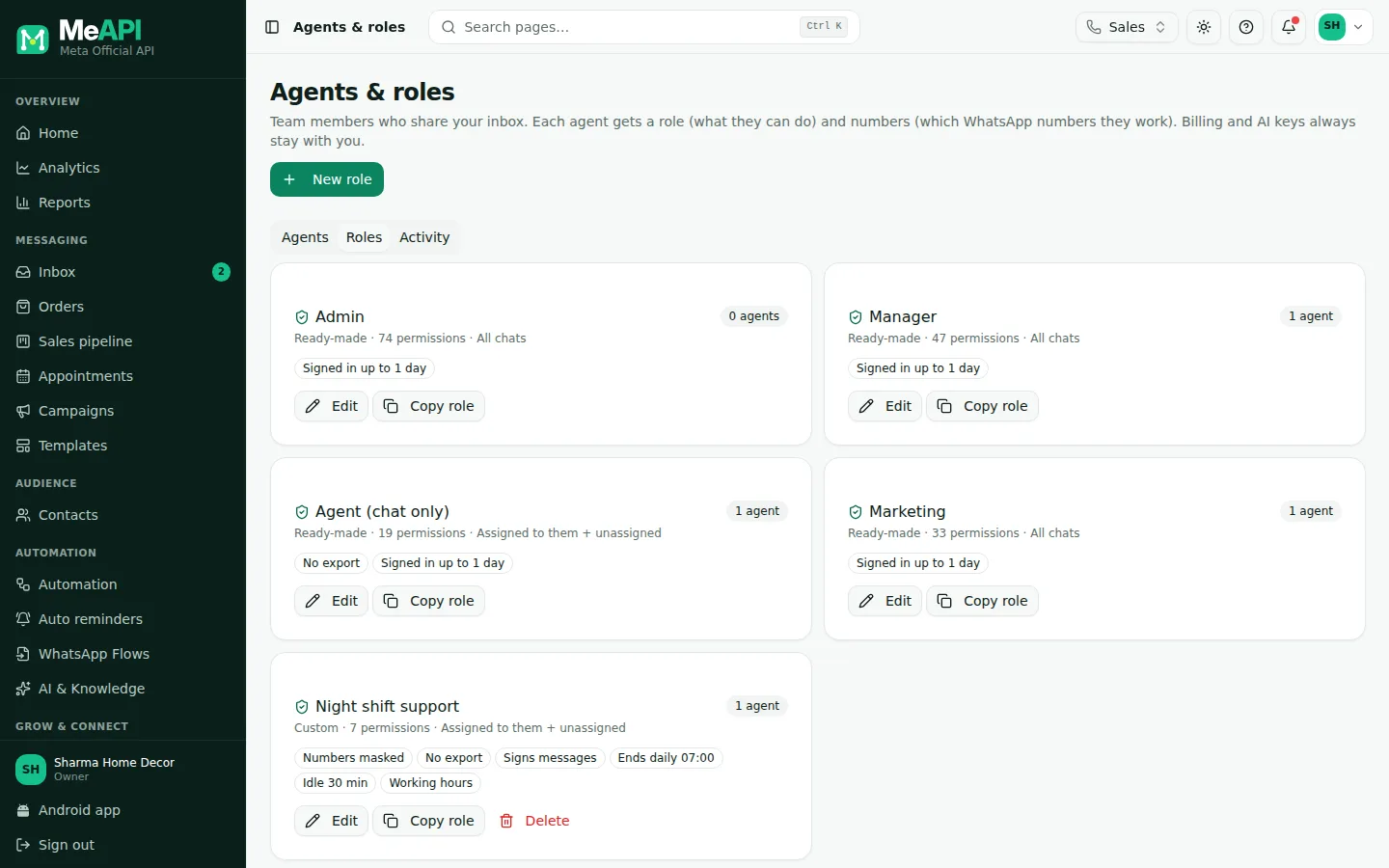
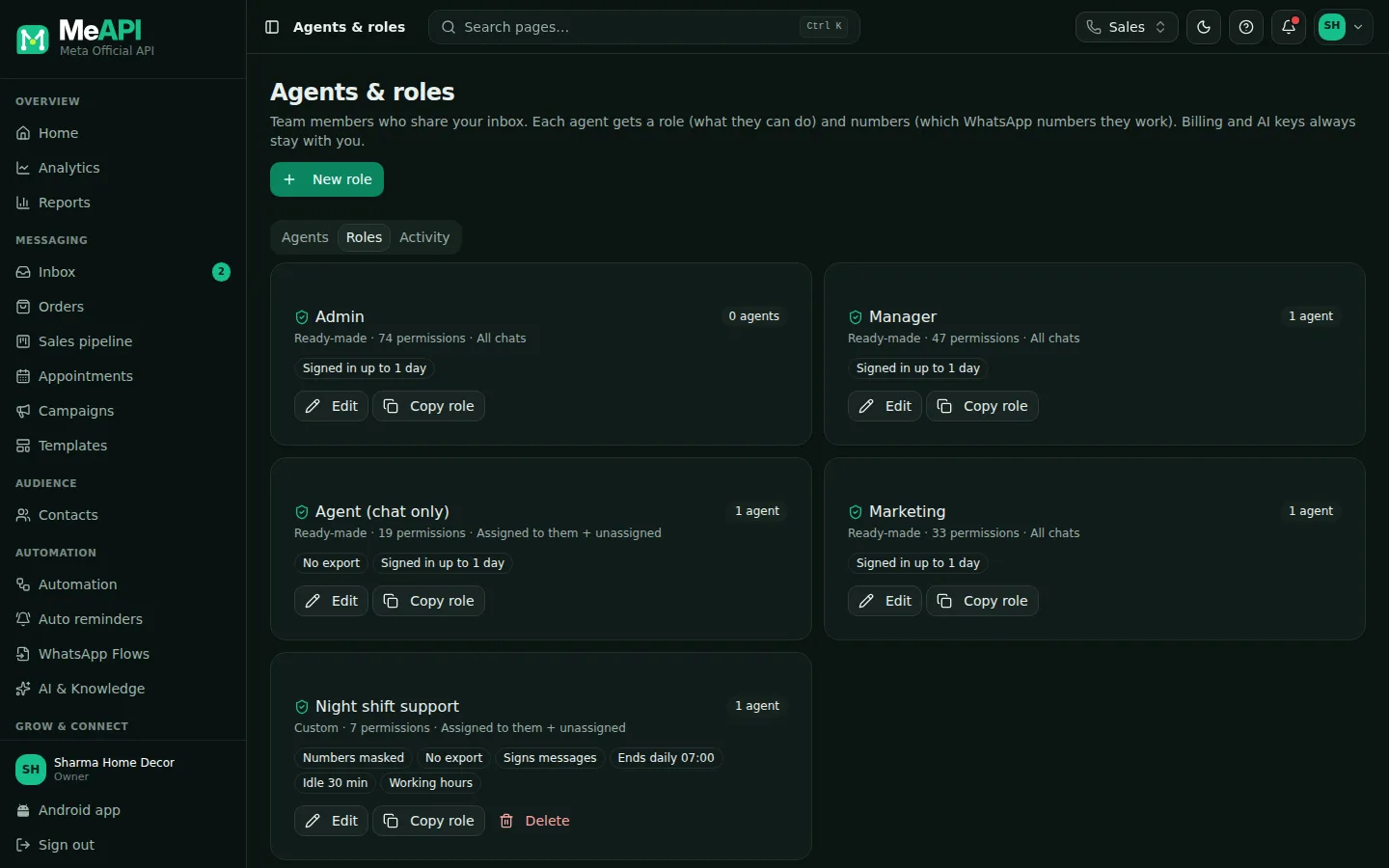
- Each role card: ready-made or custom, how many permissions, which chats it sees, and how many agents use it.
- Badges show privacy and session rules, such as Numbers masked or Working hours.
- Edit, Copy role and (custom roles only) Delete under each card.
If a ready-made role fits, skip to Step 7. Its permissions stay fixed and the platform keeps them up to date. You can still change its privacy, operator name and session rules.
Step 2: copy a role
Section titled “Step 2: copy a role”Click Copy role on Agent (chat only). MeAPI creates an editable copy called Agent (chat only) (copy) and opens it. In Role name, type Night shift support.
You can also start from nothing with New role. A new role starts with every permission off.
Step 3: tick permissions per module
Section titled “Step 3: tick permissions per module”On the Permissions tab, modules are listed on the left with a count such as 4/8. Click a module to see its permissions on the right.
- Inbox: keep View chats, Reply, Close / resolve and Internal notes. Leave Delete messages and Inbox settings off.
- Contacts: keep Read and Tags. Clear Update if night staff shouldn’t rename customers.
- Sales pipeline: click Clear all. Night staff don’t work deals.
- Orders, catalog & payment links: keep View and update orders. Clear Send products & payment links if you don’t want links sent at night.
- Auto reminders: keep View reminders and the log, so night staff see the Reminders box beside each chat.
Select all and Clear all change the whole module in one click. Modules with a lock (such as Subscription & billing) are owner-only.
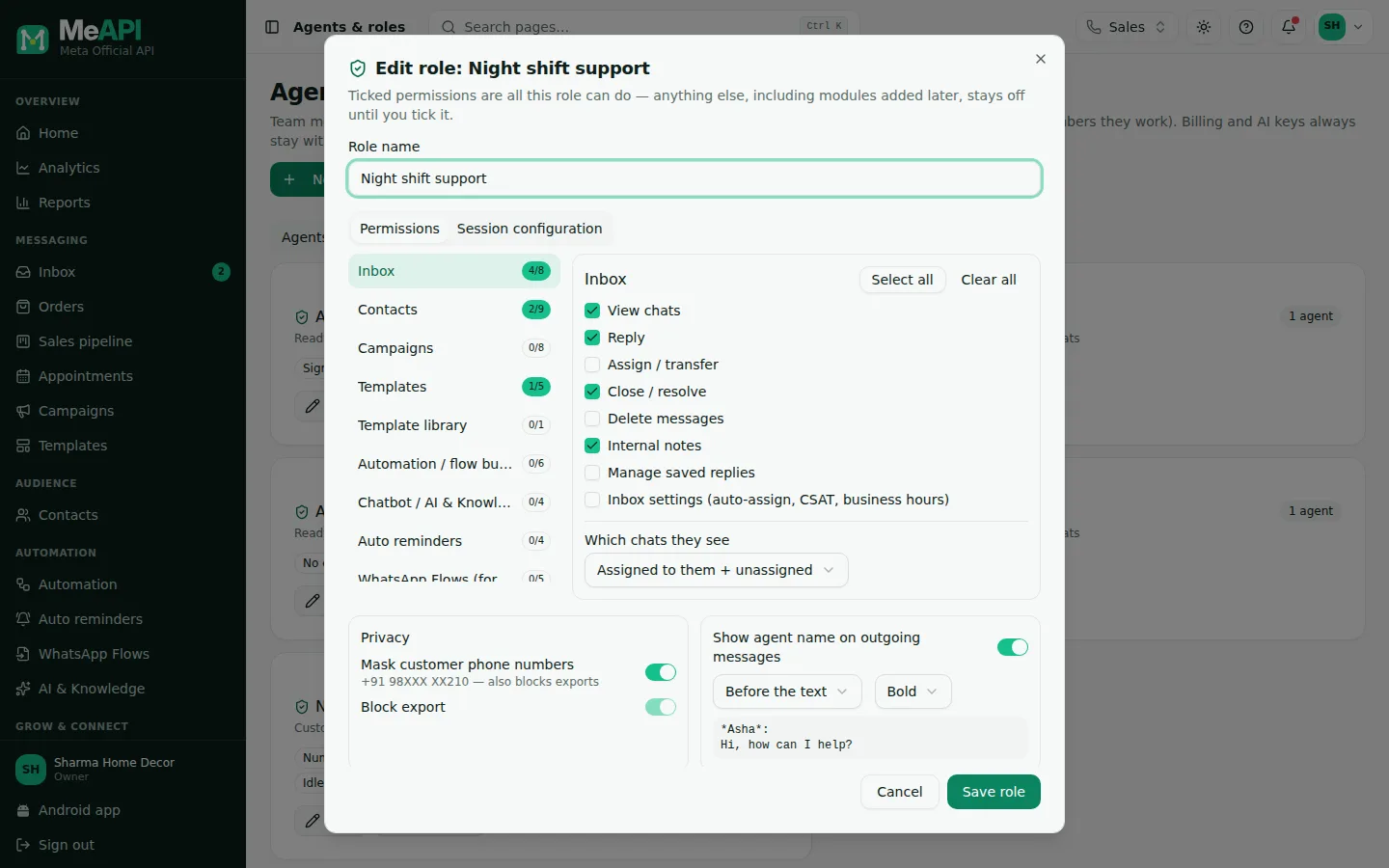
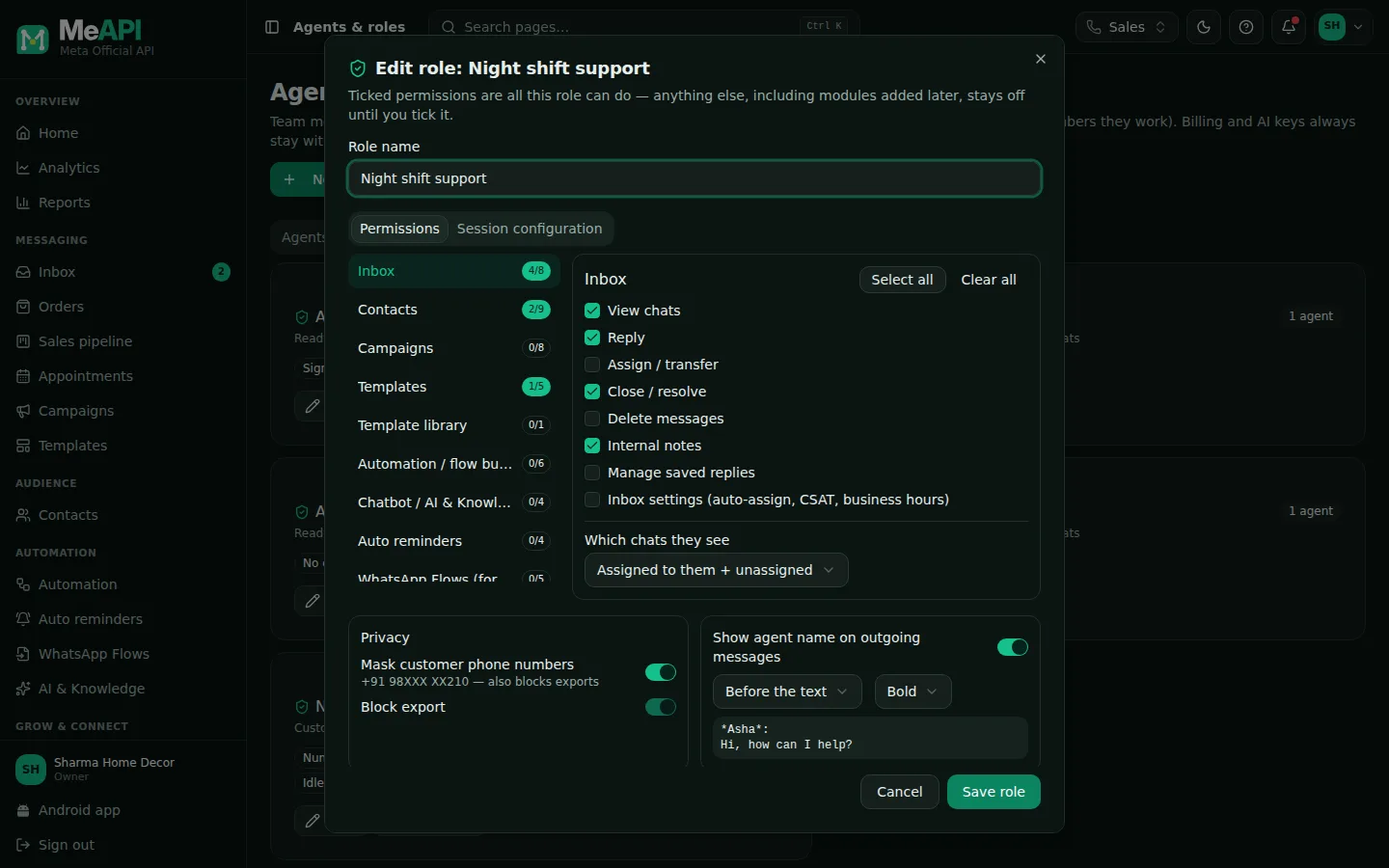
- Modules on the left, each with how many of its permissions are ticked.
- The selected module's permissions, with Select all and Clear all.
- Below: Privacy (mask numbers, block export) and Show agent name on outgoing messages.
Step 4: choose which chats they see
Section titled “Step 4: choose which chats they see”Still on Inbox, under Which chats they see, pick one:
- Assigned to them only
- Assigned to them + unassigned (what we want for night shift)
- All chats
Step 5: privacy and the agent’s name
Section titled “Step 5: privacy and the agent’s name”-
Privacy → Mask customer phone numbers: on. Agents see
+91 98XXX XX210. This also blocks exports, so a CSV can’t leak the numbers. -
Show agent name on outgoing messages: on. Pick Before the text or After the text, and Bold, Italic or Plain. The preview shows how a reply will look:
*Asha*:Hi, how can I help?
Step 6: session rules
Section titled “Step 6: session rules”Open the Session configuration tab:
- Session length: Ends every day at a set time → Sign everyone out at
07:00. Or keep Fixed length after login with a number of days. - Inactivity timeout:
30minutes without clicks, typing or page changes (0 = off, minimum 5). - Only allow access during working hours: on. Tick Mon to Sat, From
22:00to07:00. A shift can cross midnight: the early-morning part counts as the day the shift started.
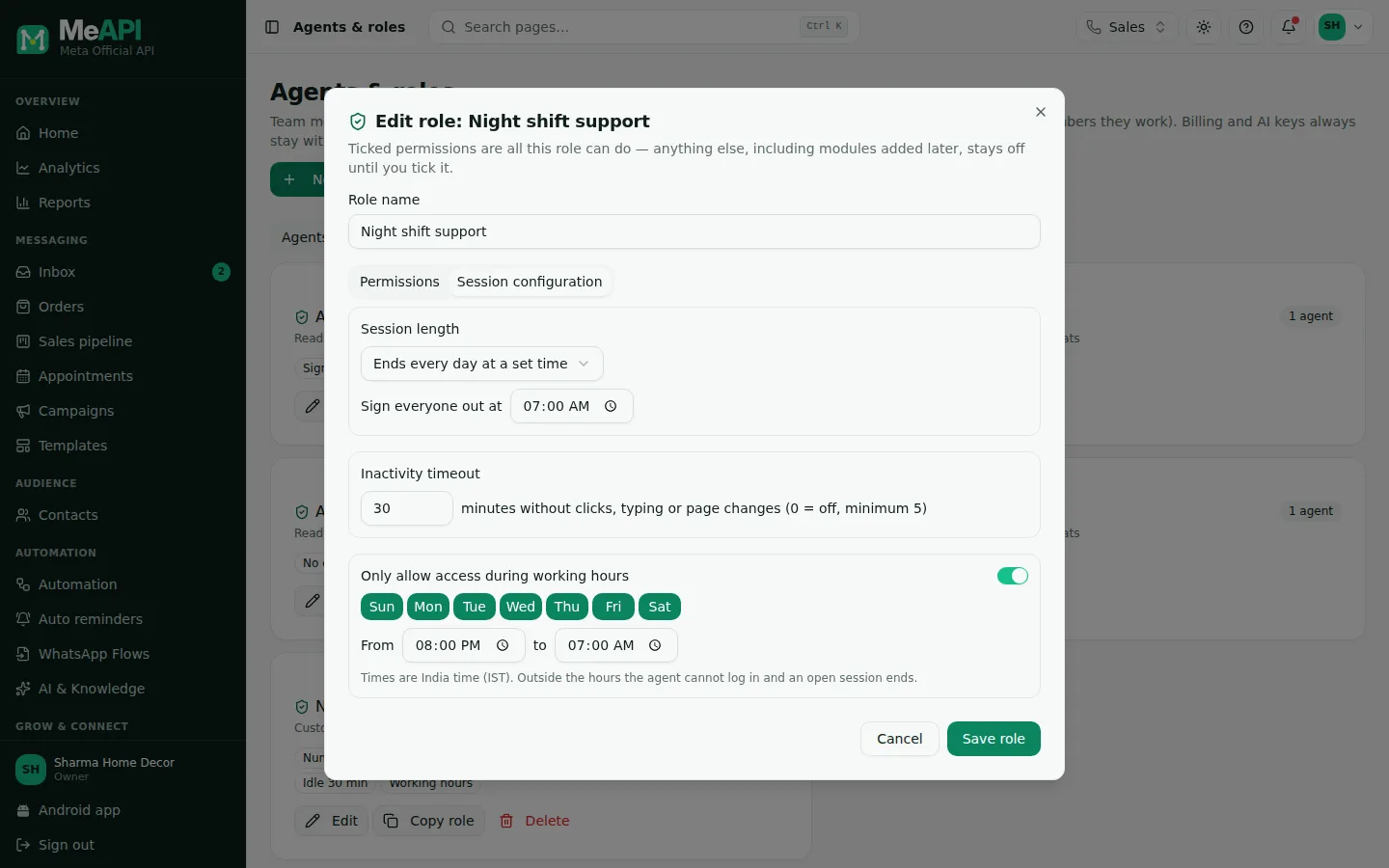
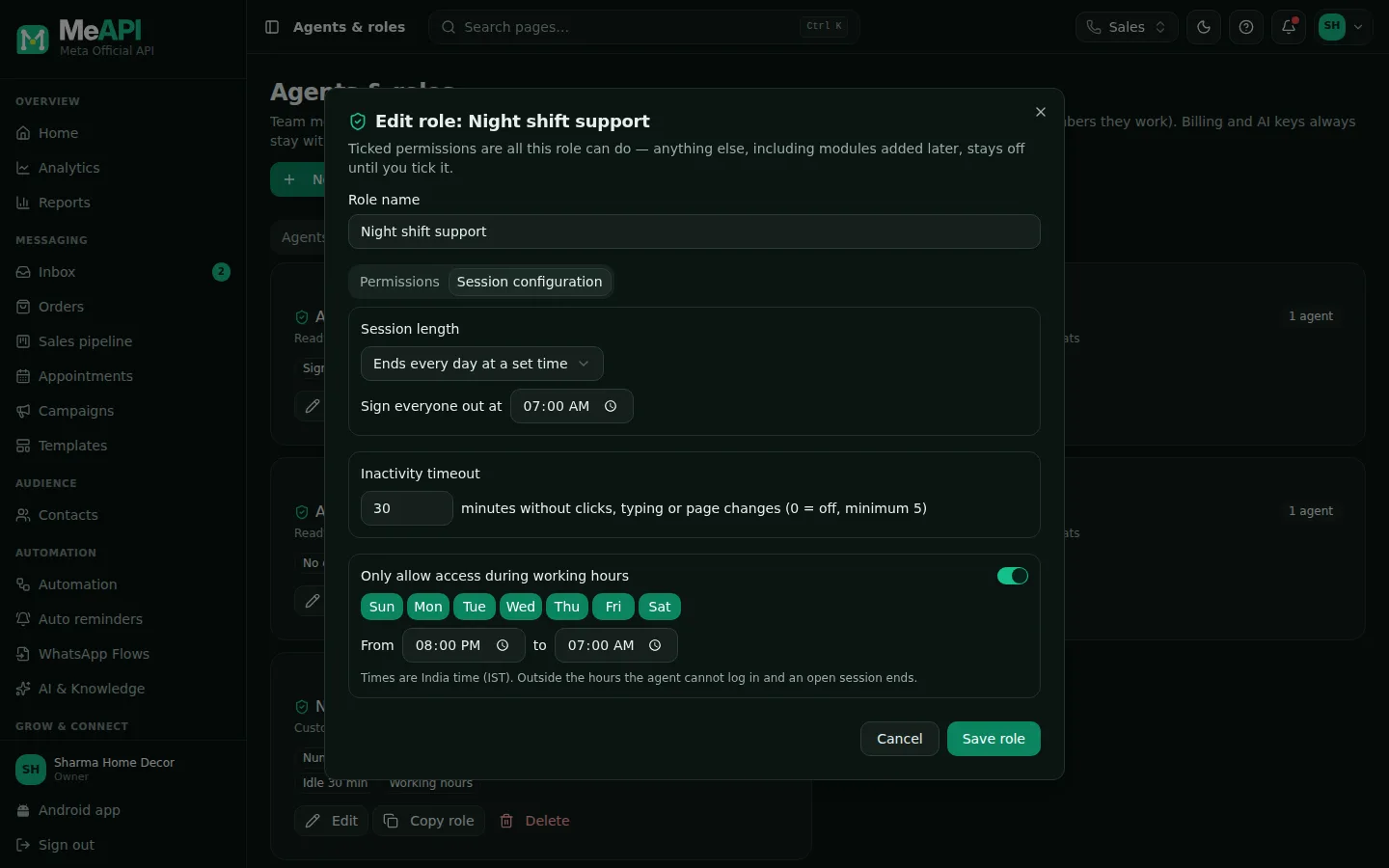
- Session length: a fixed number of days, or a daily sign-out time.
- Inactivity timeout in minutes.
- Only allow access during working hours: days and times (India time). Outside them the agent can't log in and an open session ends.
Click Save role. Agents already on the role get the change on their next click.
Step 7: give the role to your agents
Section titled “Step 7: give the role to your agents”- Open the Agents tab. Click Add agent (or the pencil on an existing agent).
- Fill Name, Email and Password for a new agent.
- Role: Night shift support (custom).
- WhatsApp numbers: keep All numbers (including ones added later), or limit them (Tutorial: one number per agent).
- Create (or Save).
The agent signs in at the same login page using the Agent tab (beside Account owner).
Step 8: check the activity log
Section titled “Step 8: check the activity log”The Activity tab lists every role, permission and number change, with who made it and when.
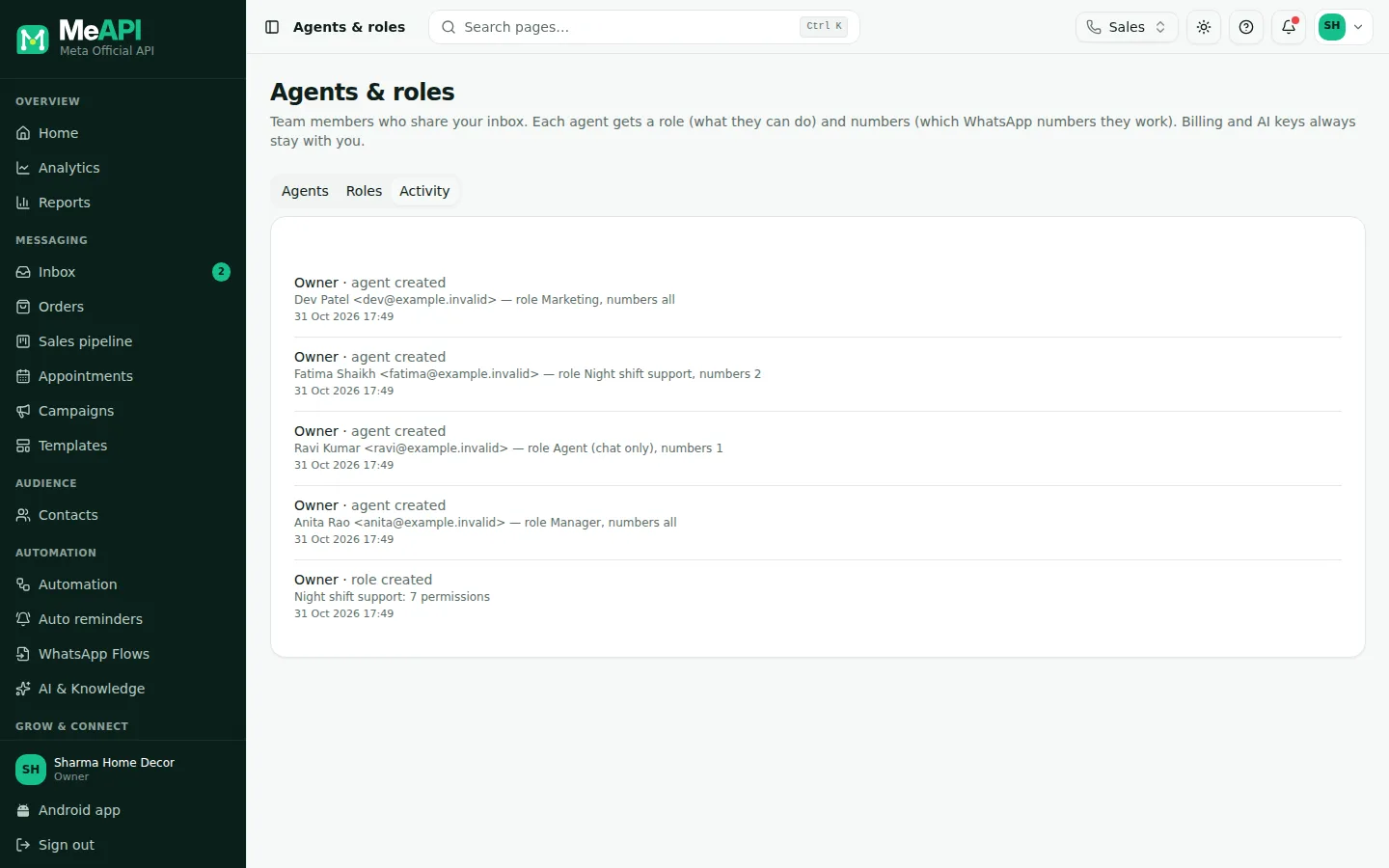
- Every change to roles, permissions and numbers, with who made it and when.
- Test a new role yourself: create a test agent with it, sign in on another browser with the Agent tab, and click through the menu. Pages the role can’t open are hidden from the menu.
- To delete a custom role that agents still use, MeAPI asks which role to move them to first.
Common mistakes
Section titled “Common mistakes”- Editing a ready-made role to change its permissions. Its permission boxes are locked. Use Copy role and edit the copy.
- Masking numbers but expecting exports. Masking always blocks export too.
- Ticking the wrong days for a night shift. Tick the days the shift starts. A Saturday-night shift that ends Sunday at 07:00 needs Sat ticked, not Sun.
What’s next
Section titled “What’s next”Was this page helpful?
Thank you — we read every comment.
Could not send right now. Please try again later.
© 2026 MeAPI by TheWebStore028 · RADHAMADHAV WEBSTORE LLP · GSTIN 27ABJFR6148J1ZO · Contact us ·Cookie settings