

Paying — card, UPI app, UPI QR, PayPal and USDT
🎯 Goal
Pay for your plan the way you prefer, and know exactly what happens after you pay.
🧰 What you need
- A plan picked on the signup page or on Subscription
- A card, any UPI app (GPay, PhonePe, Paytm, BHIM…), net banking, PayPal or USDT
Which payment methods you will see
Section titled “Which payment methods you will see”| Method | Activation |
|---|---|
| Card / UPI app (Razorpay: cards, UPI apps, net banking, wallets) | Instant — the licence is active the moment the payment succeeds |
| Pay by UPI QR | After a manual check of your UTR by MeAPI staff (you keep using the trial meanwhile) |
| PayPal | Instant |
| USDT (Binance) | After a manual check of your transaction by MeAPI staff (you keep using the trial meanwhile) |
Only the methods that are switched on appear.
- On the signup page the choice depends on your WhatsApp number. An Indian number (+91) sees Card / UPI app, Pay by UPI QR and USDT (Binance). Other countries see PayPal (or the other methods, if PayPal is off).
- On Subscription every method that is on is offered, as the Razorpay, PayPal, UPI and USDT (Binance) buttons (shown only when more than one is on).
- If none are available you see Payments are temporarily unavailable with the support contacts.
Every price is shown with GST: Plan price + GST 18% = Total. The total is what you pay.
Coupons
Section titled “Coupons”Have a code? Click Have a coupon code? under the plans, type it and click Apply. The breakdown then shows Coupon with the amount taken off the plan price, and GST is worked out on what is left. Pick another plan and the code is checked again for that plan; some coupons set a different price per plan. A link with the code in it (for example from an offer on meapi.in) fills it in for you. If a coupon cannot be used you see why, for example That coupon has expired, That coupon does not apply to this plan, That coupon is for yearly plans only, You have already used this coupon or That coupon is for new customers only. Some offers add a free add-on to a plan; it appears under Add-ons on your Subscription page once the payment is confirmed.
- Choose your plan. On Subscription, pick Razorpay (if shown) and click Pay ₹… with Razorpay; on signup, Pay ₹… & Sign Up starts the payment.
- Razorpay’s secure window opens. Pick UPI (enter your UPI ID or scan), Card, Netbanking or Wallet.
- Approve the payment in your bank or UPI app.
- The window closes by itself and you see Payment successful — your license is active again! (or the account is created, on signup).
- Choose your plan and pick Pay by UPI QR (on Subscription: the UPI button, then Pay ₹… by UPI). On signup your account is created immediately and the free trial starts, so you are never blocked while we check the payment.
- The screen shows Pay to (the UPI ID and name), the exact amount and a QR code. On a phone, tap Open in UPI app; on a computer, scan the QR with your phone.
- Pay the exact amount shown (it includes GST).
- Click I’ve paid — upload proof. Enter the UTR / UPI reference number — the 12-digit number in your UPI app (open the payment → details → UTR or UPI Ref No.). Add a Payment screenshot (JPG, PNG or WebP, up to 5 MB).
- Click Submit payment. On signup you see Account created — your free trial is active now; on Subscription a Payment under review bar appears at the top. MeAPI staff check the payment (usually within a few working hours) and you get an email either way. When it is approved the plan is applied to the same licence, starting that day.
- Choose your plan (on Subscription, pick PayPal if shown) and click the yellow PayPal button.
- Log in to PayPal (or pay by card through PayPal) and approve.
- You return to MeAPI and the licence is active at once.
- Choose your plan and pick USDT (Binance), then the network you will send on — e.g. TRON (TRC20), BNB Smart Chain (BEP20), Ethereum (ERC20) — or Binance Pay if offered. Click Pay … USDT by USDT (on signup: Create account & pay … USDT). The amount is the total incl. GST, after any coupon, at MeAPI’s rate. On signup your account and free trial start at once.
- The screen shows Amount (USDT), the Address (with a QR code) or Binance Pay ID, the Network and a Reference. Copy each with the copy buttons.
- Send exactly that amount of USDT, on that network. Withdrawal fees come on top: the amount that arrives must be the amount shown. USDT sent on another network, or another coin, cannot be recovered. With Binance Pay, send to the Binance Pay ID and put the reference in the note.
- Click I’ve paid — add the transaction. Paste the Transaction hash (TxID) — Binance → Wallet → Transaction history → the withdrawal → TxID — or, for Binance Pay, the Binance Pay order ID (Binance → Pay → History → the payment → Order ID). Add a Payment screenshot (JPG, PNG or WebP, up to 5 MB).
- Click Submit payment. Subscription shows USDT payment under review; MeAPI staff check the transaction on the network and email you either way.
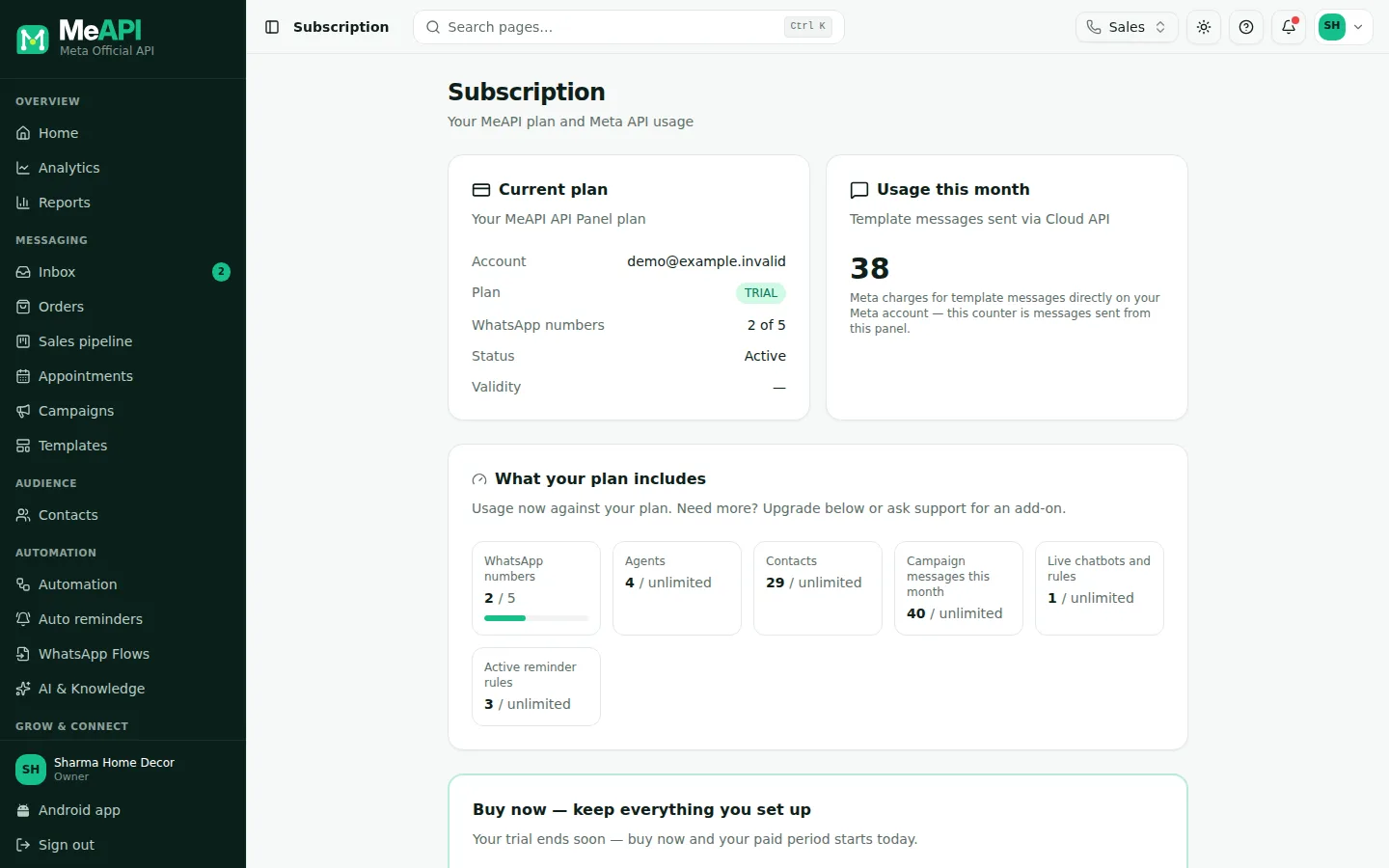
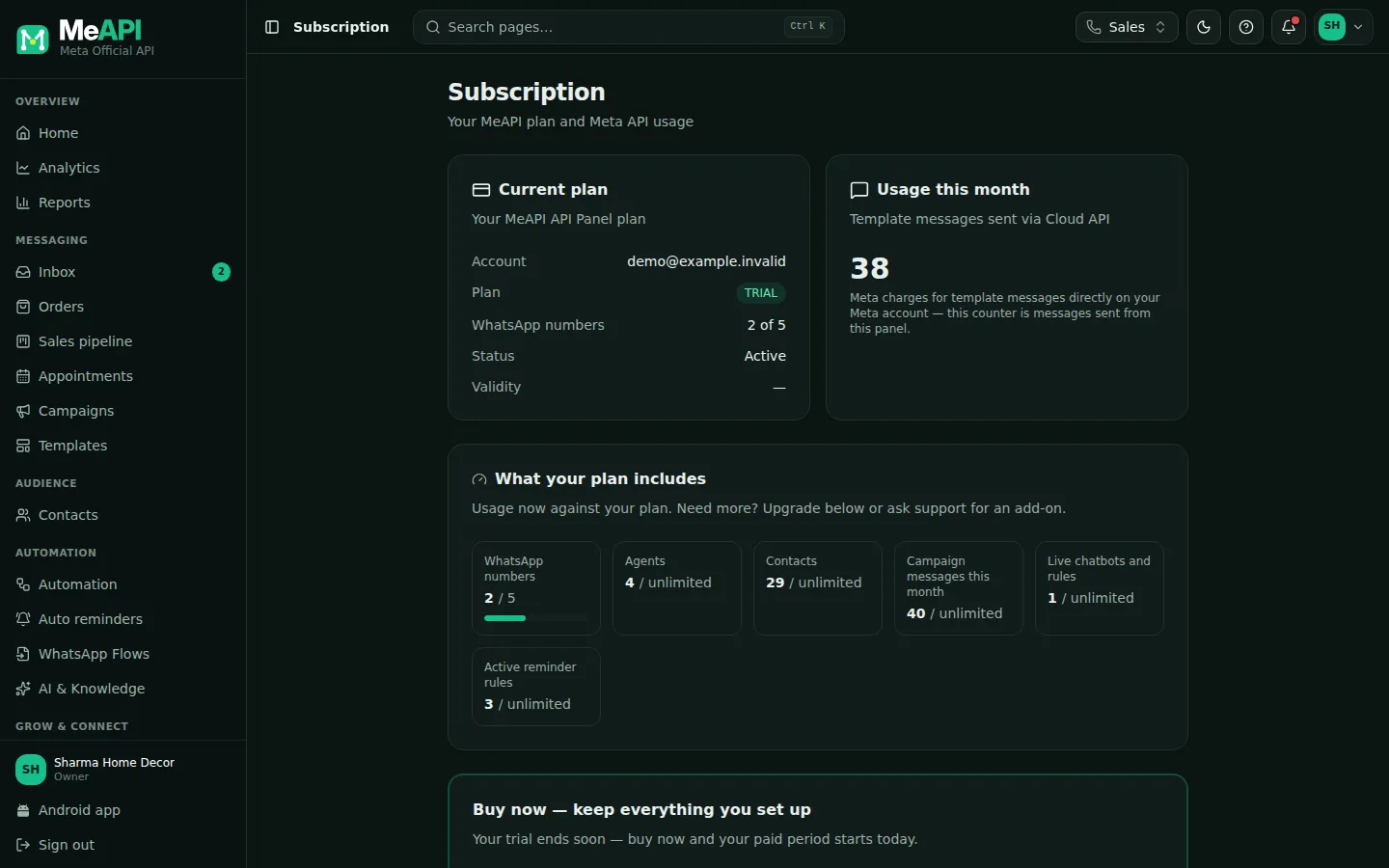
- Current plan: account, plan, WhatsApp numbers used of the limit, status and validity.
- Usage this month: template messages sent from the panel. Meta bills its charges separately.
- What your plan includes: each limit of your plan with what you use now.
- The buy / renew card: plan cards, Have a coupon code?, the price breakdown (Plan price, GST, Total), the payment method buttons and the pay button.
- Need help? at the bottom: support contacts for plan and billing questions.
What the payment statuses mean
Section titled “What the payment statuses mean”These bars appear at the top of Subscription:
- Payment under review (UPI) or USDT payment under review — your proof arrived and MeAPI staff are checking it. Nothing to do. You cannot start a second payment by the same method until this one has been checked.
- Payment not approved or USDT payment not approved — the UTR, transaction or amount did not match; the reason is shown in quotes and in the email. Click Pay again, or open a support ticket with your UTR or TxID if you believe you paid correctly.
- Finish payment — you started a UPI order but did not upload the proof yet. Click it to continue where you left off. A payment reference is valid for 24 hours (the payment screen shows This reference is valid until …); after that, start a new one.
Signed up with UPI QR or USDT and the payment is not approved? Your account stays. If MeAPI offers free trials, the trial simply goes on; if not, the trial access given for the signup ends and you pay again from Subscription.
- UPI app inside Razorpay is instant; UPI QR needs a manual check. If you are in a hurry, choose Card / UPI app (on Subscription: Razorpay).
- Keep the UTR (UPI) or TxID (USDT) until the payment is approved — it is the only way to trace the payment. A UTR can be used for one payment only.
- Paying later? After a UPI QR or USDT signup you can close the page and finish from Subscription once you log in.
- Renew before expiry. Renewing early adds the new period to your licence; renewing late reactivates it (see Subscription and renewals).
Common mistakes
Section titled “Common mistakes”- Paying a different amount. UPI QR payments are matched on the exact total including GST.
- USDT on the wrong network. Sending TRC20 USDT to a BEP20 address (or the reverse) loses it. Pick the network on the payment screen and send on that one.
- Typing the transaction ID instead of the UTR. Some apps show several numbers; the UTR is always 12 digits.
- Closing the Razorpay window during “Processing”. Wait until it closes by itself. If money left your account but the panel did not update, do not pay again — message support with the payment time; our server also receives Razorpay’s confirmation directly.
What’s next
Section titled “What’s next”Was this page helpful?
Thank you — we read every comment.
Could not send right now. Please try again later.
© 2026 MeAPI by TheWebStore028 · RADHAMADHAV WEBSTORE LLP · GSTIN 27ABJFR6148J1ZO · Contact us ·Cookie settings