

Meta Business verification and your display name
🎯 Goal
Get your business verified by Meta, so you have higher messaging limits and can publish WhatsApp Flows. Then give your number a display name customers trust.
🧰 What you need
- Admin access to your Meta Business portfolio (business.facebook.com)
- A business document showing your legal name and address. In India: GST certificate, Udyam/MSME certificate, Shop & Establishment licence, company incorporation certificate, or a utility bill in the business name
- A business website or a public page on your domain, and a business email or phone
Why verification matters
Section titled “Why verification matters”| Unverified | Verified | |
|---|---|---|
| Messaging limit | 250 people per 24 hours (business-initiated), shared by all numbers in the portfolio | 2,000 after Meta’s quality check, then grows automatically to unlimited (how) |
| Display names | Limited | Full, after review |
| WhatsApp Flows | Drafts only | Can be published |
| Verified badge | Not eligible | Can apply |
Replies to customers who wrote to you are never limited. Limits only count conversations you start with templates.
Part 1: verify your business
Section titled “Part 1: verify your business”-
Open business.facebook.com → Settings → Business info (or Security Center) and click Start verification. If you see no button, Meta lets you start it after your first API activity. Connect your number and send a few messages first.
-
Enter your business details exactly as they appear on your document: legal name, address, phone and website. Small differences such as “Pvt Ltd” vs “Private Limited”, or a different PIN code, are the top reason for rejection.
-
Upload a document that shows the legal name and, ideally, the address. GST and Udyam certificates are the fastest in India.
-
Confirm a contact method: an email at your website’s domain (for example
info@yourshop.in), a phone call or SMS, or domain verification (a DNS TXT record or a meta-tag on your website). -
Submit. Meta says a decision may take up to 14 business days; many come sooner. Watch the status in Security Center.
Part 2: your display name
Section titled “Part 2: your display name”The display name is shown at the top of the chat and on your profile. Meta reviews every name against its rules:
- It must clearly relate to your business. It should match the website, the document or the signage, such as “Sharma Sweets” or “Sharma Sweets Jaipur”.
- Not allowed: only generic words (“Best Deals”, “Shopping”), a person’s name unless it is the brand, the words “WhatsApp” or “Meta”, emojis, URLs, and odd capitalisation (“SHARMA sweets!!!”).
- Abbreviations are fine if your branding uses them.
Change the display name in MeAPI
Section titled “Change the display name in MeAPI”- Pick the number in the number switcher at the top, then open My Numbers (left menu → Account).
- In the Display name card, click Change display name. Type the New display name and click Submit for review.
- The name moves through three steps: In review → Approved → Live. Click Check status to refresh. Meta doesn’t publish a review time; most names are decided within a few hours.
- When it shows Approved, click Make it live. MeAPI re-registers the number with its two-step PIN and customers start seeing the new name. You have 14 days after approval, or the approval expires. Verify 2FA to switch does the same re-registration by hand; use it only after approval, because Meta limits how often a number can be re-registered.
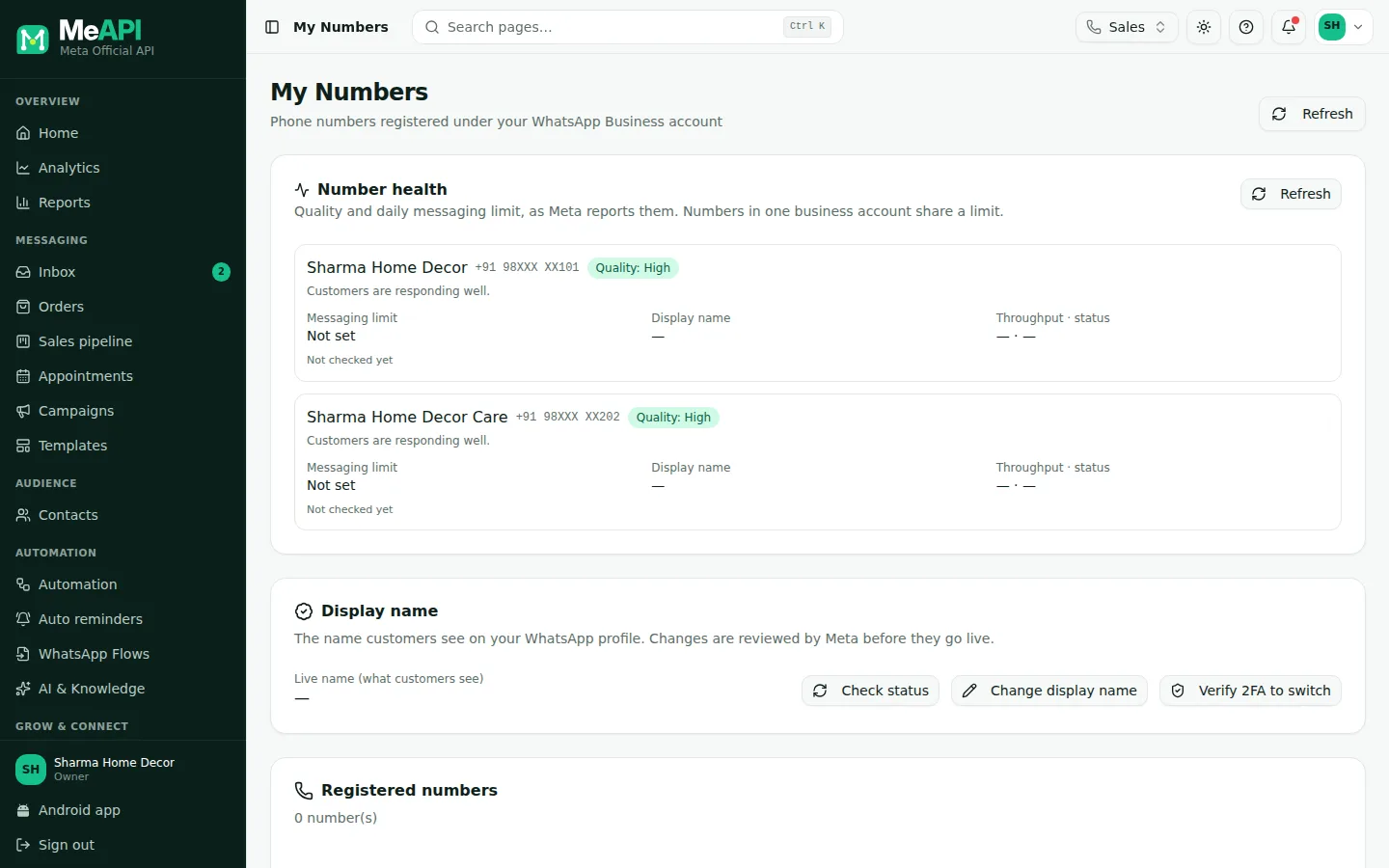
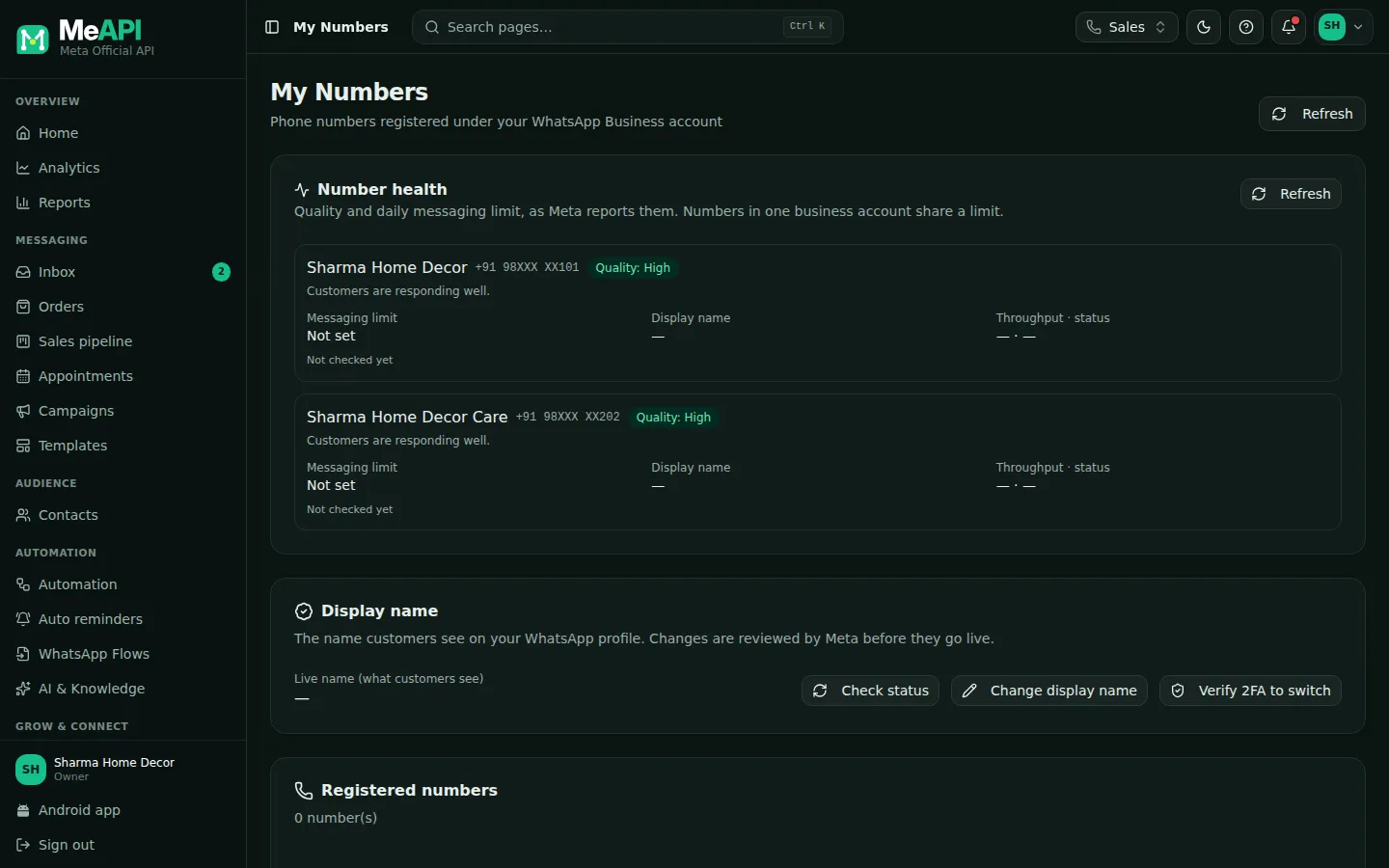
- Number health at the top: quality, messaging limit and display name status for every number.
- The Display name card: Live name (what customers see), with Check status, Change display name and Verify 2FA to switch.
- During a change it also shows the Requested name, the In review → Approved → Live steps and, once approved, Make it live.
- Registered numbers: phone number, verified name, quality, verification and name status for each number.
The verified badge
Section titled “The verified badge”The blue tick (Official Business Account) is for verified, notable businesses. Requirements, how to apply and what helps: Official Business Account. It isn’t required to use any MeAPI feature.
- Verify first, then rename. Verified businesses get name reviews approved more easily.
- Use the same name everywhere: document, website, Facebook page and display name.
- Keep your two-step PIN safe. “Make it live” needs it. If you forgot it, reset it in WhatsApp Manager → Phone numbers → Two-step verification.
Common mistakes
Section titled “Common mistakes”- “Name does not match” — the display name has no visible link to your business. Add your brand to the website and try again.
- Verification rejected for mismatched details — re-submit with the name and address exactly as on the document.
- Approval expired — “Make it live” wasn’t clicked within 14 days. Submit the name again.
- Renaming too often — Meta limits re-registrations. Change the name only when needed.
What’s next
Section titled “What’s next”Was this page helpful?
Thank you — we read every comment.
Could not send right now. Please try again later.
© 2026 MeAPI by TheWebStore028 · RADHAMADHAV WEBSTORE LLP · GSTIN 27ABJFR6148J1ZO · Contact us ·Cookie settings