

Quick start — your first WhatsApp message in 15 minutes
🎯 Goal
By the end you will have a MeAPI account and a connected WhatsApp number. You will also have sent your first message to your own phone from the panel.
🧰 What you need
- An email address and a mobile number
- A phone number for WhatsApp. It can be new, or one that already runs the WhatsApp Business app
- A Facebook login. Meta uses it to create your business account if you have none
- 15 minutes
What is MeAPI, in one paragraph
Section titled “What is MeAPI, in one paragraph”WhatsApp has two business products. The WhatsApp Business app runs on one phone. The WhatsApp Business Platform, also called the Cloud API, is the official version for companies. It lets many people share one number, send campaigns, run chatbots and connect your shop. MeAPI is a panel on top of the official Cloud API, so you get all of that without writing code. Meta (WhatsApp’s owner) delivers the messages; MeAPI is where you manage them.
The Getting started checklist
Section titled “The Getting started checklist”Account owners see a Getting started card at the top of Home, with a progress bar and seven steps:
- Connect your WhatsApp number
- Create or pick your first template
- Import contacts
- Send your first campaign
- Set up a welcome message or bot (a published automation)
- Invite a team member (optional)
- Add your AI key (optional)
Each step has a button that opens the right page and a Show me how link to its guide. Steps tick off by themselves as you do them, even in another tab. Minimise shrinks the card to one line showing the next step. The × hides it (click Undo in the message that appears to bring it back). The card disappears once the first five steps are done. Agents don’t see it.
-
Create your account. Open onboard.meapi.in/userlicense-signup. Fill in your name, email, WhatsApp number and a password you choose. Then pick Free Trial or a paid plan. The trial needs no payment. Once the account is created you land in the API Panel already signed in, on Connection. Details: Sign up and choose a plan.
-
Next time, sign in at login.meapi.in. Keep the Account owner tab selected and click Sign in with your email and the password you chose. A short welcome (three slides) opens once on Home; click through it or Skip.
-
Connect your WhatsApp number. In the left menu, under Account, click Connection. Then pick one of the two buttons:
- Connect a new number if the number is not on WhatsApp at all.
- I already use the WhatsApp Business app on this number to keep the app on your phone. This option is called coexistence.
A Facebook window opens. Follow it to the end: choose or create your business, add the number, and enter the code Meta sends you. Full walk-through: Connect a new number or Coexistence.
-
Check the number is live. Back on Connection you see a green Connected card with your phone number and a quality badge. Home now shows Number health.
-
Create your first template. Businesses must start conversations with a pre-approved message called a template. Go to Templates → New template. Name it
hello_test, choose Utility, language English, and write a short body such asHi {{1}}, thanks for registering with us.Submit it. Approval usually takes a few minutes. See Your first template. -
Send it to yourself. Message your new business number from your personal WhatsApp (“Hi” is enough). Open Inbox and your chat appears. Reply with normal text — a customer who writes to you opens a 24-hour window in which you can reply freely. When the window has closed, the composer shows Send template instead; that is how you reach people who have not written recently.
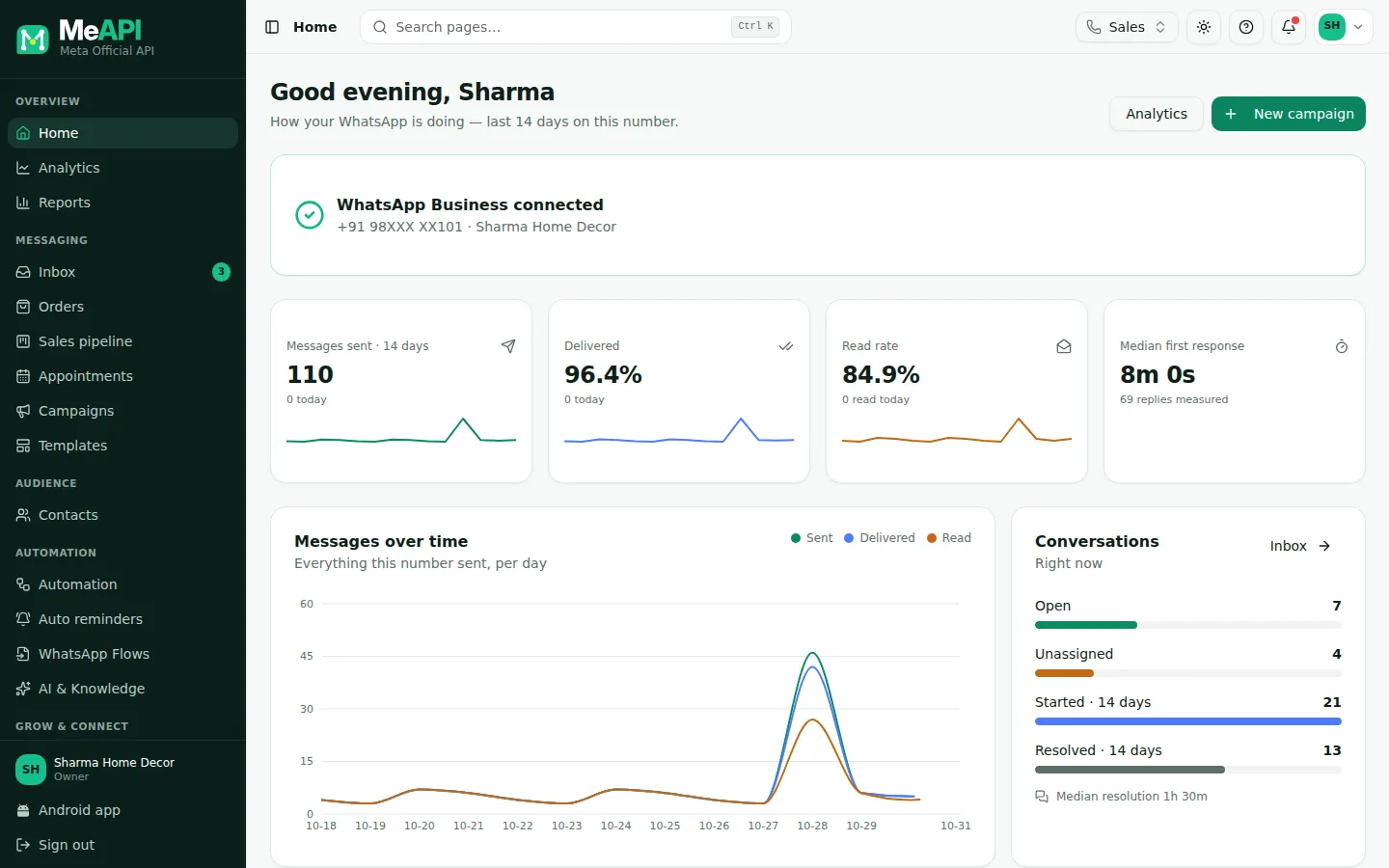
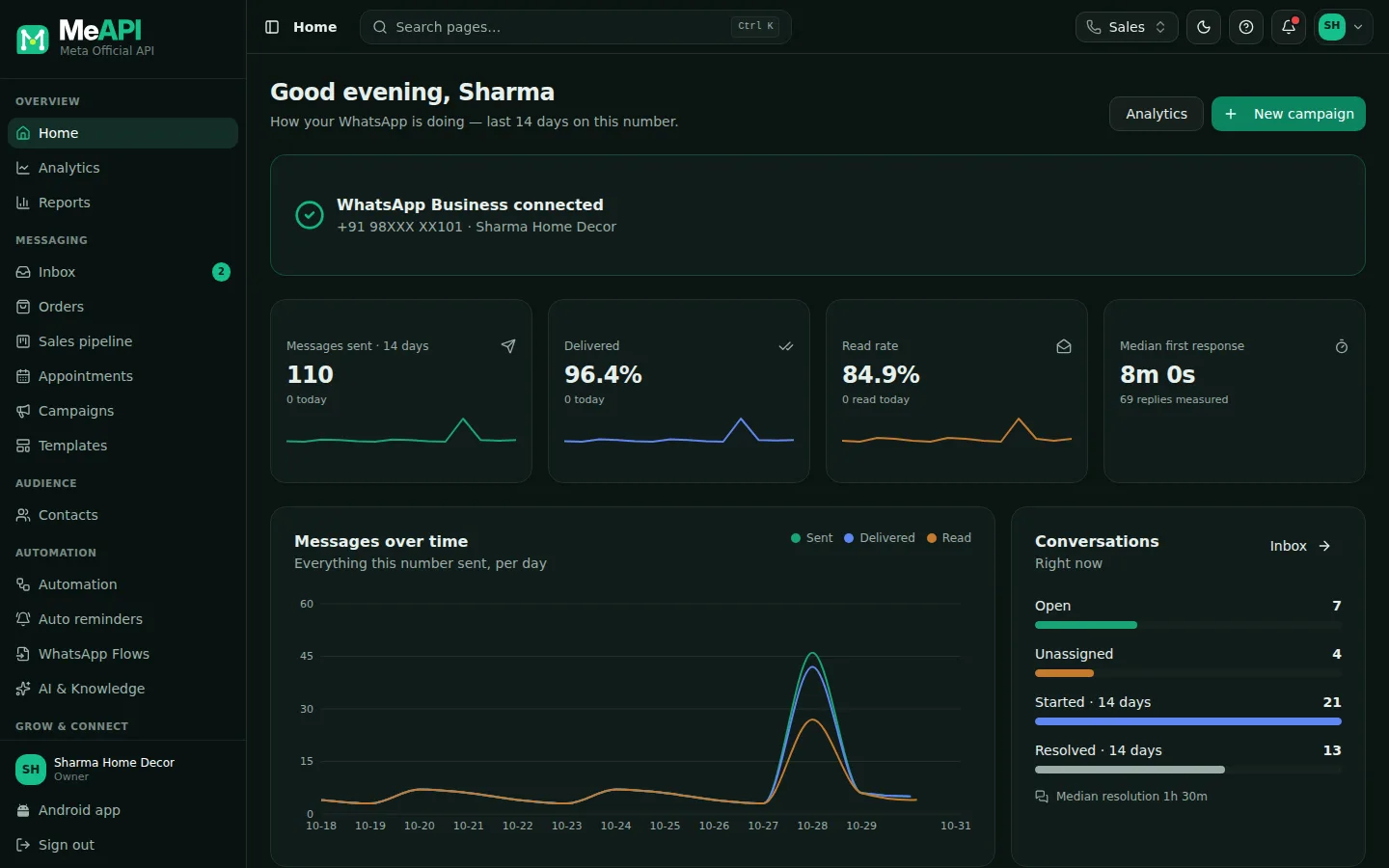
- The left menu. Every feature lives here; items your login cannot use are hidden.
- Search pages… Ctrl K jumps to any screen by name.
- The number switcher. With several numbers, everything you see belongs to the one picked here.
- The ? button opens the Learn article for the screen you are on.
- The connection banner, then today’s and 14-day message counts, Messages over time, Conversations and Recent campaigns.
- For owners: Number health (quality and daily limit used, Details opens My Numbers) and Plan usage.
- Start with Utility templates. Order updates, booking confirmations and reminders are approved fastest and cost the least.
- Use a number you will keep. Your number becomes your WhatsApp identity. Moving it to another provider later is possible, but it takes a few steps.
- Turn on notifications (your account menu → Notifications) so you hear about new chats even when the tab is closed.
- Get the Android app to reply from your phone with instant notifications: Install the MeAPI Android app.
Common mistakes
Section titled “Common mistakes”- Connecting a number that is on personal WhatsApp. A regular (non-Business) WhatsApp account must be deleted from the phone first. Otherwise choose coexistence with the Business app. See Connect a new number.
- Closing the Facebook popup early. Nothing is connected until you reach the final “Finish” screen. If you closed it, click the button again. It’s safe to repeat.
- Messaging customers who never agreed to hear from you. WhatsApp lowers your quality rating when people block or report you. Read Opt-in and opt-out.
What’s next
Section titled “What’s next”Was this page helpful?
Thank you — we read every comment.
Could not send right now. Please try again later.
© 2026 MeAPI by TheWebStore028 · RADHAMADHAV WEBSTORE LLP · GSTIN 27ABJFR6148J1ZO · Contact us ·Cookie settings