

Tutorial: capture leads with a WhatsApp Form
🎯 Goal
Customers fill a short form without leaving WhatsApp. Every answer lands on the contact, hot leads alert your sales team, and you can read all responses in one place.
🧰 What you need
- A connected number
- A Meta-verified business (needed to publish a form)
- Your number added as a test number, to try the draft
Why a form instead of questions? A WhatsApp Form (Meta calls it a Flow) shows all the fields on one screen, with dropdowns and checks, and the customer sends them in one tap. It’s faster than five Ask question steps.
Step 1: create the form
Section titled “Step 1: create the form”- WhatsApp Flows → New form.
- Pick the ready-made Lead form and name it
Website enquiry. - It opens in the editor with one screen, Get in touch: Full name, Email, Company, Interested in (a dropdown), Your requirement and a Send me offers and updates on WhatsApp opt-in.
- On Build, edit what you need. For example, change the Interested in options to Sofas, Dining, Bulk order, Something else. Full name is prefilled from the contact’s name.
- Save.
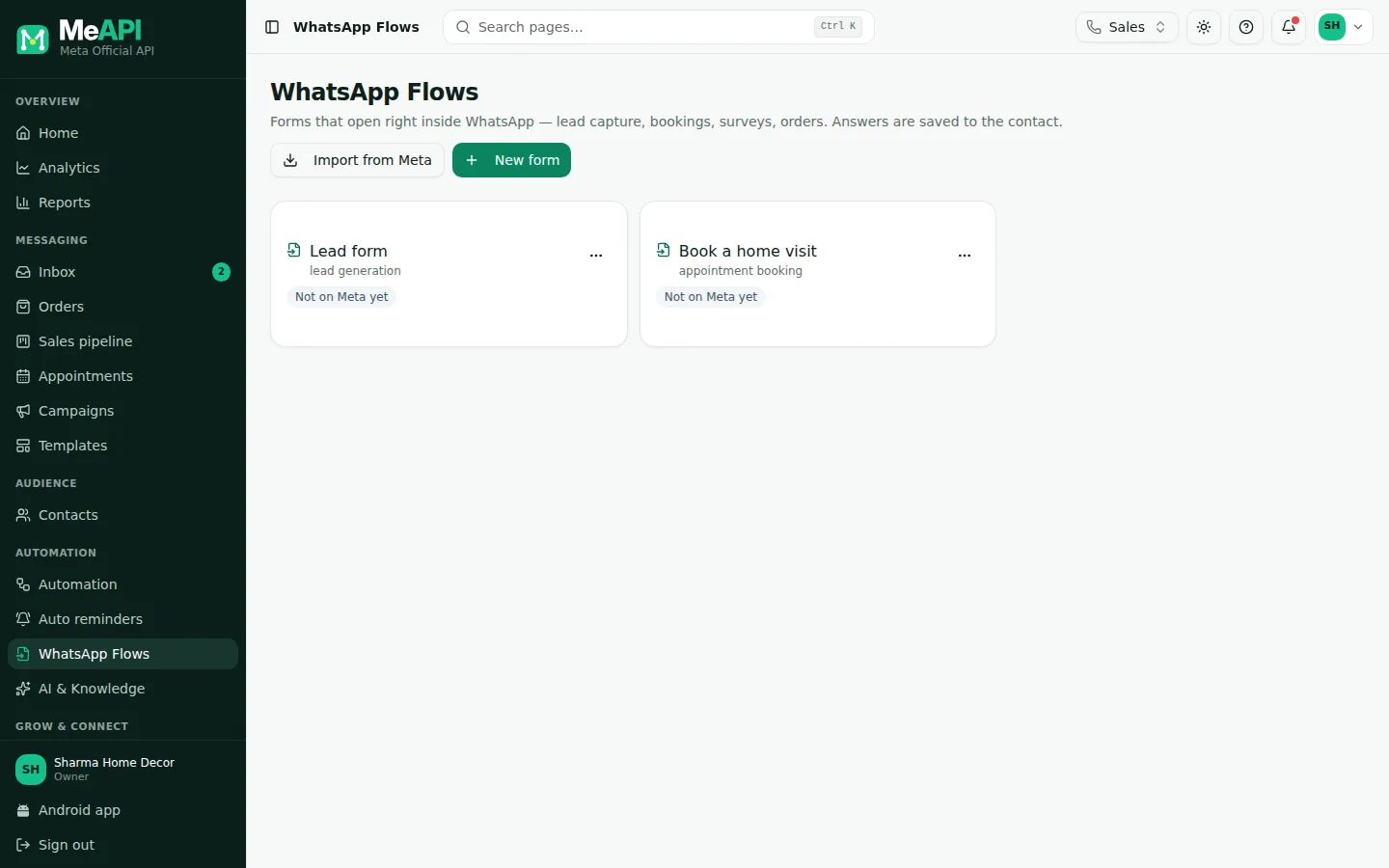
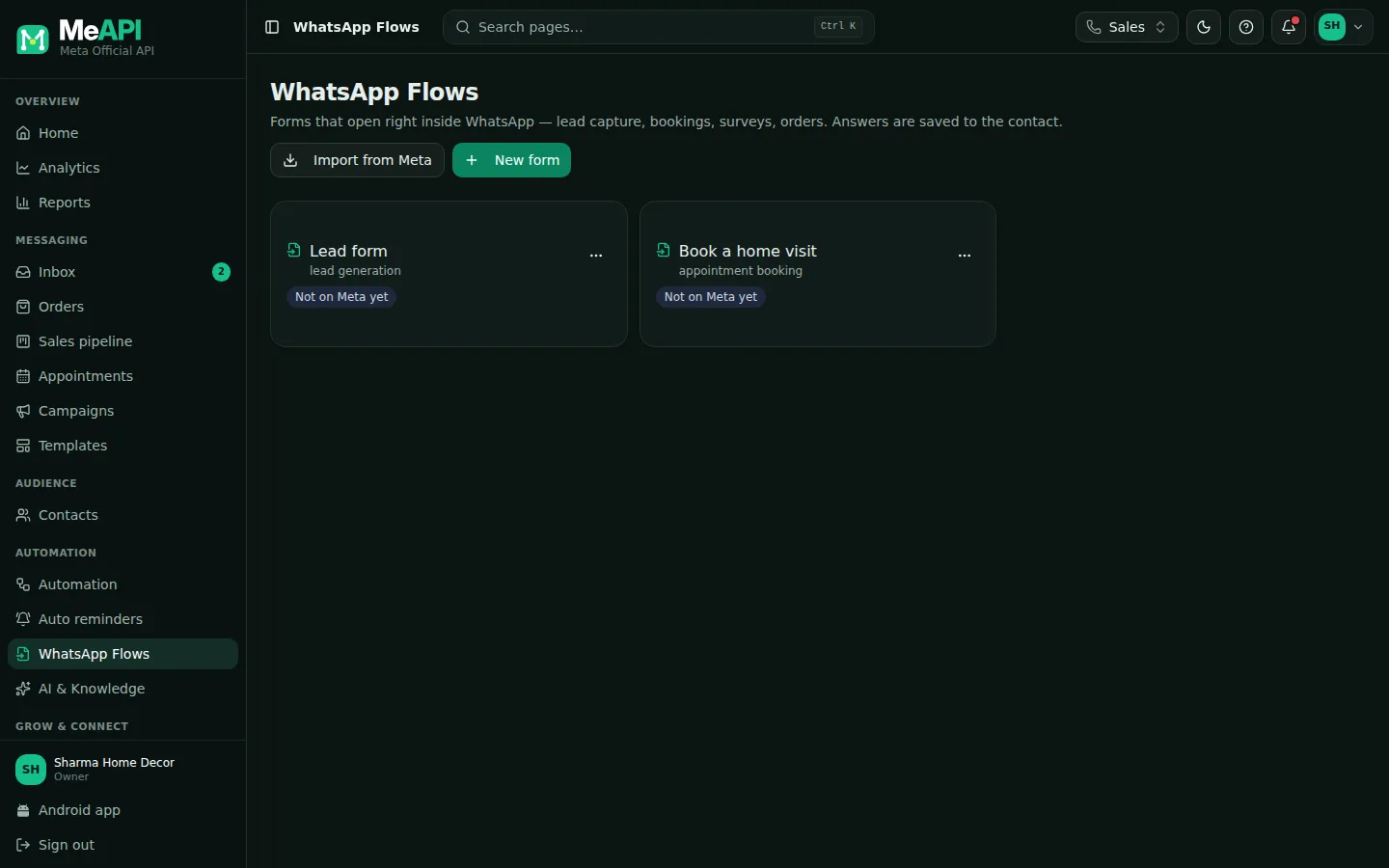
- Your forms, with their status on Meta.
- New form starts from a ready-made form or a blank one. Import from Meta brings in forms made elsewhere.
Other ready forms: Appointment booking, Feedback / NPS, Registration, Quote request, Order form, Customer survey, Callback request and Support ticket.
Step 2: save the answers to the contact
Section titled “Step 2: save the answers to the contact”Open Settings → Save answers to the contact. By default each answer is saved under its own name: full_name, email, company, interest, requirement, marketing_opt_in. Pick another contact field for any answer, or Don’t save on the contact.
Saved answers work like any contact field: in messages as {{email}}, in segments, and in flow conditions.
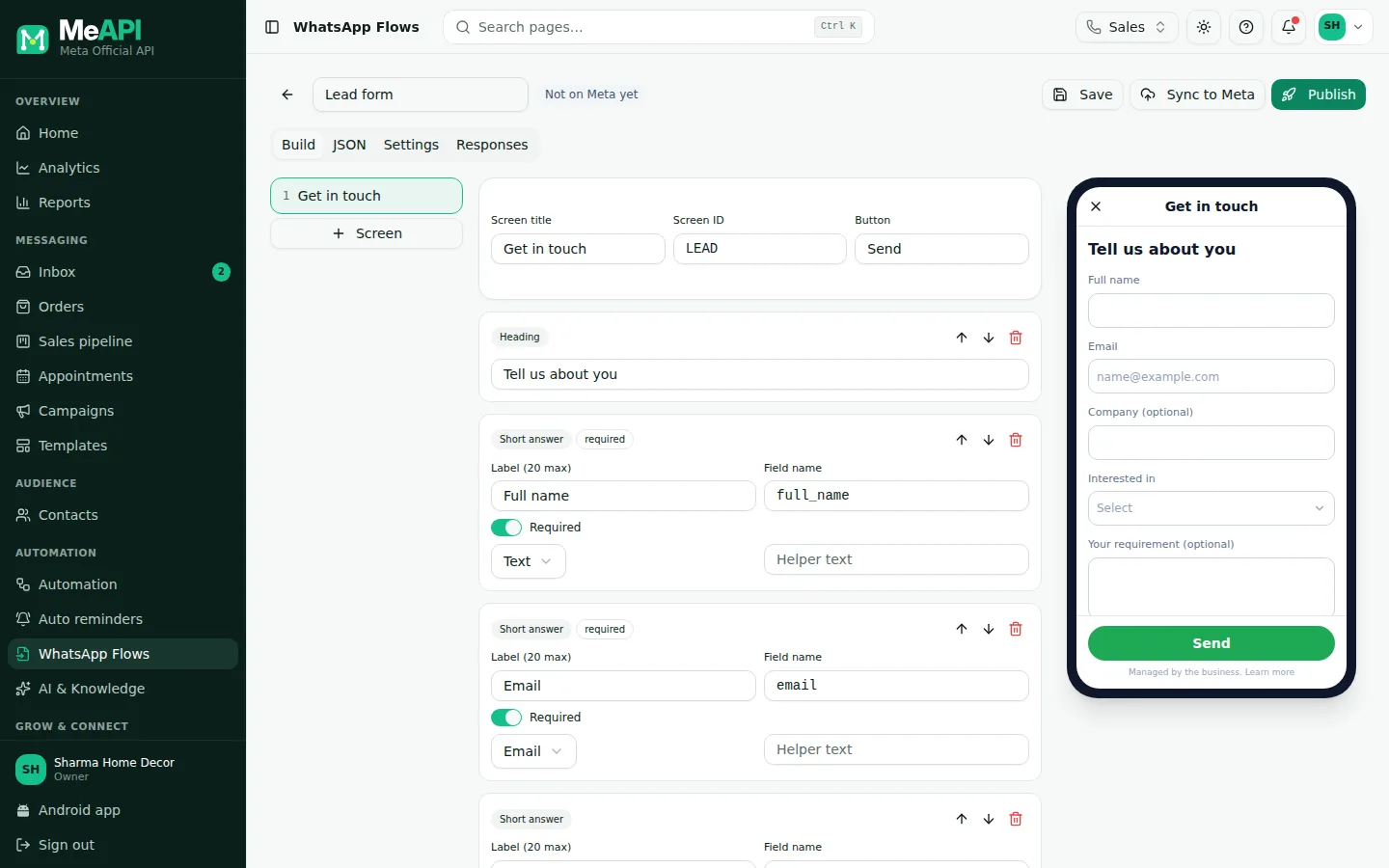
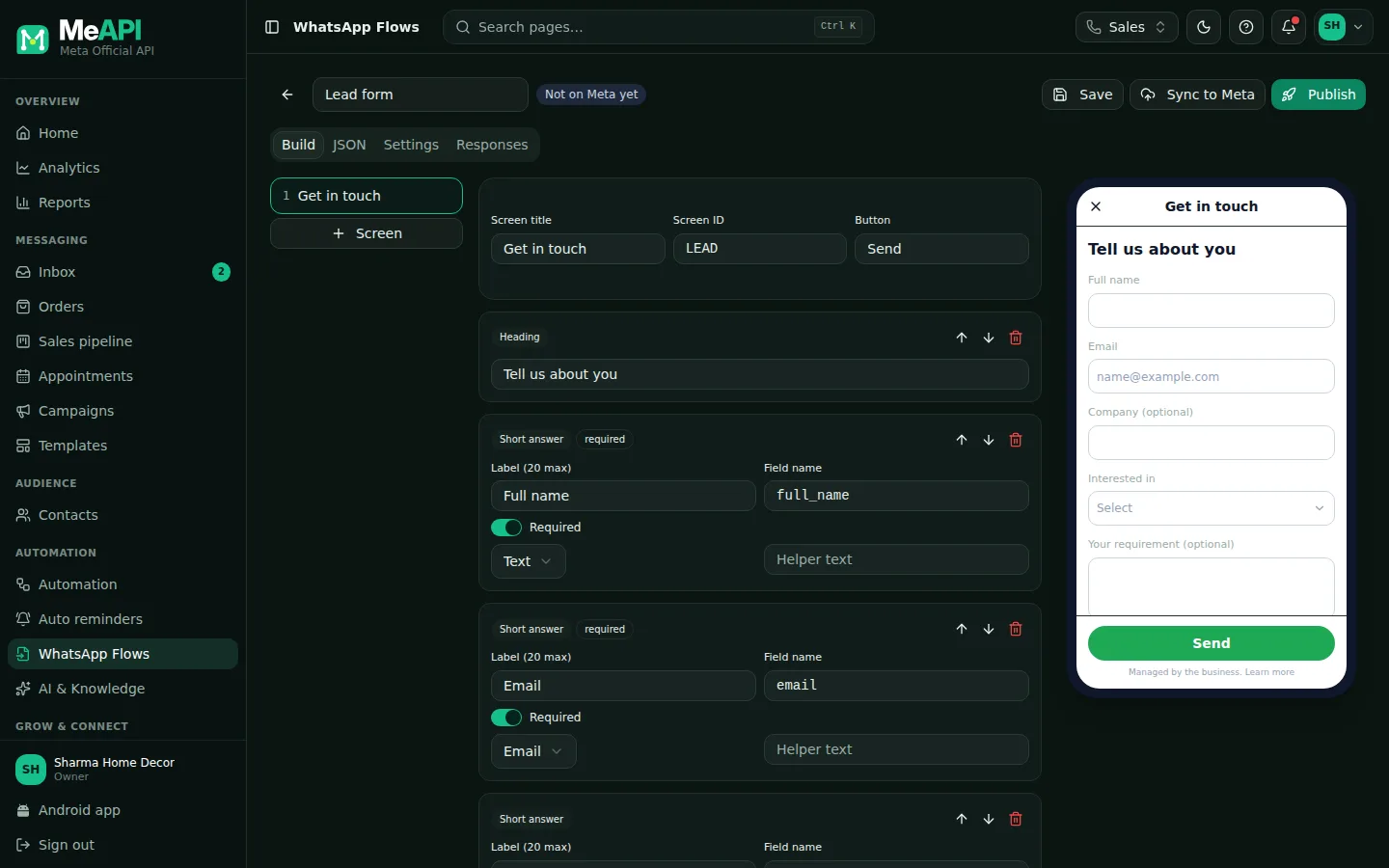
- The form editor: Build, JSON, Settings and Responses tabs.
- A phone preview of the real form next to the editor.
- Save, Sync to Meta and Publish at the top.
Step 3: test the draft, then publish
Section titled “Step 3: test the draft, then publish”- Click Sync to Meta.
- In the Inbox, open a chat with your own test number. In the composer click the form button (Send a WhatsApp form) and pick
Website enquiry (draft — test numbers only). Fill it on your phone. - When it looks right, click Publish and confirm.
Step 4: send it from a chatbot
Section titled “Step 4: send it from a chatbot”- Automation → New chatbot
Enquiry form. Trigger card → Match keywordenquiry, quote, details, Match: Contains. - Click + → Bot actions → WhatsApp Flow form.
- Body text:
Tell us what you need — it takes 30 seconds 👇. WhatsApp Flow: Website enquiry. Button label:Open form. - The step has two outputs: form submitted and typed instead (optional).
The form opens inside WhatsApp.
Step 5: act on each submission
Section titled “Step 5: act on each submission”After form submitted, the answers are ready as {{full_name}}, {{email}}, {{interest}} and so on. Click + beside form submitted and add:
- Send message
Thanks {{first_name}}! Our team will call you today. - Set / remove tag
lead. - Condition: Field / answer
interestisbulk_order→ yes: Notify agent Everyone online🔥 Bulk lead: {{full_name}} ({{phone}}) — {{requirement}}. Add Create deal too if you use the sales pipeline.
Test, Check, Publish.
Step 6: forms sent from the inbox or a campaign
Section titled “Step 6: forms sent from the inbox or a campaign”A form you send from a chat (Step 3) or in a template with a Flow button isn’t waiting in any chatbot. Use the Form submitted trigger for those:
- Automation → New chatbot
Enquiry received. Trigger card → Form submitted → Form: Website enquiry. - Add the same steps as in Step 5.
The trigger doesn’t fire for a form sent by Step 4’s flow: that flow already continues on its own form submitted path.
Step 7: read the responses
Section titled “Step 7: read the responses”Open the form → Responses: every submission with when it came, the contact, and the answers. Each answer is also on the contact (Contacts), so you can build a segment such as interest is bulk_order.
Common mistakes
Section titled “Common mistakes”- Testing a draft on a number that isn’t a test number. Drafts only reach test numbers. Publish first, or add the number in Meta.
- Publishing too early. Published forms can’t be edited. Test the draft first.
- Sending a form outside the 24-hour window. The composer’s form button is locked then. Use a template with a Flow button instead.
What’s next
Section titled “What’s next”Was this page helpful?
Thank you — we read every comment.
Could not send right now. Please try again later.
© 2026 MeAPI by TheWebStore028 · RADHAMADHAV WEBSTORE LLP · GSTIN 27ABJFR6148J1ZO · Contact us ·Cookie settings