

Tutorial: give an agent access to one number
🎯 Goal
Neha works only the Pune store’s number. She never sees Delhi’s chats, contacts or campaigns, and Delhi chats are never assigned to her.
🧰 What you need
- Two or more connected numbers (for example a Pune store and a Delhi store)
- The owner login (or an agent whose role can Invite, edit, roles)
Step 1: pick the number in the agent dialog
Section titled “Step 1: pick the number in the agent dialog”- Open Agents & roles. Click Add agent, or the pencil (Role and numbers) on an existing agent.
- Fill Name, Email and Password (new agents only), and choose a Role, for example Agent (chat only).
- WhatsApp numbers → Selected numbers only.
- Tick the Pune number.
- Create (or Save).
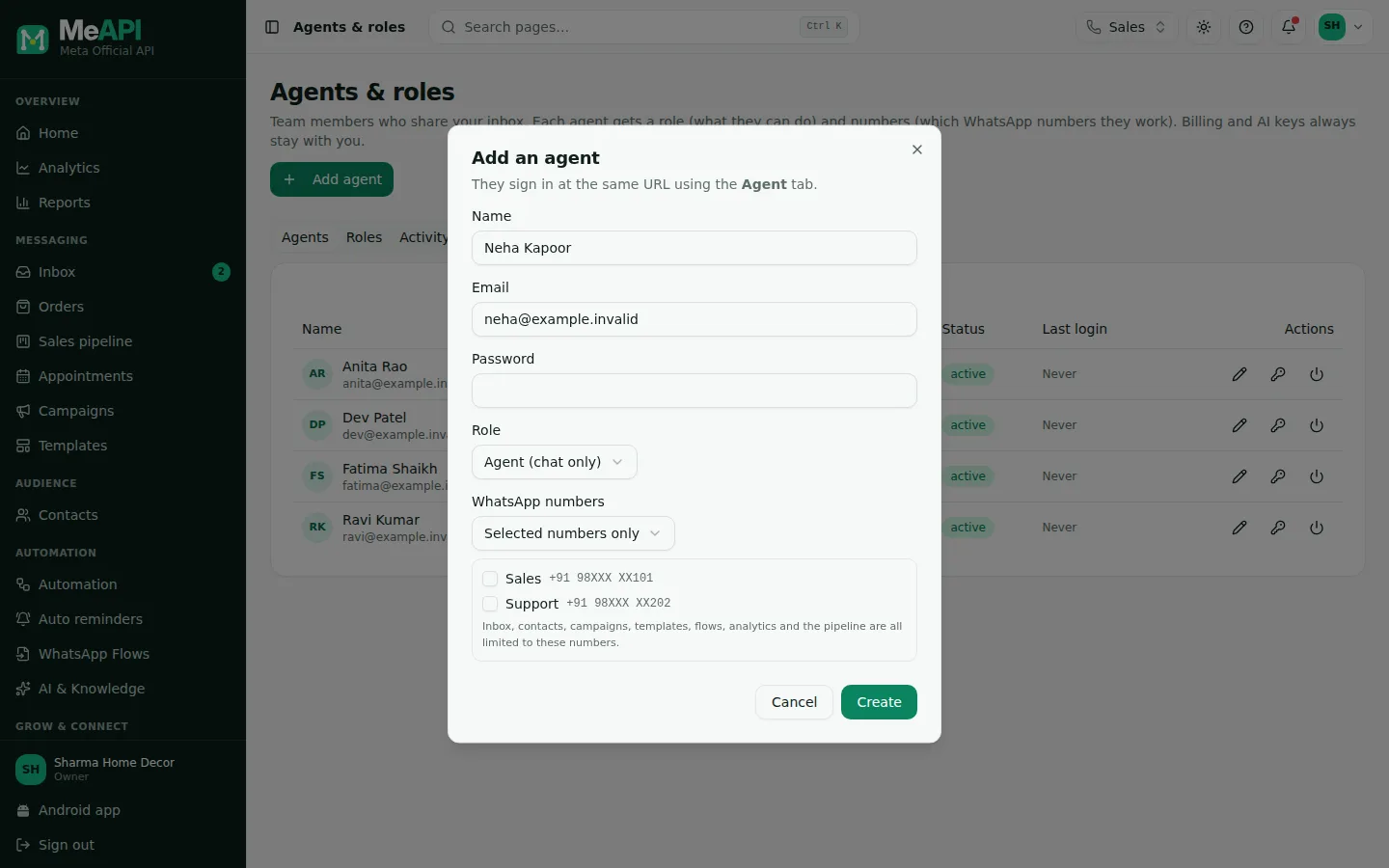
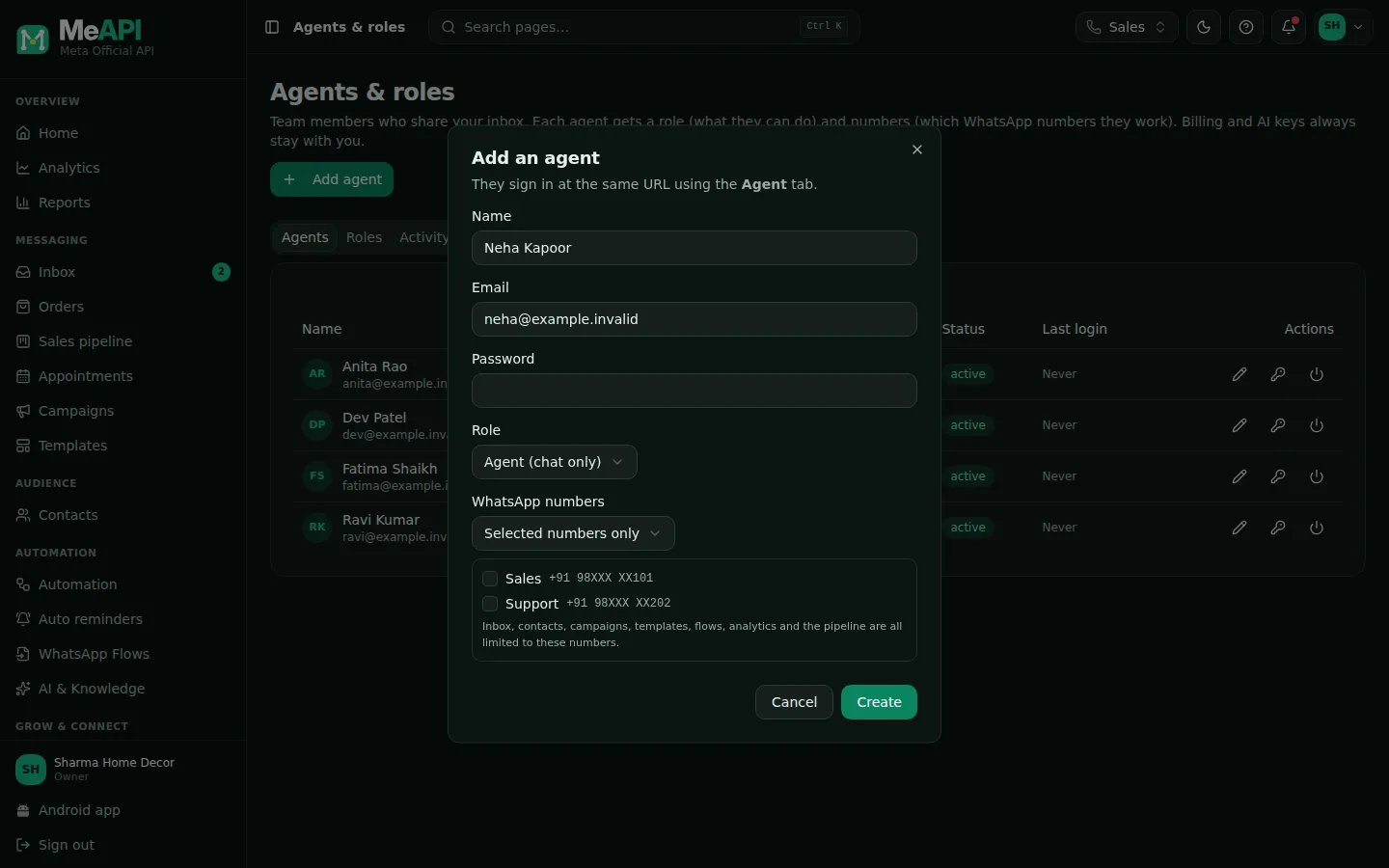
- Name, email, password and the agent's Role.
- WhatsApp numbers: All numbers (including ones added later) or Selected numbers only.
- Tick the numbers this agent works. Inbox, contacts, campaigns, templates, flows, analytics and the pipeline are all limited to them.
The Numbers column in the agents list now shows the Pune number instead of All numbers.
Step 2: what the agent sees
Section titled “Step 2: what the agent sees”Neha signs in at the same login page using the Agent tab. Then:
- The Inbox shows only Pune chats.
- Contacts, Campaigns, Templates, Automation, Analytics and the Sales pipeline only show Pune data, as far as her role lets her open them.
- Pages her role doesn’t cover are hidden from the menu.
To check, sign in as Neha in another browser (or a private window).
Step 3: the All numbers view
Section titled “Step 3: the All numbers view”Anyone who can work two or more numbers (you as the owner, or an agent given several) sees two tabs above the chat list: This number and All numbers. All numbers puts every chat from every number you may work into one list, and each chat shows which number it came in on. Replies, templates and the contact panel use that chat’s own number. The choice is remembered in that browser.
Neha has one number, so she doesn’t see these tabs.
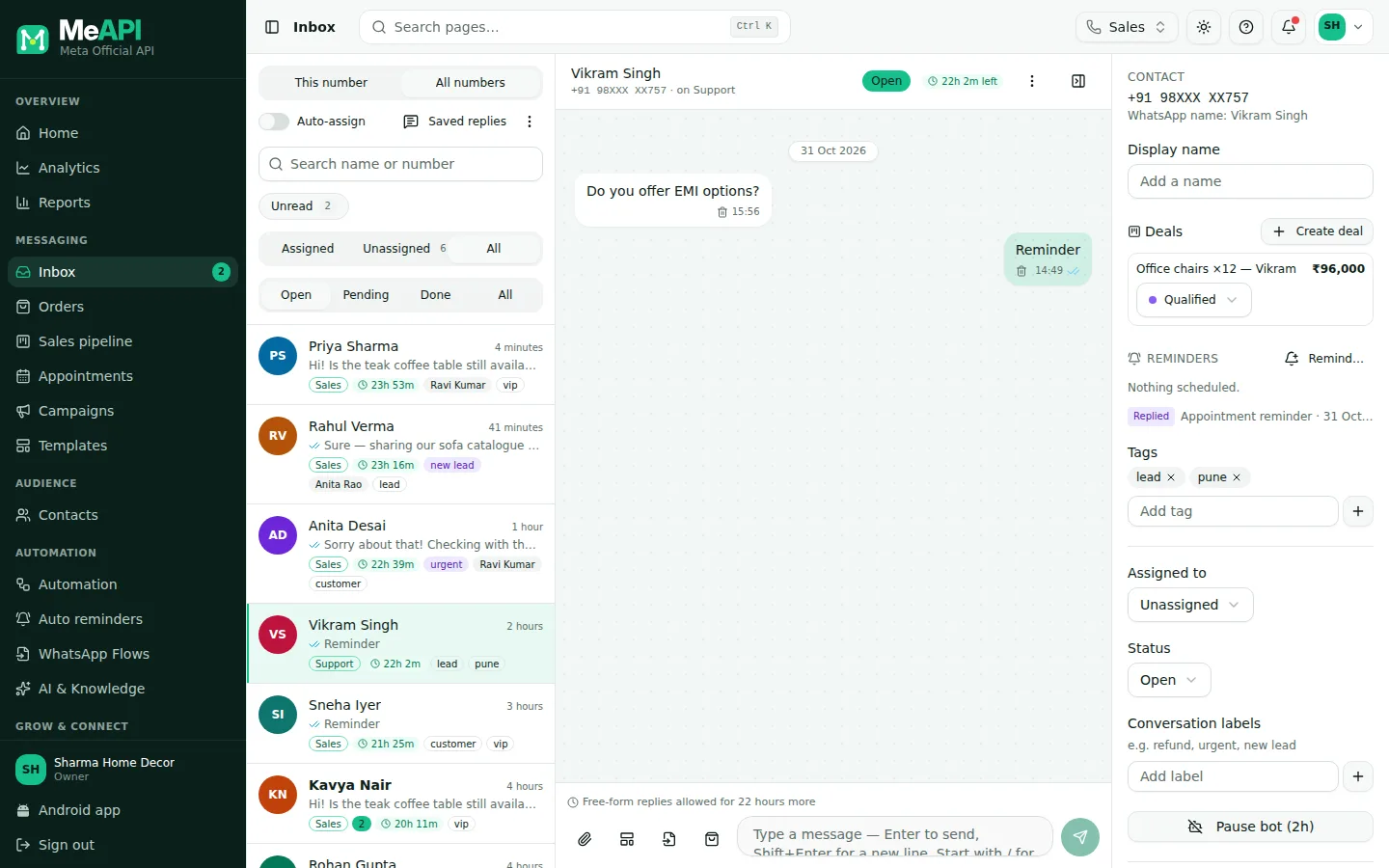
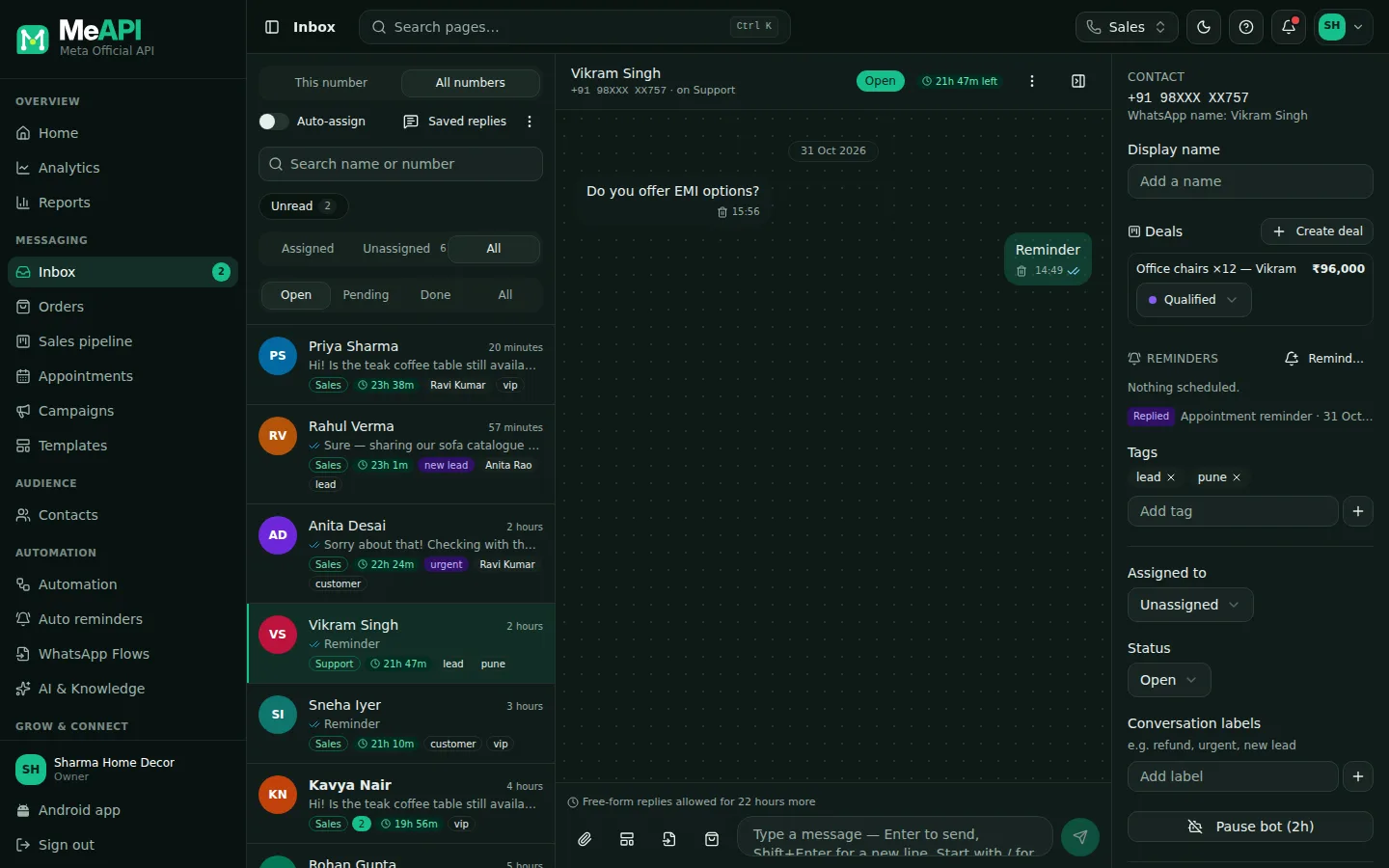
- This number / All numbers tabs above the chat list.
- In All numbers, each chat is tagged with the number it came in on.
Step 4: who can be assigned a chat
Section titled “Step 4: who can be assigned a chat”A chat can only go to an agent who can work its number:
- By hand: the Assigned to list in the contact panel only offers active agents with access to the chat’s number. So a Delhi chat never offers Neha.
- Auto-assign (round-robin) and the flow steps Assign and Human handoff pick only agents who are active, have access to that number, have a role that can view chats, and (for round-robin) are switched to Available.
- If nobody qualifies, the chat stays unassigned. MeAPI adds an internal note (“No available agent with access to … could take this chat”) and alerts you in the panel.
Agent teams work the same way: a team member without access to the number is skipped.
Step 5: fix “No WhatsApp numbers assigned”
Section titled “Step 5: fix “No WhatsApp numbers assigned””An agent with Selected numbers only and no number ticked sees one screen: No WhatsApp numbers assigned, with Check again and Log out. MeAPI also warns you when you save an agent like that.
To fix it, edit the agent, tick a number and Save. The agent clicks Check again.
Common mistakes
Section titled “Common mistakes”- Unticking the agent’s last number by accident. They are locked out until you tick one again.
- A team with only Delhi agents on a Pune flow. Assign → Team finds nobody, and the chat stays unassigned with a note.
- Expecting a newly connected number to appear for an agent on Selected numbers only. Tick it for them.
What’s next
Section titled “What’s next”Was this page helpful?
Thank you — we read every comment.
Could not send right now. Please try again later.
© 2026 MeAPI by TheWebStore028 · RADHAMADHAV WEBSTORE LLP · GSTIN 27ABJFR6148J1ZO · Contact us ·Cookie settings