

First login — owners, agents and passwords
🎯 Goal
Log in to the API Panel, understand the two kinds of login, and get back in if you forget your password.
🧰 What you need
- Your account email and password (owner), or the login your owner created for you (agent)
Two kinds of login
Section titled “Two kinds of login”| Account owner | Agent | |
|---|---|---|
| Who | The person who signed up and pays | Teammates the owner adds under Agents & roles |
| Sees | Everything, including Subscription and the AI provider keys | Only what their role allows, on the numbers they are given. Never Subscription |
| Password reset | By email link | Asks the owner (owner sets a new one in Agents & roles → Reset password) |
Each agent has a role, such as Admin, Manager, Agent (chat only), Marketing or a custom one. The role decides which menus and buttons they get. Read Roles and permissions and Agents and teams.
- Open login.meapi.in. (If you bought through a partner, use the address they gave you — it works the same way.)
- Pick the tab: Account owner or Agent.
- Enter your Email and Password and click Sign in. (No account yet? Create an account under the button starts the free trial.)
- The first time an account owner logs in, a short welcome (three slides) explains what MeAPI does. Click Next, and Get started on the last slide, or Skip to close it. It doesn’t come back.
- You land on Home. The Getting started checklist at the top walks you through setup (see Quick start). If you have not connected WhatsApp yet, Home also shows No WhatsApp Business account connected with a Connect now button.
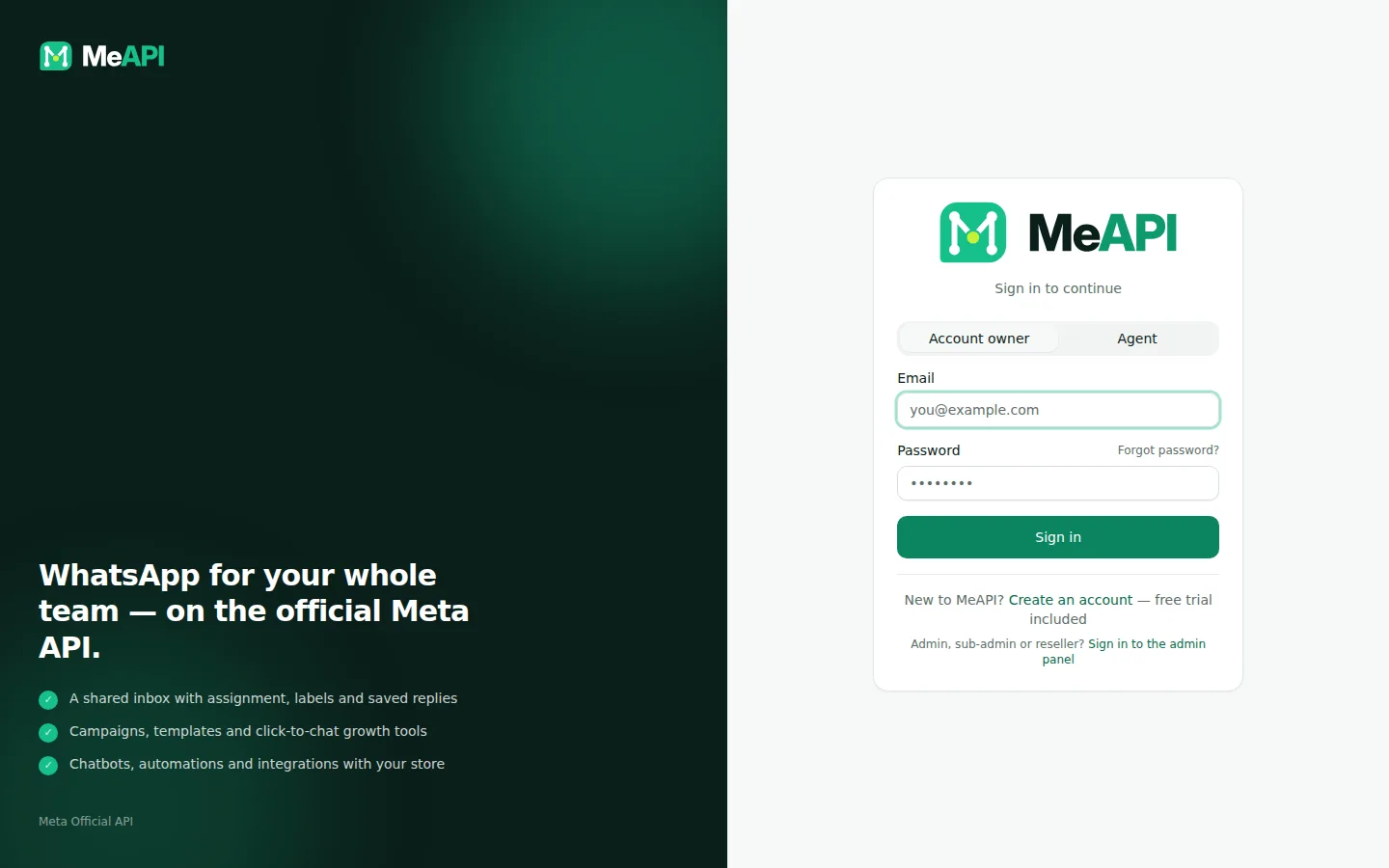
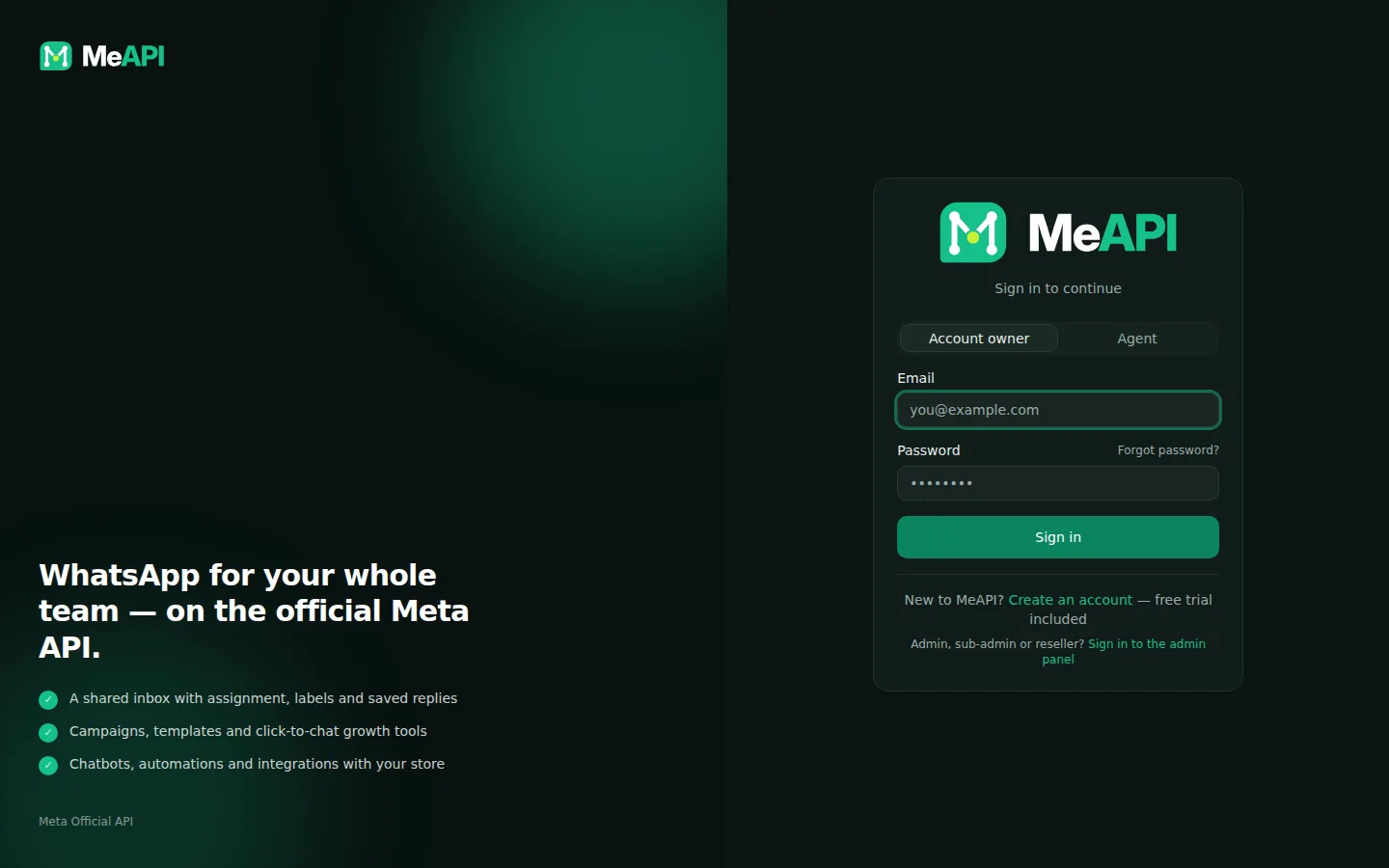
- The Account owner and Agent tabs above the Email and Password fields. Pick yours before you log in.
- Owners see Forgot password?. On the Agent tab it reads Forgot it? Ask your account owner.
Forgot your password?
Section titled “Forgot your password?”- Owner: click Forgot password? on the login page (login.meapi.in/forgot-password), enter your email and open the link we send (check spam). The link works once and expires after 1 hour; asking again replaces the older link. Choose a new password and sign in.
- Know your password and want a new one? Account menu (top right) → Account & password → Password: enter the current one and the new one twice. See Account & security.
- Agent: ask your account owner. They open Agents & roles, click the key icon (Reset password) next to your name and give you the new one.
When your licence has expired
Section titled “When your licence has expired”The owner can still log in, but the panel opens in billing-only mode: a yellow bar says Your licence has expired. Campaigns, auto reminders and chatbot replies are paused… and only Subscription and Support are available. Agents cannot log in until the owner renews (The account license has expired). Renew and everything comes back exactly as it was — chats, contacts, templates, flows. Nothing is deleted when a licence expires.
- Bookmark login.meapi.in — or install it as an app (see Notifications and the mobile app).
- One person, one login. Give every teammate their own agent login so assignments, CSAT and reports show who did what.
Common mistakes
Section titled “Common mistakes”- Owner email on the Agent tab (or the other way round) — the login fails. Check the tab first.
- Resetting on the wrong site. Reset links come from the brand you signed up with; use that one.
What’s next
Section titled “What’s next”Was this page helpful?
Thank you — we read every comment.
Could not send right now. Please try again later.
© 2026 MeAPI by TheWebStore028 · RADHAMADHAV WEBSTORE LLP · GSTIN 27ABJFR6148J1ZO · Contact us ·Cookie settings