

Coexistence — keep the WhatsApp Business app on your number
🎯 Goal
Run the same number in the WhatsApp Business app and in MeAPI. You keep chatting from your phone; your team, campaigns, chatbots and the API work on that number too.
🧰 What you need
- The number active on the WhatsApp Business app (not personal WhatsApp), updated to the latest version
- That phone in your hand during setup, with a working camera (you scan a QR code)
- The MeAPI account owner login and a Facebook account
Before you start
Section titled “Before you start”You need (Meta’s rules):
- The WhatsApp Business app — not personal WhatsApp. On personal WhatsApp? Move the number to the Business app first (it keeps your chats), use it there for a while, then connect.
- The app updated to the latest version (Meta requires 2.24.17 or newer). Update from the Play Store / App Store right before you start.
- A number that has been in use on the app for a while — Meta usually refuses numbers that moved to the Business app only in the last few days. If yours is brand new, keep chatting on it for about a week first.
- A country where Meta offers coexistence. It is available in most countries, India included; if your number’s country isn’t supported yet, Meta’s popup tells you.
You don’t need:
- To add the number to Meta Business Manager or WhatsApp Manager first — the popup does it.
- A Facebook Page.
- Business verification. You can connect unverified; until you verify your business, Meta keeps your messaging limits lower.
How it works
Section titled “How it works”- You start in MeAPI, follow Meta’s popup, and confirm on the phone by scanning a QR code from the WhatsApp Business app.
- Your contacts, and — if you agree — your chat history (up to the last 6 months), are copied into MeAPI once.
- From then on, every new 1:1 chat appears in both places: messages you send from the app show in the MeAPI inbox, and replies sent from MeAPI show in the app.
- Customers notice nothing — same number, same name, same chats.
-
Update the WhatsApp Business app on your phone.
-
In MeAPI open Connection. On the Connect WhatsApp Business card, click I already use the WhatsApp Business app on this number. (Already have a number connected? Click Add number first.)
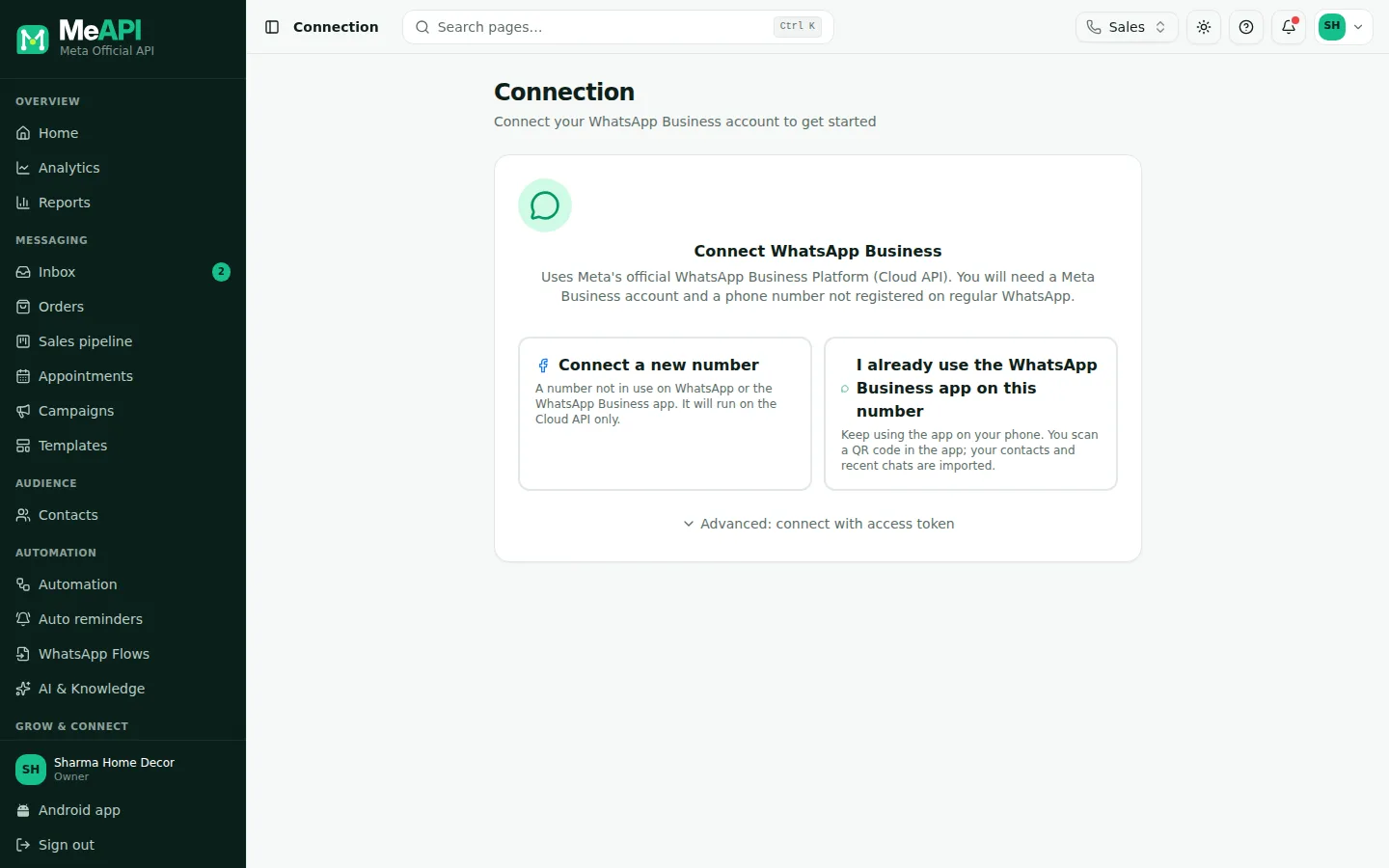
- Connect a new number — a number not on any WhatsApp yet (Cloud API only).
- I already use the WhatsApp Business app on this number — coexistence. Use this one.
-
Meta’s popup opens. Log in with the Facebook account that manages your business. (Nothing opens? Allow popups for login.meapi.in and turn off ad-blockers for the page.)
IllustrationLog in to continue to MeAPI
Email or phone numberPasswordLog inMeta’s popup: log in with the Facebook account that manages your business. Illustration — Meta’s real screen may look different. -
Choose your business portfolio, or create one with your business name, email and country.
IllustrationChoose your business portfolio
● Sharma Home Decor○ Create a business portfolioNextPick your business portfolio, or create one. Illustration — Meta’s real screen may look different. -
If Meta asks how you want to set up WhatsApp, choose Connect your existing WhatsApp Business app.
IllustrationHow do you want to set up WhatsApp?
● Connect your existing WhatsApp Business appKeep using the app on your phone○ Use a new numberNot on WhatsApp yetNextChoose to connect your existing WhatsApp Business app. Illustration — Meta’s real screen may look different. -
Pick or create the WhatsApp Business account. An existing one is fine — but if you see error #3441047, run the signup again and choose Create a new WhatsApp Business account here (see Error 3441047).
IllustrationChoose a WhatsApp Business account
○ Sharma Home Decor (existing)● Create a new WhatsApp Business accountNextPick or create the WhatsApp Business account. After error #3441047, choose “Create a new WhatsApp Business account”. Illustration — Meta’s real screen may look different. -
Enter the number exactly as it is in the WhatsApp Business app, with the country code. Meta is rolling out a version of the popup that asks for the number near the start; the steps are the same, only the order changes.
IllustrationYour WhatsApp Business app number
🇮🇳 +91 98XXX XXXXXUse the number exactly as it is in the app.
NextEnter the number you use in the WhatsApp Business app. Illustration — Meta’s real screen may look different. -
The popup shows a QR code. Keep it open.
IllustrationScan with the WhatsApp Business app
Waiting for you to scan… keep this window open.
A QR code appears in the popup. Keep it open and scan it from the app on your phone. Illustration — Meta’s real screen may look different. -
On your phone, open the WhatsApp Business app. Open the message (or notification) to connect to the Business Platform and tap Connect.
IllustrationWhatsApp Business
Connect your account to the Business Platform to use it with MeAPI.ConnectOn your phone, in the WhatsApp Business app: the message to connect to the Business Platform. Illustration — Meta’s real screen may look different. -
Choose whether to share your chat history (up to the last 6 months of 1:1 chats). Sharing brings those chats into the MeAPI inbox; not sharing still connects the number — only new messages appear. Then scan the QR code on your computer screen with the phone.
IllustrationShare chat history?
Recent 1:1 chats (up to 6 months) are copied to MeAPI. Groups are never shared.
Share chatsDon’t shareStill on the phone: choose whether to share your chat history, then scan the QR code. Illustration — Meta’s real screen may look different. -
Back in the popup, confirm and wait for it to close by itself.
IllustrationReady to connect
MeAPI will be able to manage and send messages for your WhatsApp Business account.
ConfirmConfirm and finish — the popup closes by itself. Illustration — Meta’s real screen may look different. -
In MeAPI the number shows Connected, with the line Also active on the app (coexistence) · contacts … · chat history … showing the import. Contacts usually arrive within minutes, history in the next hours. If you didn’t share history, it reads chat history not shared (turned off in the app).
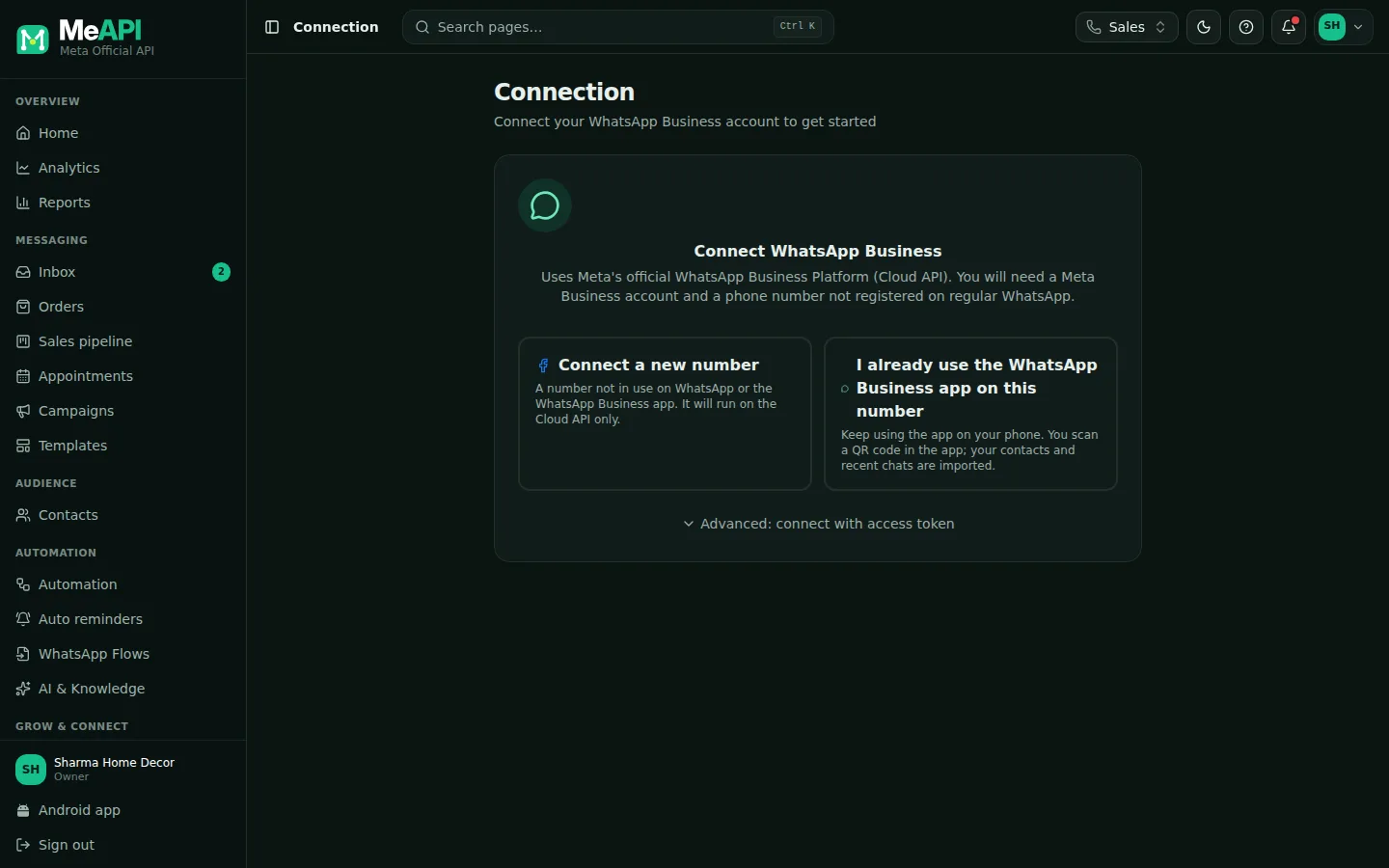
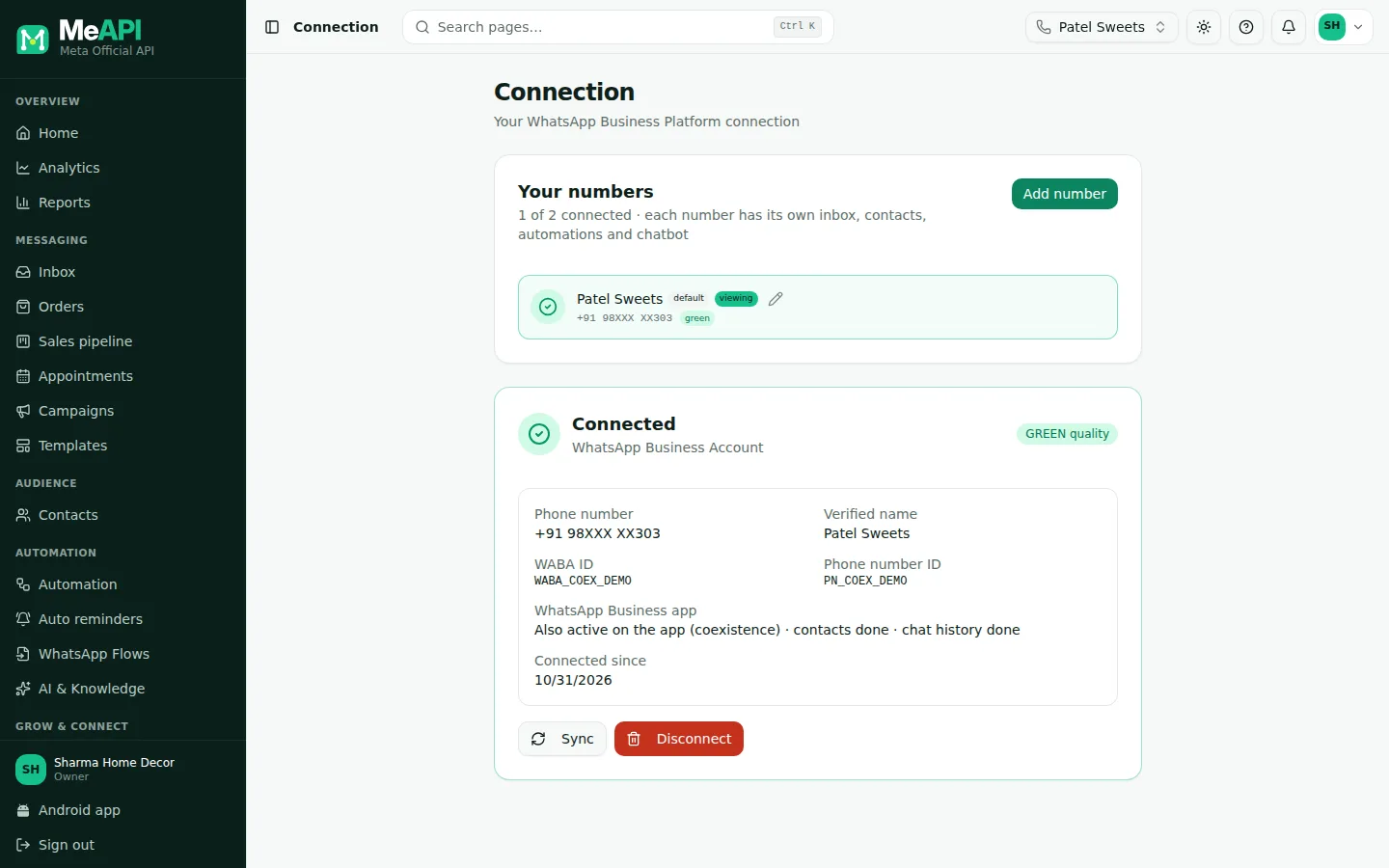
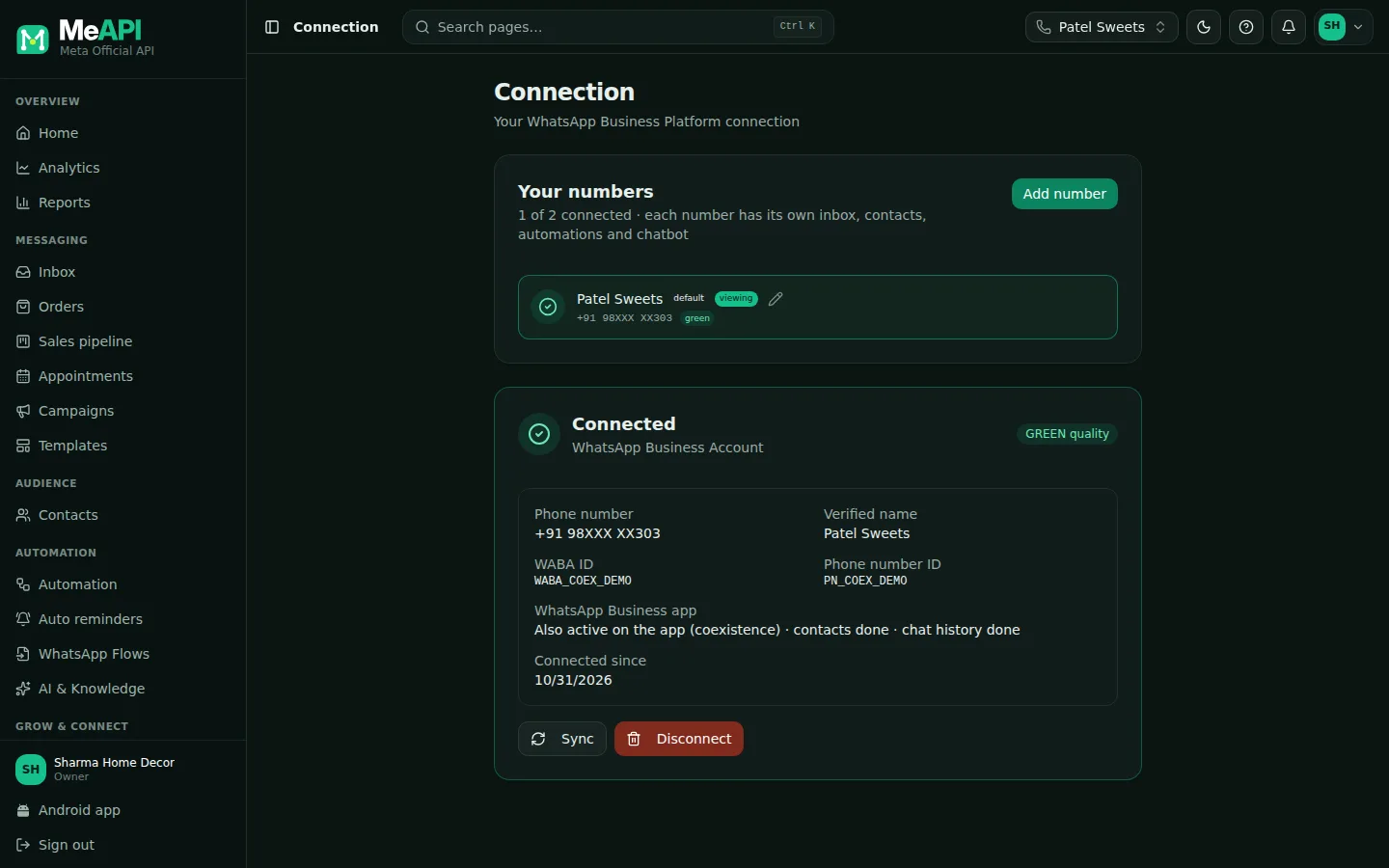
- Connected: phone number, verified name, WABA ID and phone number ID, and the quality rating — the app and the API share one rating on a coexistence number.
- WhatsApp Business app: Also active on the app (coexistence) · contacts done · chat history done.
- Sync re-reads the number from Meta; Disconnect stops it in MeAPI (see Disconnecting).
After connecting
Section titled “After connecting”What syncs
Section titled “What syncs”- New 1:1 chats, both ways — customers’ messages, your replies from the app and replies from MeAPI, in the same thread.
- Contacts from the app, once at connection and then as you change them.
- Chat history (if you shared it): up to the last 6 months of 1:1 chats, imported once. Photos and files are included only from about the last 2 weeks; older ones show as Photo or file from the WhatsApp Business app.
- Edits: a message edited in the app shows its new text in MeAPI with Edited.
What doesn’t
Section titled “What doesn’t”- Groups — never shared with MeAPI.
- Broadcast lists become read-only in the app — send Campaigns from MeAPI instead.
- Disappearing messages, view-once and live location are switched off for 1:1 chats.
- Polls, view-once and other items Meta can’t pass to the API show in MeAPI as a grey Unsupported message — open WhatsApp on your phone to view it line (Inbox basics).
- Calls, catalogue, labels, quick replies, away messages, status and Channels stay in the app; they aren’t shared with MeAPI.
- Up to four linked devices keep working, except WhatsApp for Windows and WearOS.
Keep the app alive: the 14-day rule
Section titled “Keep the app alive: the 14-day rule”Open the WhatsApp Business app on the phone at least once every 14 days. If the main phone is inactive for about 14 days (a linked device: about 30 days), Meta removes the connection and the number shows Disconnected in MeAPI. To fix it, open the app and connect again.
A coexistence number sends at up to 20 messages per second — a fixed limit for numbers on both the app and the API. Large campaigns simply take a little longer; MeAPI paces them for you.
Billing
Section titled “Billing”- Messages you send from the app stay free, as before.
- Messages sent through MeAPI are charged by Meta per message, like any API number: templates, and service replies beyond the free 1,000 per number a month. Meta bills the card on your WhatsApp Business account (WhatsApp Manager → Payment settings) — see Costs in the FAQ.
- Chatting in the app doesn’t open or change the API’s 24-hour window. A customer who wrote to you before you connected can be answered from MeAPI only with a template until they write again.
Coexistence or a new number?
Section titled “Coexistence or a new number?”| Coexistence (this guide) | New number (connect a new number) | |
|---|---|---|
| The WhatsApp Business app | Keeps working on your phone | The number must not be on WhatsApp; moving an app number this way removes the app from it |
| Chats and contacts | Contacts + up to 6 months of history imported | Starts empty |
| Speed | Up to 20 messages / second | Meta’s normal API speed, rising with your limits |
| Groups, broadcast lists, view-once | Groups stay in the app; broadcast lists read-only; view-once off | Not available on the API |
| Keep the phone active | Open the app every 14 days | No phone needed |
| Best for | Shops already selling on the app that want a Separate Inbox for Each Number, bots and campaigns on the same number | A fresh number for the business, or high-volume sending |
Troubleshooting
Section titled “Troubleshooting”No QR code in the popup, or Meta asks for an SMS / call code. The popup didn’t detect coexistence. Update the WhatsApp Business app (2.24.17 or newer), check that you clicked I already use the WhatsApp Business app on this number (not Connect a new number), and that the number you typed is exactly the one in the app.
“This number is already registered on WhatsApp”. You used Connect a new number for a number that is on the app. Run it again with I already use the WhatsApp Business app on this number.
“Already registered on the WhatsApp Business Platform / API”. The number is already connected to the API through another provider or platform. Disconnect it there first (or ask them to release it), then connect here.
Number not eligible / too new. Keep using the number in the app for about a week, then try again. If Meta says your country isn’t supported, use a new number for now.
Contacts or history never arrived. Meta sends them once, within about a day of connecting. If you chose Don’t share, or the import failed, the only way to import again is to disconnect and connect again.
Any other error code in Meta’s popup (3441045 not eligible, 3441049 / 2655094 still connected to another platform, 4563015 app out of date…) is explained, with its fix, in Meta error codes.
Error 3441047
Section titled “Error 3441047”“This feature is not available for accounts using marketing messages.” Meta shows this when the WhatsApp Business account you picked in the popup has marketing messages enabled (for example, it was set up for Marketing Messages Lite). Meta doesn’t allow coexistence on such an account, so retrying with the same account gives the same error.
-
On Connection, click I already use the WhatsApp Business app on this number again.
-
When the popup asks which WhatsApp Business account to use, choose Create a new WhatsApp Business account instead of the existing one.
-
Continue with the same phone number and scan the QR code as usual.
When Meta returns this error, the Connection page shows a red box titled This business account can’t use coexistence (Meta error #3441047) with the same steps and a Read the coexistence guide link.
Disconnecting
Section titled “Disconnecting”- To stop using the number in MeAPI only: Connection → Disconnect. Campaigns stop and the inbox stops receiving; the number stays linked at Meta, so you can reconnect any time.
- To end coexistence completely: in the WhatsApp Business app open Settings → Account → Business Platform → Disconnect account. MeAPI notices and marks the number Disconnected. Your chats stay on the phone.
- To connect again later, run the steps above once more (history can be shared again).
- Reply from either side. Agents in MeAPI and you on your phone see the same chat — agree who answers what, for example the bot first, then the team.
- Turn on a welcome flow carefully. Your existing customers also trigger “first message” flows the first time they write after you connect.
- Keep a payment method in Meta for messages sent through MeAPI.
What’s next
Section titled “What’s next”Was this page helpful?
Thank you — we read every comment.
Could not send right now. Please try again later.
© 2026 MeAPI by TheWebStore028 · RADHAMADHAV WEBSTORE LLP · GSTIN 27ABJFR6148J1ZO · Contact us ·Cookie settings