

Templates explained — and your first template
🎯 Goal
Understand templates well enough to choose the right category, then create one, submit it and get it approved.
🧰 What you need
- A connected number
- A role that can create templates (and submit them to Meta)
What is a template?
Section titled “What is a template?”A template is a message format that Meta approves in advance. WhatsApp requires one whenever you start a conversation, or write to someone after their 24-hour window has closed. Inside the window you can reply freely; templates aren’t needed.
You use templates for campaigns, order updates from Shopify, reminders, flows that run after a delay, and API messages to people who haven’t written recently.
The three categories
Section titled “The three categories”| Category | For | Examples | Cost |
|---|---|---|---|
| Utility | A transaction or request the customer already made | Order confirmed, shipped, appointment reminder, payment receipt | Lower; charged inside an open window too (since 1 Oct 2026) |
| Marketing | Anything promotional or not tied to a transaction | Offers, new arrivals, festival greetings, “we miss you” | Highest |
| Authentication | One-time passwords | “123456 is your login code” | Low, fixed format |
Variables
Section titled “Variables”Variables are the parts that change per person, written {{1}}, {{2}}… in order. Click + Variable to insert the next one.
Hi {{1}}, your order {{2}} has been shipped and will arrive by {{3}}.For every variable you give Meta an example value (for example Ravi, #1042, Friday), so the reviewer can see a realistic message. When sending, you map each variable to a contact field or fixed text.
Steps: create your first template
Section titled “Steps: create your first template”-
Open Templates and click New template. Or click Browse ready templates to start from one of 170+ approved-style examples (Template library).
-
Step 1 of 2 — the basics. Fill in:
- Template name: lowercase letters, numbers and underscores only, for example
order_shipped. Meta will not let you rename it later. - Language: the language the text is written in. Add more languages later; each is reviewed separately.
- Category: Utility for this example.
- Type: Standard (header, body, footer, buttons). Carousel, Limited-time offer, Catalog and Multi-product are Marketing-only.
- Template name: lowercase letters, numbers and underscores only, for example
-
Step 2 — the builder. Write the Body:
Hi {{1}}, your order {{2}} has been shipped 🚚 Track it any time from the link below.Add Example values:Ravi,#1042. -
Optional: a Header (None, Text, Image, Video or Document), a Footer (max 60 characters, no variables) and Buttons. See Buttons.
-
Watch the Preview on the right. It renders exactly as WhatsApp will. If anything breaks Meta’s rules, a red Meta would reject this: box lists it, and Submit to Meta stays disabled until it’s fixed.
-
Click Submit to Meta. You see Submitted to Meta — review usually takes under 24 hours. Most Utility templates are approved within minutes. Or click Save draft to finish later.
Submit to Meta only shows for roles with the Templates → Submit to Meta permission. Others can save drafts, and someone with that permission submits them.
-
Back on Templates, the status shows In review, then Approved or Rejected. Click Sync from Meta to refresh now.
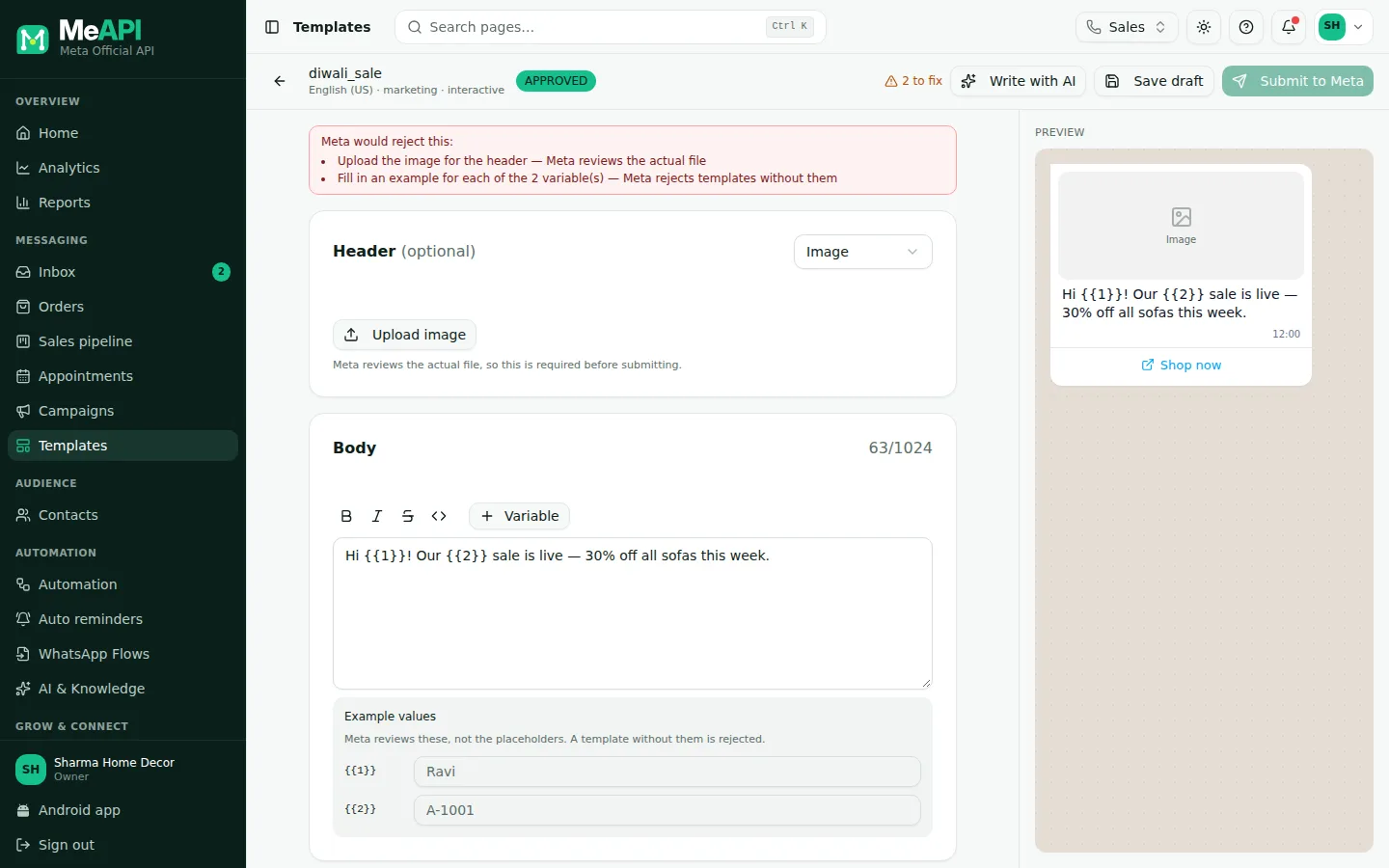
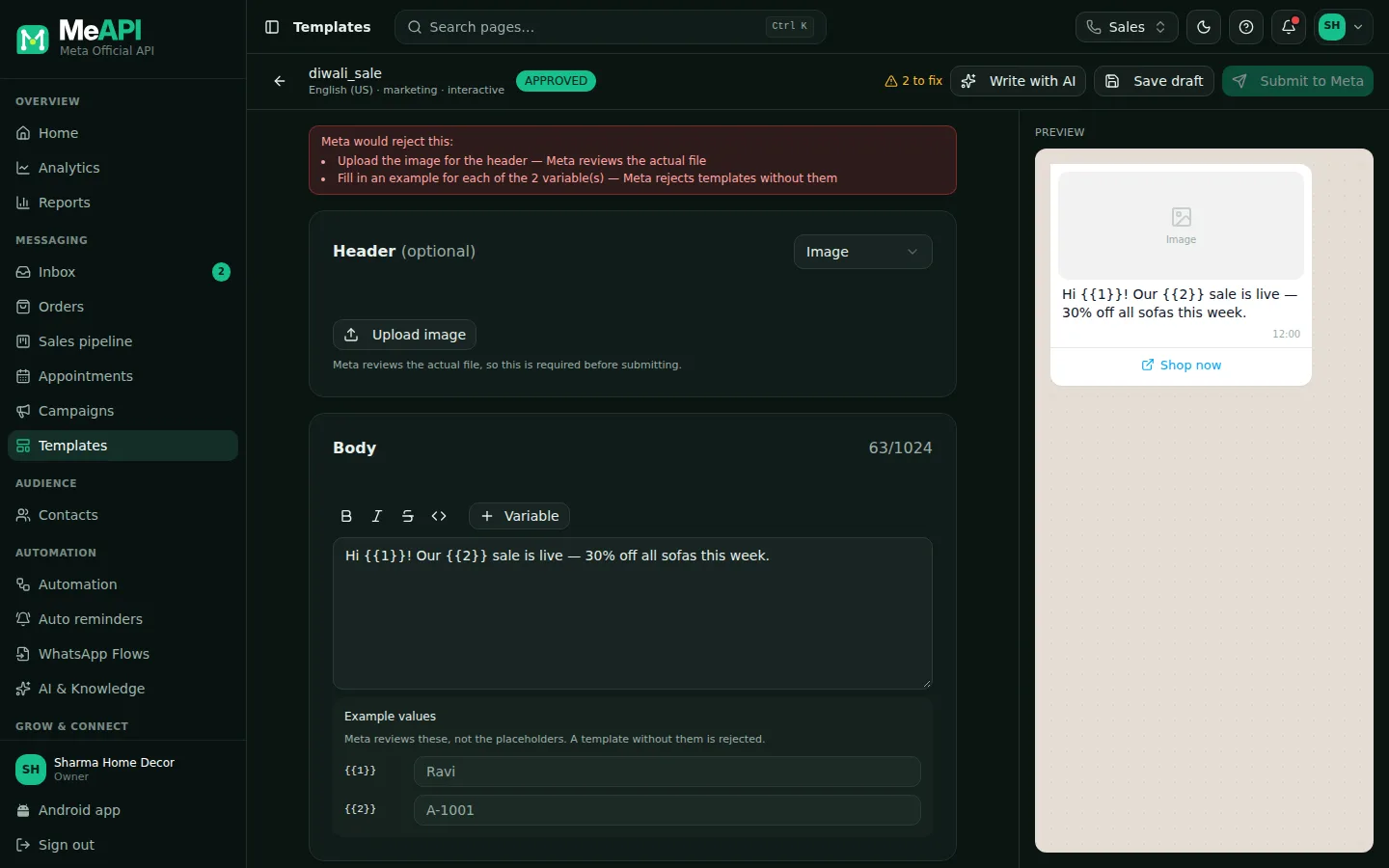
- The top bar: template name, language, category and type, its status, Ready or how many problems are left, Write with AI, Save draft and Submit to Meta.
- Left: the editor. Header (None, Text, Image, Video, Document), Body with bold, italic, strikethrough, monospace and variables, Example values, Footer and Buttons.
- Right: the Preview, as WhatsApp will show it.
- Anything Meta would reject is listed in red under Meta would reject this:.
Template statuses
Section titled “Template statuses”- Draft: saved in MeAPI only, not sent to Meta.
- In review (Pending): Meta is checking it.
- Approved: ready to send.
- Rejected: open it to see the reason. Fix it and submit again under a new name, or edit and resubmit. See Rejection reasons.
- Paused / Disabled: Meta paused it after negative feedback (blocks/reports). Paused templates come back after a few hours; repeated pauses disable it.
- Start with Utility. It’s approved fastest and costs least.
- Use Write with AI to draft a template from a short description, then edit it. It uses the AI key the owner added in AI & Knowledge, and is not offered for carousel, catalog, multi-product or authentication templates.
- One idea per template. Short, clear messages get approved and read.
Common mistakes
Section titled “Common mistakes”- Starting or ending the body with a variable:
{{1}}, your order…. Add text before and after. - Missing example values, or examples that don’t look real.
- Capitals or spaces in the name (
Order Shipped). Useorder_shipped. - Too many variables and too little text. Meta rejects templates that are mostly blanks.
What’s next
Section titled “What’s next”Was this page helpful?
Thank you — we read every comment.
Could not send right now. Please try again later.
© 2026 MeAPI by TheWebStore028 · RADHAMADHAV WEBSTORE LLP · GSTIN 27ABJFR6148J1ZO · Contact us ·Cookie settings