

WhatsApp Flows — forms inside WhatsApp
🎯 Goal
Collect leads, bookings and feedback with a real form that opens inside WhatsApp. The answers land straight on the contact.
🧰 What you need
- A connected number
- To publish: a Meta-verified business (drafts can be tested without it)
What is a WhatsApp Flow?
Section titled “What is a WhatsApp Flow?”A WhatsApp Flow is a form with one or more screens. Customers open it from a button in the chat, fill it in without leaving WhatsApp, and tap submit. Compared with asking questions one by one in a chatbot, a Flow is faster for the customer, fields are validated, and answers arrive all at once.
A Flow opens over the chat like an app screen.
Steps: create, sync and publish
Section titled “Steps: create, sync and publish”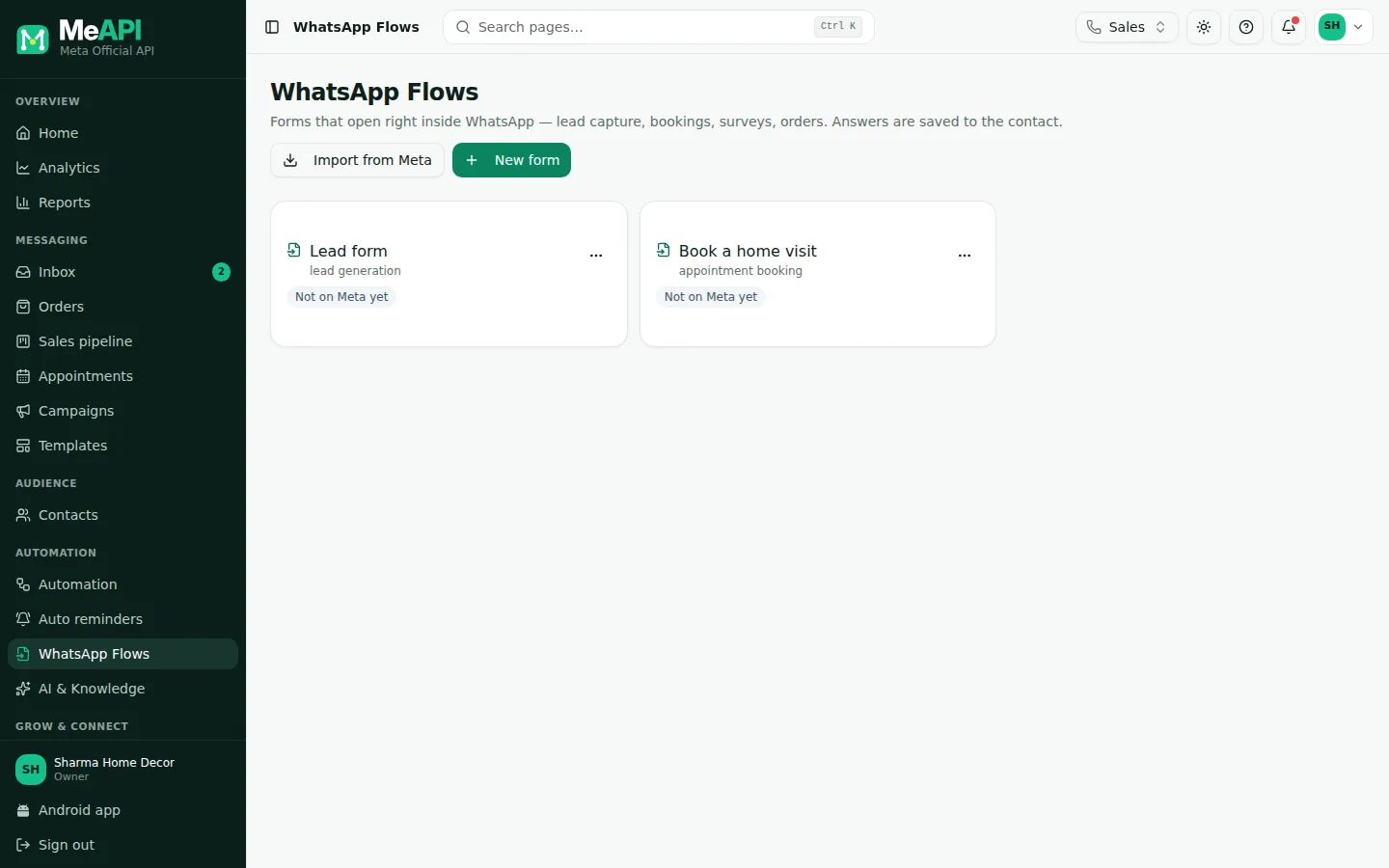
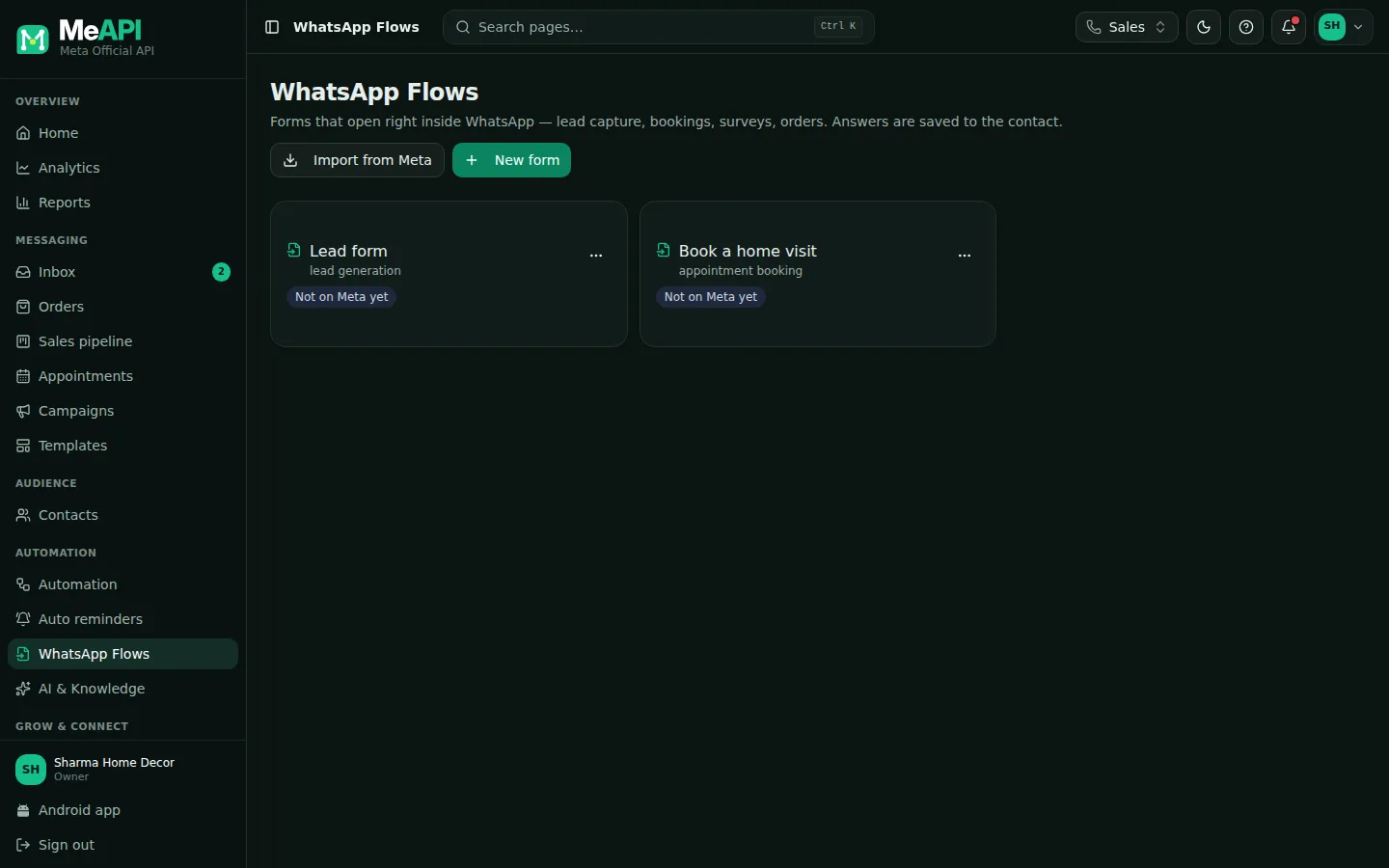
- Import from Meta and New form at the top right.
- One card per form: name, category, status badge, a dynamic badge for endpoint forms, the number of responses, and Meta validation errors if any.
- The ⋯ menu on a card: Duplicate and Delete. Click a card to open the editor.
- Pick the number in the number switcher at the top. Forms belong to that number’s WhatsApp Business Account (WABA), so every number under it can send them.
- Open WhatsApp Flows and click New form.
- Start from a ready-made form or a blank one. Besides Blank form (one screen, one question), the 9 ready forms are Lead form, Appointment booking, Feedback / NPS, Registration, Quote request, Order form, Customer survey, Callback request and Support ticket. Pick Appointment booking, give it a Name and click Create.
- The editor opens on Build. Change the questions, options and button text to suit you. See The Flow editor.
- Open Settings: tick the categories and map each answer under Save answers to the contact.
- Click Save, then Sync to Meta. Meta checks the form; any problems appear in a red Meta’s validation box. Meta preview opens Meta’s own preview. Refresh reloads the status from Meta.
- Test the draft by sending it to a test number (drafts only reach test numbers). See Send a Flow and read responses.
- Click Publish.
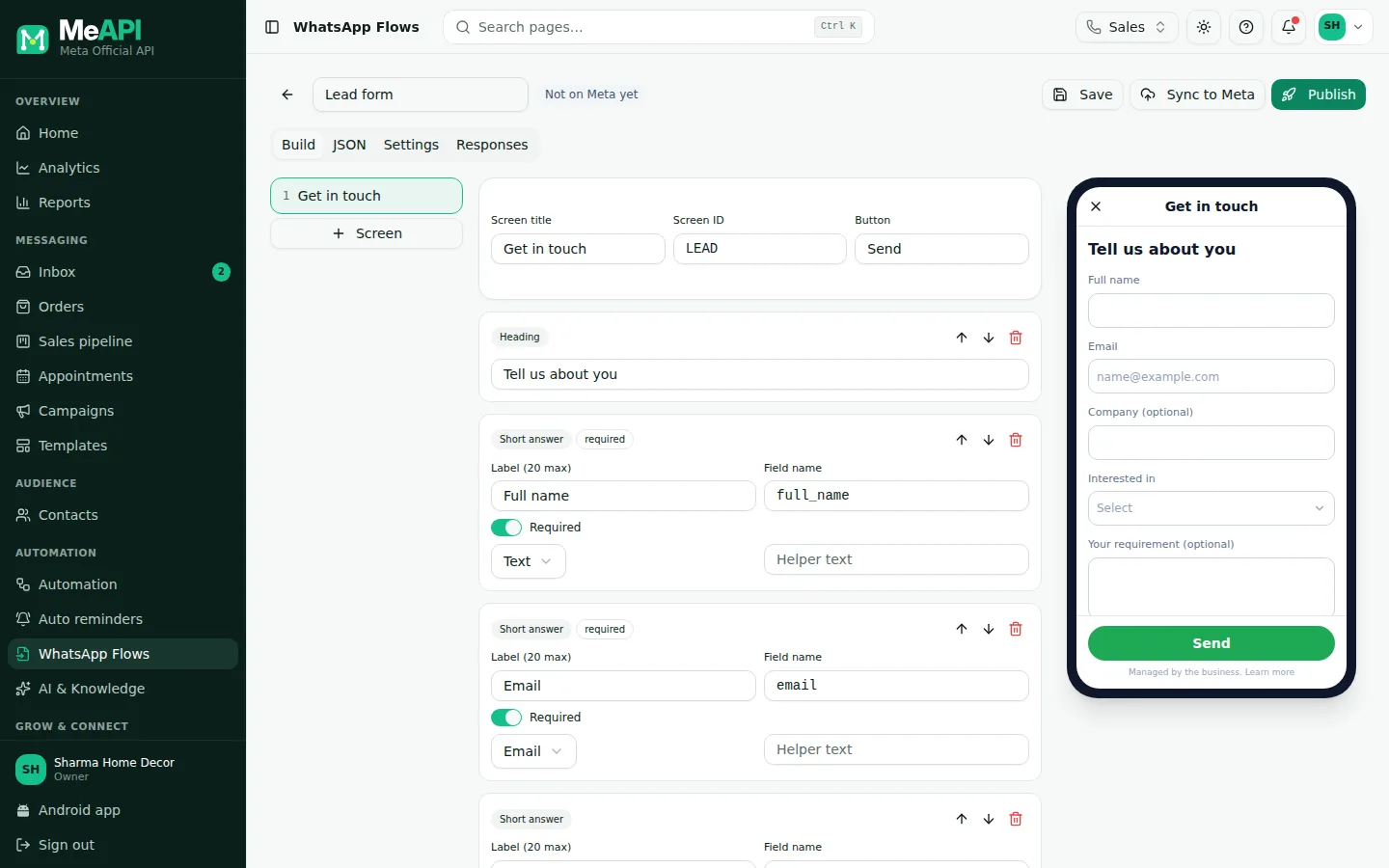
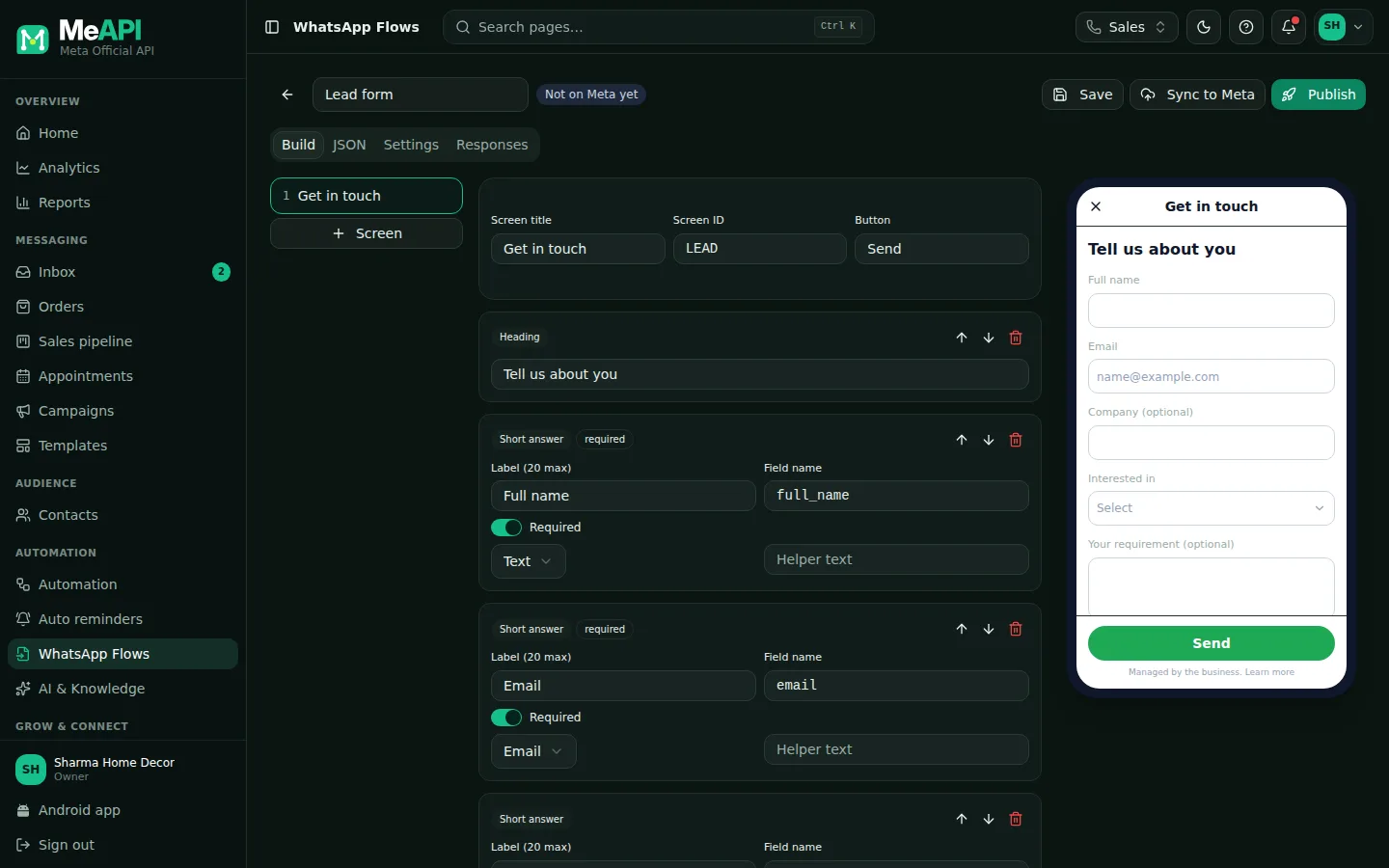
- Top: back arrow, the form name, its status badge (Not on Meta yet, Draft on Meta, Published…), then Meta preview, Refresh, Save, Sync to Meta and Publish.
- Tabs: Build, JSON, Settings and Responses.
- Left: the screens of the form, with + Screen. Middle: the questions on the selected screen, with Add.
- Right: a live phone preview of the real Flow JSON.
Published means frozen
Section titled “Published means frozen”Already built Flows in WhatsApp Manager?
Section titled “Already built Flows in WhatsApp Manager?”Click Import from Meta on the WhatsApp Flows page to bring them in, then send them like any other. Imported forms are edited as JSON.
- Short forms convert. 3–6 questions; split longer ones over screens.
- Ask for consent in the form. The Opt-in checkbox component records marketing consent.
- Prefill known details (name, email) so returning customers only confirm them. See Dynamic Flows.
Common mistakes
Section titled “Common mistakes”- Publishing without testing. You can’t edit it afterwards. Test the draft first.
- Unverified business. Publishing fails until Meta verifies your business.
- Images over 300 KB in a form. The editor refuses them (Images in forms can be at most 300 KB). Compress them first.
What’s next
Section titled “What’s next”Was this page helpful?
Thank you — we read every comment.
Could not send right now. Please try again later.
© 2026 MeAPI by TheWebStore028 · RADHAMADHAV WEBSTORE LLP · GSTIN 27ABJFR6148J1ZO · Contact us ·Cookie settings