

Test, stats and versions — simulator, analytics and rollback
🎯 Goal
Ship flows with confidence: test before publishing, see where customers drop off, and undo a bad change in one click.
🧰 What you need
- A flow in the builder
Test (simulator)
Section titled “Test (simulator)”Click Test in the top bar. The Test this flow panel runs your current draft without sending anything, and the path lights up on the canvas.
- Type what a customer would send (for example the trigger keyword
price), or just press Start. - Tap the buttons shown, or type answers. When the flow waits you see Waiting for the customer’s reply; at the end, Flow finished.
- Answers you give appear under Saved answers.
- Fix anything odd, then Start over and test again. HTTP requests, payments and order lookups are simulated, not really called. Delays are shown, not waited.
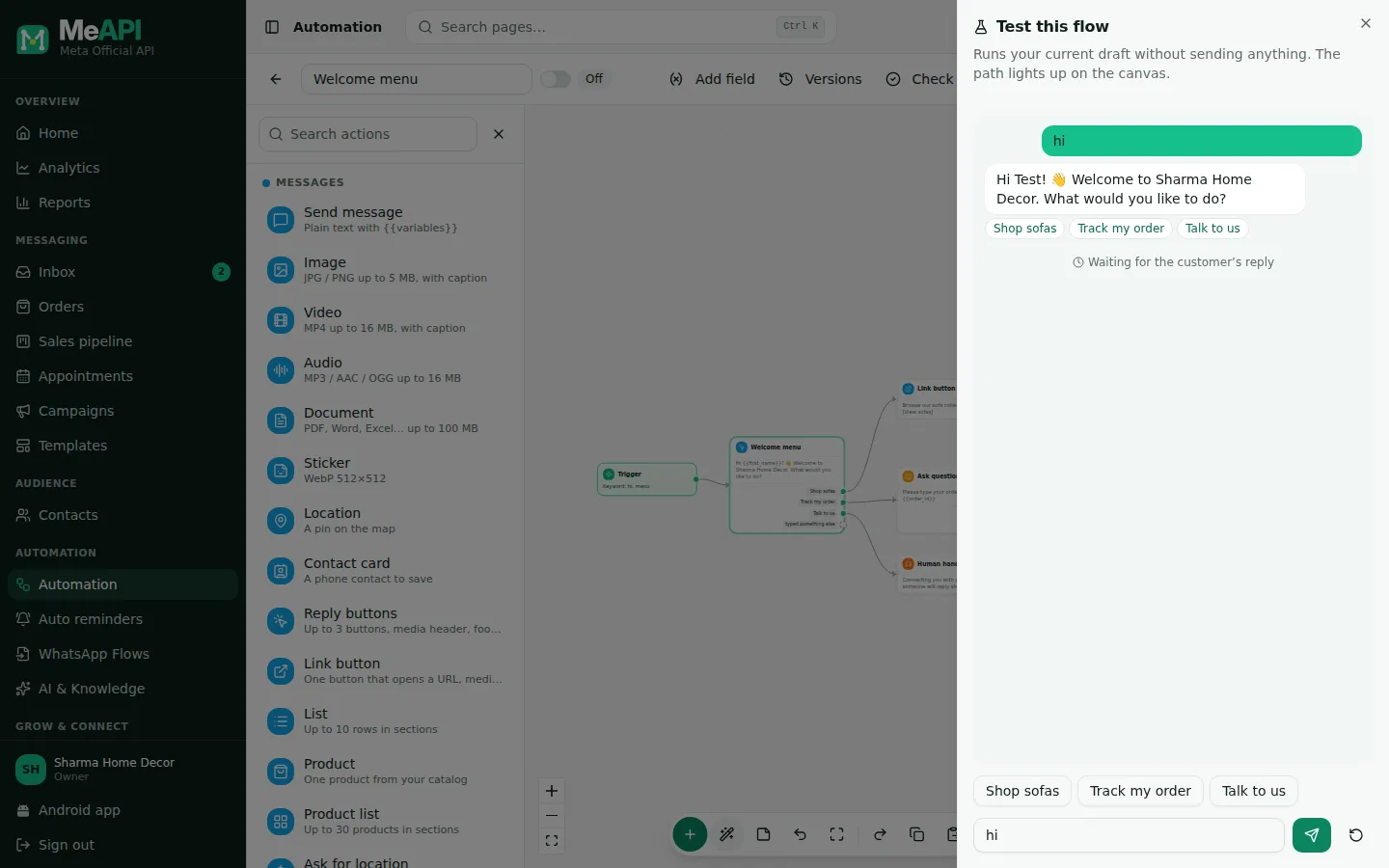
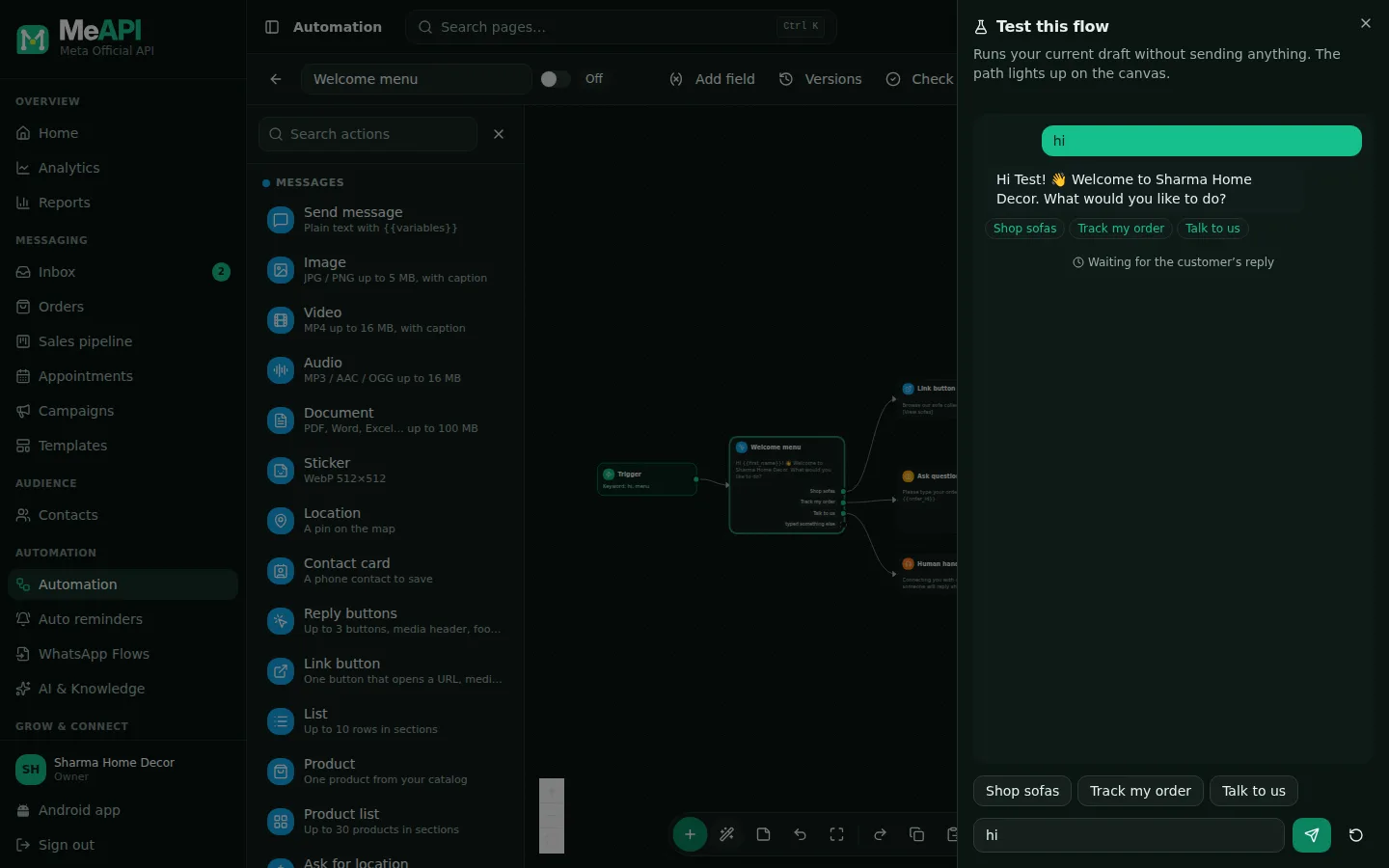
- The Test this flow panel: type as the customer, or just press Start.
- Bot replies appear as chat bubbles; tap the buttons shown to answer.
- The path the chat took lights up on the canvas.
- Saved answers lists the variables saved so far. The round arrow starts over.
Check and publish
Section titled “Check and publish”- N to finish in the top bar counts steps still missing content (amber on the canvas). Click it to jump to the next one. Publish stays blocked until there are none.
- Check runs the server’s full check without publishing. You see Looks good — ready to publish, or a red bar N to fix with Show, and the problem steps are marked on the canvas.
- Publish (or Publish changes on a live flow) asks for an optional note, What changed?, then checks again. If something is wrong: Fix the marked steps, then publish again.
After publishing: New chats use this version right away. Chats already inside the flow finish on the version they started with. Publishing needs the Automation → Publish permission.
On a live flow, click Stats. Each step shows a small counter for the live version over the last 30 days. Hover it to see how many chats reached the step, completed it, and dropped there. A step where many people drop is where to improve the wording or offer buttons. If nothing ran yet you see No runs of the live version in the last 30 days yet.
Versions
Section titled “Versions”Click Versions. Every publish is kept. Compare with your draft, load one, or roll back. Each version shows its number, a Live badge, the date, the note and who published it.
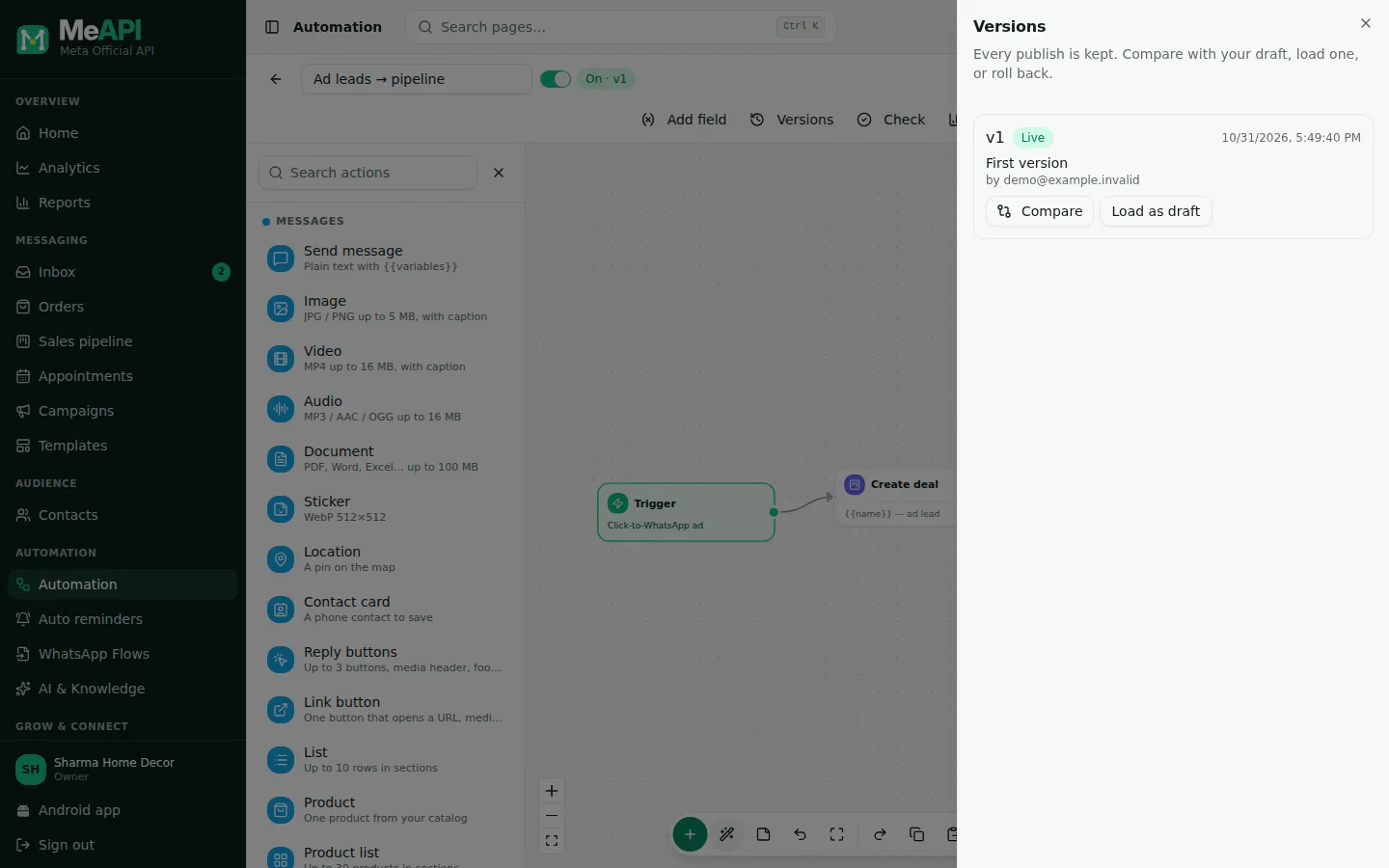
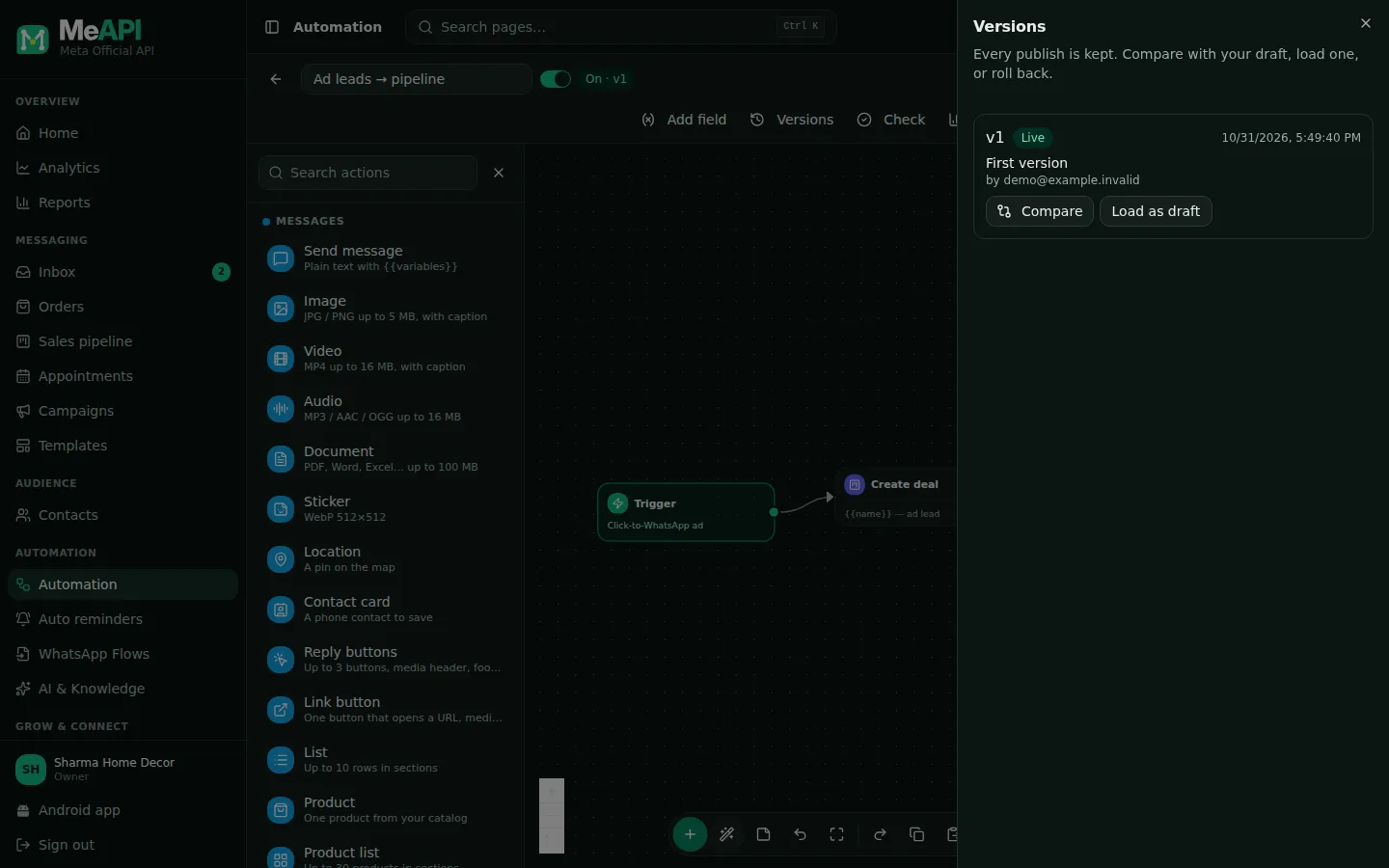
- One row per publish: version, Live badge, date, note and who published it.
- Compare lists steps added (+), removed (−) and changed (~) in your draft, and connection changes.
- Load as draft copies that version into the editor. Roll back makes it live again right away.
- Compare shows what your draft changed against that version.
- Load as draft copies the version into the editor. Unsaved changes are lost.
- Roll back makes the version live and the draft at once. It needs the publish permission.
What’s next
Section titled “What’s next”Was this page helpful?
Thank you — we read every comment.
Could not send right now. Please try again later.
© 2026 MeAPI by TheWebStore028 · RADHAMADHAV WEBSTORE LLP · GSTIN 27ABJFR6148J1ZO · Contact us ·Cookie settings