

Agents, roles and teams
LearnInbox & teamBeginner
🎯 Goal
Share your WhatsApp number with your team. Everyone gets their own login and sees only what they need. New chats are shared out fairly.
🧰 What you need
- The account owner login
- Each teammate’s name and email
Every agent has a role (what they can do) and numbers (which WhatsApp numbers they work). Four roles are ready-made, and you can build your own. See Roles and permissions.
| Role | In short |
|---|---|
| Admin | Everything except managing agents and connecting numbers |
| Manager | Whole inbox, contacts, pipeline, orders, auto reminders, analytics |
| Agent (chat only) | Their own and unassigned chats, notes, contacts, their own deals |
| Marketing | Campaigns, templates, contact lists, auto reminders, analytics; no inbox |
| Owner (you) | Everything, always, including billing and AI keys |
Steps: add an agent
Section titled “Steps: add an agent”- Open Agents & roles (left menu → Account) and click Add agent.
- Enter the Name, Email and a Password (at least 6 characters). Pick the Role and the WhatsApp numbers they work: all, or selected numbers.
- Save. Send your teammate the address login.meapi.in, their email and password, and tell them to use the Agent tab.
- To change a password later, click the key icon (Reset password) next to the agent and enter the New password. Agents cannot reset it themselves: on the login page they see Forgot it? Ask your account owner.
- To stop someone signing in without deleting them, click the power icon (Disable). Enable brings them back.
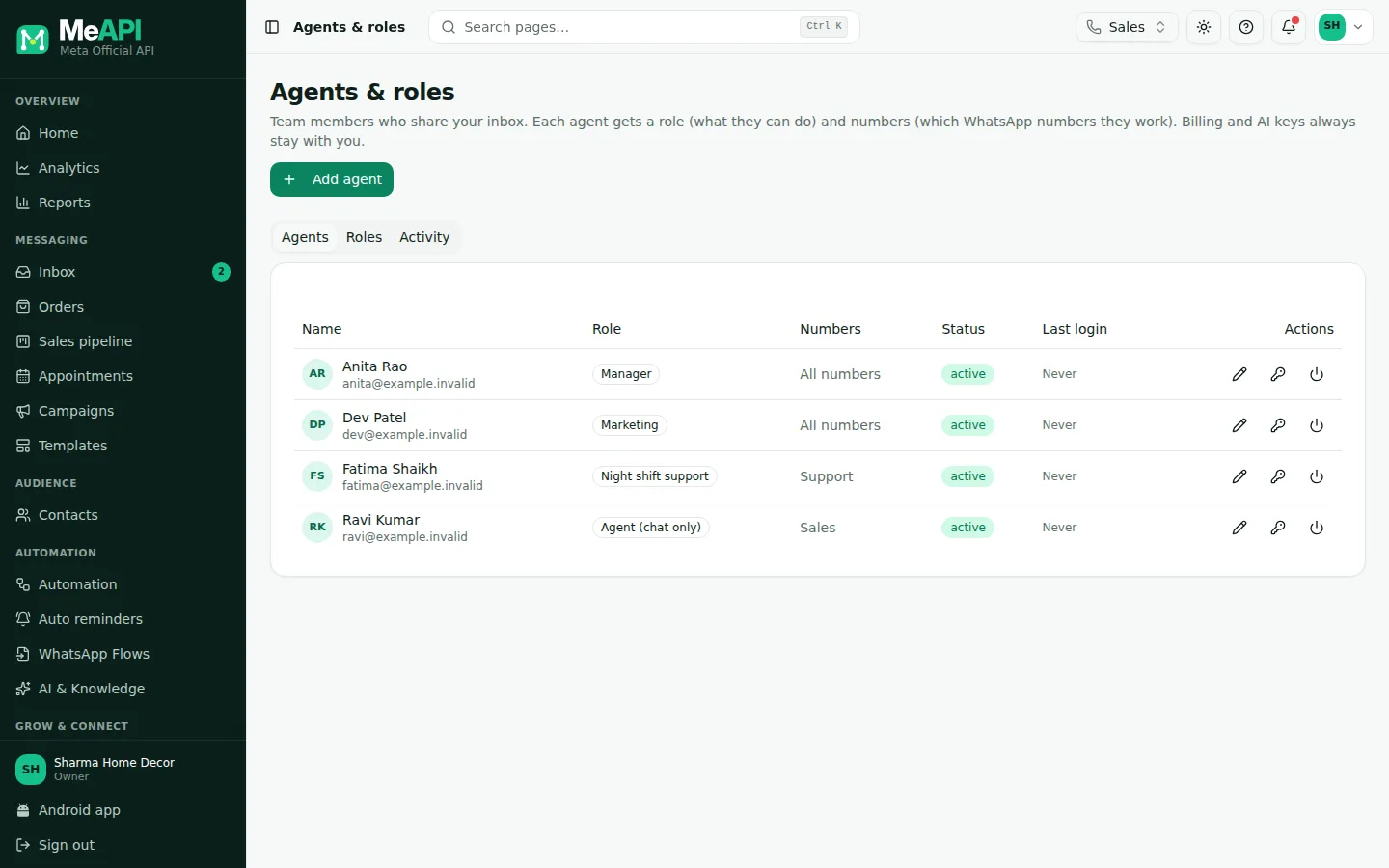
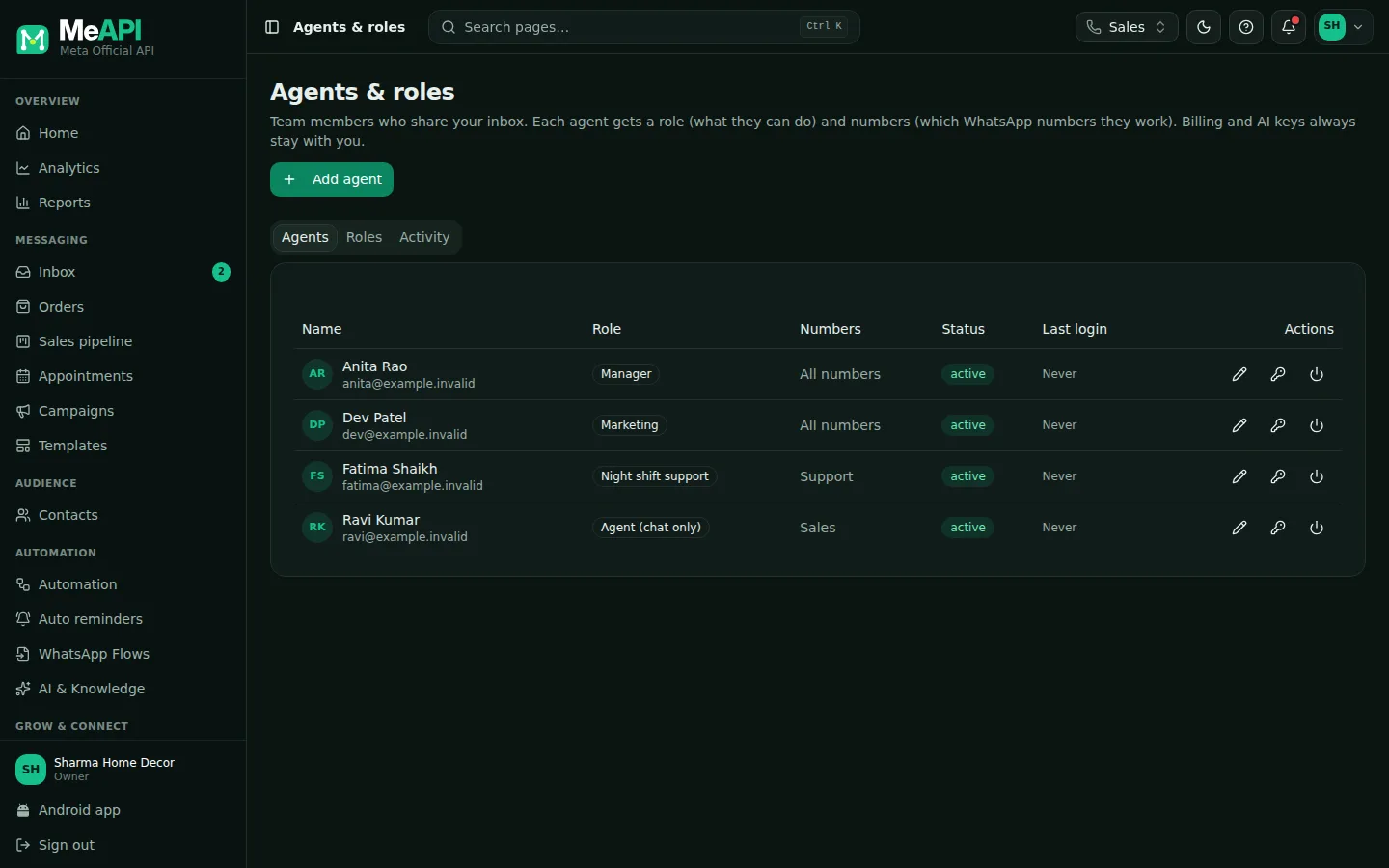
- The page has three tabs: Agents, Roles and Activity. Add agent is top right.
- Each agent row shows name and email, Role, Numbers, Status and Last login.
- Row buttons: pencil for Role and numbers, key for Reset password, power for Disable / Enable.
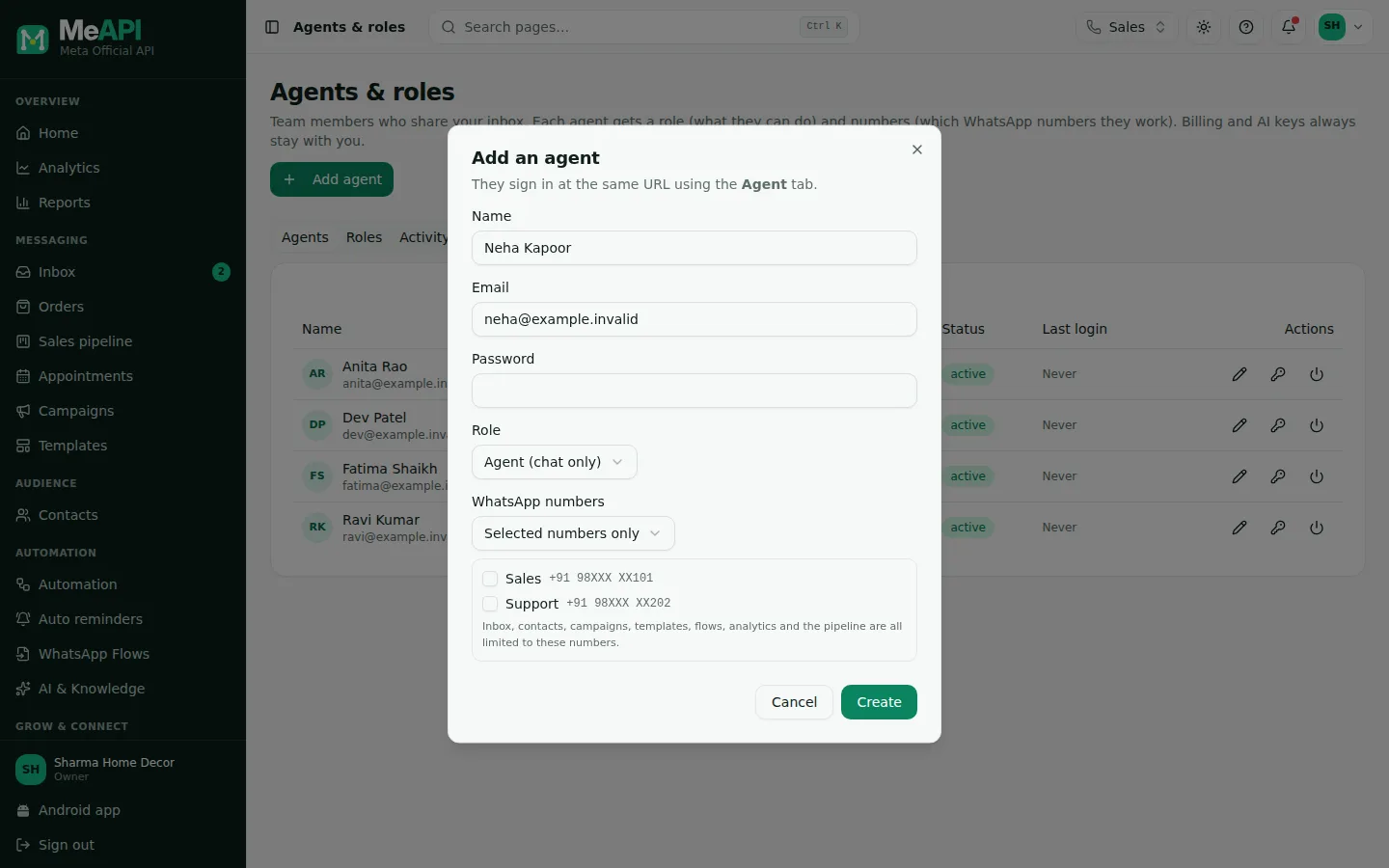
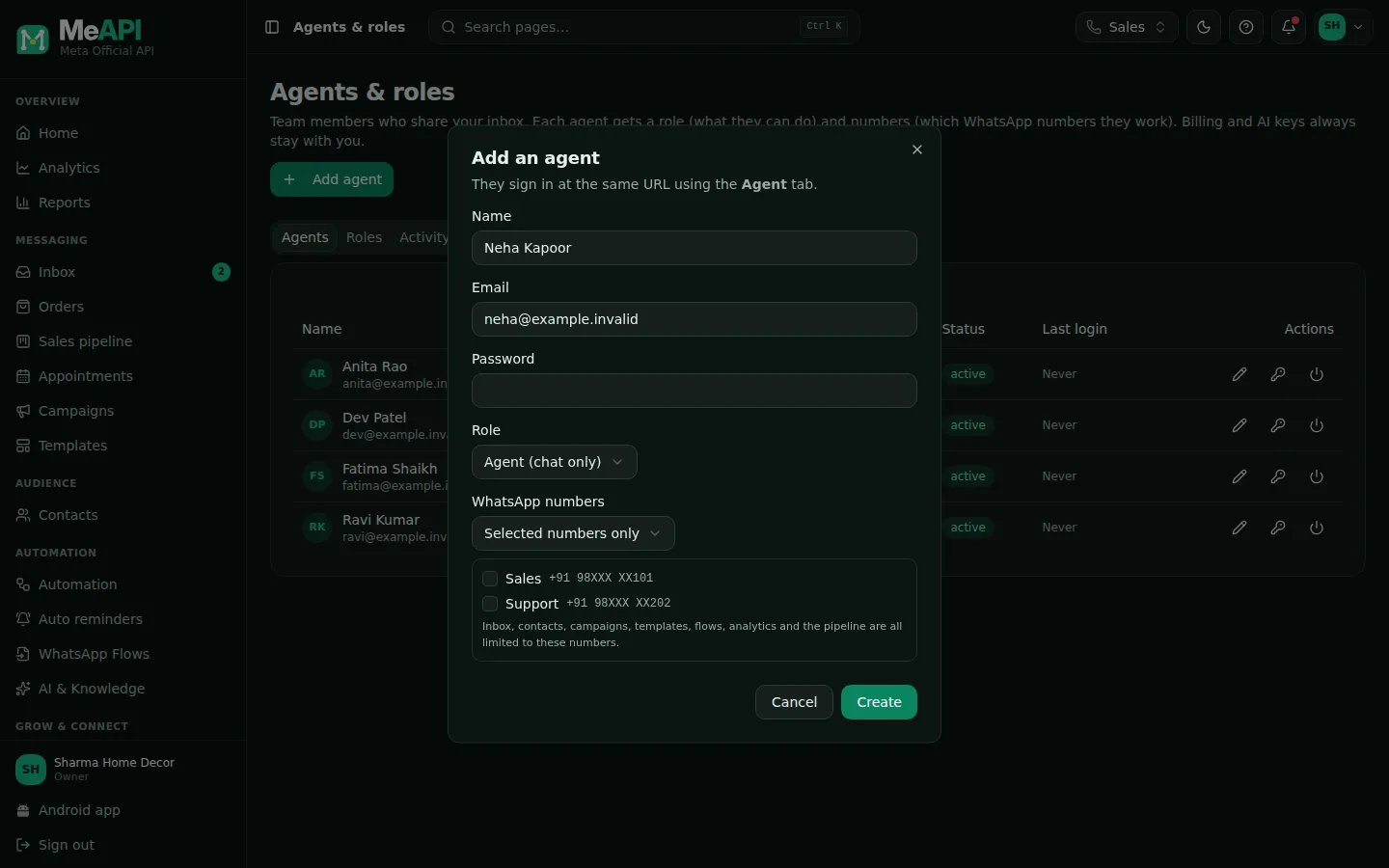
- The add-agent dialog: Name, Email, Password, Role and WhatsApp numbers.
- Numbers: All numbers (including ones added later) or Selected numbers only with a tick list.
Sharing chats fairly
Section titled “Sharing chats fairly”- Auto-assign (round-robin): a switch at the top of the Inbox chat list, set per number. When it is on, a new unassigned chat goes to the next available agent in turn. Only roles with Inbox settings see this switch.
- Availability: agents see an Available / Away switch in the same place. An agent who is away, for example at lunch or off shift, gets no new chats. Chats already assigned stay with them.
- Manual: anyone whose role has Assign / transfer can change Assigned to in the contact panel. The list only offers agents who can work that chat’s number.
Agent teams (for flows)
Section titled “Agent teams (for flows)”Teams let a chatbot send a chat to the right group, such as Sales, Support or Hindi speakers.
- Open Automation → Hours & teams. Under Agent teams, click Team. This needs Agents & roles → Manage.
- Name it and tick the members. Add agents on the Agents page first.
- In a flow, add an Assign step and choose the team. The chat goes to the next available member in turn. See Team steps.
Common mistakes
Section titled “Common mistakes”- Sharing the owner login — everyone appears as the owner, and they can see billing. Create agent logins instead.
- Everyone set to Admin — admins can send campaigns and edit chatbots. Keep most people on Agent (chat only) or a custom role.
- Auto-assign on with nobody available — new chats stay unassigned. Someone with access to that number must be Available.
What’s next
Section titled “What’s next”Was this page helpful?
Thank you — we read every comment.
Could not send right now. Please try again later.
© 2026 MeAPI by TheWebStore028 · RADHAMADHAV WEBSTORE LLP · GSTIN 27ABJFR6148J1ZO · Contact us ·Cookie settings