

Set up auto reminders — appointments, payments, renewals, birthdays, follow-ups
🎯 Goal
Reminders that go out at the right time — and stop by themselves when the customer pays, replies or the date changes.
🧰 What you need
- A connected number
- An approved WhatsApp template (or submit one from the recipe)
- A role that can create reminders (owner, Admin, Manager or Marketing)
What you can remind about
Section titled “What you can remind about”Open Automation → Auto reminders.
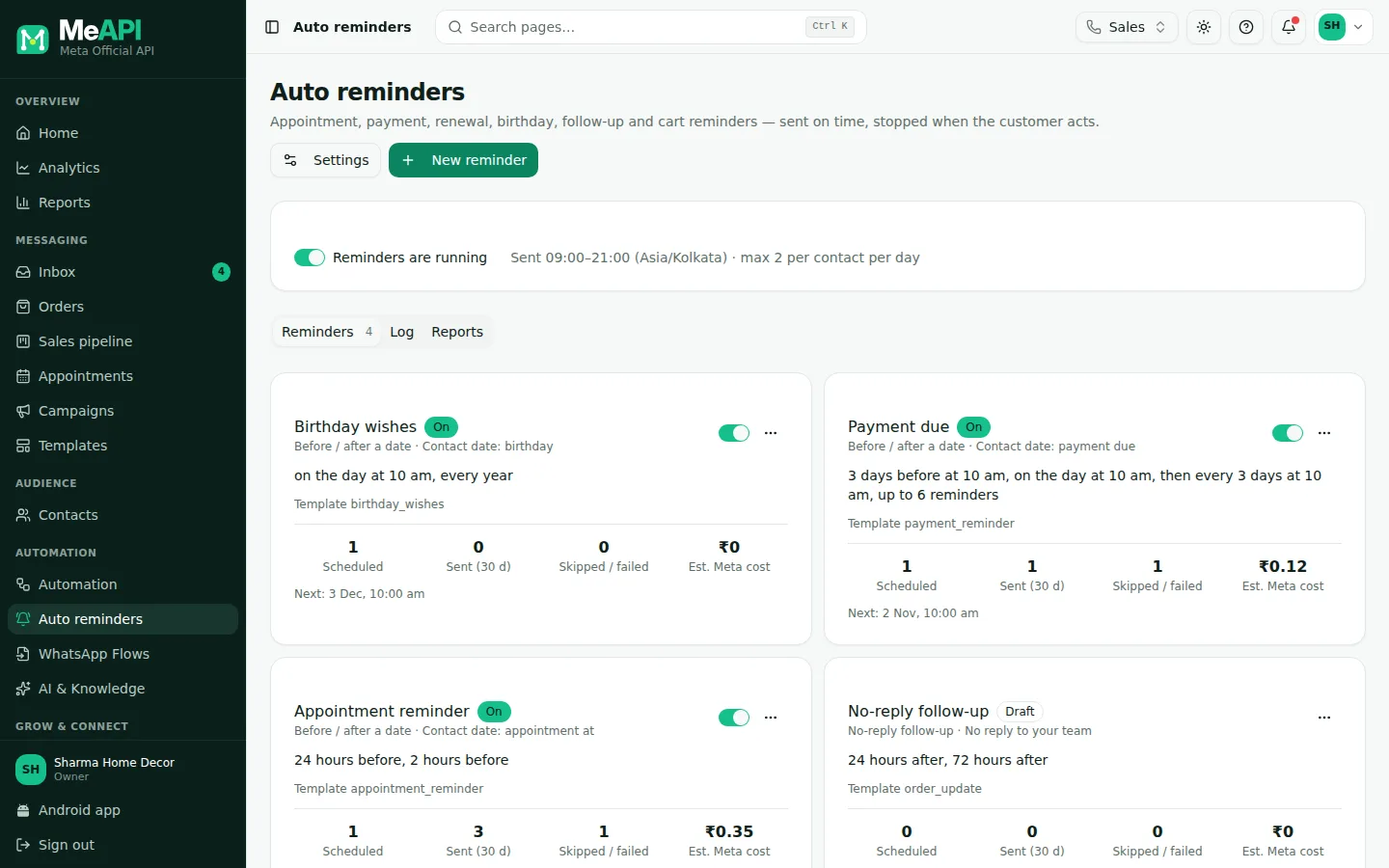
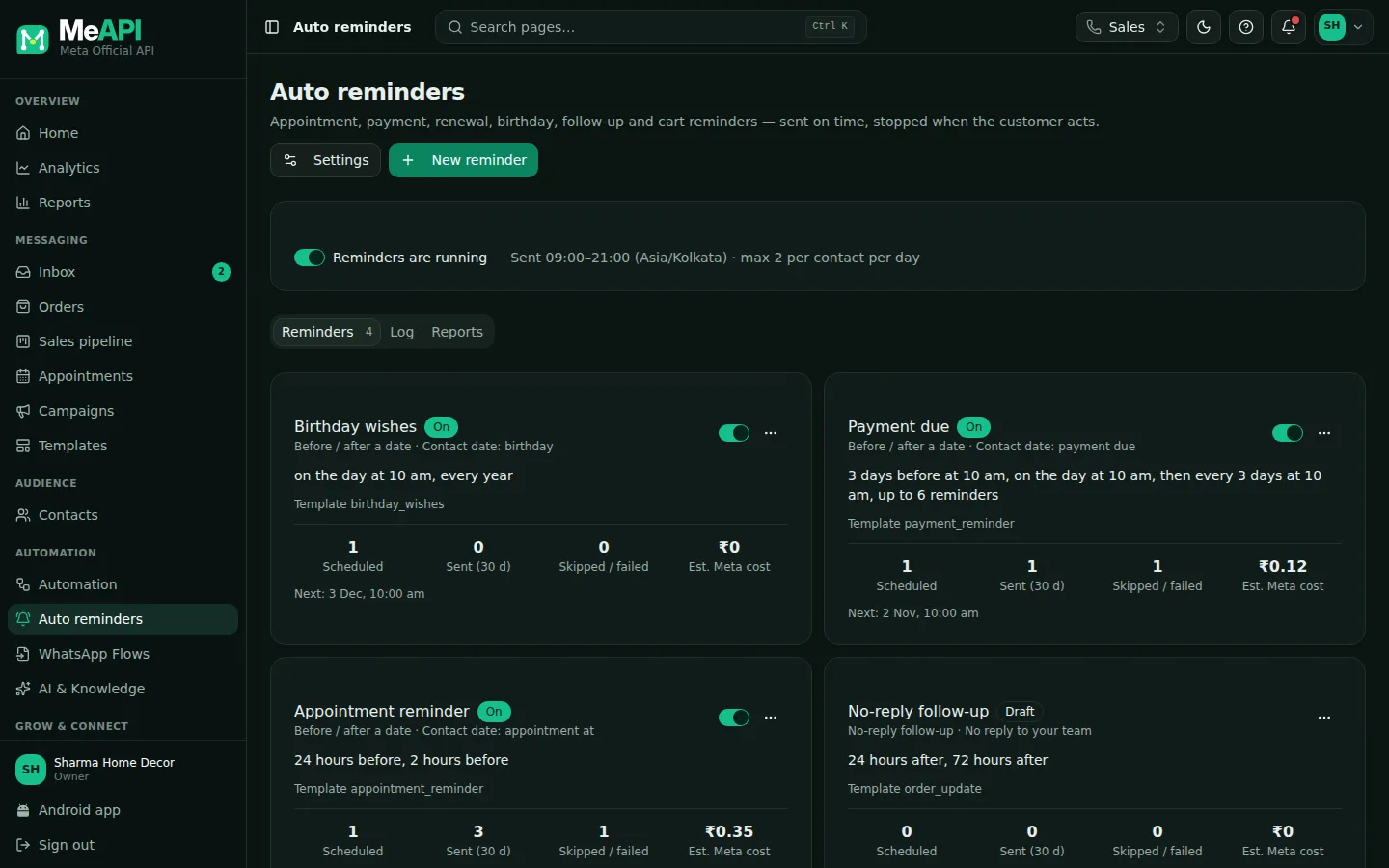
- Each card is one reminder rule: when it sends, the template, and how many are scheduled, sent and skipped / failed in the last 30 days, with the estimated Meta cost.
- The switch on a card turns that reminder on or off. Reminders are running at the top pauses or resumes all of them at once.
- Log lists every reminder with what happened; Reports compares the rules.
| Type | Sent | Examples |
|---|---|---|
| Before / after a date | A set time before or after a date on the contact or deal | Appointment 24 h + 2 h before · payment due 3 days before, on the day, then every 3 days · renewal 30 / 7 / 1 day before · birthday every year |
| Repeating | Every N days / weeks / months, or a fixed day of the month | Monthly fee on the 5th · weekly class reminder |
| No-reply follow-up | When the customer has not answered your team’s message | 24 h and 72 h after a quote |
| After an event | When a tag is added or removed, a deal reaches a stage, or your system sends an event | Abandoned cart 1 h + 24 h · feedback 2 h after a visit · documents pending every 2 days |
Start from a recipe
Section titled “Start from a recipe”-
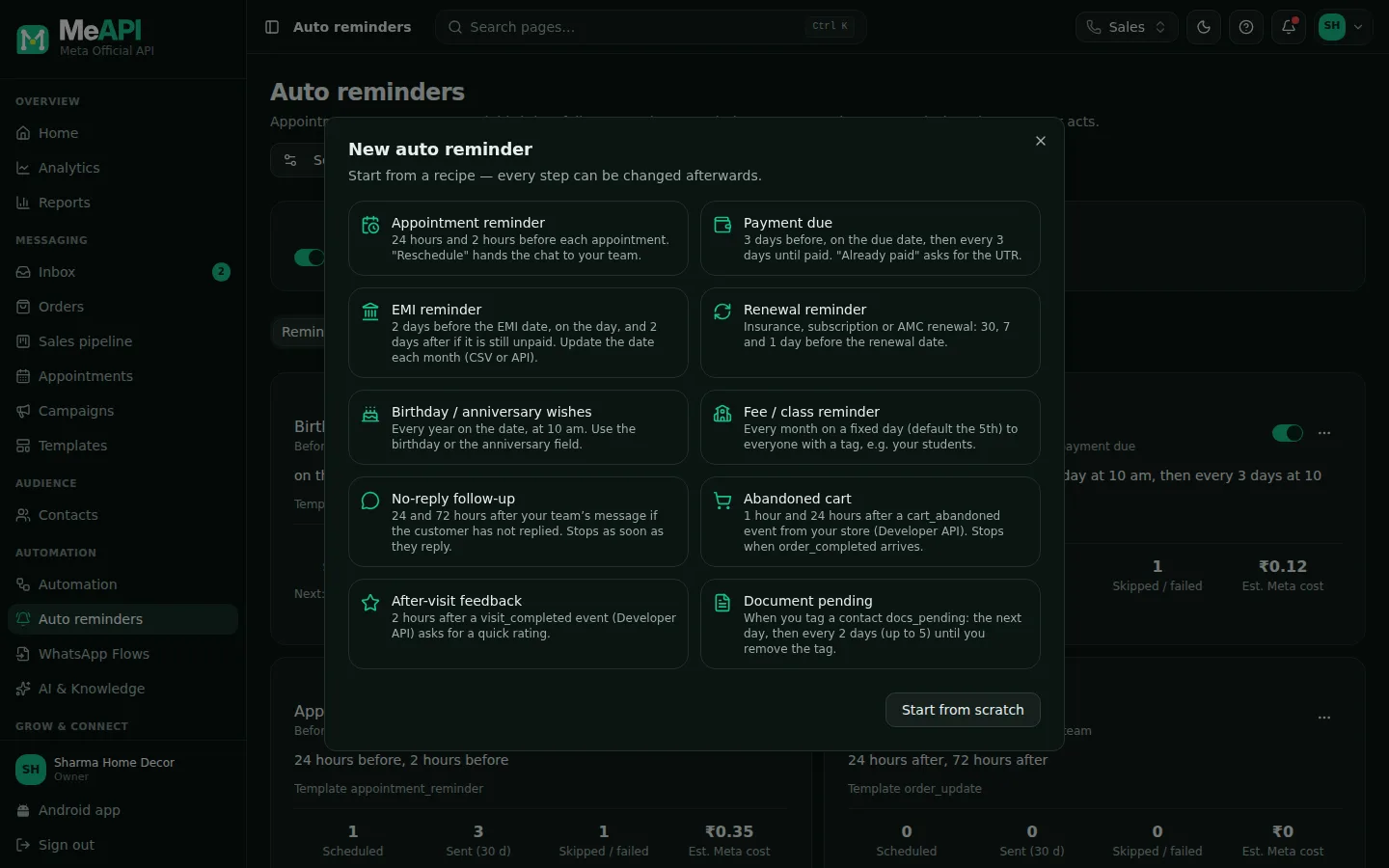
Click New reminder. Pick a recipe — or Start from scratch.
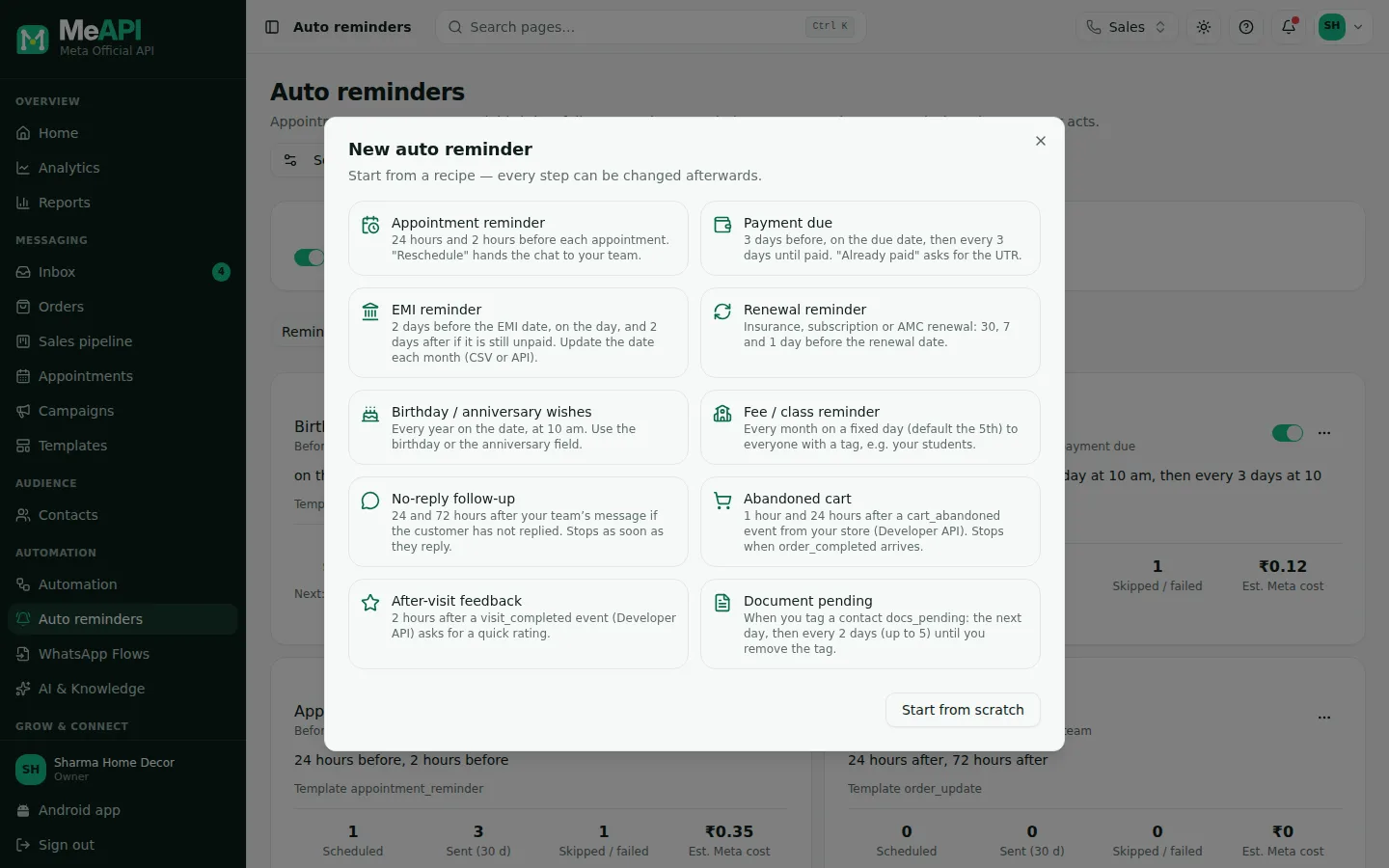
- Ten recipes: appointment, payment due, EMI, renewal, birthday / anniversary, fee / class, no-reply follow-up, abandoned cart, after-visit feedback, document pending.
-
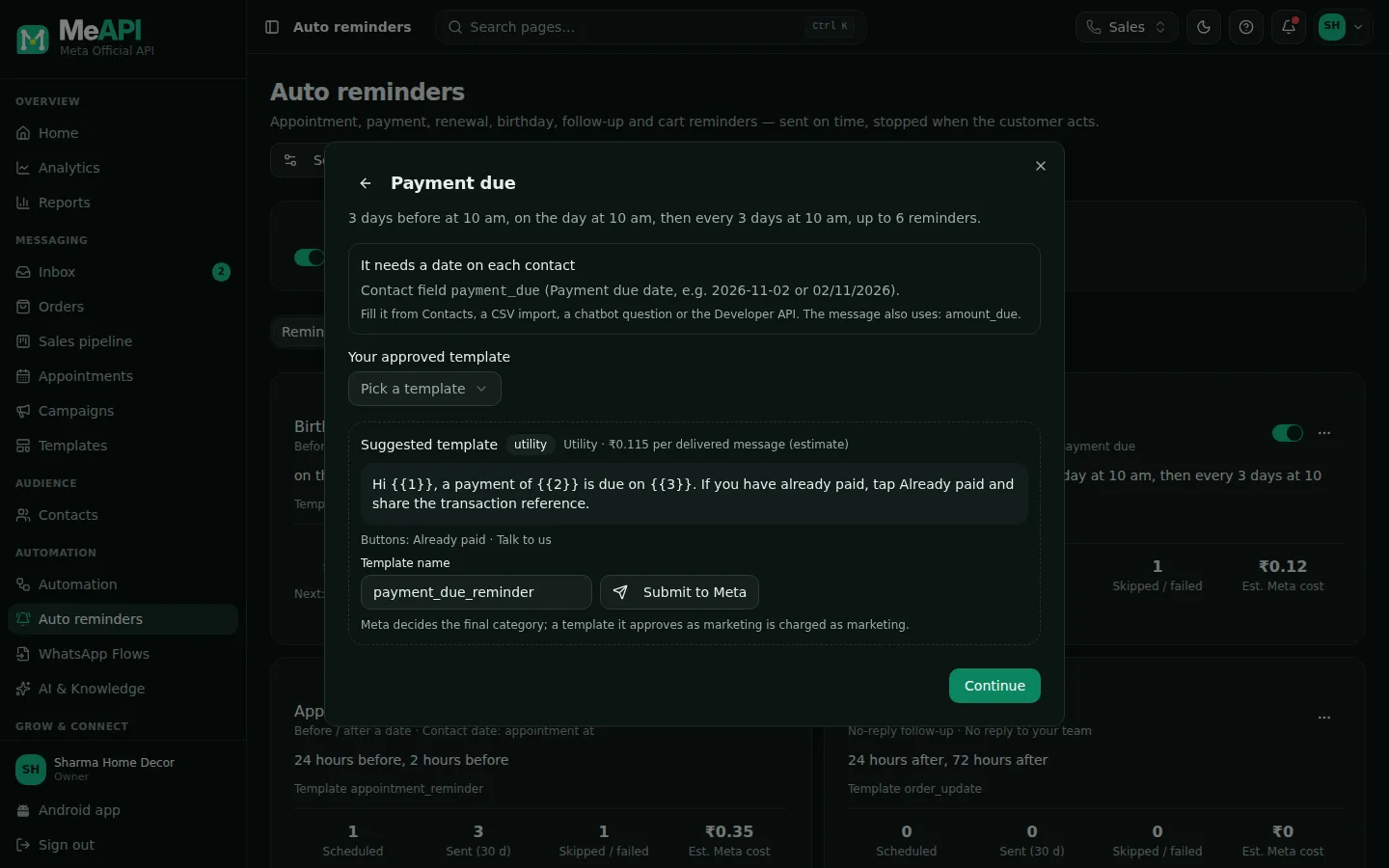
The recipe says what it needs — usually a date on the contact (for example
payment_due) — and suggests a template.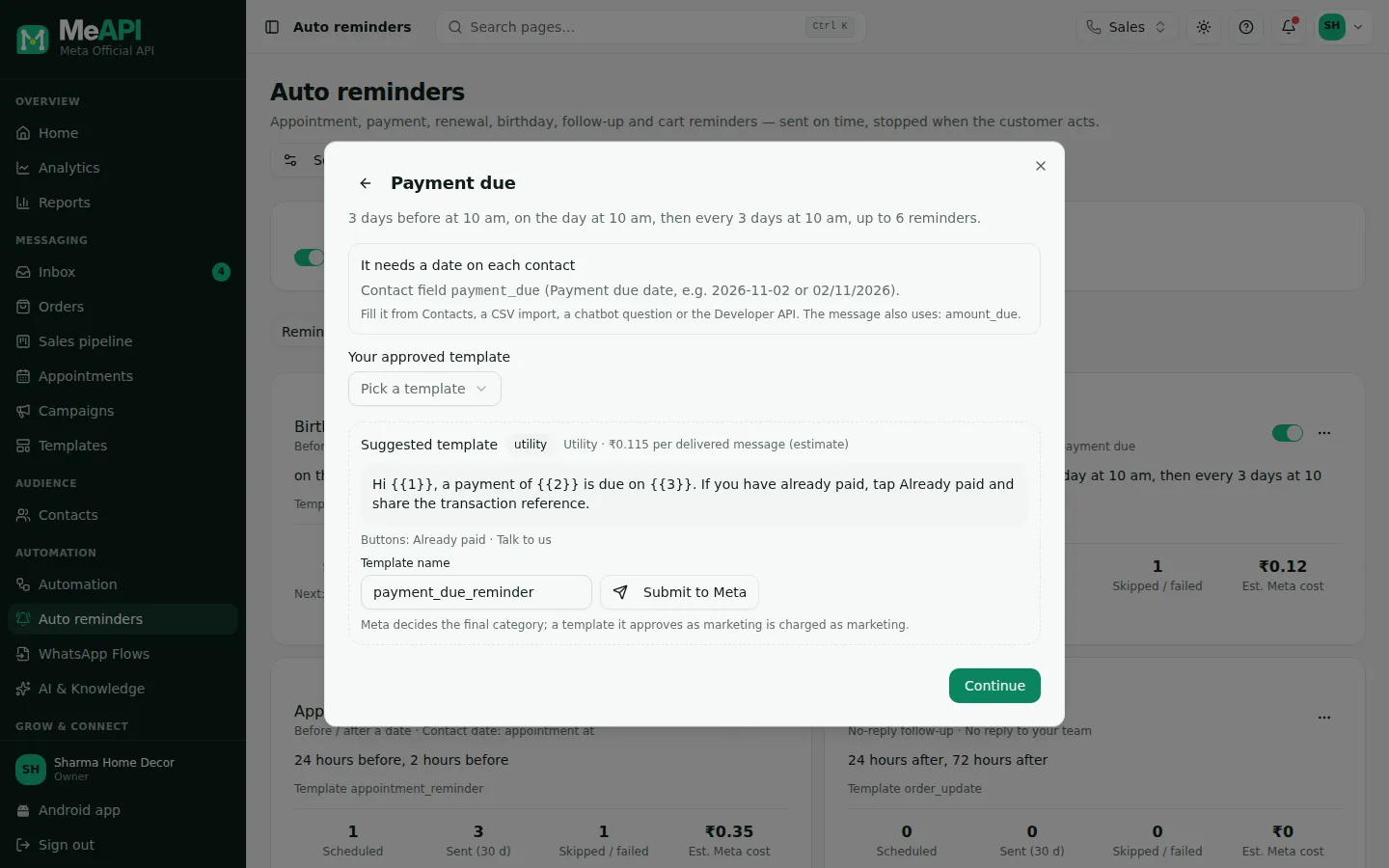
- Your approved template: pick one of yours.
- Or use the Suggested template: check the name and click Submit to Meta. Approval usually takes minutes to a few hours; you can finish the reminder now and turn it on once it is approved.
- The badge shows the category (utility or marketing) and the estimated cost per message.
-
Click Continue. The editor opens with the recipe filled in.
Check the reminder
Section titled “Check the reminder”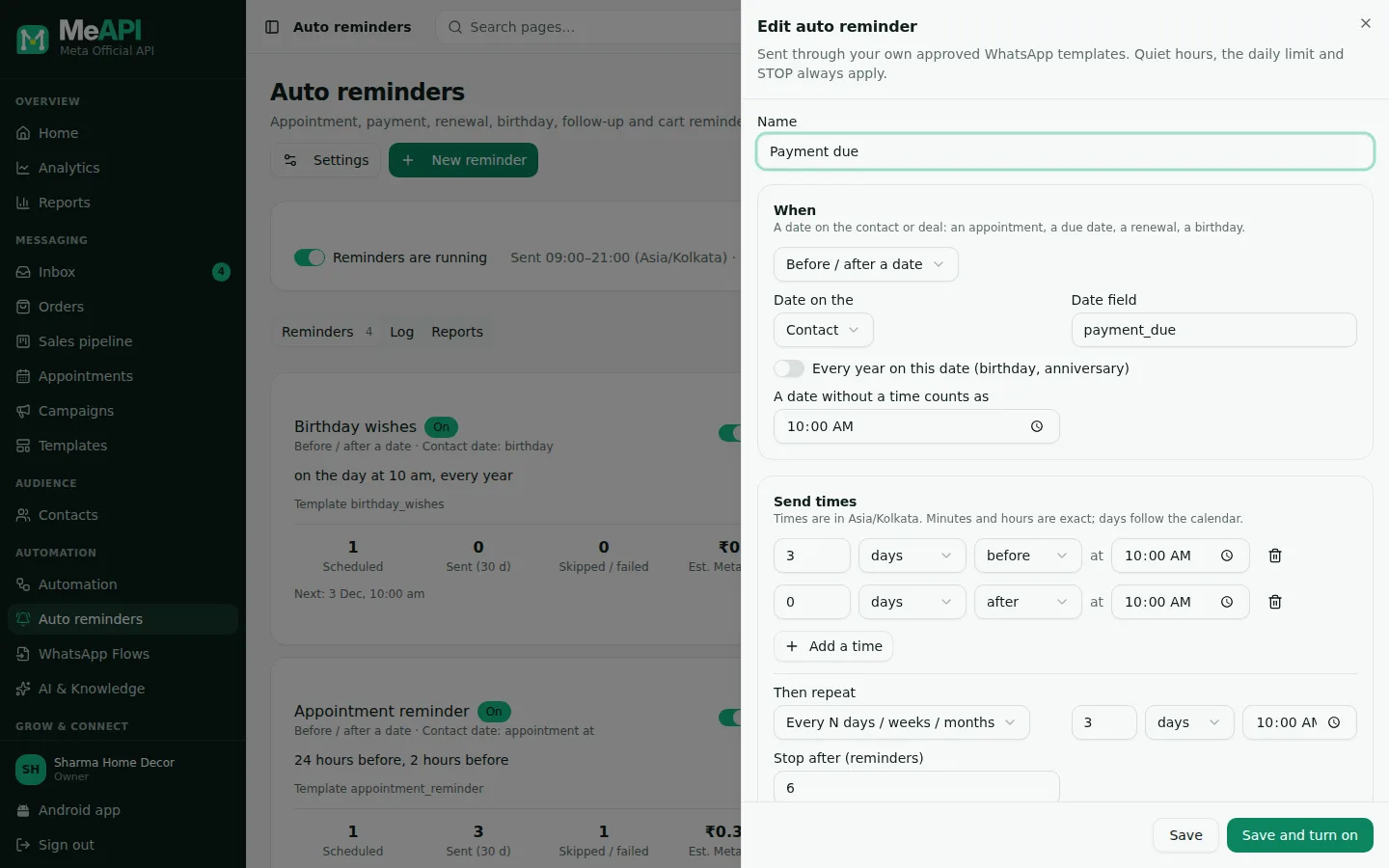
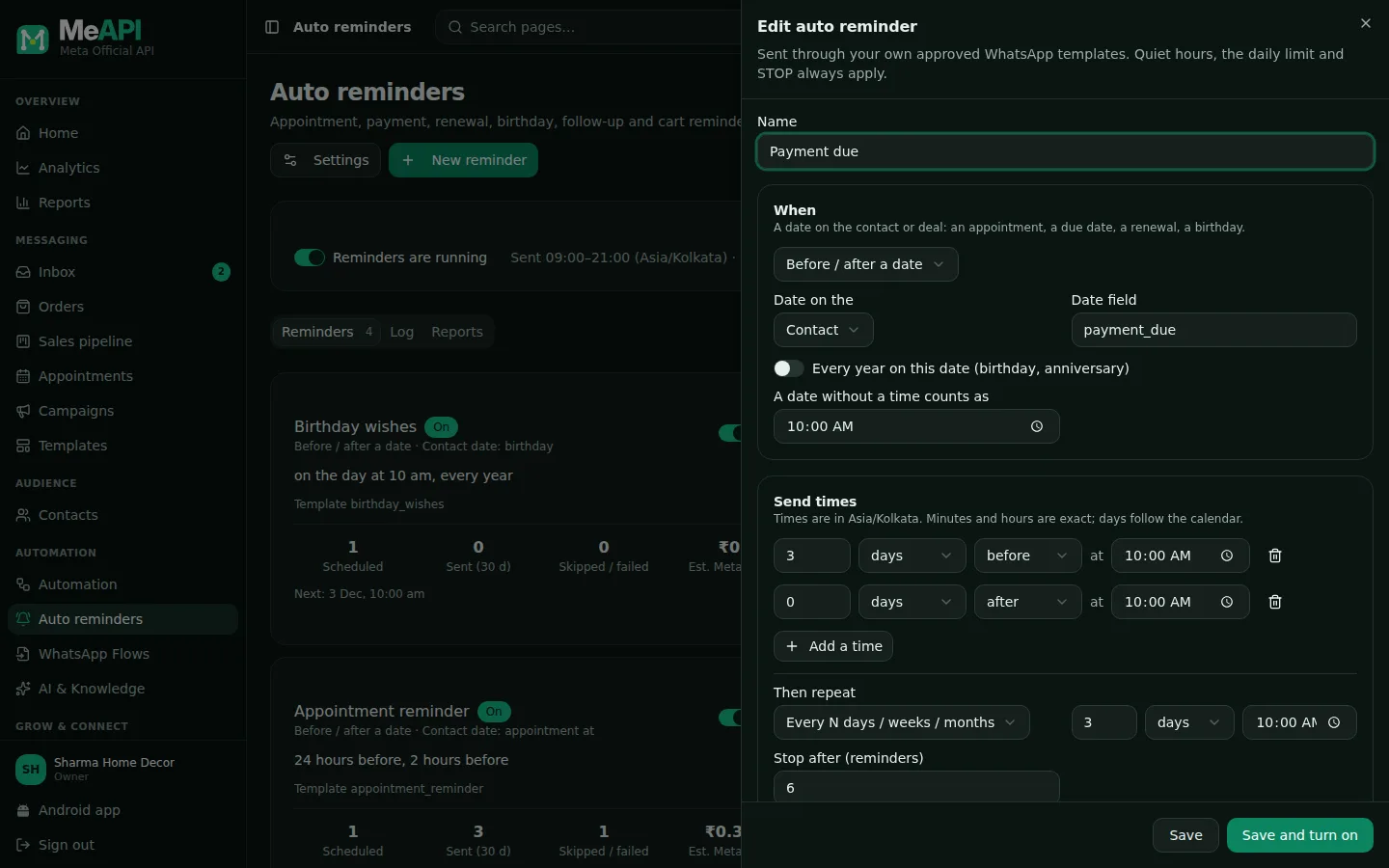
- When: the type, and for a date reminder which date field — on the contact or on a deal (expected close date or a deal date field).
- Send times: each line is “N minutes / hours / days before or after”, with a time of day for days. Then repeat keeps going every N days or on a day of the month, up to Stop after.
- Below the times, the next sends for a sample date — and where quiet hours move one.
Further down the editor:
- Message — the template and what fills each
{{1}},{{2}}: the customer’s name, the reminder date or time, any contact or deal field, or fixed text. Free text works only inside the 24-hour window; outside it that reminder is skipped. You can also start a chatbot instead. - Stop when — the customer replies, taps Already paid (they are asked for the UTR / transaction reference and tagged
payment_claimed), a payment link is paid, a word you choose, a tag is added or removed, an event arrives, the deal reaches a stage, or the deal leaves this stage (the reminder only sends while the deal is in the stage you pick; moving the deal on stops it at once, and every send checks again). Changing or removing the date stops the old reminders and plans new ones. - Moving a deal stops the reminders its earlier stage started, and a won or lost deal stops every reminder about it. The deal’s timeline says what was cancelled.
- Who gets it — your numbers, tags to include or leave out, only contacts who opted in, and whether quiet hours apply.
Click Save and turn on (or Save as draft).
Fill in the dates
Section titled “Fill in the dates”A date reminder needs the date on each contact (or deal):
- Contacts — open a contact and fill the field, or Import CSV with a date column. Dates like
2026-11-02,02/11/2026(day first) and02/11/2026 15:30or3:30 pmare read; the import tells you which ones it could not read. - A chatbot question — a Question step saving the answer as
appointment_at. - Your own system — the Developer API sets the date with the contact, schedules one-off reminders, or sends events like
cart_abandoned.
Settings, quiet hours and the limits
Section titled “Settings, quiet hours and the limits”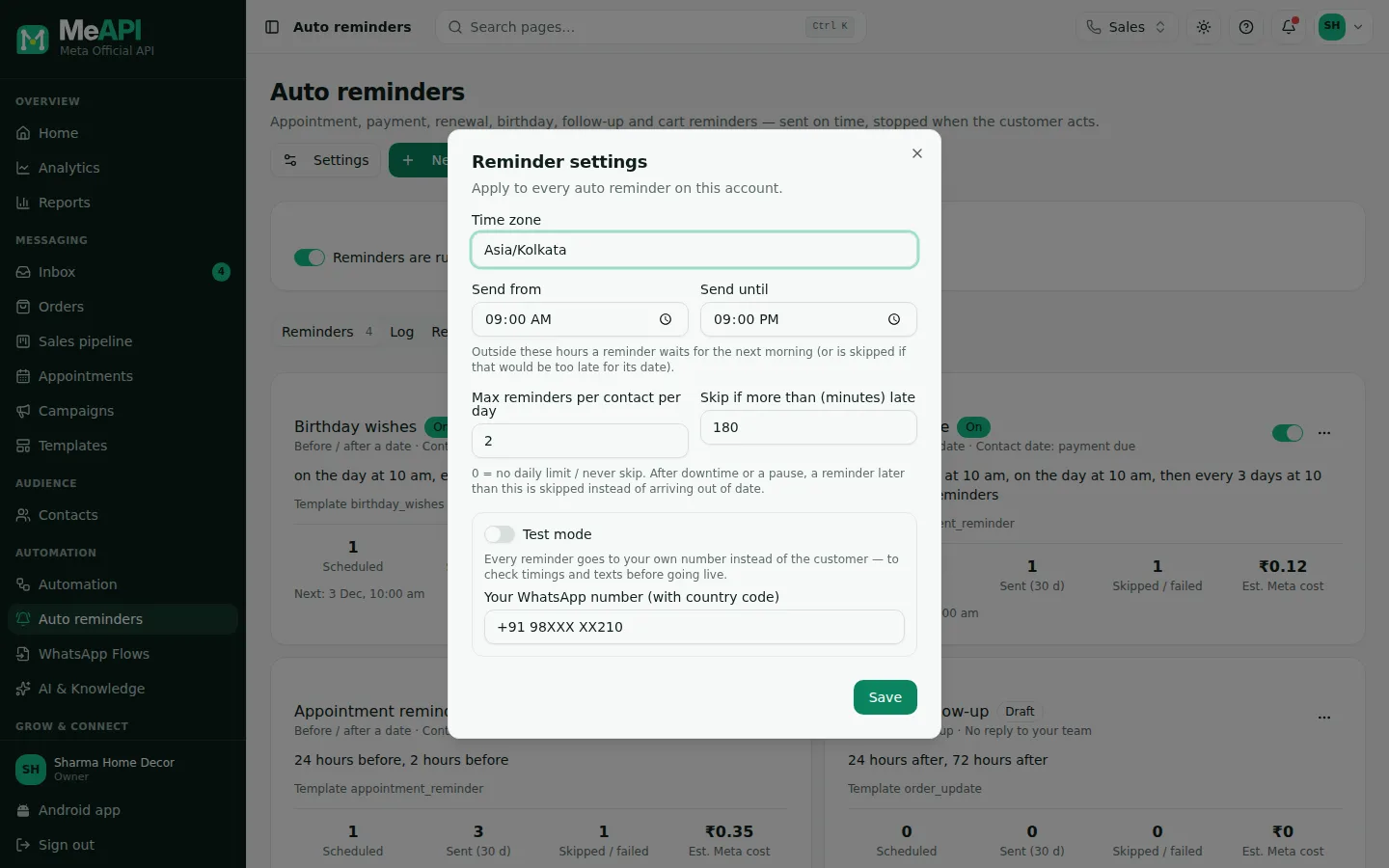
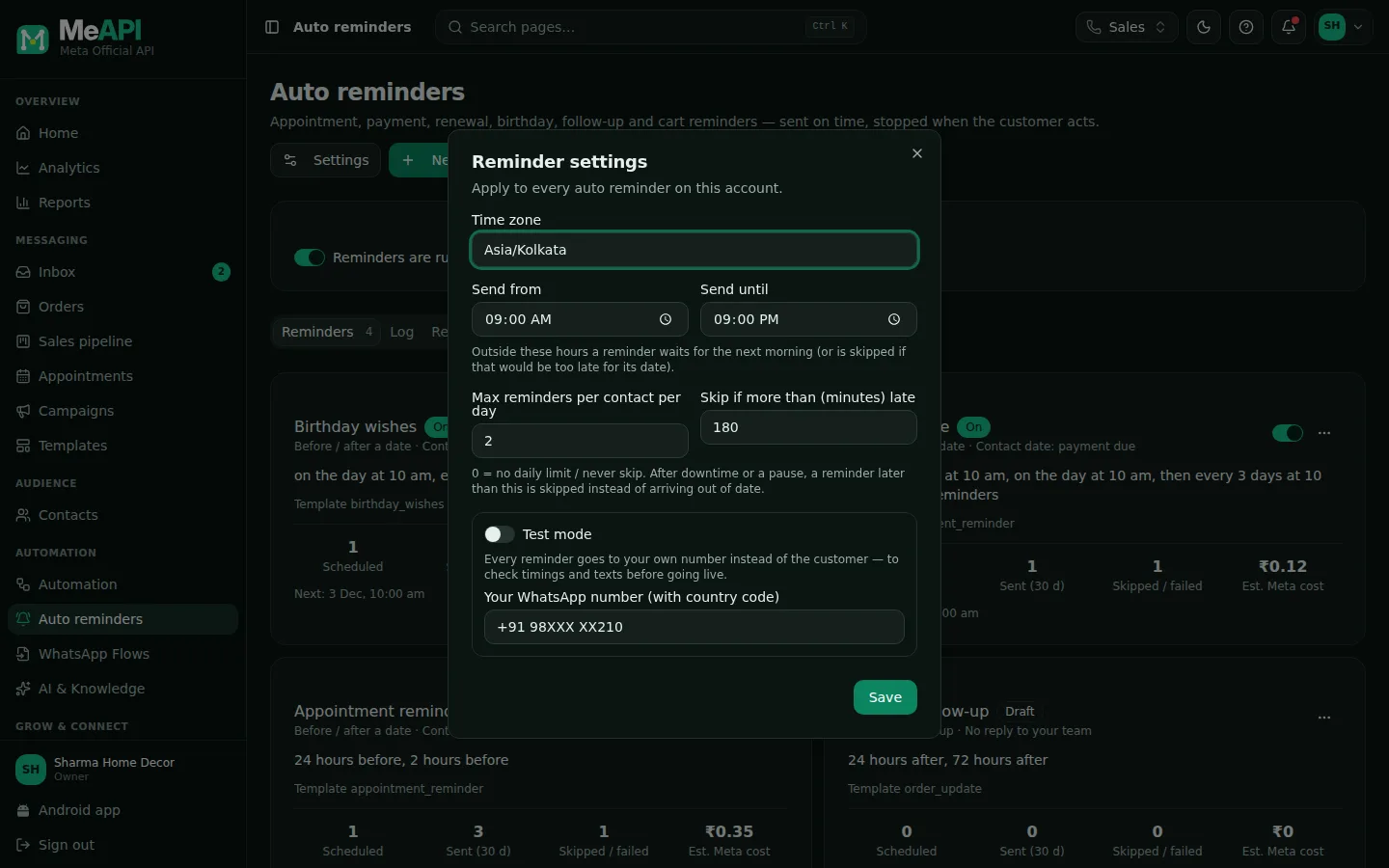
- Send from / until: quiet hours (default 9 am – 9 pm, India time). A reminder due at night waits for the morning — or is skipped if that would be too late for its date.
- Max reminders per contact per day across all rules (default 2); the rest move to the next day.
- Skip if more than … late: after downtime or a pause, a reminder later than this is skipped instead of arriving out of date (default 3 hours).
Reminders also always respect STOP — a customer who opted out never gets one — and slow down on their own near your number’s messaging limit.
One customer, one reminder — from the inbox
Section titled “One customer, one reminder — from the inbox”Beside a chat, Reminders shows what is scheduled for that customer.
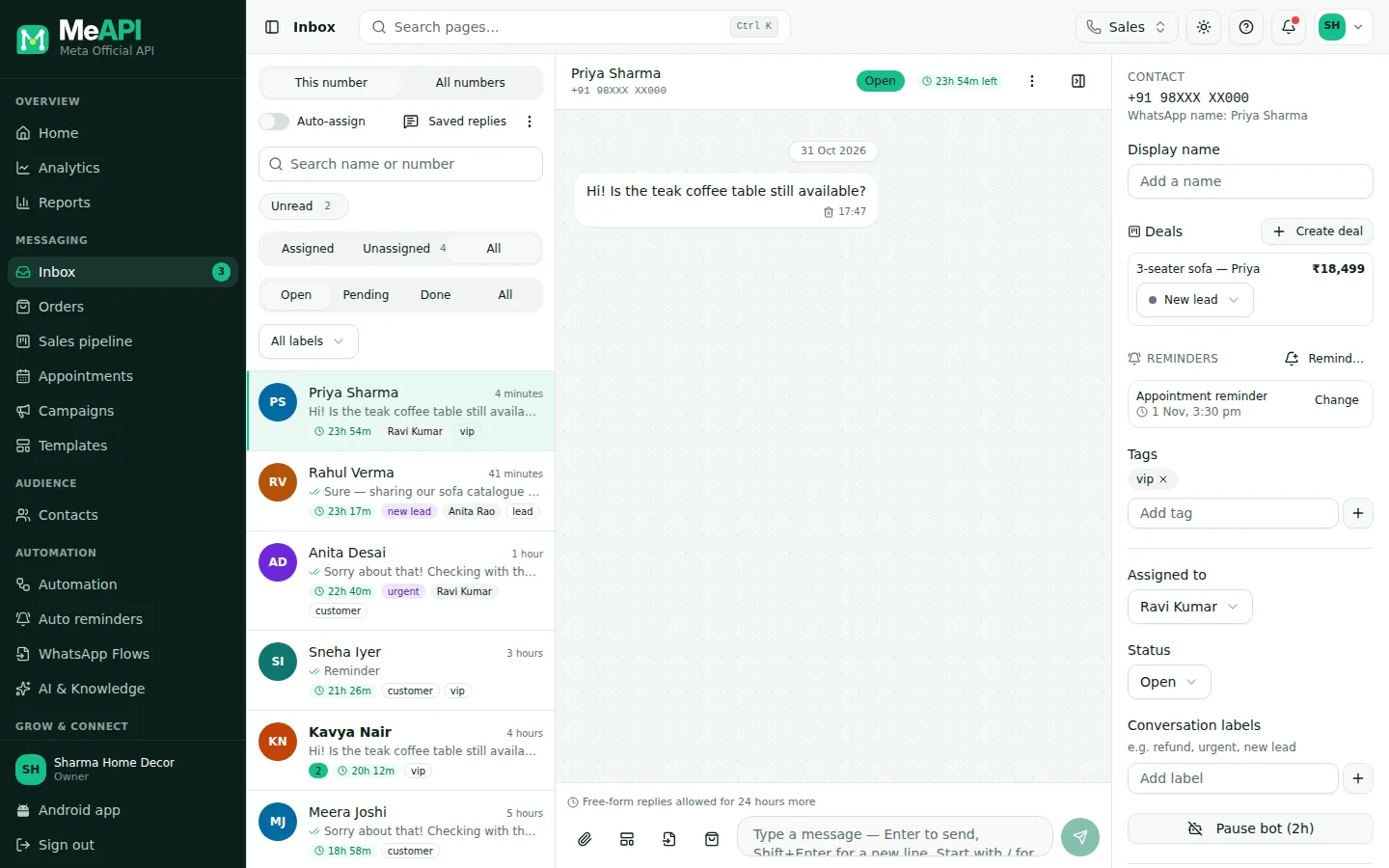
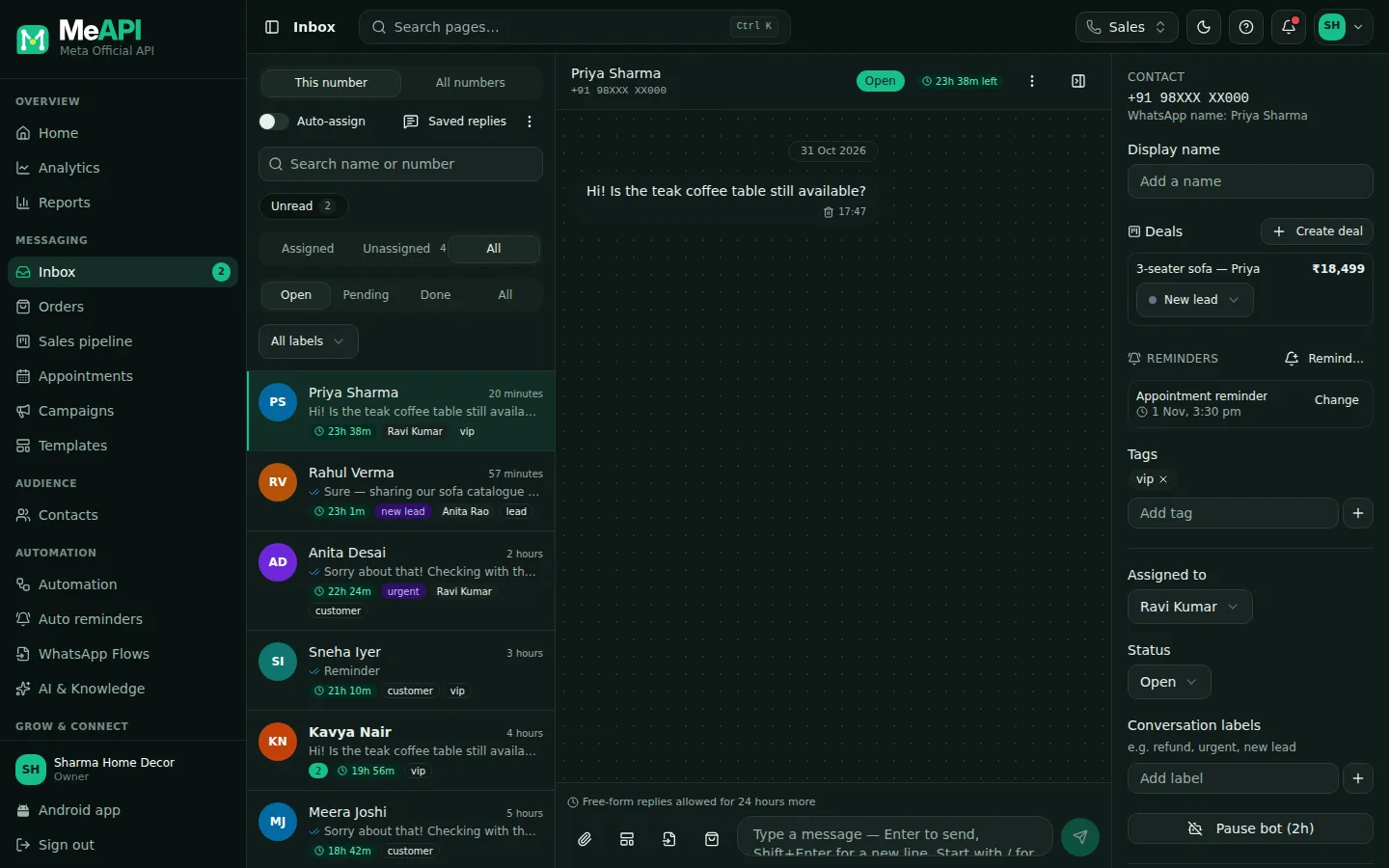
- Change: send now, snooze an hour or to tomorrow 10 am, cancel this one, or stop the rule for this customer.
- Remind…: a one-off reminder — pick the date and time, a template (or free text) and a note for your team.
Payment reminders: a reminder, a chatbot, or both
Section titled “Payment reminders: a reminder, a chatbot, or both”- The Payment due recipe chases everyone on time: 3 days before the
payment_duedate, on the day, then every 3 days (up to 6 sends), and stops when the customer taps Already paid, pays your payment link, or gets the tagpaid. - The Payment reminder chatbot from the chatbot templates starts when you add the tag
payment_due: pay link, Already paid with the reference, or a person. - Both together: in the reminder’s Message, choose Start a chatbot and pick your payment chatbot (it must be published). Each reminder then opens the full conversation instead of a single template. The chatbot opens with your approved template, so it also works outside the 24-hour window.
See what happened
Section titled “See what happened”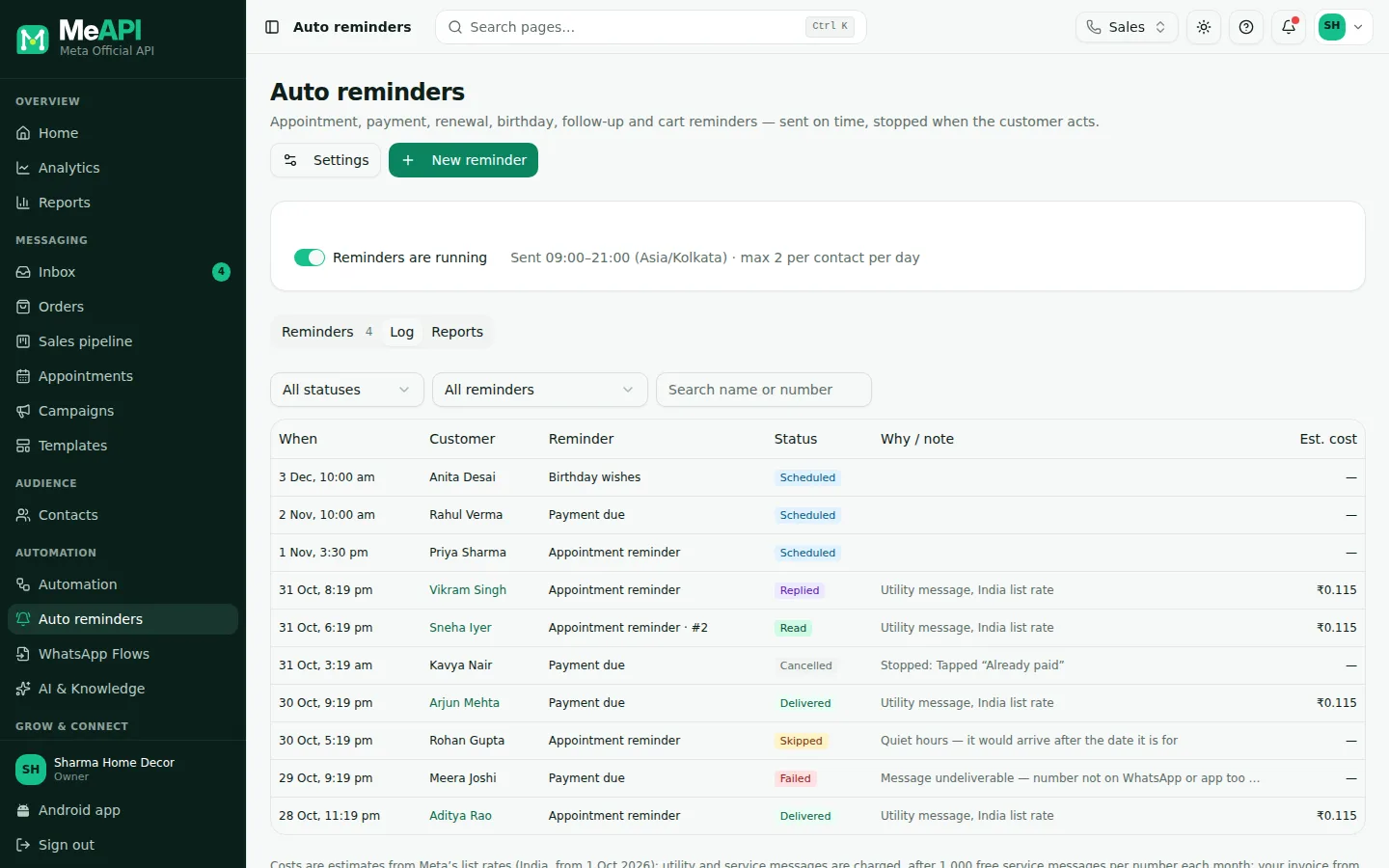
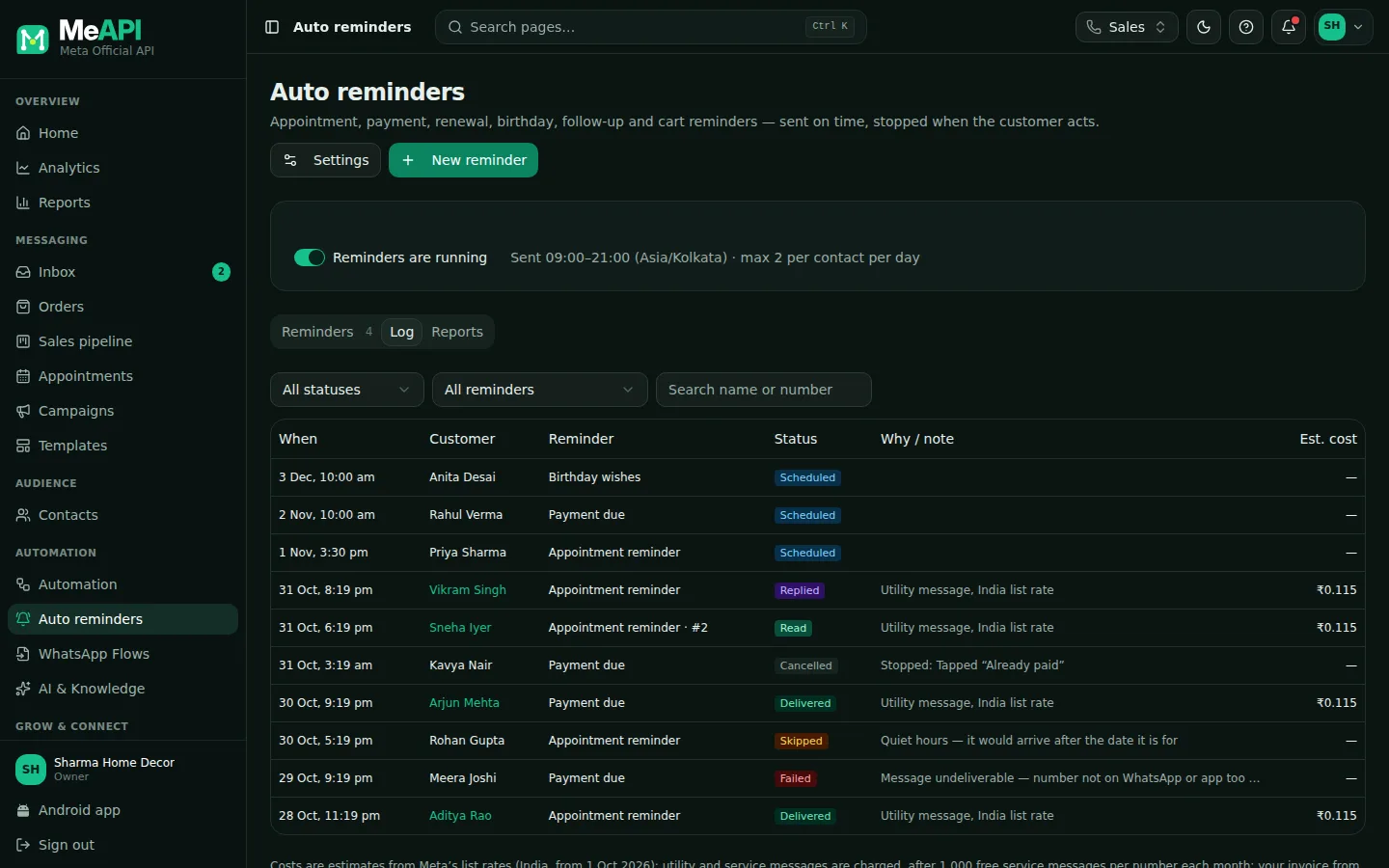
- Every reminder: Scheduled, Sent, Delivered, Read, Replied, Failed, Skipped or Cancelled — with the reason (quiet hours, opted out, Already paid, Meta error…). Click a customer to open the chat.
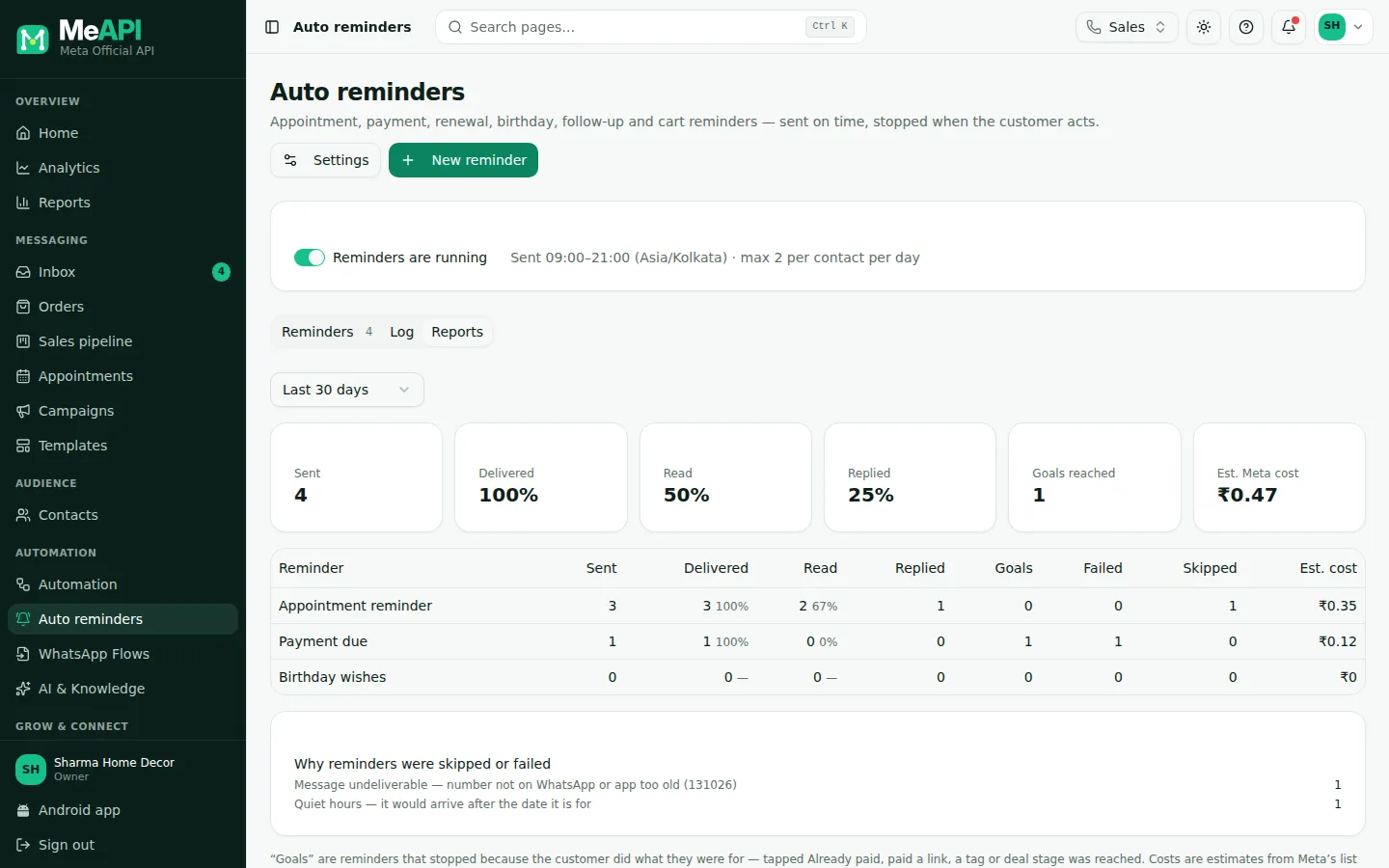
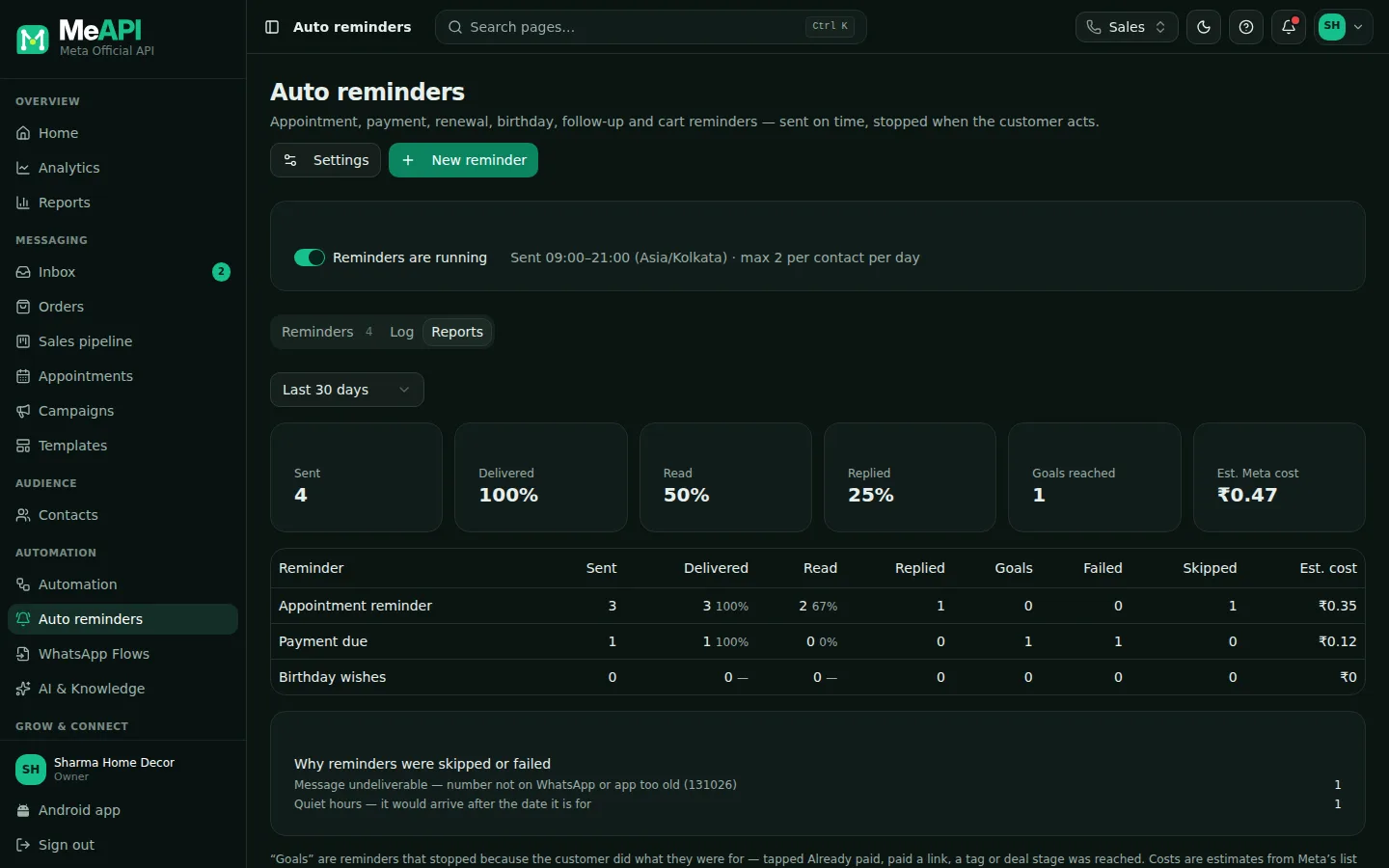
- Per reminder: sent → delivered → read → replied, Goals (stopped because the customer paid, tapped Already paid or reached the stage), problems and the estimated Meta cost.
From your own system (API)
Section titled “From your own system (API)”Your billing software, CRM or booking system can run reminders through the Developer API with an API key from Developer:
- Set the date with the contact (for example
payment_due) and your reminder rules plan the sends. POST /v1/remindersschedules a one-off reminder for a contact (template or free text), with your ownexternal_id.GET/PATCH/DELETEby id orby-external-idread, move or cancel it.POST /v1/reminders/eventssends an event such ascart_abandonedfor After an event rules.- Webhooks
reminder.sent,reminder.failedandreminder.skippedtell your system what happened. Outgoing webhooks
Common mistakes
Section titled “Common mistakes”- A marketing text in a utility template. Meta re-categorises promotional templates as marketing — and charges them as marketing. Keep reminders factual: the date, the amount, what to do.
- The date field is empty or in another format. The reminder simply has nothing to plan from — check the contact, or the import’s list of unreadable dates.
- Free text for a reminder days later. The customer’s 24-hour window has usually closed by then; use a template.
- Two rules for the same thing. The daily limit protects the customer, but the second rule’s reminders are pushed to the next day.
What’s next
Section titled “What’s next”Was this page helpful?
Thank you — we read every comment.
Could not send right now. Please try again later.
© 2026 MeAPI by TheWebStore028 · RADHAMADHAV WEBSTORE LLP · GSTIN 27ABJFR6148J1ZO · Contact us ·Cookie settings