

Business hours and holidays
LearnAutomation & flow builderBeginner
🎯 Goal
Tell MeAPI when you are open, so bots answer differently at night, on Sundays and on holidays. Group agents into teams on the same tab.
🧰 What you need
- Owner or admin-agent login
- Pick the number in the number switcher at the top, then open Automation → Hours & teams.
- Under Business hours (for this number), switch them on. Off means the number counts as always open.
- Pick the Time zone, for example Asia/Kolkata.
- For each day, set the opening and closing time, or mark it Closed. Use Split for a lunch break (10:00–13:00 and 14:00–19:00).
- Under Holidays (closed all day), Add dates like Diwali or Holi.
- Save.
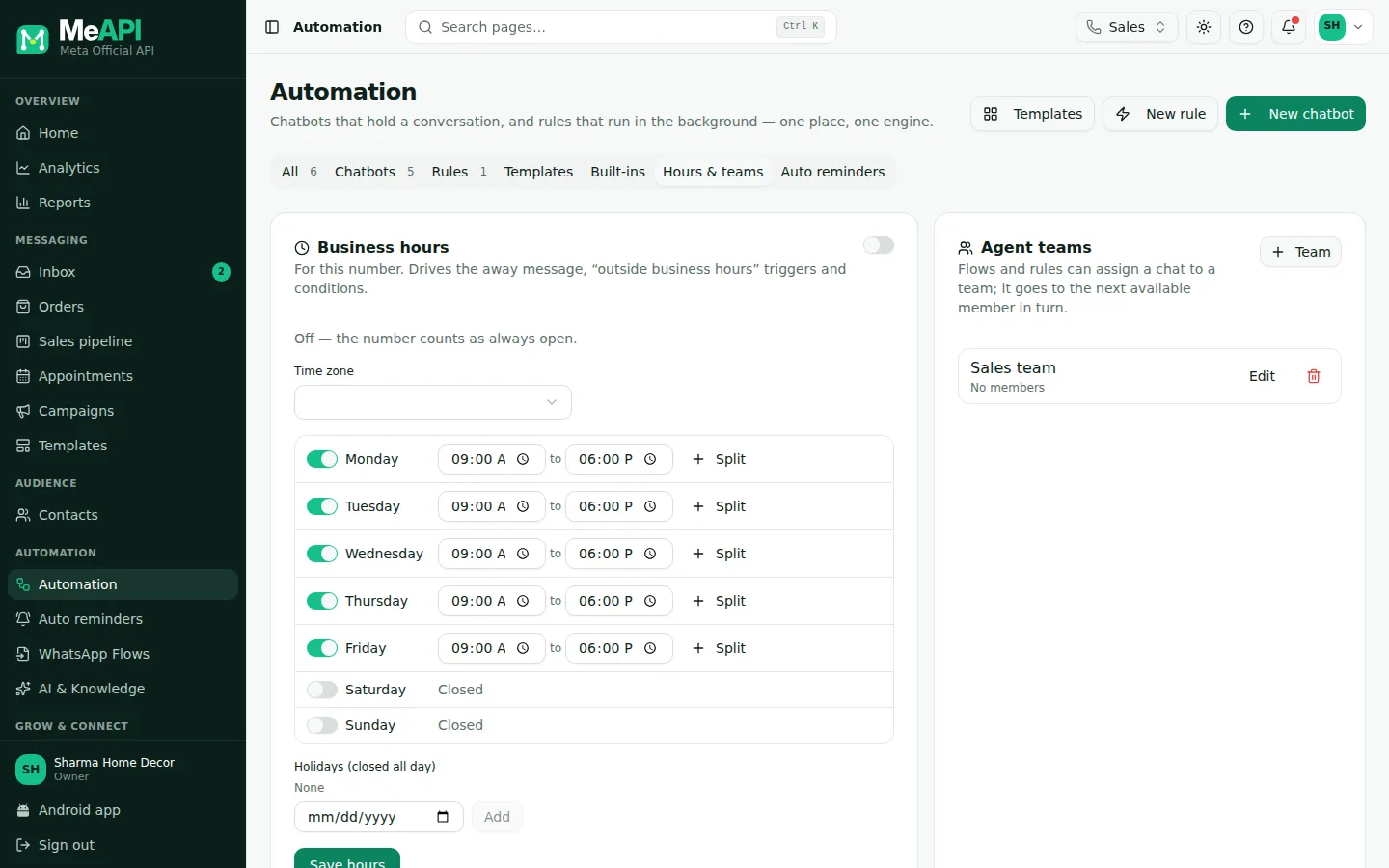
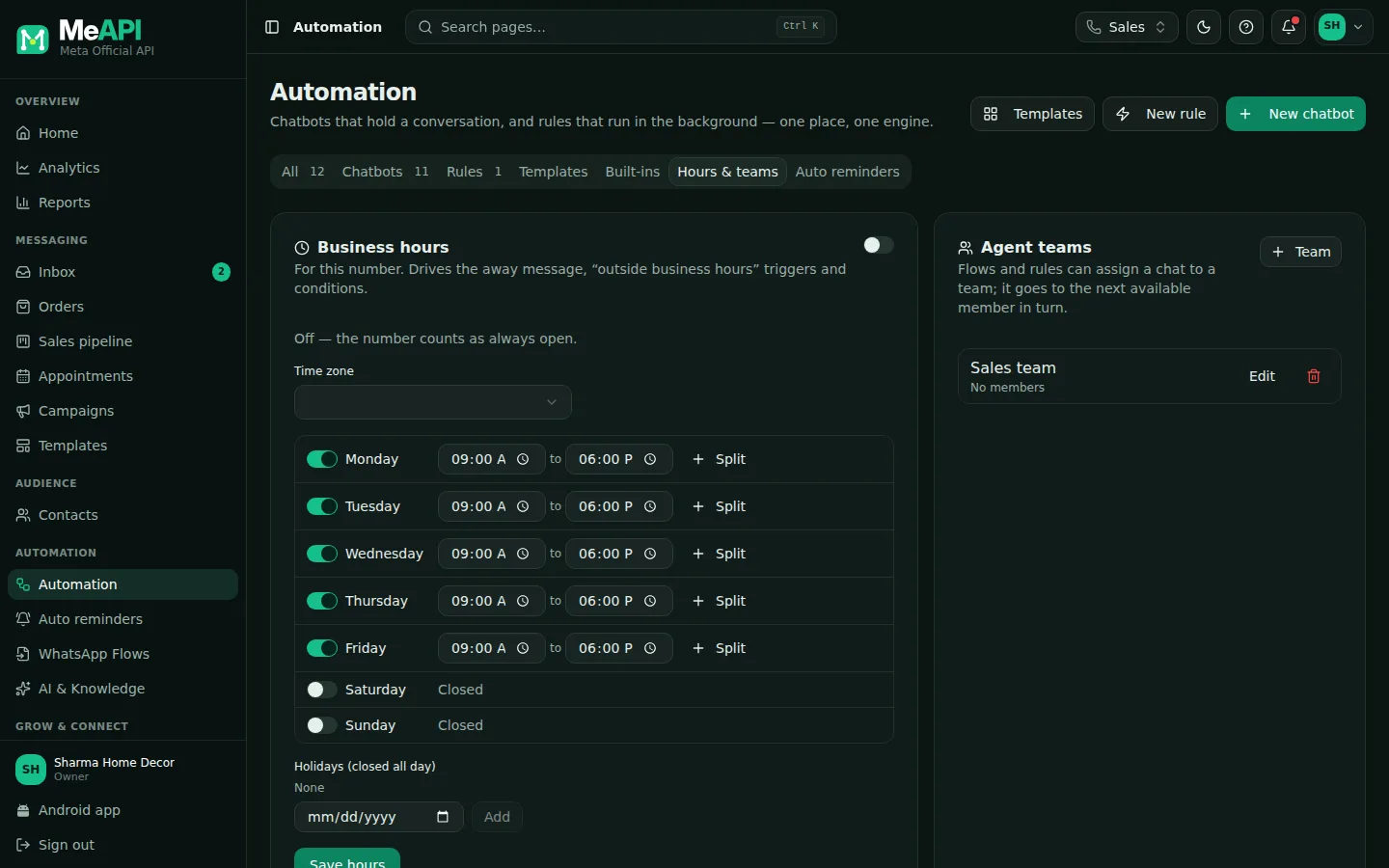
- Business hours for the number picked in the top bar, with an on/off switch. Off = the number counts as always open.
- Time zone, then each day with its opening and closing time, Closed, and Split for a break.
- Holidays (closed all day) with Add.
- Agent teams below: each team and its members, with Team to add one.
Agent teams
Section titled “Agent teams”Further down the same tab, Agent teams groups agents, for example Sales or Support. Flows and rules can assign a chat to a team; it goes to the next available member in turn.
- Click Team, type a name (Team name, e.g. Sales) and tick the members. Add agents first on the Agents page.
- Use the team in an Assign or Human handoff step.
Only members who are active, available and allowed to open the chat’s number take part. If none is, the chat stays unassigned and the owner gets an alert.
What uses business hours
Section titled “What uses business hours”- The Away message built-in.
- The Outside business hours trigger.
- The Business hours check step (open / closed) and the Business hours condition.
What’s next
Section titled “What’s next”Was this page helpful?
Thank you — we read every comment.
Could not send right now. Please try again later.
© 2026 MeAPI by TheWebStore028 · RADHAMADHAV WEBSTORE LLP · GSTIN 27ABJFR6148J1ZO · Contact us ·Cookie settings