

Change your WhatsApp display name — rules, examples, steps and review
🎯 Goal
Customers see a business name they recognise. Meta approves it the first time, and it goes live without breaking anything.
🧰 What you need
- A connected number
- The number's two-step verification PIN (6 digits)
- A name that matches your business: on your website, signboard, GST or other documents
What the display name is
Section titled “What the display name is”The display name is the business name on your WhatsApp profile. Once Meta approves it, it can also show in chat threads and the chat list. A customer who saved your number under their own name sees that instead.
Meta reviews every new name. Until a new name is approved, your current name stays: nothing changes for customers while you wait. Meta: display names
The rules
Section titled “The rules”Meta’s full rules are in its Help Center article Display name guidelines for the WhatsApp Business Platform. The rejection reasons Meta sends (phone_number_name_update) are the five ways a name usually fails:
| Meta’s rejection reason | What it means | Avoid |
|---|---|---|
NAME_NOT_CONSISTENT |
Doesn’t match your business’s branding | A name that appears nowhere on your website, documents or signage |
NAME_FORMAT_UNACCEPTABLE |
Unacceptable format | ALL CAPS, emojis, extra punctuation (!!!), a URL, odd spacing |
NAME_ENDCLIENT_NOTRELATED |
Includes an unrelated business’s name | Another brand’s name, such as a brand you resell or a marketplace |
NAME_INDIVIDUAL_ISSUE / NAME_EMPLOYEE_ISSUE |
Includes a person’s name or an employee identifier | “Rahul from Sharma Sweets”, “Support Agent 3” |
UNKNOWN |
Rejected for another reason | Contact Meta support |
In practice:
- Use your business name as customers know it, spelled and capitalised the way your branding does.
- Add a word that helps customers, such as the city or what you do, only if it still reads as your brand: Sharma Sweets Jaipur.
- Keep it plain: no emojis, no slogans or offers, no links, no “Official” or “Verified”.
- Generic words alone don’t identify a business: Best Deals, Online Shopping, Customer Care.
- Match your proof. Meta compares the name with your business portfolio, website and verification documents. If they differ, update them first.
Examples
Section titled “Examples”These examples follow the rules and rejection reasons above. They are not Meta’s own list.
| Business | ✅ Likely approved | ❌ Likely rejected, and why |
|---|---|---|
| Sharma Sweets, Jaipur | Sharma Sweets · Sharma Sweets Jaipur | SHARMA SWEETS (all caps) · Sharma Sweets 🍬 (emoji) · Best Sweets in Jaipur (generic, not the brand) |
| Green Leaf Dental Clinic | Green Leaf Dental · Green Leaf Dental Clinic | Dr. Mehta (a person’s name, not the brand) · Green Leaf Dental – 50% off! (offer, punctuation) |
| Urban Threads (online clothing) | Urban Threads | Urban Threads on Amazon (another business’s name) · urbanthreads.in (a URL) |
| KP Realty (branded in capitals) | KP Realty | Kp Realty (doesn’t match the branding) · KP Realty – Call Now (slogan) |
| Sunrise Coaching Classes | Sunrise Coaching · Sunrise Coaching Classes | Sunrise Coaching – Admissions Open (slogan) · Rohit Sir (a person’s name) |
Change it in MeAPI
Section titled “Change it in MeAPI”- Choose the number in the number switcher at the top, then open My Numbers (left menu → Account).
- In the Display name card, click Change display name.
- Type the New display name and click Submit for review. If you type a name Meta has already approved for this number, the button says Make it live and skips the review.
- The card shows Requested name and three steps: In review → Approved → Live. Click Check status to refresh.
- When it says Approved, click Make it live. MeAPI re-registers the number with its two-step PIN, and customers see the new name from then on.
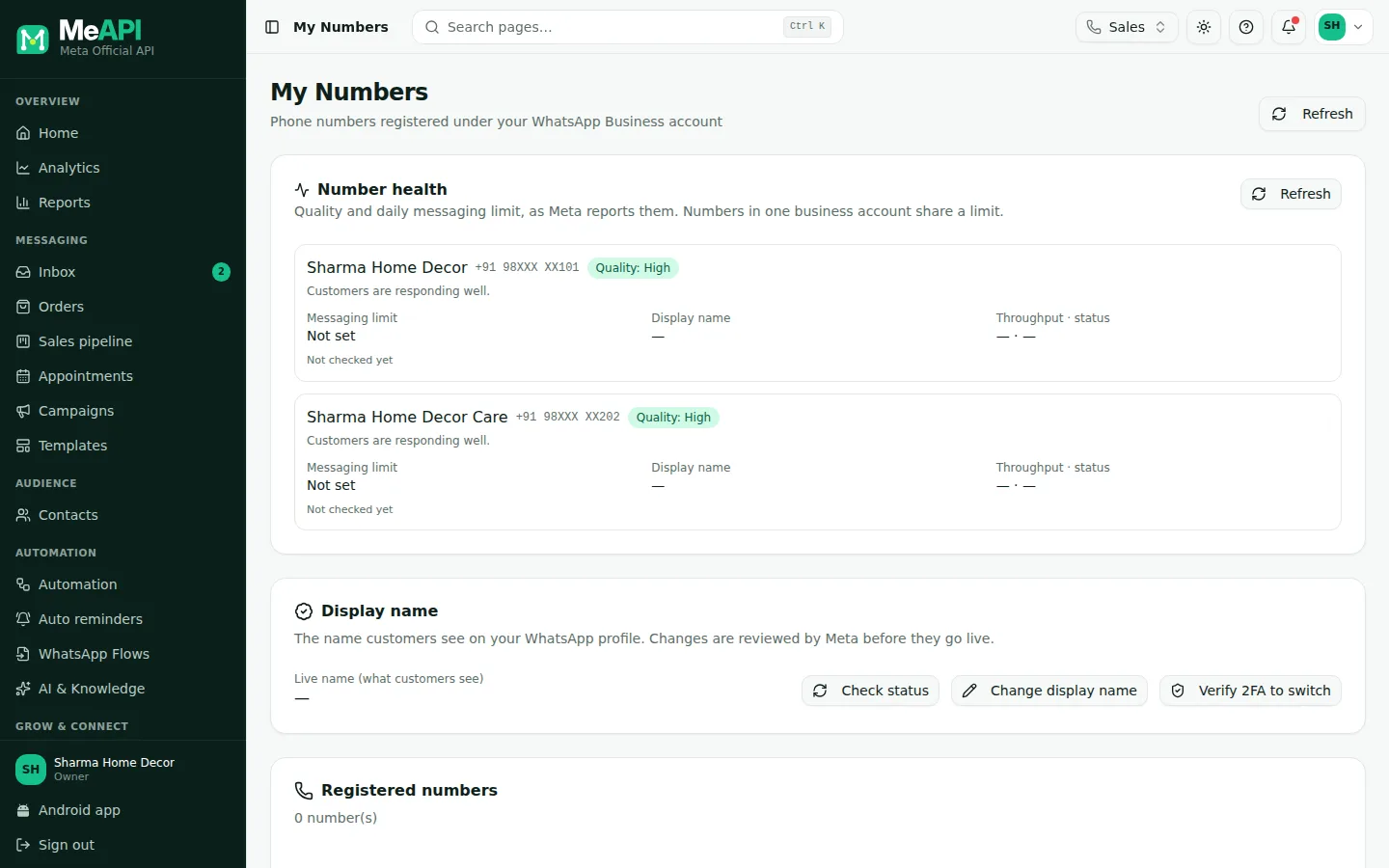
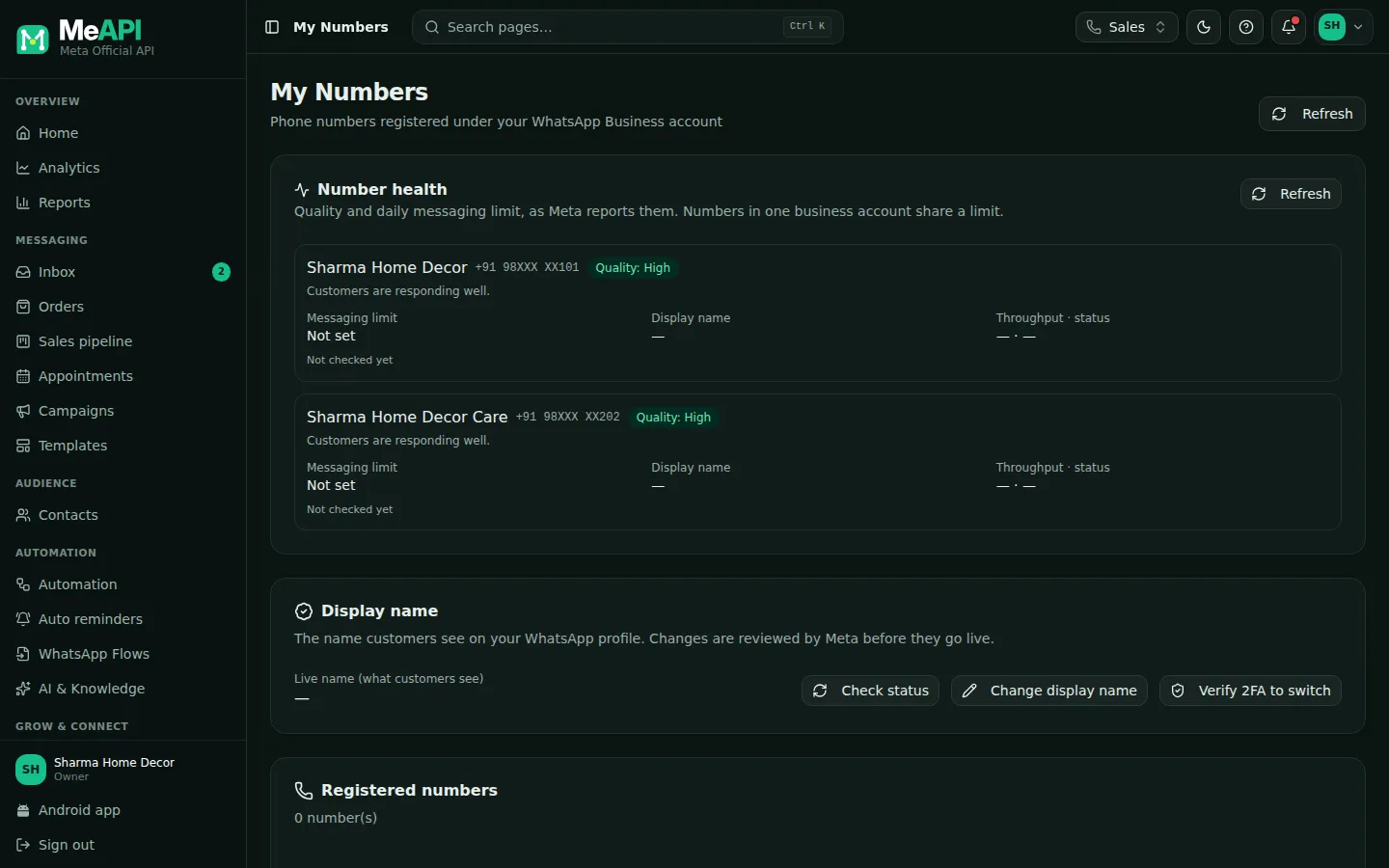
- The Display name card: Live name (what customers see), Check status, Change display name and Verify 2FA to switch.
- During a change: the Requested name, the In review → Approved → Live steps and, once approved, Make it live.
You can also change it in WhatsApp Manager: Account tools → Phone numbers → your number → Profile → Display name → Edit. Then come back to MeAPI and click Make it live once it is approved.
Review and timing: what Meta says
Section titled “Review and timing: what Meta says”- Your current name stays until the new one is approved.
- Meta doesn’t publish a fixed review time. It announces the result in Meta Business Suite. In MeAPI, click Check status on the Display name card to see it. In our experience most names are decided within a few hours, and some take a working day or two.
- After approval you have 14 days to make it live (re-register the number). After that the approval expires and you must submit the name again. MeAPI shows Expired if that happens.
- Re-registering before approval has no effect. Don’t use Verify 2FA to switch while a name is still in review.
- Up to 10 name changes per 30 days for each number.
- Official business accounts (blue tick) can’t change the name themselves. Contact Meta’s direct support. See Official Business Account.
- Meta’s documentation doesn’t say a name change affects your quality rating or messaging limit.
Sources: Meta: display names, phone_number_name_update webhook.
Official Business Account (blue tick)
Section titled “Official Business Account (blue tick)”An Official Business Account shows a blue checkmark next to your name. (It used to be a green tick; Meta’s docs now describe a blue one.) It tells customers Meta has confirmed the number belongs to an authentic, notable business. You don’t need it for any MeAPI feature.
Who can apply
Section titled “Who can apply”Meta’s requirements, all of them:
- The business follows the WhatsApp Business Messaging Policy.
- The number has been on the WhatsApp Business Platform for at least 30 days.
- The business portfolio passed business verification. Verify your business
- Two-step verification (the 6-digit PIN) is on for the number.
- The display name is approved.
It isn’t given to employees’ numbers, test numbers, or numbers on the WhatsApp Business app.
How to apply
Section titled “How to apply”- WhatsApp Manager → Overview → click the phone number.
- Turn on two-step verification if it’s off. Then use the same PIN in MeAPI (My Numbers → Verify 2FA to switch).
- Phone numbers → Profile → Official business account → Submit request. Add links that show the business is well known.
- Meta notifies you when it has decided. It doesn’t publish a review time.
If you meet every requirement but see no option to apply, contact MeAPI support and we’ll raise it with Meta.
What helps approval
Section titled “What helps approval”Meta’s documentation lists only the requirements above. In our experience these help:
- Coverage you didn’t pay for: news articles or features about the business in known publications, not press releases or paid posts.
- The same name everywhere: display name, website, Facebook / Instagram pages, documents.
- An active, real presence: a working website on your own domain, reviews, social pages with genuine activity.
- A clean record: High quality rating and no policy warnings.
If Meta says no, you can apply again after 30 days. A rejection doesn’t change anything else on your account.
Source: Meta: Official Business Accounts.
If Meta rejects the name
Section titled “If Meta rejects the name”- MeAPI shows Declined on the Display name card. The reason is in Meta Business Suite notifications and WhatsApp Manager → Phone numbers.
- Check the reason against the table above, change the name (or update your website or portfolio so the name matches), and Change display name again.
- If you think the decision is wrong, Meta lets you appeal through its developer support (MeAPI support can raise it for you: Support → New ticket with the name and the reason).
Errors you may see while doing this: 2388009 / 2388010 (name invalid or locked), 131037 (name not approved), 133005 (wrong PIN on Make it live).
Common mistakes
Section titled “Common mistakes”- Not clicking Make it live. Approved isn’t live. After 14 days the approval expires.
- Wrong two-step PIN. Make it live fails with 133005. Reset the PIN in WhatsApp Manager → Phone numbers → Two-step verification, then Verify 2FA to switch with the new PIN.
- Renaming to fix a typo again and again. Each change counts toward the 10 in 30 days, so check the spelling before you submit.
- A name your website doesn’t show. Put the name on your website first, then submit it.
What’s next
Section titled “What’s next”Was this page helpful?
Thank you — we read every comment.
Could not send right now. Please try again later.
© 2026 MeAPI by TheWebStore028 · RADHAMADHAV WEBSTORE LLP · GSTIN 27ABJFR6148J1ZO · Contact us ·Cookie settings