

Use MeAPI on iPhone and iPad
🎯 Goal
MeAPI on your Home Screen: it opens full screen like an app, stays signed in, and notifies you about every new chat with a badge on the icon.
🧰 What you need
- An iPhone or iPad — iOS / iPadOS 16.4 or newer for notifications
- Safari (Chrome and Edge work too)
- Your MeAPI panel email and password (or your agent login)
- 5 minutes
There’s no MeAPI app in the App Store yet, and you don’t need one. iPhones and iPads can add a website to the Home Screen as a web app: it gets its own icon, opens without Safari’s bars, keeps you signed in and can show notifications. MeAPI’s panel is built for that.
Step 1: add MeAPI to your Home Screen
Section titled “Step 1: add MeAPI to your Home Screen”- Open login.meapi.in in Safari. You don’t need to sign in yet.
- Tap Share (the square with an arrow) in the bar at the bottom. On iOS 26, tap ••• first, then Share.
- Scroll the list and tap Add to Home Screen. Not there? Tap Edit Actions at the very bottom and add it.
- Keep the name MeAPI and leave Open as Web App on. Tap Add.
- Open login.meapi.in in Safari.
- Tap Share at the top right, next to the address bar.
- Tap Add to Home Screen, keep the name MeAPI and tap Add.
From iOS 16.4, Chrome and Edge can add web apps too.
- Chrome: tap Share in the address bar (top right) → Add to Home Screen → Add.
- Edge: tap ••• at the bottom → Share → Add to Home Screen → Add.
Opened the link inside Instagram, Facebook or another app? Their built-in browser can’t do this. Tap ••• → Open in Safari first.
Signed in to the panel in Safari already? It reminds you: Home shows an Add to Home Screen card with the three steps, and other pages a small banner Install MeAPI on your iPhone (tap How for the steps, ✕ to hide it).
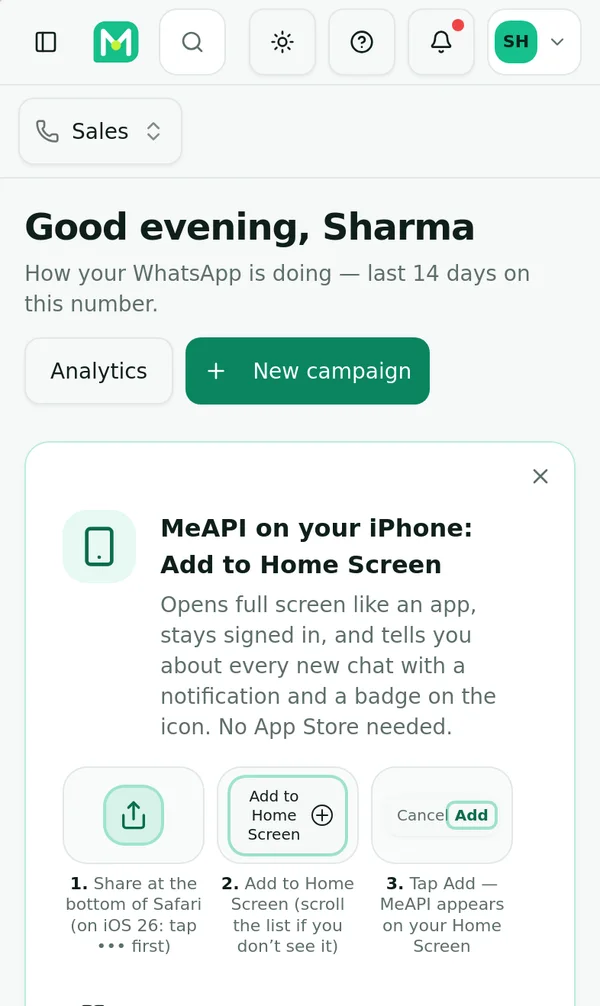
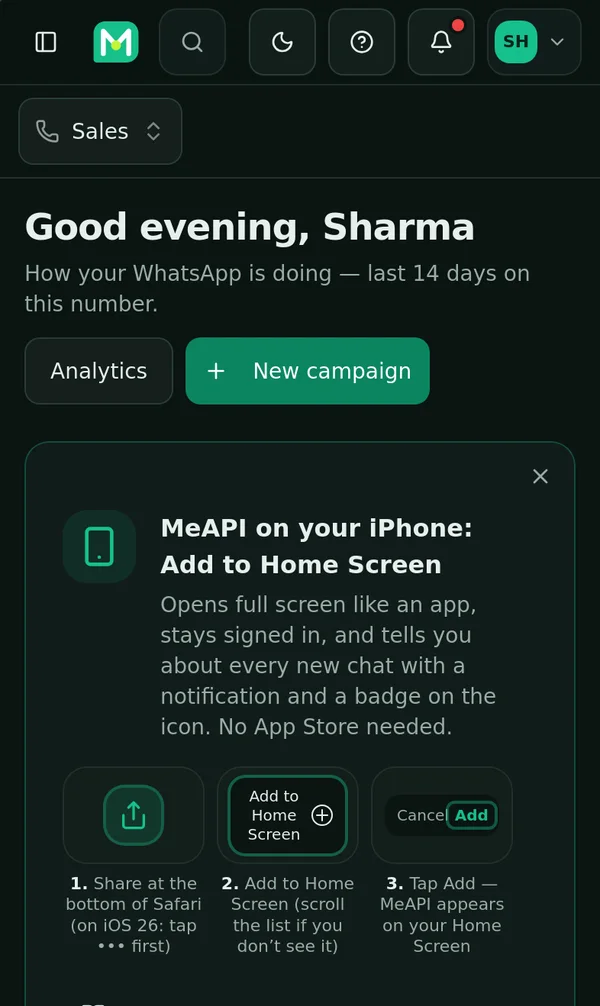
In Safari, Home shows how to add MeAPI to your Home Screen.
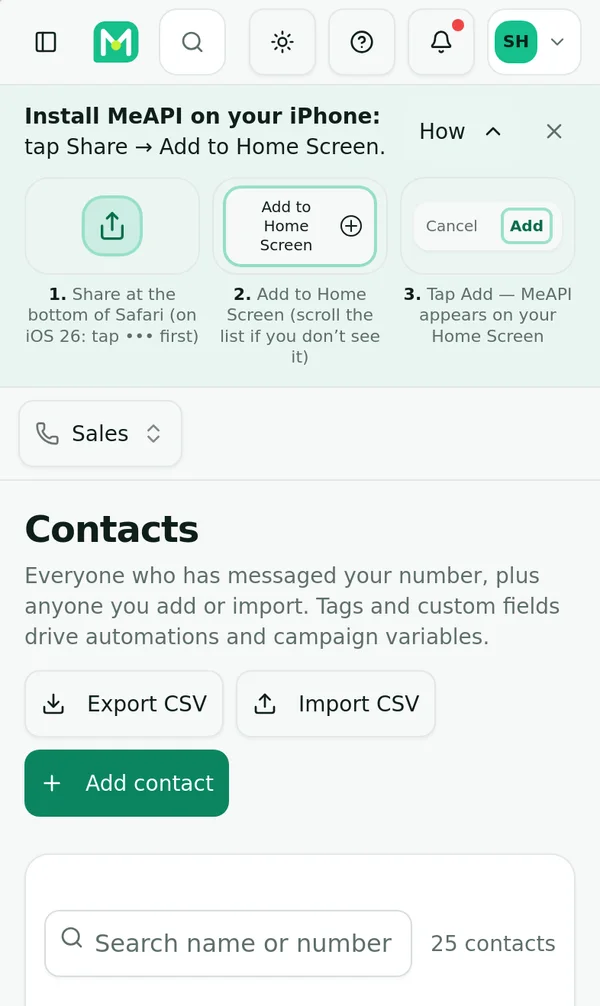
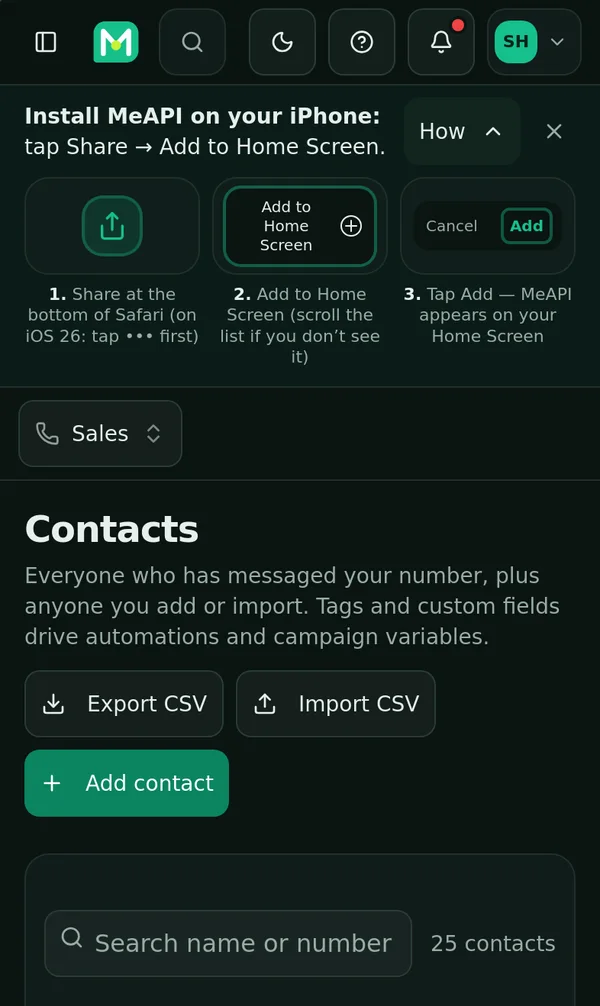
On other pages a small banner. How shows the three steps.
Step 2: open it from the Home Screen and sign in
Section titled “Step 2: open it from the Home Screen and sign in”Tap the new MeAPI icon. The panel opens full screen, without Safari’s bars, on your inbox. Sign in once with your email and password (agents: switch to Agent and use your agent login).
Step 3: turn on notifications
Section titled “Step 3: turn on notifications”- A strip says Get a notification for every new customer message. Tap Turn on notifications.
- iOS asks “MeAPI” Would Like to Send You Notifications. Tap Allow.
- Check it: tap your initials (top right) → Notifications → Send a test.
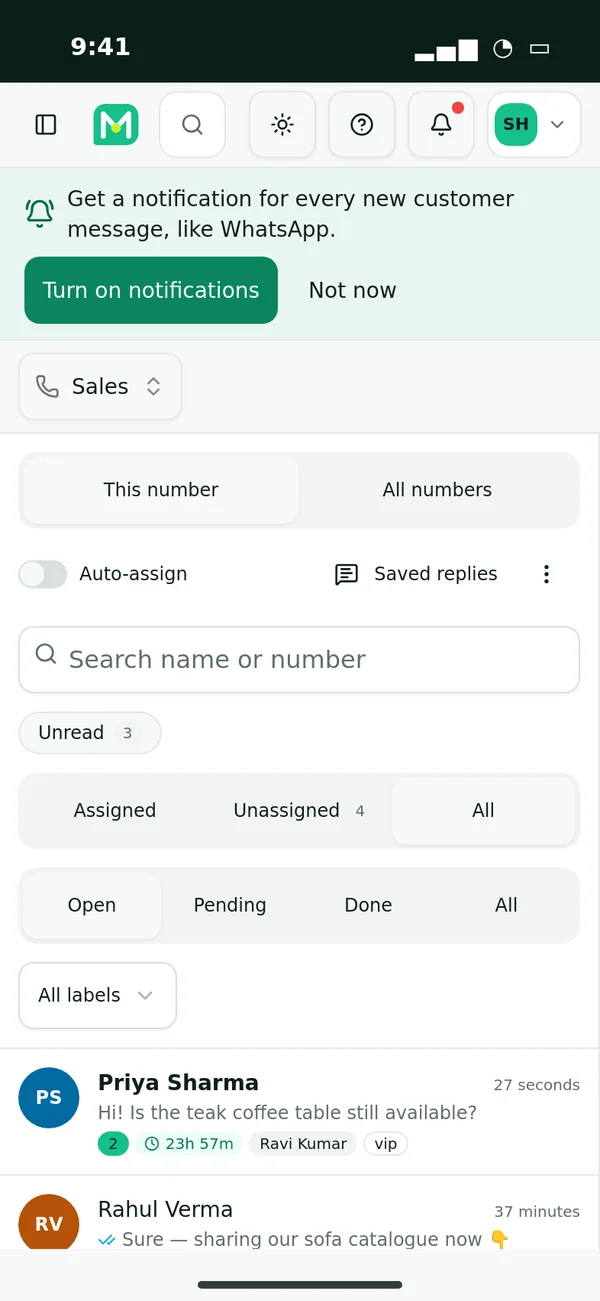
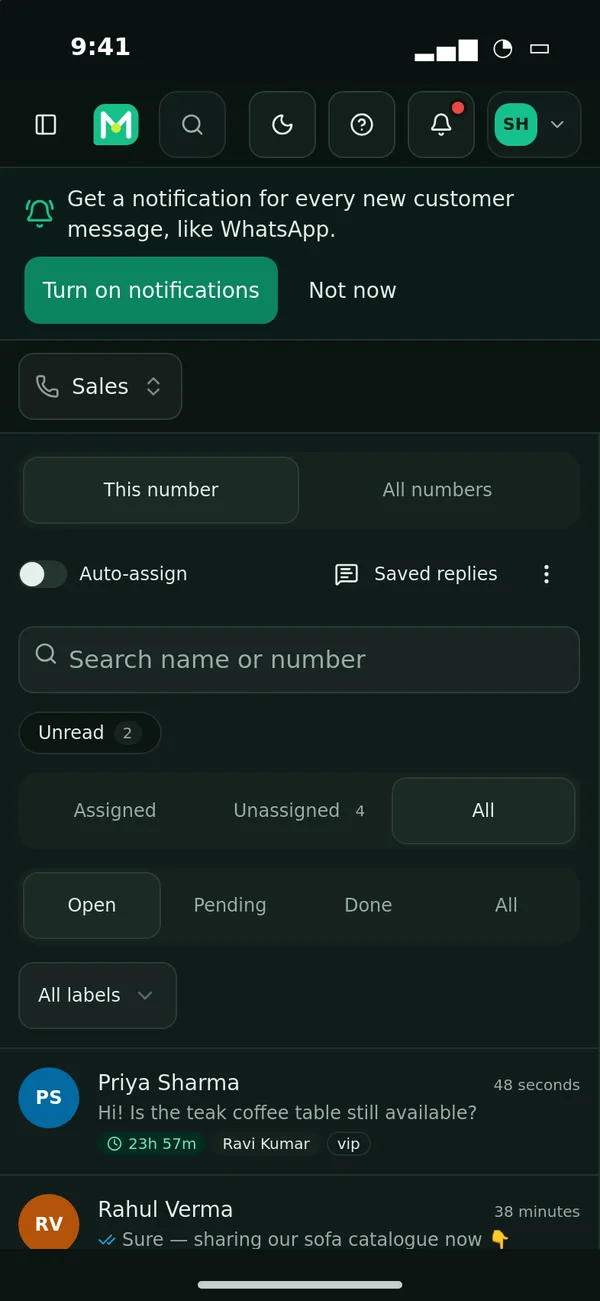
The Home Screen app asks once. iOS only shows its question after you tap.
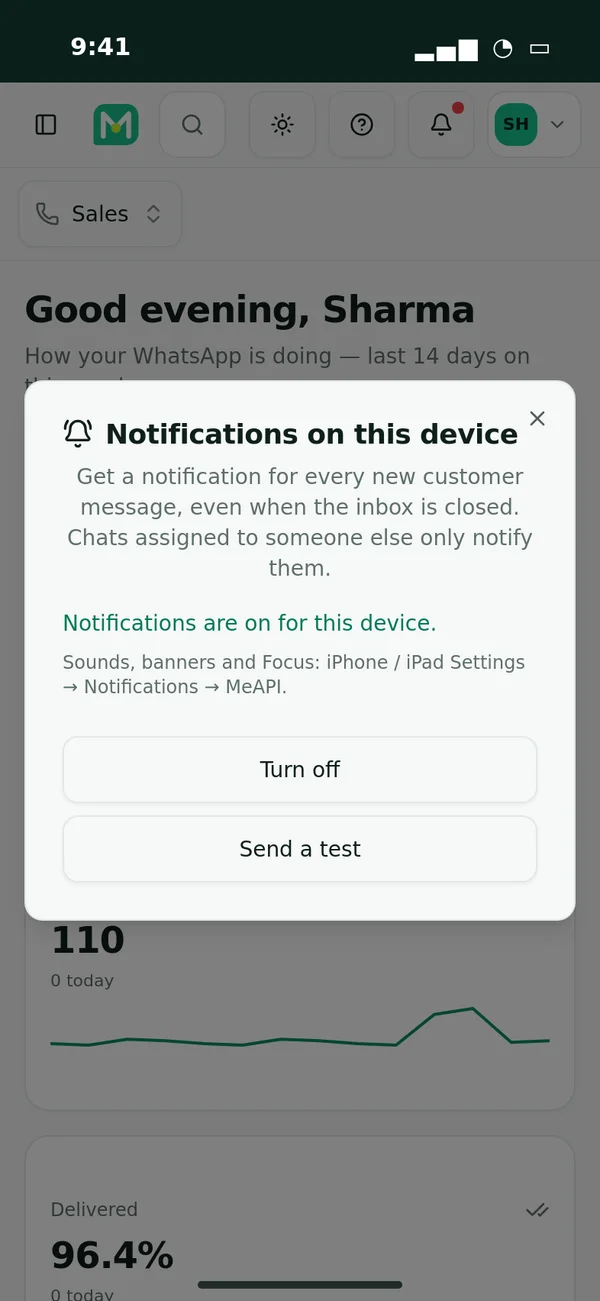
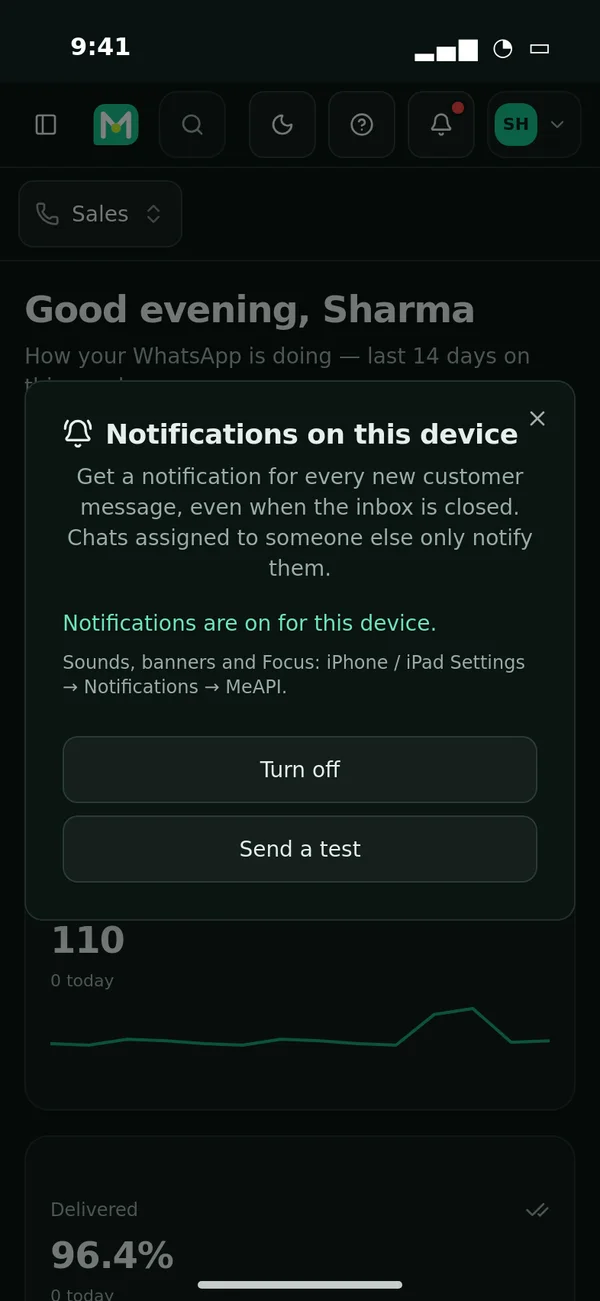
Your initials → Notifications: on, a test, or off for this iPhone.
Tapped Not now? Turn them on later from your initials → Notifications → Turn on.
What you get:
- A notification for each new customer message (at most one per chat a minute). Tap it to open that chat.
- A badge on the MeAPI icon with the number of unread chats on every number you may open (agents: the chats their role lets them see). It updates when a message arrives, and whenever the app is open: reading a chat, marking it unread or switching numbers. Chats read on another device while the app is closed update the badge the next time you open it or the next notification.
- Agents only hear about chats they can open: their numbers, their inbox scope, their working hours. Roles that mask numbers see the name masked in the notification too.
Step 4: sounds, Focus and the lock screen
Section titled “Step 4: sounds, Focus and the lock screen”Notifications follow iOS’s own settings for MeAPI, like any app:
- Settings → Notifications → MeAPI: lock screen, banners, sounds, badges, Show Previews (choose When Unlocked to hide message text on the lock screen).
- Focus (Do Not Disturb, Work, Sleep): Settings → Focus → [your Focus] → Apps → Add App → MeAPI to let chats through. Otherwise they wait in the Notification Centre until the Focus ends.
- Scheduled Summary delays notifications to set times. Under Settings → Notifications → Scheduled Summary, leave MeAPI out so chats arrive at once.
Using the Home Screen app
Section titled “Using the Home Screen app”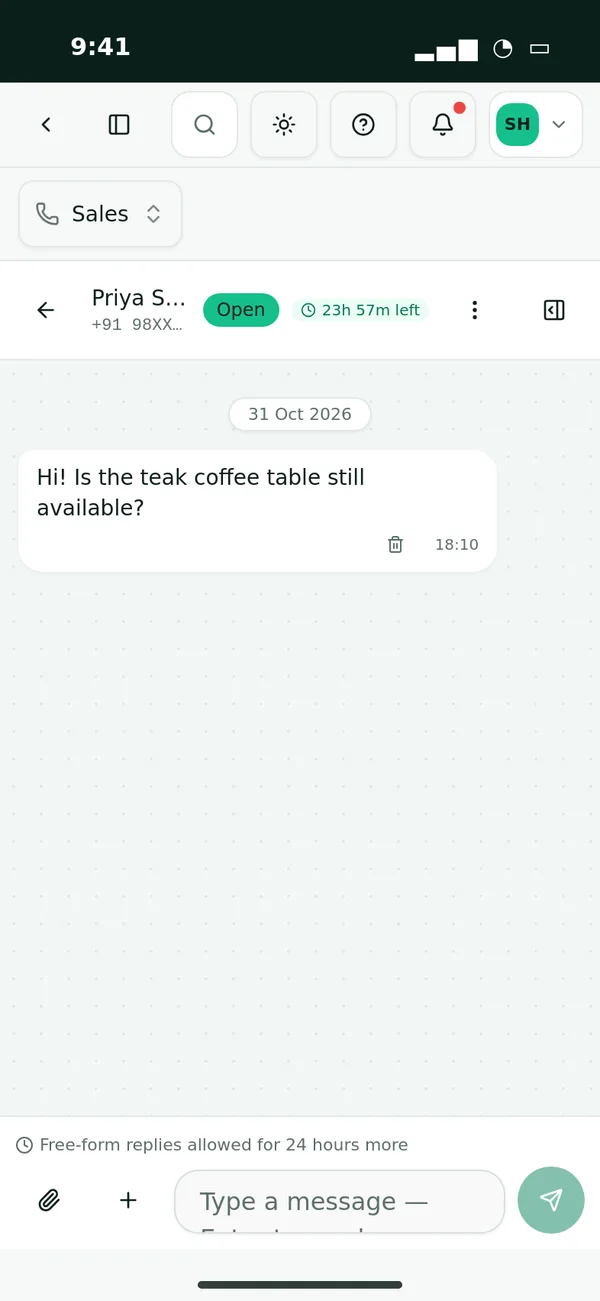
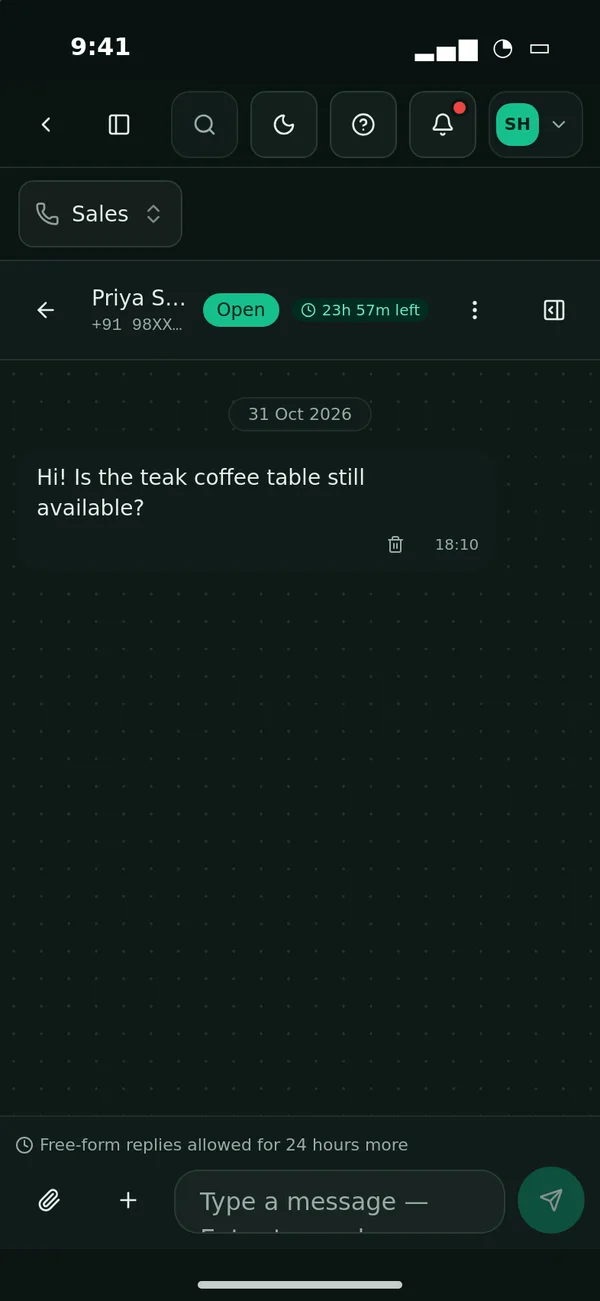
A chat in the Home Screen app: full screen, clear of the notch and the home indicator.
- Back: there’s no browser Back button or swipe here, so pages have a ‹ Back arrow next to the menu.
- Refresh: pull down at the top of a page. The inbox updates live by itself.
- Photos, files and voice notes: the + in the message box sends photos from the camera or library and documents from Files. With the box empty, the microphone records a voice note — allow the microphone the first time; it arrives as a normal WhatsApp voice message.
- Exports and invoices open the share sheet: Save to Files, or send them on by WhatsApp or Mail.
- UPI: paying your plan by UPI shows GPay, PhonePe and Paytm buttons that open the app with the amount filled in (Other UPI app for the rest).
- Updates: none to install. The app always runs the live panel.
- iPad: the full side menu stays, and it works in landscape and Split View.
Limits compared with a native app
Section titled “Limits compared with a native app”| iPhone / iPad (Home Screen) | Android app | |
|---|---|---|
| New-message notifications, tap to open the chat | Yes (iOS 16.4+) | Yes |
| Badge with unread chats | Yes (iOS 16.4+) | Yes |
| Chat assigned to you, support replies, failed reminders | No — new messages only | Yes |
| Notification categories with their own sounds | No — one setting for MeAPI | Yes |
| Fingerprint / Face ID lock | No | Yes |
| Stays signed in | Yes | Yes |
| Camera, files, voice notes | Yes | Yes |
| Updates | Always the live panel | Live panel; the app shell updates now and then |
Troubleshooting
Section titled “Troubleshooting”No notifications
Section titled “No notifications”- Opened from Safari instead of the Home Screen icon? Notifications only work in the Home Screen app. Open MeAPI from its icon.
- iOS older than 16.4? Your initials → Notifications says need iOS 16.4 or later. Update iOS.
- Blocked: the dialog says Notifications are blocked for this app. Go to Settings → Notifications → MeAPI → Allow Notifications, then come back and tap Turn on.
- A Focus or Scheduled Summary is holding them back — see Step 4.
- Agent? You’re only told about chats you can open. Chats assigned to someone else, other numbers, or outside your working hours stay quiet.
- Still nothing? Remove MeAPI from the Home Screen (press and hold the icon and remove it), add it again, sign in and turn notifications on. An expired subscription is renewed by itself each time you open the app; reinstalling starts fresh.
Logged out
Section titled “Logged out”- Removing the icon deletes its sign-in. Add it again and sign in.
- Changing your password (or the owner changing an agent’s) signs every phone out on purpose.
- Agents: your role can sign you out at a set time or outside working hours. Ask the account owner.
- Plan expired: you’re signed in, but only Subscription, Account and Support open. Renew under Subscription.
“iOS version too old”
Section titled ““iOS version too old””Add to Home Screen works on any iPhone, but notifications and the badge need iOS / iPadOS 16.4, which runs on iPhone 8 and newer. Older iPhones can still use MeAPI from the Home Screen or in Safari, without notifications.
Other problems
Section titled “Other problems”- No “Add to Home Screen” in the list: you’re in another app’s built-in browser, or in a Private tab. Open the link in Safari, in a normal tab.
- The microphone doesn’t record: allow it — Settings → Safari (iOS 18 and later: Settings → Apps → Safari) → Microphone → Ask, then try again.
- A page misbehaves: try the same page in Safari. If it’s wrong there too, tell us under Support.
What’s next
Section titled “What’s next”Was this page helpful?
Thank you — we read every comment.
Could not send right now. Please try again later.
© 2026 MeAPI by TheWebStore028 · RADHAMADHAV WEBSTORE LLP · GSTIN 27ABJFR6148J1ZO · Contact us ·Cookie settings