

Scheduled and repeating campaigns
LearnCampaigns & analyticsIntermediate
🎯 Goal
Send at the right moment without being online, and automate regular messages like weekly offers or monthly reminders.
🧰 What you need
- A campaign in the wizard
- In the campaign wizard’s Details step, choose Schedule.
- Set Send at: the date and time in your local time zone (shown below the field).
- To repeat, tick Repeat this campaign and choose:
- Every n days, weeks, months or years,
- On these days (weekly, for example Mon and Thu), the Day of month (monthly), or the Month and day (yearly),
- how it ends: Forever, Stop after n runs, or Stop on a date.
- Next 5 runs lists the coming send times so you can check them. Continue with the audience and message, then Schedule campaign. This needs the Schedule permission.
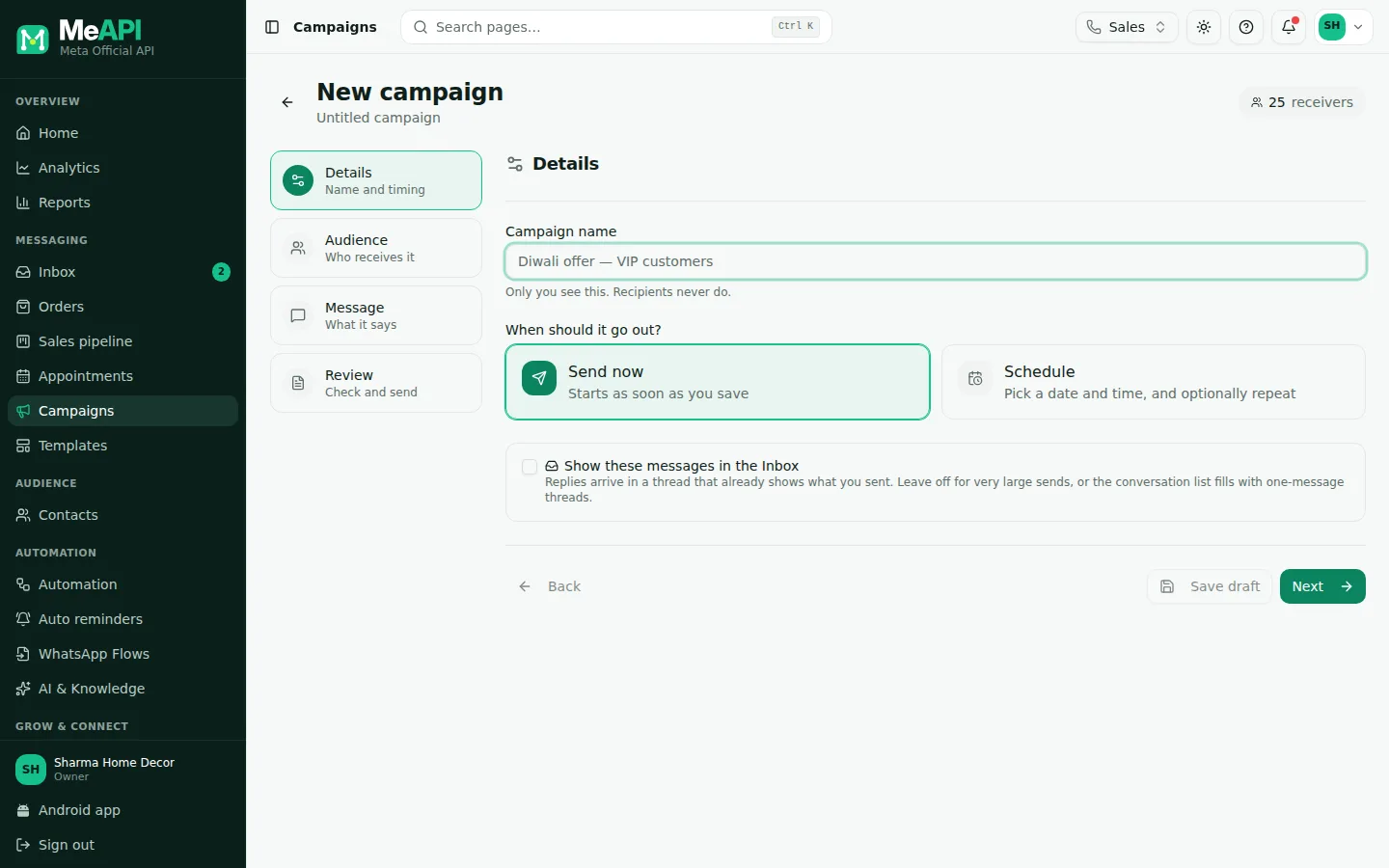
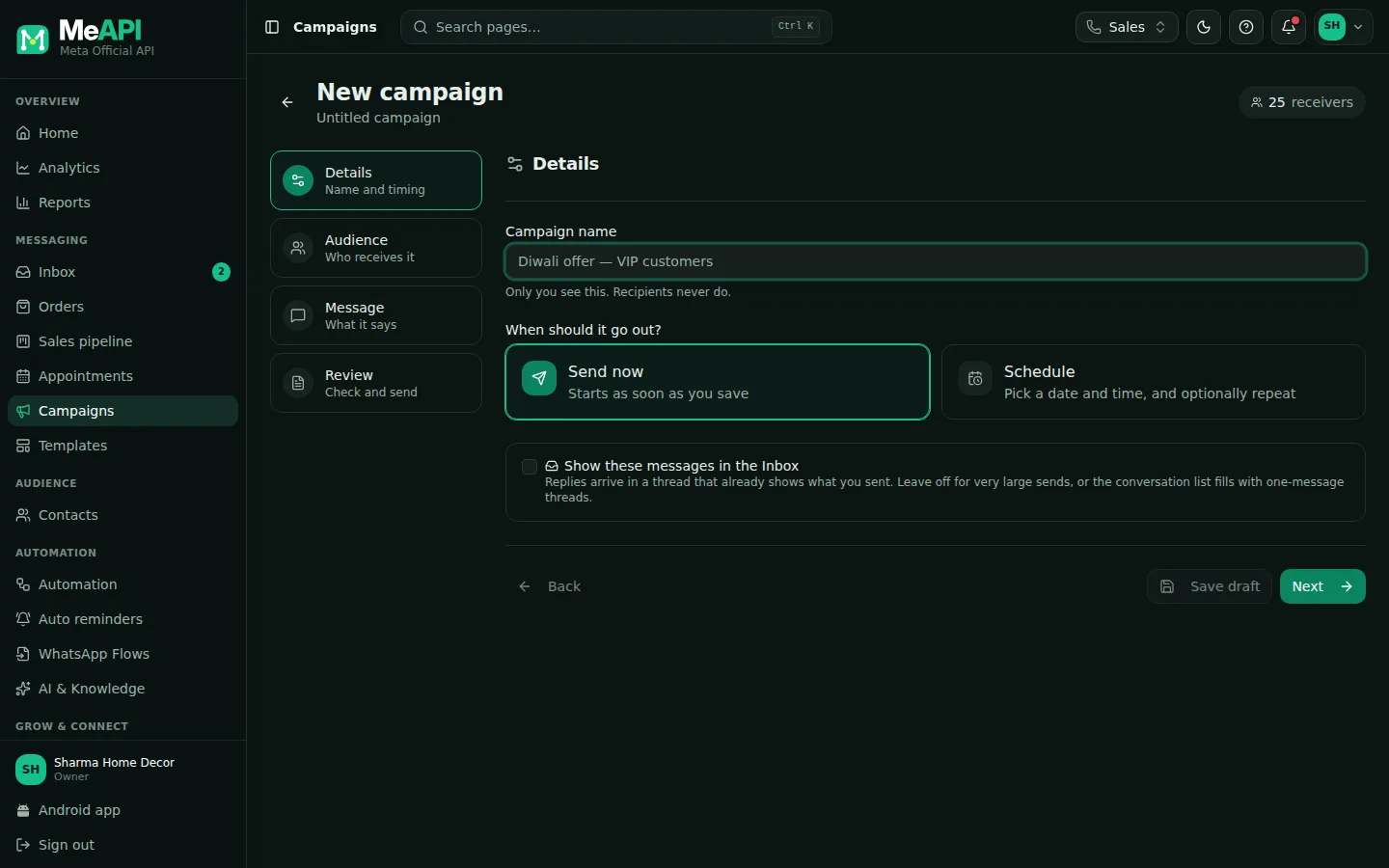
- The Details step: Campaign name and When should it go out? with Send now or Schedule.
- With Schedule: Send at and your time zone, marked as your local time.
- Repeat this campaign opens the repeat rule: Every, the days, and Forever / Stop after / Stop on.
- The list of the next runs, and Show these messages in the Inbox at the bottom.
Live audiences
Section titled “Live audiences”A campaign stores who should receive it (the rules), not a frozen list. Every run checks again who matches, so:
- a weekly campaign to Tag includes
new-customerreaches the people tagged that week, - contacts who opted out since the last run are skipped.
For a fixed list, use Upload or paste, or tag the people and target the tag.
Common mistakes
Section titled “Common mistakes”- A time in the past → That send time is in the past. Pick a future time.
- Month-end dates. A monthly run on the 31st falls on the last day in shorter months.
- Forgetting a repeating campaign. Check the Scheduled tab now and then, and cancel old ones.
What’s next
Section titled “What’s next”Was this page helpful?
Thank you — we read every comment.
Could not send right now. Please try again later.
© 2026 MeAPI by TheWebStore028 · RADHAMADHAV WEBSTORE LLP · GSTIN 27ABJFR6148J1ZO · Contact us ·Cookie settings