

Import contacts from CSV or Excel
LearnContacts & audienceBeginner
🎯 Goal
Bring your existing customers into MeAPI in one go, with their names, tags and details ready for campaigns.
🧰 What you need
- A spreadsheet of contacts who agreed to receive WhatsApp messages from you
- Excel, Google Sheets or any tool that saves CSV
Step 0: prepare the file
Section titled “Step 0: prepare the file”One row per person, with column names in row 1. Only the phone column is required:
phone,name,tags,city,last_order+919810000000,Ravi Kumar,vip;jaipur,Jaipur,2026-09-149820000000,Priya Shah,wholesale,Surat,2026-10-02- Phone: with country code is best (
+919810000000). Numbers without one get the default country you pick during import. - Tags: separate several with
;or,. - Any other column can become a custom field (
city,last_order…). - In Excel: File → Save As → CSV UTF-8. In Google Sheets: File → Download → CSV.
- Open Contacts and click Import CSV. Then Choose a CSV file (up to 10 MB). Only
.csvfiles are accepted here. Save Excel sheets as CSV first. - Map the columns. For each column pick Phone number, Name, Tags, Custom field (keeps the column name) or Don’t import.
- Numbers without a country code are in: choose the country, such as India (+91).
- Optional: Tag every imported contact, for example
import-oct-2026, so you can find or target this batch later. - Numbers already in your contacts: Skip them, or Update them (name, merge tags, fields).
- How did these contacts opt in? Pick the source and the Opt-in date, and tick the box confirming that these people agreed to receive WhatsApp messages from you. Import stays disabled until you do.
- Click import. Import finished shows how many were added, updated and already there, and lists the rows not imported with the reason, such as an invalid number. Click Done.
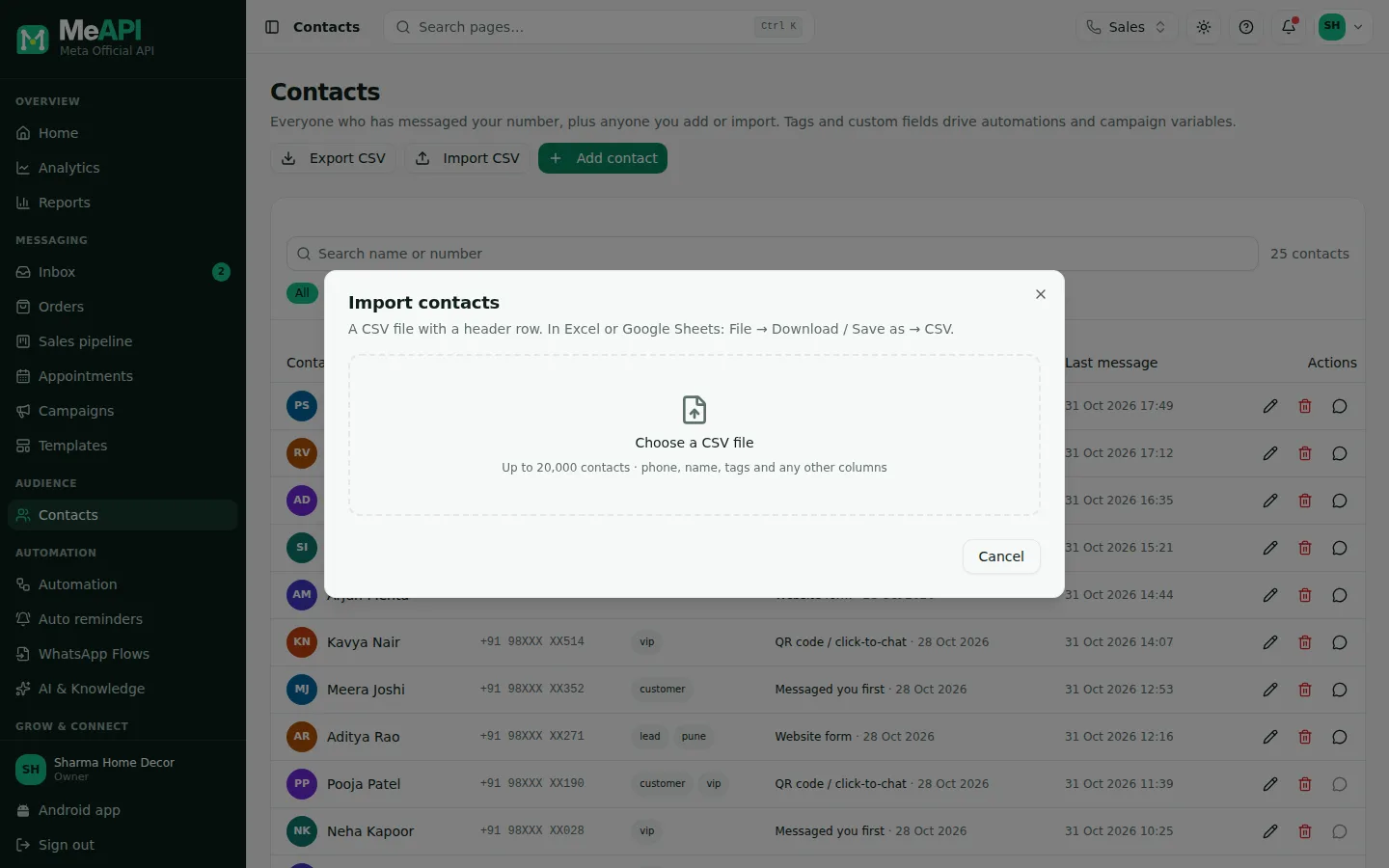
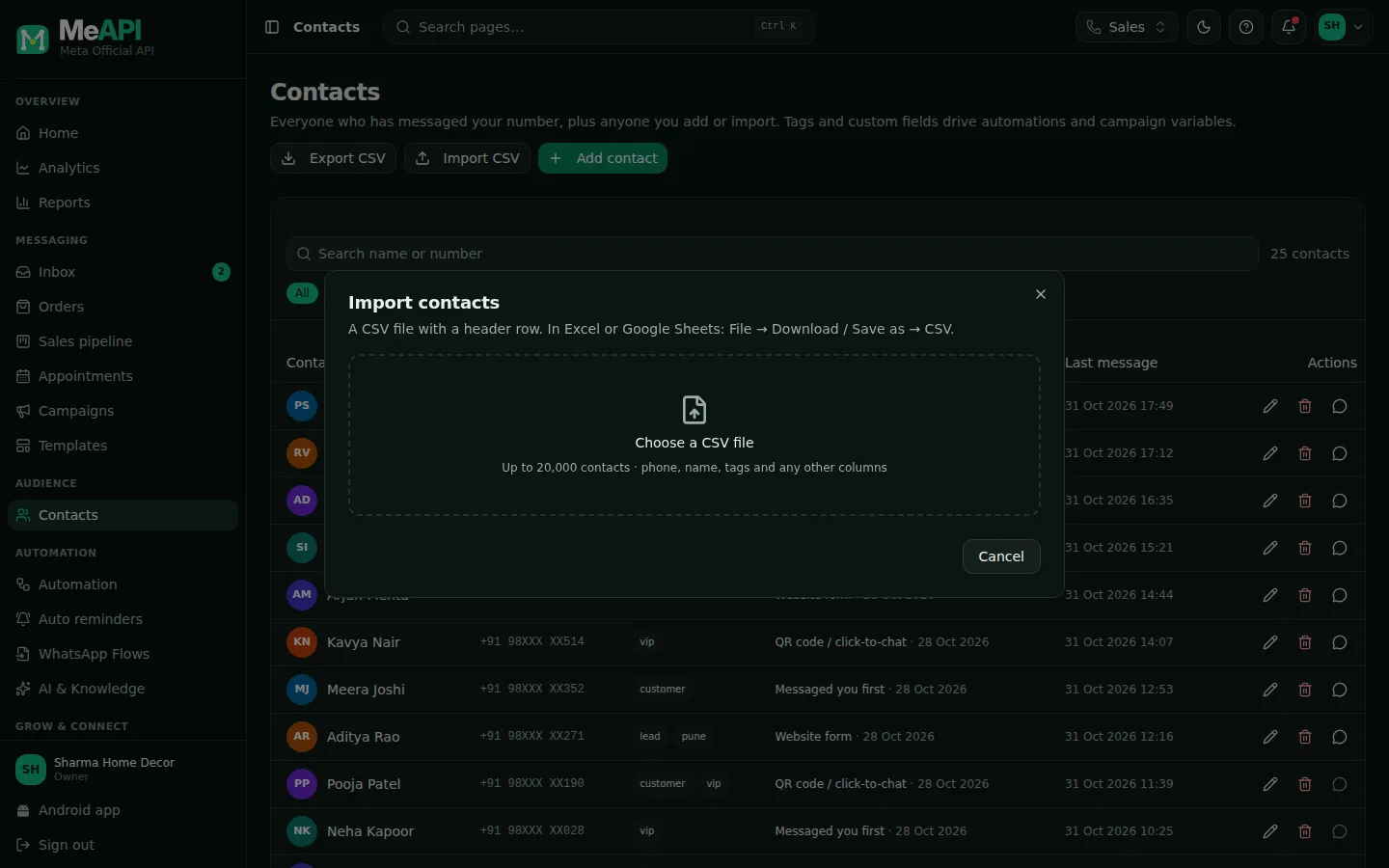
- The Import contacts dialog after a file is chosen.
- Each column of your file with an Import as choice: Phone number, Name, Tags, Custom field or Don’t import.
- Numbers without a country code are in, and Tag every imported contact (optional).
- Numbers already in your contacts: Skip them, or Update them.
- How did these contacts opt in?, the Opt-in date and the consent tick box.
- Bigger than 20,000? Split the file and import it in parts.
- Who can import? Roles with the Contacts → Import permission. Others don’t see the button.
- Sending once to a list? A campaign’s Upload or paste audience also takes a CSV or Excel file. See Campaigns.
- A number repeated inside the file is imported once, and its last row wins.
- Test a campaign on the batch tag first. Send to a small segment before everyone.
Common mistakes
Section titled “Common mistakes”- Excel turned numbers into
9.1981E+11. Format the phone column as Text before saving. - Leading zeros such as
09810000000. Remove the 0, or let the default country handle it. - Semicolon-separated “CSV” from some Excel locales. Save as CSV UTF-8 (comma delimited).
What’s next
Section titled “What’s next”Was this page helpful?
Thank you — we read every comment.
Could not send right now. Please try again later.
© 2026 MeAPI by TheWebStore028 · RADHAMADHAV WEBSTORE LLP · GSTIN 27ABJFR6148J1ZO · Contact us ·Cookie settings