

Shopify — order confirmations, shipping updates and abandoned carts
🎯 Goal
Every Shopify order automatically triggers WhatsApp updates: confirmation, shipping and a reminder for abandoned checkouts.
🧰 What you need
- Shopify admin access
- Approved Utility templates (order confirmed, shipped) and a Marketing template for cart reminders
- Owner or admin-agent login
-
In MeAPI open Integrations, click Connect on Shopify. Enter a Name (for example your store name) and the number to Send from, then Set up. You’ll get a webhook URL and step-by-step setup next.
-
Copy the Webhook URL.
-
In Shopify admin → Settings → Notifications → Webhooks, click Create webhook: Event Order creation, Format JSON, URL = your webhook URL, latest API version. Save.
-
Create more webhooks with the same URL: Order fulfillment (shipping updates), and Checkout creation + Checkout update (abandoned carts).
-
Copy the key under “Your webhooks will be signed with …” and paste it into Shopify webhook signing key in MeAPI. Click Save key; the field then shows set.
-
Switch on the messages you want and pick a template for each:
- Order confirmation: sent once per order.
- Shipping update (order fulfilled).
- Abandoned cart reminder: sent once, if the customer hasn’t completed the order after the delay (default 60 minutes; change Send after).
-
Map the variables: for each
{{1}},{{2}}… choose an order field (customer first name, order number, total, tracking URL…), Fixed text…, or Other field (type a path)…. The preview uses sample data. Leave Phone number from empty to use the customer’s phone automatically. -
Send a test to your own number from the message card, and check WhatsApp. Each event shows in Activity with its result (sent, failed…).
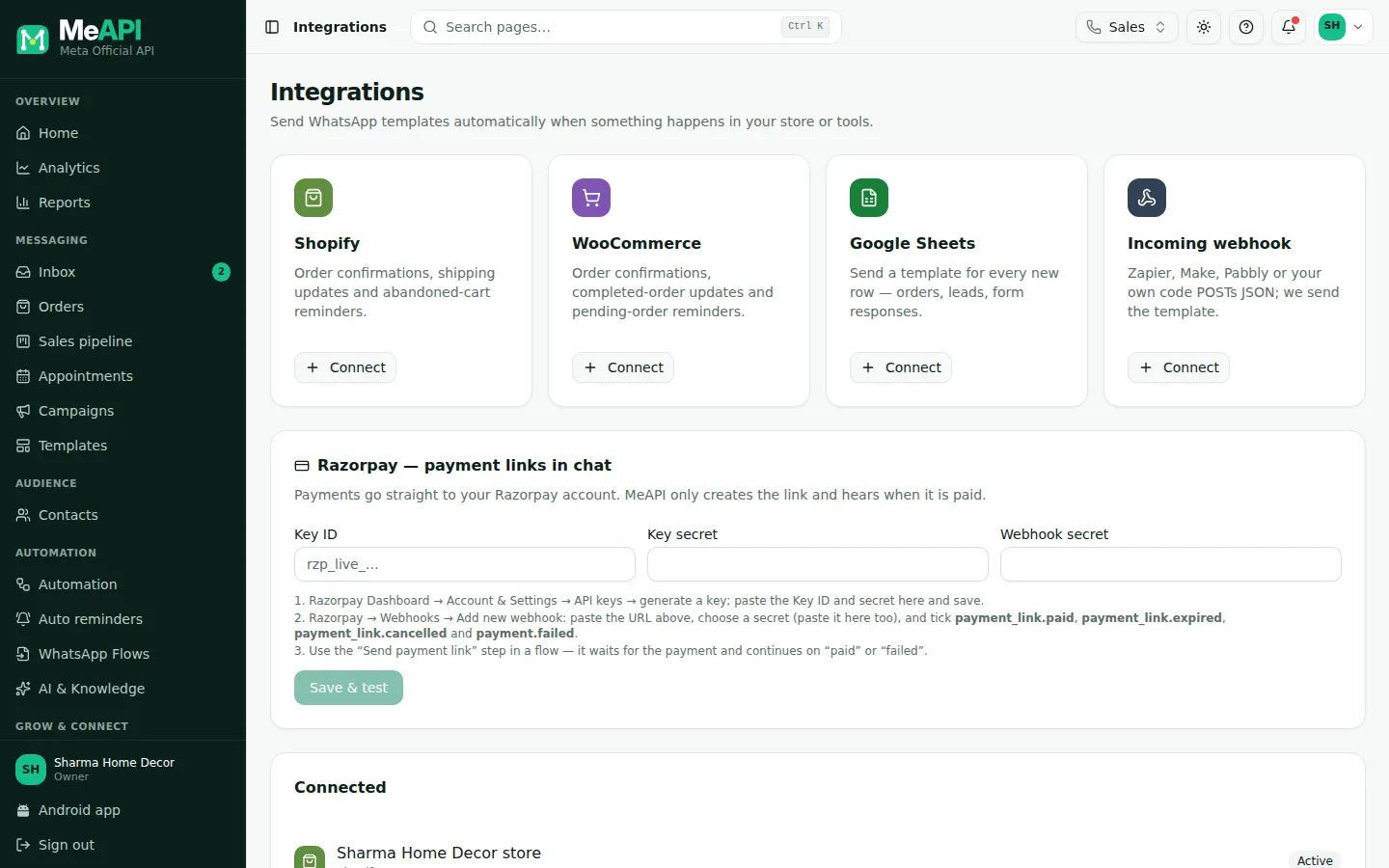
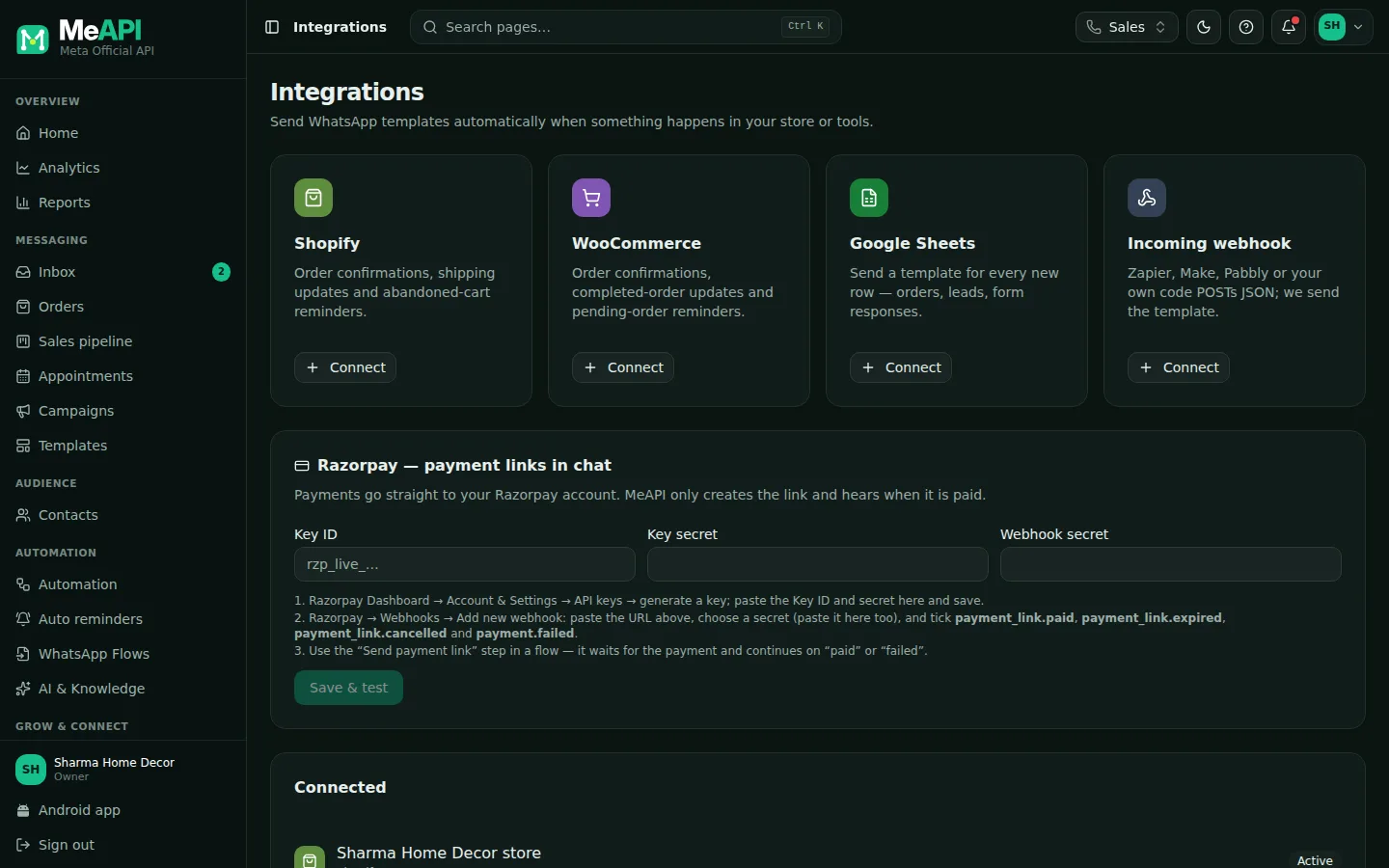
- The Integrations page: one tile each for Shopify, WooCommerce, Google Sheets and Incoming webhook, with Connect.
- The Razorpay payment links card (owner only).
- Connected: your integrations. Open one to see its webhook URL, signing key, setup steps, one card per message, Store API access and the Activity log (last 100 events).
Optional: “Where is my order?” for chatbots
Section titled “Optional: “Where is my order?” for chatbots”The Store API access card lets the flow step Order status lookup read orders.
- In Shopify: Settings → Apps and sales channels → Develop apps → Create an app. Under Admin API scopes tick
read_orders. Install it and copy the Admin API access token. - In MeAPI’s Shopify integration, on the Store API access card: enter the Shop domain (
my-store.myshopify.com) and the Admin API access token, then save. Remove deletes the token.
Then build the bot: Tutorial: order-status bot.
Also available as flow triggers
Section titled “Also available as flow triggers”The same events (New order, Order fulfilled, Abandoned checkout) are available as the New order trigger in Automation, for multi-step journeys (confirmation → review request a week later).
Common mistakes
Section titled “Common mistakes”- Missing the signing key. Events are rejected. Paste the key from Shopify’s webhook page.
- Only the “Order creation” webhook. No shipping or cart messages. Add all four events.
- Carousel templates. Integrations don’t send them. Pick a standard template.
What’s next
Section titled “What’s next”Was this page helpful?
Thank you — we read every comment.
Could not send right now. Please try again later.
© 2026 MeAPI by TheWebStore028 · RADHAMADHAV WEBSTORE LLP · GSTIN 27ABJFR6148J1ZO · Contact us ·Cookie settings