

Install the MeAPI Android app
🎯 Goal
The MeAPI app on your phone, signed in, with notifications that arrive even when the app is closed.
🧰 What you need
- An Android phone with Android 7.0 or newer and about 15 MB free
- Chrome on the phone (any browser works; this guide uses Chrome)
- Your MeAPI panel email and password (or your agent login)
- 10 minutes
The app shows your live MeAPI panel, so everything you do on the web works here too. It adds what a phone does best: instant notifications, the camera, voice notes and a fingerprint lock. It isn’t on the Play Store yet, so you install it straight from meapi.in/app. Android asks a couple of extra questions for that; this guide walks you through each one.
Step 1: download the app
Section titled “Step 1: download the app”- On your phone, open meapi.in/app in Chrome and tap Download for Android. The page shows the current version and size.
- On a computer? Scan the QR code on meapi.in/app (or on your panel’s Home card) with the phone’s camera. It opens the same page on the phone.
- If Chrome says This type of file can harm your device or File might be harmful, tap Download anyway. Every app that doesn’t come from the Play Store gets this message. The file is signed by MeAPI, and you can check it (see Is it really our file?).
- When the download finishes, tap Open in the message at the bottom. Missed it? Open Files (or My Files / File Manager) → Downloads and tap MeAPI-….apk.
Download file? This type of file can harm your device. Do you want to keep MeAPI-1.0.1.apk anyway?
Chrome warns about every APK file. Tap Download anyway. Drawing — your phone’s words and colours may differ.


On a computer, your panel’s Home shows this card: scan the QR code to open meapi.in/app on the phone. On an Android phone the card has a Download APK button instead. Closed it? It’s always under your initials → Android app.
Step 2: allow installs from Chrome
Section titled “Step 2: allow installs from Chrome”The first time, Android stops and says something like For your security, your phone is not allowed to install unknown apps from this source. This is a one-time permission for Chrome (or whichever app you opened the file from), not for MeAPI.
- Tap Settings in that message.
- Turn on Allow from this source (on some phones: Allow app installs, Trust, or Allow).
- Press back. The install screen comes back.
Chrome For your security, your phone currently isn’t allowed to install unknown apps from this source. You can change this in Settings.
Android's prompt. Tap Settings… Drawing — your phone’s words and colours may differ.
…turn on Allow from this source, then press back. Drawing — your phone’s words and colours may differ.
No prompt, or tapped it away by mistake? Turn the permission on by hand. Pick your phone:
Settings → Apps → ⋮ (top right) → Special access → Install unknown apps, then tap Chrome (or My Files, if you opened the file there) and turn on Allow from this source.
On One UI 6 and newer, Auto Blocker (Settings → Security and privacy → Auto Blocker) blocks every app from outside the Galaxy Store and Play Store. Turn it off while you install, then turn it back on. MeAPI keeps working.
Settings → Apps → Manage apps → ⋮ → Special app access → Install unknown apps (older MIUI: Settings → Privacy protection → Special permissions → Install unknown apps), then turn on Chrome or File Manager.
MIUI / HyperOS may then show a 10-second This app hasn’t been reviewed or security scan screen. Wait, tick that you understand the risk, and tap Install anyway / Continue. If it asks to turn on Security scan or sign in to a Mi account, you can tap Skip.
- Vivo (Funtouch OS / OriginOS): Settings → Security & privacy → More security settings → Install unknown apps, then allow Chrome. Some Vivo phones ask for your Vivo account password before installing outside apps; enter it or tap the option to skip it.
- Oppo (ColorOS) and Realme (Realme UI): Settings → Apps → Special app access → Install unknown apps (older versions: Settings → Privacy → Install unknown apps), then allow Chrome or File Manager. If Install via USB or security check screens appear, tap Install anyway.
Settings → Apps → Special app access → Install unknown apps → Chrome → Allow from this source. If you can’t find it, type unknown apps into the search box at the top of Settings.
Step 3: install, and get past Play Protect
Section titled “Step 3: install, and get past Play Protect”- Tap Install. It takes a few seconds.
- Google Play Protect may stop you with Unsafe app blocked or App scan recommended. That’s because MeAPI isn’t in the Play Store yet, not because anything is wrong with it. Tap More details, then Install anyway.
- If it offers Scan app, you can let it scan. It finds nothing and the install carries on.
- Tap Open, or find MeAPI on your home screen or in the app drawer.
Unsafe app blocked Play Protect doesn’t recognise this app’s developer. Apps from unknown developers can sometimes be unsafe.
Play Protect: tap More details… Drawing — your phone’s words and colours may differ.
Unsafe app blocked Play Protect doesn’t recognise this app’s developer. Apps from unknown developers can sometimes be unsafe.
…then Install anyway. Drawing — your phone’s words and colours may differ.
Step 4: sign in
Section titled “Step 4: sign in”- Open MeAPI. You get the same sign-in page as login.meapi.in.
- Owners use the panel email and password. Agents choose Agent and use their agent login.
- You stay signed in. Owners stay in for 90 days from the last time the app was opened. Agents follow their role’s session rules, exactly as on the web.
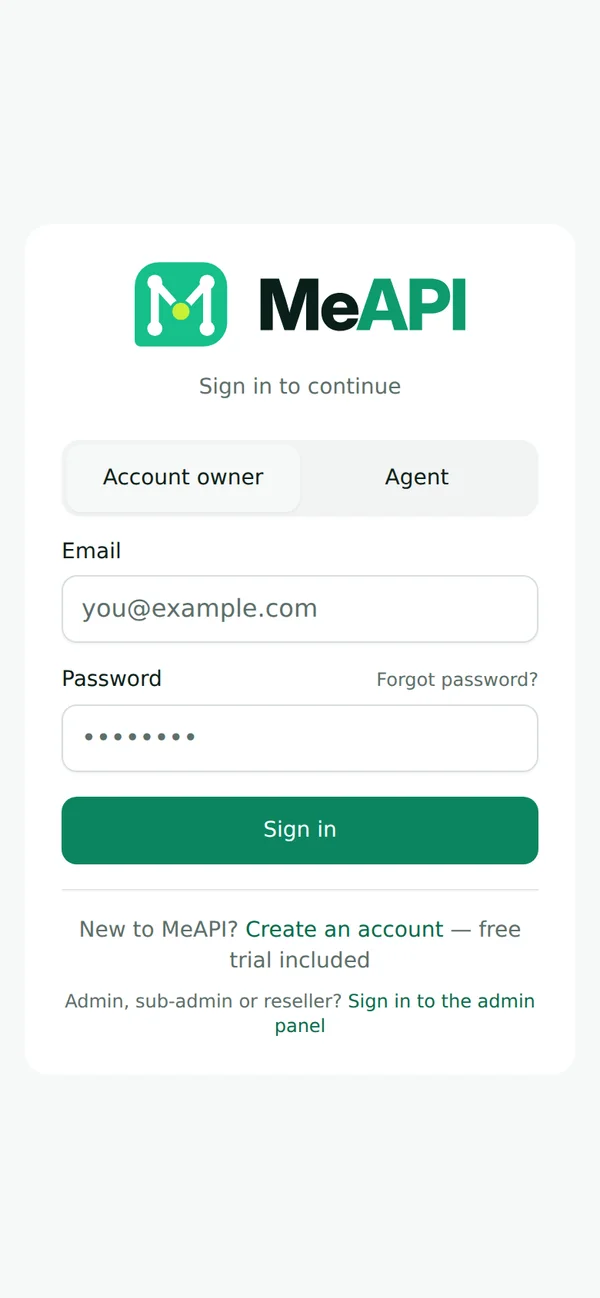
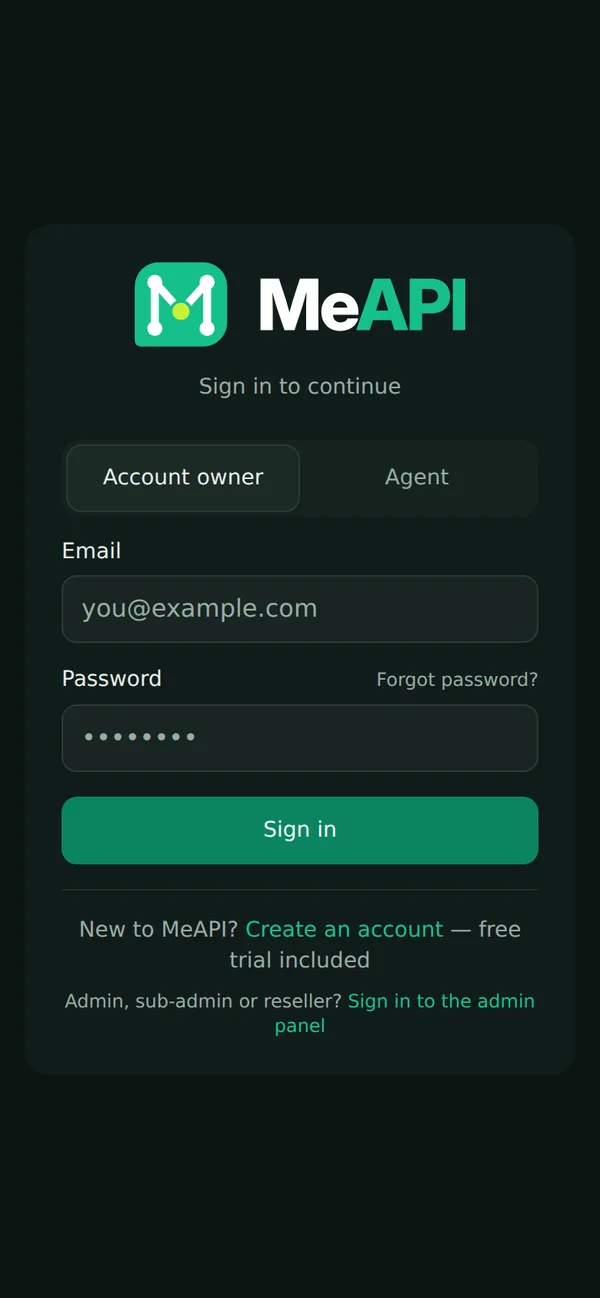
The sign-in page inside the app.
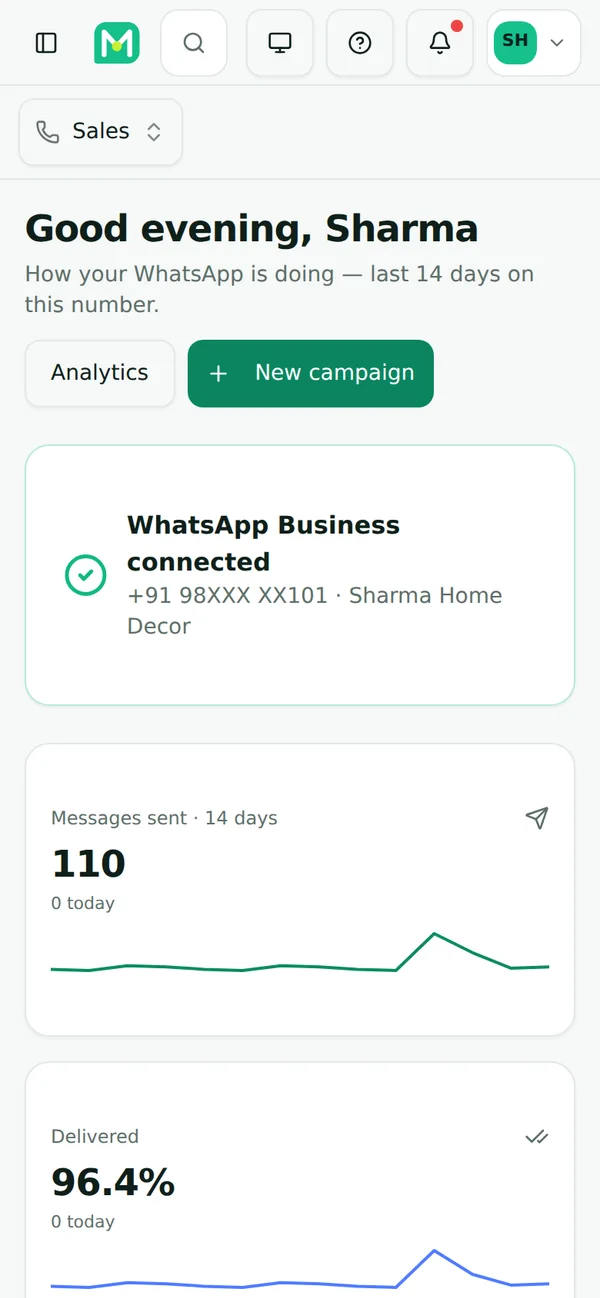
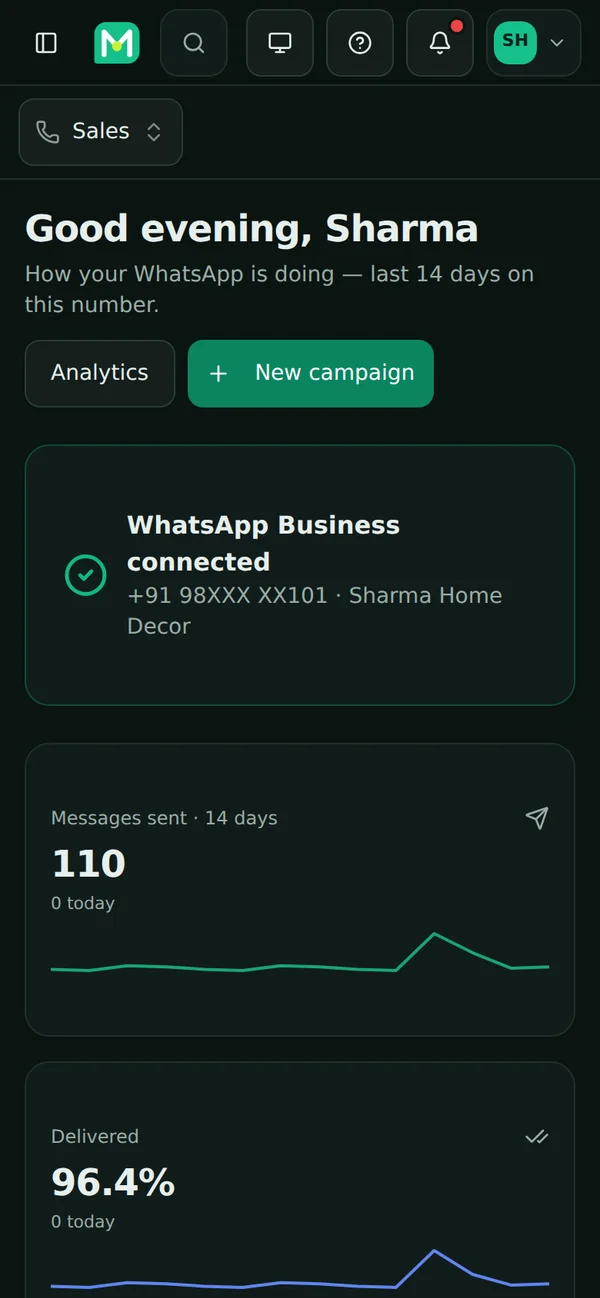
Signed in: your Home, as on the web.
A password change, Sign out, or the owner turning an agent off signs that phone out.
Step 5: allow notifications
Section titled “Step 5: allow notifications”- Right after you sign in, Android asks Allow MeAPI to send you notifications? Tap Allow.
- Check it works: tap your initials (top right) → Notifications → Send a test. A MeAPI notifications work notification should appear within a few seconds.
- Tapped Don’t allow by mistake? Go to Android Settings → Apps → MeAPI → Notifications and turn them on, or tap Turn on in the same Notifications window.
Tap Allow when Android asks. Drawing — your phone’s words and colours may differ.
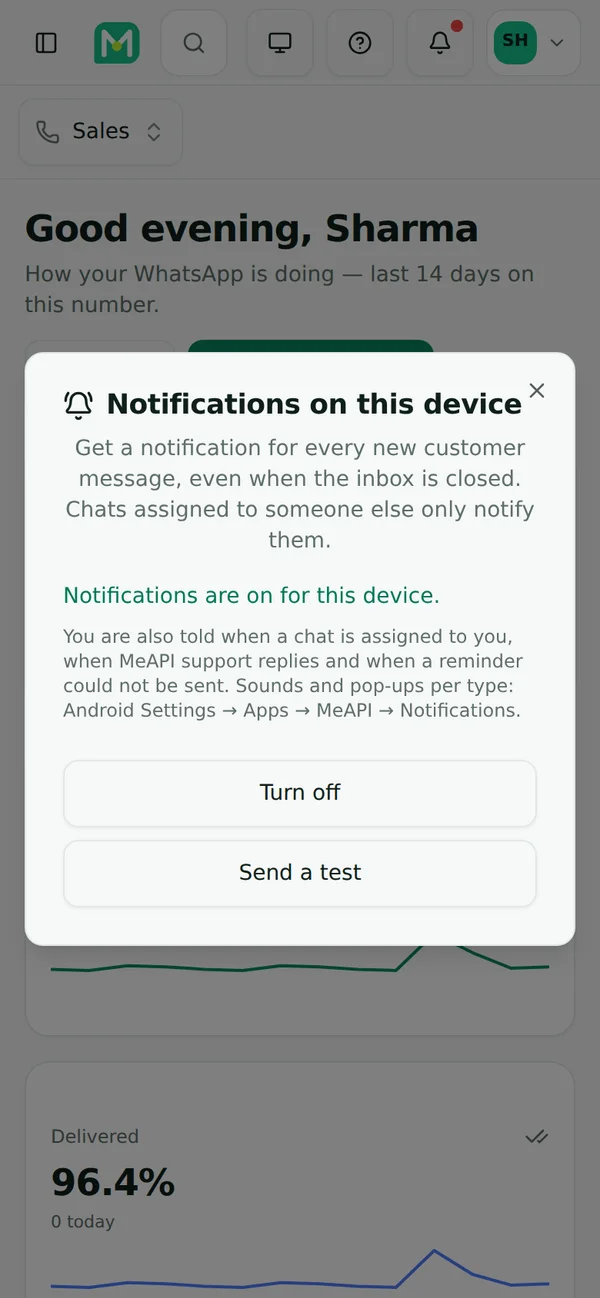
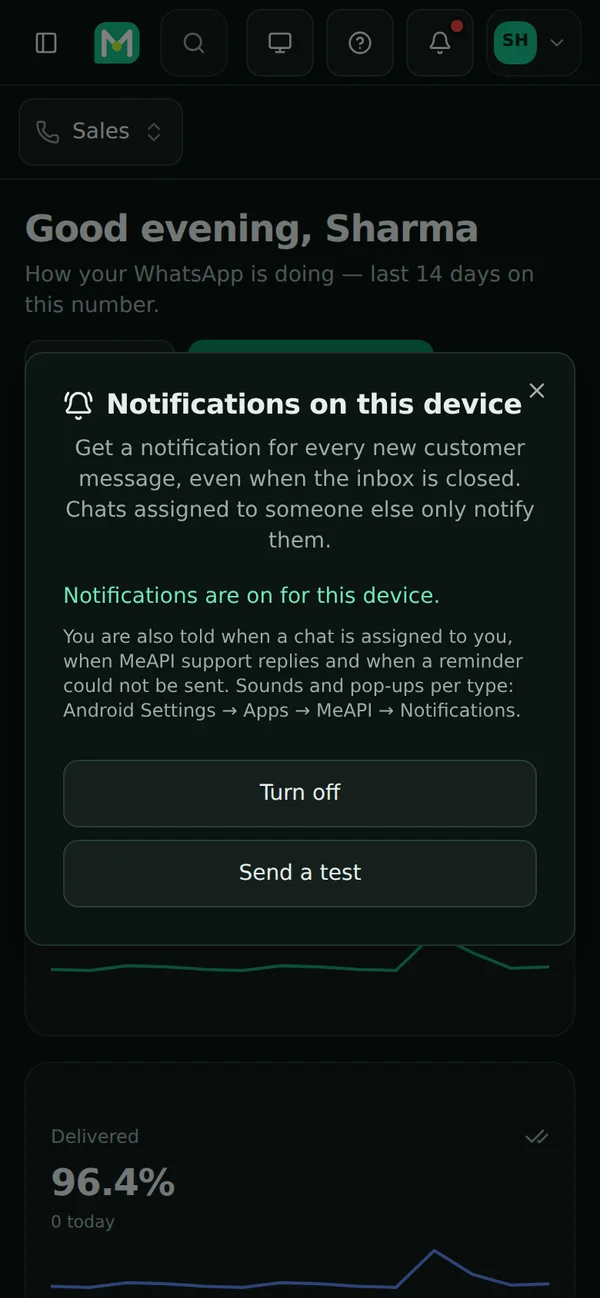
Your initials → Notifications: on for this phone, with Send a test.
Step 6: keep notifications arriving (battery and autostart)
Section titled “Step 6: keep notifications arriving (battery and autostart)”Many phones, especially Xiaomi, Vivo, Oppo and Realme, close apps in the background to save battery. Then notifications arrive late, only when you open the app, or not at all. Two settings fix it: let MeAPI run without battery restrictions, and on those brands let it start automatically.
- Settings → Apps → MeAPI → Battery → Unrestricted.
- Settings → Battery → Background usage limits. If MeAPI is under Sleeping apps or Deep sleeping apps, remove it. You can also add it to Never sleeping apps.
- Autostart: Settings → Apps → Manage apps → MeAPI → Autostart → on. (Or the Security app → Permissions → Autostart.)
- Battery: same MeAPI page → Battery saver (or Battery) → No restrictions.
- Notifications: same page → Notifications → Show notifications on. For each type you want, allow Floating notifications and Lock screen notifications.
- Optional: open the recent apps screen, long-press MeAPI and tap the lock icon, so clear all doesn’t close it.
Vivo:
- Settings → Battery → Background power consumption management (or High background power consumption) → MeAPI → Allow.
- Settings → Apps → Autostart (on some models: i Manager → App manager → Autostart manager) → MeAPI on.
Oppo / Realme:
- Settings → Apps → App management → MeAPI → Battery usage → turn on Allow background activity and Allow auto launch (older: Allow foreground activity, Allow auto startup).
- Settings → Battery → More settings → Optimise battery use → MeAPI → Don’t optimise.
Settings → Apps → MeAPI → App battery usage → Unrestricted (older Android: Battery → Battery optimisation → All apps → MeAPI → Don’t optimise). Stock Android has no autostart setting; nothing else is needed.
Battery: Unrestricted (stock Android / Samsung wording). Drawing — your phone’s words and colours may differ.
Autostart on (Xiaomi / Vivo / Oppo / Realme wording). Drawing — your phone’s words and colours may differ.
Then send a test again (initials → Notifications → Send a test), lock the phone and wait a minute. It should still arrive.
What you get notified about
Section titled “What you get notified about”| Notification | Who gets it |
|---|---|
| New message | The owner, and agents who can open that chat (their numbers, inbox scope, working hours) |
| Chat assigned to you | Only the agent it was assigned to, not when you take a chat yourself |
| MeAPI support replied | Whoever opened the support ticket |
| A reminder could not be sent | The owner, and agents whose role can see Auto reminders (at most one every 15 minutes) |
Tap a notification to open that chat or page. Each type has its own sound and pop-up setting: Android Settings → Apps → MeAPI → Notifications. The app icon shows your unread chats (if your launcher shows badges): Android counts the app’s chat notifications, one per unread chat, and MeAPI removes a chat’s notification as soon as it is read anywhere — on the web, on another phone or by a teammate — even while the app is closed. A chat you mark as unread shows in the app and the inbox, but gets no new notification until the customer writes again. Roles that mask customer numbers see them masked in notifications too.
Using the app
Section titled “Using the app”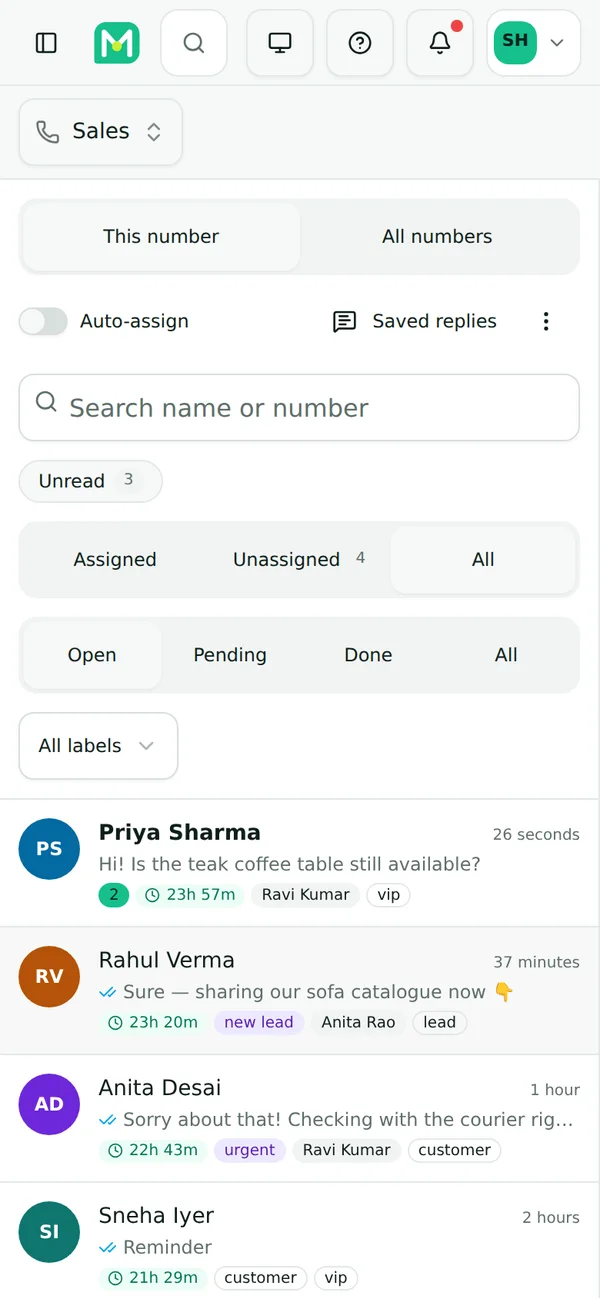
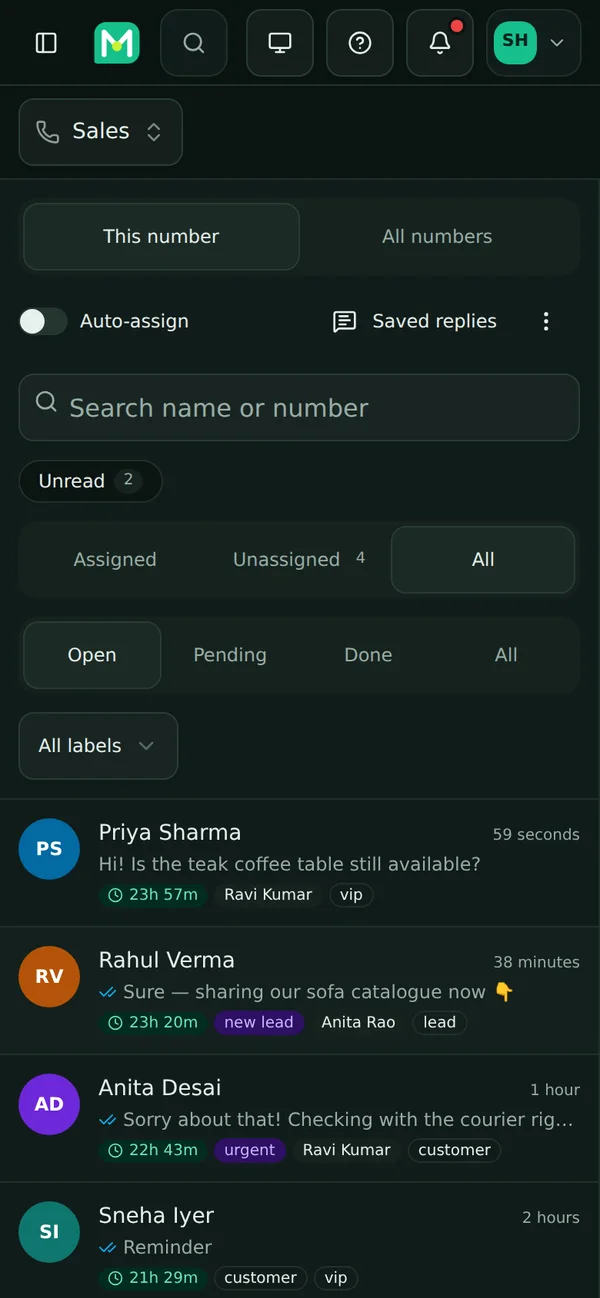
The inbox: the same chats, filters and labels as on the web.
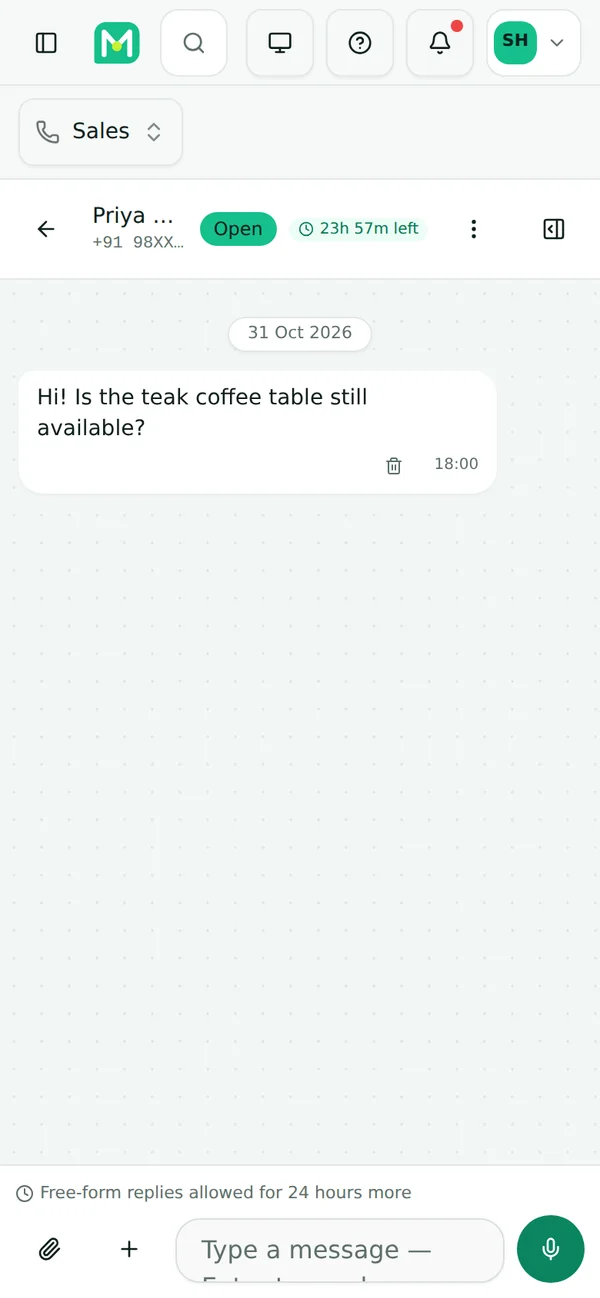
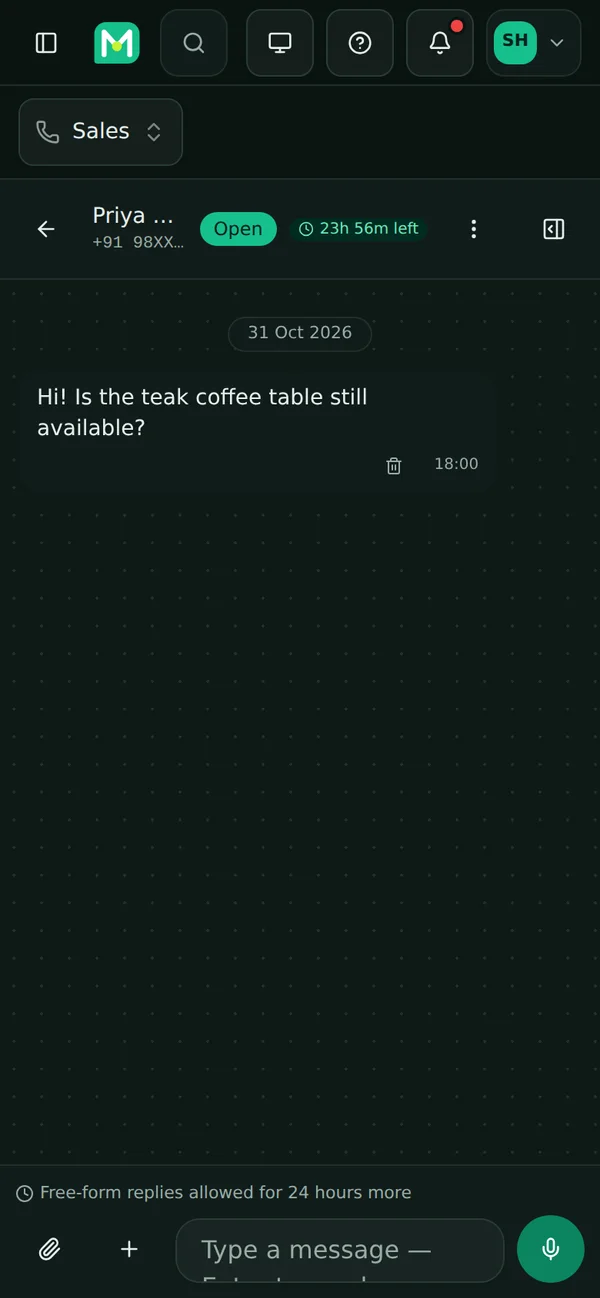
A chat: the paperclip for camera, photos and documents; the microphone for voice notes.
- Back button: goes back a page, closes an open dialog, and on Home asks you to press back again to exit.
- Pull down at the top of a list page to refresh it.
- Attach (the paperclip) offers Camera, Photos & videos and Document. Android asks for the camera the first time.
- Voice notes: with the message box empty, the send button turns into a microphone. Tap it to record, then tap send or ✕. The customer gets a normal WhatsApp voice message.
- Exports, invoices and media save to Downloads/MeAPI. Tap Share in the message to send the file on.
- Links to other sites, including Help & tutorials, open in a browser tab inside the app. Close it to come back.
- No internet? The app shows You’re offline and reloads by itself when the connection is back.
- Coexistence numbers (a number you also use in the WhatsApp Business app) work in the app like any other number.
Connecting a WhatsApp number from the app
Section titled “Connecting a WhatsApp number from the app”Facebook’s sign-up can’t run inside an app. On Connection, tap Continue in Chrome. Chrome opens the same page, already signed in. Finish Facebook’s steps there, then tap Back to the app at the top. The app reloads your numbers. You can also connect numbers from a computer.
Paying for your plan
Section titled “Paying for your plan”UPI opens GPay, PhonePe, Paytm or another UPI app on your phone. Card / Razorpay and PayPal checkout opens in Chrome, signed in. When the payment is done, tap Back to the app.
App settings and lock
Section titled “App settings and lock”Tap your initials → App settings:
- Lock with fingerprint: asks for your fingerprint, face or screen lock when the app opens and after 30 seconds in the background.
- Notifications: turn them on or off for this phone.
- Check for updates: shows the version you have and looks for a newer one.
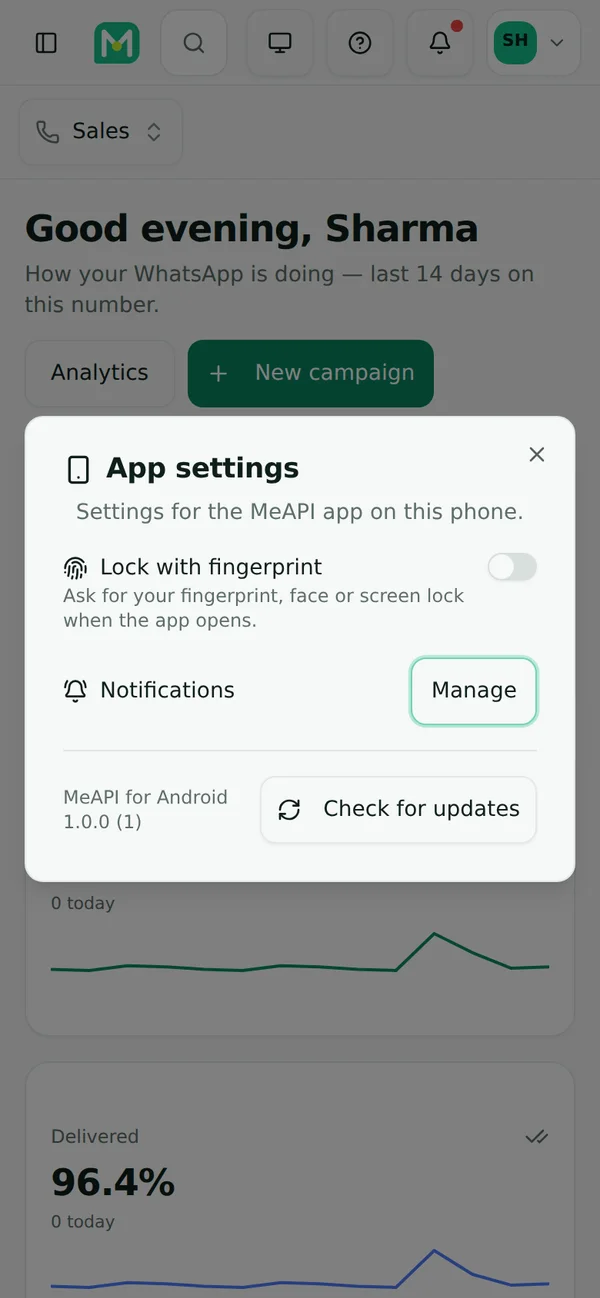
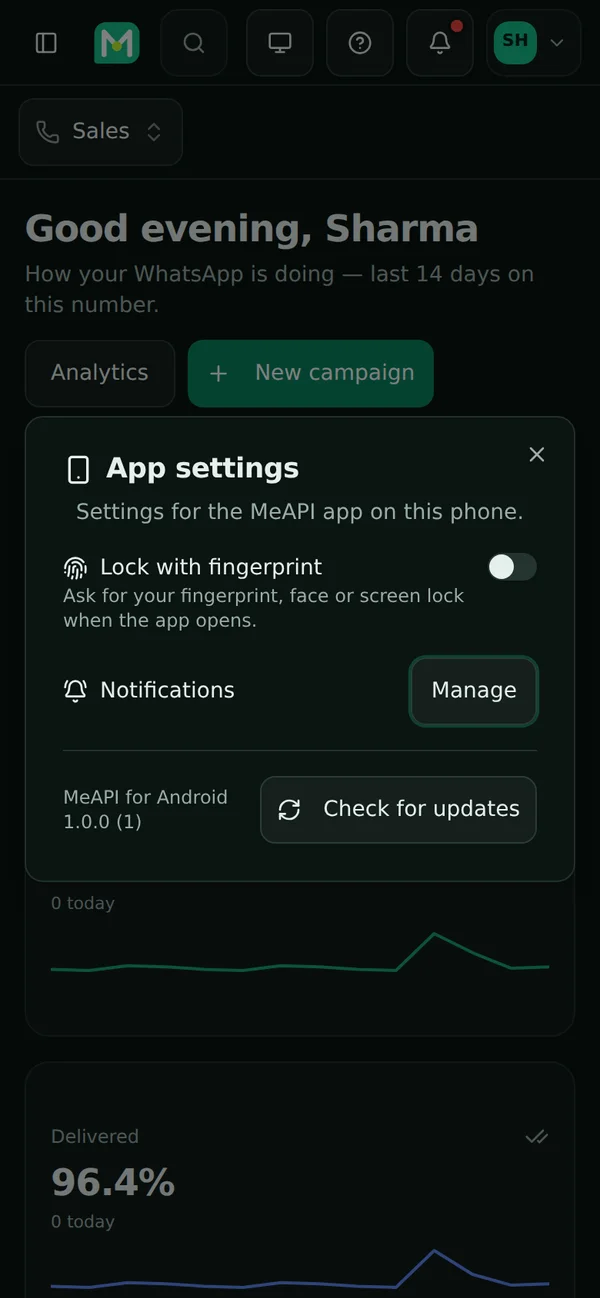
Your initials → App settings.
How updates work
Section titled “How updates work”There are two kinds of update:
- The panel inside the app updates by itself, whenever MeAPI ships something new. Nothing to install.
- The app itself (the part that handles notifications, the camera and so on) gets a new version now and then. The app checks when it opens. When there’s one, it shows Update available with what’s new, and your initials menu and the side menu show Update available too, until you install it.
- Tap Download update. The new APK downloads in Chrome.
- Open it from the download message and tap Update. Android may ask for Allow from this source again; see Step 2.
- Your login and settings stay.
If an update is required (rare: a fix the app can’t work without), the window can’t be closed until you update.
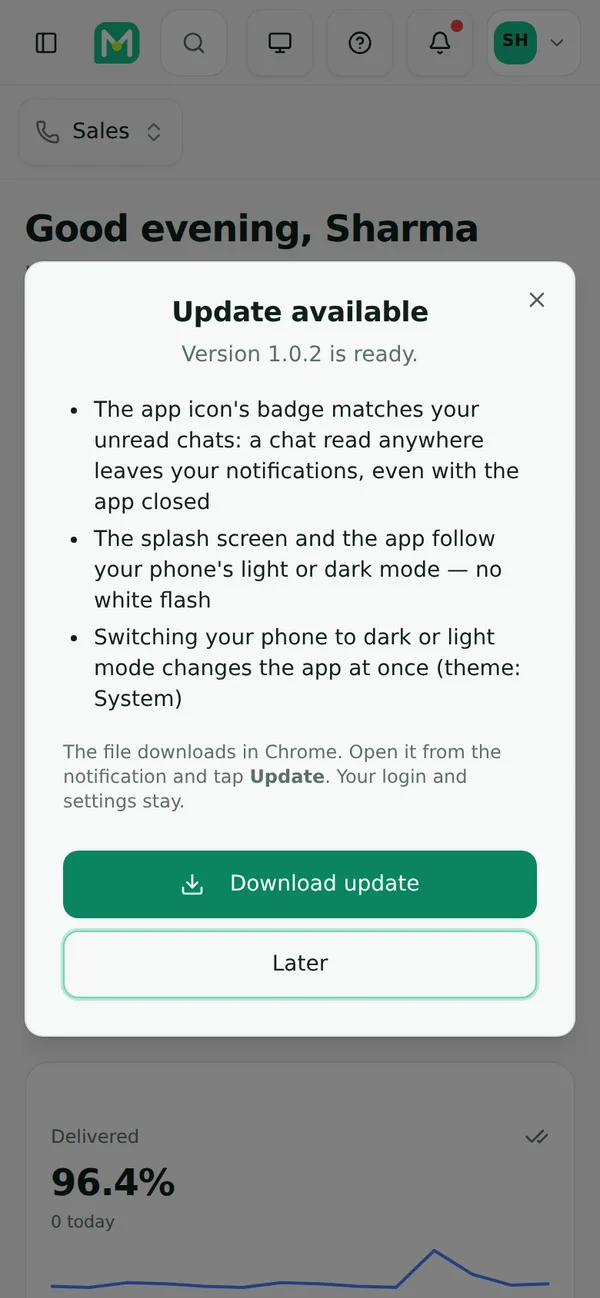
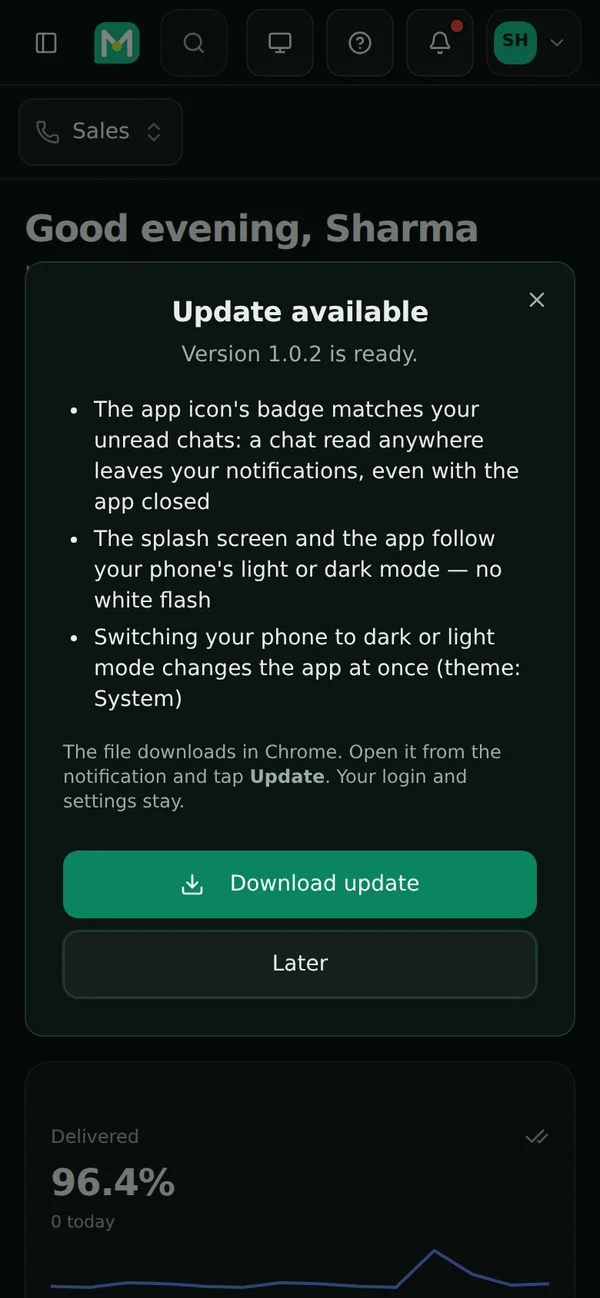
Update available, with what's new.
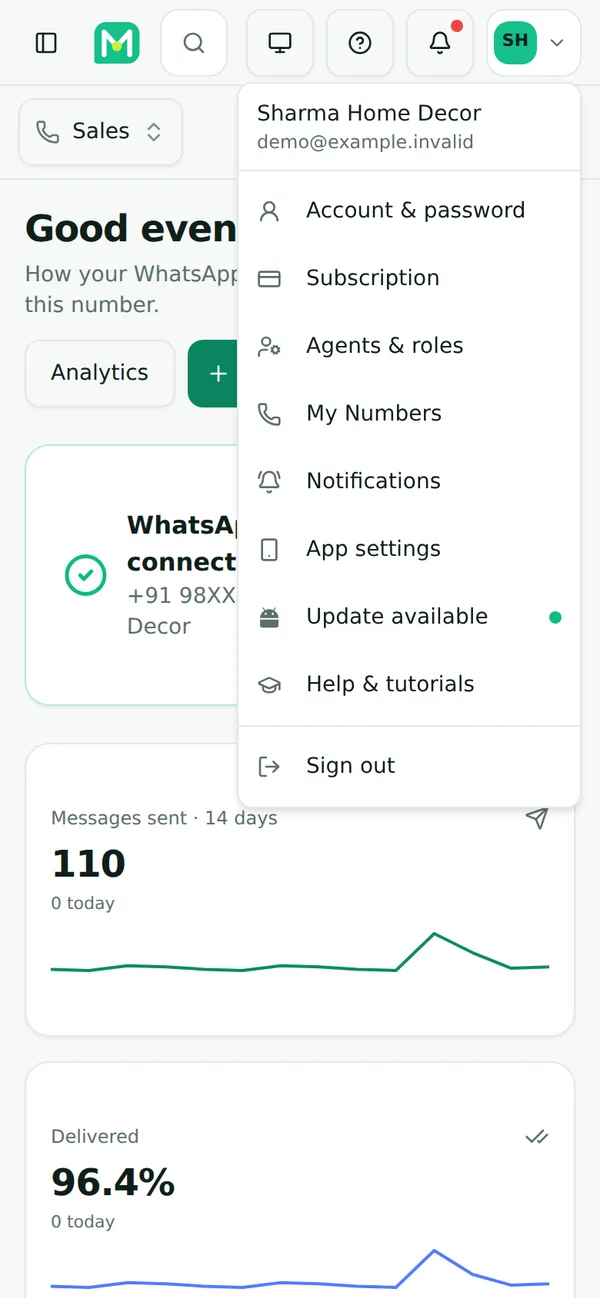
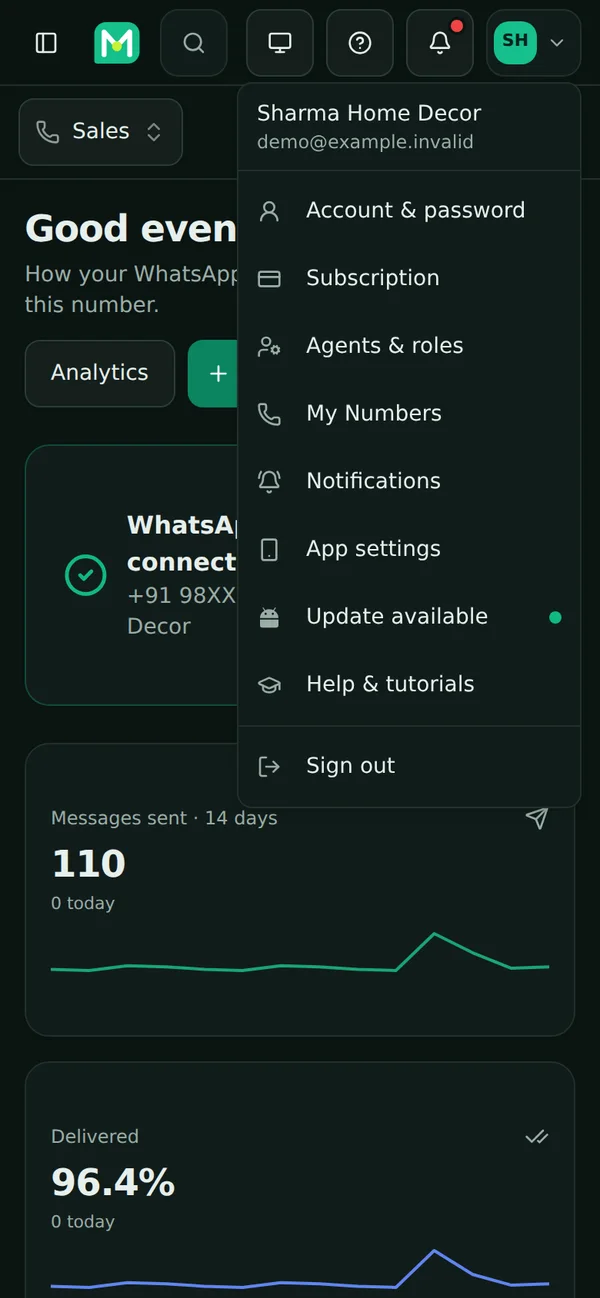
Until you update, your initials menu shows it too.
Is it really our file?
Section titled “Is it really our file?”Every APK is signed by MeAPI, and Android only installs an update over MeAPI if it’s signed with the same key. To check a download yourself, compare its SHA-256 with the one shown on meapi.in/app under Check the download:
Open Command Prompt in the folder with the file and run:
certutil -hashfile MeAPI-1.0.1.apk SHA256Open Terminal in the folder with the file and run:
shasum -a 256 MeAPI-1.0.1.apk(On Linux sha256sum MeAPI-1.0.1.apk works too.)
Android has no built-in checker. Copy the file to a computer and use one of the other tabs, or use a file-hash app you trust. Never install an APK that doesn’t come from meapi.in.
Use the file name you downloaded. The long string it prints must match meapi.in/app exactly (upper or lower case doesn’t matter).
Uninstalling and reinstalling
Section titled “Uninstalling and reinstalling”- Uninstall: long-press the MeAPI icon → Uninstall (or Settings → Apps → MeAPI → Uninstall). Your account, chats and settings live on MeAPI’s servers, so nothing is lost. This phone just stops getting notifications.
- Reinstall: follow this guide again from Step 1. You sign in again, allow notifications again, and redo the battery and autostart settings: Android forgets them with the app. The app keeps nothing on Google’s backup.
Troubleshooting
Section titled “Troubleshooting”Notifications don’t arrive
Section titled “Notifications don’t arrive”- Initials → Notifications: does it say notifications are on for this device? If not, tap Turn on.
- Settings → Apps → MeAPI → Notifications is on, including the type you expect (new message, assigned…).
- Battery and autostart, as in Step 6. This is the cause on most Xiaomi, Vivo, Oppo and Realme phones.
- Do not disturb / Focus mode is off, or MeAPI is allowed through it.
- Send a test again. If the test arrives but chat notifications don’t: as an agent, the chat may be on a number you don’t have, outside your inbox scope or working hours, or assigned to someone else. See Agent roles and permissions.
- Still nothing? Sign out and in again: that registers the phone for notifications afresh.
“App not installed”
Section titled ““App not installed””- Not enough space: free up some room and try again.
- A copy with a different signature is installed (for example a test build): uninstall MeAPI, then install again.
- Installing an older version over a newer one: Android refuses that. Download the latest from meapi.in/app.
- Samsung Auto Blocker is on: turn it off while you install (see Step 2, Samsung).
“There was a problem parsing the package”
Section titled ““There was a problem parsing the package””- The download didn’t finish, or it was cut off. Delete the file in Files → Downloads and download it again over a steady connection.
- The phone is older than Android 7.0. Check under Settings → About phone → Android version. Use login.meapi.in in Chrome instead.
- You opened the file from a chat app or email that changed it. Download it from meapi.in/app directly.
It keeps asking me to sign in (login loop)
Section titled “It keeps asking me to sign in (login loop)”- Date and time must be automatic: Settings → System → Date & time → Set time automatically. A wrong clock makes the sign-in look expired.
- Update Android System WebView and Chrome in the Play Store. The app shows the panel through them.
- Clear the app’s data: Settings → Apps → MeAPI → Storage → Clear storage, then open MeAPI and sign in again.
- Agents: your role may sign you out after a set time or outside working hours. Ask the account owner.
- Plan expired: you’re signed in, but only Subscription, Account and Support open. Renew under Subscription.
Something else
Section titled “Something else”The app shows the same panel as login.meapi.in. If a page misbehaves in the app, try it in Chrome. If it’s wrong there too, it’s not the app. Tell us under Support in the panel either way.
What’s next
Section titled “What’s next”Was this page helpful?
Thank you — we read every comment.
Could not send right now. Please try again later.
© 2026 MeAPI by TheWebStore028 · RADHAMADHAV WEBSTORE LLP · GSTIN 27ABJFR6148J1ZO · Contact us ·Cookie settings