

Tour of the API Panel
LearnGetting startedBeginner
🎯 Goal
Know where everything is, so you can find any feature in seconds.
🧰 What you need
- A MeAPI login
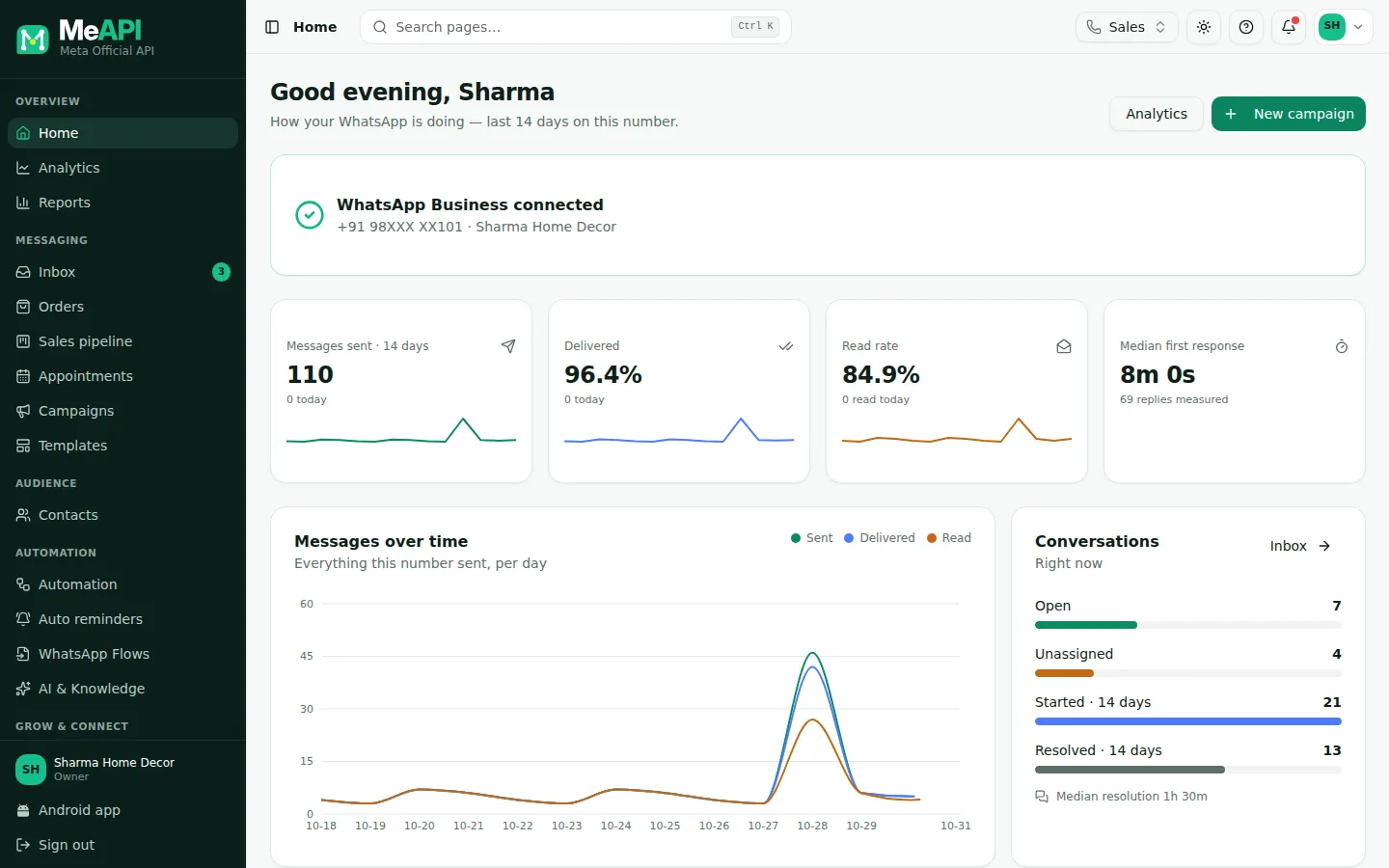
- The left menu, in six groups: Overview, Messaging, Audience, Automation, Grow & connect, Account. You only see the items your login may use.
- Search pages… Ctrl K at the top: type “temp” and press Enter to jump to Templates.
- The number switcher. Everything on the page belongs to the number picked there.
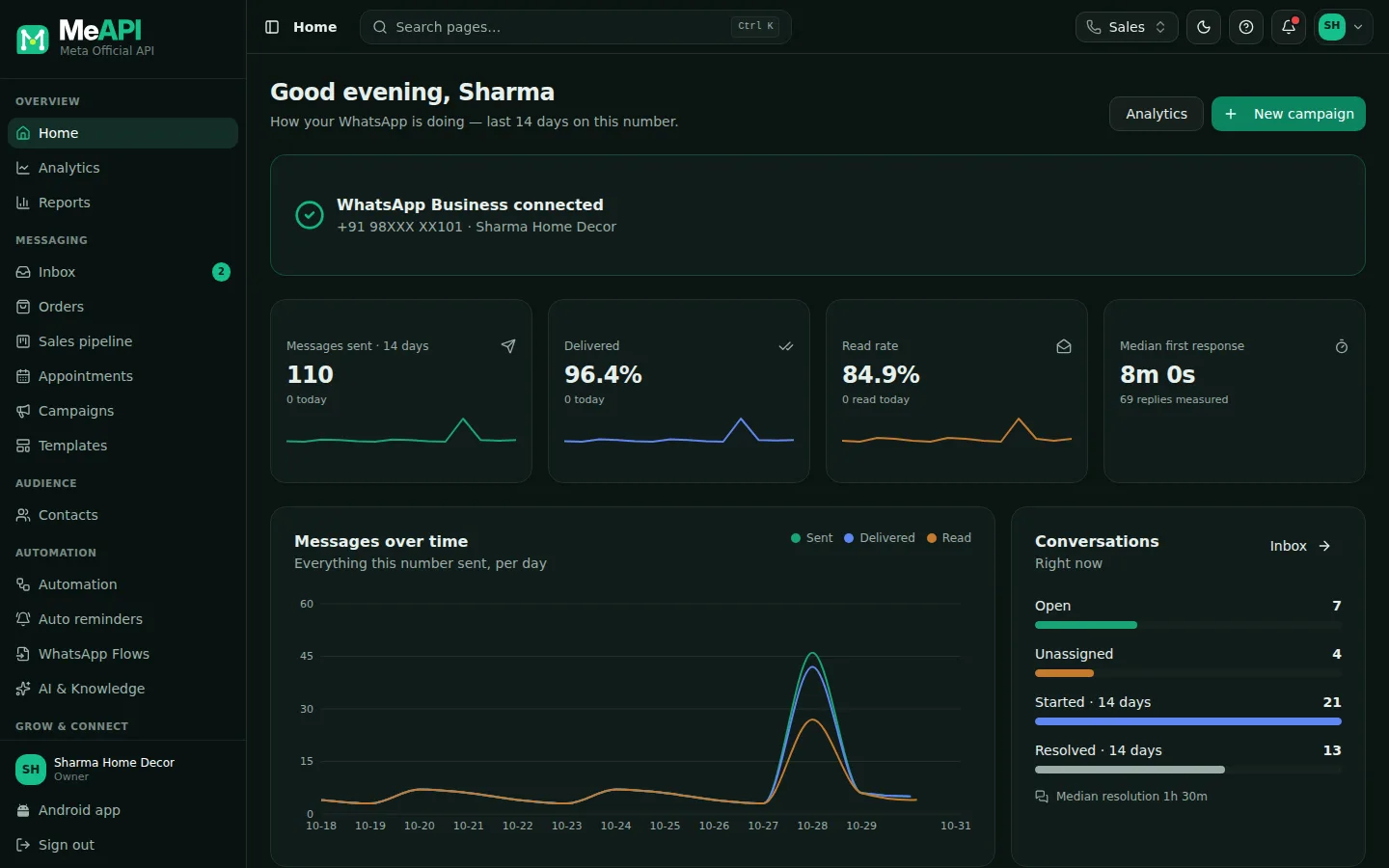
- The theme button (System, Light or Dark), the ? help for the current screen, and the bell (a red dot means unread chats).
- The account menu (your initials): Subscription, Agents & roles, My Numbers, Notifications, Help & tutorials, Contact support, Sign out.
The menu, item by item
Section titled “The menu, item by item”Overview
Section titled “Overview”- Home — the Getting started checklist (owners, until setup is done), connection status, messages over time, conversations, your latest campaigns and, for owners, Number health and Plan usage.
- Analytics — conversations, response times, agent performance and CSAT ratings for the selected number. → Analytics
- Reports — delivery performance across all campaigns (sent, delivered, read, failed).
Messaging
Section titled “Messaging”- Inbox — the Separate Inbox for Each Number: every chat with your number, live. With several numbers, the This number / All numbers tabs switch between one number’s chats and every number’s chats in one list, each tagged with its number. → Inbox basics
- Orders — carts customers send from your WhatsApp catalog, and the Catalog tab. → Catalog and orders
- Sales pipeline — deals on a Kanban board, list and reports; agents see their own deals. → Sales pipeline
- Campaigns — send a template to many people, now, later or on repeat. → Campaigns
- Templates — create and track the pre-approved messages WhatsApp requires to start a conversation. → Templates
Audience
Section titled “Audience”- Contacts — everyone who messaged you plus anyone you add or import; tags, custom fields and opt-in. → Contacts
Automation
Section titled “Automation”- Automation — chatbots and background rules in one engine; built-ins (welcome, away, drips); business hours and teams. → Automation overview
- Auto reminders — scheduled WhatsApp reminders before or after a date (renewals, appointments, payments due), on repeat or when nobody replied. → Auto reminders
- WhatsApp Flows — native forms that open inside WhatsApp. → WhatsApp Flows
- AI & Knowledge — your AI provider key, knowledge bases, AI bots and usage limits. → AI setup
Grow & connect
Section titled “Grow & connect”- Growth tools — website chat widget, click-to-chat links and QR codes. → Growth tools
- Integrations — Shopify, WooCommerce, Google Sheets, incoming webhooks, Razorpay. → Integrations
- Developer — API keys, outgoing webhooks and the API reference. → Developer API
Account
Section titled “Account”- Connection — connect, sync or add WhatsApp numbers. → Connect a number
- My Numbers — number health (quality, messaging limit), display name and the registered numbers. → Number health
- Agents & roles — add teammates, give each a role and numbers, reset passwords; the Activity tab logs role and number changes. → Roles and permissions
- Subscription — plan, what your plan includes, expiry, renewals, coupons and payment. Owner only. → Subscription
- Support — tickets with MeAPI support, for the owner and agents. → Support tickets
Connection, My Numbers and Agents & roles appear for agents only when their role allows it. Subscription is always owner-only.
The account menu
Section titled “The account menu”Click your initials (top right) for Subscription, Agents & roles, My Numbers, Notifications (push alerts on this device, see Notifications and the mobile app), Help & tutorials (this guide), Contact support and Sign out.
- Ctrl K (Cmd K on Mac) is the fastest way around.
- The ? button on every screen opens the matching guide here.
- Theme: the theme button offers System (the default: light or dark with your phone or computer, switching by itself), Light and Dark. Your choice is saved on your login, so every browser, the Android app and the iPhone / iPad app use it.
- Unread chats show in three places with the same number: the Inbox menu item, the browser tab (for example (3) MeAPI) and the app icon on your phone. It counts unread chats on every number you may open.
- Coloured notes under the top bar are announcements from MeAPI — maintenance, news, offers (blue for news, green for good news, amber for a warning, red for something urgent). Some have a link such as Learn more. Close one with × once read; it stays closed for you, not for your teammates. Important ones may have no × and stay until they end.
Common mistakes
Section titled “Common mistakes”- Looking for data on the wrong number. If the inbox looks empty, check the number switcher.
- Agents asking for missing menus. Menus are hidden when the agent’s role has no permission for them. The owner can change the role in Agents & roles. See Roles and permissions.
What’s next
Section titled “What’s next”Was this page helpful?
Thank you — we read every comment.
Could not send right now. Please try again later.
© 2026 MeAPI by TheWebStore028 · RADHAMADHAV WEBSTORE LLP · GSTIN 27ABJFR6148J1ZO · Contact us ·Cookie settings