

WhatsApp catalog, product messages and cart orders
LearnCommerce & paymentsIntermediate
🎯 Goal
Customers browse your products inside WhatsApp, add them to a cart and send you an order. You process it in MeAPI, and the customer is updated automatically.
🧰 What you need
- Admin access to your Meta Business portfolio (to create the catalog)
- Product photos, names, prices and an SKU (retailer ID) per product
- For payments: Razorpay connected (Payment links)
Part 1: create and link the catalog (in Meta)
Section titled “Part 1: create and link the catalog (in Meta)”- Open business.facebook.com/commerce (Commerce Manager) → Add catalog → type E-commerce → Upload product info.
- Add products by hand, with a spreadsheet (data feed), or connect Shopify/WooCommerce through Meta’s partner integration. Every product needs a content ID / retailer ID (your SKU), a name, a price, an image and a link.
- In Commerce Manager → Catalog → Settings (or WhatsApp Manager → Catalog), connect the catalog to your WhatsApp Business Account.
Part 2: connect it in MeAPI
Section titled “Part 2: connect it in MeAPI”- Pick the number in the number switcher at the top, then open Orders → Catalog. Each number has its own catalog setting.
- Pick your catalog under Catalog (Pick a catalog). If the list is empty, type the Catalog ID from Commerce Manager.
- Choose the switches:
- Let customers add to cart and send orders
- Show the catalog on your WhatsApp profile
- Save. You see Catalog connected. The catalog icon now appears in your WhatsApp profile and chats.
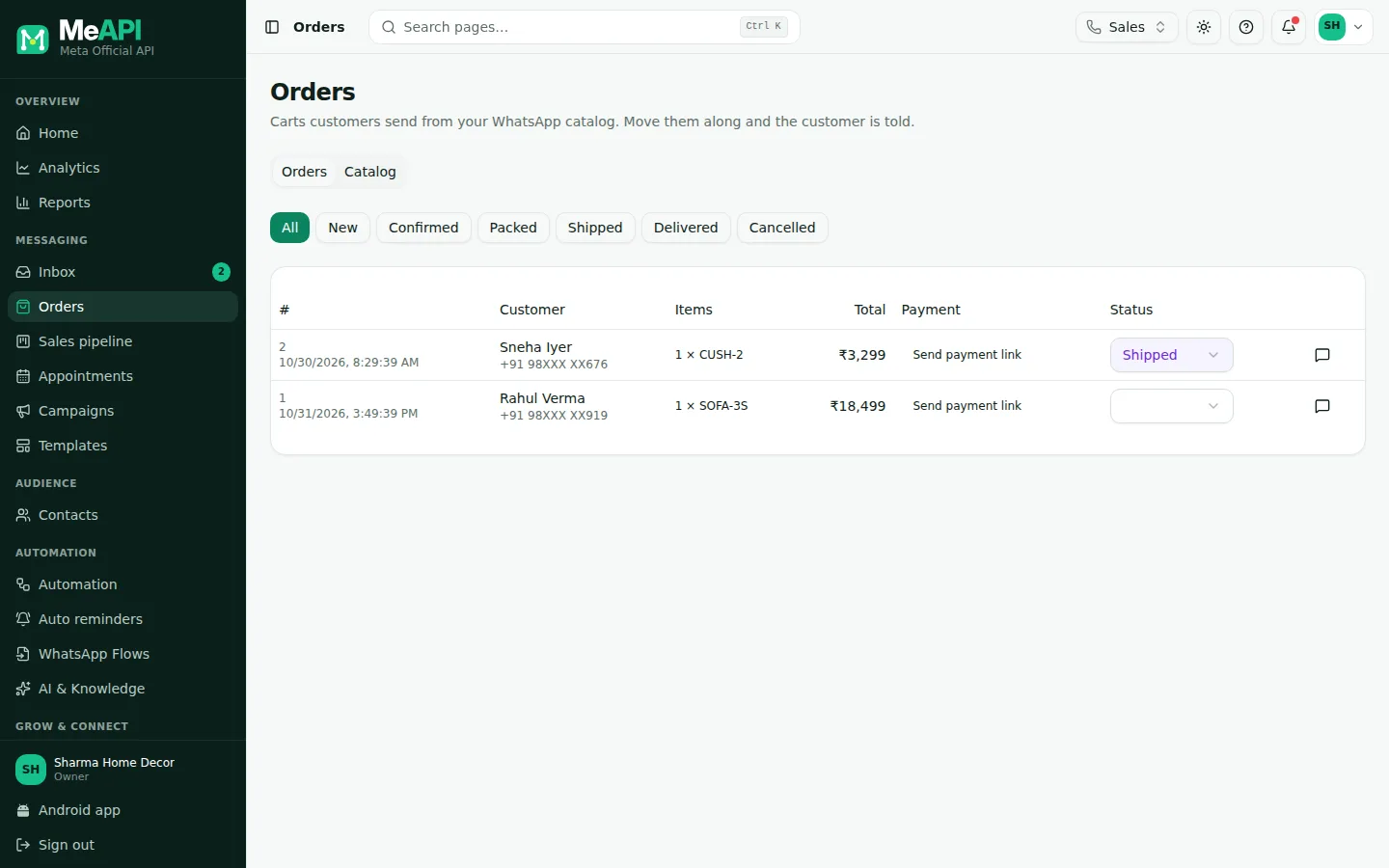
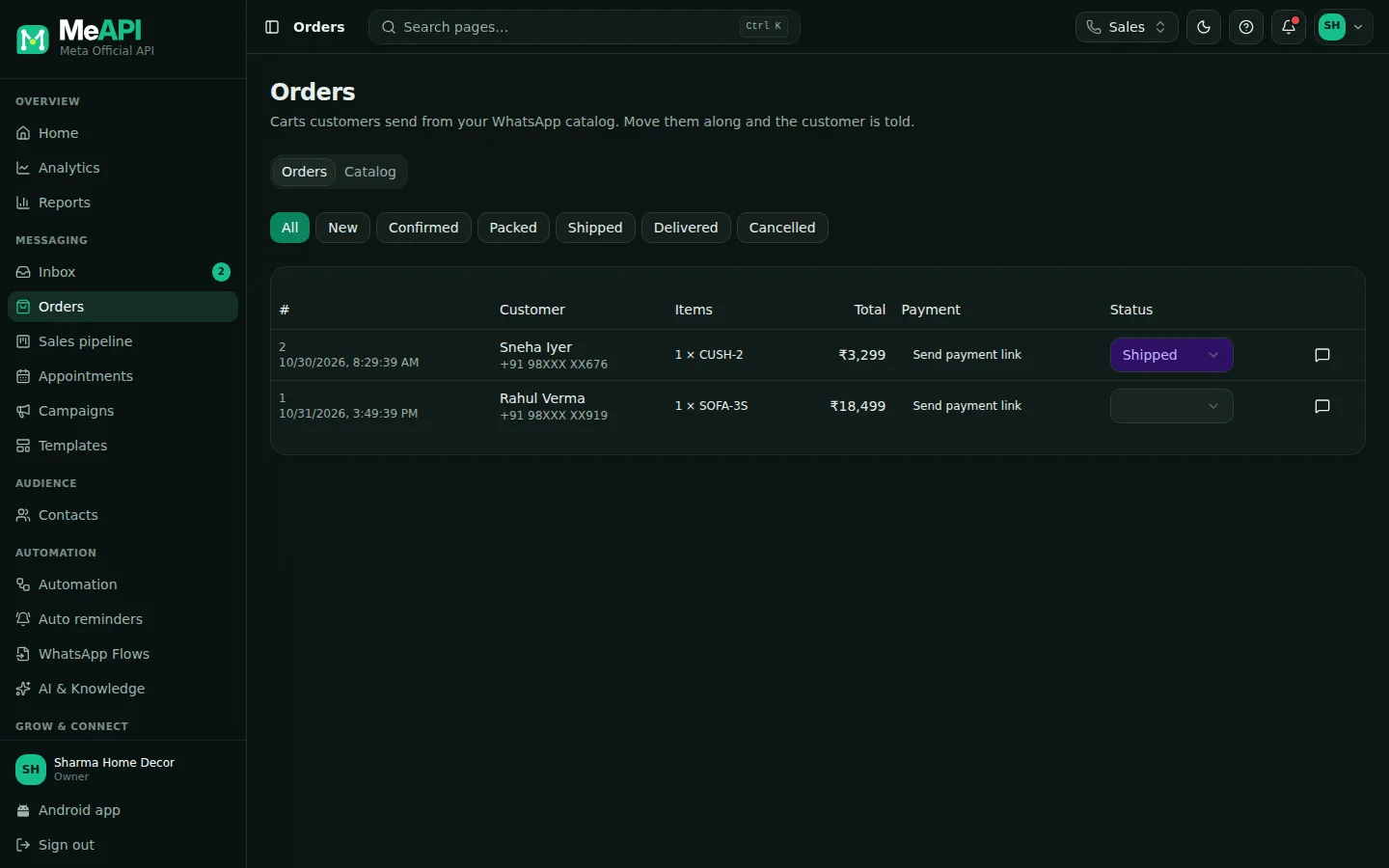
- Tabs: Orders and Catalog. Filter chips: all, new, confirmed, packed, shipped, delivered, cancelled.
- One row per cart: customer, items, total, payment status and order status.
- Change the Status and the customer gets a message (inside the 24-hour window).
- Send payment link sends a Razorpay link for the order total in the chat; the chat icon opens the conversation.
Send products from the inbox or a flow
Section titled “Send products from the inbox or a flow”- Inbox: in the composer, click the shopping bag → Send products. Search the catalog and pick items, or type product IDs (SKU), comma-separated. Add an optional Message. One product sends as a product card; several as a list (up to 30). Needs an open 24-hour window.
- Inbox payment link: the same menu has Payment link: Amount (₹) and For (e.g. Advance for order #123). See Payment links.
- Flow builder: Product and Product list message steps. See Message steps.
- Templates: Catalog and Multi-product template types work outside the window. See Other template types.
SSharma Sweets✓
Our bestsellers 👇
☰ View items
🛒 Order: 2 × KAJU500, 1 × RAS1KG — ₹1,250✓✓
Your order #31 is confirmed. Thank you!
Message
A cart arrives as an order in the chat and in Orders.
Process orders
Section titled “Process orders”- A new cart appears in Orders and as 🛒 Order: 2 × KAJU500, 1 × RAS1KG — ₹1,250 in the chat. The contact panel beside the chat shows the customer’s orders too.
- Move the Status: new → confirmed → packed → shipped → delivered, or cancelled. For each change the customer gets a message, for example Your order #31 has shipped. You see Updated — the customer was told. Outside the 24-hour window the status still changes, but you get a warning instead.
- Send payment link: sends a Razorpay link for the order total in the chat. The payment status shows on the order and updates when the customer pays.
Common mistakes
Section titled “Common mistakes”- Catalog not connected to the WABA. MeAPI can’t list it. Connect it in Commerce Manager first.
- Products “in review” or rejected by Meta’s commerce policy. They won’t show in WhatsApp until approved.
- Changing a status days later. The 24-hour window has closed, so the customer isn’t told. Use a Utility template for late updates.
What’s next
Section titled “What’s next”Was this page helpful?
Thank you — we read every comment.
Could not send right now. Please try again later.
© 2026 MeAPI by TheWebStore028 · RADHAMADHAV WEBSTORE LLP · GSTIN 27ABJFR6148J1ZO · Contact us ·Cookie settings