

Tutorial: start from a ready-made chatbot template
🎯 Goal
A chatbot that answers your customers the way your business works, built from a template instead of from scratch, then checked, tested and live.
🧰 What you need
- A connected number
- A role that can create flows (owner, or Automation → create)
- Your business details: name, opening hours, address, phone and a link to your products
What the gallery is
Section titled “What the gallery is”Automation → Templates lists ready-made chatbots:
- 9 bots for any business: Welcome + main menu, Lead capture, Appointment booking, Order status, FAQ + talk to a person, Feedback / rating, Catalogue / price enquiry, Payment reminder and Re-engagement.
- 127 industry bots for 41 industries: real estate, clinics, salons, coaching, D2C stores, travel and more. Each industry has the two to four bots that help it most, written with that industry’s own menu options and questions.
- Three languages: English, हिन्दी and ગુજરાતી. Hindi and Gujarati are beta: the texts were translated carefully, but read every message once before you publish and change anything that doesn’t sound like you.
A template is a copy you start from. Use this template makes your own draft, and nothing changes in the gallery.
Step 1: find a template
Section titled “Step 1: find a template”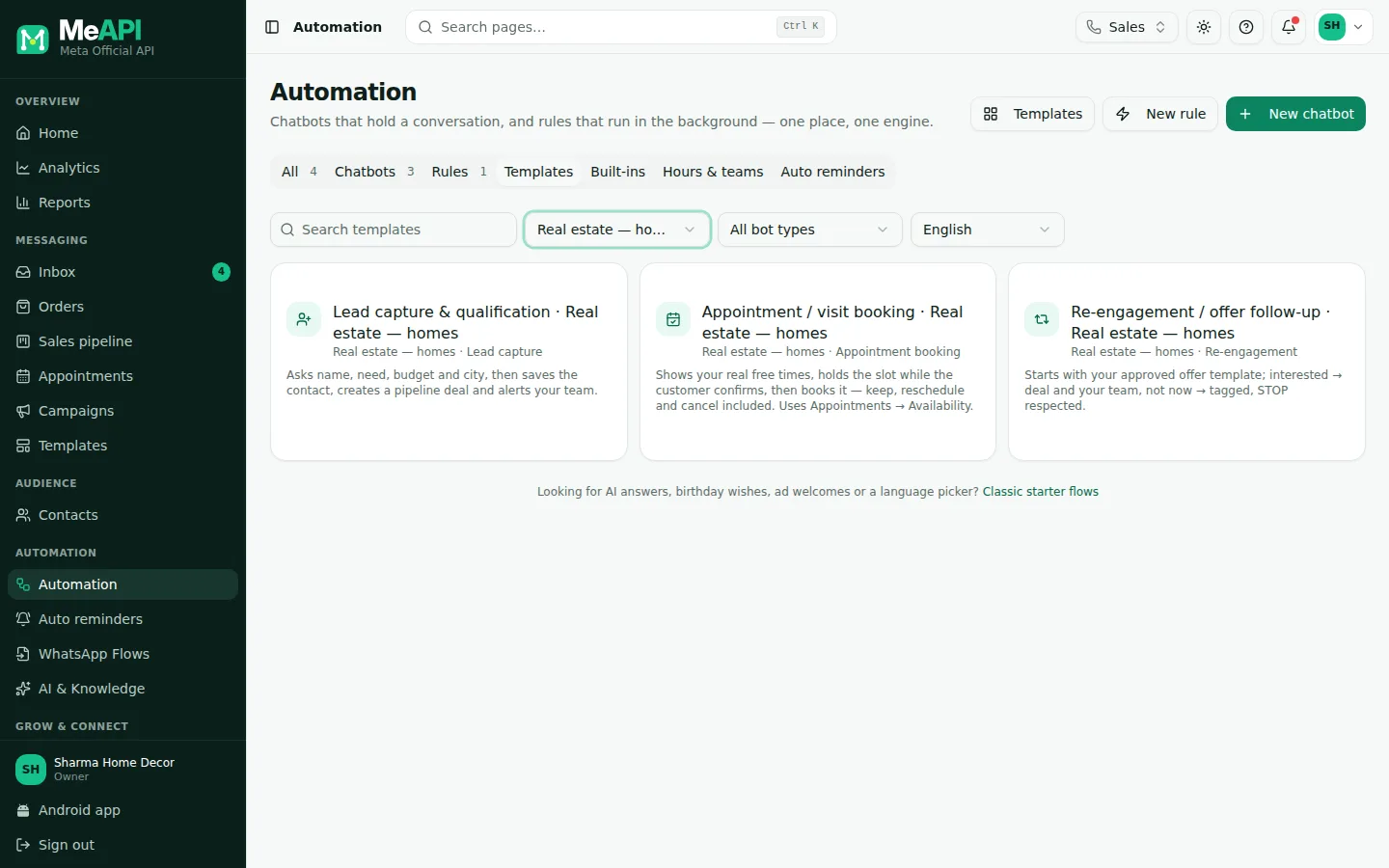
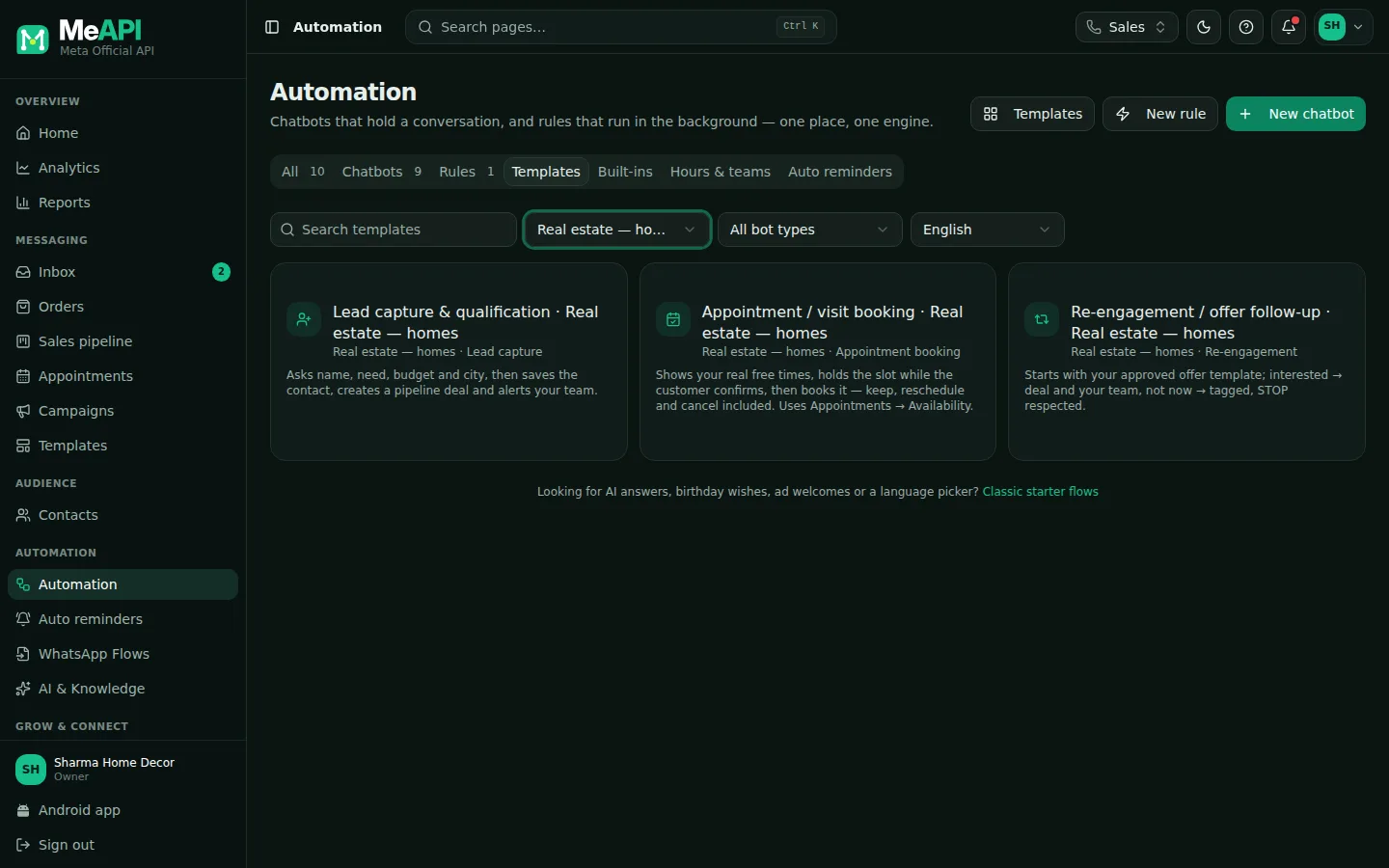
- Search templates: a word from the name, the industry or the bot type ("booking", "salon").
- Industry: your business. Any business shows the 9 generic bots.
- Bot type: what the bot should do. Combine both filters, for example Clinic / doctor + Appointment booking.
- The language picker on the right. Hindi and Gujarati cards say beta.
Step 2: preview it
Section titled “Step 2: preview it”Click a card. The panel on the right has two tabs.
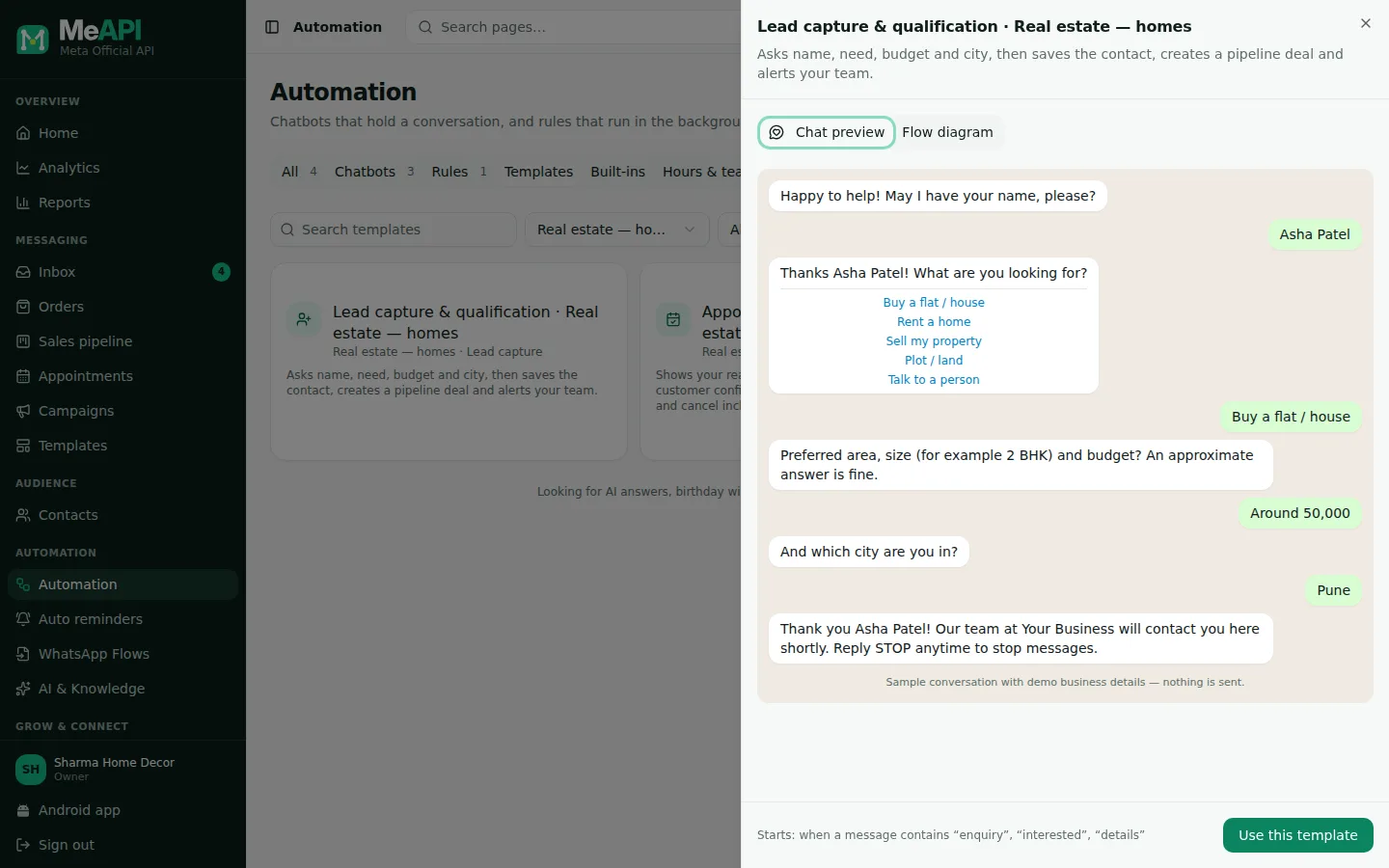
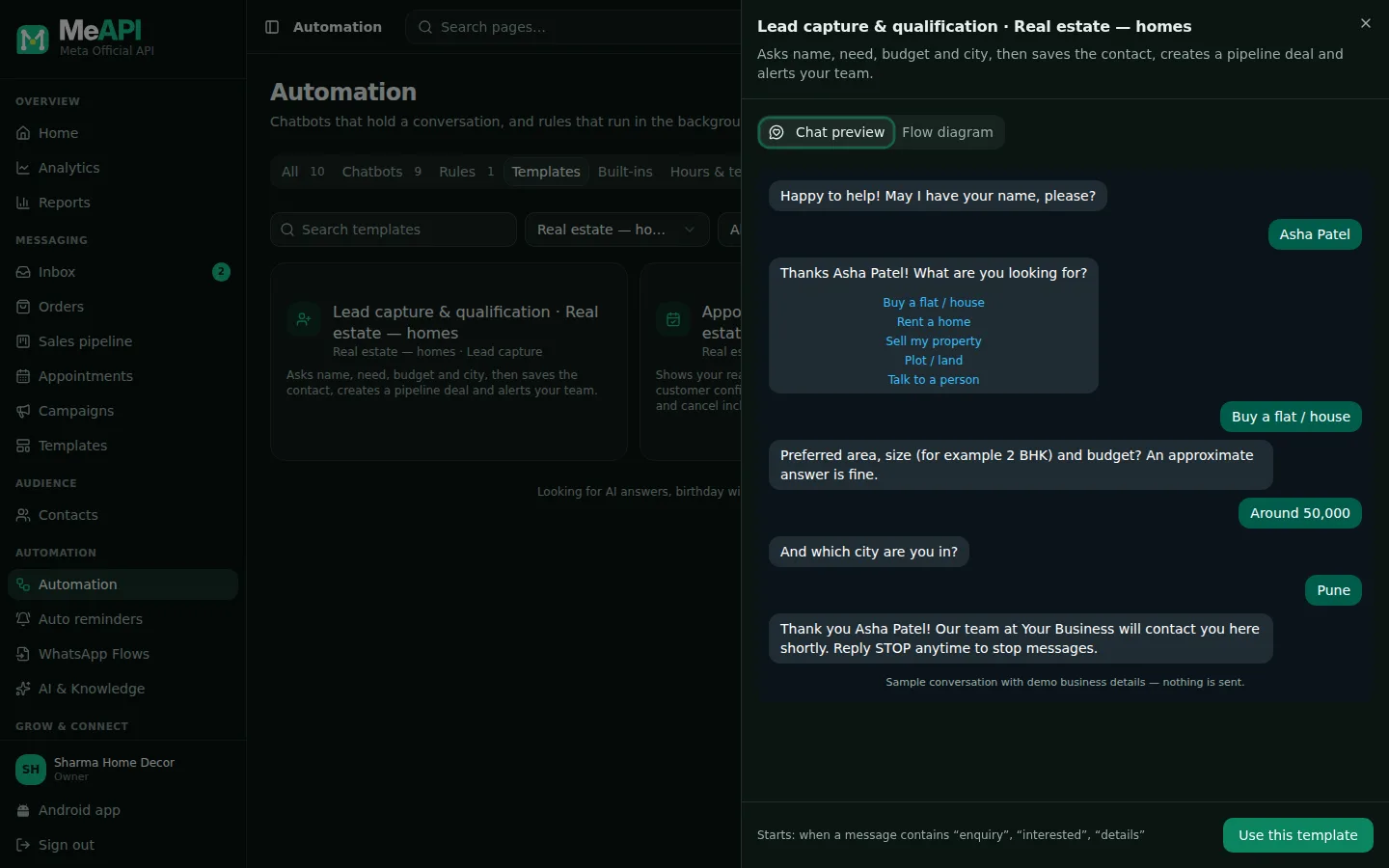
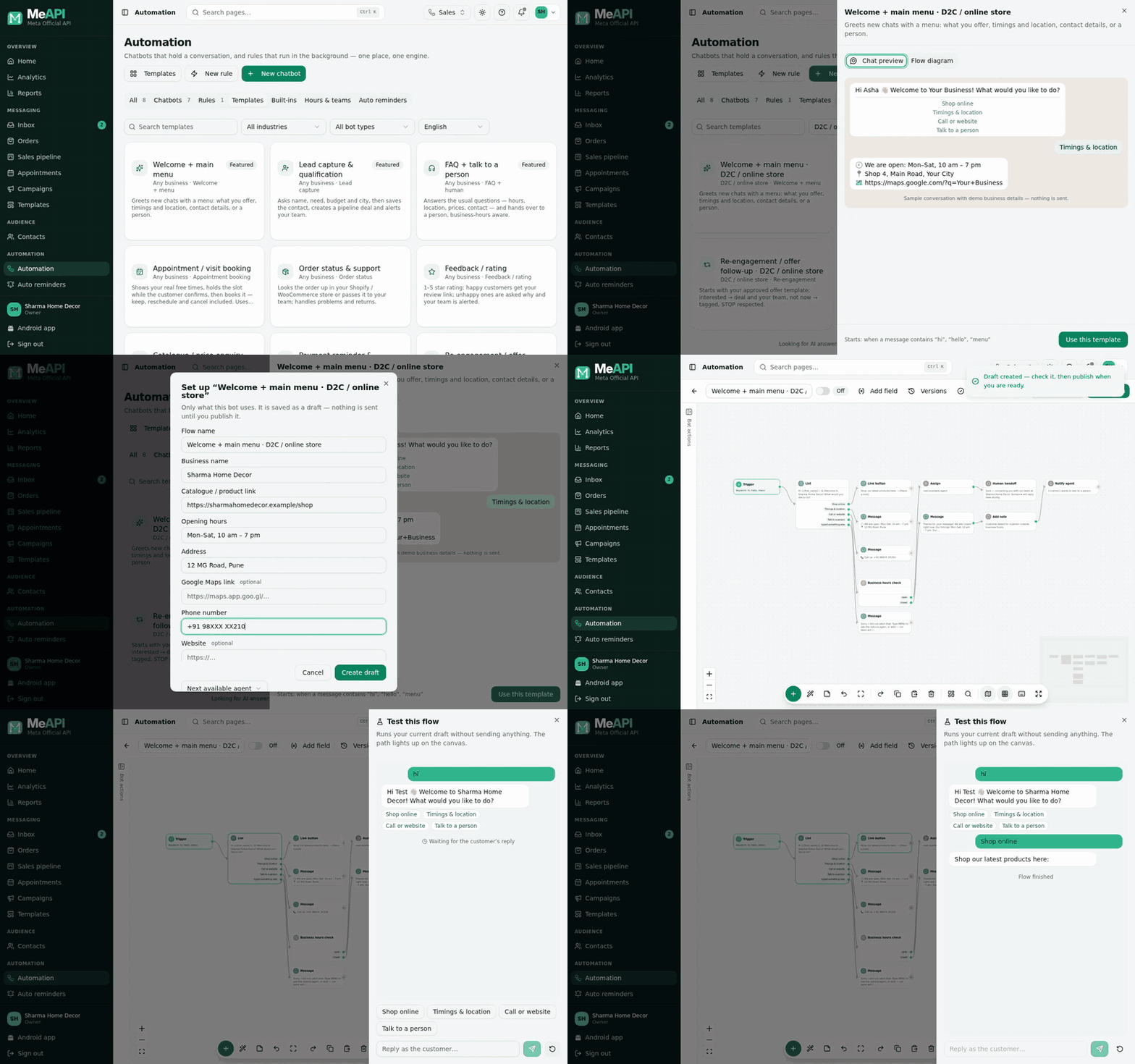
- Chat preview: a sample conversation run by the real chatbot engine with demo details ("Your Business", "Asha Patel"). Nothing is sent.
- At the bottom: when the bot starts (its keywords, or the tag it waits for) and Use this template.
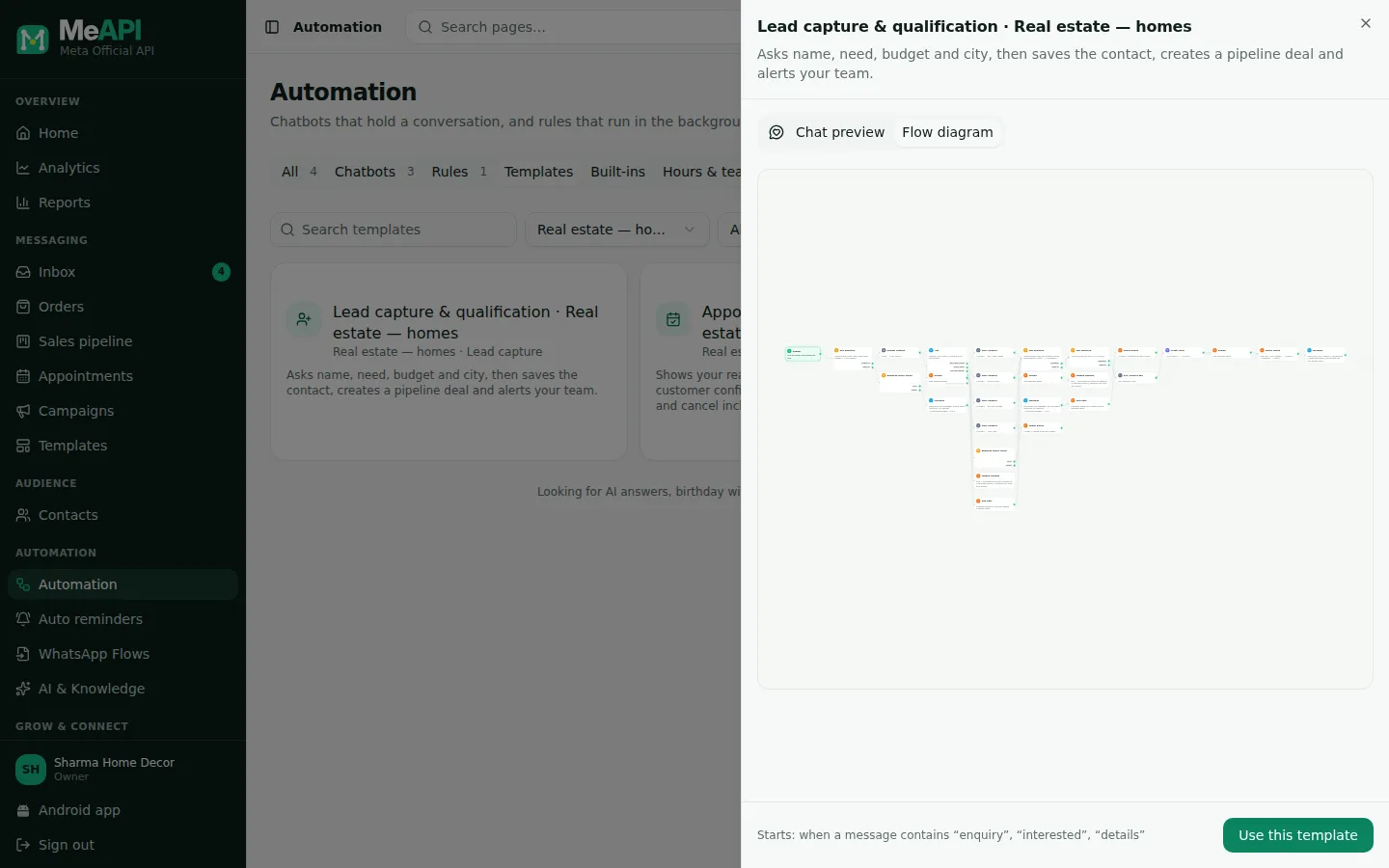
- Flow diagram: every step and branch, the same graph you will edit in the builder.
Step 3: use it, then fill in the setup form
Section titled “Step 3: use it, then fill in the setup form”- Click Use this template.
- The form asks only for what this bot uses. Optional fields say optional. Leave one empty and the line that uses it is left out of the messages.
- Hand over to: the agent who gets the chats the bot passes on, or Next available agent.
- Trigger keywords: the words that start the bot, comma-separated. A message that contains one of them starts it. Use the words your customers really type, including Hinglish (rate, kitna) or Gujarati.
- Click Create draft.
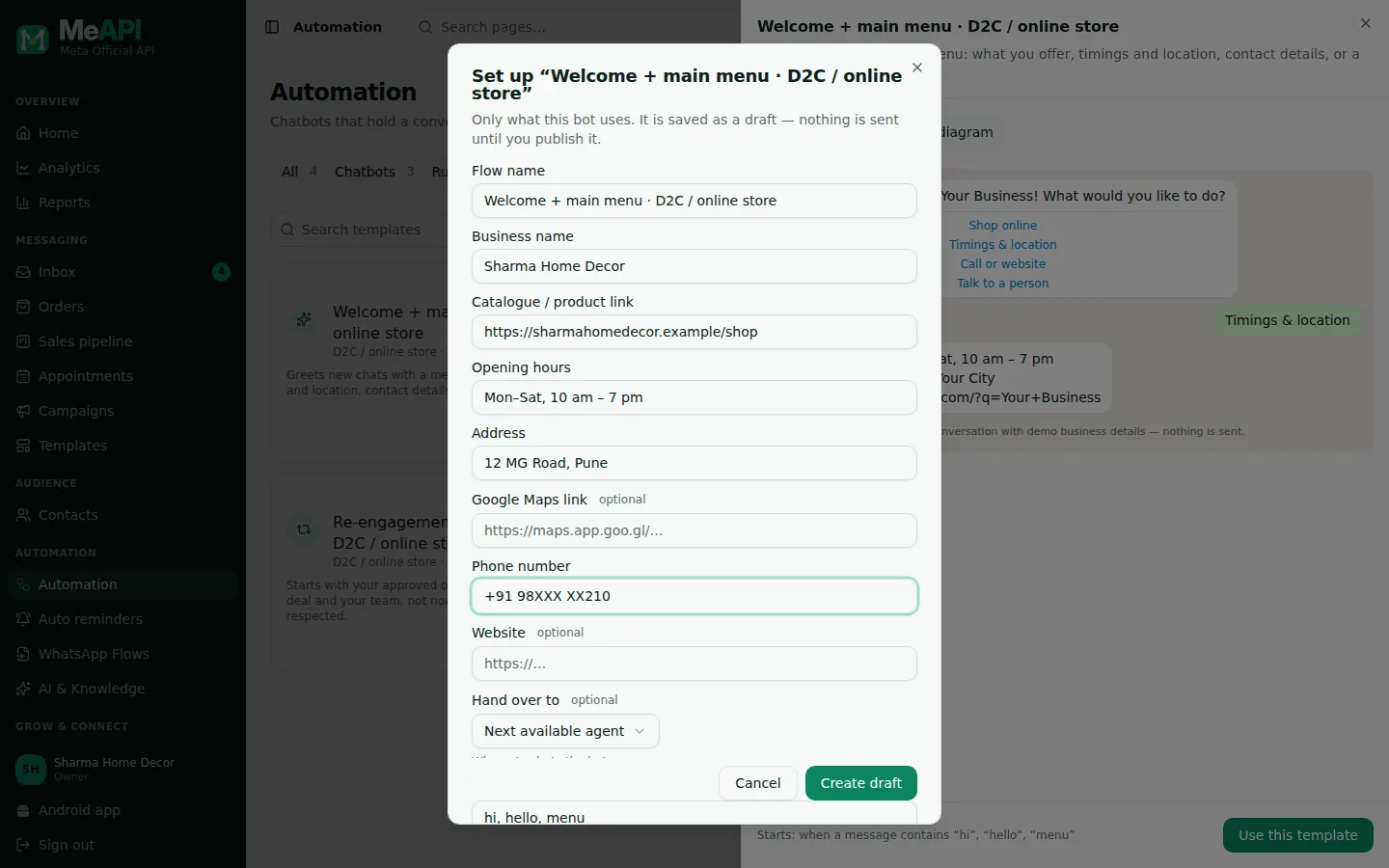
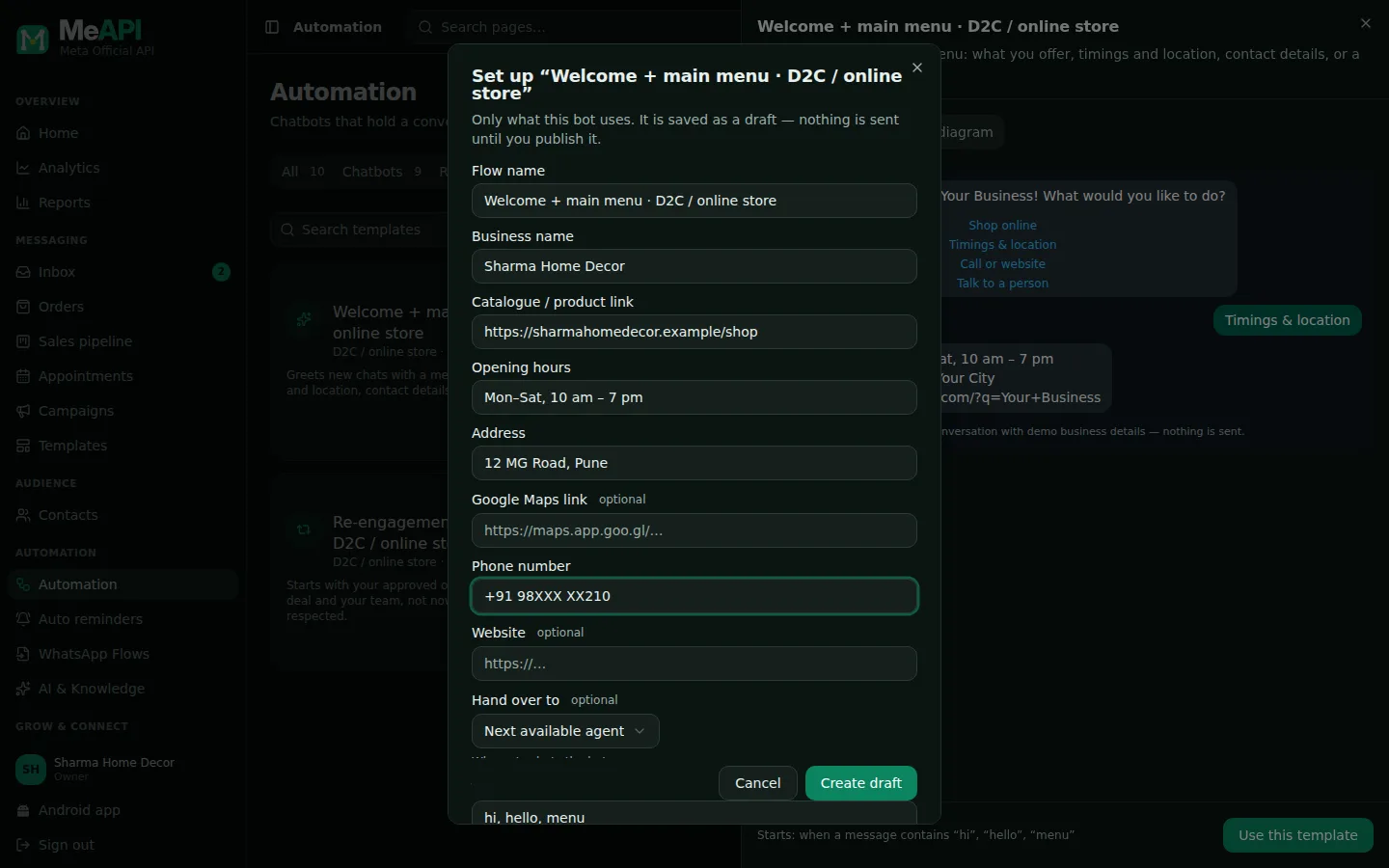
- Your details replace the demo ones in every message. Links (catalogue, payment, review, Maps) must start with https://.
- Flow name is only for you. Change it if you will use the same template twice, for example for two branches.
Step 4: check the draft
Section titled “Step 4: check the draft”The draft opens in the builder, switched Off.
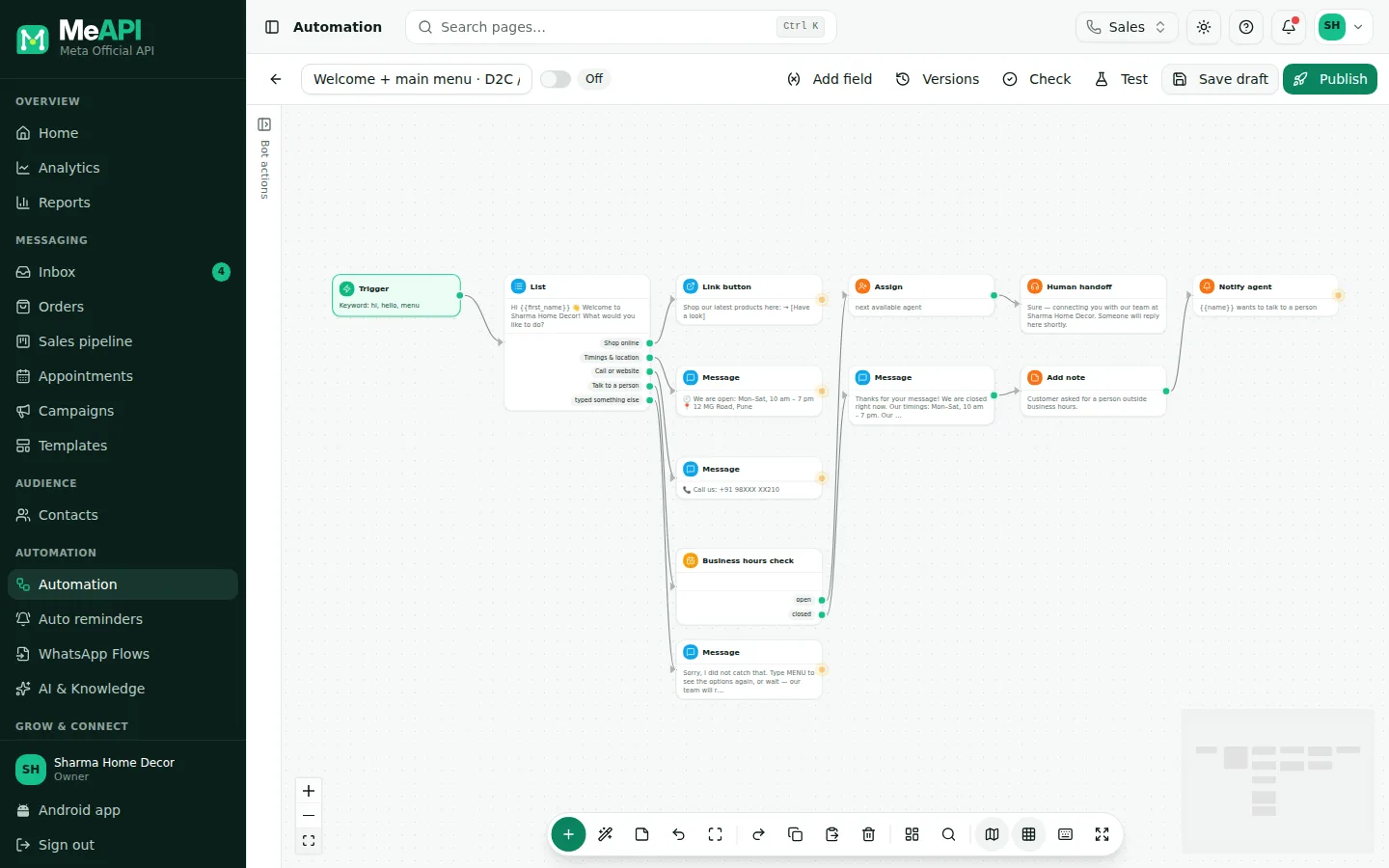
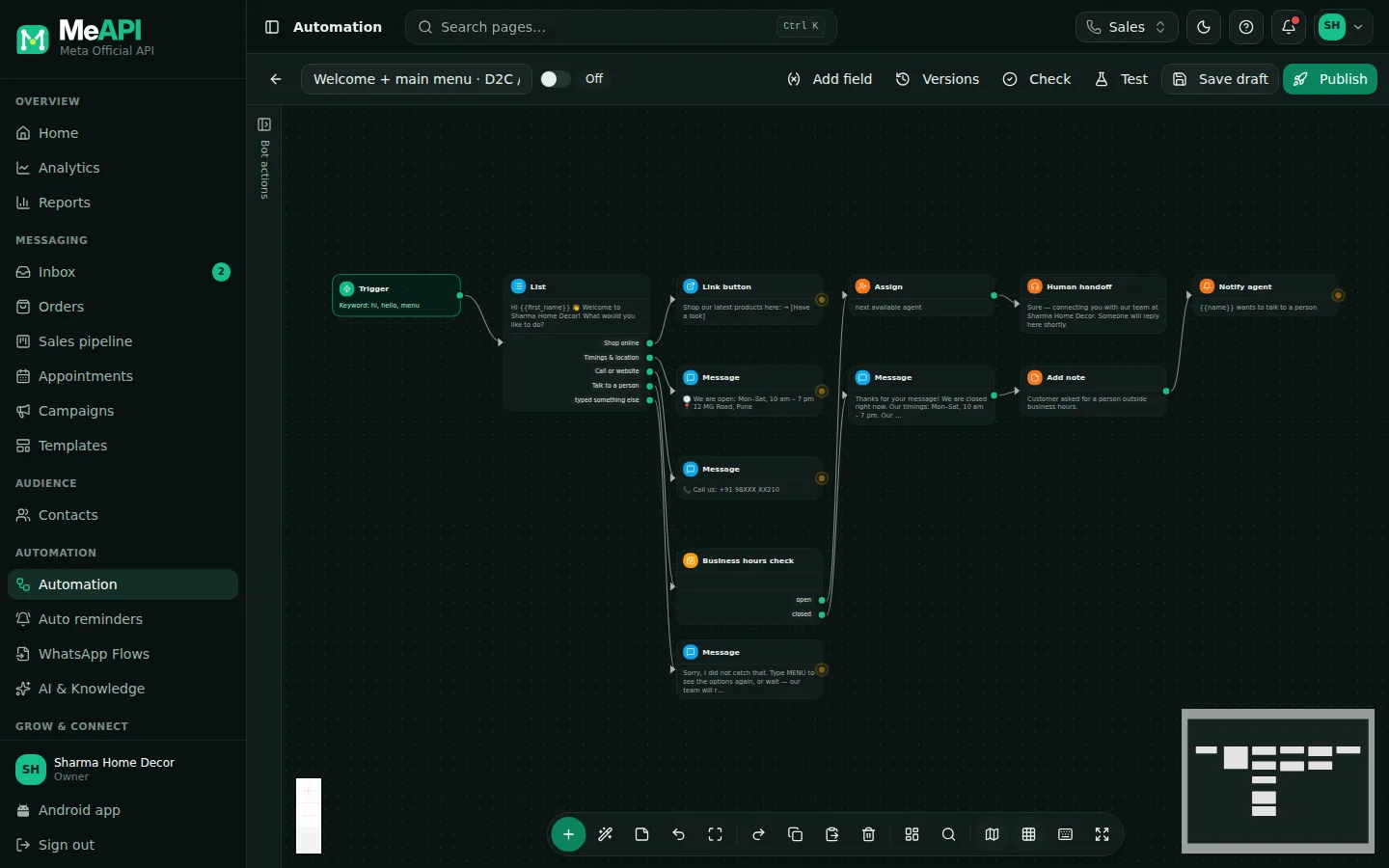
- The whole bot: the Trigger card on the left, then the menu and one branch per option.
- A step that still needs something has an amber border and says what is missing. Publish stays blocked until none are left.
- Click any step to change its text, buttons or timing on the right. Save draft keeps your changes without going live.
Read every message once, in order. Things to check:
- Your tone: change “Happy to help!” to how you greet customers.
- Links: open each one.
- The menu options: remove one you don’t offer (delete the option and its branch), or rename it. List rows are at most 24 characters.
Step 5: test it with “hi”
Section titled “Step 5: test it with “hi””- Click Test in the top bar.
- Type what a customer would send:
hifor a welcome bot, or one of your trigger keywords for the others. Click Start. - Tap the options as the customer would, and answer the questions. The path lights up on the canvas.
- Saved answers under the chat shows what the bot stored on the contact (name, need, city…).
- ↺ starts over. Try every branch once, including Talk to a person and a reply the bot doesn’t expect.
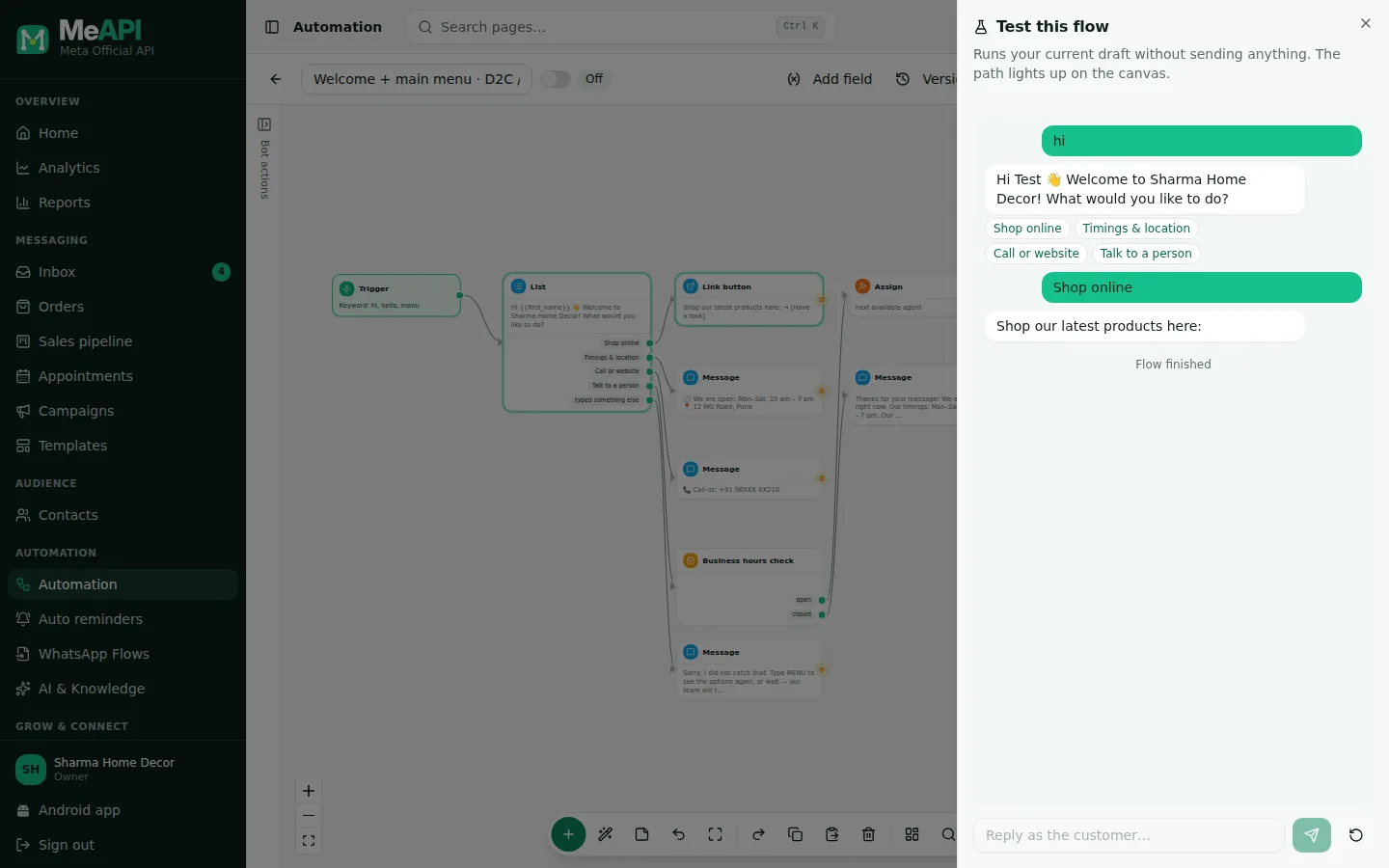
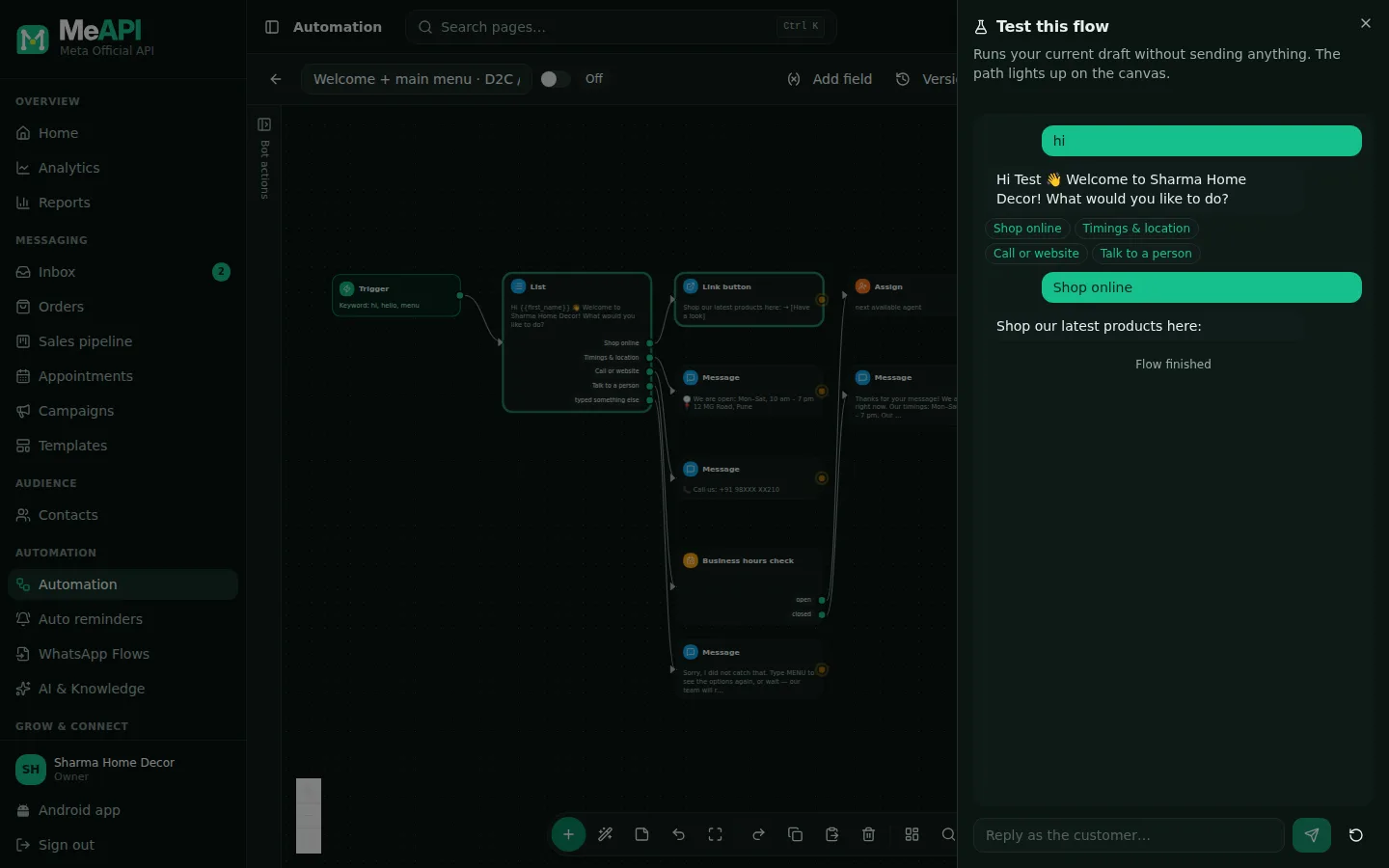
- The test runs your current draft and sends nothing to WhatsApp.
- Waiting for the customer’s reply means the bot asked something. Flow finished means that branch has ended.
Step 6: publish
Section titled “Step 6: publish”Click Publish, then Publish again in Turn this flow on. The switch beside the name now says On, and the next customer who sends a trigger keyword gets the bot.
How the hand-over to an agent works
Section titled “How the hand-over to an agent works”Every template has a Talk to a person path:
- During business hours (Automation → Hours & teams), the chat is assigned to the agent you picked in Hand over to (or the next available one). The customer is told someone will reply, and the agent is notified. A human handoff mutes the bot on that chat for 12 hours, so it doesn’t talk over your agent.
- Outside business hours, the customer gets the after-hours message, your team gets a note in the chat and a notification, and someone picks it up in the morning.
- An agent who replies in a chat also mutes the bot there for 2 hours.
Every template also tells customers they can reply STOP. MeAPI then opts them out, and campaigns and reminders skip them from then on.
Walkthroughs for every bot type
Section titled “Walkthroughs for every bot type”Welcome + main menu
Section titled “Welcome + main menu”Asks for: business name, catalogue / product link, opening hours, address, Maps link (optional), phone, website (optional). Starts on: hi, hello, menu, start.
Test: hi → you get the menu → tap each option: your product link, timings and location, call or website, talk to a person. Then type something random: the bot asks the customer to type MENU for the options again, or to wait for your team.
Lead capture & qualification
Section titled “Lead capture & qualification”Asks for: business name, opening hours. Starts on: enquiry, interested, details.
Test: interested → give a name → pick a need → answer the budget / qualifying question and the city. Then check Sales pipeline: a new deal is there, and the contact has the answers and the tag lead (industry bots use their own, such as property_lead). Lead capture with a pipeline
Appointment / visit booking
Section titled “Appointment / visit booking”Asks for: business name, address, Maps link (optional), opening hours. Starts on: appointment, booking, book, visit.
Needs: your hours in Appointments → Availability. The setup form checks the number you are on: if availability isn’t set (or booking is off), it says so and links to it. Until you save it, the number uses the default hours (Mon–Fri 10–6, Sat 10–2).
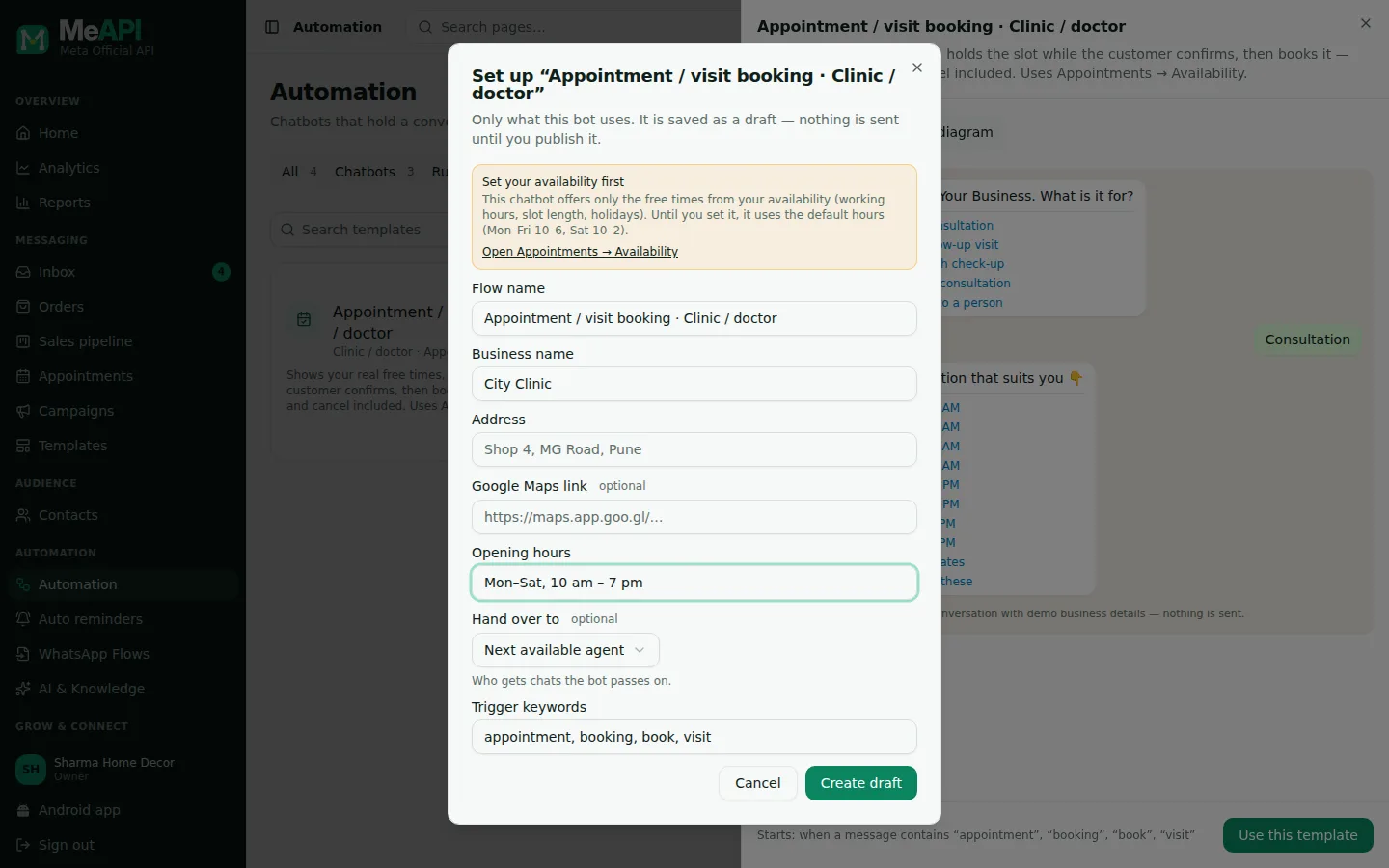
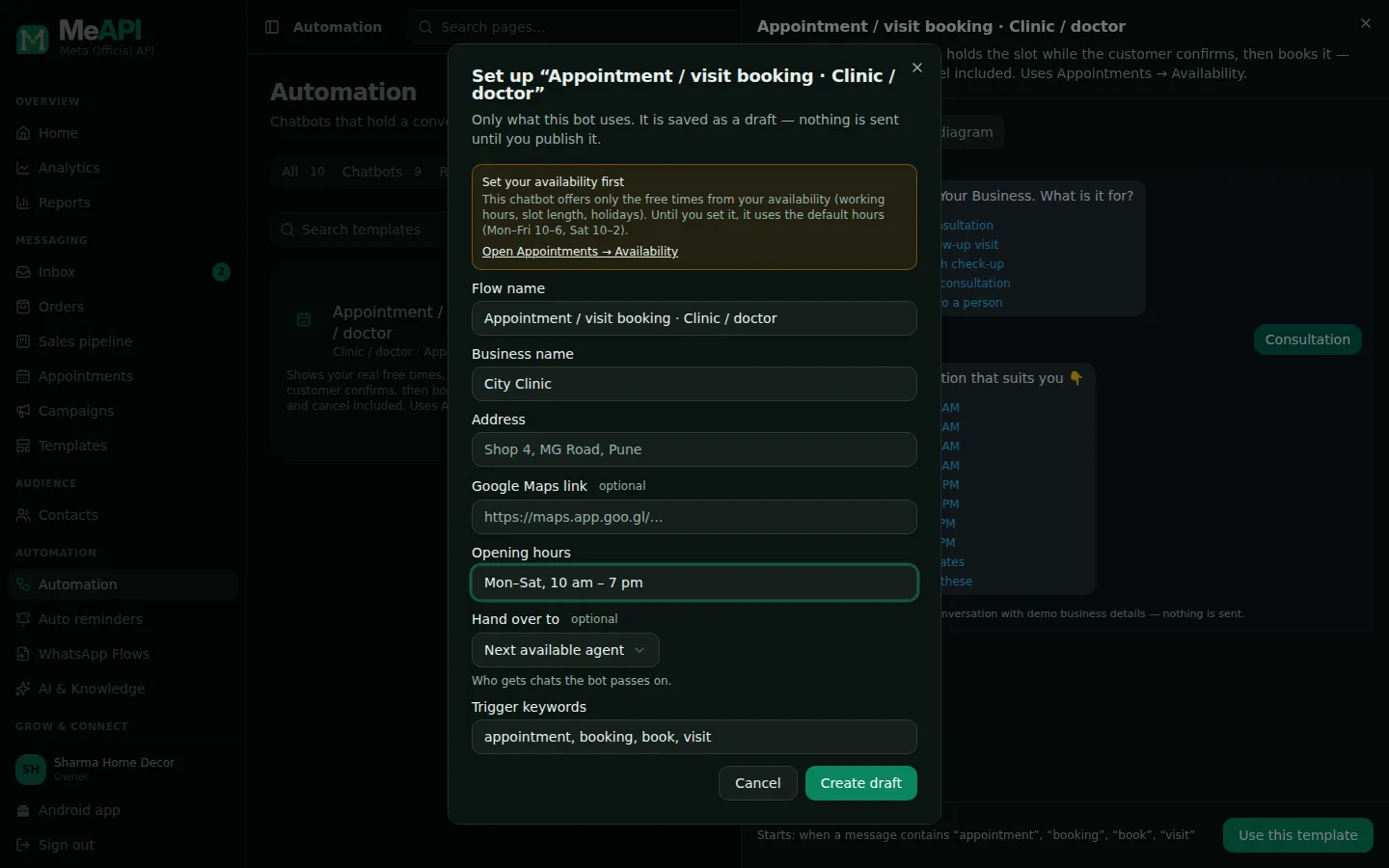
- Availability is not set for this number yet: the setup form says so and links to Appointments → Availability. You can still create the draft.
- Once it is set, the box says customers pick from this number's free times.
Test: appointment → pick a service → See times (only times that are really free) → pick one → Confirm ✅ → give a name. The booking is in Appointments straight away and two customers can never get the same time. Send appointment again: you get Keep it, Reschedule or Cancel it, and your team is told about a move or a cancellation. None of these, or no free time, passes the chat to a person. How booking works
Order status & support
Section titled “Order status & support”Asks for: business name, opening hours, Online store (optional: a connected Shopify or WooCommerce store). Starts on: order, track, delivery, status.
Test: order → enter an order number. With a store connected, the bot looks it up and replies with the status. Without one, it takes the number and passes the chat to your team. Order status bot tutorial
FAQ + talk to a person
Section titled “FAQ + talk to a person”Asks for: business name, opening hours, address, Maps link (optional), catalogue link, phone, website (optional). Starts on: help, faq, question, info.
Test: help → open each question. Talk to a person goes to an agent during business hours and to the after-hours message otherwise. Run the test once outside your hours to see that branch too.
Feedback / rating
Section titled “Feedback / rating”Asks for: business name, opening hours, Review link (your Google review link). Starts on: feedback, review, rating.
Test: feedback → tap 4 or 5 stars: the bot thanks the customer and shares your review link (tag happy_customer). Start over → tap 3 stars or fewer: the bot asks what it should have done differently, adds the answer as a note and alerts your team (tag unhappy_customer). Support desk with CSAT
Catalogue / price enquiry
Section titled “Catalogue / price enquiry”Asks for: business name, opening hours, catalogue link. Starts on: price, catalogue, catalog, rate list.
Test: price → the bot shares your catalogue link, asks what the customer needs and their city, tags the contact price_enquiry and creates a deal for your team to quote. It never states a price itself.
Payment reminder & collection
Section titled “Payment reminder & collection”Asks for: business name, opening hours, Your approved template, payment link. Starts when: you add the tag payment_due to a contact.
Test: in the builder’s Test, just press Start (no keyword). Live, add the tag payment_due to a test contact (your own number). The bot opens with your template, then offers Pay now (your link), Already paid (it asks for the UTR / transaction reference) or a person.
Re-engagement / offer follow-up
Section titled “Re-engagement / offer follow-up”Asks for: business name, opening hours, Your approved template, catalogue link. Starts when: you add the tag re_engage to a contact.
Test: press Start, or tag your own contact re_engage. I am interested tags them interested, creates a deal and alerts your team. Not right now tags them not_now and stops following up. STOP opts them out.
Payment reminders on a schedule
Section titled “Payment reminders on a schedule”The Payment reminder bot starts when the tag is added. To send reminders by date, such as 3 days before the due date, on the day, then every 3 days until paid, use Automation → Auto reminders with the Payment due recipe. It reads a payment_due date on the contact, stops on its own when the customer taps Already paid or pays, and asks for the UTR the same way. Use the bot to chase one customer now, and the reminder to chase everyone on time. Set up auto reminders
Worked example 1: real estate (homes)
Section titled “Worked example 1: real estate (homes)”Industry: Real estate — homes. You get Lead capture, Appointment / visit booking and Re-engagement.
- Lead capture: the need list is Buy a flat / house, Rent a home, Sell my property, Plot / land. Instead of a plain budget question it asks for preferred area, size (for example 2 BHK) and budget. Keywords: add
flat,bhk,property. Every lead is taggedproperty_leadand lands in your Sales pipeline. - Visit booking: Site visit, Sample flat visit, Office meeting or Video call, then a free time from your availability. Tagged
site_visit. The visit is in Appointments for your sales team. - Re-engagement: for leads who went quiet. Tag them
re_engageafter a new launch, with an approved marketing template about it.
- The real-estate lead bot in preview: the industry's own options and qualifying question.
Point your Click-to-WhatsApp ads and the QR code on your hoardings at a message with one of the keywords, for example “I’m interested”.
Worked example 2: clinic / doctor
Section titled “Worked example 2: clinic / doctor”Industry: Clinic / doctor. You get Appointment booking, FAQ and Feedback.
- Appointment booking: Consultation, Follow-up visit, Health check-up, Video consultation, then a free time from the clinic’s availability. The front desk sees every booking in Appointments. Several doctors? Set Customers at the same time in Availability.
- FAQ: doctor’s timings, a Medical emergency answer that tells customers to call 112 or go to the nearest hospital, and that the chat does not give medical advice. Keep both, even if you edit the rest.
- Feedback: after a visit, add the keyword to your follow-up message or start it from a reminder (After-visit feedback recipe).
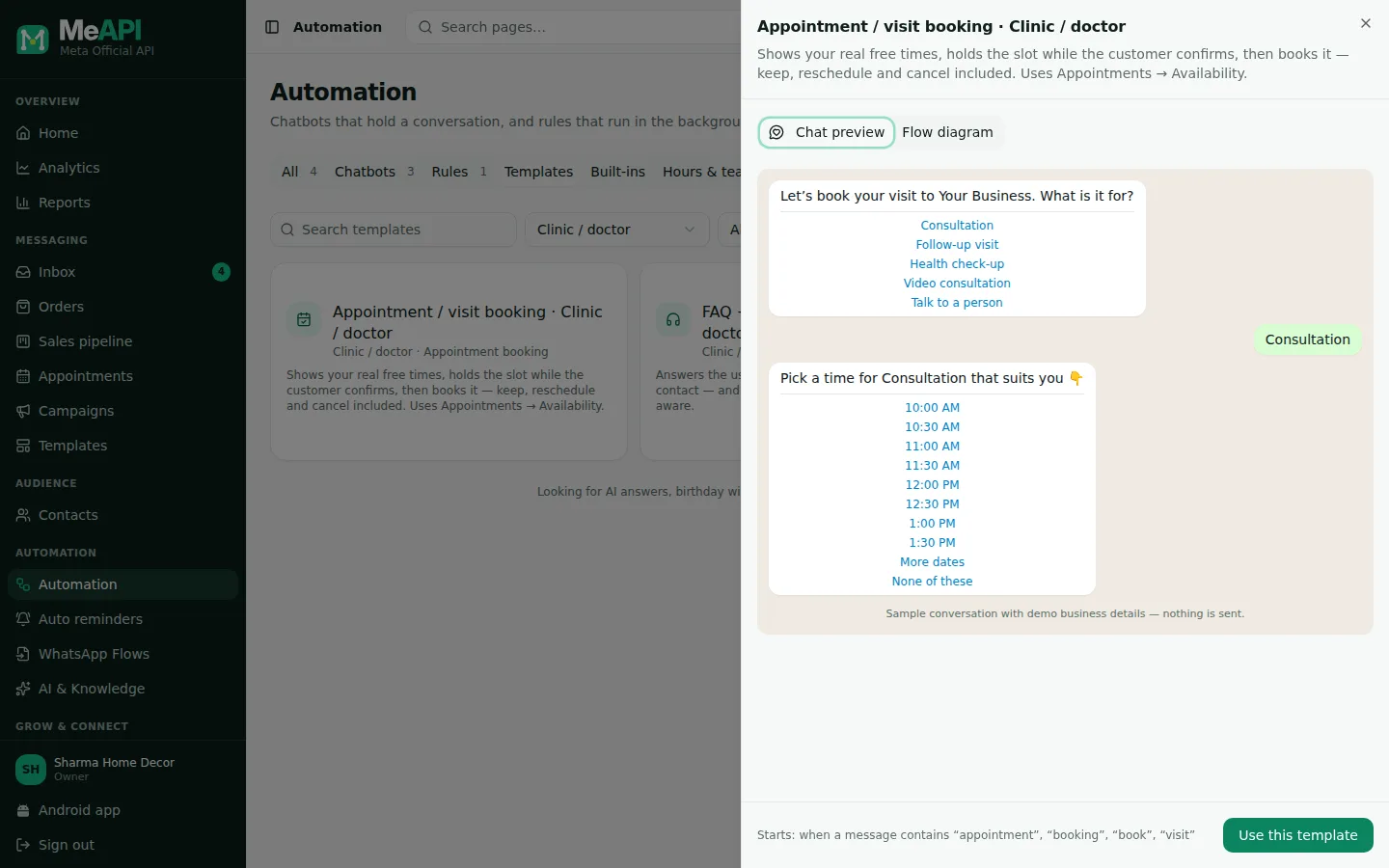
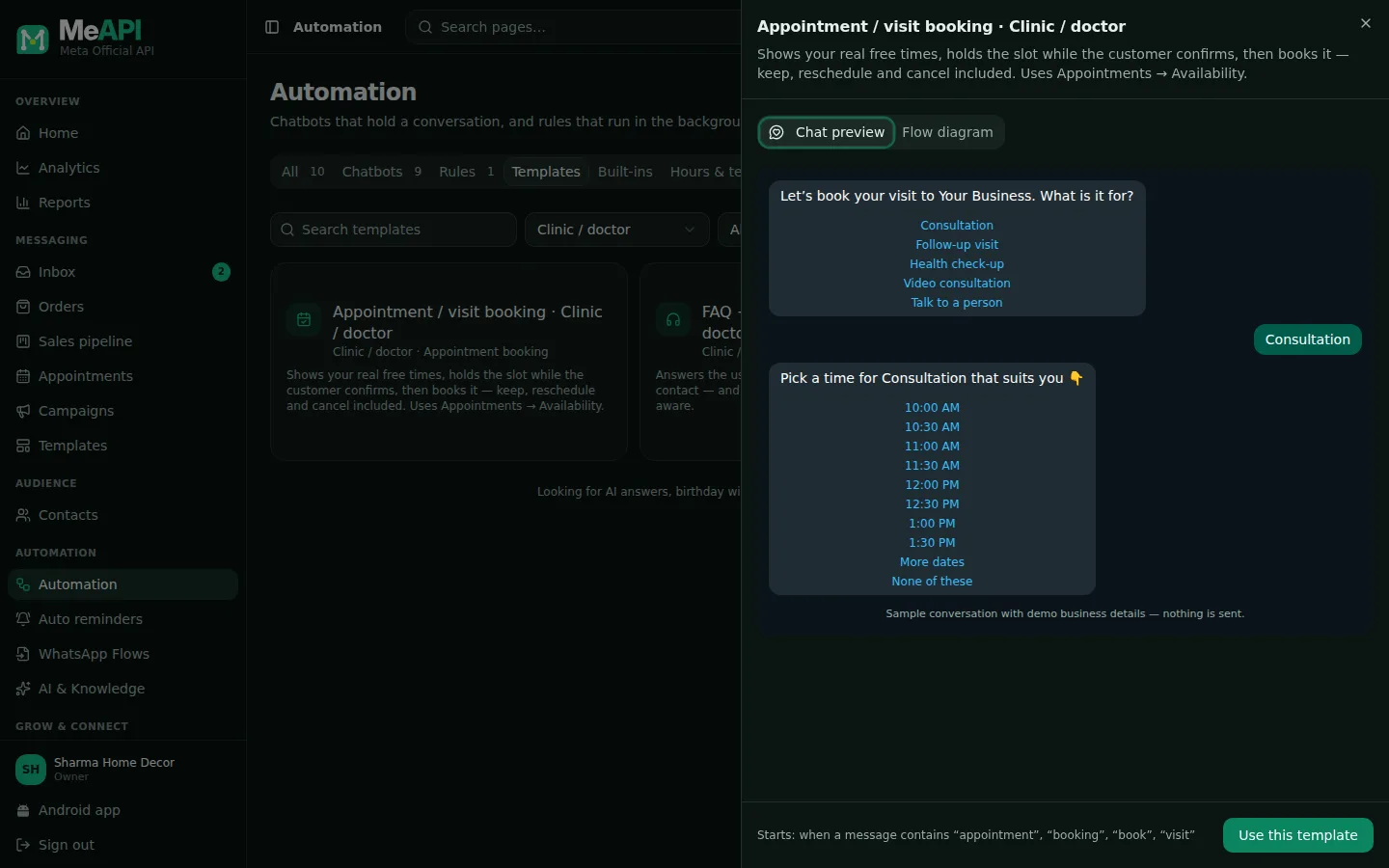
- Clinic appointment booking in preview: the service, then the free times from Availability, held while the patient confirms.
Worked example 3: D2C / online store
Section titled “Worked example 3: D2C / online store”Industry: D2C / online store. You get Welcome + main menu, Order status, Feedback and Re-engagement.
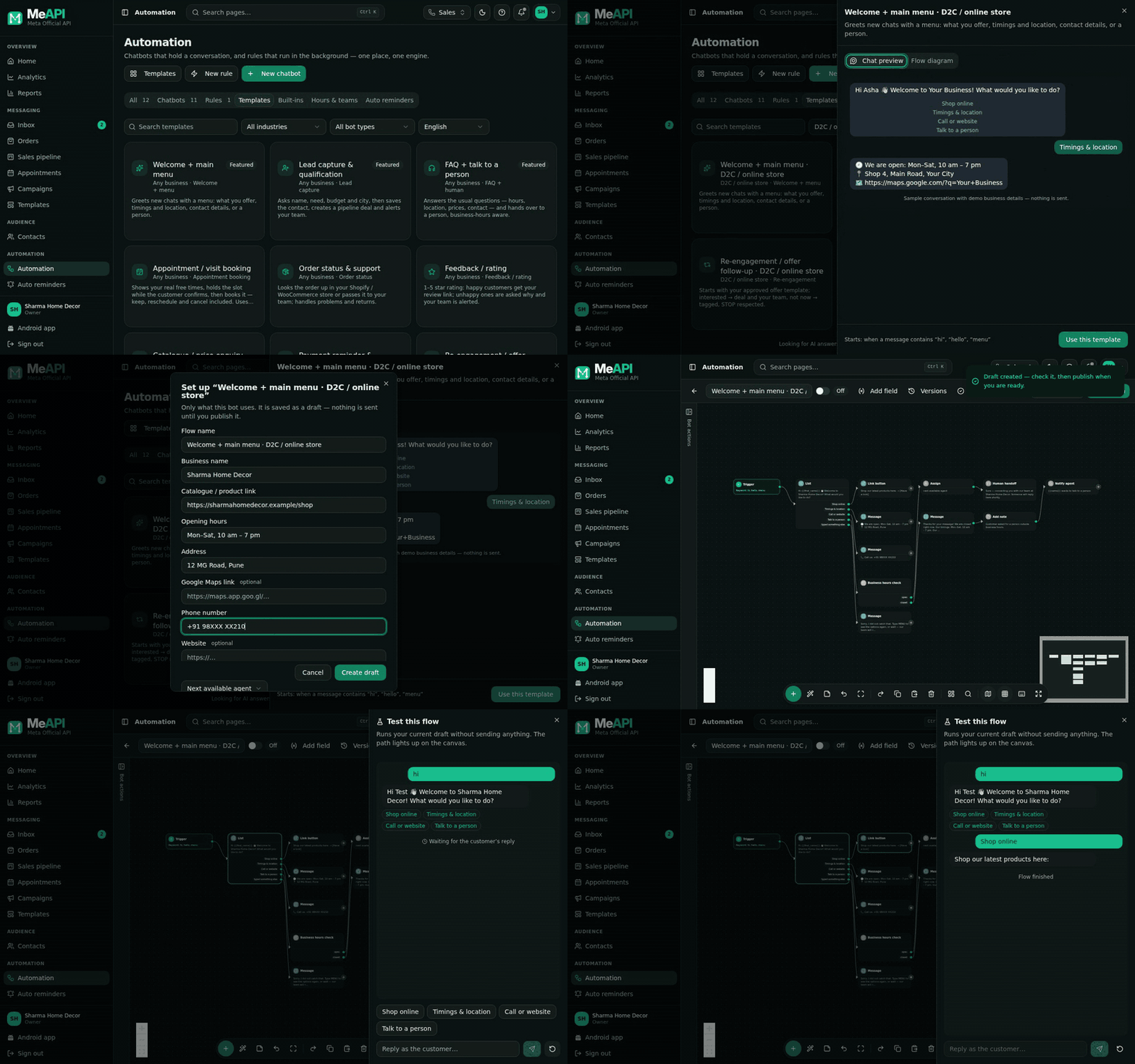
- Welcome: the first option is Shop online, which opens your store link. This is the bot in the GIF at the top.
- Order status: pick your Shopify or WooCommerce store in Online store so customers get the status without waiting for a person. Connect the store first under Integrations.
- Feedback: send it a few days after delivery. Happy buyers get your review link.
- Re-engagement: for past buyers, with an approved offer template. Pair it with abandoned-cart recovery.
Classic starter flows
Section titled “Classic starter flows”Below the gallery, Classic starter flows has 15 more starting points that need no setup form: AI answers with human fallback, birthday wishes, a Click-to-WhatsApp ad welcome, a language picker, order confirmation + review, abandoned cart (webhook) and others. They open straight in the builder. Fill in the steps yourself. Its Appointment booking uses the same Book appointment step, so set your availability first.
When a template gets a new version
Section titled “When a template gets a new version”We improve templates over time. Your chatbot never changes on its own. When the template it came from has a new version, the builder shows a note above the canvas, for example New version available: real slot booking.
- Click Create updated copy. MeAPI makes a new draft from the new version with your answers from the old chatbot (business name, hours, address, keywords, the agent).
- If it can’t find an answer (you rewrote that message), the setup form opens with the rest filled in. Add the missing one and click Create draft.
- Test the copy. When it works, publish it and switch the old one off.
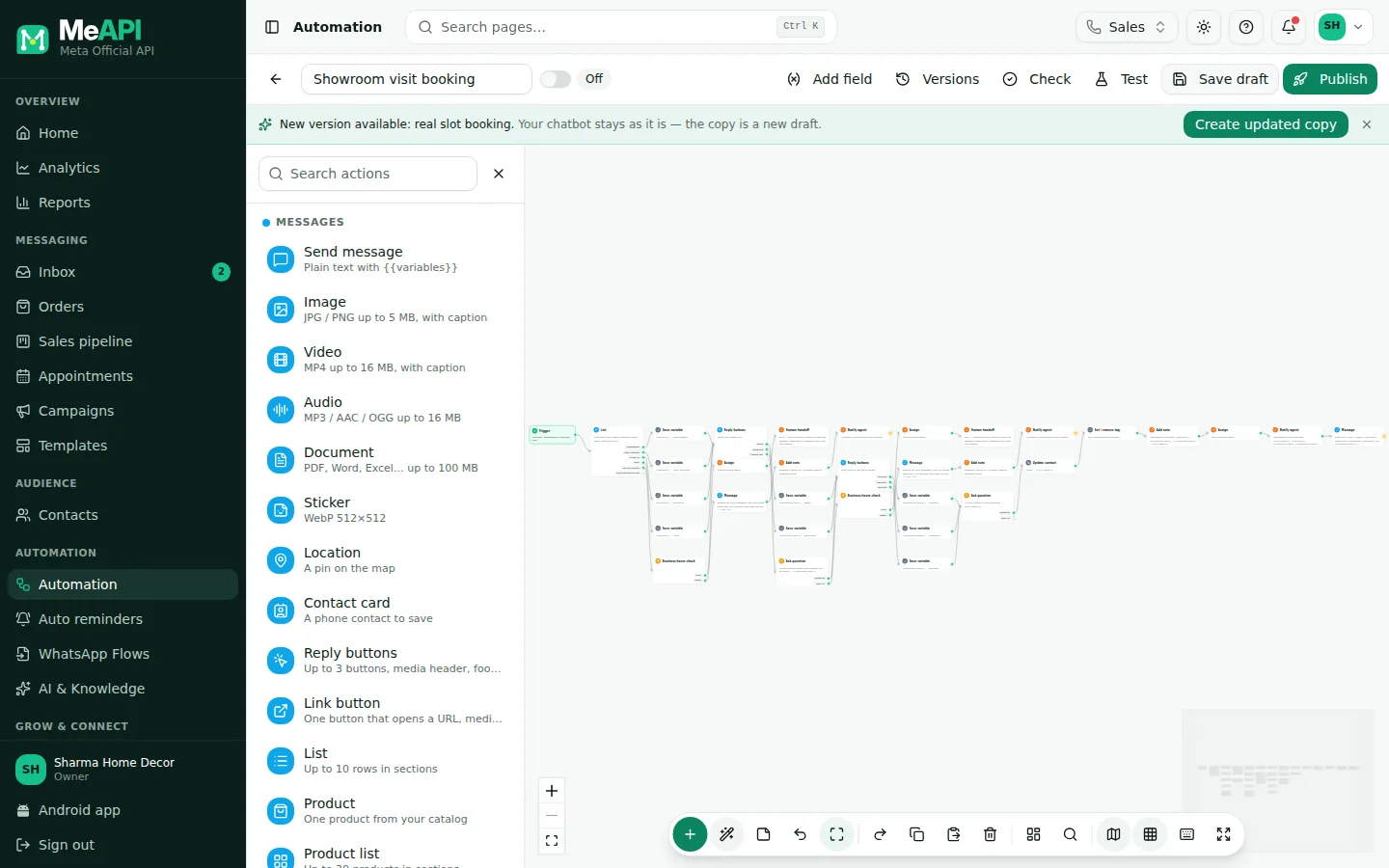
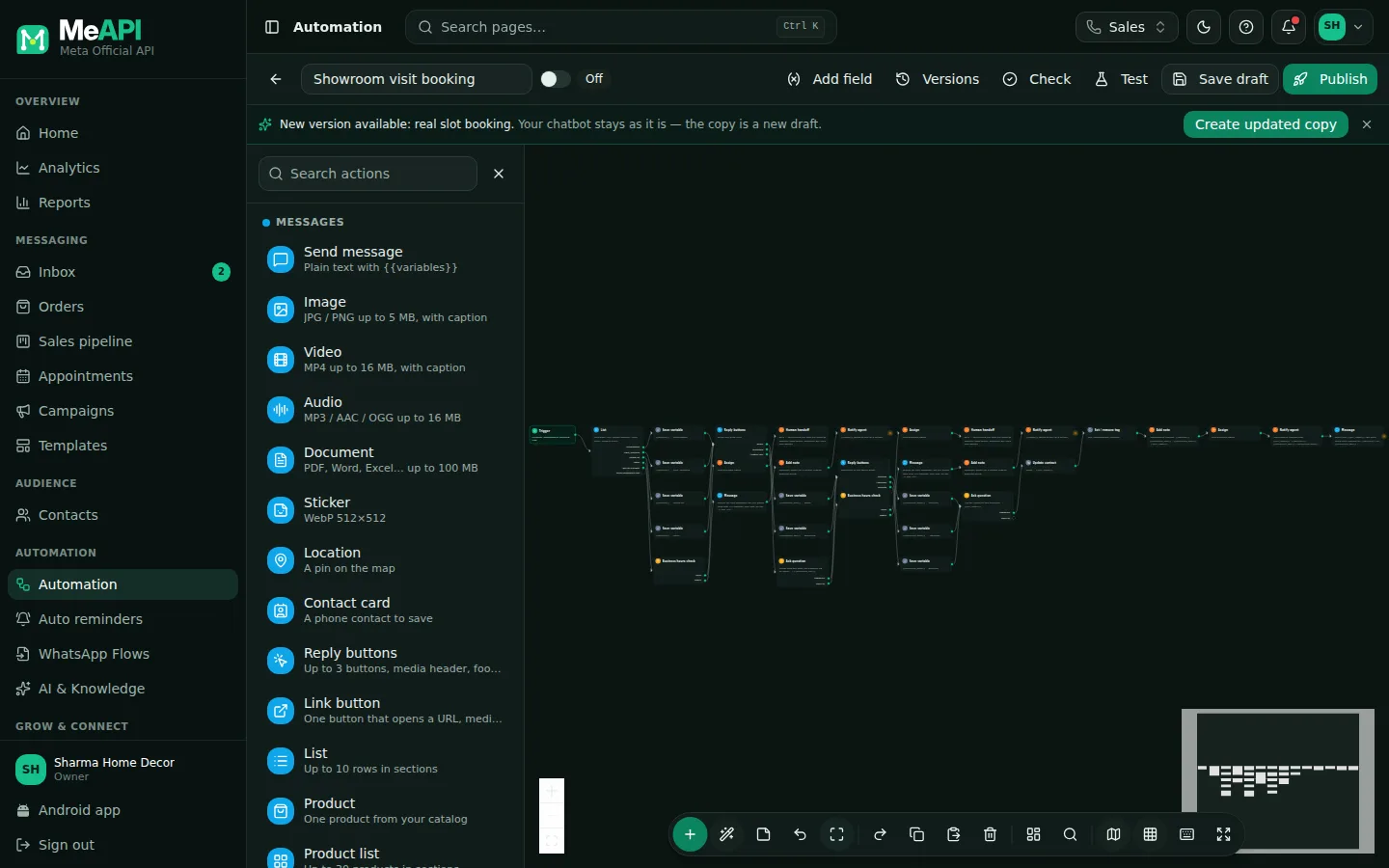
- The note above the canvas of a chatbot made from the old appointment template. Create updated copy makes a new draft; this chatbot is not changed.
Not interested? Close the note with ×. It stays closed for that chatbot on this device.
Common mistakes
Section titled “Common mistakes”- Two bots with the same keyword. Only one chatbot handles a message. Give each bot its own words, for example hi for the welcome menu and price for the catalogue bot.
- A keyword that is too common. ok or yes starts the bot in the middle of other chats. Choose words that clearly mean “start”.
- Publishing without a test. One run shows a broken link or a missing step before your customers do.
- Hindi / Gujarati not read. They are beta: read each message once.
- No approved template for the payment or offer bot. The form can’t be completed without one. Submit the template first.
What’s next
Section titled “What’s next”Was this page helpful?
Thank you — we read every comment.
Could not send right now. Please try again later.
© 2026 MeAPI by TheWebStore028 · RADHAMADHAV WEBSTORE LLP · GSTIN 27ABJFR6148J1ZO · Contact us ·Cookie settings