

The Flow editor — screens, components, JSON and settings
🎯 Goal
Design exactly the form you need: the right questions, on the right screens, saved to the right contact fields.
🧰 What you need
- A form open in WhatsApp Flows
Screens
Section titled “Screens”A Flow is made of screens (up to 10). Customers move forward with the screen’s button; the last screen submits. Each screen has a Screen title and a Screen ID (letters and underscores). The screens are listed on the left of the Build tab: + Screen adds one, Delete screen removes the selected one.
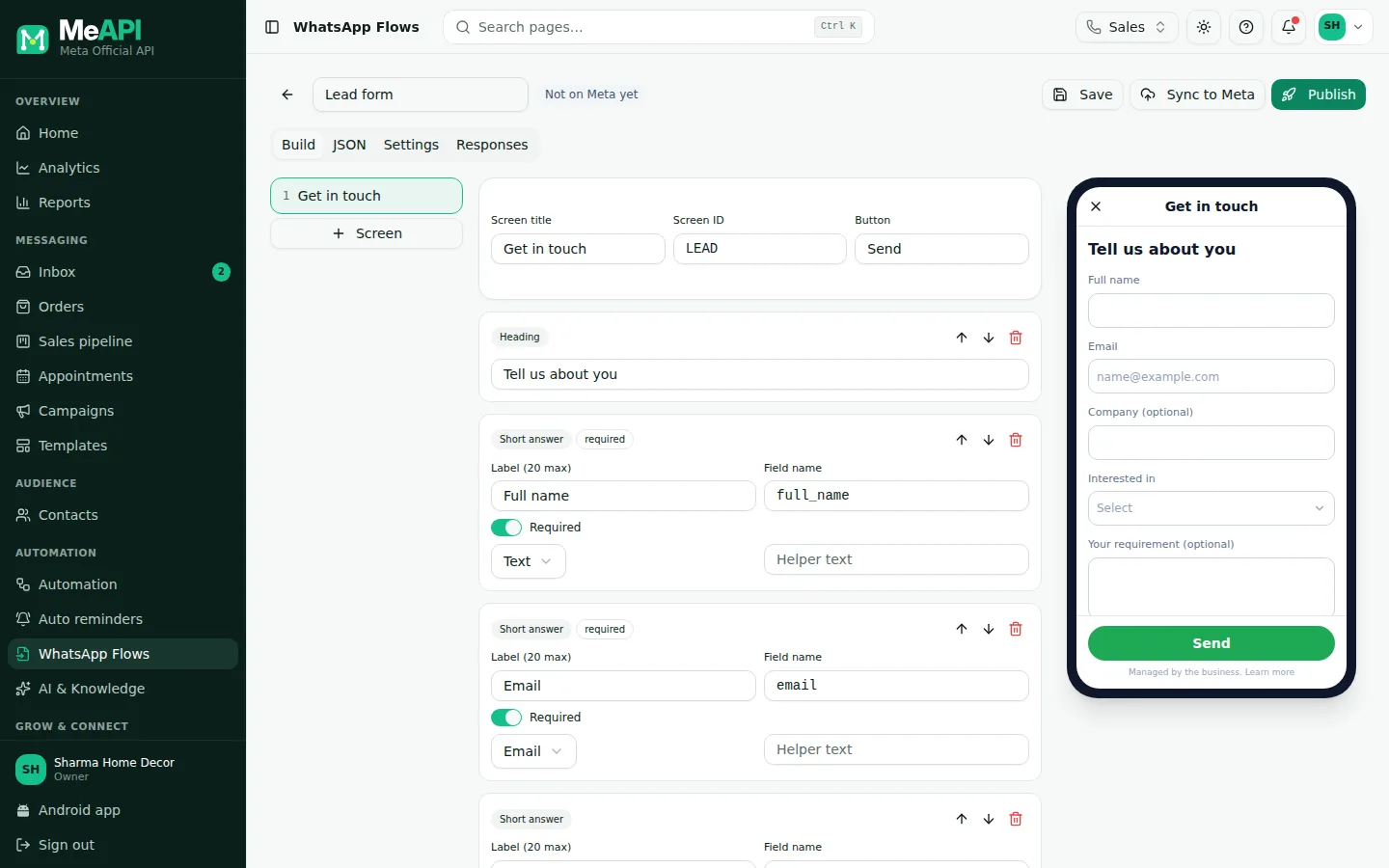
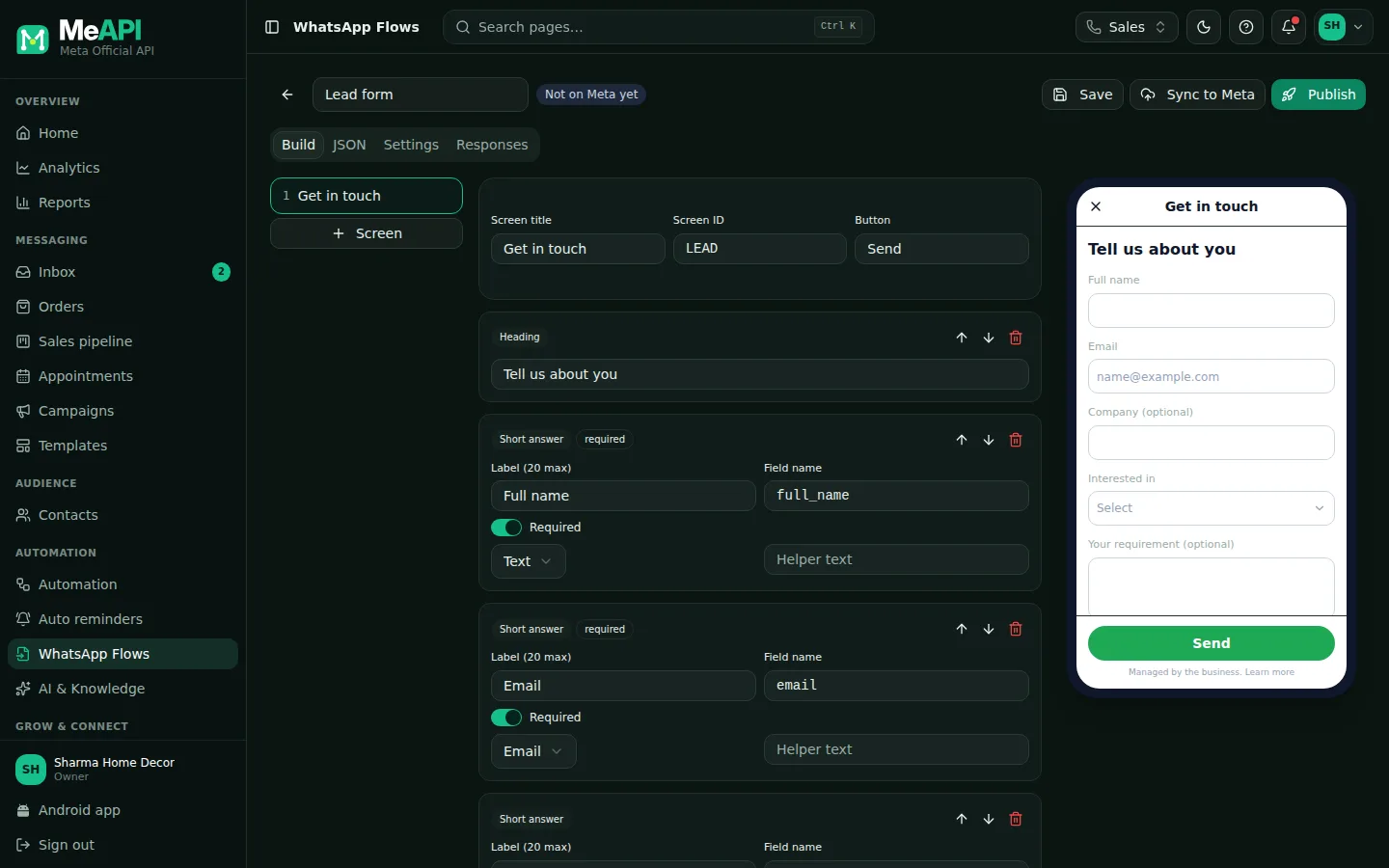
- Left: the screens. Click one to edit it.
- Middle: Screen title, Screen ID, the components (move up, move down, delete) and Add for a new one, then the screen Button.
- Right: the phone preview, built from the real Flow JSON.
One screen, one question works well on phones for long questions. Group short, related ones (name + email) together.
Components
Section titled “Components”| Component | Collects / shows | Notes |
|---|---|---|
| Short answer | One line | Input type: Text, Number, Email, Phone or Code; optional helper text |
| Long answer | Several lines: requirements, feedback | |
| Dropdown | One option from a list | Options up to 30 characters each |
| Single choice | One option, all visible (radio) | Best for 2–6 options; 30 characters each |
| Multiple choice | Several options (checkboxes) | Options up to 30 characters each |
| Date picker | A date, with Earliest / Latest limits | Bookings, date of birth |
| Opt-in checkbox | A yes/no consent tick | “Send me offers on WhatsApp” |
| Heading, Subheading, Paragraph, Small text | Text only | Instructions, small print |
| Image | A PNG or JPG picture | Max 300 KB |
For each question:
- Label: what the customer reads (the editor shows the maximum length).
- Required: they can’t continue without answering.
- Field name: the key the answer is saved under, such as
preferred_date. It is filled from the label; lower case, digits and underscores only. It is also the contact field unless you map it elsewhere.
Button
Section titled “Button”Each screen’s Button label (Continue, Book now, Submit). On the last screen it submits the form.
Settings tab
Section titled “Settings tab”- Category and data: tick one or more of Meta’s categories (sign up, sign in, appointment booking, lead generation, contact us, customer support, survey, other).
- Save answers to the contact: for each question pick
{{field}} (same name), another contact field, or Don’t save on the contact. Each answer goes into a contact field (usable in messages, segments and flows). - Dynamic (data endpoint): prefill answers and load options from your server. See Dynamic Flows.
JSON tab
Section titled “JSON tab”Shows the generated Flow JSON (version 6.0). Experts can click Edit JSON directly to use features the visual builder doesn’t cover. After that the visual builder is no longer used for this Flow (This Flow is edited as JSON); the Build tab becomes Preview. Forms imported from Meta are always edited as JSON.
Common mistakes
Section titled “Common mistakes”- Field names with spaces or capitals. Use
preferred_date, notPreferred Date. - Too many required fields. Each one costs completions. Require only what you truly need.
- Editing JSON, then expecting the visual editor back. Duplicate the Flow before switching if you may want the visual editor later.
What’s next
Section titled “What’s next”Was this page helpful?
Thank you — we read every comment.
Could not send right now. Please try again later.
© 2026 MeAPI by TheWebStore028 · RADHAMADHAV WEBSTORE LLP · GSTIN 27ABJFR6148J1ZO · Contact us ·Cookie settings