

Inbox basics — reply to customers as a team
🎯 Goal
Answer customers quickly from a Separate Inbox for Each Number. Plus one All-numbers view, shared with your team: assignment, roles and saved replies. You’ll know who handles which chat, and what you can send and when.
🧰 What you need
- A connected number
- An owner or agent login
The three columns
Section titled “The three columns”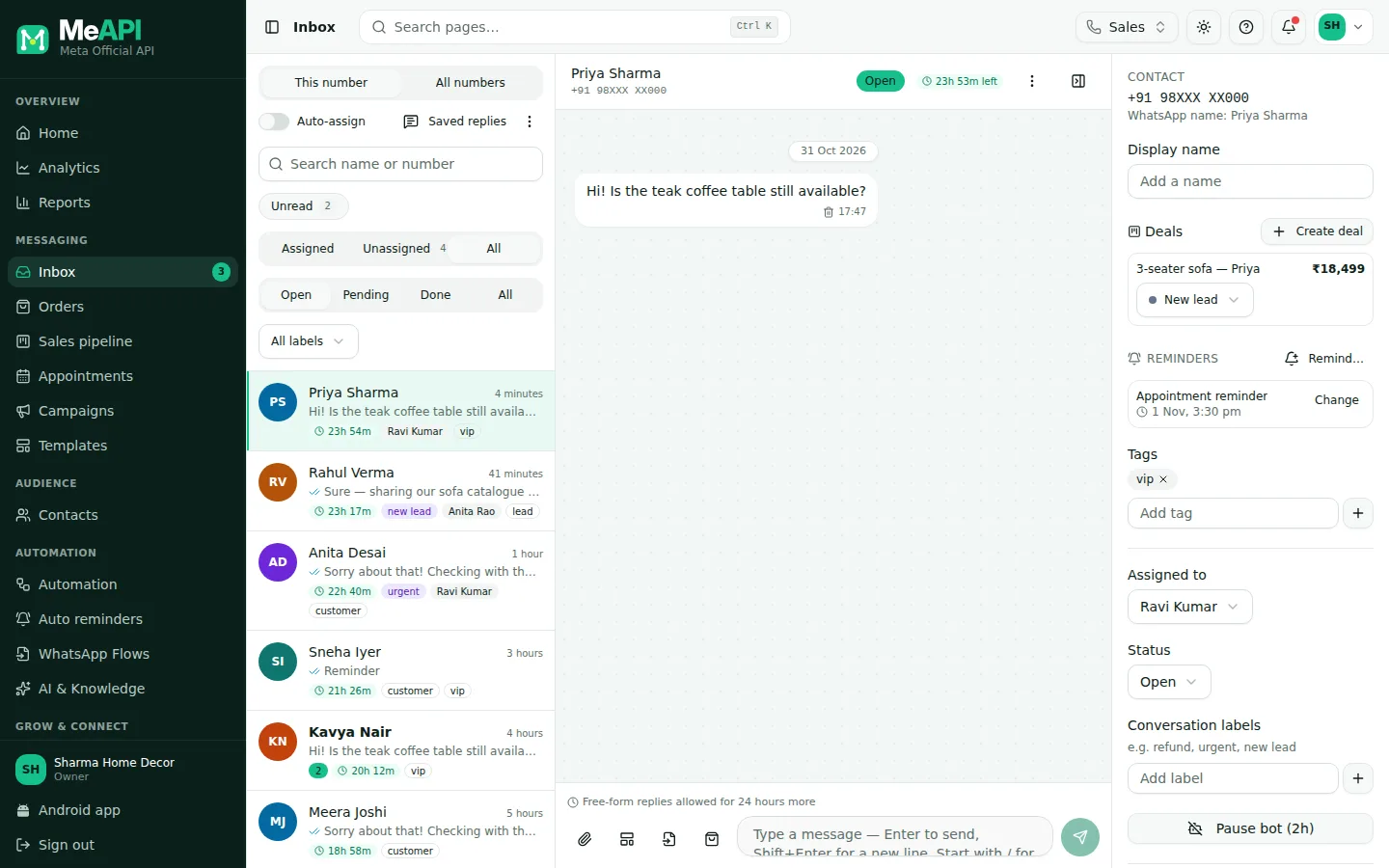
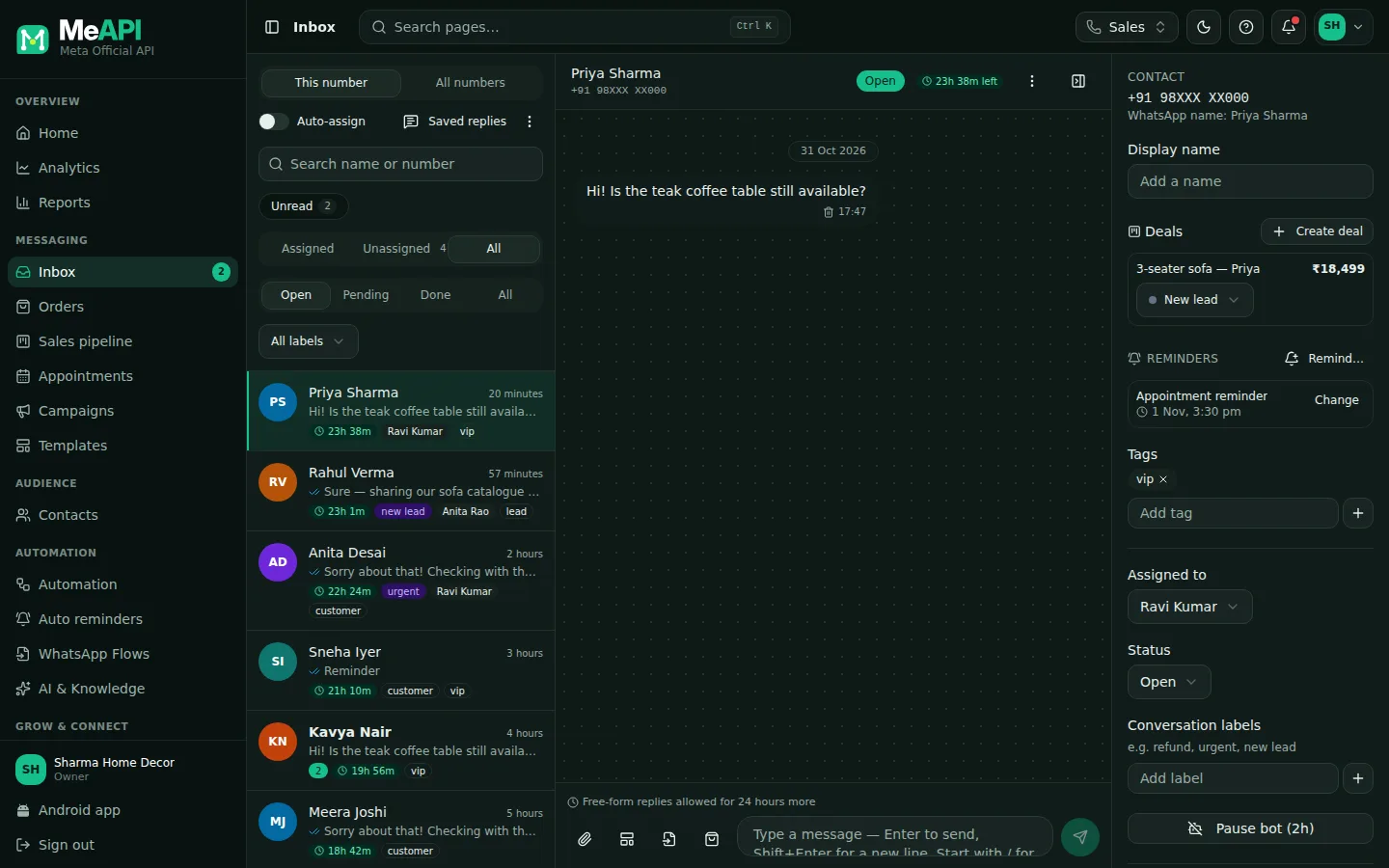
- Left: the chat list. Search by name or number, tap Unread (with its count) to see only unread chats, then filter by Assigned (agents see My chats), Unassigned or All, and by status Open / Pending / Done / All. A label filter appears once chats have labels. Every filter combines with the others, and the inbox remembers your last choice on every device.
- Above the list: the Auto-assign switch (round-robin, for roles with inbox settings) or, for agents, Available / Away. Saved replies opens the saved-reply list; ⋮ has Mark all as read.
- Middle: the open chat. The header shows the name, number, status, the 24-hour countdown and, with an AI key, Summarise with AI. Only the messages scroll; scroll up and older messages load by themselves.
- Ticks on your messages: one grey tick = sent, two = delivered, blue = read. Messages a person did not type carry a small label: Bot, Automation, Campaign or WhatsApp app (sent from the WhatsApp Business app on your phone).
- Bottom: the composer with attach, template, form, products and AI assist buttons.
- Right: the contact panel with Display name, Deals, Reminders, Tags, Assigned to, Status, Conversation labels, Pause bot (2h), orders and Internal notes.
The 24-hour customer service window
Section titled “The 24-hour customer service window”When a customer writes to you, a 24-hour window opens. Inside it you can send anything: text, images, files, buttons, forms or products. These replies are service messages: since 1 October 2026 each number gets 1,000 free a month, then Meta charges them. Utility templates are charged even inside the window. See the FAQ on Meta charges.
When the window closes, WhatsApp only lets you send an approved template. The composer then shows The 24-hour reply window has closed. WhatsApp only allows an approved template now. with a Send template button. Attachments, forms and products are switched off too. When the customer answers your template, a new 24-hour window starts. While the window is open, the line above the composer says how long you have left, and the chat header shows a countdown.
Steps: handle a chat
Section titled “Steps: handle a chat”- Pick a chat on the left. Unread chats show a green counter. The Inbox menu item, the browser tab title (for example (3) MeAPI) and the app icon on your phone all show the same number: unread chats on every number you may open.
- Assign it with Assigned to in the contact panel, or leave it to Auto-assign. The list only shows agents who may work this chat’s WhatsApp number. Changing it needs the Assign / transfer permission. The assignee gets the notifications for that chat.
- Reply. Press Enter to send and Shift+Enter for a new line. Type
/to pick a saved reply. - Attach a photo, video, audio or document (up to 64 MB) with 📎. Attachments need an open window.
- Send more from the composer buttons:
- Send an approved template: works even when the window is closed.
- Send a form: a published WhatsApp Flow.
- Shopping bag: Send products from your catalog, or a Payment link.
- AI assist (sparkles, only when the owner has added an AI key): suggested replies and translation. See Saved replies and AI assist.
- Leave an internal note in the contact panel (Add a note…), for example “Refund approved by manager”. Notes show in the chat for your team only and are never sent to the customer.
- Set the status: Open (needs a reply), Pending (waiting on the customer or someone else) or Resolved (done; the list tab is called Done). Resolving can send a CSAT survey.
- Add conversation labels in the contact panel (Add label), such as
refundorurgent.
Deals and reminders beside the chat
Section titled “Deals and reminders beside the chat”The contact panel shows two boxes for this customer, so you never leave the chat:
- Deals: their deals from the sales pipeline. Create deal adds one in one click. Change a deal’s stage from its dropdown, or click its title to open the full deal.
- Reminders: what is scheduled for them by Auto reminders, and the last few sent. Change on a scheduled reminder offers Send now, Snooze 1 hour, Tomorrow 10 am, Cancel this one and, for a reminder from a rule, Stop this reminder for them. Remind… sets a one-off reminder: pick When, an Approved template (or free text, which only sends if the chat is still open then) and an optional Note for the team, then Set reminder.
Changing a reminder that comes from a rule needs the Edit, pause, settings permission for Auto reminders. A one-off reminder only needs Reply.
When nobody can take a chat
Section titled “When nobody can take a chat”Auto-assign, flow assign steps and team steps only pick active agents who can work the chat’s number and whose role can see the inbox. If nobody fits, the chat stays unassigned. A System note in the chat says why, and the owner sees an alert, A chat was left unassigned, with an Open button.
Scrolling and special messages
Section titled “Scrolling and special messages”- The chat list, the chat and the contact panel each scroll on their own; the page itself never moves. More chats load as you scroll down the list, and the list keeps its place when you open a chat and come back.
- Older messages load on their own as you scroll to the top of a chat; you stay where you were reading.
- While you read older messages, new ones do not pull you down. A 1 new message ↓ pill appears at the bottom; tap it to jump to the latest.
- A failed message turns red with Meta’s reason and code under it, for example Business eligibility payment issue (131042). What does this mean? opens that code in Meta error codes.
- Reactions show as a small emoji on the message they react to. Locations and contact cards show as cards (tap a location for Open in Maps). A message the customer edited on WhatsApp shows its new text with Edited.
- “Unsupported message — open WhatsApp on your phone to view it” is a grey line for something WhatsApp does not pass to the API, such as a poll, view-once media or some items in an imported chat history. The ⓘ shows Meta’s reason (for example Message type unknown (131051)). These lines never count as unread and never start a bot.
- “Message with buttons from a business — Meta doesn’t share these through the API” is the same line when the sender has never sent anything else the API can show — in practice another company’s official WhatsApp number sending template or button messages. Meta passes no text, buttons or “this is a business” flag for these, only error 131051, so open WhatsApp on your phone to read them.
Unread chats
Section titled “Unread chats”- Unread above the status tabs shows only chats with unread messages. Its number counts the unread chats under your other filters (number, Assigned / Unassigned, status, search, label) and changes live as messages arrive and chats are read.
- Opening a chat reads it, for everyone: unread is shared by the team, the same on the web, the Android app and the iPhone / iPad app.
- Mark as unread: in an open chat, ⋮ → Mark as unread. The chat closes and counts as unread again until someone opens it.
- Mark all as read: ⋮ → Mark all as read (above the chat list, or in a chat’s ⋮). MeAPI asks first, then marks every unread chat you can see on this number (or on all your numbers in All numbers) as read. Agents only ever touch the chats their role lets them see.
Read-only chats and deleted messages
Section titled “Read-only chats and deleted messages”- If your role can view chats but not reply, the composer is replaced by Your role can read this chat but not reply.
- With the Delete messages permission, each message has a small bin icon (Delete from the panel). It removes the message from the panel for the whole team and shows Message deleted in the panel. WhatsApp cannot unsend it, so the customer keeps their copy.
Several numbers: one inbox each, plus All numbers
Section titled “Several numbers: one inbox each, plus All numbers”Each WhatsApp number has its own inbox: the number picked in the switcher at the top. With two or more numbers, the top of the chat list also has This number / All numbers:
- This number: only that number’s chats, the way it has always worked.
- All numbers: chats from every number you may work, newest first, each with a green badge naming its number. The chat header adds on and the number’s name. Open any chat and reply. The reply, templates, contact and orders all use that chat’s own number, without changing the switcher.
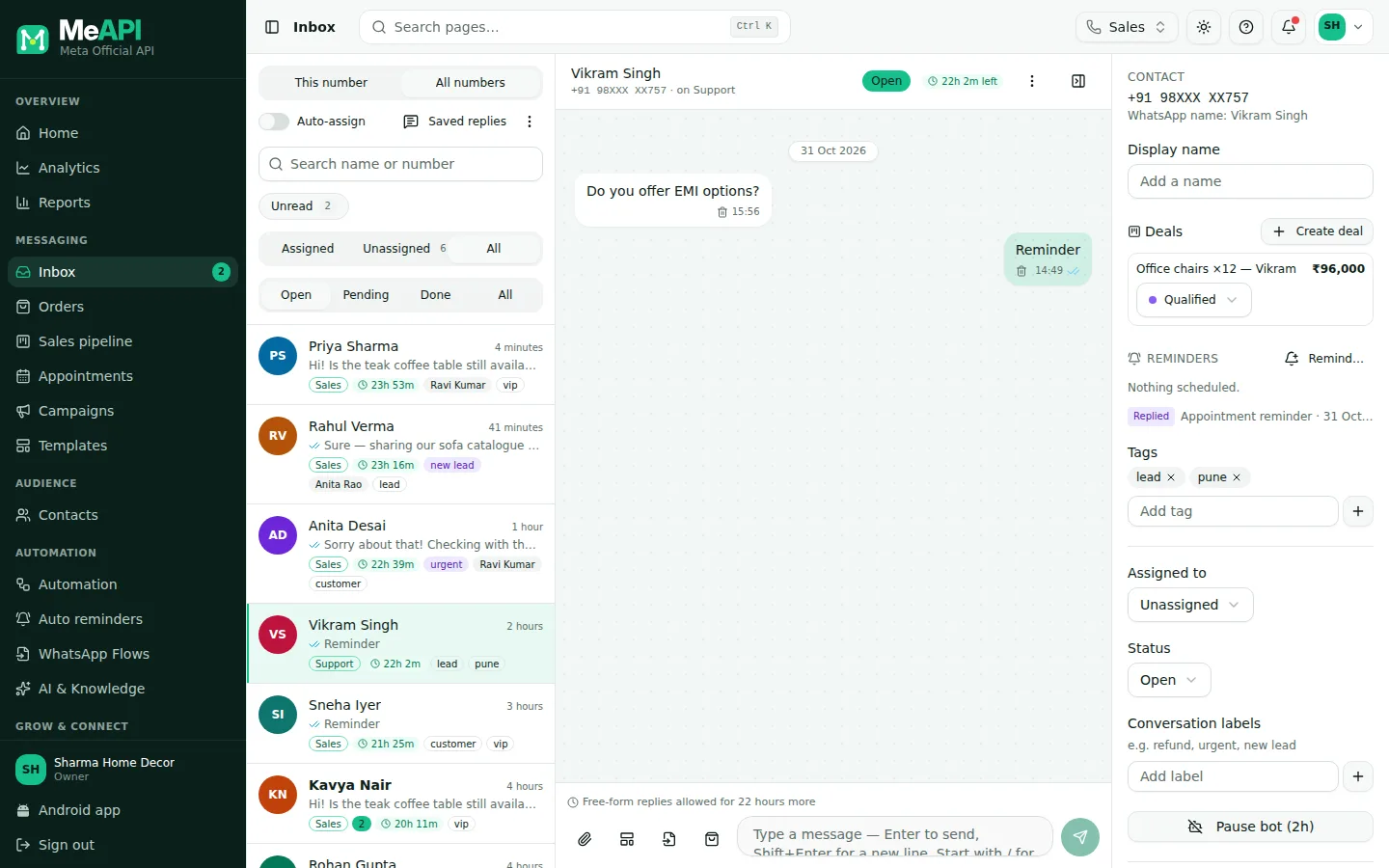
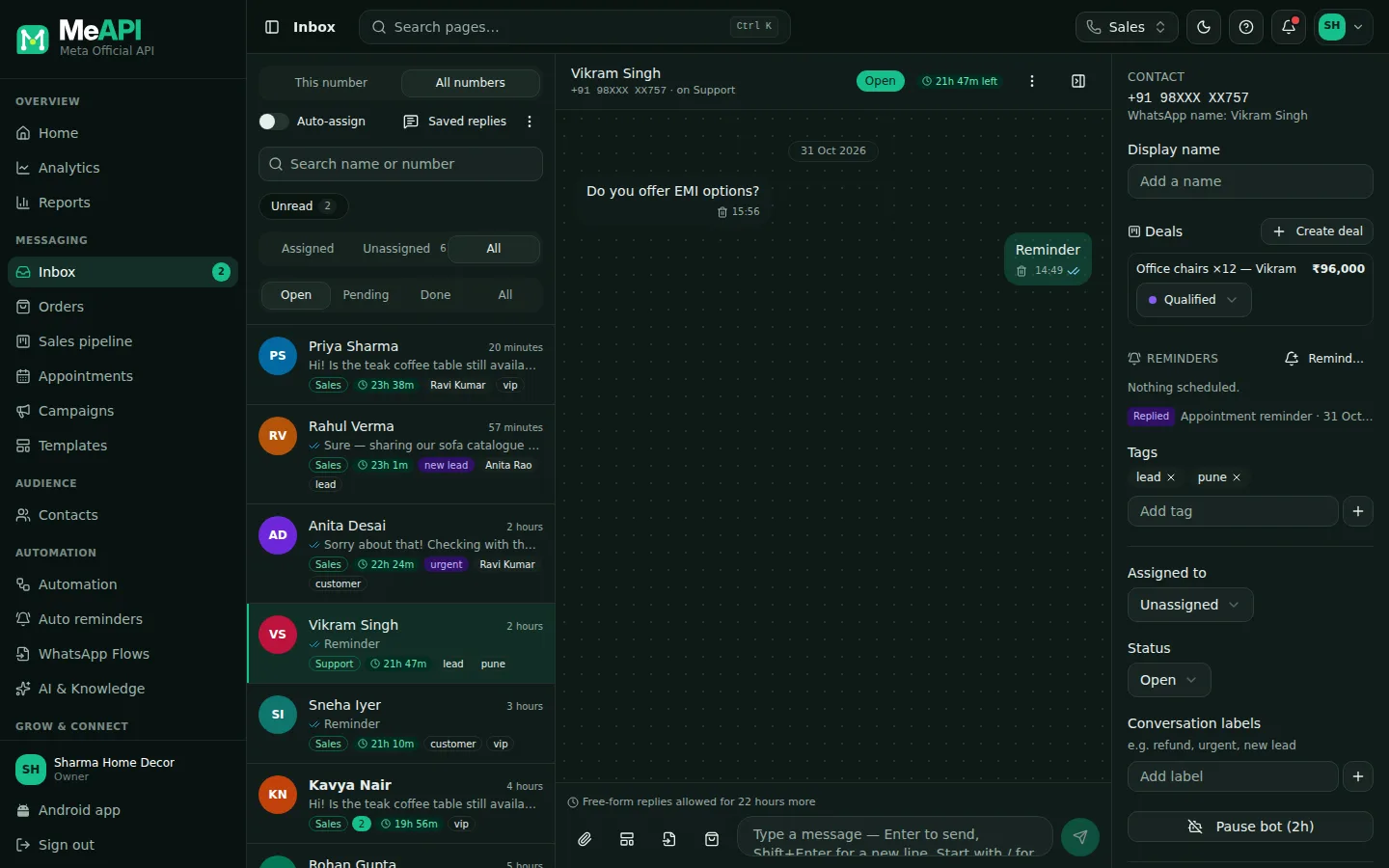
- This number / All numbers tabs at the top of the chat list (shown with two or more numbers).
- Each chat in the list carries a badge with the number it came in on.
- The open chat header says which number it is on.
Agents see only the numbers their admin gave them (see Roles and permissions). The panel remembers your choice in this browser.
Labels and tags: what’s the difference?
Section titled “Labels and tags: what’s the difference?”- Tags belong to the contact, such as
viporwholesale. They follow the person everywhere: campaigns, flows, segments. - Conversation labels belong to this chat, such as
refund,urgentornew lead. Only your team sees them. Filter the list by label to work through a queue.
- Click-to-WhatsApp ad chats show the ad they came from (View ad) in the contact panel.
- Open a chat from anywhere. The contact list and order pages have Open in inbox.
- Mobile. Install the inbox as an app and turn on notifications. See Notifications and the app.
Common mistakes
Section titled “Common mistakes”- “Window closed” surprise. Reply within 24 hours, or use a Utility template such as “We have an update on your request” to reopen the chat.
- Leaving chats Open forever. Resolve finished chats, so Open stays a real to-do list and CSAT can be measured.
- Wrong number selected. This number shows only the number in the switcher at the top. Switch to All numbers to see every number’s chats together.
What’s next
Section titled “What’s next”Was this page helpful?
Thank you — we read every comment.
Could not send right now. Please try again later.
© 2026 MeAPI by TheWebStore028 · RADHAMADHAV WEBSTORE LLP · GSTIN 27ABJFR6148J1ZO · Contact us ·Cookie settings