

Roles and permissions
🎯 Goal
Give every teammate exactly the access their job needs: which screens and buttons they get, which WhatsApp numbers they work, whether they see full customer numbers, and how long they stay signed in.
🧰 What you need
- The account owner login (or an agent whose role can manage agents)
- An idea of what each teammate should and should not see
How access works
Section titled “How access works”Each agent has one role and a set of numbers.
- The role decides what they can do: a list of permissions per module (Inbox, Contacts, Campaigns, Templates, Template library, Automation / flow builder, Chatbot / AI & Knowledge, Auto reminders, WhatsApp Flows, Sales pipeline, Orders, Analytics, Developer, Integrations, Growth tools, My numbers, Agents & roles).
- The numbers decide where they can do it. An agent limited to one number sees only that number’s inbox, contacts, campaigns, templates (its WhatsApp Business Account), flows, analytics and deals.
- You, the owner, always have full access. No role applies to you, and Subscription & billing and the AI provider keys are yours alone.
The server checks every permission on every request, not just the menu. A hidden button cannot be reached by typing its address.
Ready-made roles
Section titled “Ready-made roles”| Role | For | Highlights |
|---|---|---|
| Admin | A trusted deputy | Everything except managing agents and connecting numbers |
| Manager | Team leads | The whole inbox and contacts, pipeline, orders, auto reminders, analytics; reads campaigns, templates and chatbots |
| Agent (chat only) | Support staff | Chats assigned to them or unassigned: reply, notes, resolve; contacts read, update and tag; products and payment links; their own deals; sees auto reminders |
| Marketing | Campaign team | Campaigns, templates, template library, contact import/export, segments, auto reminders, analytics; no inbox |
Ready-made roles are kept up to date: when a new module arrives, they get the sensible access for it. You can change their privacy, operator-name and session settings, but not their name, permission list or which chats they see. Use Copy role to make an editable version: it is called, for example, Agent (chat only) (copy) and opens straight away. The ready-made Agent (chat only) role has Block export on from the start.
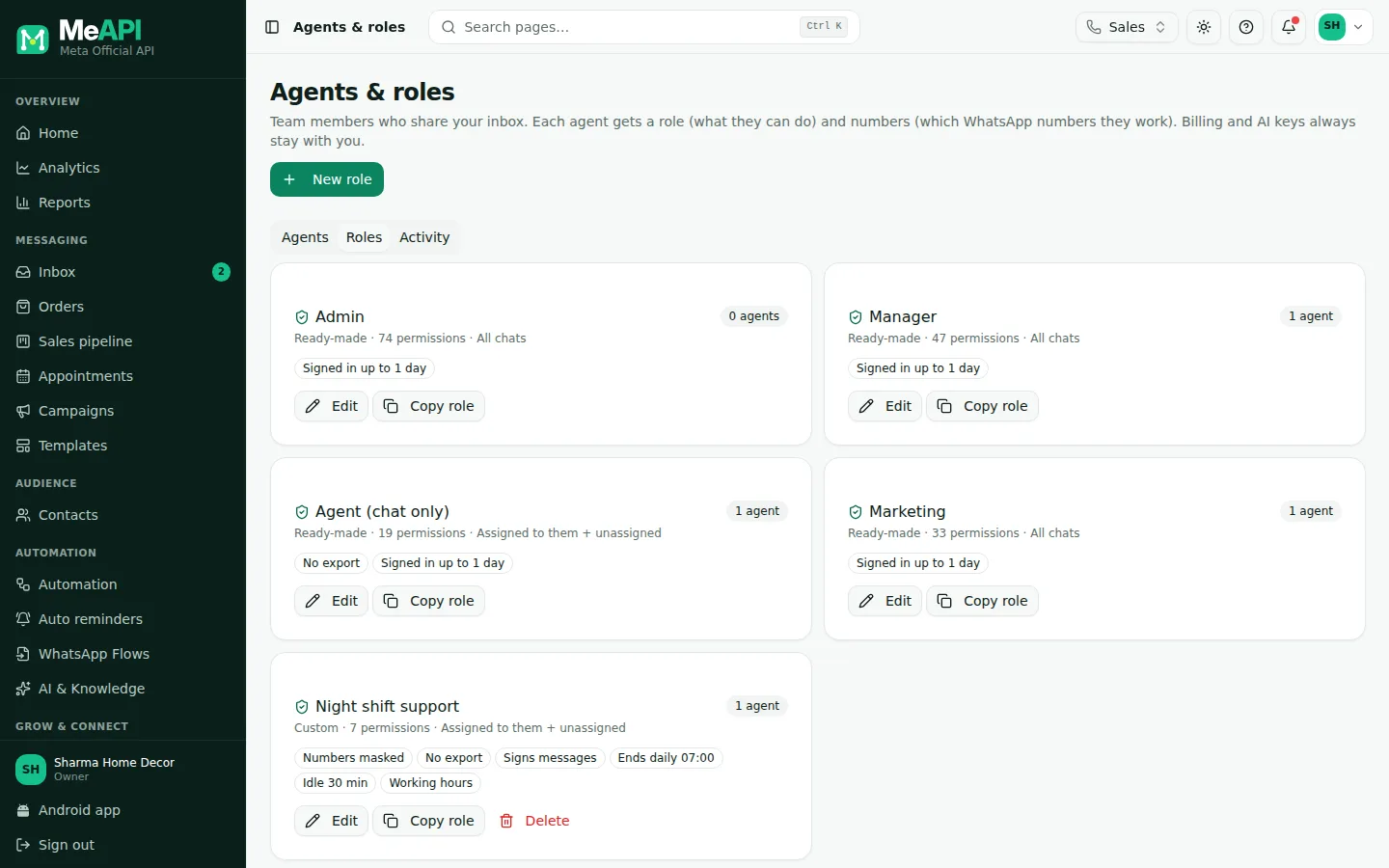
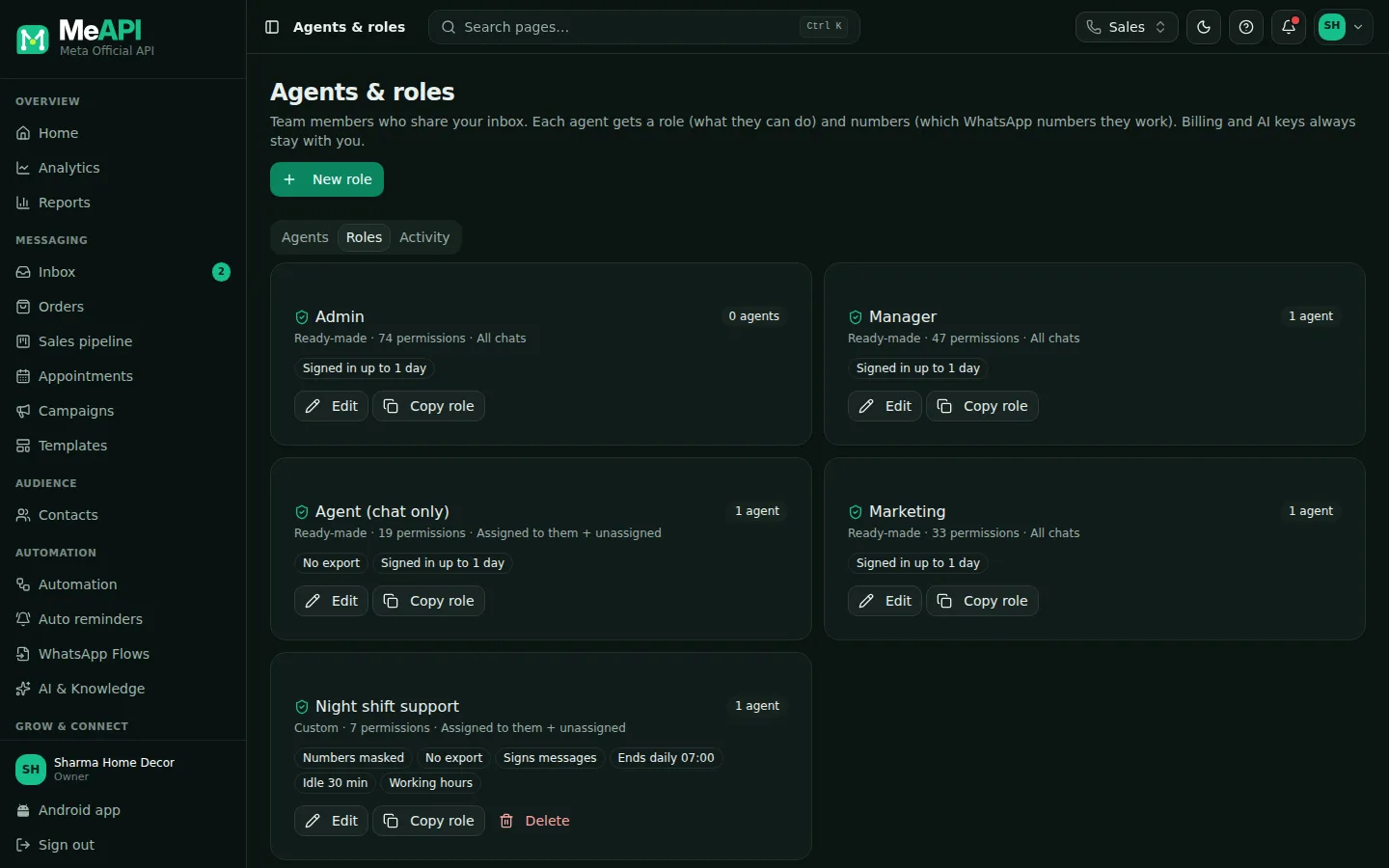
- The Roles tab: one card per role, with how many agents use it.
- Badges show the role’s settings at a glance: Numbers masked, No export, Signs messages, the session length, Idle … min and Working hours.
- Each card has Edit and Copy role. Custom roles also have a delete button.
- New role is top right.
Steps: create a custom role
Section titled “Steps: create a custom role”- Open Agents & roles (left menu → Account) and choose the Roles tab. Click New role, or Copy role on the role closest to what you need.
- Type a Role name.
- On the Permissions tab, pick a module on the left and tick its permissions on the right. Select all / Clear all work on one module at a time.
- For Inbox, choose Which chats they see: Assigned to them only, Assigned to them + unassigned, or All chats.
- Under Privacy, turn on Mask customer phone numbers (shown as +91 98XXX XX210, and exports are blocked too) or just Block export.
- Turn on Show agent name on outgoing messages if customers should see who replied. Choose before or after the text and bold, italic or plain.
- On the Session configuration tab, set:
- Session length: Fixed length after login (1–30 days) or Ends every day at a set time.
- Inactivity timeout: minutes without real use before the agent is signed out. 0 turns it off, and the lowest value is 5 minutes. Only real actions count: clicks, typing, sending and moving between pages. Background refreshes do not.
- Only allow access during working hours: pick the days and the from/to times (India time, IST). Outside those hours the agent cannot log in, and an open session ends.
- Click Save role.
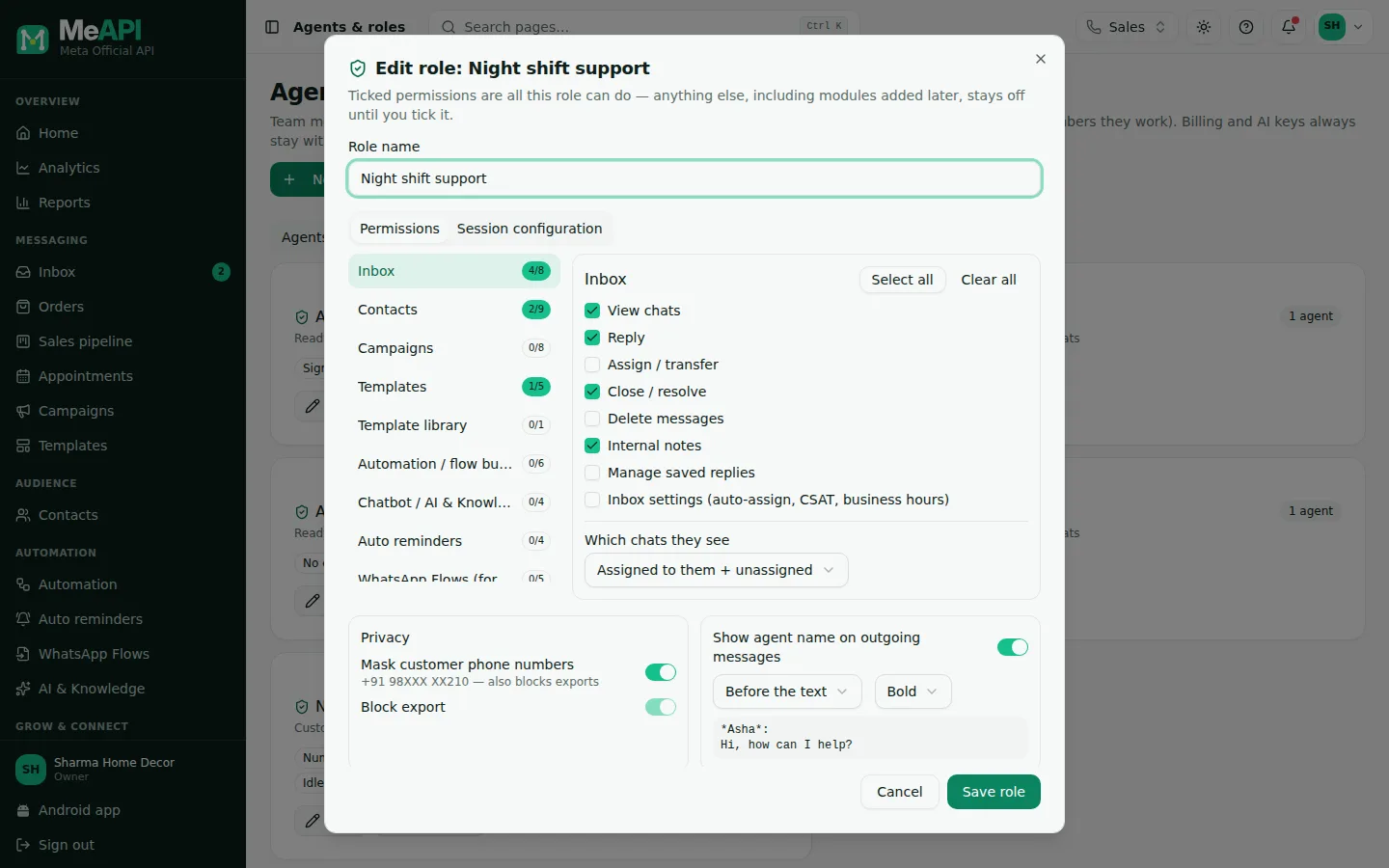
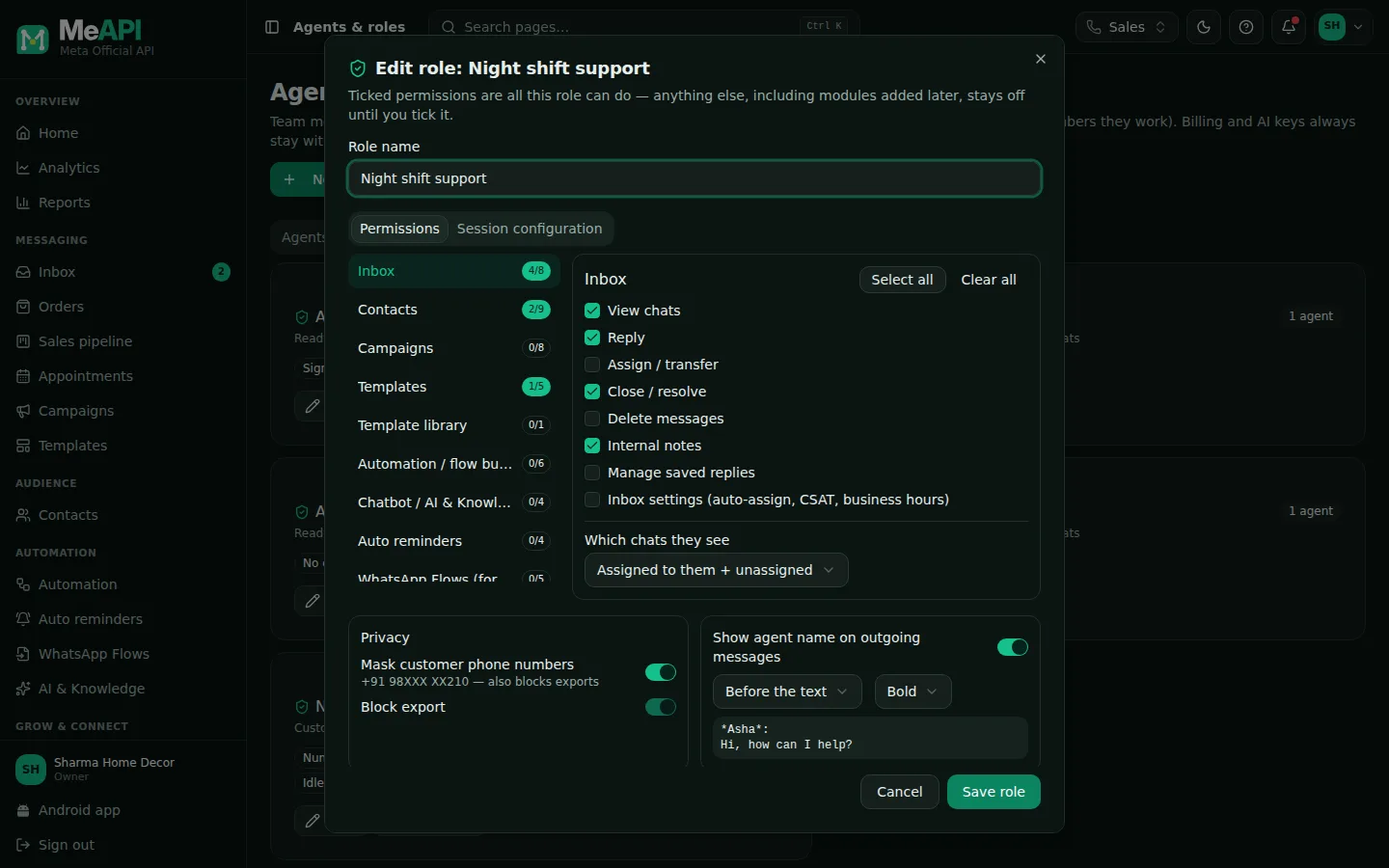
- The role editor: Role name, then the Permissions and Session configuration tabs.
- Modules on the left with how many permissions are ticked; the permissions of the chosen module on the right, with Select all and Clear all.
- For Inbox, Which chats they see.
- Below: Privacy (Mask customer phone numbers, Block export) and Show agent name on outgoing messages with a preview.
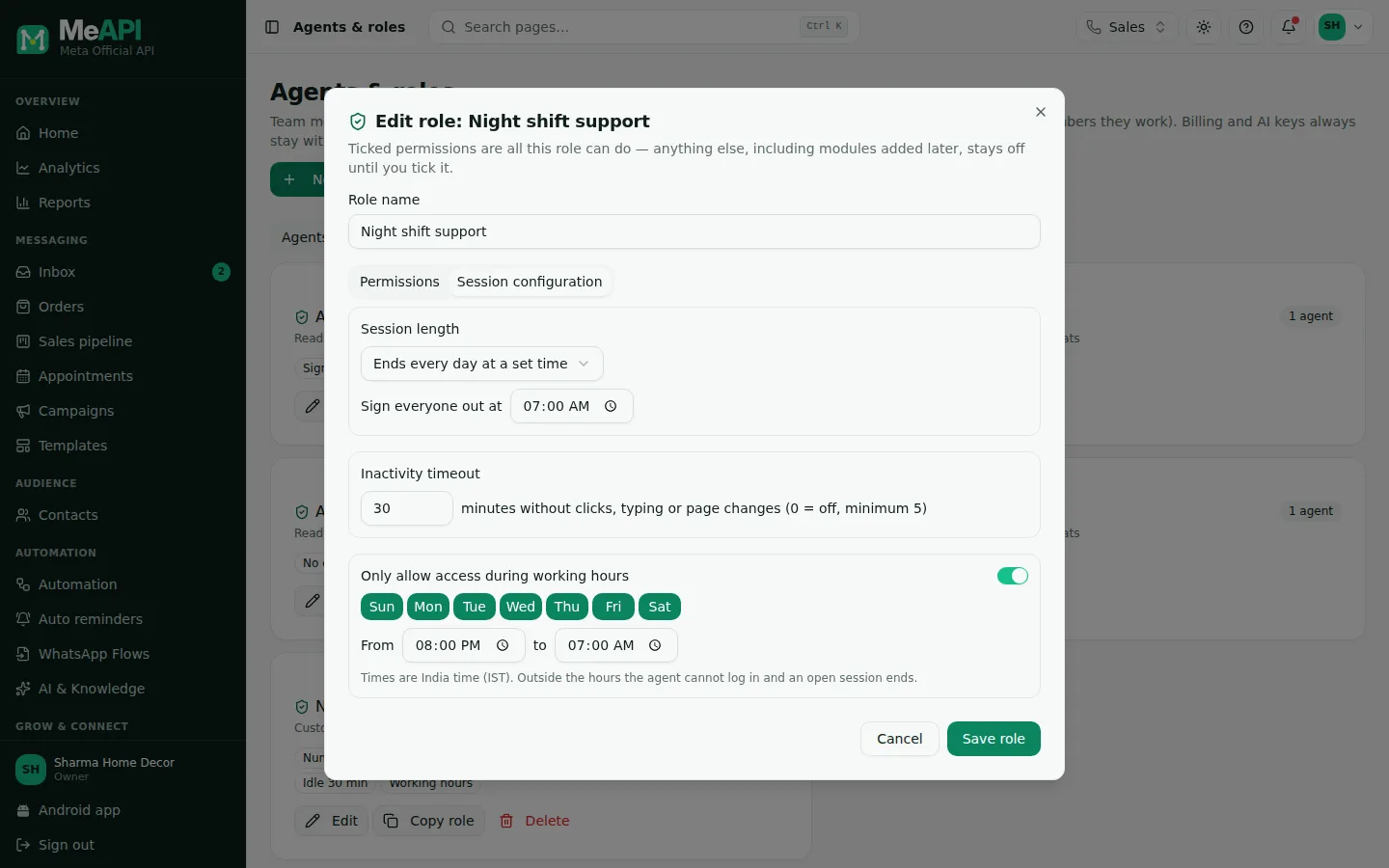
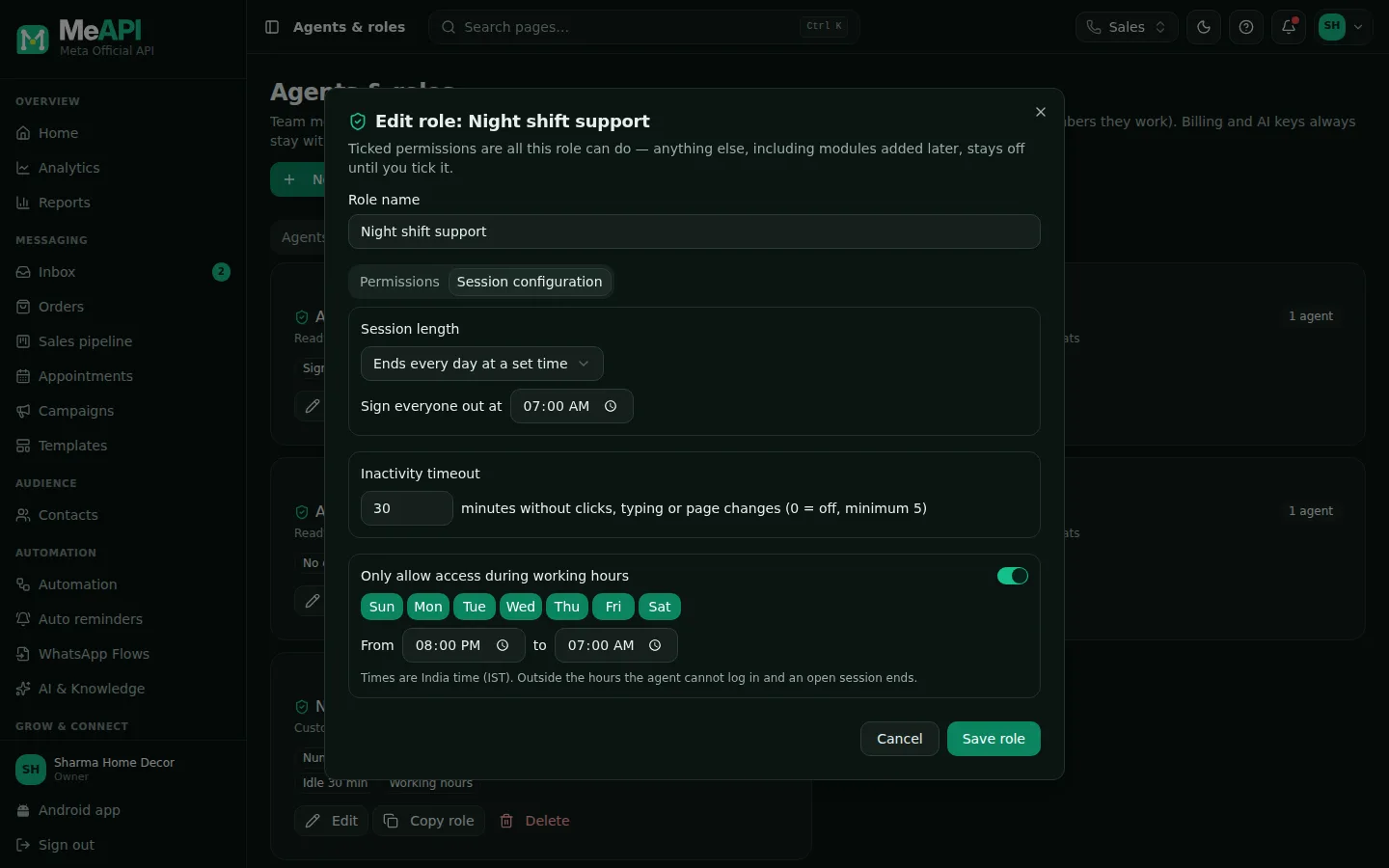
- The Session configuration tab.
- Session length: fixed number of days, or ends every day at a set time.
- Inactivity timeout in minutes (0 = off, minimum 5).
- Only allow access during working hours: days and from/to times, in IST.
Steps: give an agent a role and numbers
Section titled “Steps: give an agent a role and numbers”- On the Agents tab, click Add agent, or the pencil next to an existing agent.
- Pick the Role.
- Under WhatsApp numbers, choose All numbers (including numbers you add later) or Selected numbers only and tick them.
- Save. Changes apply on the agent’s next click. Their open panel reloads its menu by itself, with no need to log out.
The Agents list shows each agent’s role and numbers. The Activity tab lists every role, permission and number change with who made it and when.
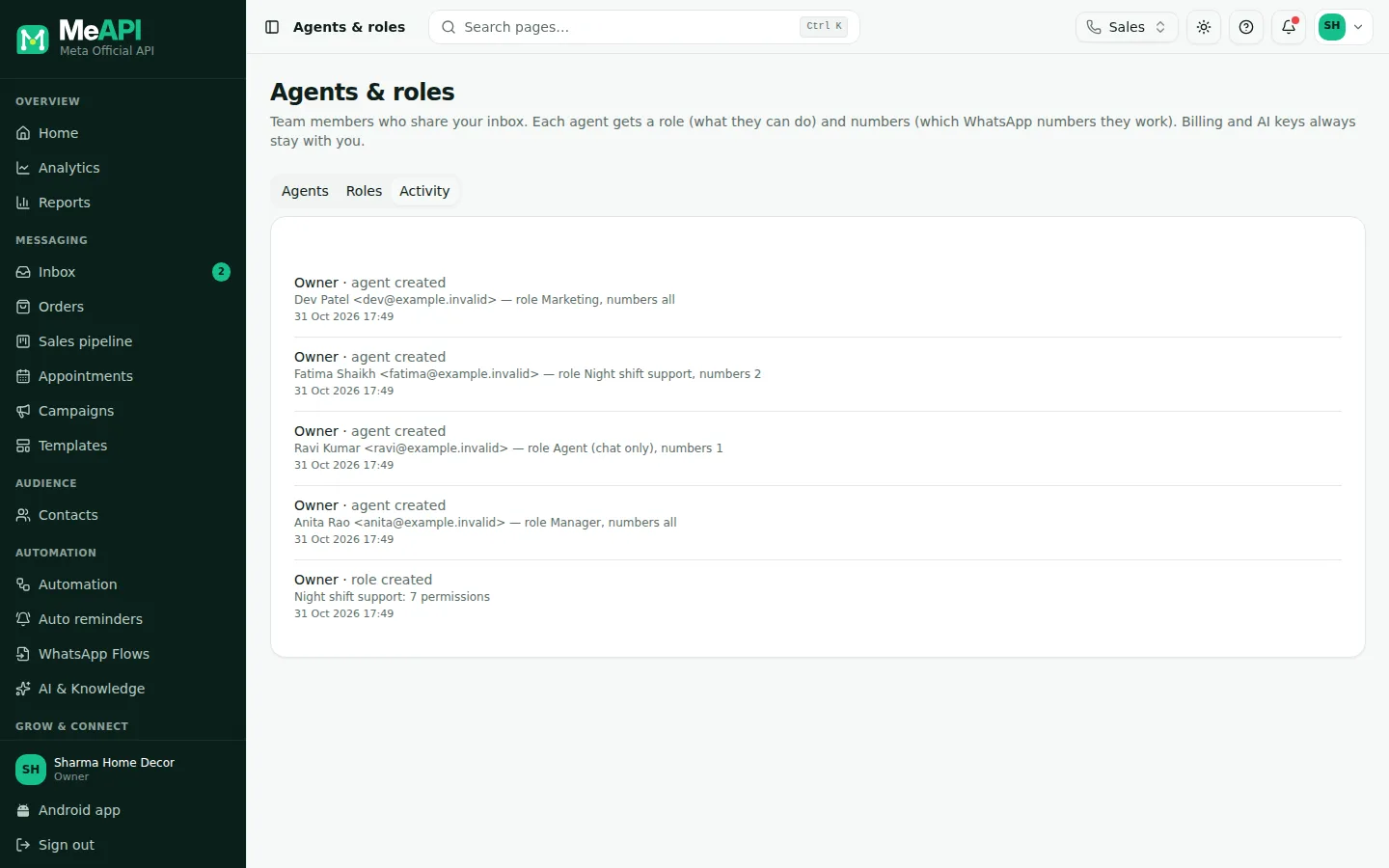
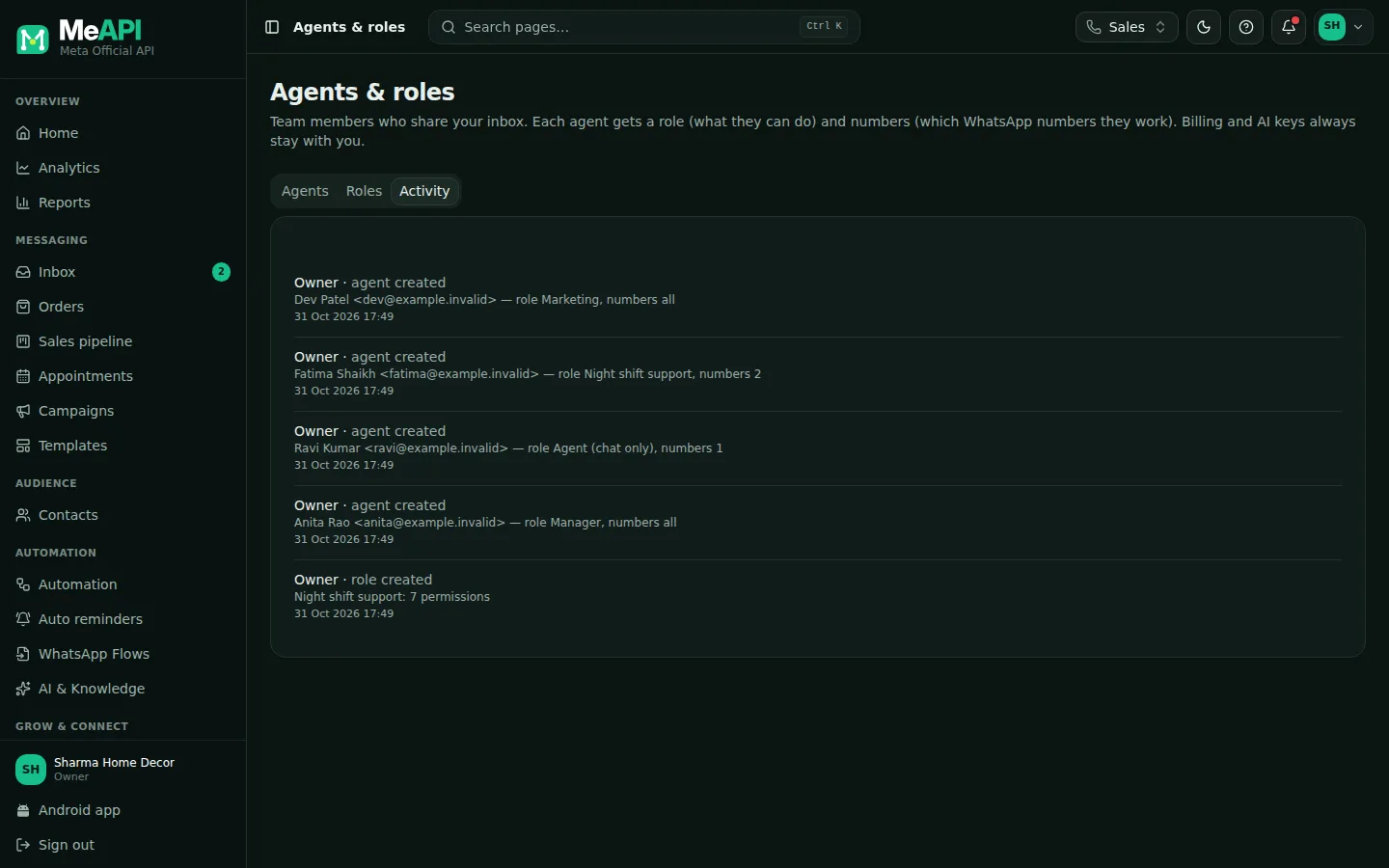
- The Activity tab: one line per change to a role, its permissions or an agent’s numbers.
- Each line shows who made the change and when.
Deleting a role
Section titled “Deleting a role”Click Delete on a custom role and confirm with Delete role. If agents still use it, MeAPI first asks which role to move them to (Move agents to…), so no one is left without a role. Ready-made roles cannot be deleted.
- Start from a ready-made role and copy it. It is quicker than ticking from scratch.
- New modules start switched off for custom roles. When MeAPI adds a feature, your custom roles do not get it until you tick it, so nothing opens up by surprise.
- Agent with no number: they see a No WhatsApp numbers assigned screen asking them to contact their admin, with Check again and Log out. Give them a number and Check again lets them in. MeAPI also warns you when you save an agent with no number.
- Assigning chats follows numbers. Only agents who can work a chat’s number can be assigned to it, by hand, by Auto-assign or by a flow.
- Delete messages removes a message from the panel for your whole team. WhatsApp cannot unsend it, so the customer still has their copy.
Common mistakes
Section titled “Common mistakes”- Giving “Agents & roles → Manage” widely. It lets someone invite and edit agents. They still cannot give anyone more than they have themselves, or change their own access, but keep it to team leads.
- Masking numbers and expecting CSV exports. Masking blocks exports on purpose, because a CSV would reveal the full numbers.
- A daily cut-off of 23:00 for a night shift. The session ends at that time even mid-chat. Use working hours that match the shift instead.
What’s next
Section titled “What’s next”Was this page helpful?
Thank you — we read every comment.
Could not send right now. Please try again later.
© 2026 MeAPI by TheWebStore028 · RADHAMADHAV WEBSTORE LLP · GSTIN 27ABJFR6148J1ZO · Contact us ·Cookie settings