

Tutorial: send your first campaign
LearnTutorialsBeginnerTutorial
🎯 Goal
Send a personalised festive offer to your customers in Jaipur, and see who read it and replied.
🧰 What you need
- A connected number (Connect a number)
- A spreadsheet of customers who agreed to WhatsApp messages
- A payment method on your WABA in WhatsApp Manager
What you’ll build: a Marketing template with an image and a button, a segment Jaipur customers, a test send to yourself, the real campaign, and a follow-up to people who didn’t reply.
Step 1: create the template
Section titled “Step 1: create the template”- Templates → New template. Name
festive_offer_2026, language English, category Marketing, type Standard. - Header: Image. Upload a clear photo of your festive box.
- Body:
Examples:Hi {{1}}, our Diwali boxes are here! 🪔 Order before {{2}} and get free delivery in Jaipur.
Ravi,28 Oct. - Footer:
Reply STOP to unsubscribe. - Buttons: Visit website Order now →
https://yourshop.in/diwali, and Quick reply Stop promotions. - Submit to Meta. Wait for Approved (click Sync from Meta to refresh).
Step 2: import your customers
Section titled “Step 2: import your customers”- Prepare
customers.csvwith the columnsphone,name,city. - Contacts → Import CSV. Map
phone→ Phone number,name→ Name,city→ Custom field. - Numbers without a country code are in: India (+91). Tag every imported contact:
import-diwali. How did these contacts opt in?: how they agreed (for example Checkout / order). - Import and check the summary.
Step 3: build the audience
Section titled “Step 3: build the audience”- Campaigns → New campaign. Name it Diwali offer — Jaipur, choose Send now and tick Show these messages in the Inbox.
- Audience → Filtered:
cityisJaipur. Note the count. - Save segment as Jaipur customers.
Step 4: map the message and test on yourself
Section titled “Step 4: map the message and test on yourself”- Message: pick
festive_offer_2026.{{1}}→ Per recipient → Name;{{2}}→ Same for everyone →28 Oct. - Upload the header image.
- Before the real send, go back to Audience, choose Upload or paste, and paste your own number and a colleague’s.
- Review → Send now. Check it on your phone: name, image, button, footer.
SSharma Sweets✓
Hi Ravi, our Diwali boxes are here! 🪔 Order before 28 Oct and get free delivery in Jaipur.Reply STOP to unsubscribe · 10:00
↗ Order now↩ Stop promotions
Message
What your test recipient sees.
Step 5: send to everyone
Section titled “Step 5: send to everyone”- Duplicate the test campaign (row menu). Rename it, and set the audience back to Filtered → Start from a saved segment → Jaipur customers.
- On Review, check for a warning about your daily messaging limit. If you’re over it, Schedule half for tomorrow.
- Send now.
Step 6: read the report and follow up
Section titled “Step 6: read the report and follow up”- Campaigns → Report: watch delivered, read and replied grow.
- Look at Failed — grouped by reason and clean bad numbers from your list.
- Two days later: New campaign → Retarget → Those who never replied, with a gentle Utility-style reminder or a different offer.
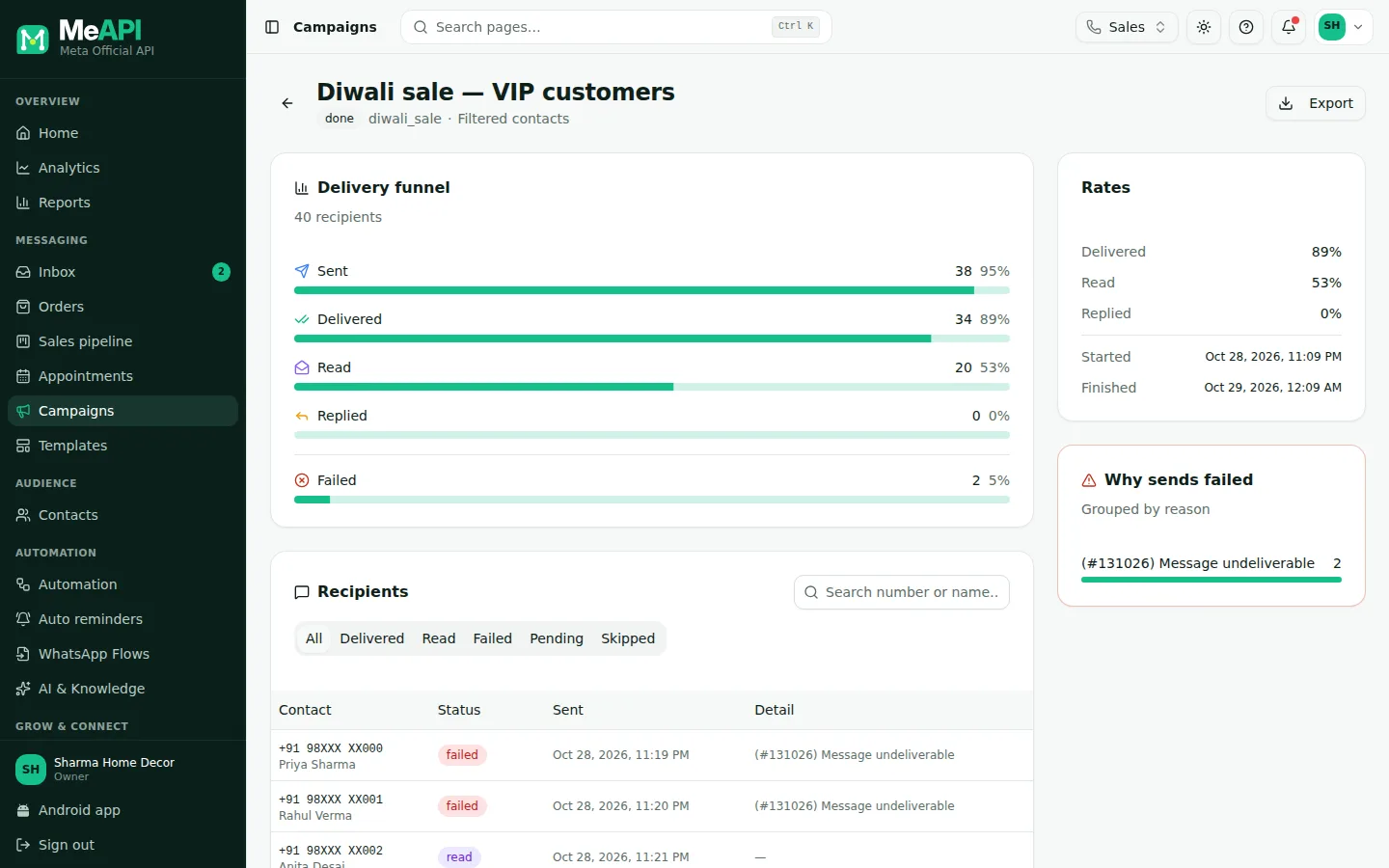
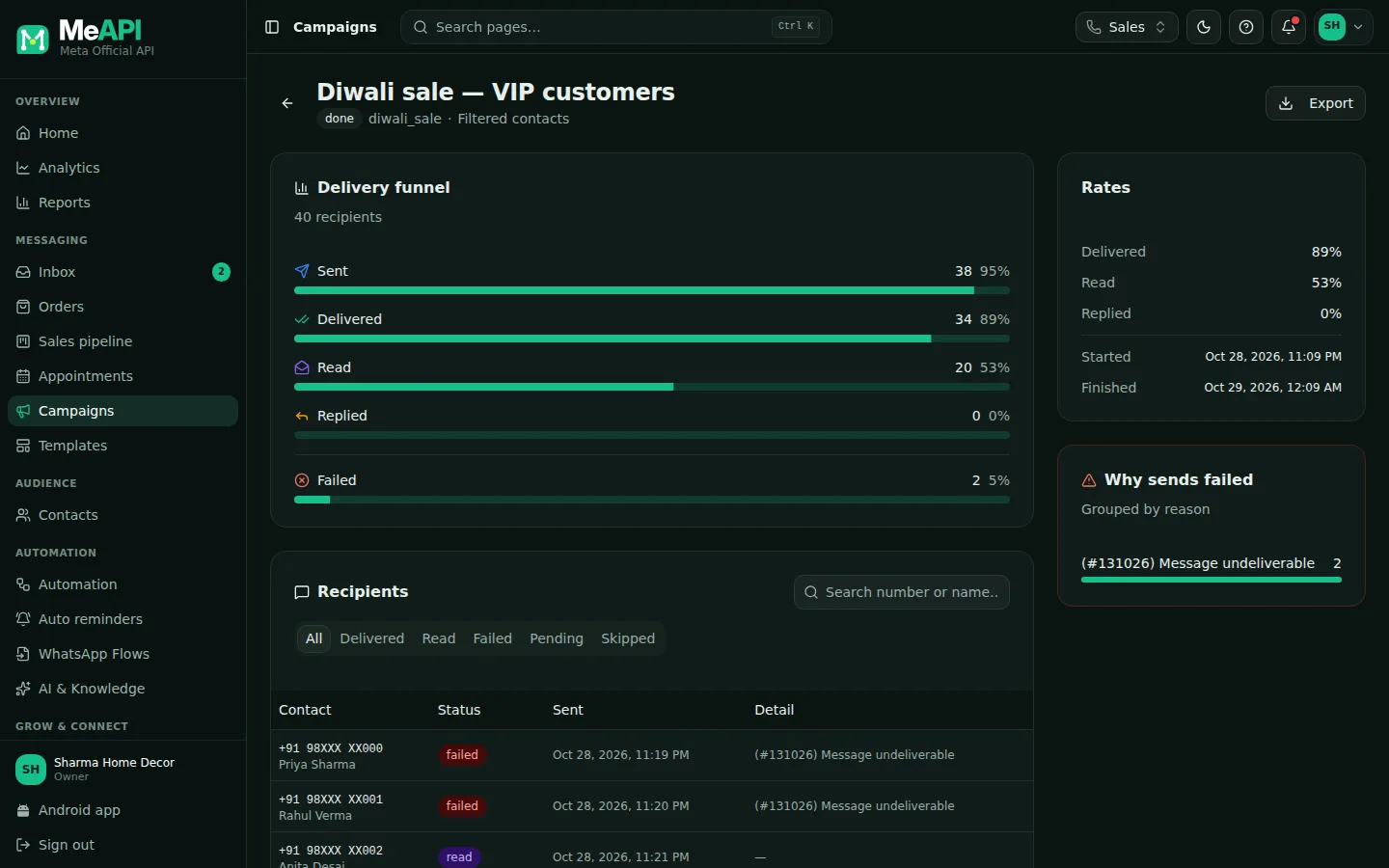
- The campaign report: sent, delivered, read and replied, and how they grew over time.
- The Failed card lists failed messages grouped by reason, so you can clean your list.
Common mistakes
Section titled “Common mistakes”- Sending to the whole list without a test. A wrong variable mapping reaches everyone.
- No payment method in Meta, so every message fails with a billing error.
- Promotional wording in a Utility template, which gets rejected or re-categorised.
What’s next
Section titled “What’s next”Was this page helpful?
Thank you — we read every comment.
Could not send right now. Please try again later.
© 2026 MeAPI by TheWebStore028 · RADHAMADHAV WEBSTORE LLP · GSTIN 27ABJFR6148J1ZO · Contact us ·Cookie settings