

Start from a chatbot template — welcome menu, lead capture, bookings, FAQ and more
🎯 Goal
Get a working chatbot in a few minutes: pick a template, fill in your business details, check it, publish.
🧰 What you need
- A connected number
- A role that can create flows (owner, or Automation → create)
Find a template
Section titled “Find a template”Open Automation → Templates (or New chatbot → Start from a template).
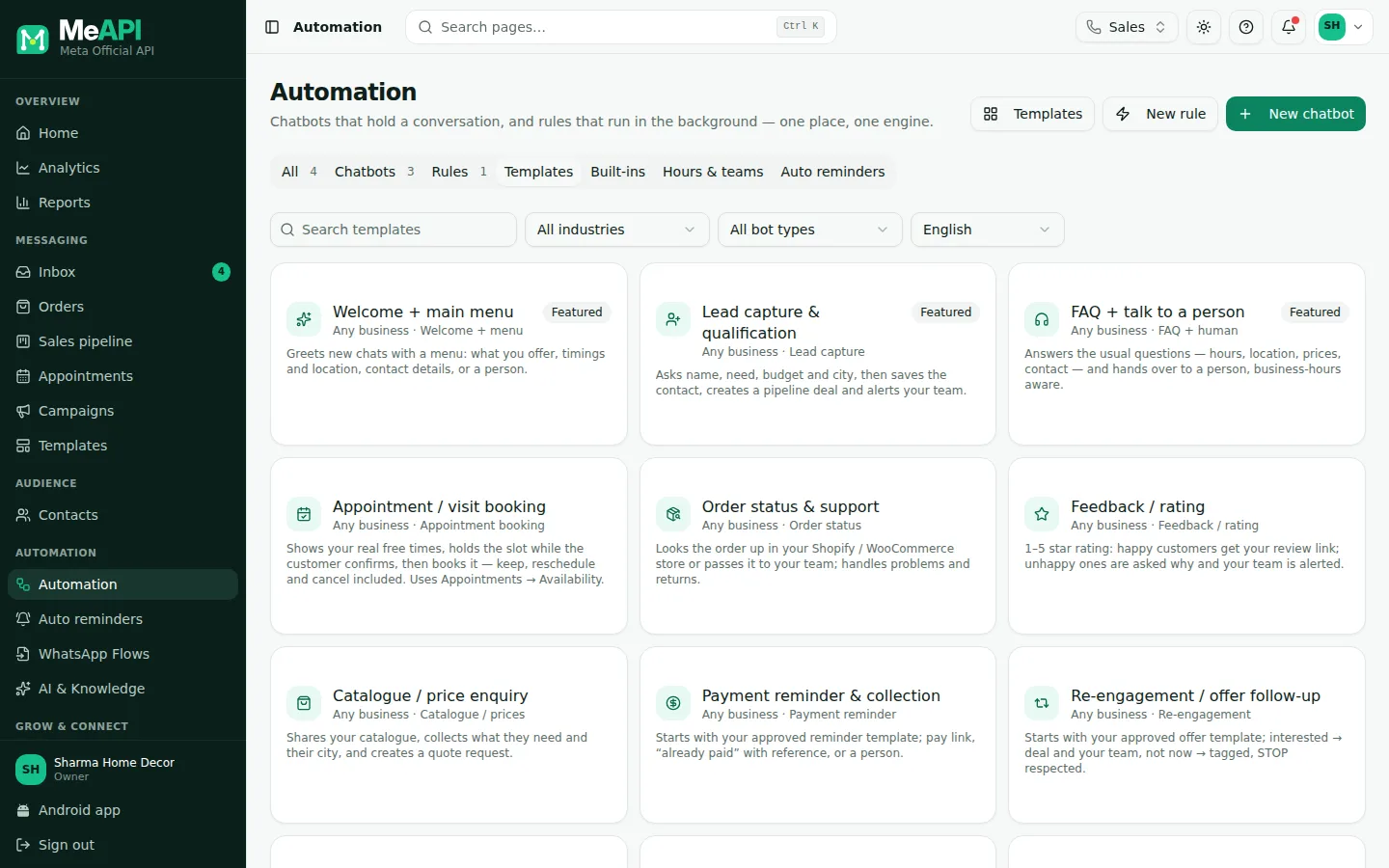
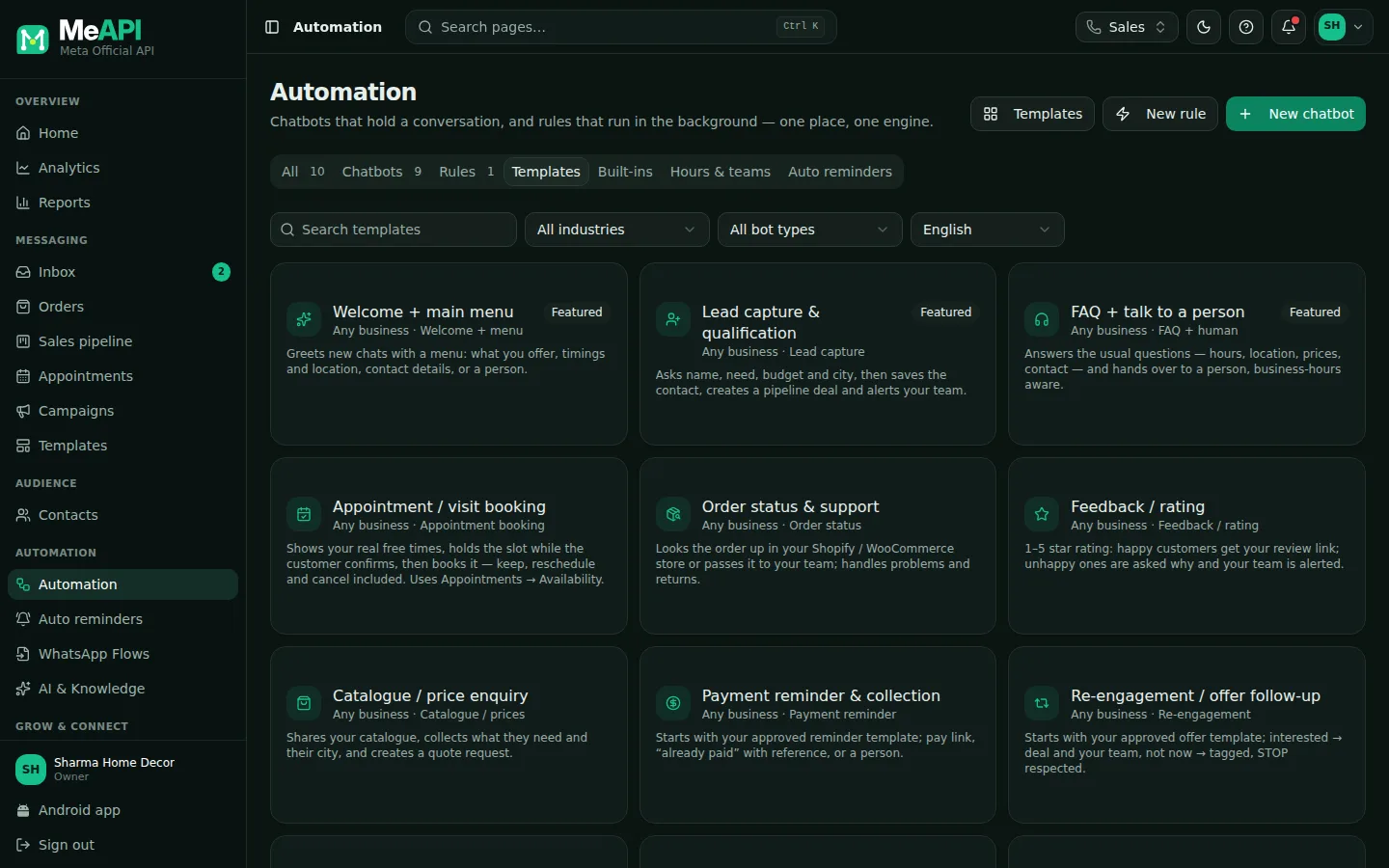
- Search, then filter by industry and bot type. Featured templates come first.
- The language picker: English, हिन्दी, ગુજરાતી. Hindi and Gujarati are marked beta — read the texts once before publishing.
- Click a card to preview it.
Preview it
Section titled “Preview it”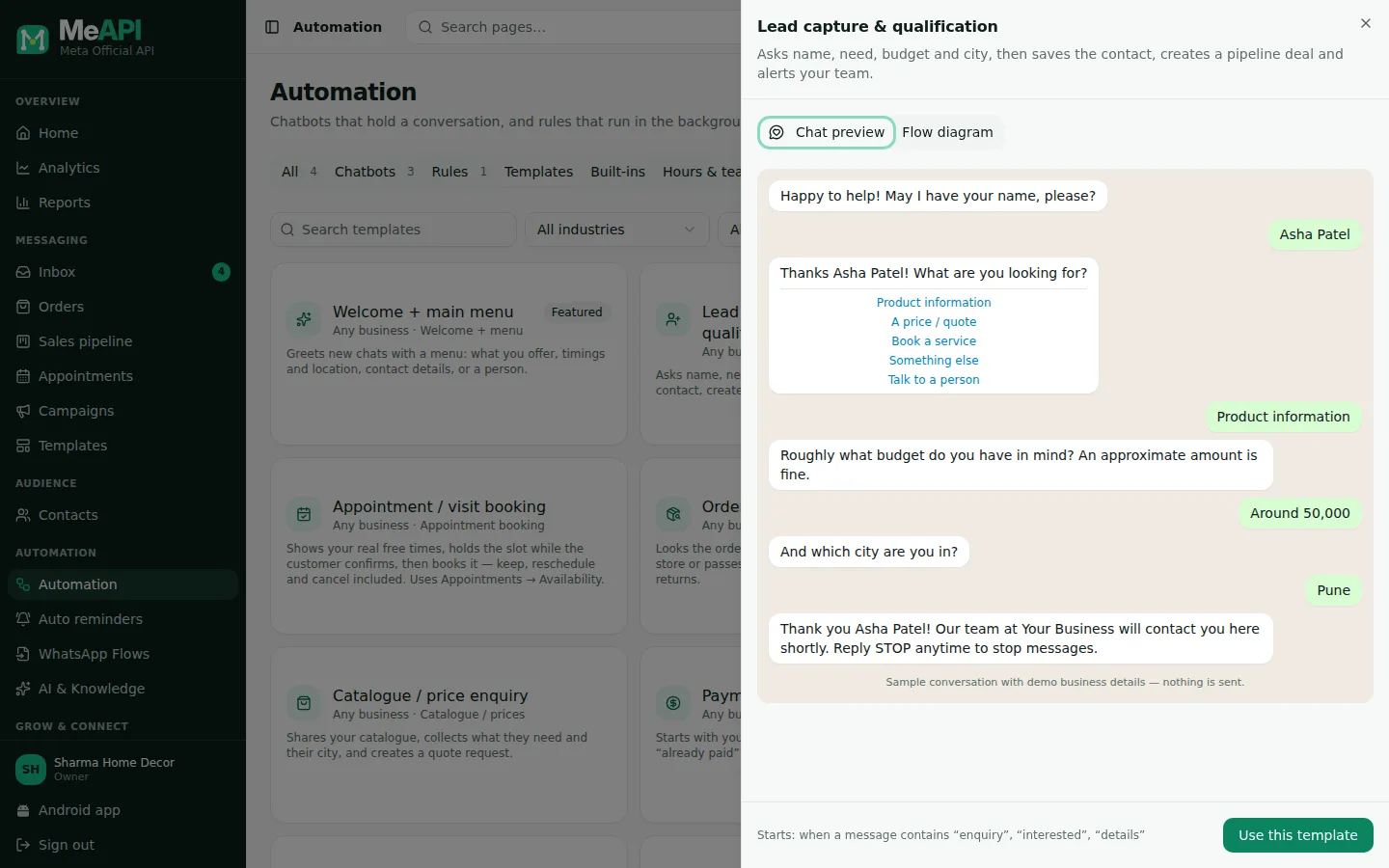
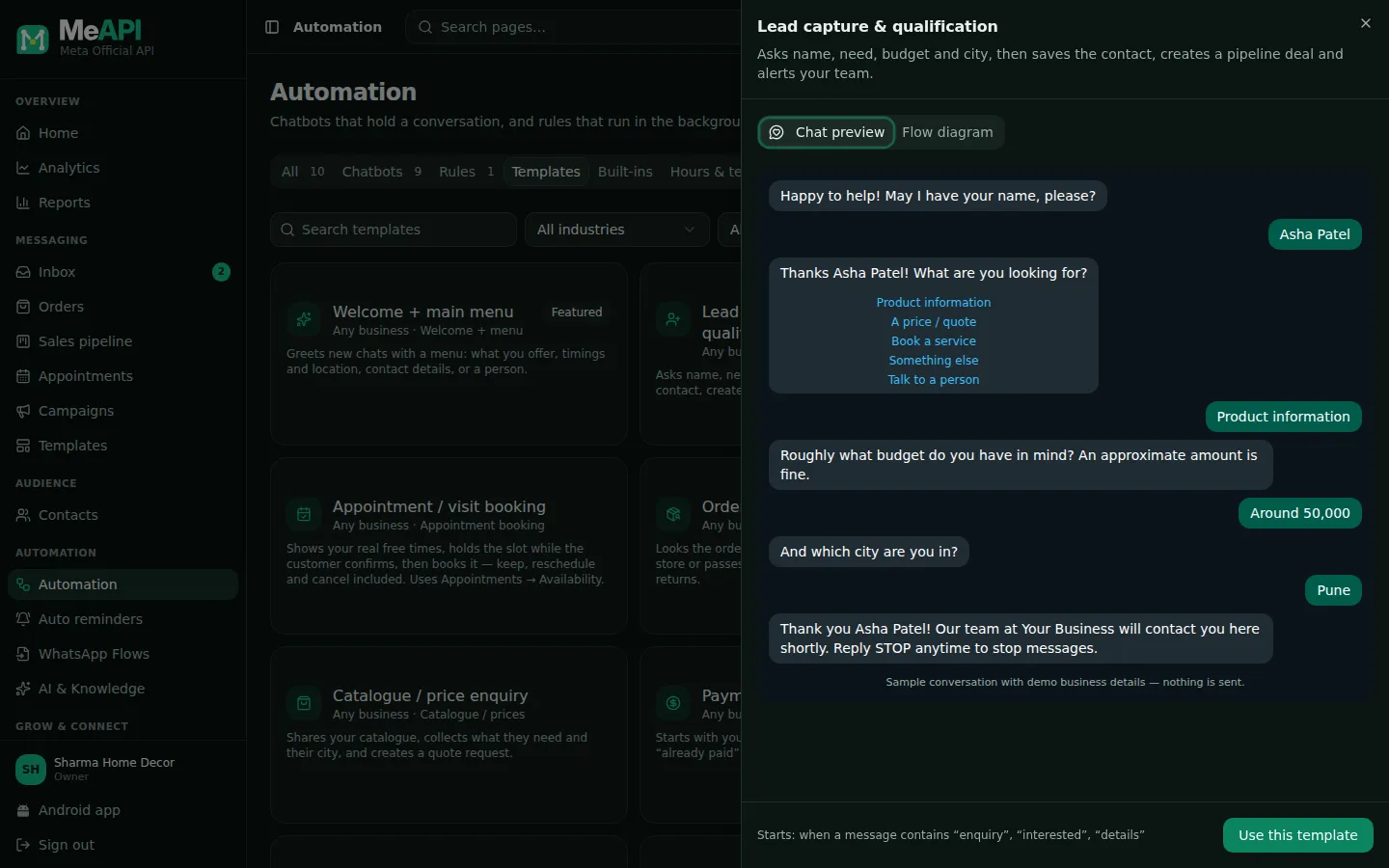
- Chat preview: a sample conversation run by the real chatbot engine, with demo business details. Nothing is sent.
- Flow diagram: every step and branch, as it will look in the builder.
- At the bottom: when the bot starts (its keywords, or a tag) and Use this template.
Set it up
Section titled “Set it up”- Click Use this template. The setup form asks only for what that bot uses — for example Business name, Opening hours, Address, a Google Maps link, Phone number, Website, your Catalogue / product link, a Payment link or a Review link.
- Hand over to: the agent who gets chats the bot passes on, or Next available agent.
- Trigger keywords: the words that start the bot. The template suggests some; change them to what your customers type.
- Click Create draft. The flow opens in the builder as a Draft — nothing goes live yet.
- Read every step once. A step that still needs something has an amber border and says what is missing.
- Click Test, type a keyword as the customer, and follow the conversation.
- Click Publish when you are happy.
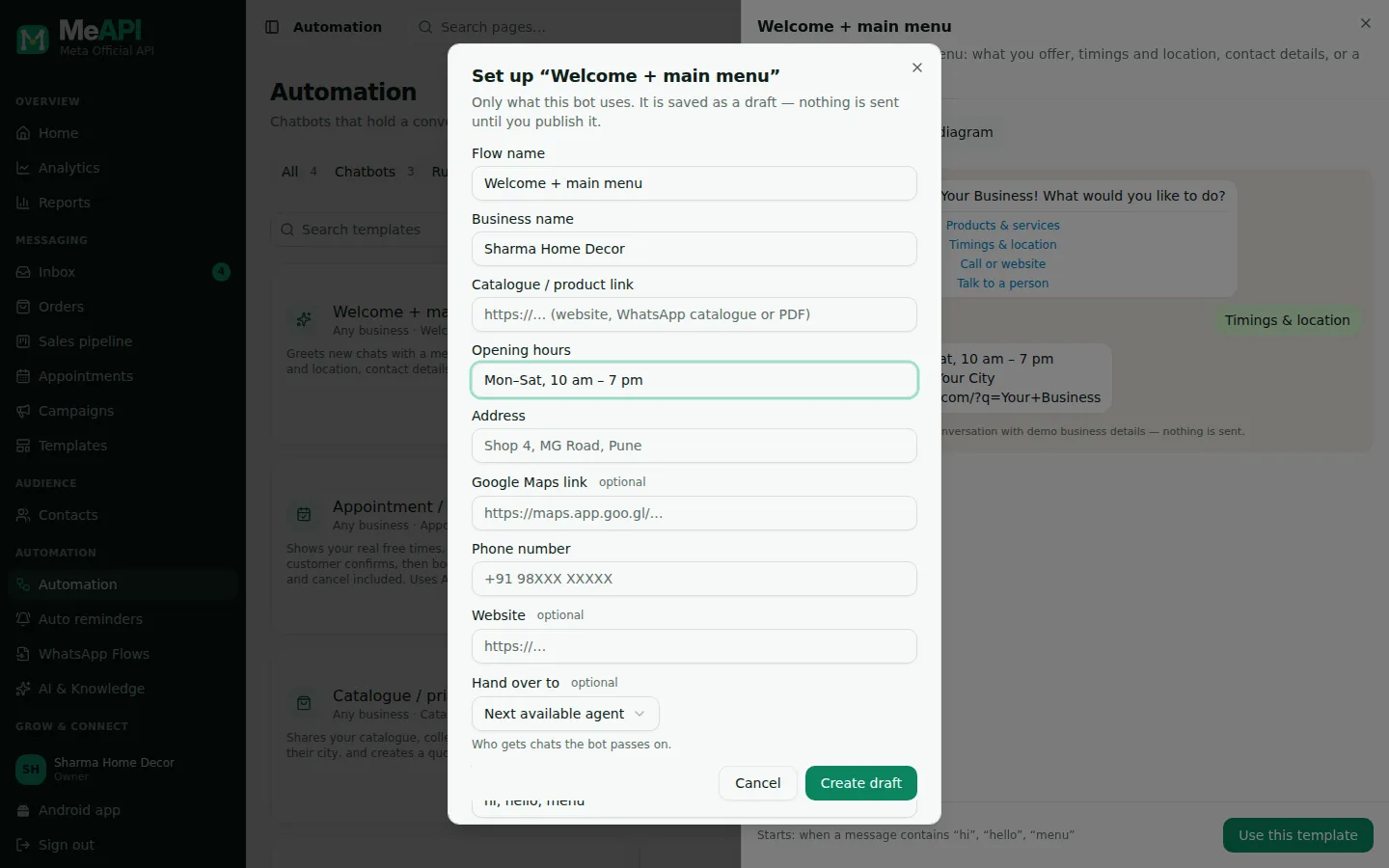
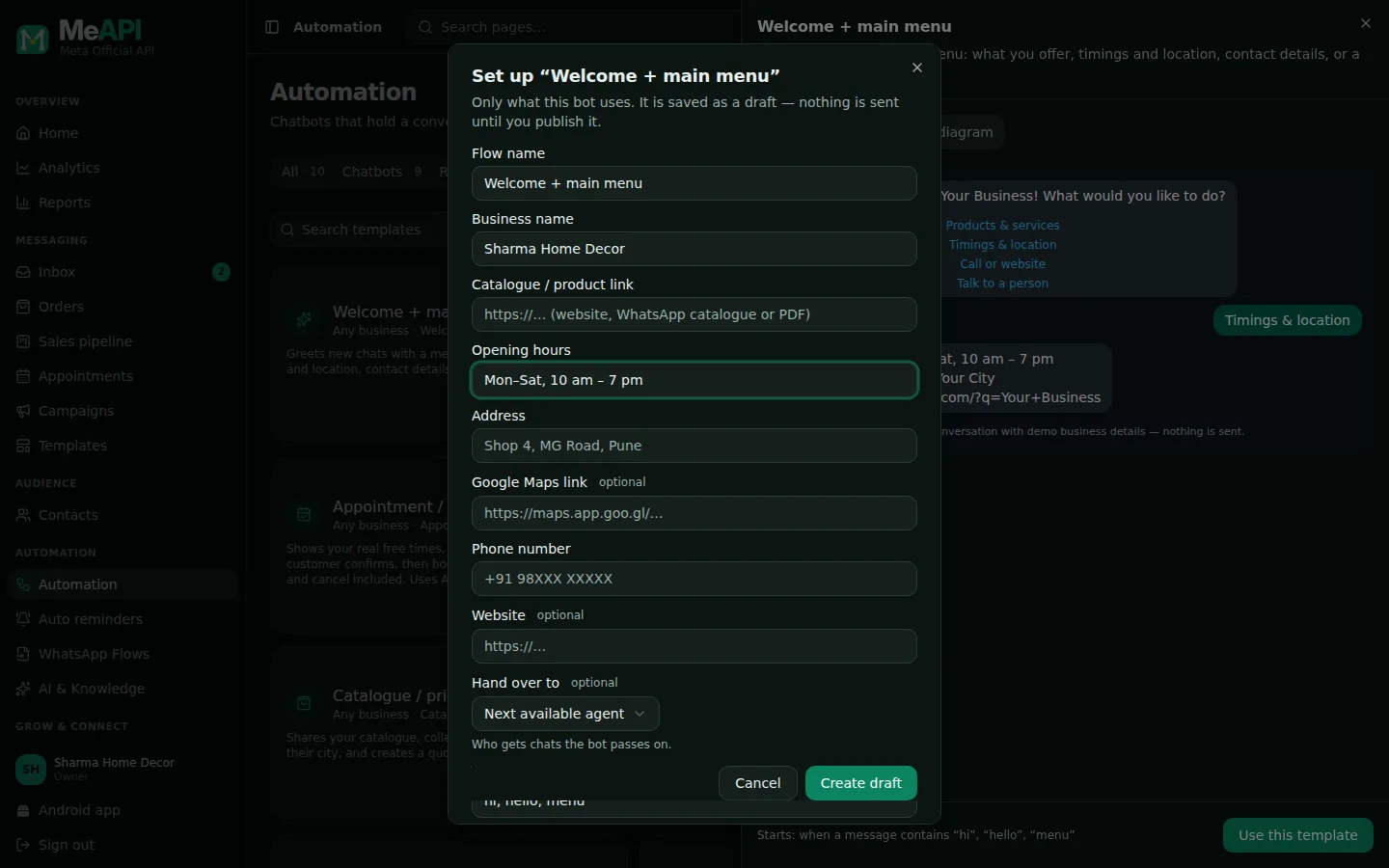
- Only the fields this bot uses. Optional ones say optional — leave them empty and the line that uses them is left out of the messages.
- Create draft saves it as a draft of your own; the template itself never changes.
The bot types
Section titled “The bot types”| Template | What it does | It starts when |
|---|---|---|
| Welcome + main menu | A menu: what you offer, timings and location, call or website, talk to a person | a message contains hi, hello, menu… |
| Lead capture & qualification | Asks name, what they need, budget and city; saves the contact, creates a deal in your Sales pipeline and alerts your team | enquiry, interested, details… |
| Appointment / visit booking | Service, then only the free times from Appointments → Availability; holds the one picked, books it, asks the name. Keep, reschedule or cancel for customers who already have one | appointment, booking, visit… |
| Order status & support | Looks the order up in your Shopify / WooCommerce store, or passes it to your team; problems and returns | order, track, delivery… |
| FAQ + talk to a person | Hours, location, prices, contact; a person during business hours, an after-hours message otherwise | help, faq, question… |
| Feedback / rating | 1–5 stars: happy customers get your review link, unhappy ones are asked why and your team is alerted | feedback, review… |
| Catalogue / price enquiry | Shares your catalogue link and collects a quote request | price, catalogue… |
| Payment reminder & collection | Opens with your approved template, then pay link, Already paid (asks for the UTR) or a person | you add the tag payment_due to a contact |
| Re-engagement / offer follow-up | Opens with your approved template; interested → a deal and your team, not now → tagged | you add the tag re_engage to a contact |
Every template has a Talk to a person path and tells customers they can reply STOP.
Industry templates
Section titled “Industry templates”Besides the nine Any business bots, the gallery has ready-made versions for 41 industries, each with the two to four bots that help it most — with the industry’s own menu options, questions and answers. Pick your industry in the Industry filter:
Restaurant / cloud kitchen · Real estate (homes, commercial) · Car dealer / used cars · Auto workshop · Clinic / doctor · Dental clinic · Diagnostics lab · Pharmacy · Salon & spa · Gym · Coaching / tuition · School admissions · Travel agency · Hotel / resort · Event planner · Jewellery · Diamonds (natural / lab-grown) · Clothing / boutique · Kids wear · Furniture · Interior designer · Electronics / mobile store · Computer hardware · Solar installer · Electrical contractor · FMCG distributor · Manufacturer (B2B) · Exporter · D2C / online store · Grocery · Bakery · Insurance agent · Loans · CA / tax / mutual funds · Legal services · Digital marketing agency · Software / IT services · NGO · Plumber / AC repair / home services · Pet shop.
Some industry bots work a little differently from the generic ones:
- Home visits (plumber / AC repair, electrical, solar survey, interior site visit, lab sample collection) ask for the customer’s address instead of showing yours.
- Status bots without an online store (workshop job card, lab report, repair, shipment) take the reference number and pass it to your team, instead of looking it up in Shopify / WooCommerce.
- Lead bots ask the question that matters in that industry — the class for a school admission, travel dates for a trip, the electricity bill for solar — instead of a budget.
- Clinic, dental and lab FAQs tell customers to call 112 in a medical emergency, and that the chat doesn’t give medical advice.
- Appointment and visit bots book real times from your availability (the setup form tells you when it isn’t set). In Hindi and Gujarati the buttons, messages and day names are in that language. Appointments
- A template got better? A chatbot made from an older version shows New version available in the builder, with Create updated copy. Your chatbot stays as it is. How it works
- Keep the placeholders honest. Templates never contain prices or promises — your catalogue and payment links carry those.
- Start the bots from your own channels: a hi from your Click-to-WhatsApp ads, a QR code in the shop, or the tag from a campaign follow-up.
- More starters: below the templates, Classic starter flows has AI answers, birthday wishes, ad welcomes and a language picker.
Common mistakes
Section titled “Common mistakes”- Two bots with the same keyword. Only one chatbot handles a message; give each bot its own words.
- Publishing without testing. One Test run shows a missing link or a wrong timing before your customers see it.
- Hindi / Gujarati not checked. They are beta: read the messages once and correct anything that does not sound like you.
What’s next
Section titled “What’s next”Was this page helpful?
Thank you — we read every comment.
Could not send right now. Please try again later.
© 2026 MeAPI by TheWebStore028 · RADHAMADHAV WEBSTORE LLP · GSTIN 27ABJFR6148J1ZO · Contact us ·Cookie settings