

Sign in faster: passkeys, trusted devices and staying signed in
🎯 Goal
Sign in in seconds without making your account easier to break into.
🧰 What you need
- Any API Panel login: the account owner or an agent
Everything on this page is in Security: left menu → Account → Security, or your initials at the top right → Security & passkeys. Agents have their own Security page for their own login.
No two-factor sign-in and no passkey yet? A yellow bar at the top of the panel says Protect your account: add a passkey or turn on two-factor sign-in, with a link to Security. Close it with × and it stays away for 30 days, on all your devices.
1. Remember me and saving your password
Section titled “1. Remember me and saving your password”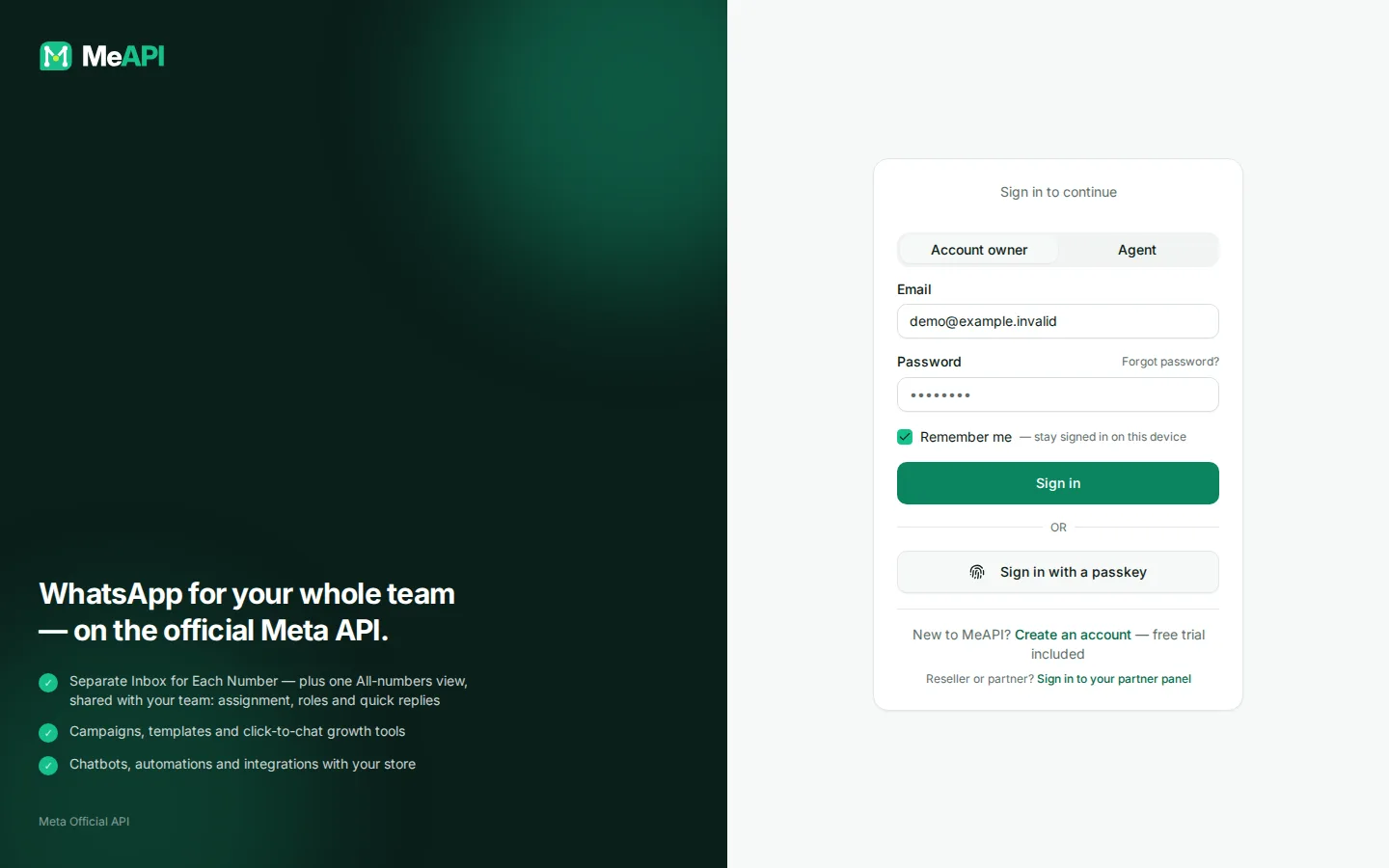
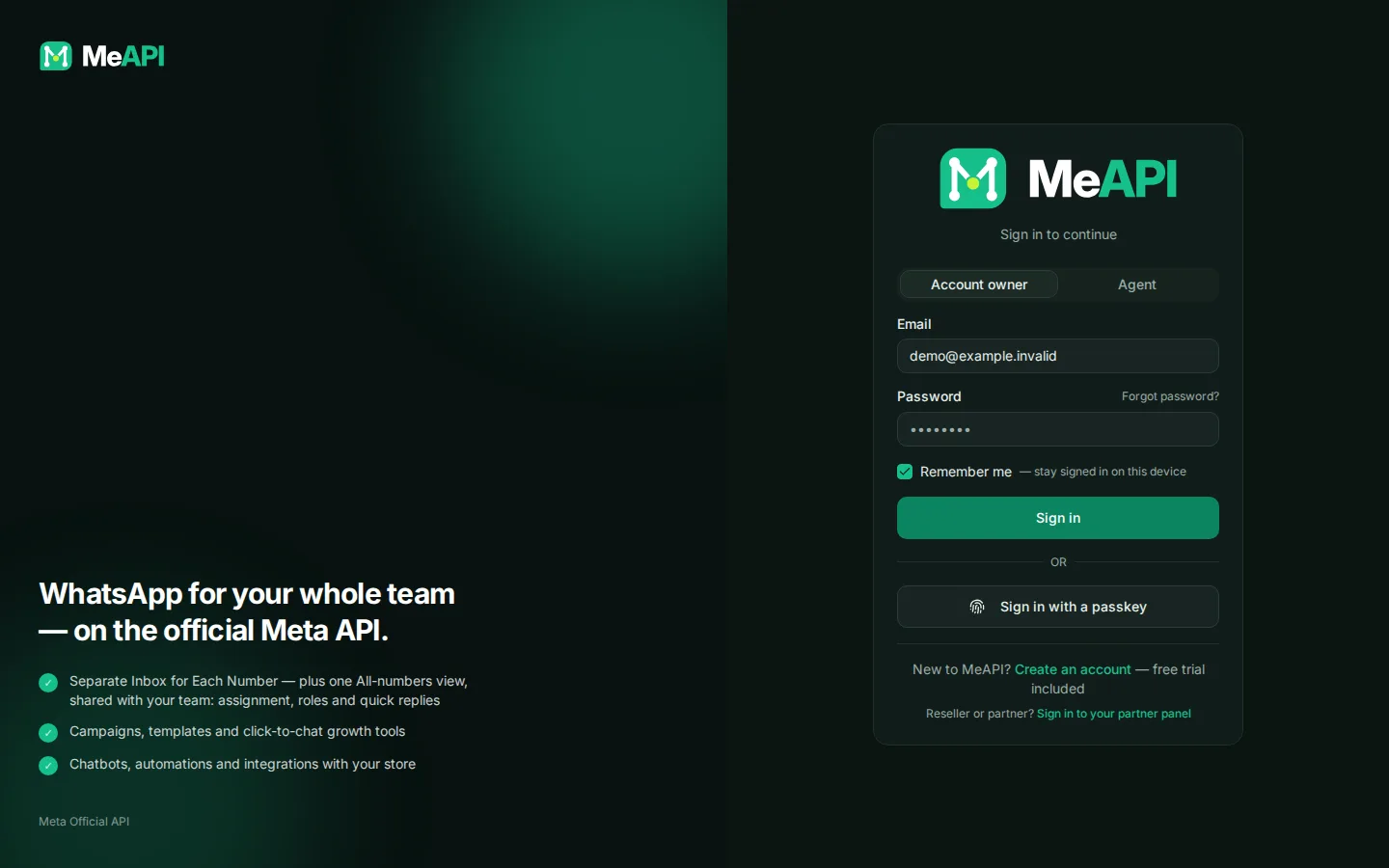
- Your browser or phone’s password manager can save and fill your email and password. MeAPI never stores your password in the browser.
- Remember me: stay signed in on this device for 30 days. Not ticked: you are signed out when you close the browser.
- Sign in with a passkey: see step 3.
- The sign-in page fills in the last email used on this device. Not you? Press Not you? Use another email.
- Pasting into the email, password and code boxes always works.
- Don’t tick Remember me on a shared or public computer.
- Inside the Android app and the iPhone / iPad Home Screen app you always stay signed in, so there is no Remember me box there.
2. Two-factor sign-in, once per device
Section titled “2. Two-factor sign-in, once per device”Two-factor sign-in adds a 6-digit code from an authenticator app (Google Authenticator, Microsoft Authenticator, Authy, 1Password…) after your password.
-
Open Security → Two-factor sign-in → Turn on, and enter your password.
-
Scan the QR code with your authenticator app (or type the key under it), then enter the code it shows and press Turn on.
-
Save the 10 backup codes — they are shown once. Each one works once if you lose your phone. New backup codes makes a fresh set (the old ones stop working).
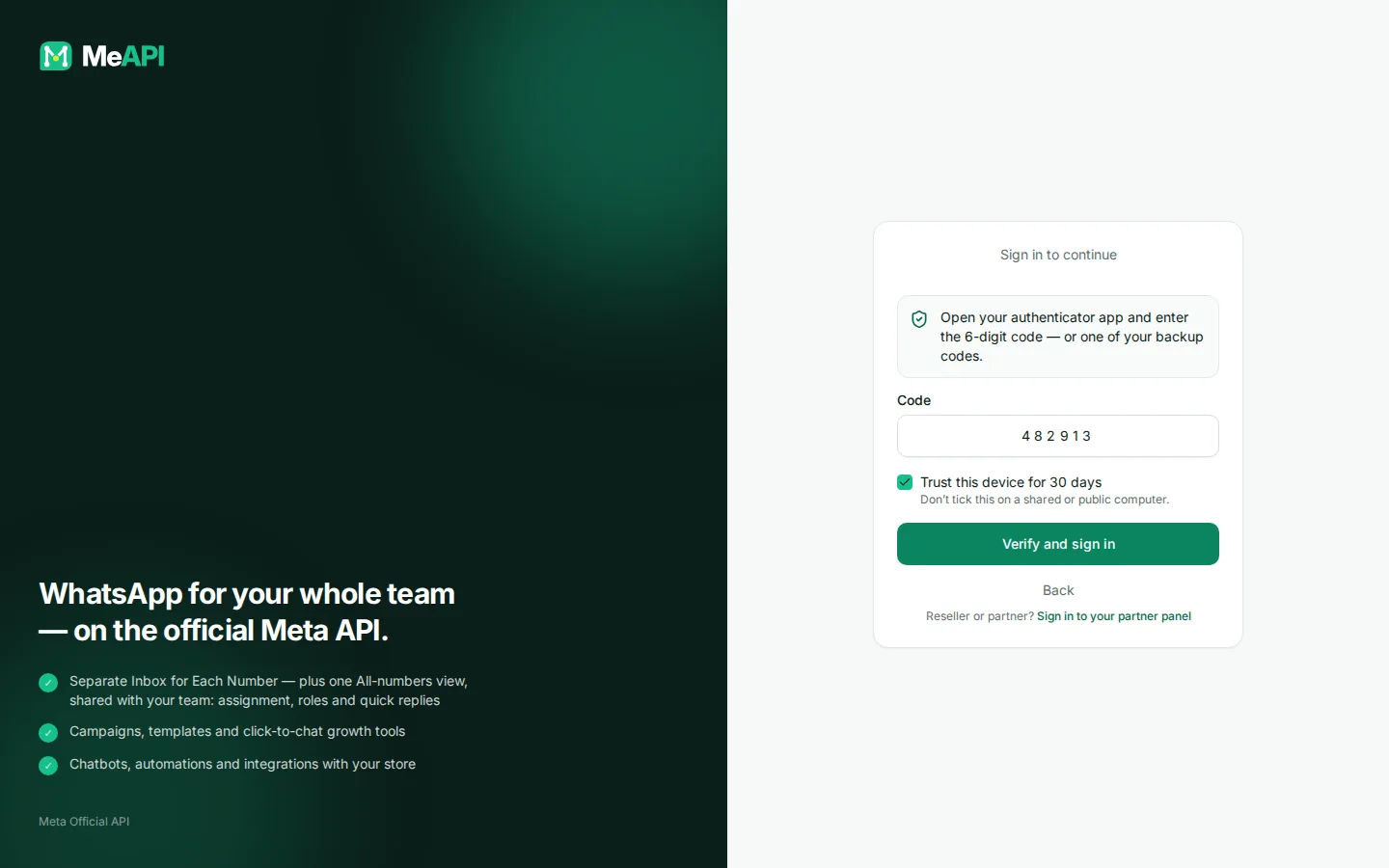
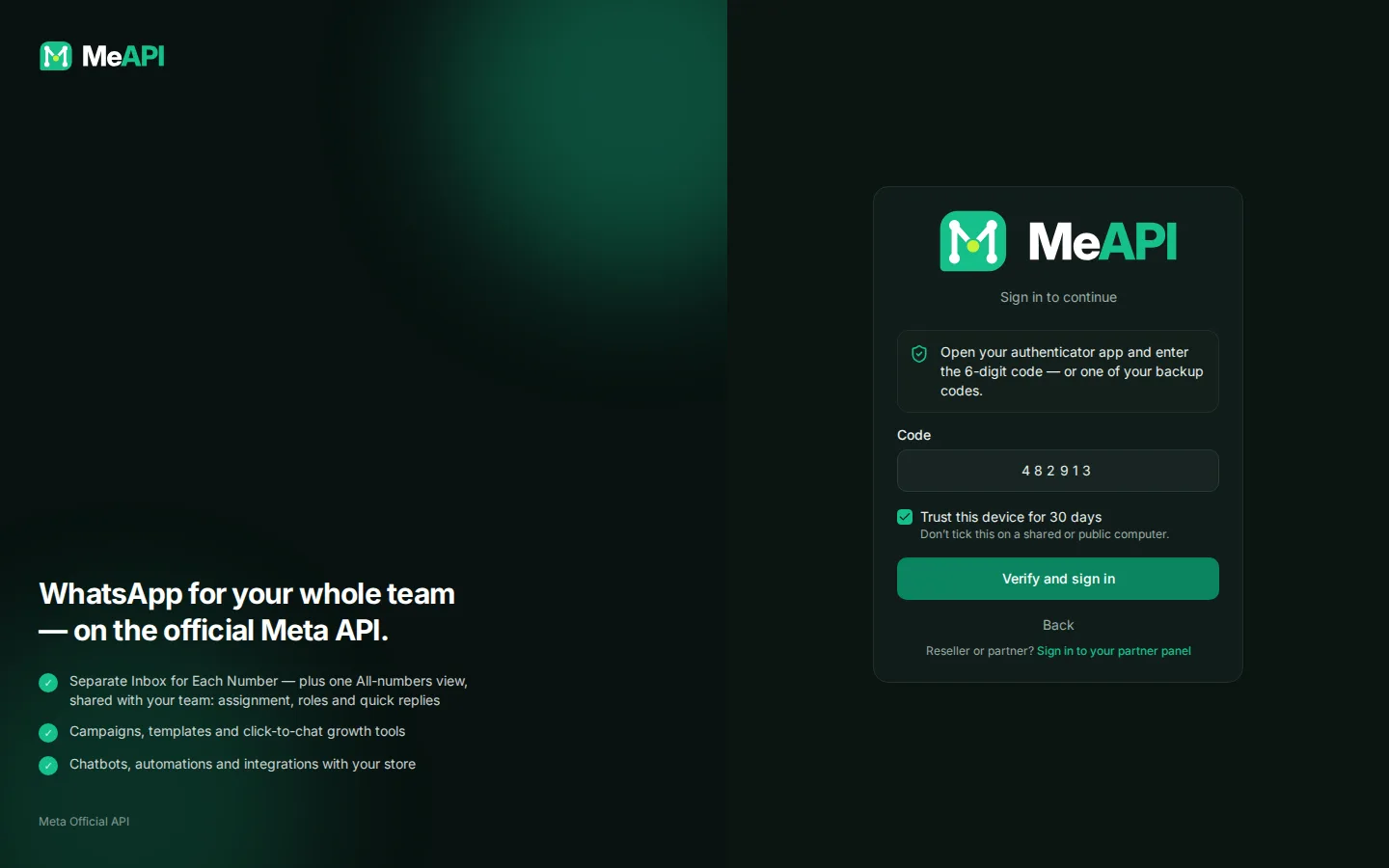
- After your password, the code from your app — or one of your backup codes.
- Trust this device for 30 days: off until you tick it. Ticked, this browser does not ask for the code again for 30 days. Don’t tick it on a shared computer.
You don’t type the code every time:
- 12 hours on the same device. After a correct code, that browser on that device signs in with just the password for the next 12 hours.
- Trust this device. Tick it on the code step and that browser skips the code for 30 days.
- A new device, or a different browser on the same computer, always asks for the code.
3. Passkeys: no password, no code
Section titled “3. Passkeys: no password, no code”A passkey signs you in with your face, fingerprint, your computer’s screen lock (Windows Hello, Touch ID) or your phone. It counts as your password and your two-factor code together, so nothing else is asked.
-
Open Security → Passkeys, type a name you will recognise (for example Work laptop) and press Add a passkey.
-
Confirm it’s you (see step 5), then follow your browser: look at the camera, touch the sensor, or scan the QR code with your phone.
-
Next time, press Sign in with a passkey on the sign-in page.
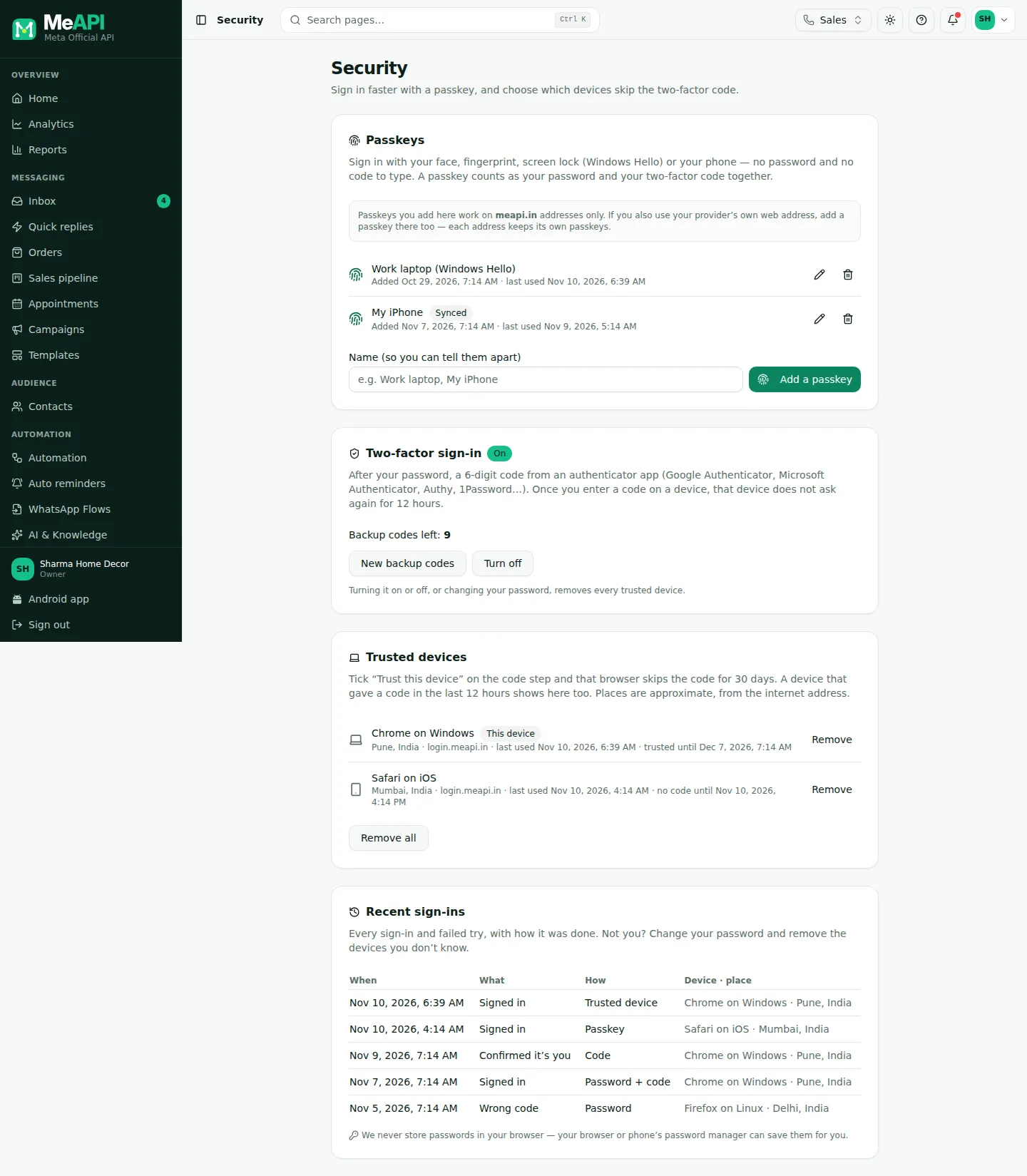
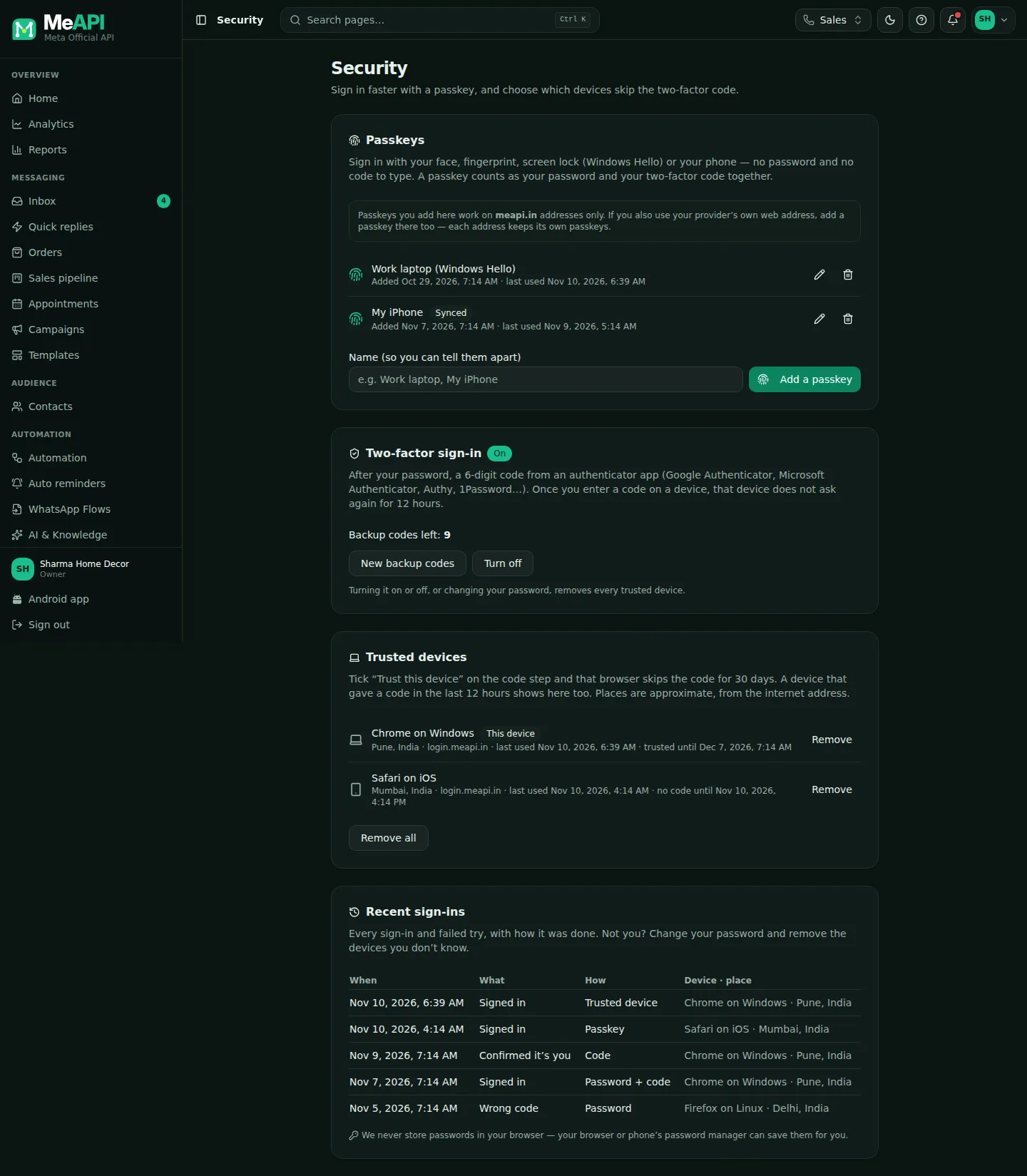
- Passkeys: rename one with the pencil, remove it with the bin. Synced means it is in your iCloud Keychain or Google Password Manager and works on your other devices too.
- Two-factor sign-in: on or off, backup codes left.
- Trusted devices: each browser that skips the code, with its place (approximate) and until when. Remove one, or Remove all.
- Recent sign-ins: every sign-in and failed try, and how: password, code, backup code, passkey or trusted device.
In the Android app
Section titled “In the Android app”From version 1.0.4 of the MeAPI app, passkeys work inside the app too: Sign in with a passkey on the sign-in page, and Add a passkey in Security. Your phone asks for your fingerprint, face or screen lock, and can save the passkey in your Google Password Manager so it also works in Chrome.
- Update the app first (the app offers the update, or download it again from meapi.in/app).
- Passkeys in the app also need an up-to-date Android System WebView (update it from the Play Store). On a phone where it is too old, the app hides the passkey buttons and Security says so; sign in with your password and code as before.
- A passkey you added in Chrome on the same phone, for MeAPI’s address, works in the app as well.
The password and backup codes always stay as a way in.
4. Trusted devices
Section titled “4. Trusted devices”- Remove a device you don’t use any more. That browser asks for the code at its next sign-in.
- Remove all removes every trusted device, this one too.
- Changing your password, or turning two-factor sign-in on or off, removes every trusted device — and signs you out everywhere else.
- When your account signs in on a device it never used before, we email you: the browser, the device, the approximate place and how it signed in. Not you? Change your password at once and remove the devices you don’t know.
5. “Confirm it’s you” for sensitive changes
Section titled “5. “Confirm it’s you” for sensitive changes”Some changes always ask again — even if you signed in a minute ago and even on a trusted device:
- changing your password, your email, two-factor sign-in or passkeys
- creating an API key or a webhook (they show a secret), or revealing a number’s webhook verify token
- your payment keys (Razorpay for payment links)
- Deregister a number
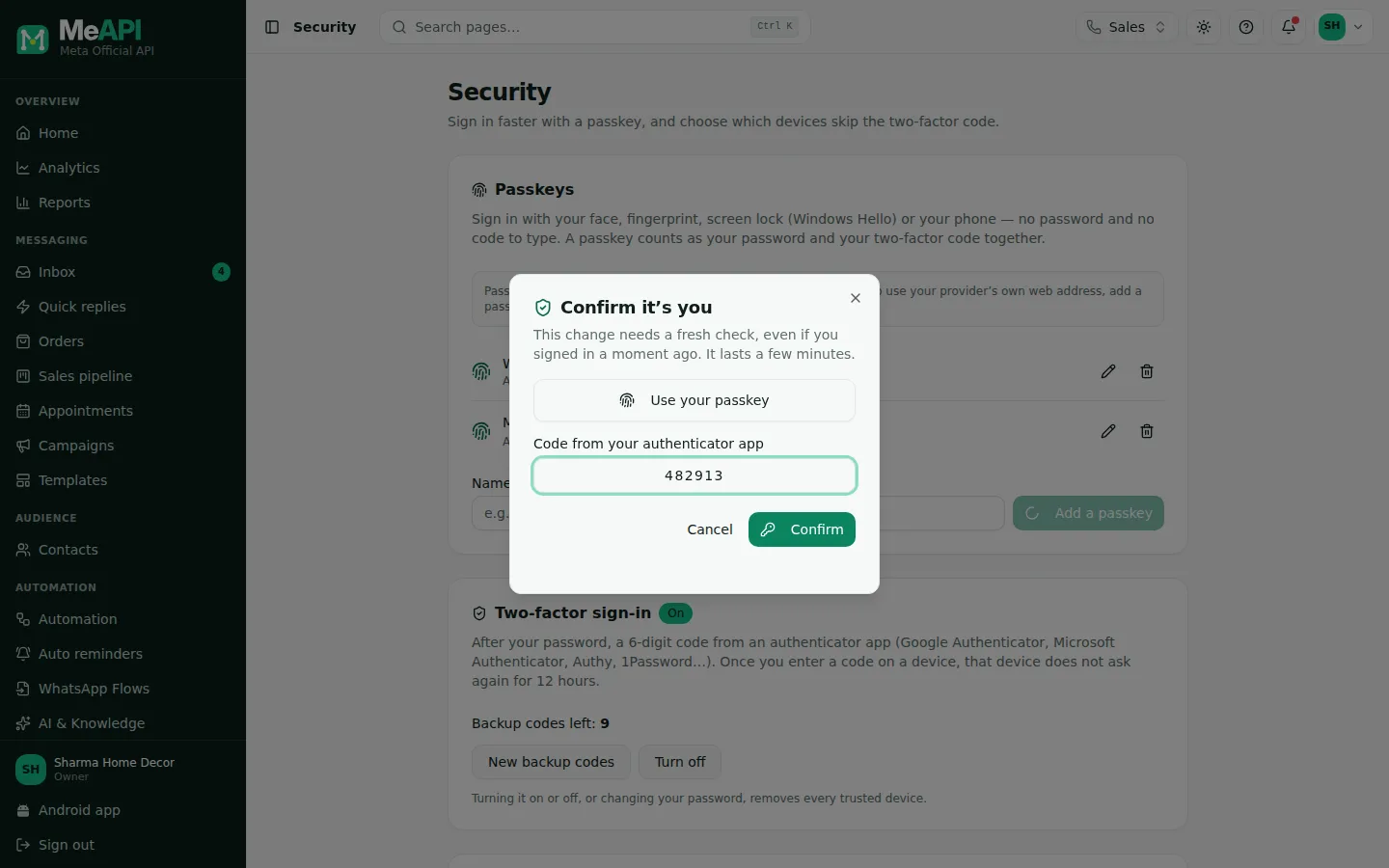
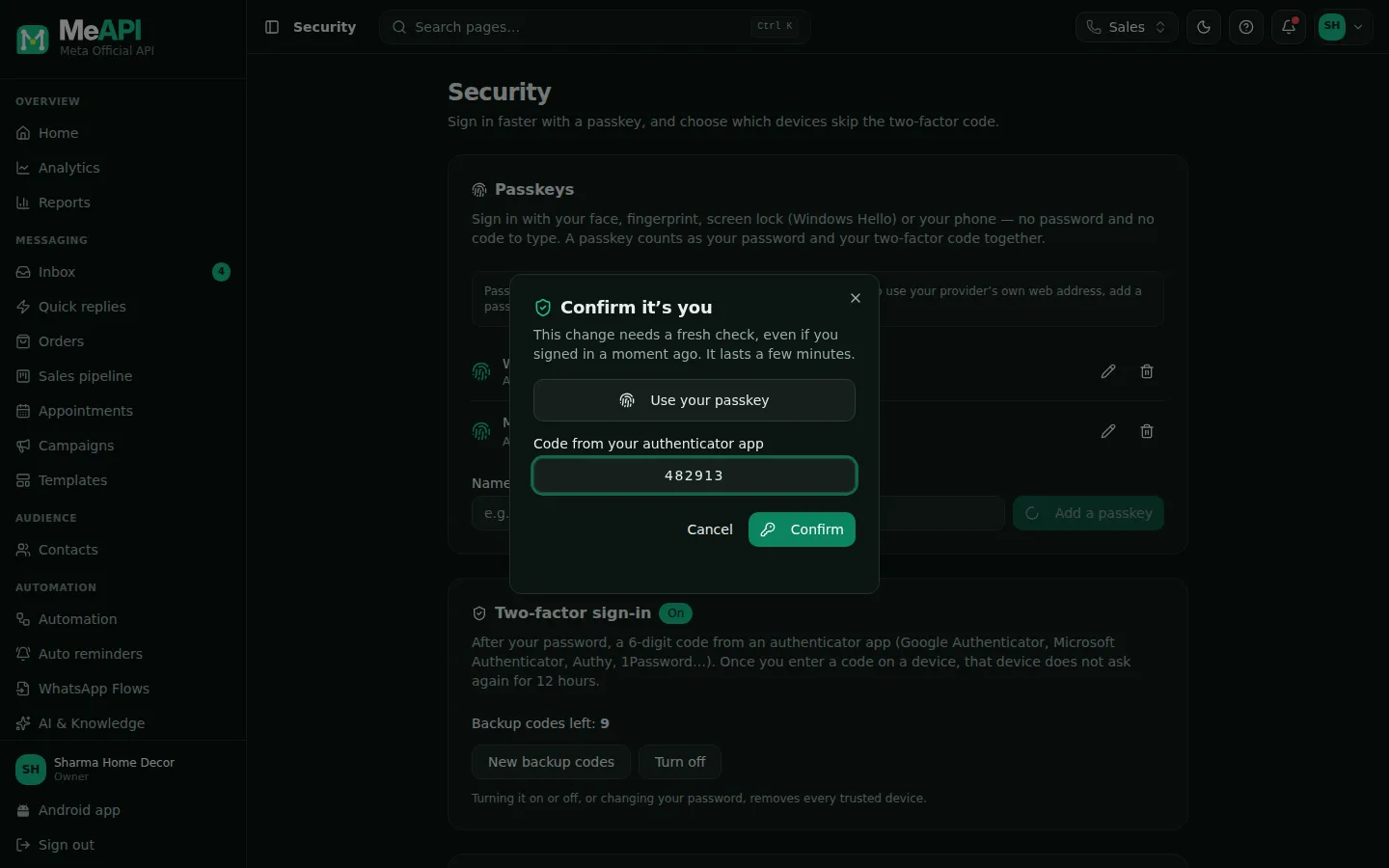
- A code from your authenticator app, a backup code, or Use your passkey. Without two-factor sign-in: your password.
- One confirmation lasts a few minutes, so a second change right after does not ask again.
Problems
Section titled “Problems”- Lost your phone with the authenticator app? Sign in with a backup code, then turn two-factor sign-in off and on again with your new phone. No backup codes? Contact support from the sign-in page.
- “This passkey is not set up for this address” — the passkey was made on another web address (see the note in step 3). Sign in with your password and add a passkey here.
- “Passkeys are not available on this address” — sign in with your password and code.
- Signed out after closing the browser? Tick Remember me next time.
What’s next
Section titled “What’s next”Was this page helpful?
Thank you — we read every comment.
Could not send right now. Please try again later.
© 2026 MeAPI by TheWebStore028 · RADHAMADHAV WEBSTORE LLP · GSTIN 27ABJFR6148J1ZO · Contact us ·Cookie settings
Registered Office: 19th Floor, A-1903, Exotica Wing A, Casa Rio Main Road, Lotus Pond, Palava City Phase 1, Kalyan, Thane, Maharashtra 421204, India
Operations: Thaltej, Ahmedabad, Gujarat
Phone / WhatsApp: +91 91676 96213 · Email: support@meapi.in ·Terms · Refund & cancellation · Shipping & delivery