

Connect WhatsApp with an access token (manual connect)
🎯 Goal
Connect a number with a token you created yourself, get its webhook working, and see your first message arrive in Inbox.
🧰 What you need
- Your own Meta app with the WhatsApp product added
- Admin access to your Meta business portfolio
- The MeAPI account owner, or an agent whose role has WhatsApp Numbers → Connect / disconnect numbers
1. When to use it
Section titled “1. When to use it”Most people should not use this. Connect a new number or coexistence open a Facebook window and set up everything for you.
Use an access token if:
- You already run your own Meta app, and want the number to stay on it.
- You are moving a number from another system that used your app.
- The Facebook window cannot be used on your side.
2. What you need
Section titled “2. What you need”| You need | Where to find it |
|---|---|
| Access token | Step 3 below. It needs whatsapp_business_management and whatsapp_business_messaging. |
| App Secret | Your app in Meta for Developers → App settings → Basic → App secret. |
| A 6-digit PIN | Only for a number not registered yet. You choose it, or use the two-step verification PIN it already has. |
Why the App Secret? Your app’s webhooks are signed with it. MeAPI checks that signature on every webhook and refuses anything it cannot check, so nobody can fake messages into your inbox. It is stored encrypted and never shown again.
3. Create a System User and a permanent token
Section titled “3. Create a System User and a permanent token”A personal token stops working after a while, and sending and receiving stop with it. A System User token does not end.
-
Open Meta Business Settings and pick your business portfolio.
-
Go to Users → System users → Add. Name it, for example
meapi-connect, and choose the Admin role. -
Select the new user, then Assign assets. Under Apps, give it your app with Full control. Under WhatsApp accounts, give it your WhatsApp Business account with Full control.
-
Press Generate token, then:
- Choose your app.
- Set the expiry to Never.
- Tick
whatsapp_business_managementandwhatsapp_business_messaging.
-
Copy the token and keep it somewhere safe. Meta shows it only once.
These screens belong to Meta and can change. If yours look different, look for System users in your business settings.
4. Paste the token and pick your number
Section titled “4. Paste the token and pick your number”-
In MeAPI open WhatsApp Numbers and press Add number (with no number yet, the connect steps are already on the page). Then press Advanced: connect with an access token.
-
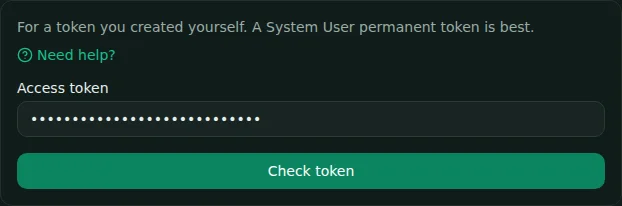
Paste the token and press Check token. Nothing changes at Meta yet.
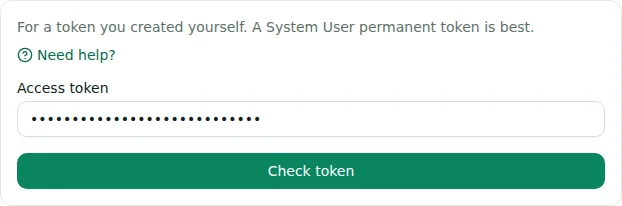
The token field. It is hidden as you paste it.
-
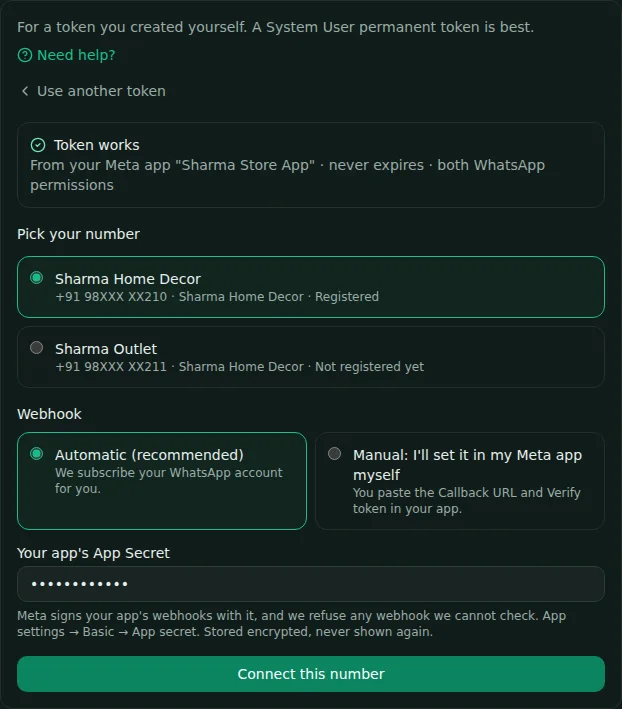
MeAPI tells you which app the token comes from, and warns you about a token that will stop working.
-
Pick your number. Each one says whether it is registered yet. If no list appears, enter your WhatsApp Business Account ID, from WhatsApp Manager → Account tools → Phone numbers.
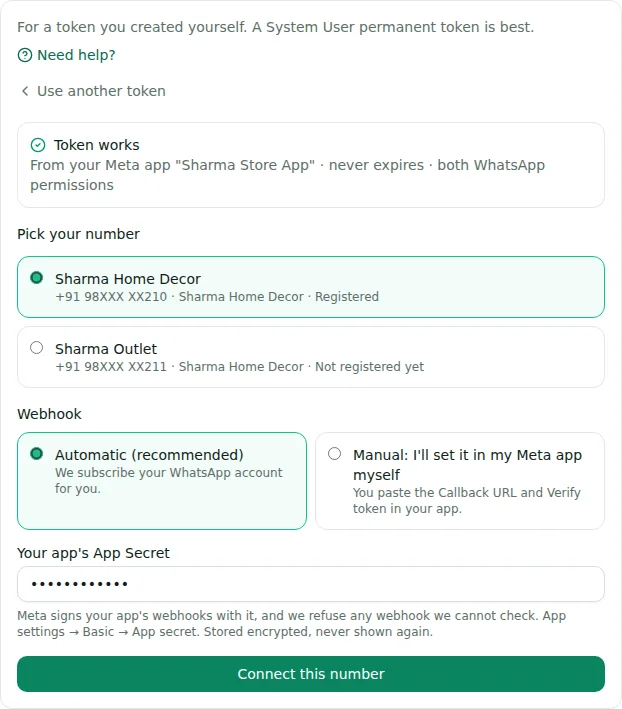
Sample data. The token is from your own app, so MeAPI asks for its App Secret.
-
Enter your App Secret.
5. Set up the webhook
Section titled “5. Set up the webhook”Webhooks are how Meta tells MeAPI about new messages and delivery updates. Without a webhook a number can send but receives nothing. You have two options, and you can switch at any time.
Option A: Automatic (recommended)
Section titled “Option A: Automatic (recommended)”MeAPI subscribes your WhatsApp account for you and tells Meta to send its messages to your number’s own address in MeAPI. There is nothing to paste.
Your app’s own webhook address stays as it is. Meta only redirects message events, so template status updates still go to your app’s own address. To refresh them in MeAPI, press Sync from Meta on Templates.
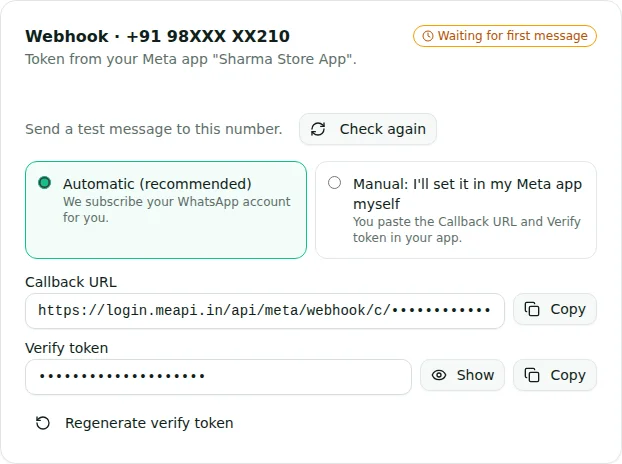
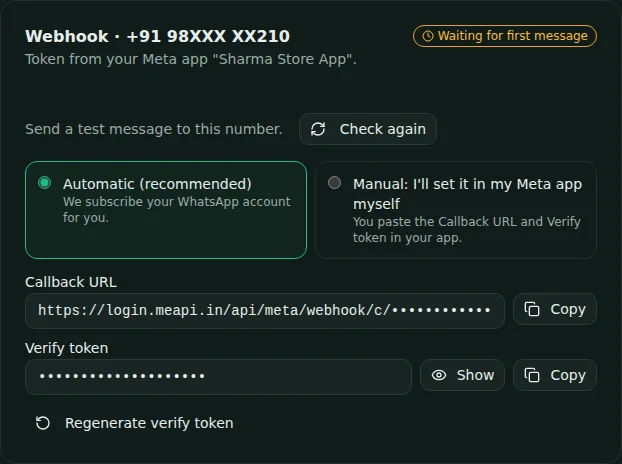
Automatic. The status waits for a real message.
If Meta refuses, MeAPI moves the number to Manual by itself, shows Meta’s reason, and shows the steps below.
Option B: Manual
Section titled “Option B: Manual”Choose this if you prefer to control your app’s settings yourself. Every number has its own Callback URL and Verify token on the Webhook card of its Connection tab (WhatsApp Numbers → the number), each with a Copy button. Press Show to see the token.
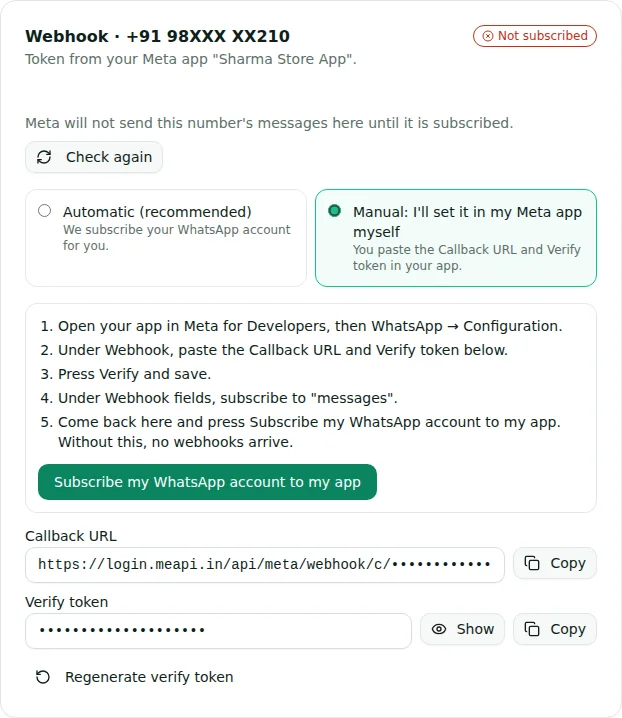
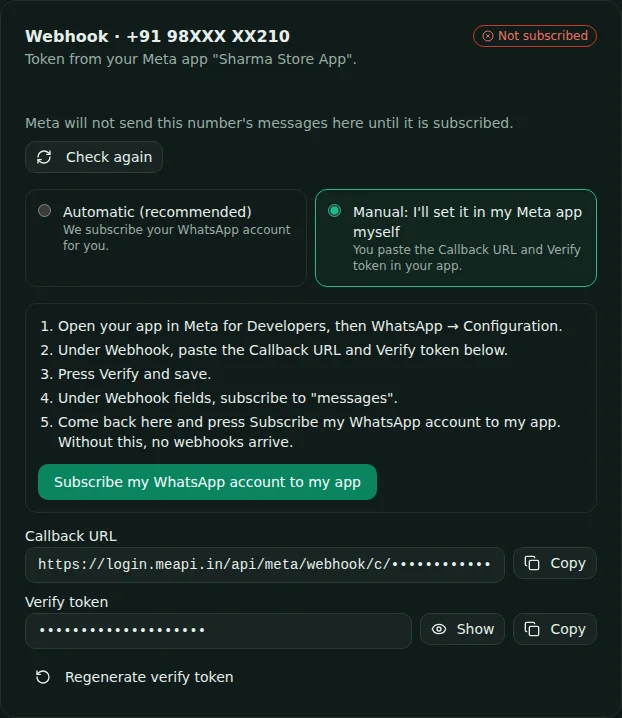
Manual, with the steps and the button that finishes them.
-
Open your app in Meta for Developers, then WhatsApp → Configuration.
-
Under Webhook, paste the Callback URL and Verify token, then press Verify and save. A wrong token is refused.
-
Under Webhook fields, subscribe to messages. Add message_template_status_update if you want template approvals in MeAPI by themselves.
-
Back in MeAPI, press Subscribe my WhatsApp account to my app. Without this, no webhooks arrive, even when step 2 worked.
Regenerating the verify token
Section titled “Regenerating the verify token”Regenerate verify token makes the old one stop working. On Automatic, MeAPI tells Meta for you. On Manual, paste the new one in your app and press Verify and save again.
6. Register a new number with a PIN
Section titled “6. Register a new number with a PIN”A number must be registered on the Cloud API before it can send. MeAPI asks Meta first, and only registers when it has to.
- Already registered: nothing to do, and no PIN asked.
- Not registered yet: enter a 6-digit PIN. It becomes the number’s two-step verification PIN, so keep it safe. If two-step verification is already on, enter that PIN.
- Coexistence: never registered, so your WhatsApp Business app keeps working. No PIN asked.
Then press Connect this number. A checklist shows what really happened at each step. Then the panel opens the number’s Connection tab, where its Webhook card is.
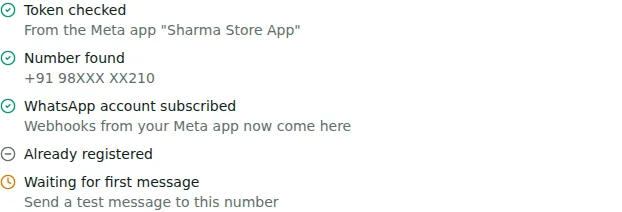
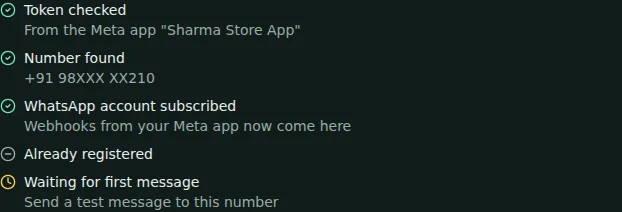
What happened, step by step. Sample data.
7. Test: send a message and see it in Inbox
Section titled “7. Test: send a message and see it in Inbox”-
From another phone, send a WhatsApp message to your number.
-
Open WhatsApp Numbers, click the number and go to its Connection tab. On the Webhook card, press Check again.
-
The status changes to Receiving messages ✓, with the time of the last one.
-
Open Inbox. Your message is there.
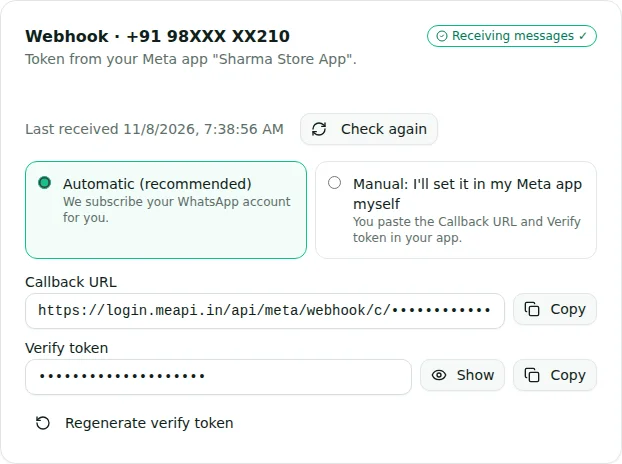
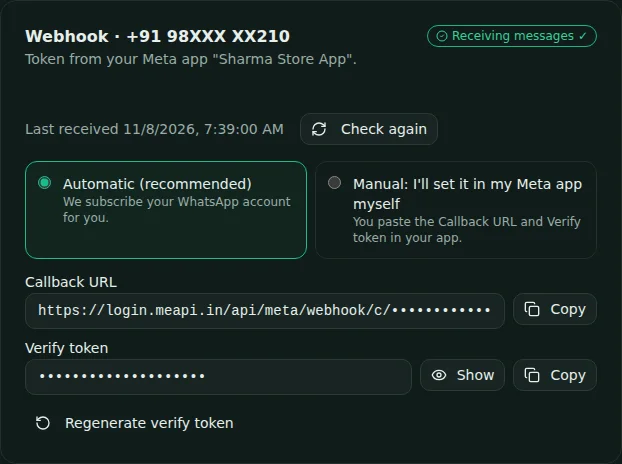
Only a real webhook turns this on.
| Status | What it means |
|---|---|
| Not subscribed | Meta is not sending this number’s messages here. Use Automatic, or finish the Manual steps. |
| Waiting for first message | The setup is done. Send a test message. |
| Receiving messages ✓ | A real message reached MeAPI. |
8. Troubleshooting
Section titled “8. Troubleshooting”Token expired
Section titled “Token expired”“Meta does not accept this token”, or sending stops after working for a while (error 190). Create a new token (step 3) and run these steps again for the same number. Your chats stay, and so does its webhook.
Missing permission
Section titled “Missing permission”“This token cannot work: it is missing…” Generate the token again and tick both whatsapp_business_management and whatsapp_business_messaging. Also check the System User has your WhatsApp account under Assign assets (error 200).
Already registered
Section titled “Already registered”Nothing to fix: MeAPI sees this and skips registration. If Meta says the number is on another provider’s system, disconnect it there first.
PIN mismatch
Section titled “PIN mismatch”“That PIN does not match…” (error 133005). The number already has a two-step verification PIN. Enter that one. If you have lost it, reset it in WhatsApp Manager → Phone numbers → your number → Two-step verification. Too many tries lock it for a while (133008).
Receiving nothing
Section titled “Receiving nothing”Open the Webhook card on the number’s Connection tab and press Check again.
- Not subscribed: on Automatic, switch to Manual and back to apply it again. On Manual, press Subscribe my WhatsApp account to my app.
- Waiting for first message: send from a different phone, not the number itself. On Manual, check step 2 passed and that messages is ticked.
- The app is in Development mode: Meta only sends real webhooks to a Live app. Switch your app to Live in Meta for Developers.
Wrong app
Section titled “Wrong app”“That App Secret does not belong to the Meta app this token comes from.” Copy the secret from the same app you chose when generating the token. MeAPI names that app in the first step.
Coexistence “Ineligible”
Section titled “Coexistence “Ineligible””Meta decides this in its own window, so manual connect does not get around it. See Ineligible.
9. FAQ
Section titled “9. FAQ”Is my token safe? It is encrypted when stored, and no screen in MeAPI ever shows it again. The same goes for your App Secret. Only give a token the WhatsApp account it needs.
How do I revoke it? In Meta Business Settings → System users, select the user and press Revoke tokens. Sending and receiving stop at once. To carry on, connect again with a new token.
What does it cost? Connecting this way costs nothing extra in MeAPI. Meta charges for messages in the usual way, to the payment method on your WhatsApp account. See Meta’s pricing.
Can I change from Automatic to Manual later? Yes, at any time on the Webhook card. Manual removes MeAPI’s redirect, Automatic puts it back. Neither one disconnects your number.
What if I disconnect the number in MeAPI? It stops here and stays registered at Meta, so another provider can use it. Disconnecting never deregisters a number. Only Deregister number… does that: on the number’s Move / Disconnect tab, in the Danger zone, for the account owner only. See Disconnect or move a number.
What’s next
Section titled “What’s next”Was this page helpful?
Thank you — we read every comment.
Could not send right now. Please try again later.
© 2026 MeAPI by TheWebStore028 · RADHAMADHAV WEBSTORE LLP · GSTIN 27ABJFR6148J1ZO · Contact us ·Cookie settings
Registered Office: 19th Floor, A-1903, Exotica Wing A, Casa Rio Main Road, Lotus Pond, Palava City Phase 1, Kalyan, Thane, Maharashtra 421204, India
Operations: Thaltej, Ahmedabad, Gujarat
Phone / WhatsApp: +91 91676 96213 · Email: support@meapi.in ·Terms · Refund & cancellation · Shipping & delivery