

Move your WhatsApp number to MeAPI from another provider
🎯 Goal
The same WhatsApp number works in MeAPI, with the same display name and quality rating. New chats come to MeAPI, and you cancel your old provider only once everything works.
🧰 What you need
- A MeAPI account (the free trial is enough to set everything up)
- Admin (full control) access to the Meta business portfolio that owns your WhatsApp number
- The number connected to the WhatsApp Business Platform (API) through your current provider
- Your template texts, contacts and opt-in records exported from your current provider
Two words you’ll see in Meta
Section titled “Two words you’ll see in Meta”Meta Business Suite now shows two kinds of account where it used to show one WhatsApp Business Account (WABA):
- WhatsApp account: holds your phone number, its business profile and display name. It belongs to your business portfolio, and you can share it with up to five providers.
- Messaging account: holds templates, the payment method and billing. Each provider gets its own. When you connect to MeAPI, Meta creates a new Messaging account for MeAPI by itself. Your old provider keeps its own, with your old templates in it.
In MeAPI, the WhatsApp Business Account ID on a number’s Overview tab is MeAPI’s Messaging account.
Before you start
Section titled “Before you start”- Admin access to your Meta business portfolio. Sign in to Meta Business Suite → Settings → Accounts → WhatsApp accounts. If your number is listed and you are an admin there, you’re ready.
- Which kind of number is it? If you also use the number in the WhatsApp Business app on a phone (coexistence), read Coexistence numbers first.
- Export from your old provider: your contacts (with how and when each person opted in), the text of your approved templates, and any chat history you want to keep. None of it comes across by itself (see the table below).
- A payment card ready. Meta bills each provider’s Messaging account separately, so MeAPI’s needs its own payment method. You add it right after connecting.
- Business verification is not needed to connect. Your verification belongs to your business portfolio and stays as it is.
- Two-step verification: nothing to do. Meta doesn’t need your PIN to share a number that is already registered, and doesn’t reset it.
Which case is yours?
Section titled “Which case is yours?”| What you see | What to do |
|---|---|
| Your number is in your own Meta Business Suite (Settings → Accounts → WhatsApp accounts) | 1. Connect it to MeAPI, then 2. send new chats to MeAPI |
| You can’t find the number in any business portfolio you can open | Get access first |
| The number is also used in the WhatsApp Business app | Coexistence numbers |
1. Connect the number to MeAPI
Section titled “1. Connect the number to MeAPI”-
In the API Panel open WhatsApp Numbers (left menu → Account) and press Add number. On a new account the page shows the Connect WhatsApp Business card instead.
-
Click Connect a new number. The button has the same name for a number you already use. A Facebook window opens. If nothing happens, allow popups for login.meapi.in and turn off ad-blockers for the page.
-
Log in to Facebook with an account that is an admin of the business portfolio that owns the number, and click Get started.
-
Choose that business portfolio. Don’t create a new one: Meta doesn’t let a number move to another business portfolio.
-
Pick the number you already use from the list. Don’t add it again as a new number. Meta creates MeAPI’s Messaging account by itself; your old provider’s stays as it was.
-
If Meta asks for a code, choose Text message or Phone call. The code goes to the number itself.
-
Review the permissions MeAPI asks for and click Confirm / Finish. Wait for the window to close by itself.
-
Back in MeAPI, the number’s Overview tab opens: status Connected, with your quality rating, messaging limit and display name. Press Sync with Meta if a detail looks old.
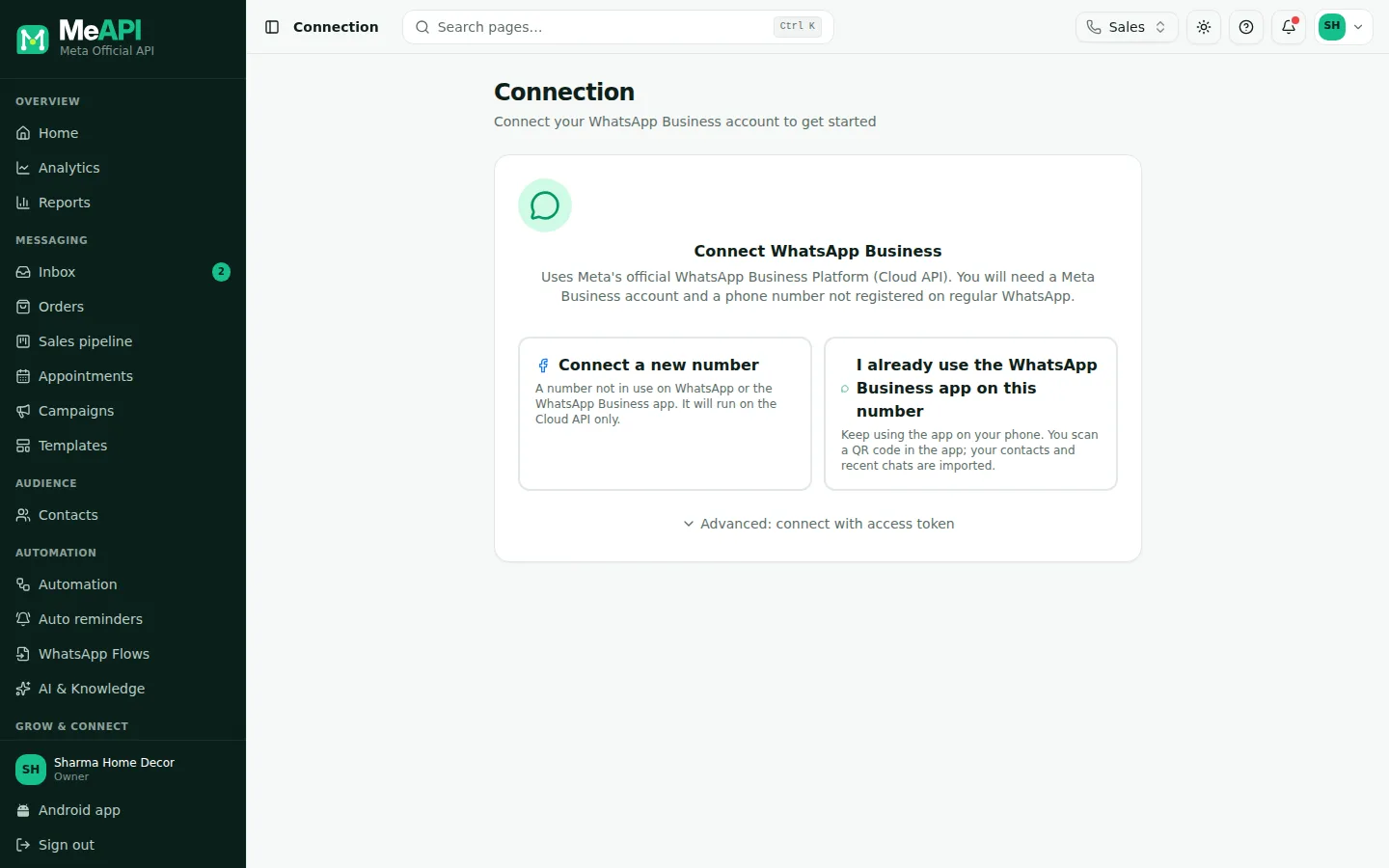
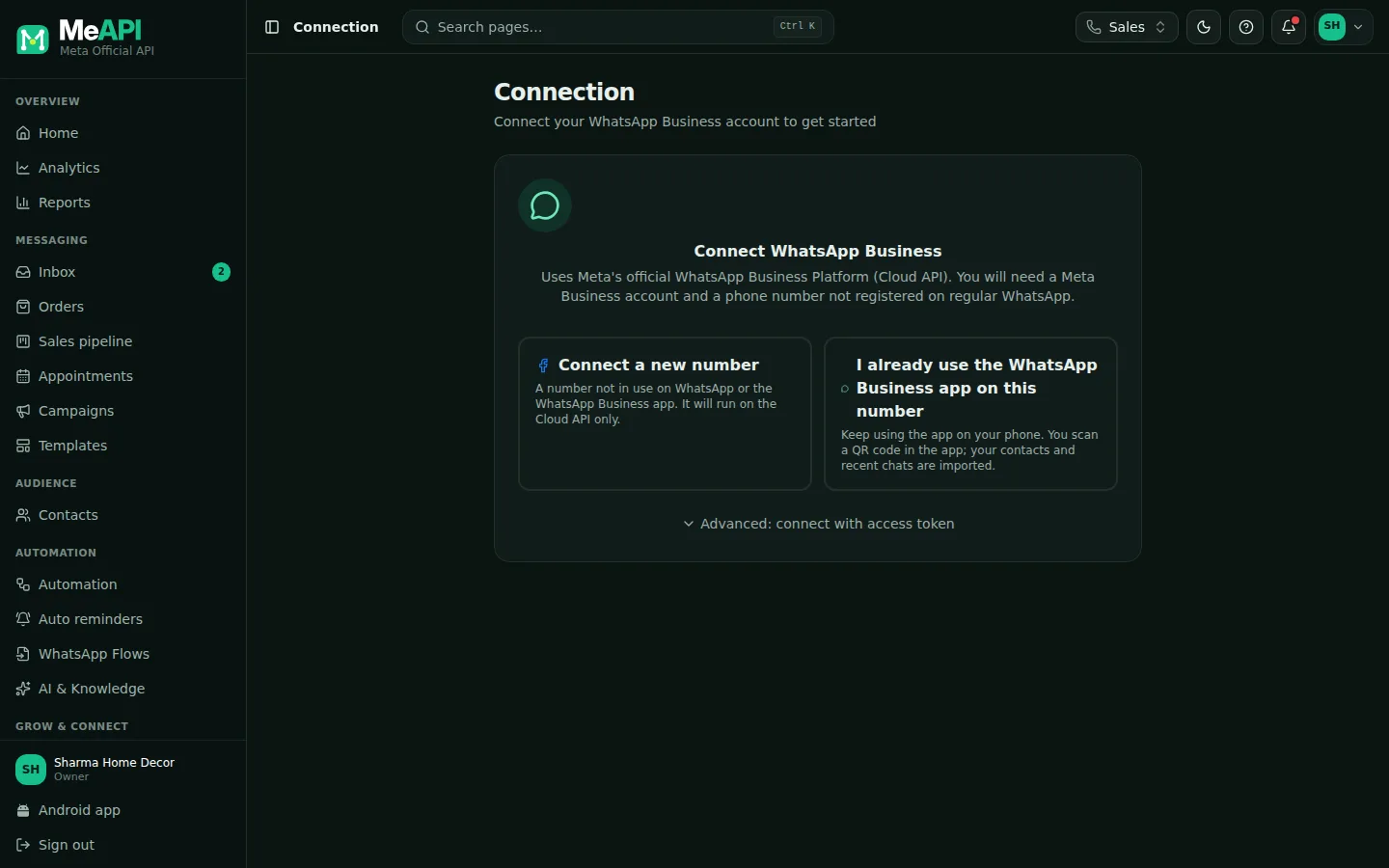
- Connect a new number: use it for a number you already use with another provider too.
- I already use the WhatsApp Business app on this number: only for a coexistence number.
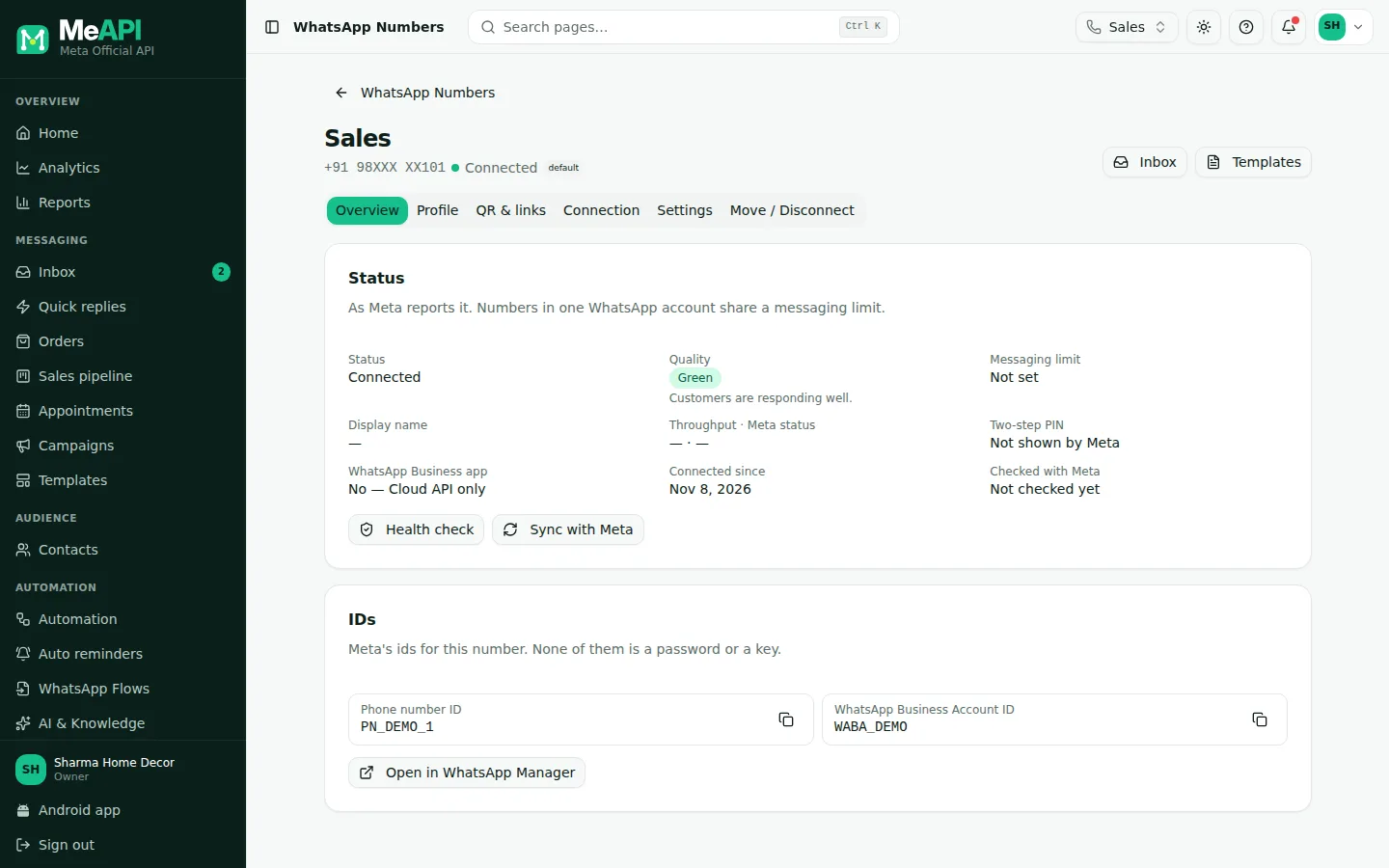
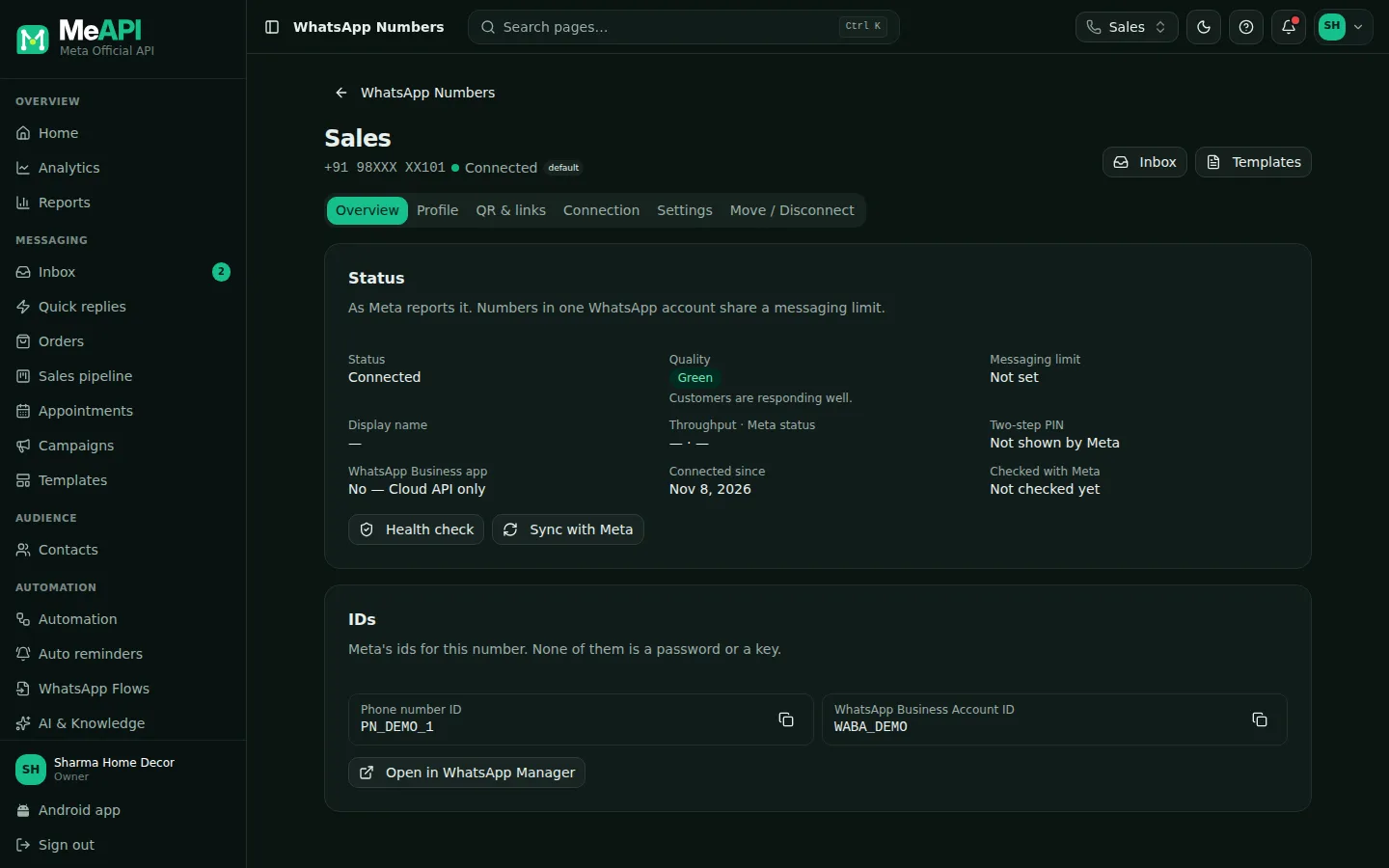
- The number’s Overview tab after connecting: Status with quality and messaging limit, Health check and Sync with Meta.
- The IDs card: the WhatsApp Business Account ID shown here is MeAPI’s own Messaging account.
Then add a payment method to MeAPI’s Messaging account: WhatsApp Manager → Payment settings. Until you do, templates fail and replies stop once the month’s free service messages are used. See Add a payment method.
2. Send new chats to MeAPI (Conversation routing)
Section titled “2. Send new chats to MeAPI (Conversation routing)”Connecting is not the last step. When a number has two providers, Meta’s Conversation routing decides which one receives each incoming message. Meta never lets a newly added provider take over by itself, and never overwrites a routing setup you already have. So until you change it, new chats may keep going to your old provider, and replies sent from MeAPI can fail with “Message failed to send because another app is controlling this thread now” (Meta error 131070).
-
In Meta Business Suite open Settings → Accounts → WhatsApp accounts, select your account and open Conversation routing.
-
In each list choose MeAPI: Customer sends a message, Customer replies to click-to-WhatsApp ad, Customer replies to a utility message, Customer replies to a marketing message, and Calls with customers if you use WhatsApp Calling. Not sure which entry is ours? Message us on WhatsApp and we’ll check with you.
-
Save. Then, from your personal phone, send a message to the number and check that it shows up in MeAPI’s Inbox.
Good to know (from Meta’s Conversation routing guide):
- Chats already in progress stay with their current provider until they have had no messages for 24 hours. New chats go to MeAPI straight away.
- Escalation partner: if you also choose MeAPI under Thread control, MeAPI can reply to a chat even while the old provider still owns it. Meta only shows this option once your business has accepted the Meta Business Agents and Platform Terms of Service.
- Remove the old provider instead: when only one provider is left on the account, Meta deletes the routing setup and every message goes to the one left. Do this only once MeAPI works (see the checklist).
- Without any routing setup, Meta sends every incoming message to every provider on the number. Switch off your old provider’s chatbots and auto-replies, or customers may get two answers.
The number isn’t in your Meta Business Suite
Section titled “The number isn’t in your Meta Business Suite”A WhatsApp account belongs to exactly one business portfolio, and Meta doesn’t let a number move to another portfolio. So you need access to the portfolio that holds it:
- Ask whoever set the number up (your old provider, an agency or a former colleague) which business portfolio holds the number.
- Ask them to add you to that portfolio as an admin (Meta Business Suite → Settings → Users → People).
- Then follow 1. Connect the number to MeAPI.
Stuck? Message us on WhatsApp with what you see, and we’ll look at it with you.
Coexistence numbers (WhatsApp Business app)
Section titled “Coexistence numbers (WhatsApp Business app)”If you use the number in the WhatsApp Business app and with another provider at the same time:
- On the phone, open the WhatsApp Business app → Settings → Account → Business Platform (some versions: Connected platform) and disconnect the old provider. Your chats stay on the phone.
- In MeAPI, press Add number → I already use the WhatsApp Business app on this number and follow Coexistence.
Meta’s coexistence rules apply as usual. If the popup refuses the number, see Coexistence → Ineligible. Some providers describe extra steps for leaving them, so ask your old provider too, or message us before you start.
What moves and what doesn’t
Section titled “What moves and what doesn’t”| After you connect MeAPI | What to do | |
|---|---|---|
| Phone number | Stays the same. Nothing moves | Nothing |
| Display name | Unchanged | Nothing. To change it later, see Your display name |
| Quality rating | Unchanged (it belongs to the number) | Nothing |
| Messaging limit | Unchanged. It is set for your business portfolio and shared by every provider on the number | Nothing |
| Business verification | Unchanged (it belongs to the business portfolio) | Nothing |
| Business profile (about, photo, address, website) | Unchanged (it belongs to the WhatsApp account) | Check it on the number’s Profile tab |
| Official Business Account (blue tick) | Meta’s documentation for the new account model doesn’t mention it. The number doesn’t move | Check it in WhatsApp Manager after connecting |
| Approved templates | Don’t come along. They stay in the old provider’s Messaging account | Re-create them in MeAPI and send them to Meta for approval. They start with no quality rating of their own |
| Payment method and billing | Separate. MeAPI’s Messaging account has none yet | Add a payment method |
| Chat history | Stays on your customers’ phones. Your old provider’s inbox history doesn’t come to MeAPI; MeAPI shows messages from the moment you connect | Export it from your old provider if you need it |
| Contacts and tags | Don’t come along | Export a CSV and import it |
| Opt-ins | They are your own records, not something WhatsApp keeps | Import them with your contacts: the import asks how and when people opted in |
| Chatbots, auto-replies, quick replies, campaigns | Don’t come along | Rebuild them. Ready-made chatbots save time |
| API and webhook integrations | Still point at your old provider | Switch them to the MeAPI Developer API |
Sources: Meta’s Updates to WhatsApp Business accounts and WhatsApp accounts and Messaging accounts, checked 20 November 2026.
Downtime: what to expect
Section titled “Downtime: what to expect”- The number never goes offline. Meta’s new account model has no migration step, so there is no gap where the number can’t send or receive.
- What changes is who answers. Until Conversation routing points at MeAPI, chats can still reach your old provider. Chats already in progress move after 24 hours without messages.
To make the switch smooth:
- Connect the number to MeAPI first, while your old provider keeps working as usual.
- Add the payment method, re-create your templates and import your contacts. Wait until the templates are Approved.
- Rebuild your main chatbot and quick replies, and test them.
- At a quiet hour, change Conversation routing to MeAPI and switch off the old provider’s chatbots and auto-replies.
- Keep the old provider for a day or two, until no chat is left with it.
After moving: checklist
Section titled “After moving: checklist”- Payment method added to MeAPI’s Messaging account (how)
- Templates re-created and Approved (Templates; press Sync from Meta if one is missing)
- Contacts imported, with how they opted in (Import contacts)
- Chatbots and quick replies rebuilt and tested (ready-made chatbots)
- Integrations moved to the MeAPI Developer API and its webhooks
- Test message: from your personal phone, message the number, see it in Inbox, reply from MeAPI and check the reply arrives
- Conversation routing set to MeAPI (and Calls with customers, if you use calling)
- Only then: switch off the old provider, settle its invoices and cancel the plan. If you want, remove it in Meta Business Suite → Settings → Accounts → WhatsApp accounts → your account → Partners
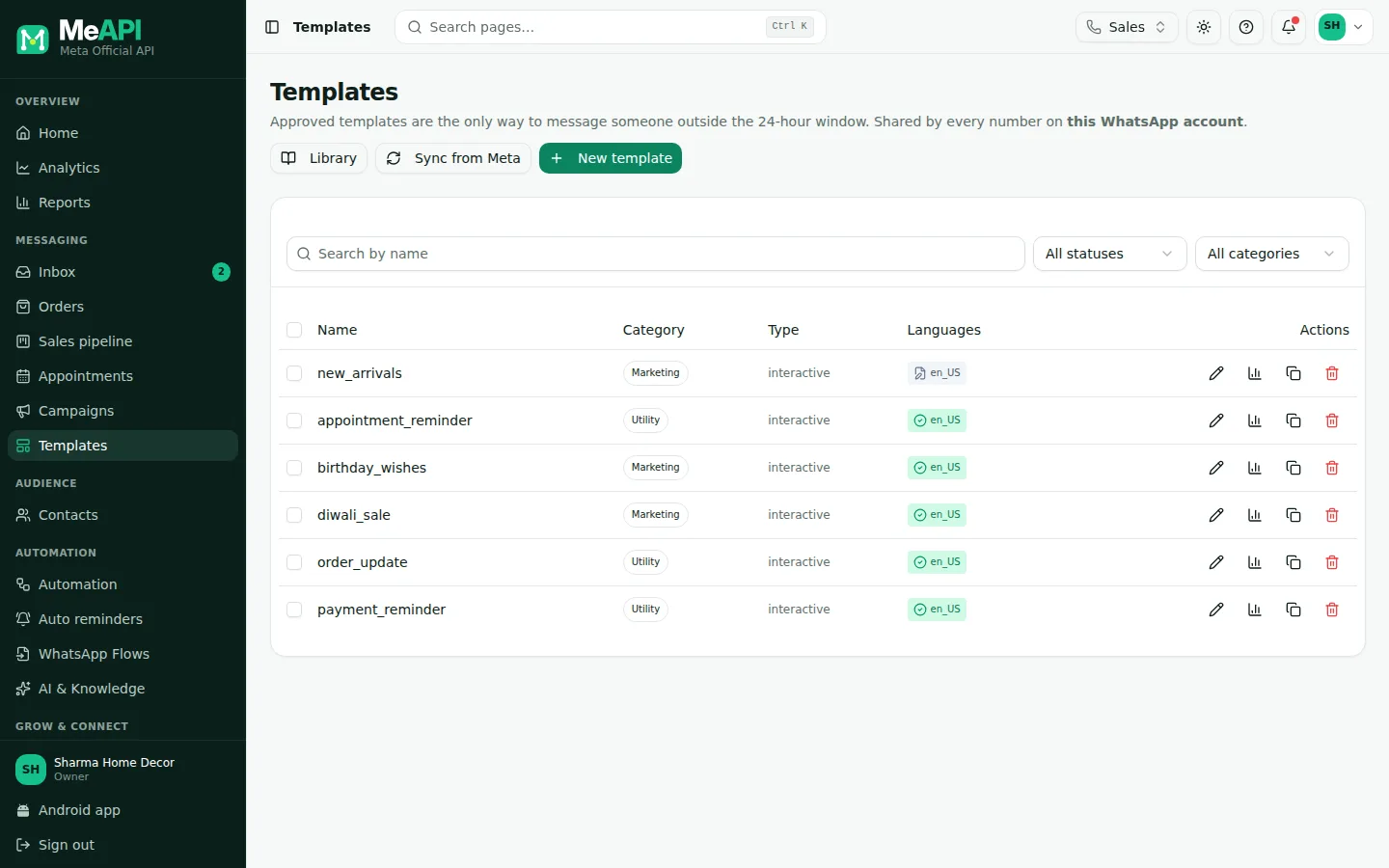
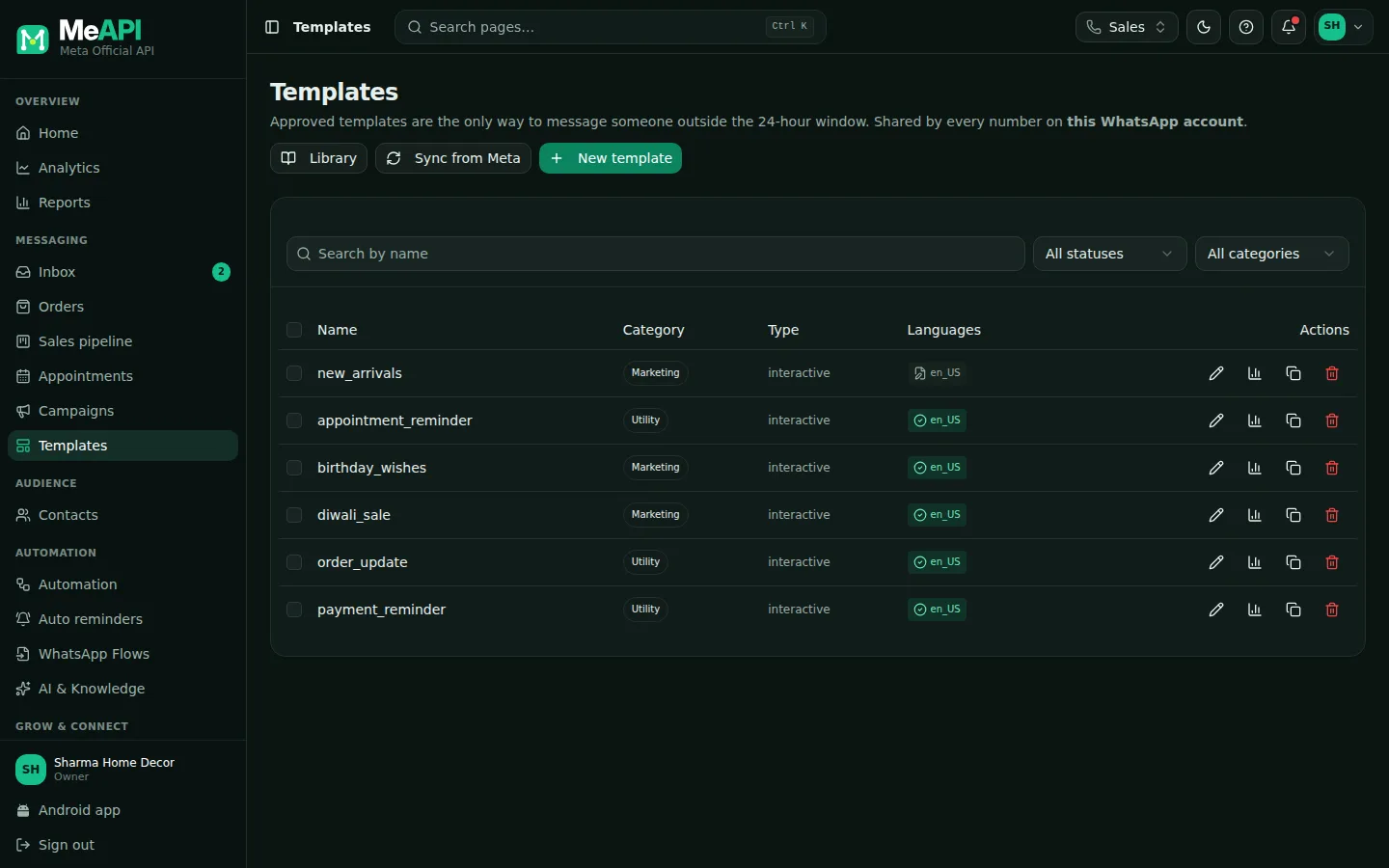
- Templates: empty at first after a move, because templates belong to each provider’s Messaging account.
- Library has ready-made templates; New template creates one from your old text.
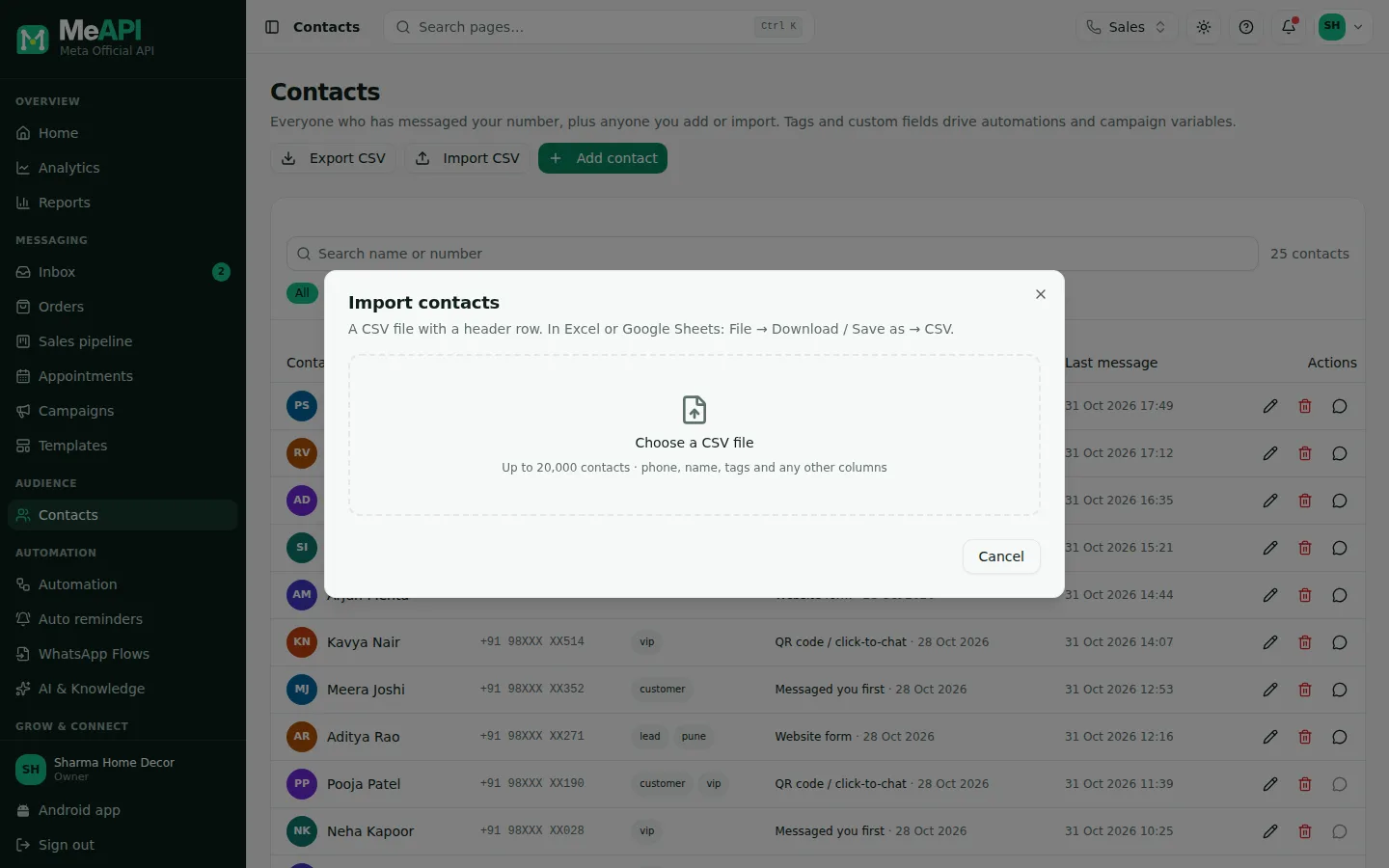
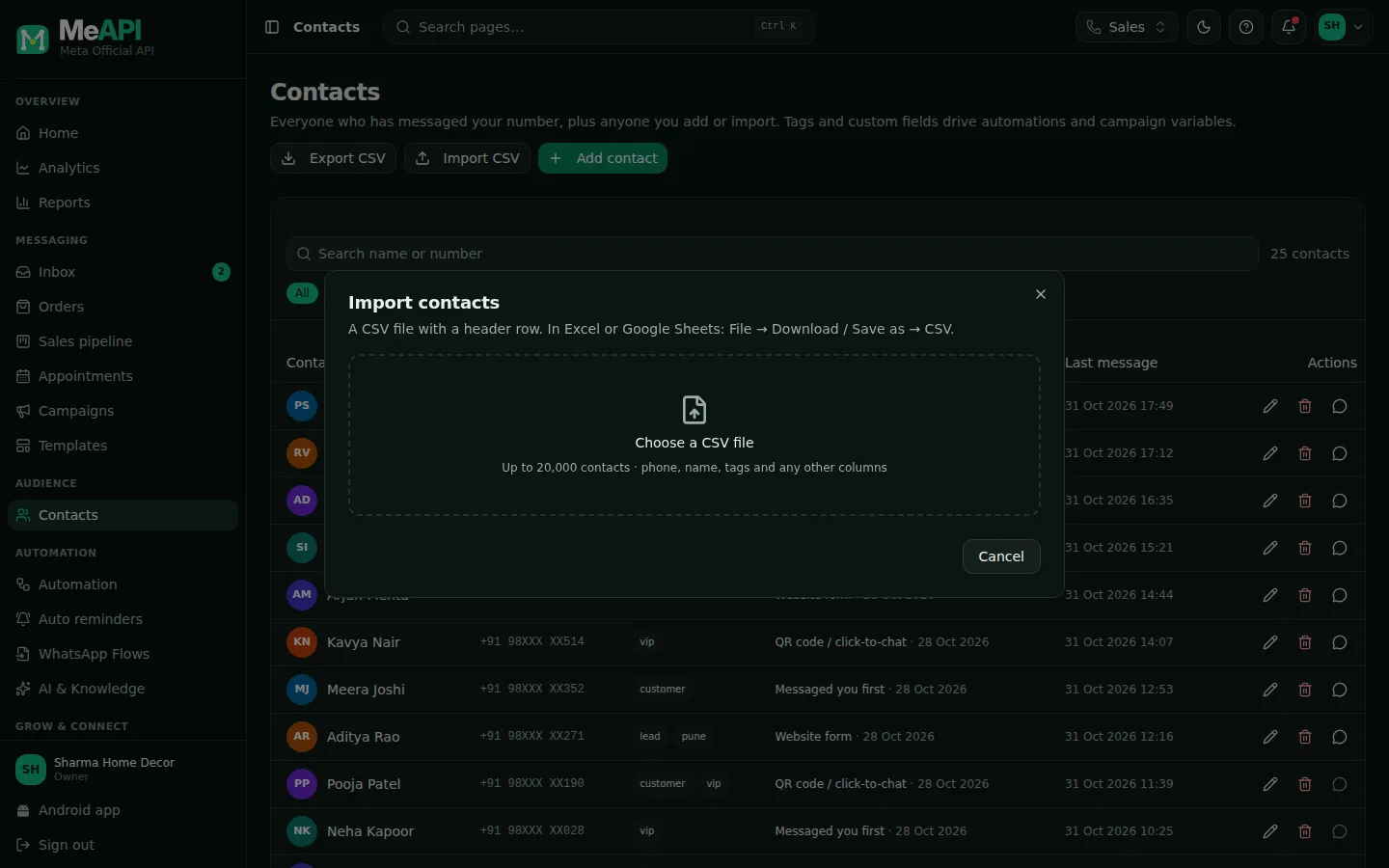
- The Import contacts dialog: map your old provider’s CSV columns to phone, name, tags and fields.
- How did these contacts opt in?: record the source and date your old provider kept.
Notes for each provider
Section titled “Notes for each provider”The steps are the same whichever provider you come from: Wati, AiSensy, Interakt, Gallabox, DoubleTick, Twilio, 360dialog or another one. What each provider’s own help pages say about leaving (checked 20 November 2026):
| Provider | Their public guide |
|---|---|
| 360dialog | Has a guide for the new account model (Migrate to alternate BSP): settle open invoices; you don’t need to turn off two-step verification or delete the number first; change Conversation routing; your templates stay in 360dialog’s Messaging account; cancel the subscription in the 360dialog Hub; optionally remove 360dialog under Partners, which also removes its credit line |
| Wati | Its public help covers moving a number to Wati, not away. Ask their support |
| AiSensy, Interakt, Gallabox, DoubleTick, Twilio | We found no public guide on leaving. Ask their support |
What to ask your old provider’s support:
- Which Meta business portfolio holds my WhatsApp number, and please make me an admin of it.
- An export of my contacts with opt-in details, my template texts, and the chat history I need.
- Please switch off your chatbots and auto-replies on my number on the day I switch.
- How do I settle my invoices, cancel, and get any unused credit back?
- If you have a credit line on my number, please remove it when I cancel.
Troubleshooting
Section titled “Troubleshooting”- The code (OTP) doesn’t arrive. Choose Phone call instead of text message. The number must be able to receive international SMS and calls. A landline works with a phone call.
- “Already registered on the WhatsApp Business Platform / API” or “number already in use”. In the popup, pick the existing number from your WhatsApp account instead of typing it as a new number, and use a Facebook account that is an admin of the portfolio that owns it. Still refused? Send us a screenshot on WhatsApp.
- “This WhatsApp number is already connected to another account.” The number is connected to a different MeAPI account. Sign in to that one, or message us.
- You don’t know the two-step PIN. You don’t need it for this. Meta doesn’t use the PIN to share a number that is already registered, and doesn’t reset it. If WhatsApp Manager shows no Two-step verification tab for the number, Meta has already removed the PIN for it. You would only need a PIN later to make a new display name live (how).
- Templates are missing in MeAPI. That is expected: templates stay in your old provider’s Messaging account. Re-create them in MeAPI. If one you created in MeAPI is missing, press Sync from Meta on Templates.
- Messages don’t arrive in MeAPI, or replies fail with error 131070. Conversation routing still points at your old provider. See step 2.
- Customers get two answers. Your old provider’s chatbot or auto-reply is still on. Switch it off there.
- Templates fail with error 141006. MeAPI’s Messaging account has no payment method yet. See Add a payment method.
- Your display name shows “In review”. Moving doesn’t change your name or its review. A name you change later goes through Meta’s review as usual. See Your display name.
More error codes: Meta error codes.
Want us to do it for you?
Section titled “Want us to do it for you?”We offer a done-for-you move: our team moves your number, templates, contacts and main chatbot to MeAPI with you. It is a paid, one-time service, priced for your setup. Message us on WhatsApp to ask.
Start 3-day free trial: set everything up before you switch. Questions? Message us on WhatsApp at +91 91676 96213.
Frequently asked questions
Section titled “Frequently asked questions”Can I keep my WhatsApp number when I switch to MeAPI?
Section titled “Can I keep my WhatsApp number when I switch to MeAPI?”Yes. Since Meta’s new account model, you share your WhatsApp account with MeAPI and the number itself doesn’t move. It keeps its display name, quality rating and messaging limit.
Do I need to turn off two-step verification at my old provider?
Section titled “Do I need to turn off two-step verification at my old provider?”No. Meta doesn’t use the two-step PIN to share a number that is already registered, and doesn’t reset it. Meta is also removing the PIN from Cloud API numbers, a few businesses at a time.
Will my approved templates move to MeAPI?
Section titled “Will my approved templates move to MeAPI?”No. Templates belong to each provider’s own Messaging account, so you re-create them in MeAPI and Meta reviews them again.
How long does switching take?
Section titled “How long does switching take?”Connecting takes about ten minutes. New chats come to MeAPI as soon as you change Conversation routing in Meta Business Suite. Chats already in progress follow after 24 hours without messages.
Can I use MeAPI and my old provider at the same time?
Section titled “Can I use MeAPI and my old provider at the same time?”Yes. A WhatsApp account can be shared with up to five providers. Conversation routing decides which one receives each incoming message, so set it up before both start replying.
Will my number be offline during the switch?
Section titled “Will my number be offline during the switch?”No. There is no migration step in Meta’s new account model, so the number keeps sending and receiving throughout.
What’s next
Section titled “What’s next”Was this page helpful?
Thank you — we read every comment.
Could not send right now. Please try again later.
© 2026 MeAPI by TheWebStore028 · RADHAMADHAV WEBSTORE LLP · GSTIN 27ABJFR6148J1ZO · Contact us ·Cookie settings
Registered Office: 19th Floor, A-1903, Exotica Wing A, Casa Rio Main Road, Lotus Pond, Palava City Phase 1, Kalyan, Thane, Maharashtra 421204, India
Operations: Thaltej, Ahmedabad, Gujarat
Phone / WhatsApp: +91 91676 96213 · Email: support@meapi.in ·Terms · Refund & cancellation · Shipping & delivery