

WhatsApp Calling (Beta)
🎯 Goal
Let customers call you on WhatsApp, and answer those calls in the panel instead of on a phone.
🧰 What you need
- WhatsApp Calling switched on for your account
- A number on the API only (not Coexistence) with a messaging limit of 2,000 or more
- A computer or phone with a microphone, and Chrome, Edge, Firefox or Safari
Every MeAPI plan includes it. Customers of a provider (a MeAPI partner) get it on the All Features + API plan, once their provider switches it on: ask your provider. If a number has no Calling tab, see Common problems.
Which numbers can use calling
Section titled “Which numbers can use calling”WhatsApp decides which numbers can take calls through the API:
| The number | Calling |
|---|---|
| On the API only, messaging limit 2,000 or more | ✅ Can use calling |
| A Coexistence number (also used in the WhatsApp Business app) | ❌ The panel says: Coexistence numbers can’t use WhatsApp Calling (Meta rule). To use calling, connect the number to the API only. |
| Messaging limit under 2,000 (for example 250) | ❌ The panel says: Needs a messaging limit of 2,000+. Yours: 250. |
- Coexistence: calls to a Coexistence number keep ringing in the WhatsApp Business app on your phone. To take them in the panel, the number has to be connected to the API only, without the app. See Coexistence.
- Messaging limit: your limit grows as you send good-quality messages. See Messaging limits.
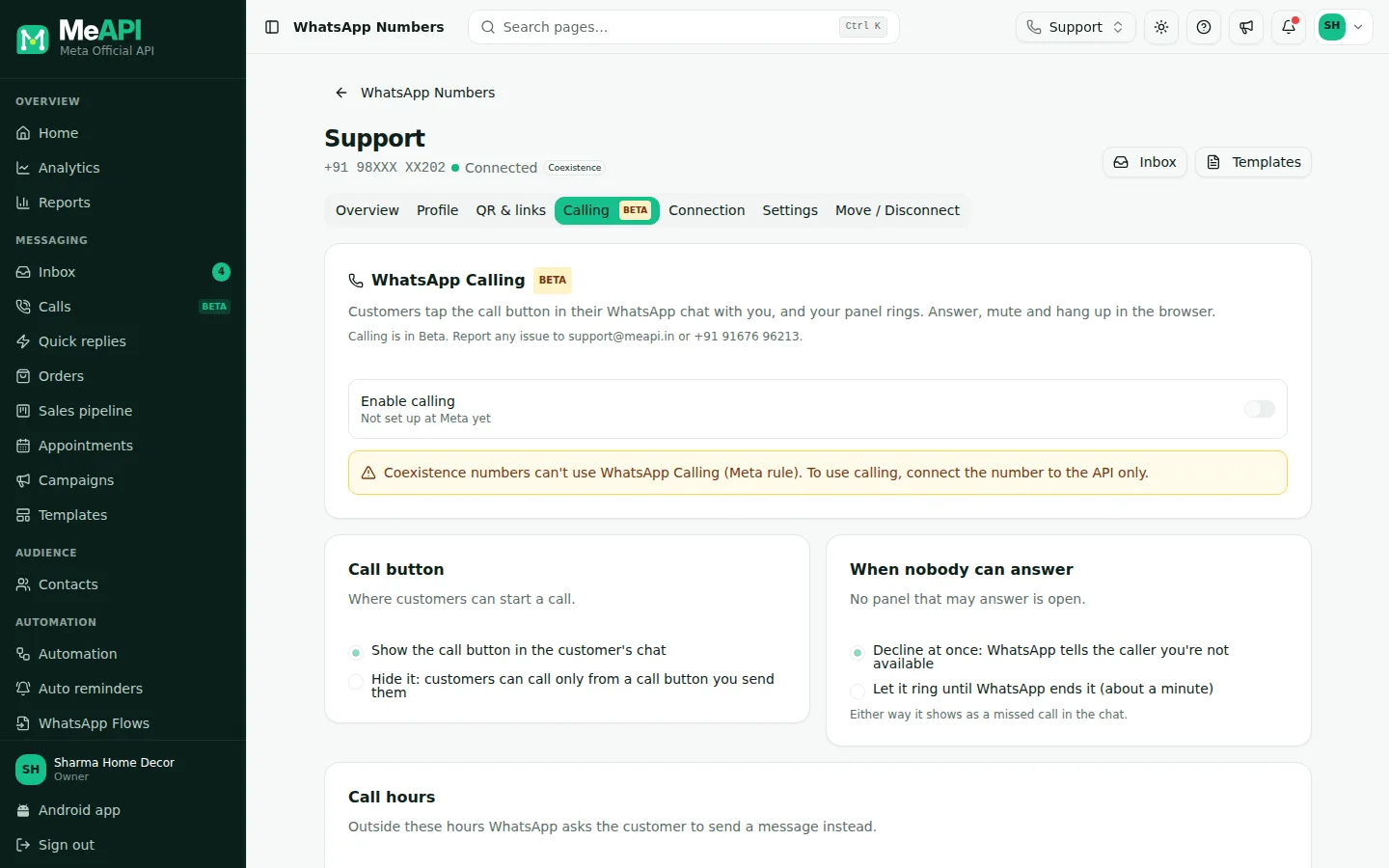
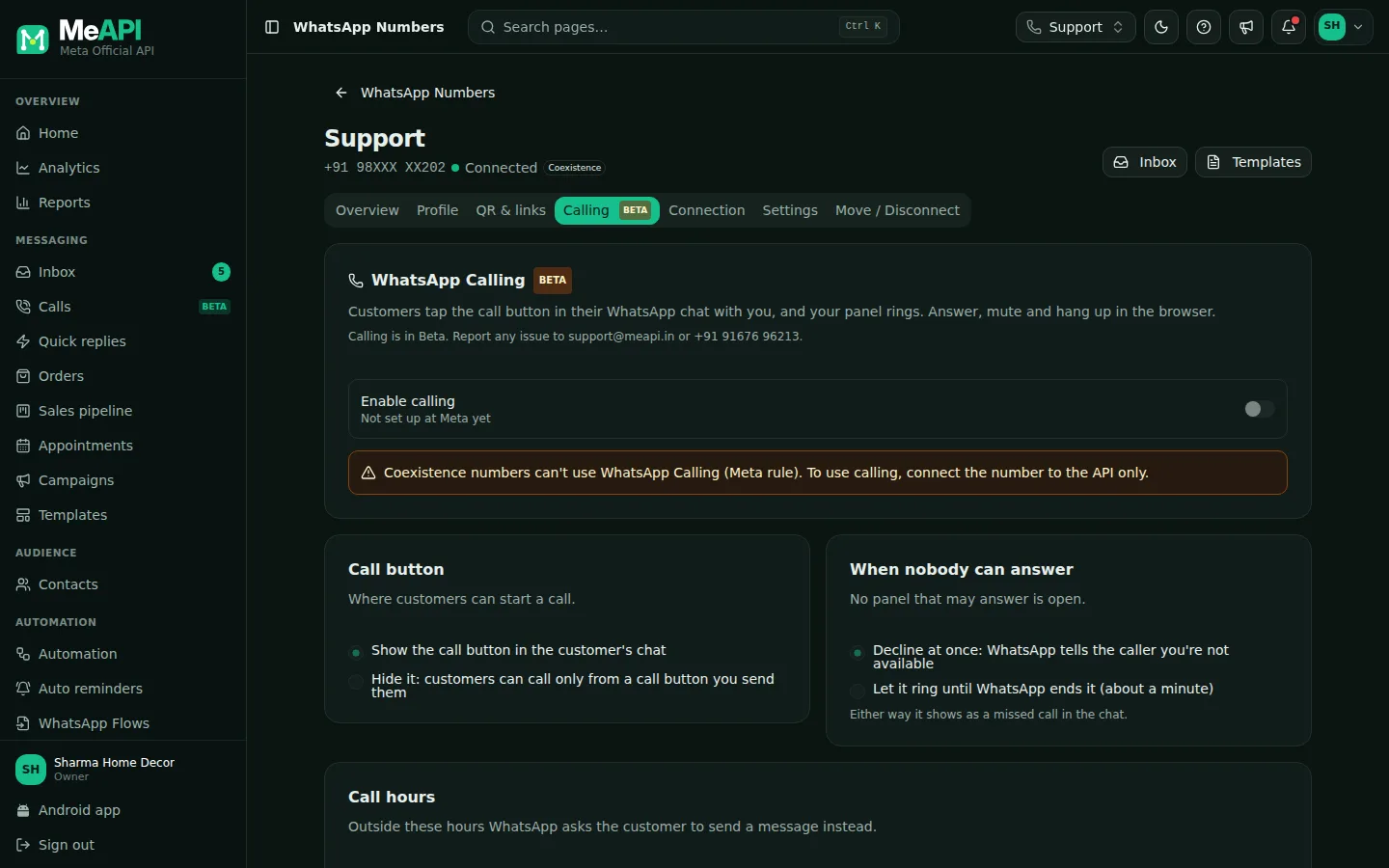
- A Coexistence number: Enable calling stays off, with the reason.
Where to find it
Section titled “Where to find it”- Calls in the left menu, under Messaging, with a Beta badge: every number’s calling status and the call log. Or press Ctrl K and type calls.
- On Home, a card New: WhatsApp Calling (Beta) says whether the number you are on can use it, with Enable calling or See why. It goes away once a number has calling on, or when you close it.
- In the Inbox, the Calls and Missed calls filters above the chat list.
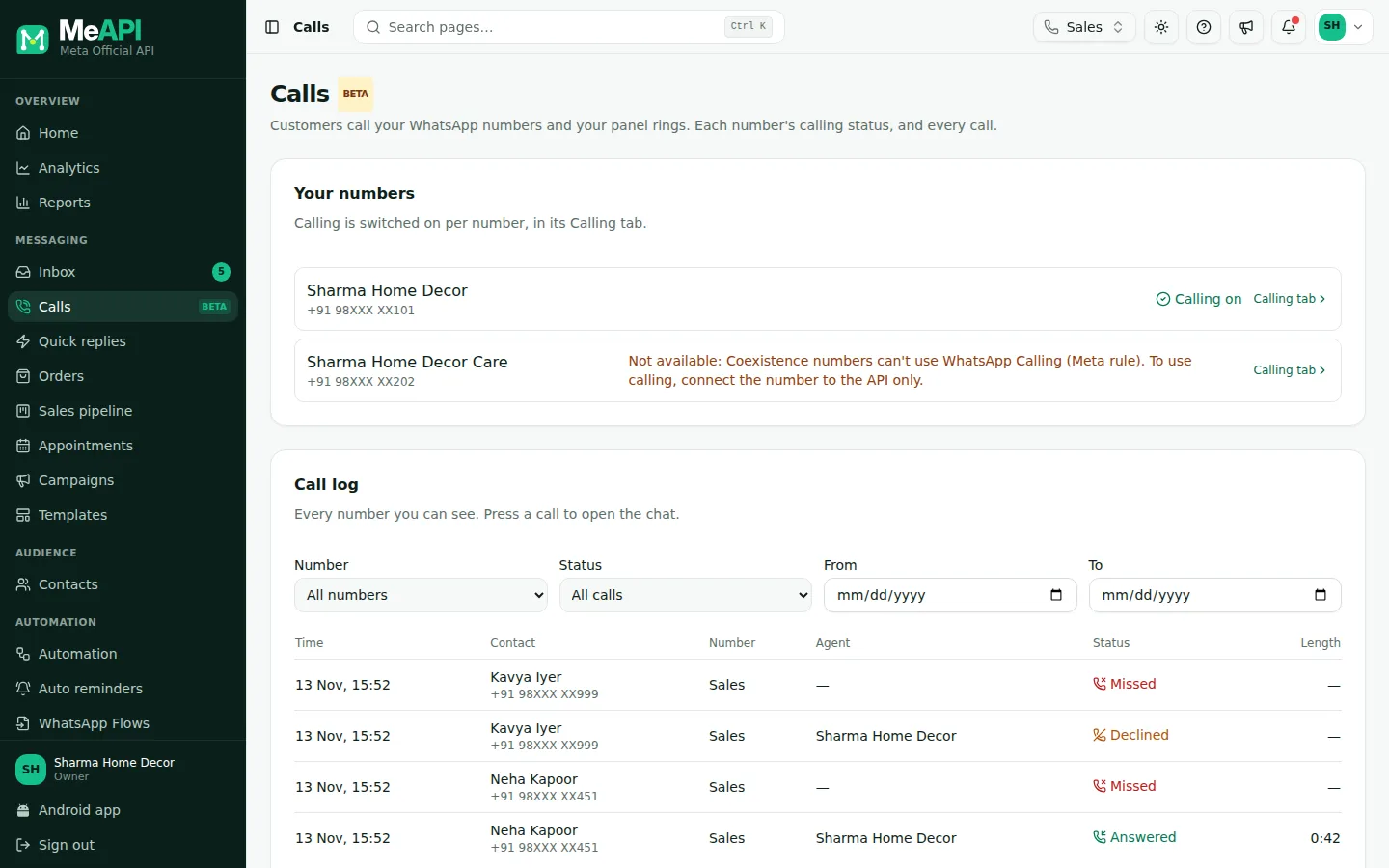
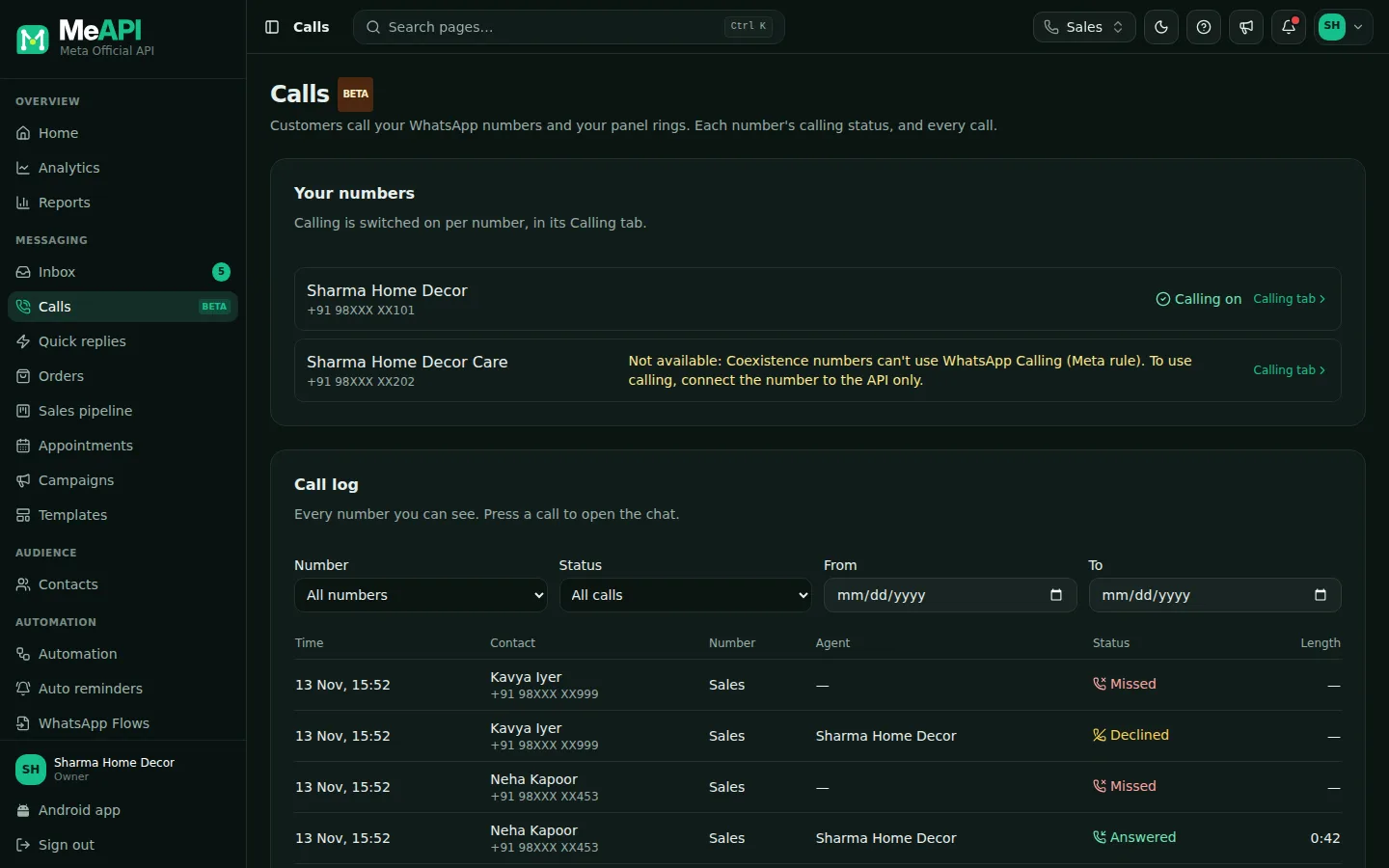
- Your numbers: Calling on, Can be switched on with Enable, or Not available with the reason (Coexistence, a messaging limit under 2,000, or what Meta answered when it refused).
- Call log: every call on the numbers you can see, newest first. Filter by number, status (answered, missed, declined) and dates. Press a call to open the chat.


- The card on Home, until a number has calling on.
1. Turn calling on for a number
Section titled “1. Turn calling on for a number”-
Open WhatsApp Numbers and press the number.
-
Open the Calling tab.
-
Switch on Enable calling. The panel tells WhatsApp at once; under the switch you see On at Meta. From now on, customers see a call button in their WhatsApp chat with you.
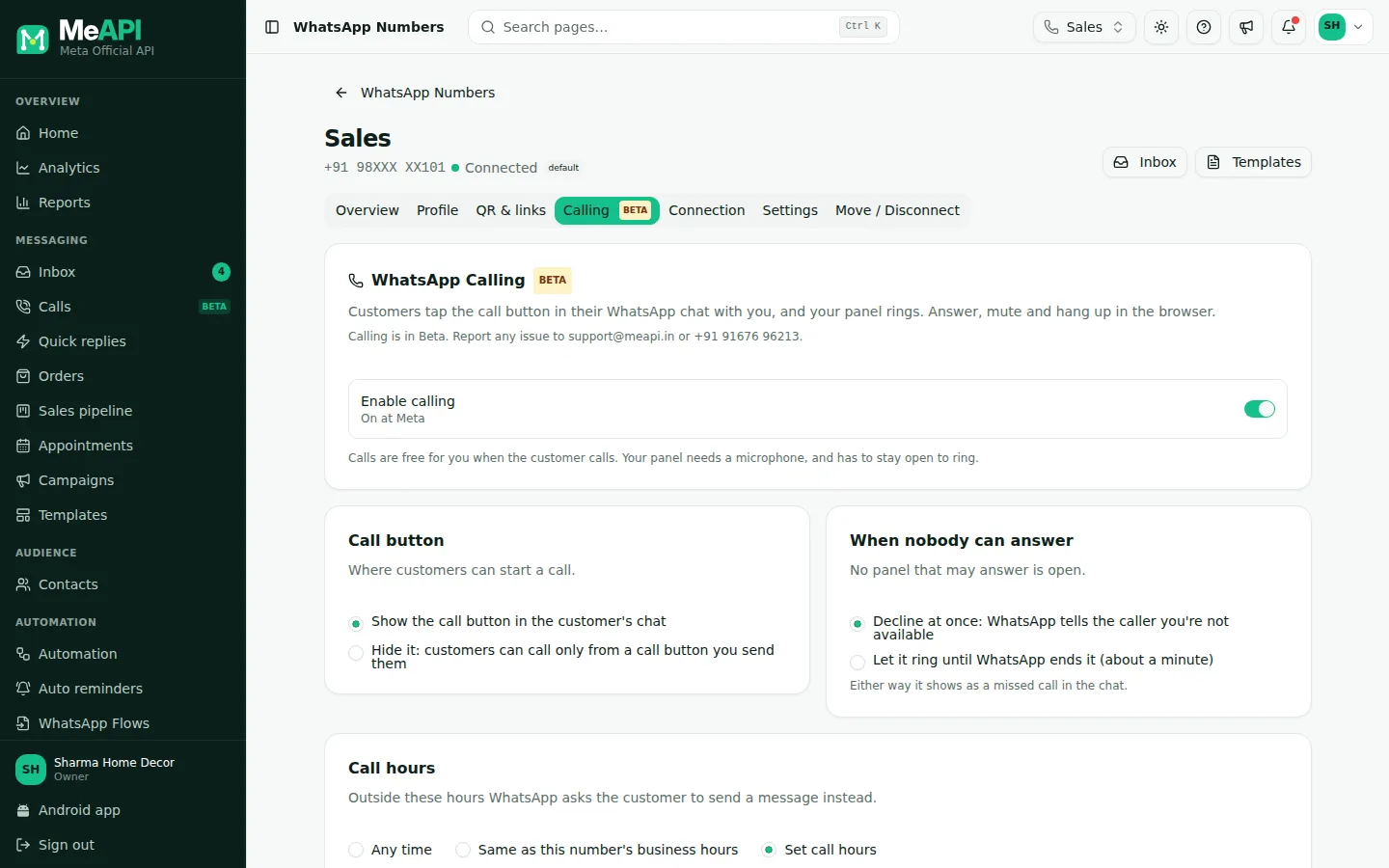
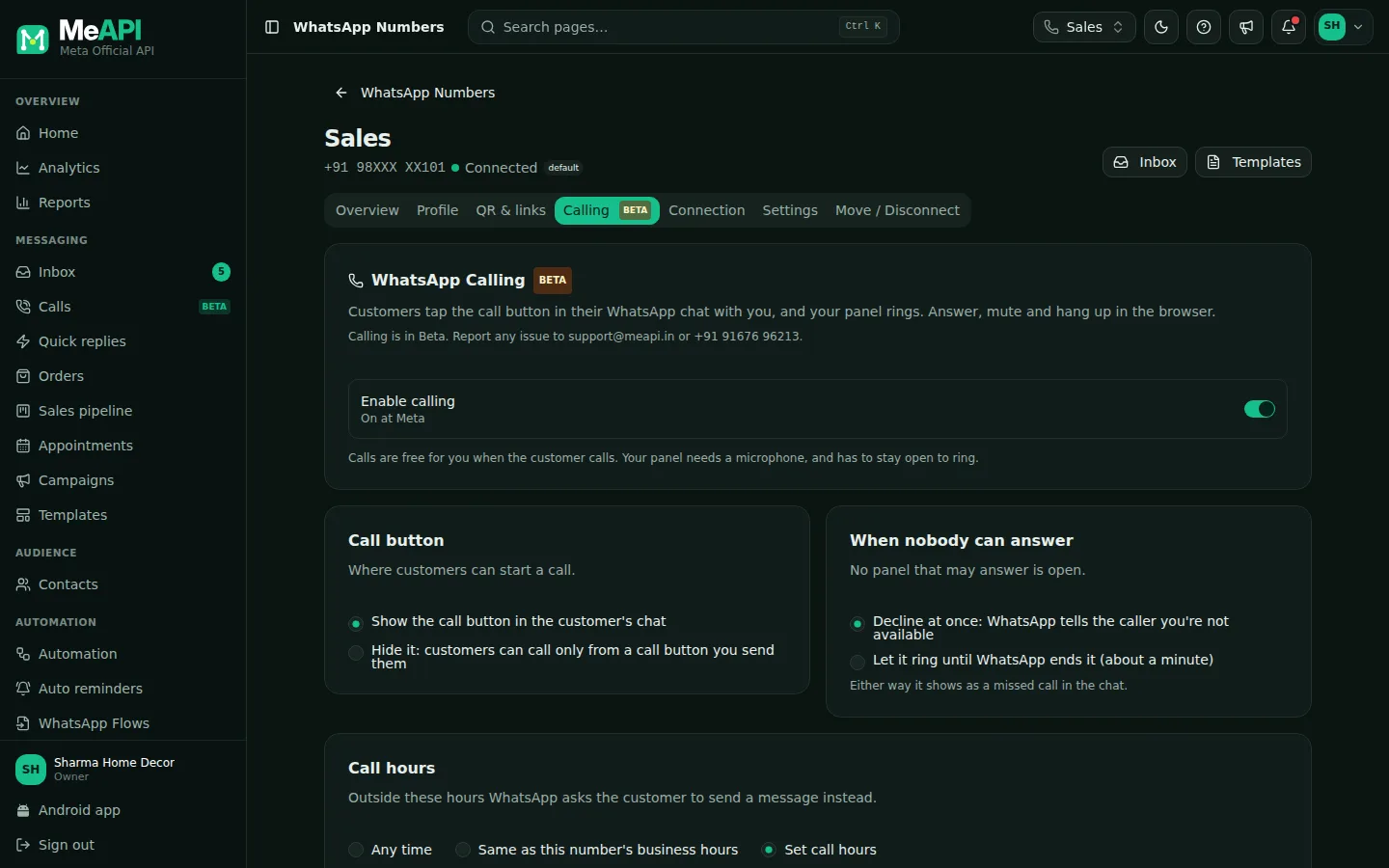
- Enable calling: on or off for this number. The line under it is what WhatsApp says now.
- Call button: show it in the customer’s chat, or hide it so customers can call only from a call button you send them.
- When nobody can answer: decline at once, or let it ring until WhatsApp ends it.
The rest of the tab:
- Call button. Show the call button in the customer’s chat (normal), or Hide it: then customers can call only from a call button you send them.
- When nobody can answer (no panel that may answer is open): Decline at once (WhatsApp tells the caller you’re not available), or Let it ring until WhatsApp ends it (about a minute). Either way it shows as a missed call in the chat.
- Call hours. Any time, Same as this number’s business hours (from Automation → Hours & teams), or Set call hours: up to two time ranges a day, and up to 20 upcoming holidays (closed all day). Outside these hours WhatsApp asks the customer to send a message instead.
- Time zone. WhatsApp needs one for every number, even with Any time. It starts with your number’s country (an Indian number: Asia/Kolkata; a US number: America/New_York) and the line under it says so. Search for your city to change it, for example Kolkata, Dubai or Tegucigalpa. With Same as this number’s business hours, the time zone of your business hours is used.
- Who answers. Everyone who can answer calls on this number, A team, or Chosen agents. With a team or chosen agents, tick My panel rings too if the account owner should also get the calls.
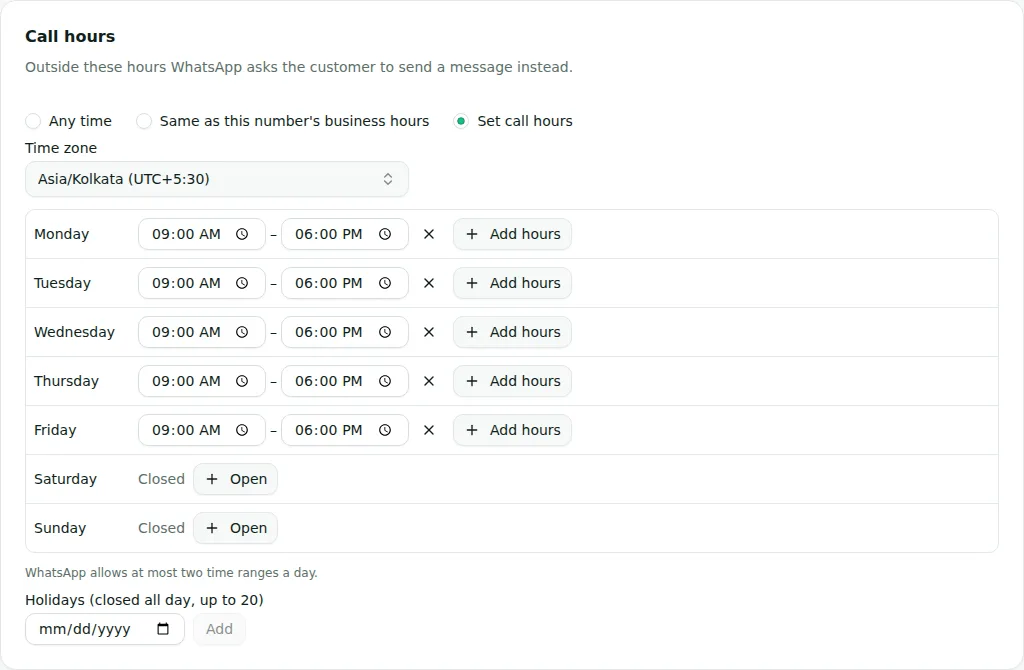
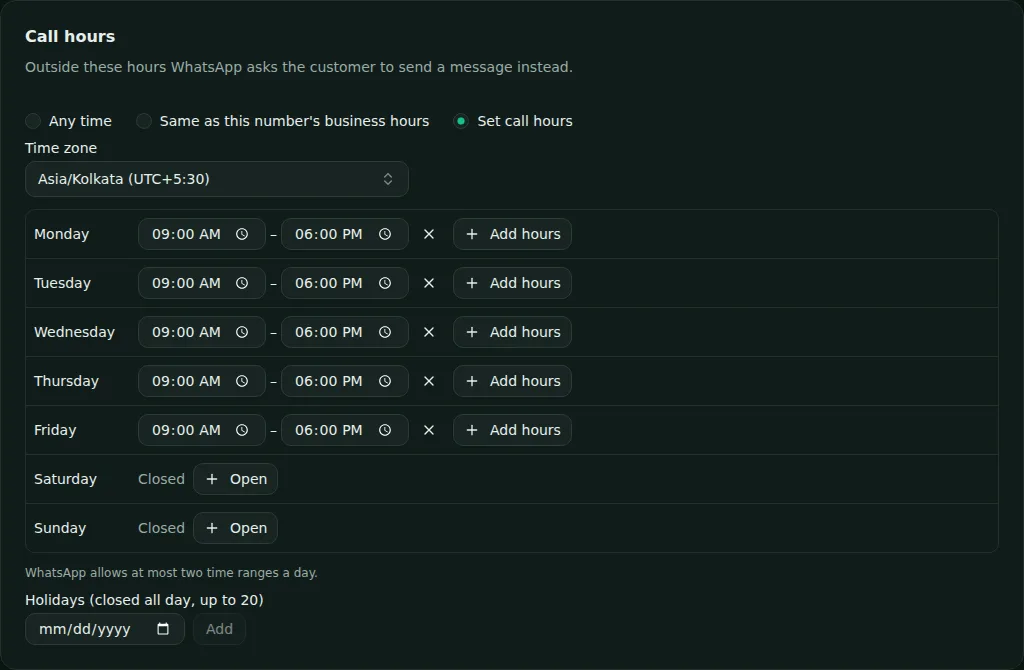
- Call hours: any time, the number’s business hours, or your own hours.
- Time zone: search for your city. WhatsApp needs it even for “Any time”.
- Up to two time ranges a day, and up to 20 upcoming holidays.
Press Save calling settings after changing these. Turning calling off in WhatsApp Manager turns it off here too.
The panel checks your settings before it sends them to WhatsApp. If something would be refused, for example business hours that are closed every day, or more than 20 holidays, a red box says what to fix and nothing is sent.
2. Answer a call
Section titled “2. Answer a call”When a customer calls, every panel that may answer rings: a card in the corner, on whatever page you are on, with a ringtone.
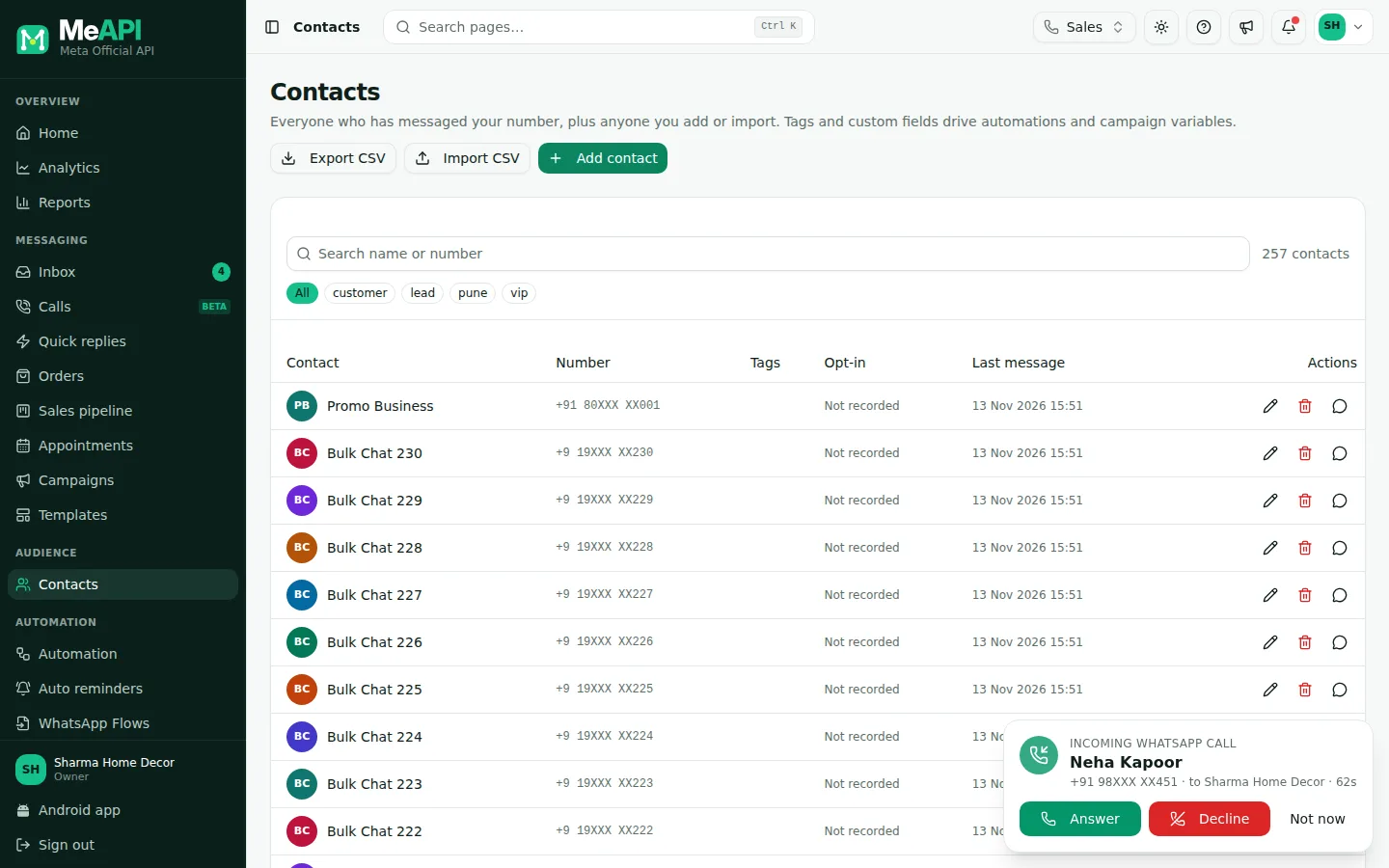
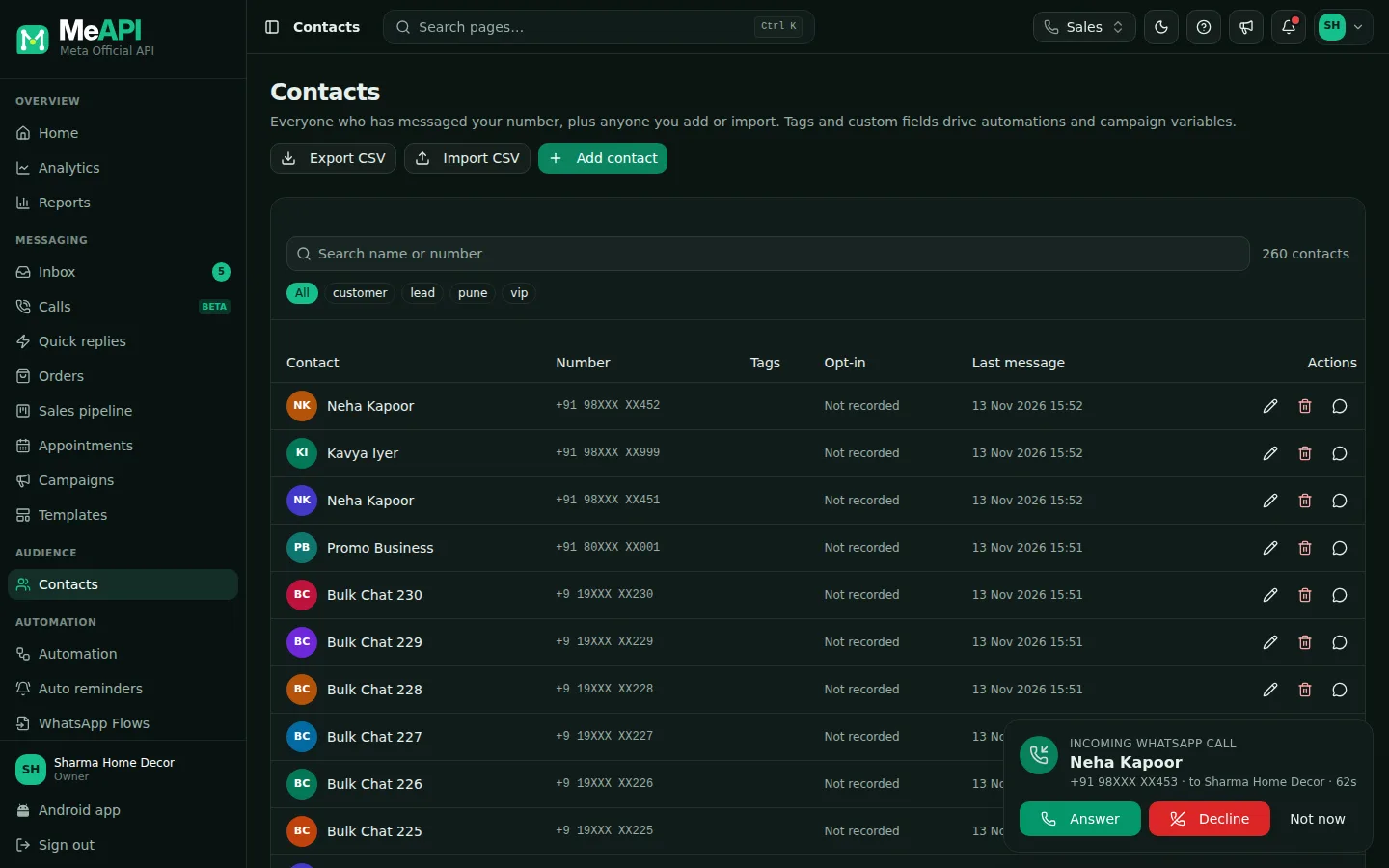
- The caller’s WhatsApp name and number, the number they called, and the seconds left to answer.
- Answer, Decline (for everyone), or Not now (hides it on your screen only, it keeps ringing for others).
-
Press Answer. The first time, the browser asks to use your microphone: press Allow.
-
A green call bar shows Connecting…, then the call timer. The first person to answer gets the call; on everyone else’s screen the card closes with “… answered the call”.
-
During the call: Mute / Unmute, Chat opens the customer’s chat, Hang up ends it.
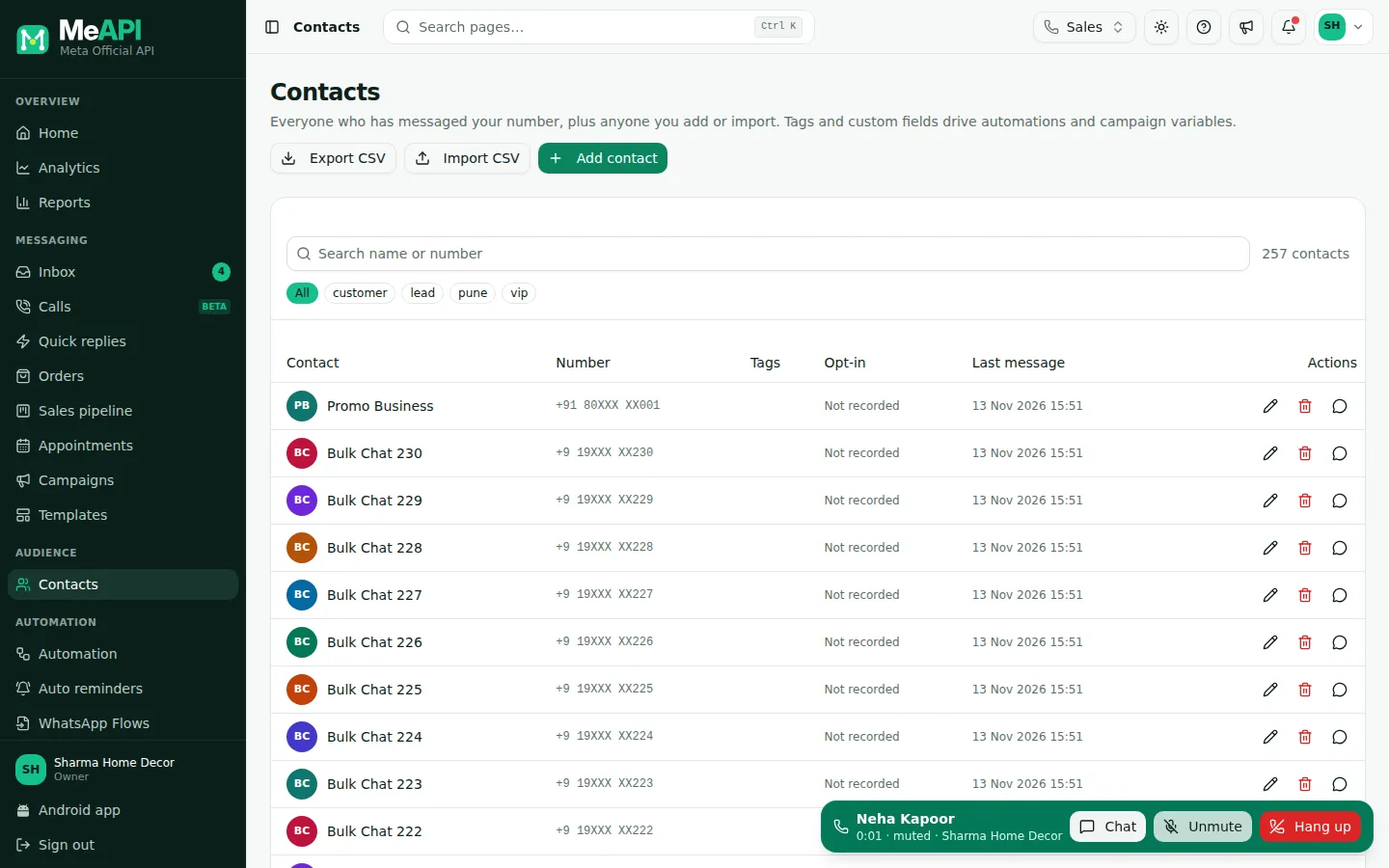
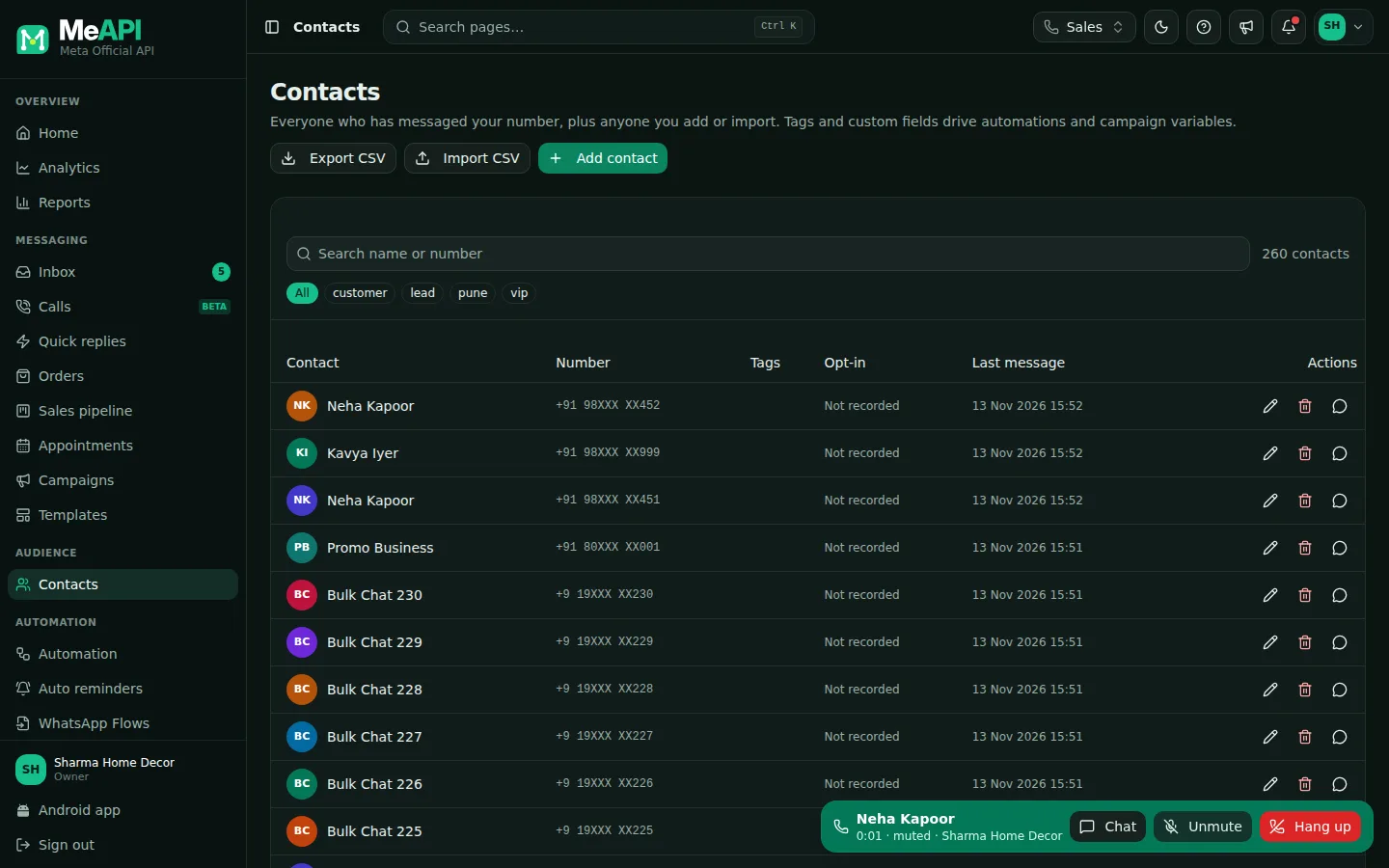
- The call bar: who you are talking to, the timer, and “muted” while you are muted.
- Chat, Mute and Hang up. You can keep working in the panel during the call.
Answer on your phone (Android app)
Section titled “Answer on your phone (Android app)”The MeAPI Android app (version 1.1.0 or newer) rings too, at the same time as the panels:
- App open: the same call card, with your phone’s ringtone and vibration. The call bar adds Speaker.
- App closed or phone locked: a full-screen call screen with the caller’s name and number, Answer and Decline, like a normal phone call. Answer opens the app on the call. On a locked phone, unlock with your fingerprint, face or PIN first: the call opens in the app, and the app is your whole inbox. Decline declines the call for everyone. Pressing Back only stops it ringing on your phone.
- First to answer gets the call. Every other panel and phone stops ringing.
- A call keeps going with the screen off or another app open. Tap the WhatsApp call notification to return to it.
Calls ring on a phone when it is signed in to the app, has notifications on, and Ring on my phone is on (your initials → App settings, on by default). The person must also be allowed to answer that number’s calls. A phone that can ring counts as someone to answer: with Decline at once, a call is declined only when no panel is open and no phone can ring.
App settings also shows a checklist of what your phone must allow, each with an Allow button: notifications, full-screen call alerts, battery optimisation off, and the microphone. Xiaomi, Oppo, Vivo and Realme phones also need Autostart on for the app (see Keep notifications arriving).
A missed call also sends a notification, Missed call from …, to everyone who can open that chat, on phones and in browsers with notifications on.
3. Calls in the chat and in Reports
Section titled “3. Calls in the chat and in Reports”Every call adds a line to the customer’s chat:
- WhatsApp call · 3:42 · answered by Priya
- Missed call: it counts as unread, so the chat shows up in Unread. Missed call · no one was online to answer means no panel was open and no phone could ring.
- Declined call · declined by Ravi
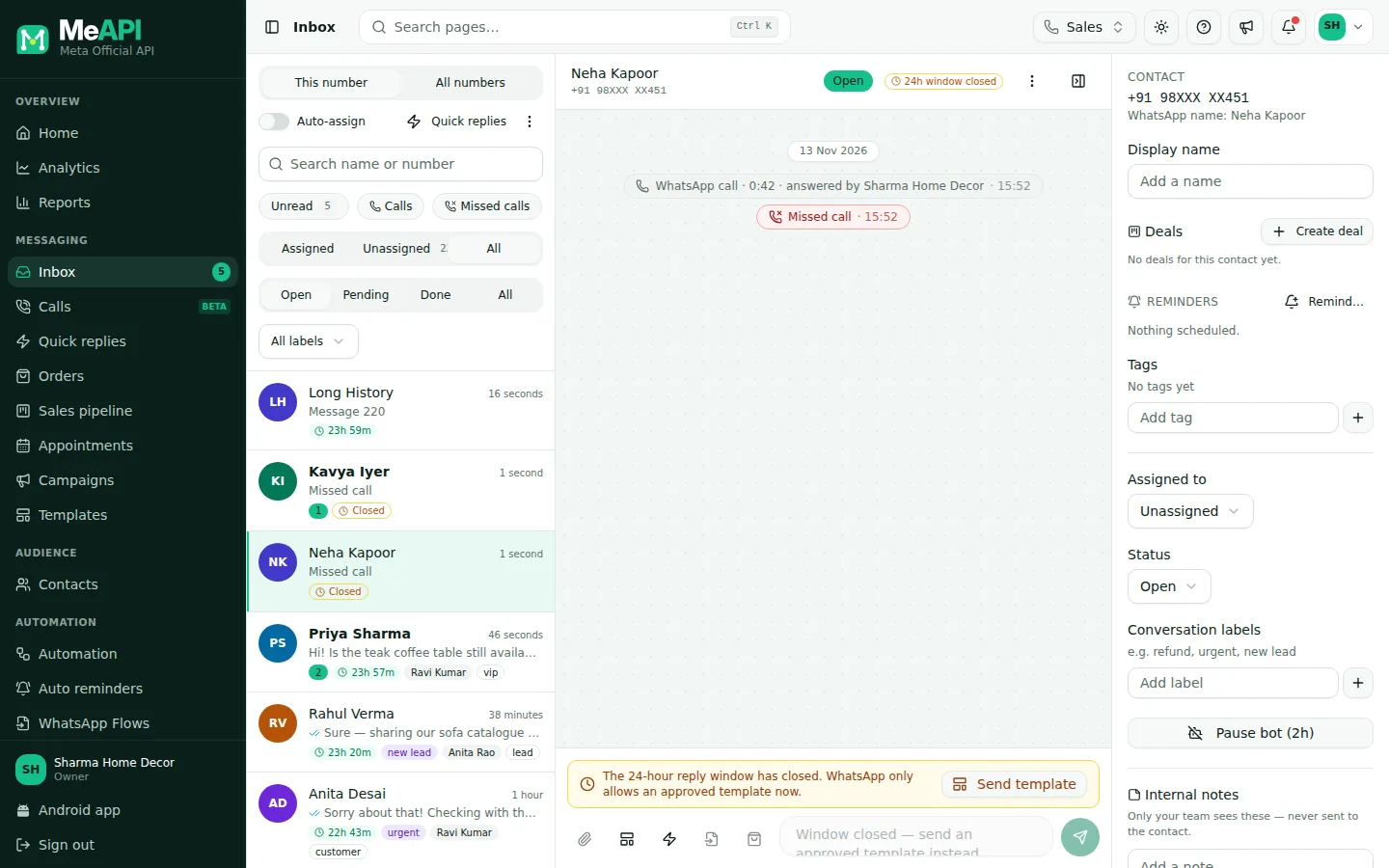
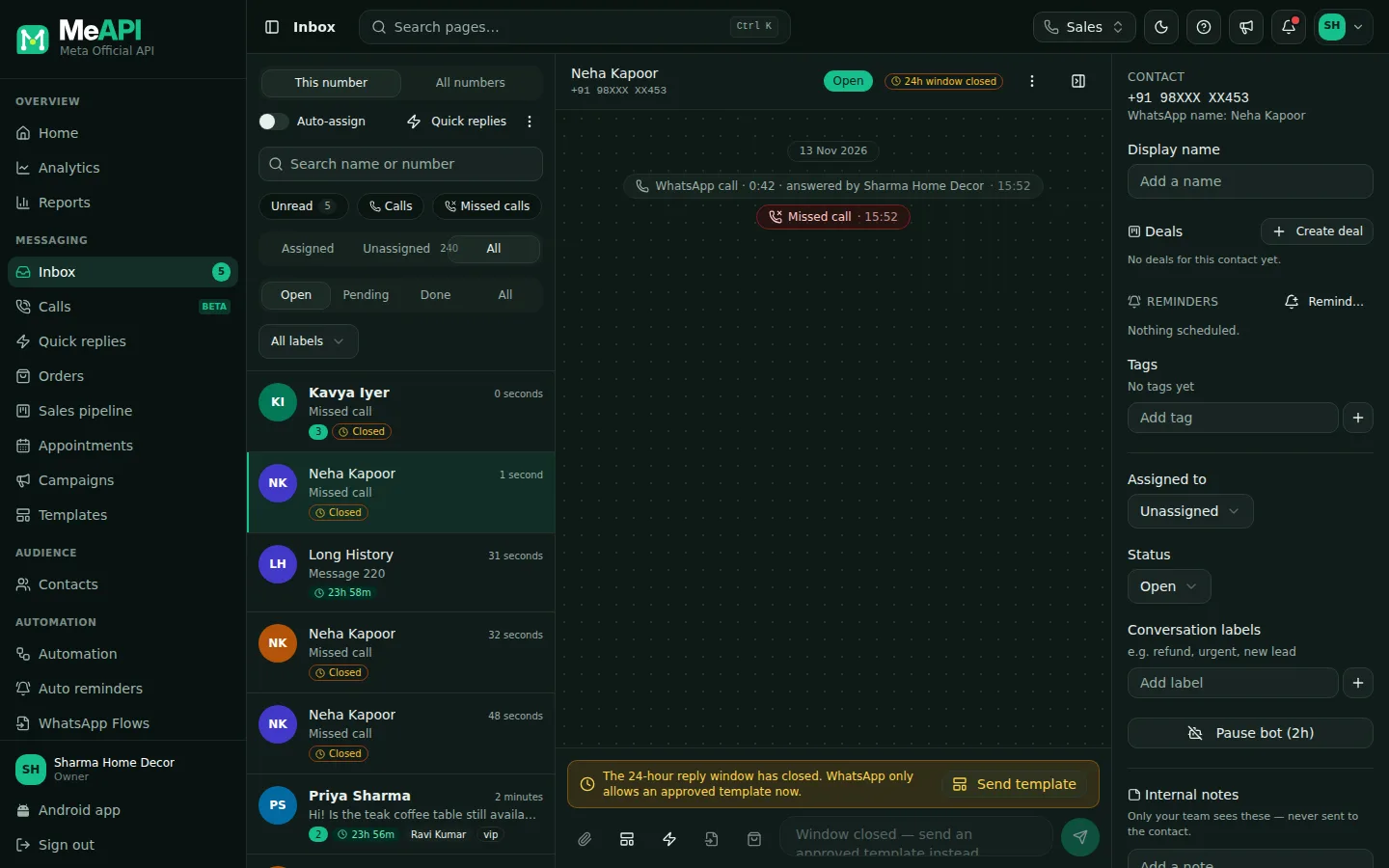
- An answered call with its length and who answered, and a missed call in red.
- A call does not open the 24-hour window: to message the customer after a call, they must have written to you in the last 24 hours, or you send a template.
The Calls page lists every call with its number, who answered and how long it lasted. In the Inbox, press Calls (chats with a call) or Missed calls (chats with a missed call in the last 30 days) above the chat list.
Reports shows WhatsApp calls for the last 30 days: calls, answered, missed, declined, average length, talk time, and calls per person.
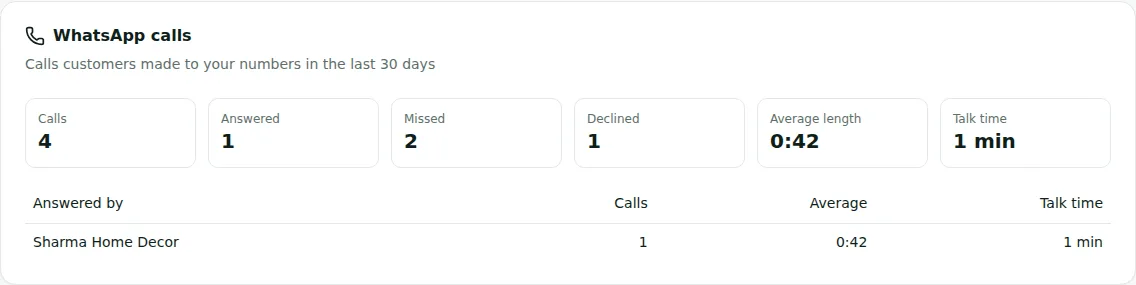
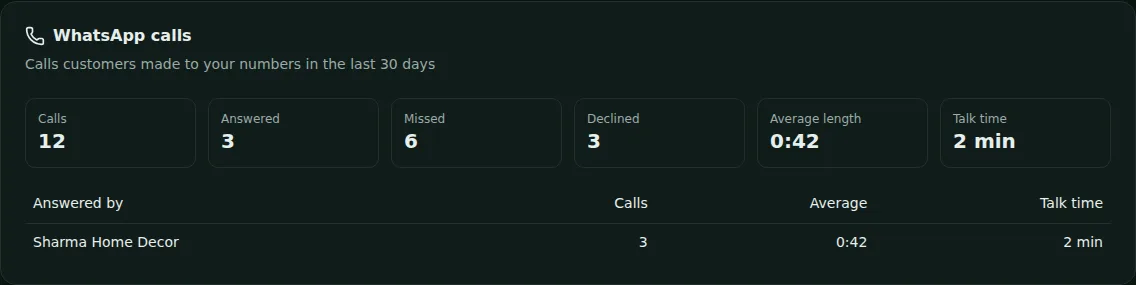
- Reports → WhatsApp calls.
Who can do what
Section titled “Who can do what”Two permissions in Agents & roles:
| Permission | What it allows |
|---|---|
| Answer incoming calls | Their panel rings for the numbers they work on (and the number’s “who answers” includes them), and they can answer or decline |
| Calling settings | The Calling tab: on / off, call button, call hours, who answers |
The ready-made Admin and Manager roles have both, Agent (chat only) can answer calls, Marketing has neither. A role that hides customer numbers also hides them on the ringing card. A support session never rings and cannot answer.
Calls that customers make to you are free. Calling customers from the panel is not available yet.
Common problems
Section titled “Common problems”- The panel did not ring. The panel must be open and signed in, the person needs Answer incoming calls and the number, and the number’s Who answers must include them. Check that Enable calling is on.
- My phone did not ring with the app closed. Update the app to 1.1.0 or newer, then open your initials → App settings: Ring on my phone must be on and every item in the checklist ✓. On Xiaomi, Oppo, Vivo or Realme, also turn on Autostart for the app. A phone that was switched off, or had no internet when the call came, cannot ring.
- “Allow the microphone for the app”. Android Settings → Apps → MeAPI → Permissions → Microphone → Allow, then answer again.
- “The browser blocked the microphone”. Press the icon in the address bar, allow the microphone for this site, then answer again.
- The call connects but there is no sound, or it drops. Some office networks and VPNs block the kind of connection calls use. Try another network (for example your phone’s hotspot) and report it to support@meapi.in or +91 91676 96213 with the time of the call.
- A red box: “WhatsApp (Meta) did not accept this”. WhatsApp refused the settings; nothing was changed. The box shows WhatsApp’s full message: read it, fix what it names, and press Enable calling again. If it is refused again, press Copy error and send it to support@meapi.in or +91 91676 96213 (on a provider’s panel: to your provider).
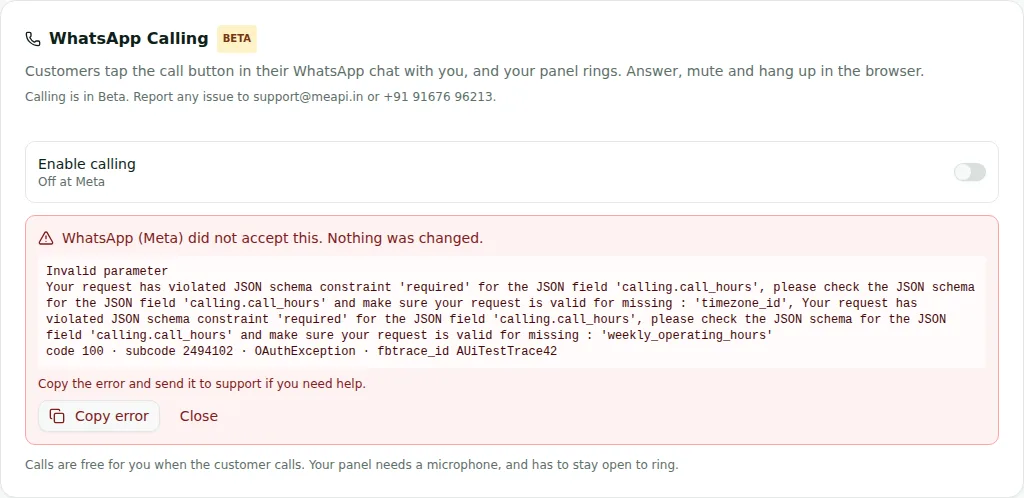
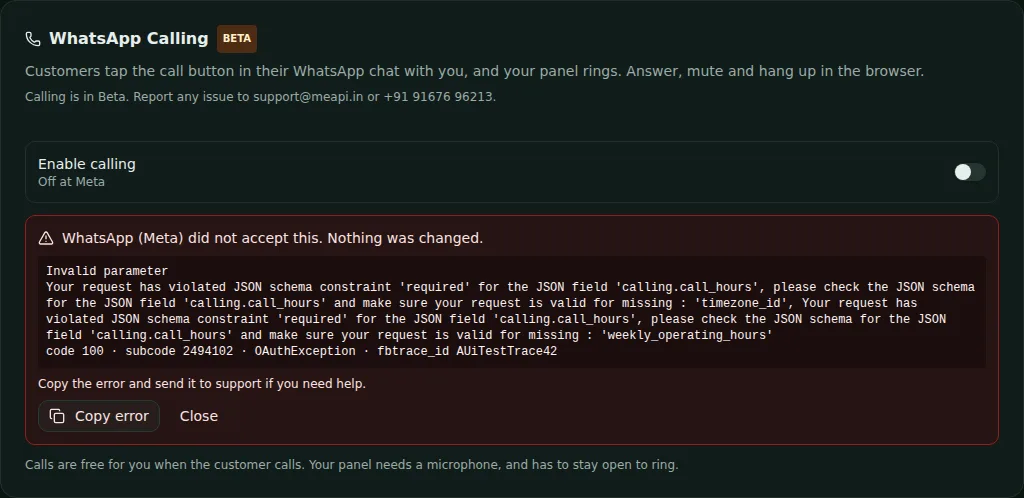
- WhatsApp’s full message, with Copy error. Nothing was changed.
- “Your request has violated JSON schema constraint … missing : ‘timezone_id’”. This came from a problem on our side on 13–15 November 2026, when Any time was sent without a time zone. It is fixed: check the Time zone and press Enable calling again.
- “Not sent to WhatsApp yet. Please fix this first”. The panel found a problem before sending, for example This number has no business hours yet. Do what it says, or choose Any time.
- “… already answered this call”. Someone else pressed Answer first; the call is theirs.
- No Calls in the menu, or no Calling tab. Your role does not have Answer incoming calls or Calling settings, or (with a provider) calling is not switched on for your account. If WhatsApp Calling is paused for everyone, the tab is hidden and calls are declined until it is back.
What’s next
Section titled “What’s next”Was this page helpful?
Thank you — we read every comment.
Could not send right now. Please try again later.
© 2026 MeAPI by TheWebStore028 · RADHAMADHAV WEBSTORE LLP · GSTIN 27ABJFR6148J1ZO · Contact us ·Cookie settings
Registered Office: 19th Floor, A-1903, Exotica Wing A, Casa Rio Main Road, Lotus Pond, Palava City Phase 1, Kalyan, Thane, Maharashtra 421204, India
Operations: Thaltej, Ahmedabad, Gujarat
Phone / WhatsApp: +91 91676 96213 · Email: support@meapi.in ·Terms · Refund & cancellation · Shipping & delivery