

Edit your number's WhatsApp profile and QR codes
🎯 Goal
Change what customers see when they open your business on WhatsApp, and make a QR code for your shop or ads.
🧰 What you need
- A connected number
- The account owner, or a role with Number settings to make changes
1. Open the profile
Section titled “1. Open the profile”-
Open WhatsApp Numbers.
-
On the number’s card, press the Profile icon (the person). For QR codes, press the QR codes icon. Or click the number’s name and choose the Profile or QR & links tab.
The Profile tab holds the business profile, with the Display name card below it. QR codes are on the QR & links tab.
2. Edit the profile
Section titled “2. Edit the profile”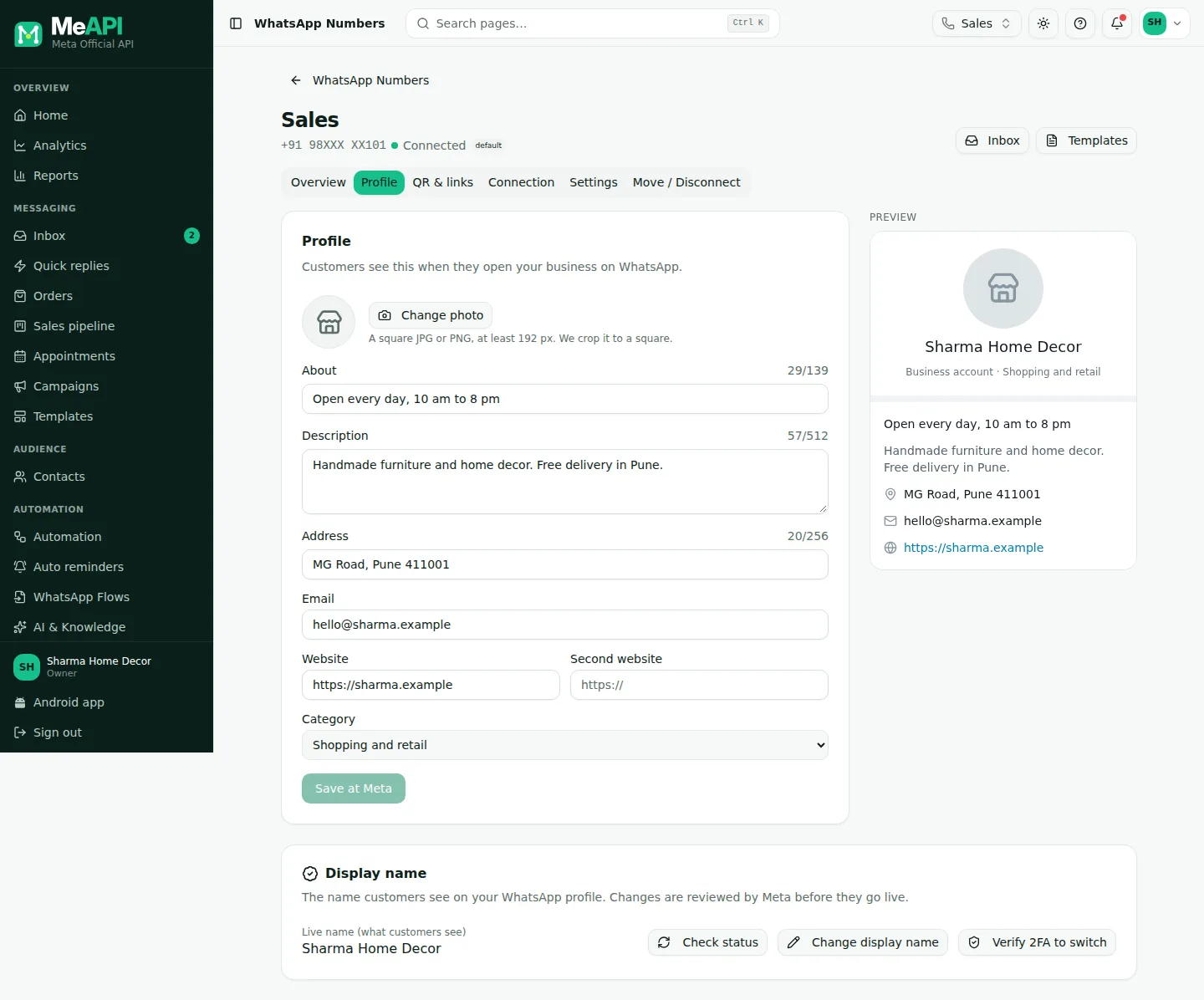
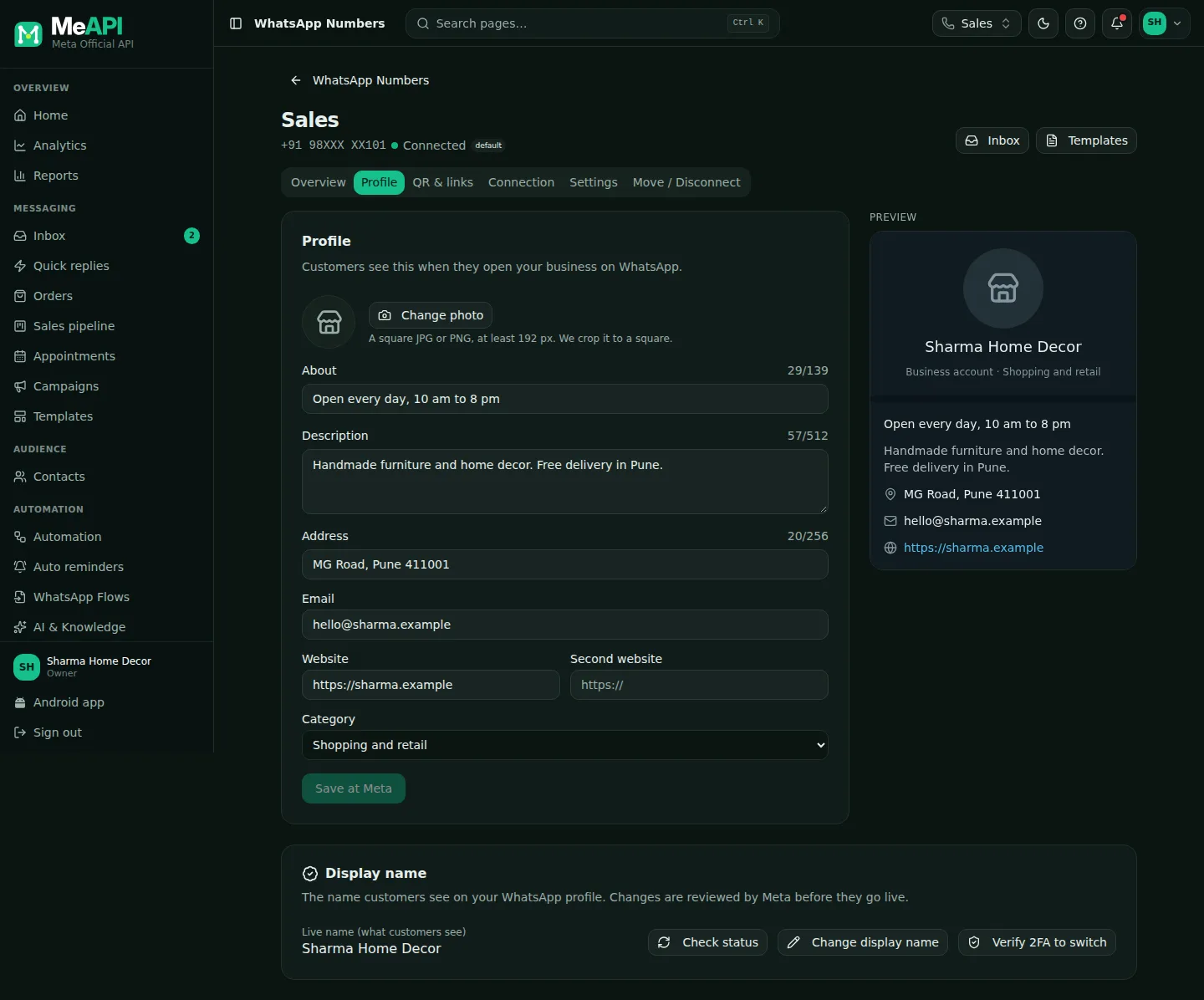
- Left: the profile. The numbers on the right of each box count the letters Meta allows.
- Right: a preview of how your business looks on WhatsApp. It changes as you type.
| Box | Meta’s limit |
|---|---|
| About | 1 to 139 characters. It cannot be empty. |
| Description | Up to 512 characters |
| Address | Up to 256 characters |
| A valid email address, up to 128 characters | |
| Website, Second website | Up to 2, each starting with https:// or http:// |
| Category | One of Meta’s categories |
Press Save at Meta. WhatsApp shows the change within a few minutes. If Meta refuses, the panel shows Meta’s own words, so you know what to fix.
Change photo: pick a JPG or PNG. We crop it to a square and send it to Meta. A square logo of at least 192 px looks best.
3. Display name
Section titled “3. Display name”The Display name card sits below the profile on the Profile tab: request a new name with Change display name, follow Meta’s review with Check status, then press Make it live. See Change your display name.
4. QR codes and short links
Section titled “4. QR codes and short links”A customer who scans the QR code, or taps the link, opens a chat with your number with a message already typed. Use it on posters, packaging, ads and your website.
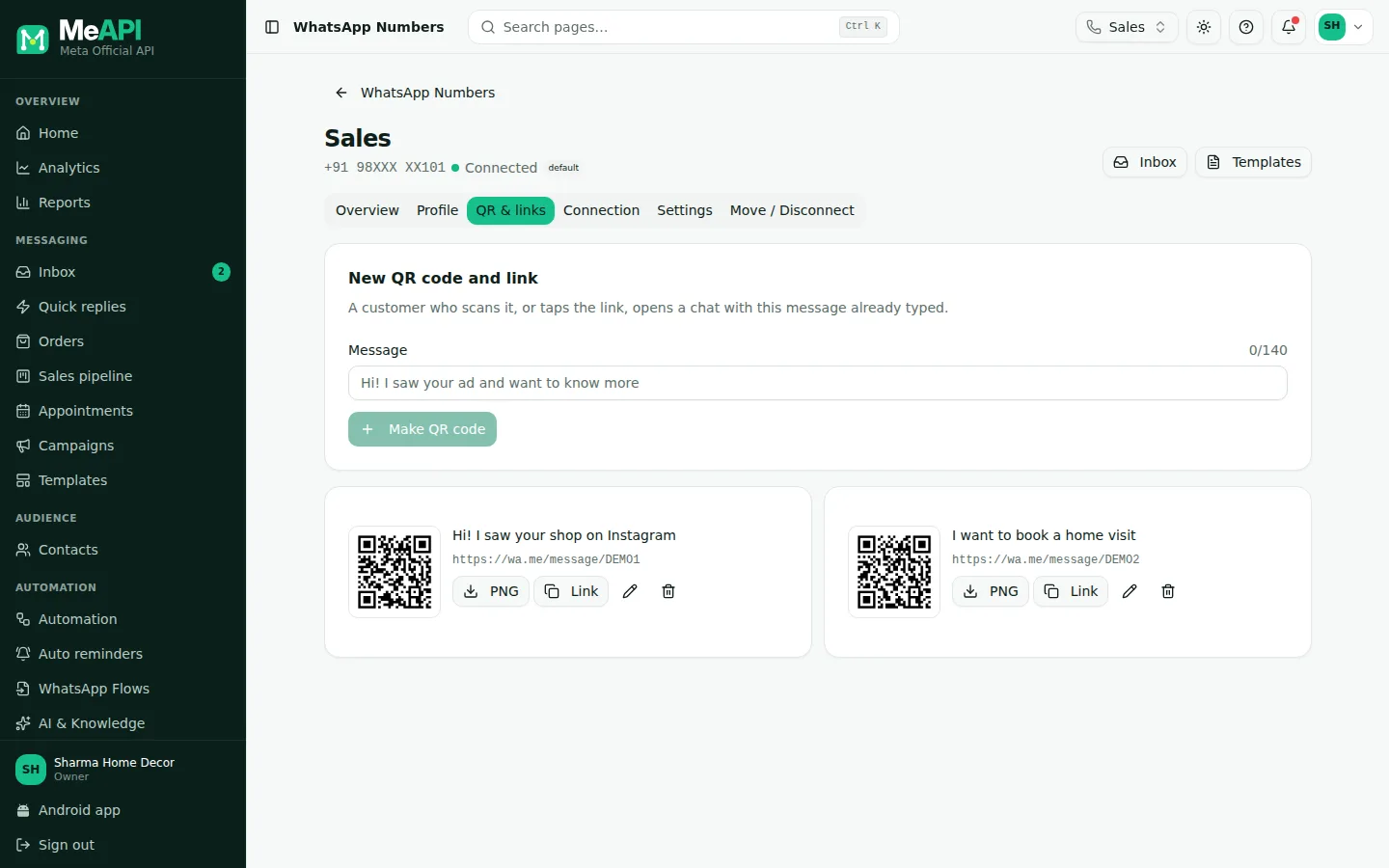
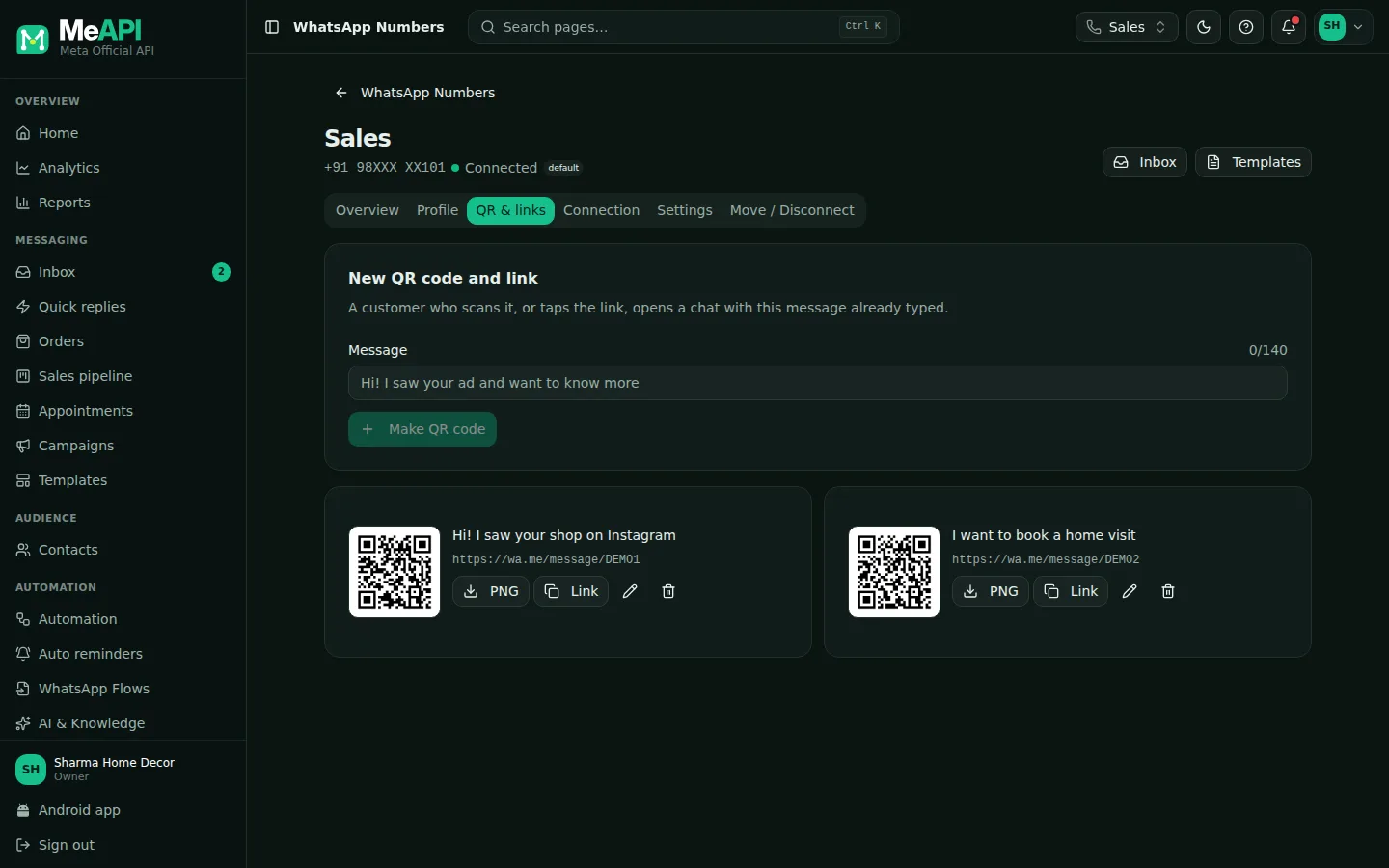
- Each code has its message, its link, PNG to download the QR image, and buttons to change the message or delete it.
-
On the QR & links tab, under New QR code and link, type the message the customer will send, up to 140 characters.
-
Press Make QR code.
-
Press PNG to download the image, or Link to copy the short link.
- Change the message (the pencil): the QR code and link stay the same, so printed copies keep working.
- Delete (the bin): printed copies and the link stop working.
- A number can have up to 2,000 QR codes and links.
What’s next
Section titled “What’s next”Was this page helpful?
Thank you — we read every comment.
Could not send right now. Please try again later.
© 2026 MeAPI by TheWebStore028 · RADHAMADHAV WEBSTORE LLP · GSTIN 27ABJFR6148J1ZO · Contact us ·Cookie settings
Registered Office: 19th Floor, A-1903, Exotica Wing A, Casa Rio Main Road, Lotus Pond, Palava City Phase 1, Kalyan, Thane, Maharashtra 421204, India
Operations: Thaltej, Ahmedabad, Gujarat
Phone / WhatsApp: +91 91676 96213 · Email: support@meapi.in ·Terms · Refund & cancellation · Shipping & delivery