

Adding your first customer as a MeAPI partner
🎯 Goal
Get your first customer into your account, signed in and ready to connect their number.
🧰 What you need
- A partner plan that sells: Reseller or a white-label plan
- Your prices and a way to pay, on My prices & payments
- On a white-label plan, a live custom domain for the sign-up link
The partner panel’s screens say “license”. A license is one customer account.
Which way fits your plan
Section titled “Which way fits your plan”| Plan | How customers come in |
|---|---|
| Referral partner | You cannot create accounts. People you refer buy from MeAPI, and you earn commission |
| Reseller | You create each account by hand |
| Free White-label | Your sign-up link, or by hand, once your first customer account is paid |
| Paid White-label, 2-Year White-label | Your sign-up link, or by hand |
Way 1: your sign-up link
Section titled “Way 1: your sign-up link”Your link is your domain followed by /userlicense-signup. For example, https://panel.yourbrand.com/userlicense-signup.
-
Send the link to your customer.
-
They sign up. They get a free trial and land in your list.
-
They buy a plan from you on their Subscription page. See Turn a trial into a paid customer.
Sign-ups on your domain are always free trials. Your plan limits how many trials (demo accounts) can be open at once. If they are full, or your domain is asleep, the page says sign-ups are closed.
Way 2: create the account yourself
Section titled “Way 2: create the account yourself”Use this when you sell to someone directly. A paid account starts now, and you collect the money yourself. A demo account is a free trial.
Most partners have a reseller login, whichever plan they are on. These are its steps:
-
Open Paid Licenses and press Create Paid, or open Demo Licenses and press Create Demo.
-
Fill in Customer Name, Email and WhatsApp Number with the country code, like
+919876543210. -
Pick the Customer plan. The box underneath shows what this account will cost you.
-
Pick the License Duration. For a normal sale pick 1 Year.
-
Press Create Paid License or Create Demo License.
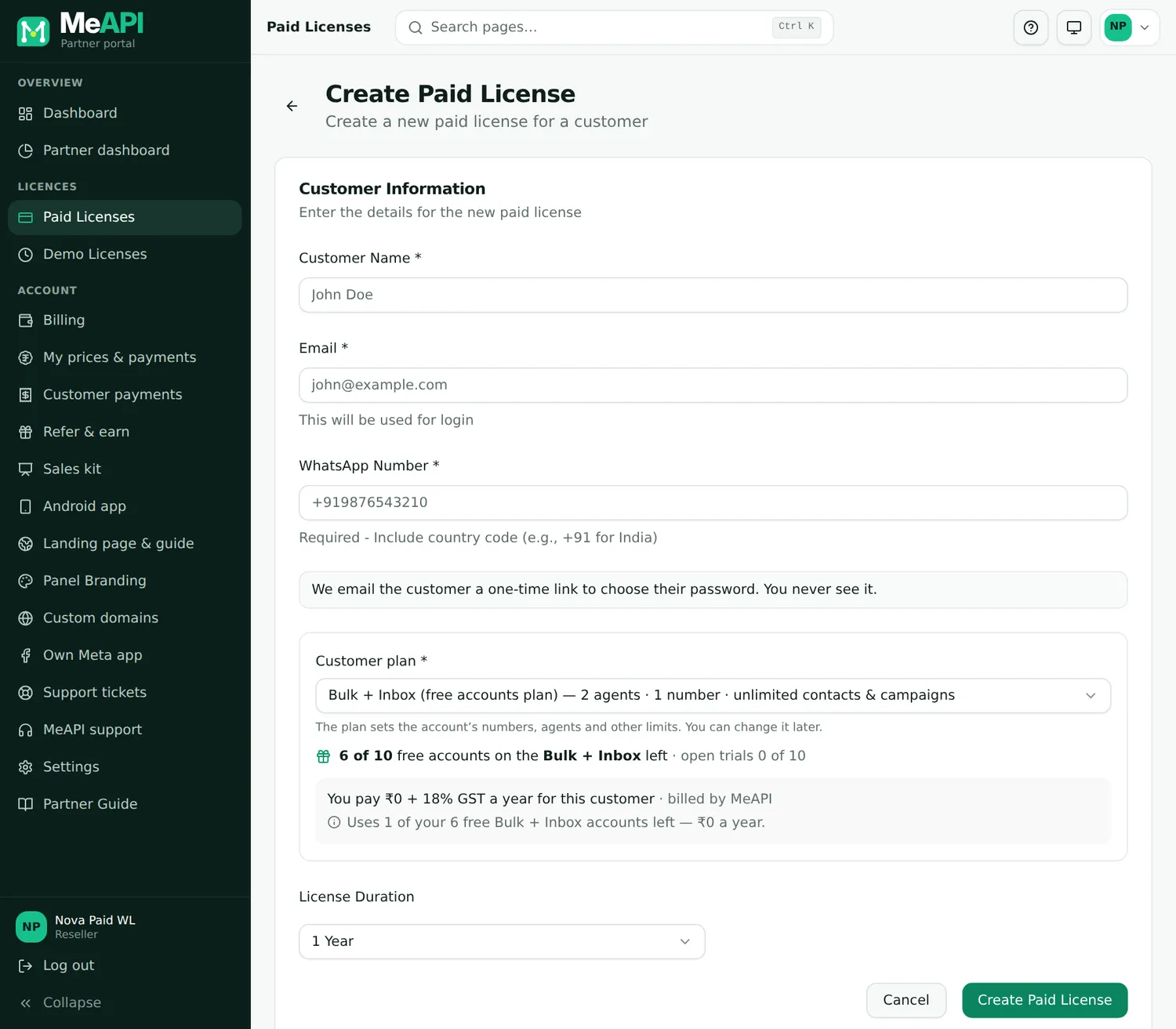
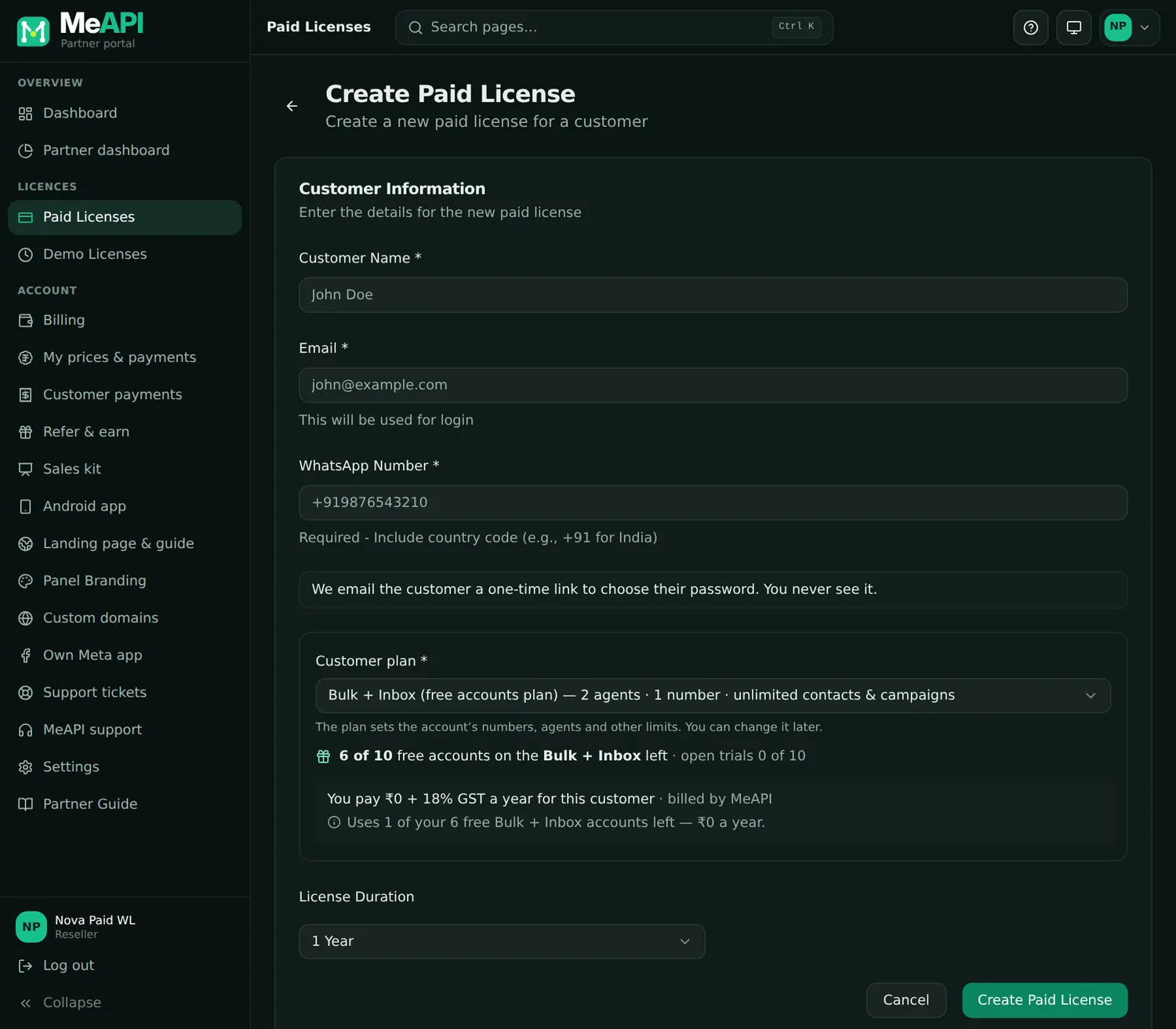
- The Create Paid License form, with the customer plan and what it costs you. Sample data.
We email the customer a one-time link to choose their password, valid for 72 hours. You never see it.
With a live custom domain, your customer signs in on your domain. Without one, they sign in at login.meapi.in. They can change their password on the Account page in their panel.
On a sub-admin login the steps are in Licenses, under Create License. See the Partner Guide. It needs a partner sign-in.
What a paid account costs you
Section titled “What a paid account costs you”A paid account on a yearly period costs you from today to your billing date. A paid account on a shorter length (monthly, quarterly or half-yearly) costs you exactly the cost of that length, each time it starts or renews. It never uses a free account. Either can add to your next payment request. See Customers added during the year.
Trials cost you nothing.
Your demo limit
Section titled “Your demo limit”You can have a set number of trials (demo accounts) open at once. Your dashboard and the Create Demo form show how many are open and how many you may have. When you reach it, Create Demo answers “You have 10 of 10 demo accounts in use” and your sign-up link closes until one frees up.
- Counts: a trial that has not ended, including one you paused.
- Frees up: the day after a trial ends, when it becomes paid, or when you delete it.
- More room: ask MeAPI support. A reseller under a sub-admin asks its sub-admin.
Turn a trial into a paid customer
Section titled “Turn a trial into a paid customer”There are two ways. Change plan and Extend do not do this: they keep it as a trial.
The customer paid you outside the panel (cash, UPI or bank):
-
Open the customer: View on a reseller login, Edit on a sub-admin login.
-
In the Plan card, find Mark as paid.
-
Pick the Plan and Paid by, then enter the Amount they paid you and the Reference. Cash does not need a reference. If you sell that plan for more than one length, also pick the Length they paid for.
-
Press Mark as paid and confirm. You cannot undo this. The plan starts at once and we email the customer.
The customer pays in their panel. Your prices and a way to pay must be set up first.
-
Ask them to open Subscription and pick a plan.
-
They pay online, or pay you and send the reference.
-
If they paid by UPI or bank, open Customer payments, check the money arrived, and press Approve. The plan starts straight away.
Find your customer in your list
Section titled “Find your customer in your list”Your customers are under Paid Licenses and Demo Licenses on a reseller login, or Licenses on a sub-admin login.
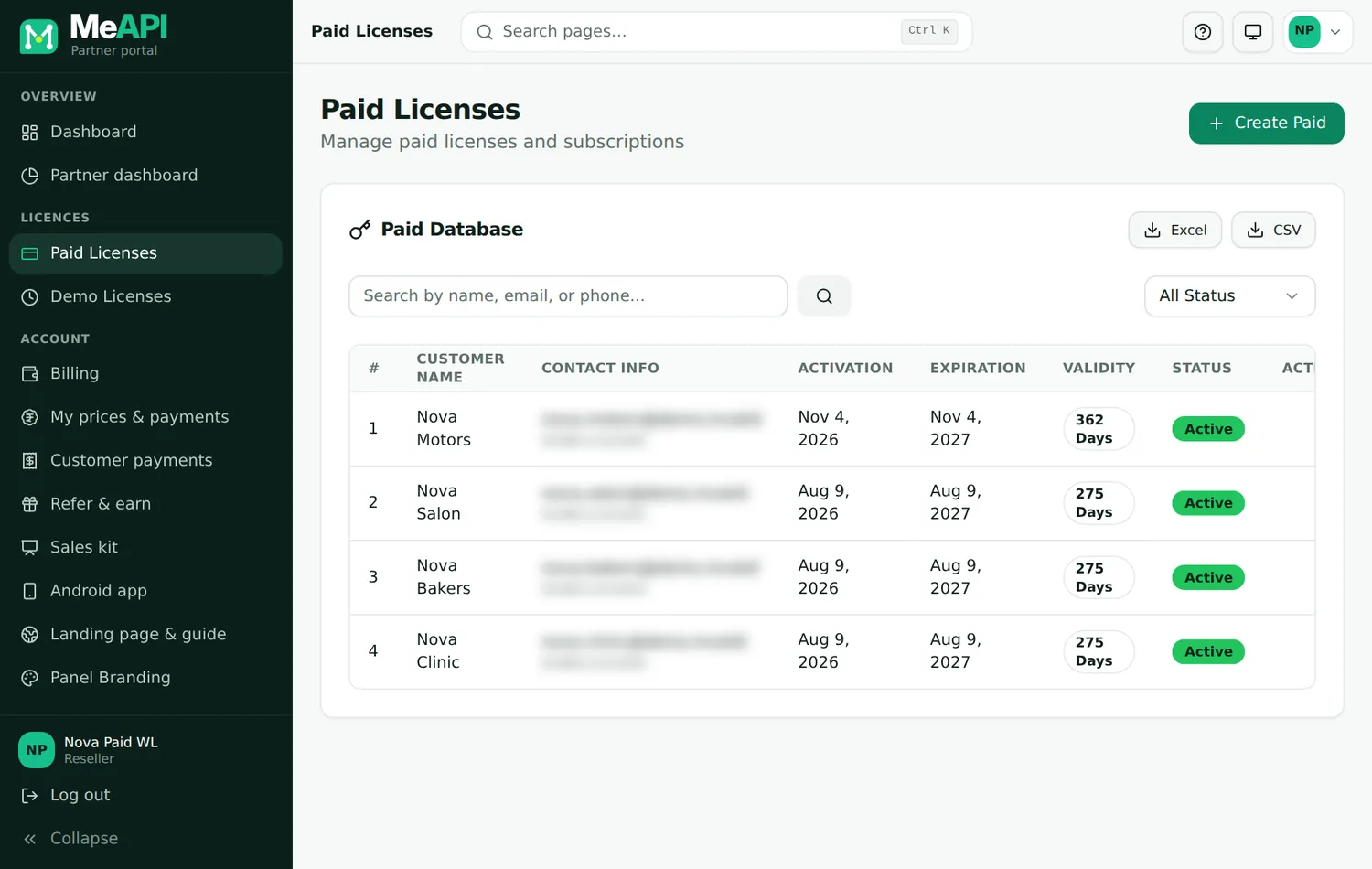
- Paid Licenses on a reseller login. Sample data.
The lists go by what the account has now. A trial that buys a plan moves from Demo Licenses to Paid Licenses. The Plan card inside the account shows its plan and dates.
On Free White-label: your first customer account
Section titled “On Free White-label: your first customer account”New Free White-label partners pay for one customer account first. Until then your custom domain, brand and sign-up link stay off, and you cannot create customers.
-
Open Billing and find Pay for your first customer account to go live.
-
Pick the plan for this account. The button shows its price.
-
To sell it straight away, enter your customer’s email. Leave it empty to use your own login email.
-
Pay the request.
If you used your own email, keep the account as your demo, or hand it to a real customer once from Billing.
Switch a feature on or off for one customer
Section titled “Switch a feature on or off for one customer”Each customer’s page has a Features card. Use it when one customer should not have something their plan includes, or to switch on WhatsApp Calling for a customer on All Features + API.
The card lists every feature, grouped as in the menu. A picture of the whole card is in the Partner Guide. It needs a partner sign-in.
-
Open the customer: View on a reseller login, Edit on a sub-admin login.
-
In Features, pick Plan default, Always ON or Always OFF for the feature. Each row shows what the plan gives and whether the customer has it now (ON or OFF, and why).
-
Press Save changes, check the list of changes (for example Campaigns: OFF and 1 scheduled campaign will be paused), and press Save.
You can switch any feature off for your own customers. You can switch one on only when it is in your partner plan and in the customer’s plan. Ads and Invoices are set by MeAPI.
Pause one customer
Section titled “Pause one customer”Use Pause customer to stop one customer’s service without deleting anything, for example while you wait for their payment.
- Open the customer: View in your list (on a sub-admin login, Edit).
- In Pause this customer, press Pause customer. Add a reason if you like; the customer never sees it.
- Press Pause.
While they are paused, nothing is sent from their numbers and their developer API is refused. They and their agents see only “Service paused by your provider”, with your support contacts, in the panel and the Android app. Incoming messages are still saved. Their data and WhatsApp connection stay as they are, and the plan’s end date does not move.
Press Resume customer on the same card to bring everything back. Anything that fell due while they were paused is skipped, not sent late.
Help them connect their number
Section titled “Help them connect their number”Every customer connects their own number from their own panel, with the Facebook account that manages their business. They do this on WhatsApp Numbers in their panel (with a number already there, Add number).
Tell them what to expect:
- Keep the phone with the number close by.
- Finish every screen in Facebook’s window, until it closes by itself.
- Send a test message from another phone and check that it reaches Inbox.
- Add a payment method in WhatsApp Manager. Meta bills the customer directly for messages.
Meta decides whether a number can connect. Neither of us can override it.
Common mistakes
Section titled “Common mistakes”- Using one email twice. Each account needs its own email. One trial per email, and one per WhatsApp number.
- Not setting prices first. A customer without prices sees a card asking them to contact you, and cannot buy.
In the Partner Guide
Section titled “In the Partner Guide”The full steps are in the Partner Guide inside your partner panel. It needs a partner sign-in.
- Your sign-up link
- Create a customer yourself
- Trials
- Your first customer account
- Switch features on or off for one customer
- Connect WhatsApp
- Go-live checklist
What’s next
Section titled “What’s next”Was this page helpful?
Thank you — we read every comment.
Could not send right now. Please try again later.
© 2026 MeAPI by TheWebStore028 · RADHAMADHAV WEBSTORE LLP · GSTIN 27ABJFR6148J1ZO · Contact us ·Cookie settings
Registered Office: 19th Floor, A-1903, Exotica Wing A, Casa Rio Main Road, Lotus Pond, Palava City Phase 1, Kalyan, Thane, Maharashtra 421204, India
Operations: Thaltej, Ahmedabad, Gujarat
Phone / WhatsApp: +91 91676 96213 · Email: support@meapi.in ·Terms · Refund & cancellation · Shipping & delivery