

Manage your numbers
🎯 Goal
See how each of your numbers is doing, and change its settings without opening Meta.
🧰 What you need
- At least one connected number
- The account owner, or a role with WhatsApp Numbers access
1. Your numbers as cards
Section titled “1. Your numbers as cards”Open WhatsApp Numbers (left menu → Account, or your initials at the top right → WhatsApp Numbers). Each number has its own inbox, contacts, automations and chatbots, and its own card here.
At the top of the page:
- Add number connects another number (see Connect a number). When your plan is full it reads Plan limit reached.
- Refresh from Meta re-reads the quality and messaging limit of every number at once.
- A line such as 2 of 5 numbers on your plan, with a bar. When the plan is full, the account owner sees Add more numbers, which opens Subscription.
- When some numbers have a problem, an amber line says, for example, 2 numbers need attention with Show them. It shows only those cards; Show all brings the rest back.
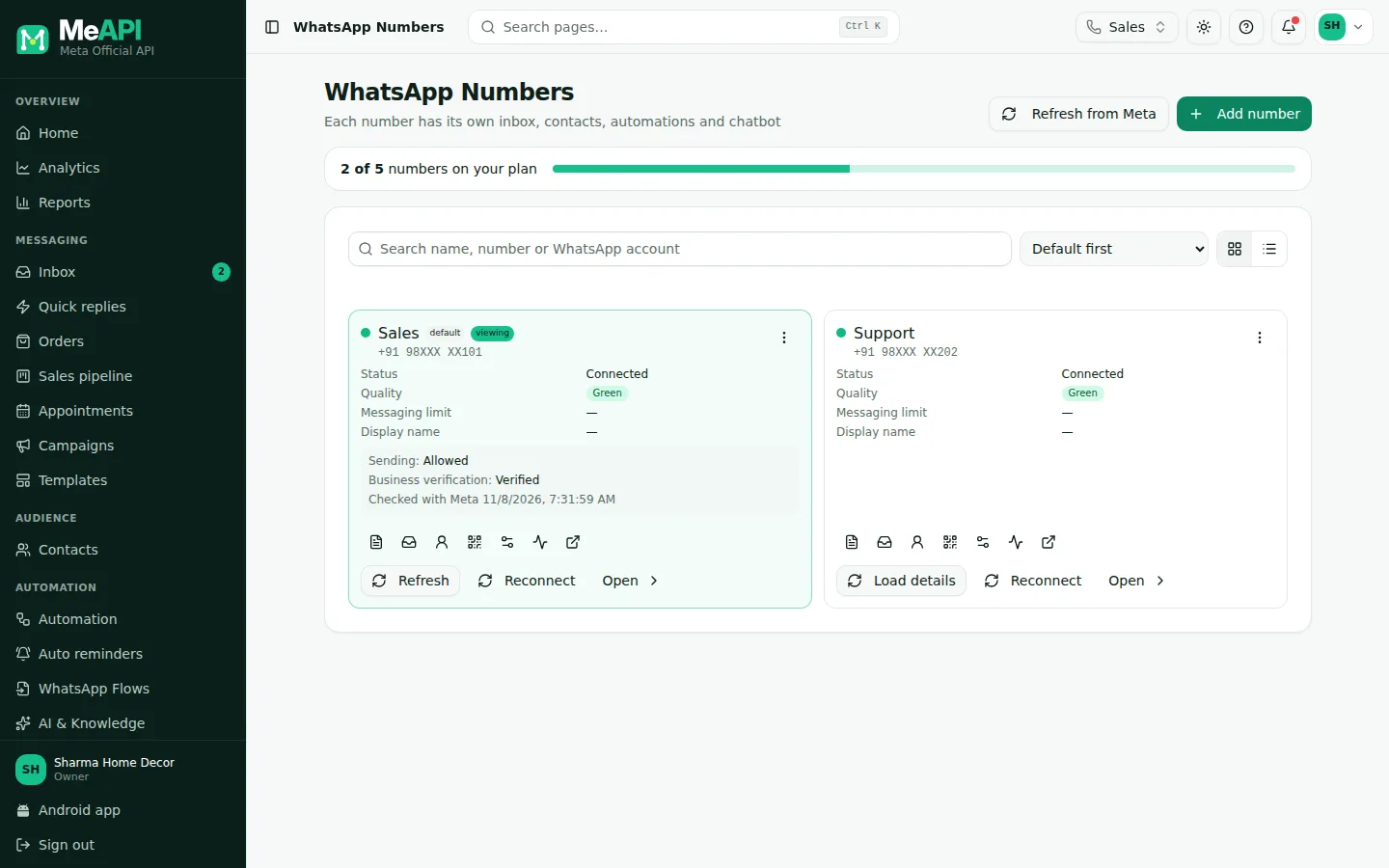
Every card shows:
- the number’s name (click it to open the number’s own page) and number, and its WhatsApp account
- badges: default (the number the panel opens on), viewing (the one in the number switcher), Coexistence (also on the WhatsApp Business app) and needs attention
- Status: Connected, Pending, Flagged, Restricted or Disconnected
- Quality: Green, Yellow or Red. A red badge such as was GREEN means the quality dropped since Meta’s previous reading
- Messaging limit: how many people it can start chats with each day, with a bar such as 1,200 used · 800 left in 24 h
- Display name: Approved, In review, Declined or Expired
Search by name, number or WhatsApp account, and Sort by Default first, Name, Number, Quality (worst first) or Status (problems first). Grid view and List view choose cards or a list. The panel remembers your choice.
- One card per number. The number you are viewing has a coloured border.
- The icons under each card: Templates, Inbox, Profile, QR codes, Settings, Health check and Open in WhatsApp Manager. See Profile and QR codes.
- Buttons: Load details, Reconnect (always there for the account owner and roles with Connect / disconnect numbers; use it when a number stops working) and Open, which opens the number’s own page.
2. Load details
Section titled “2. Load details”The card shows what MeAPI saved at the last check, so the page opens fast. To ask Meta now:
-
Press Load details on the card.
-
Read Sending (Allowed, Limited or Blocked) and Business verification.
-
Press Refresh later to ask again. Meta is asked at most once every 30 seconds per number.
This only reads from Meta; nothing changes. If Meta refuses, the card shows Meta’s own words.
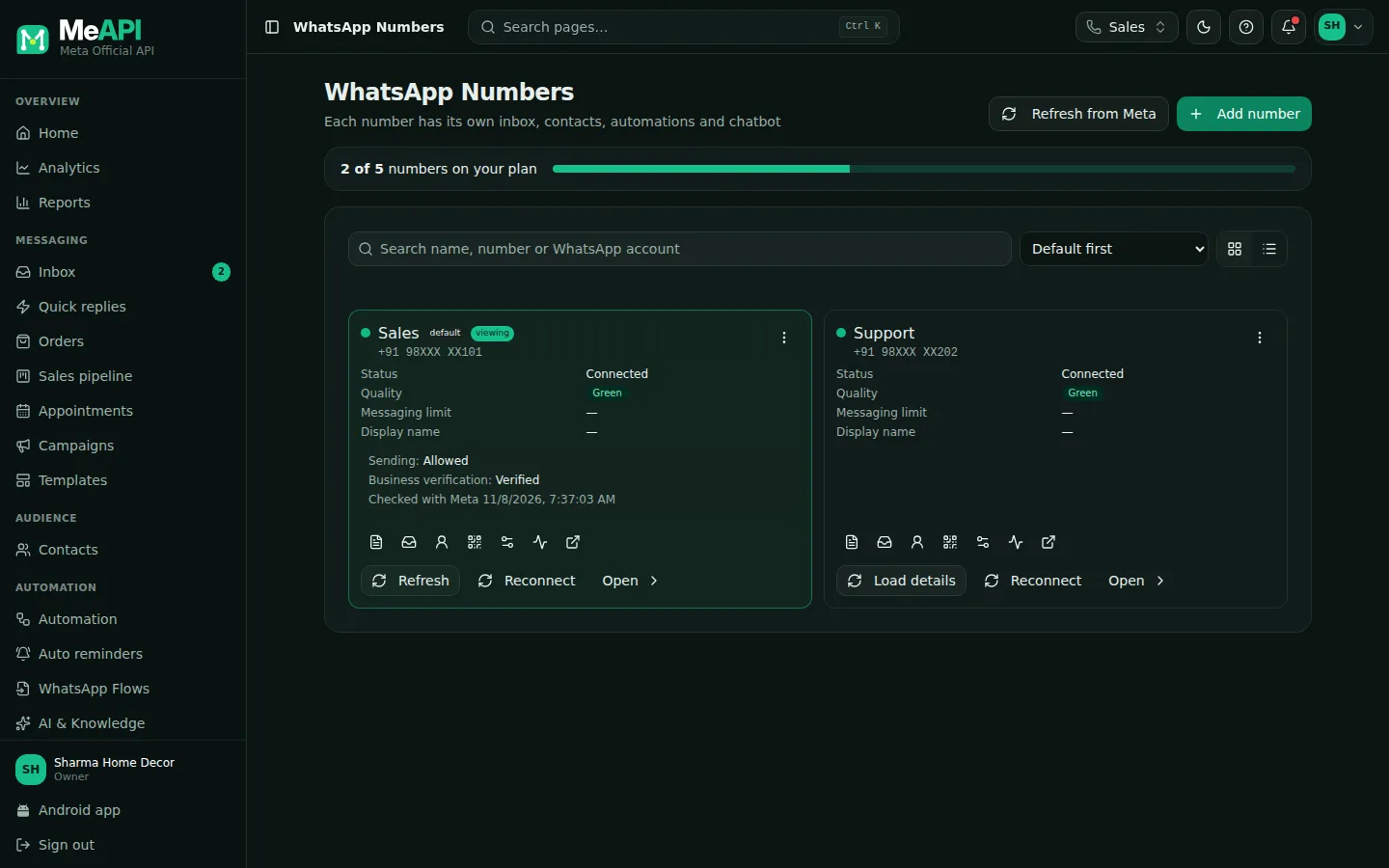
- Sending, business verification and when Meta was last asked.
3. The ⋮ menu
Section titled “3. The ⋮ menu”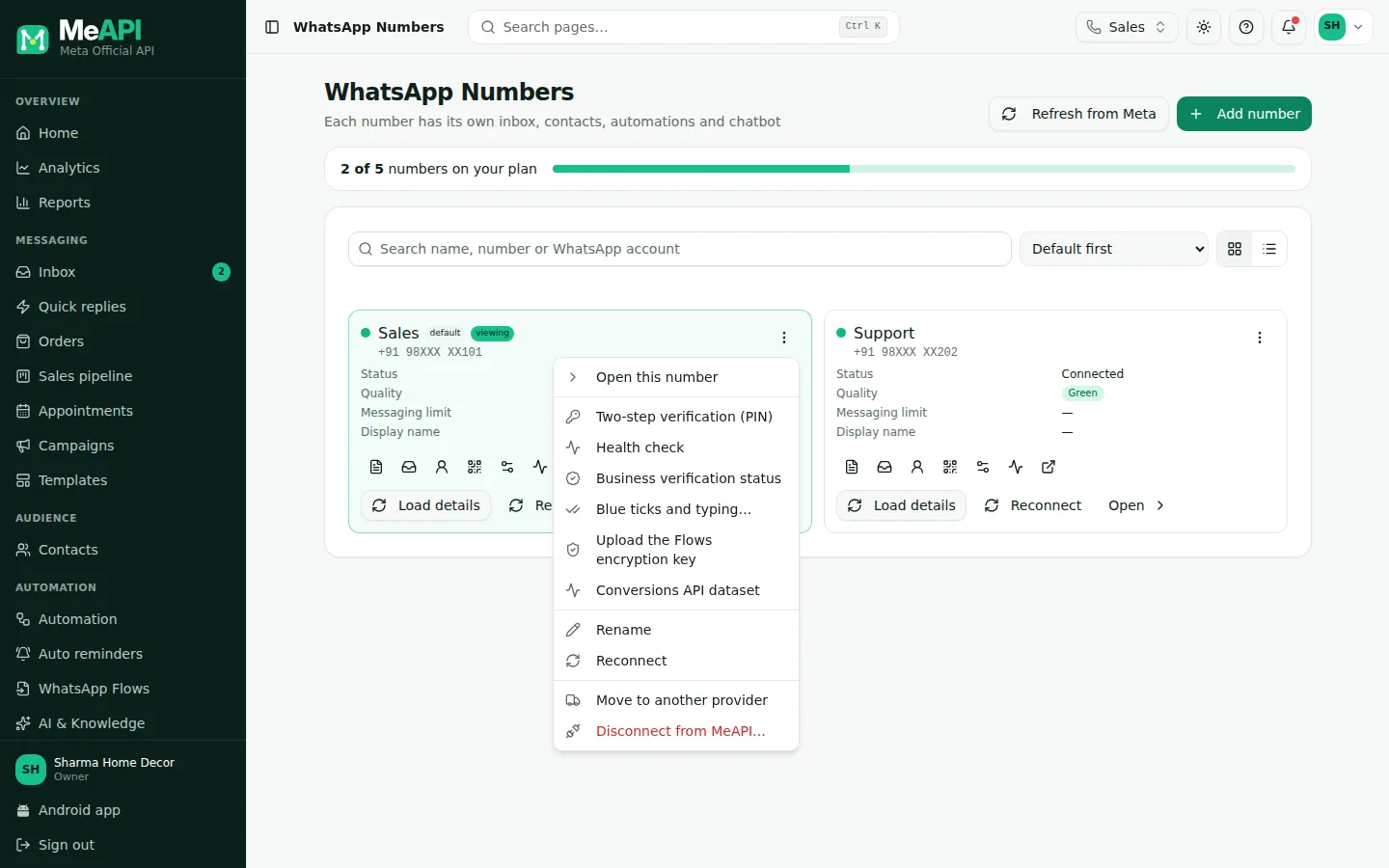
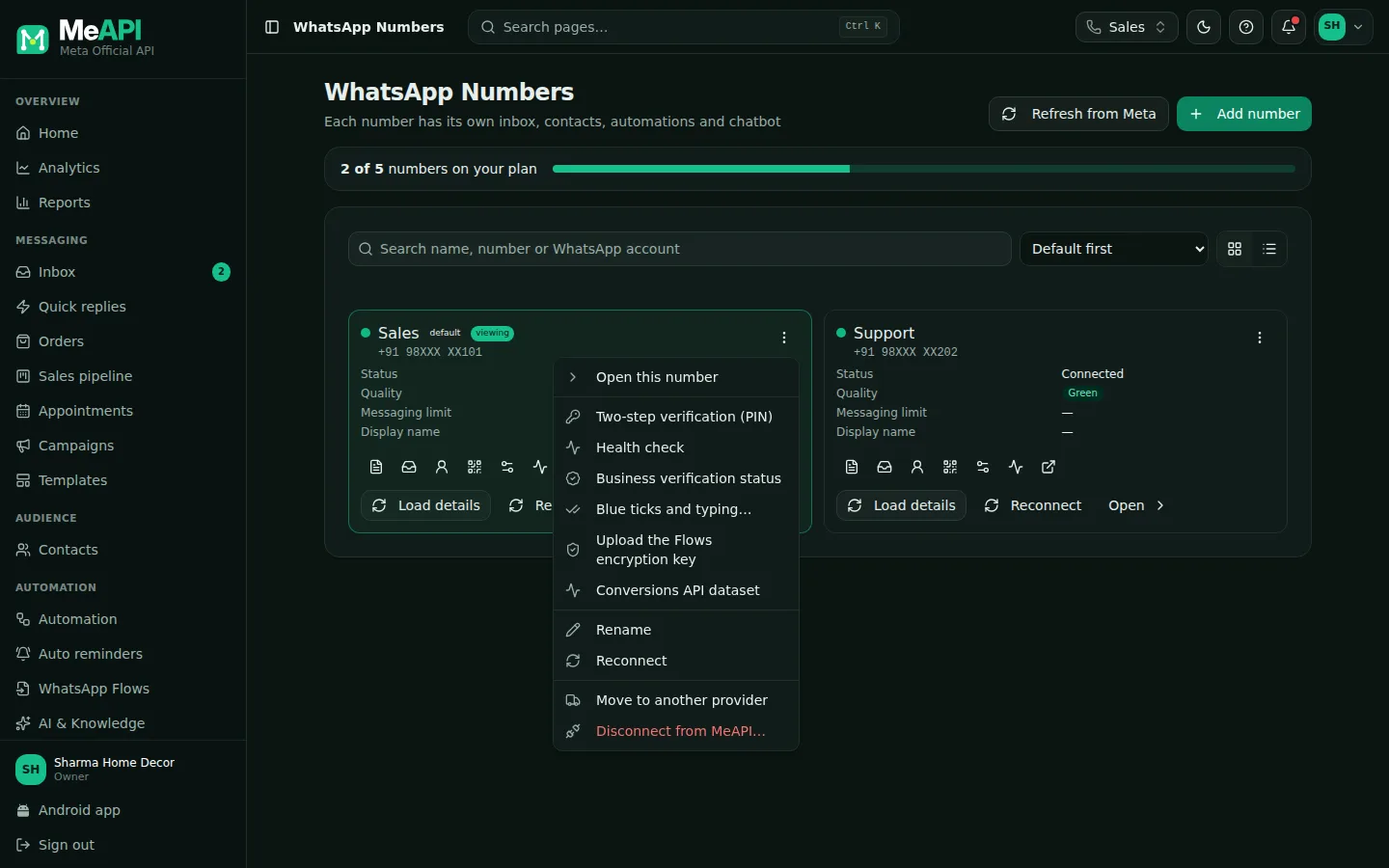
- Open this number, two-step verification, health check, business verification, blue ticks and typing, the Flows key, the Conversions API dataset, rename, default, reconnect, and at the bottom Move and Disconnect.
- Open this number: the number’s own page (see below).
- Two-step verification (PIN): set a new 6-digit PIN. Type it twice. We send it to Meta and never keep it. Meta asks for it when the number is registered again.
- Health check: what Meta says about sending from this number, its WhatsApp account and your business, with Meta’s reason and what to do.
- Business verification status: Verified, In review, Not verified or Rejected.
- Blue ticks and typing…: when the customer sees blue ticks on their messages: As soon as a message arrives (the default for every number), When someone opens the chat in MeAPI (or while it is open on screen), or Never. Show “typing…” while you type: the customer sees typing… while you or an agent writes a reply, inside the 24-hour window, for up to 25 seconds or until you send. WhatsApp shows blue ticks with it, so it is off while blue ticks are set to Never.
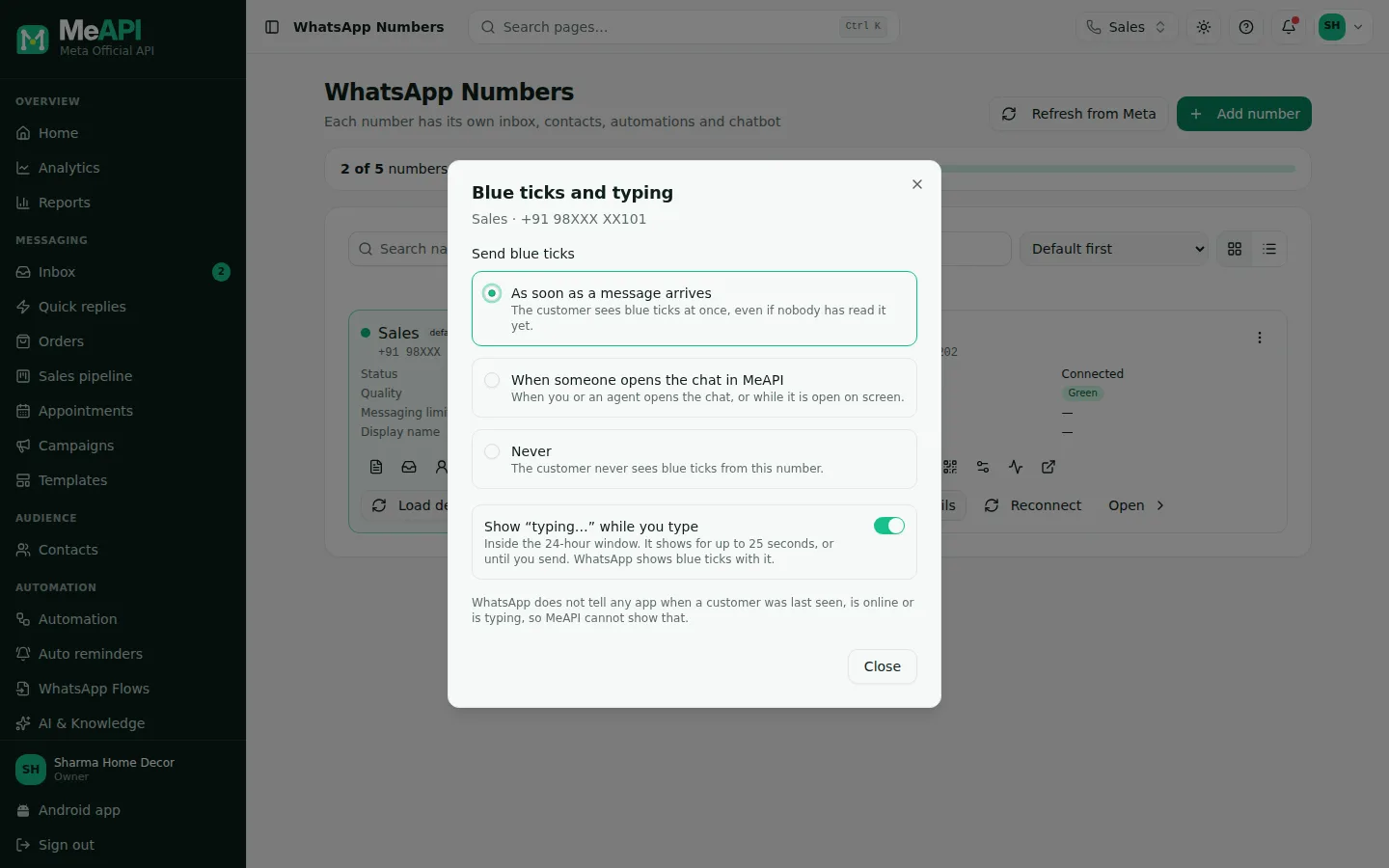
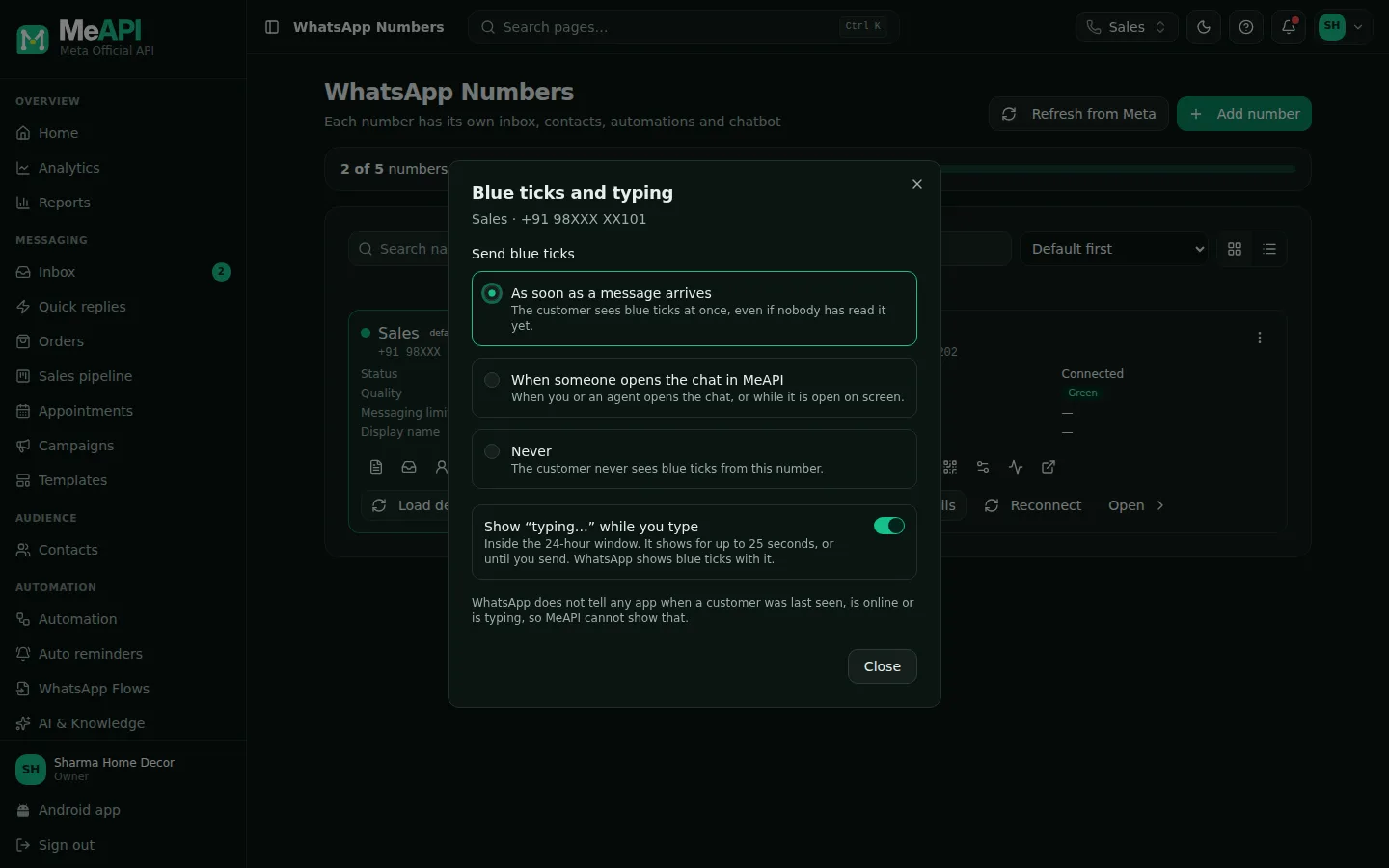
- When blue ticks go out, and whether the customer sees "typing…" while you write.
- Upload the Flows encryption key: needed for WhatsApp Flows that call your server. Use it after you connect a new number.
- Conversions API dataset: the place Meta keeps conversion events for ads that open a chat. Each WhatsApp account has one. When there is none yet, press Create dataset; on the Settings tab the button is Check the dataset.
- Rename, Make default and Reconnect.
- Move to another provider and Disconnect from MeAPI…: see Disconnect or move a number.
4. A number’s own page
Section titled “4. A number’s own page”Click a number’s name, or Open, to open its page. The header shows its name, number, status and badges, with Inbox and Templates buttons; WhatsApp Numbers at the top takes you back. The page has these tabs:
- Overview: this number’s problem cards (Needs your action, with How to fix and Recheck now); a Status card with status, quality, messaging limit and the 24-hour bar, display name, throughput and Meta’s status, two-step PIN, WhatsApp Business app (Coexistence or Cloud API only), connected since and when Meta was last checked; Health check and Sync with Meta; and an IDs card with the Phone number ID, WhatsApp Business Account ID and Business portfolio ID, each with a copy button, and Open in WhatsApp Manager. See Number health.
- Profile: the business profile customers see, and below it the Display name card. See Profile and QR codes and Change your display name.
- QR & links: QR codes and wa.me links that open a chat with a ready message.
- Calling (when WhatsApp Calling is on for your account): Enable calling, the call button, call hours and who answers. A Coexistence number, or one with a messaging limit under 2,000, shows the switch off with the reason.
- Connection: the number’s Webhook card, a Reconnect card and, for a Coexistence number, the WhatsApp Business app card. See Connect with an access token and Reconnect a number.
- Settings: Name and default number, Two-step verification (PIN), Blue ticks and typing, WhatsApp Flows encryption key, Conversions API dataset and WhatsApp Manager: the same settings as the ⋮ menu, all in one place.
- Move / Disconnect: the steps to take the number to another provider, and Disconnect. See Disconnect or move a number.
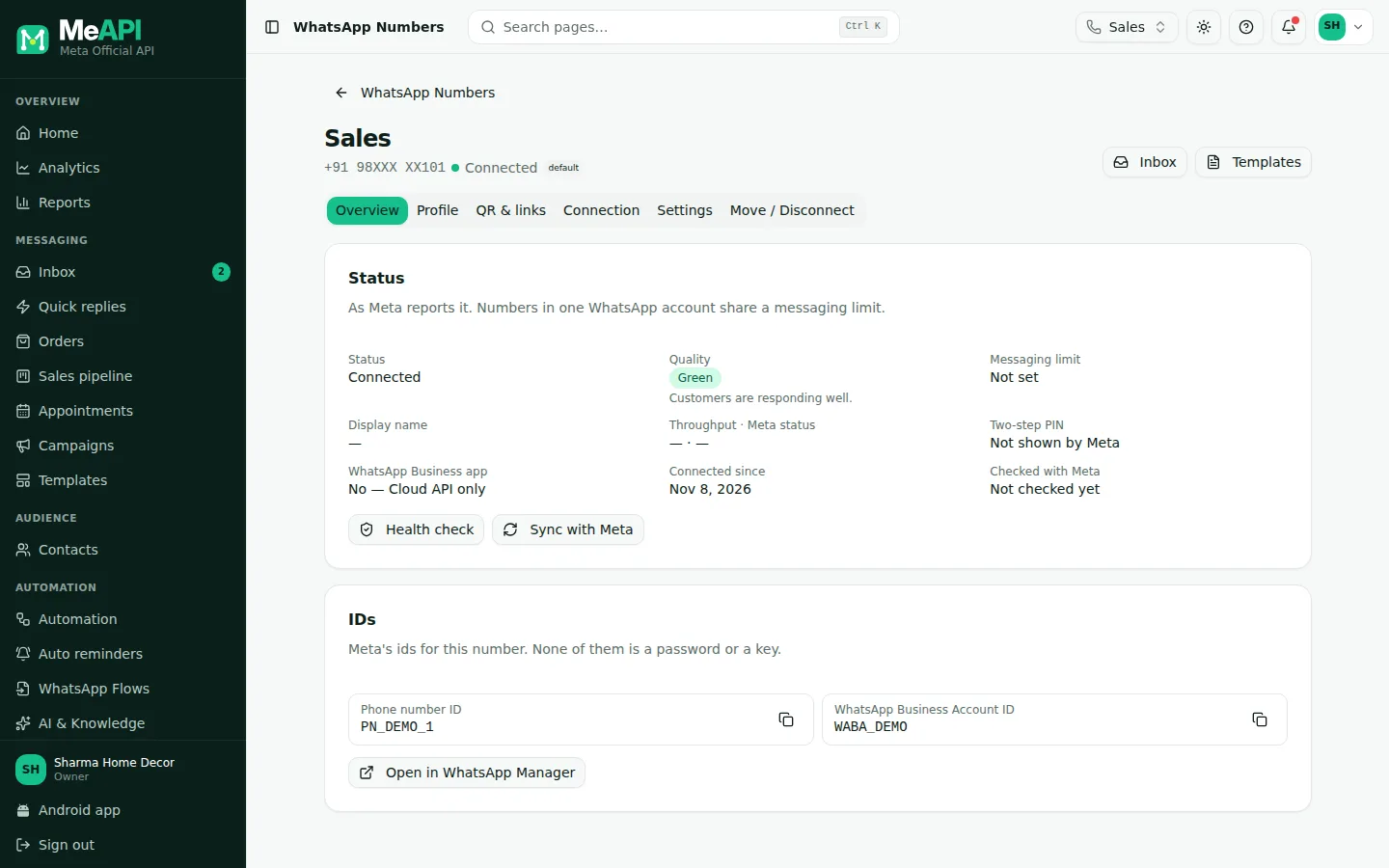
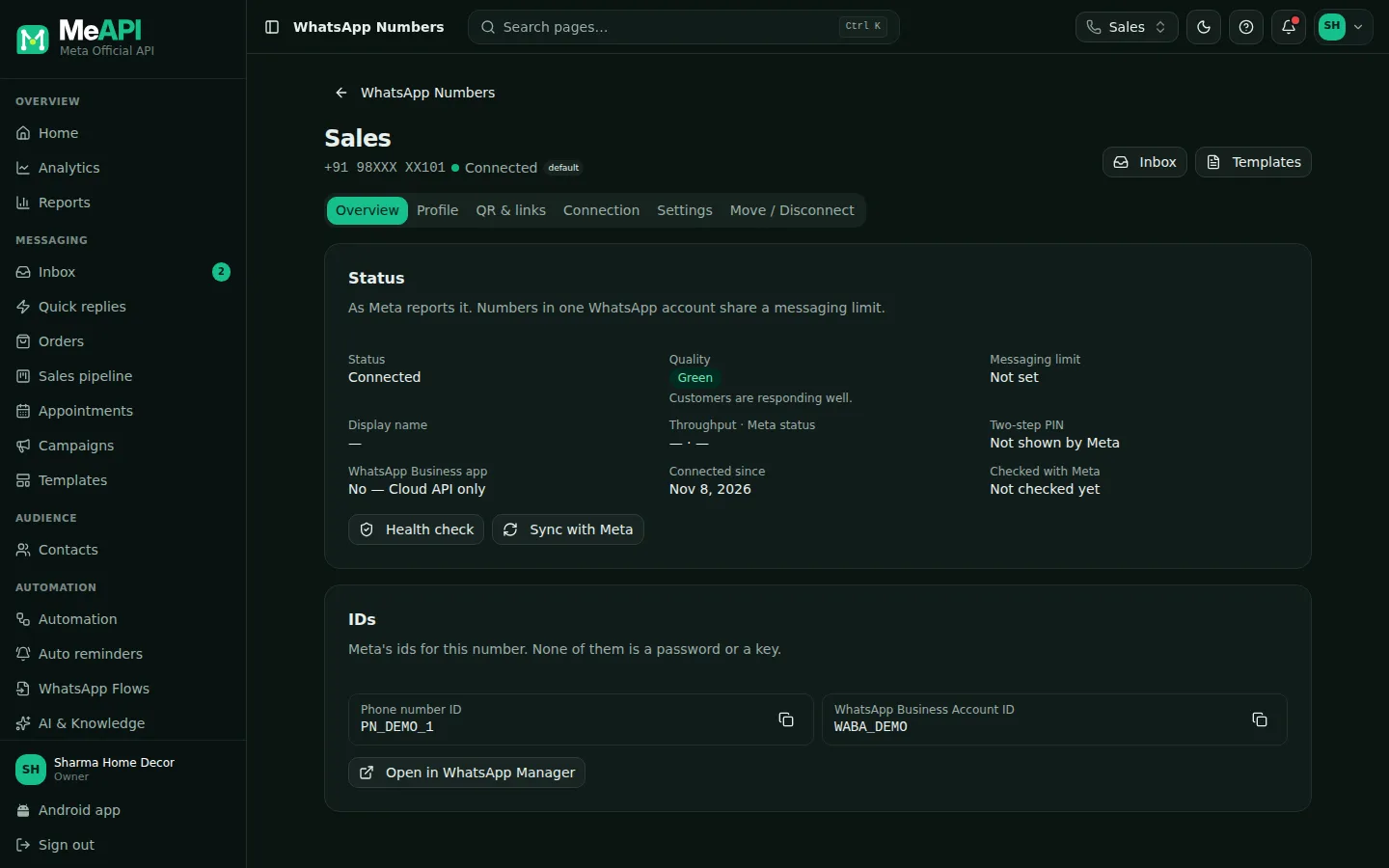
- The Overview tab: problem cards, the Status card with Health check and Sync with Meta, and the IDs card.
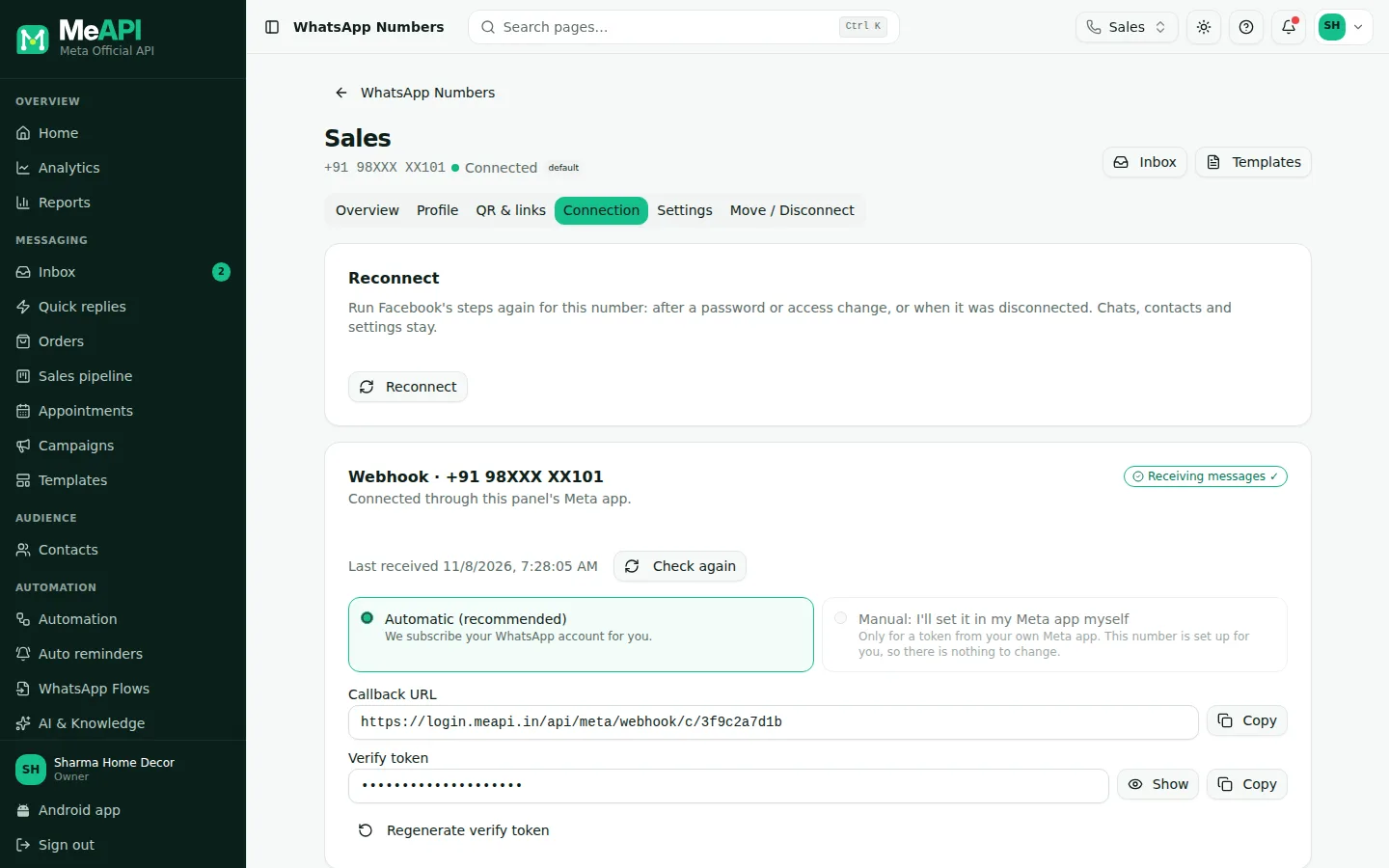
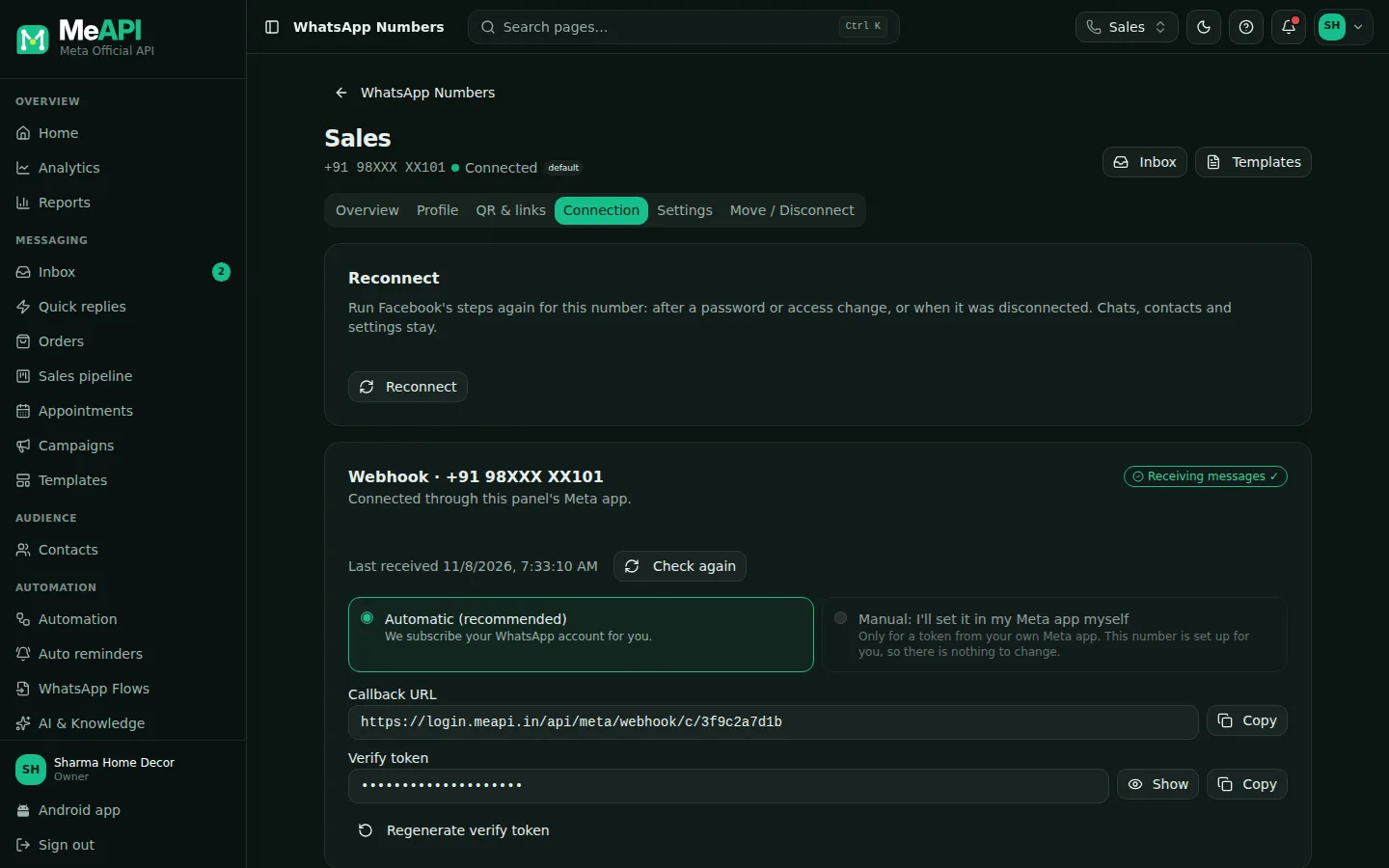
- The Connection tab: the number’s Webhook card and the Reconnect card.
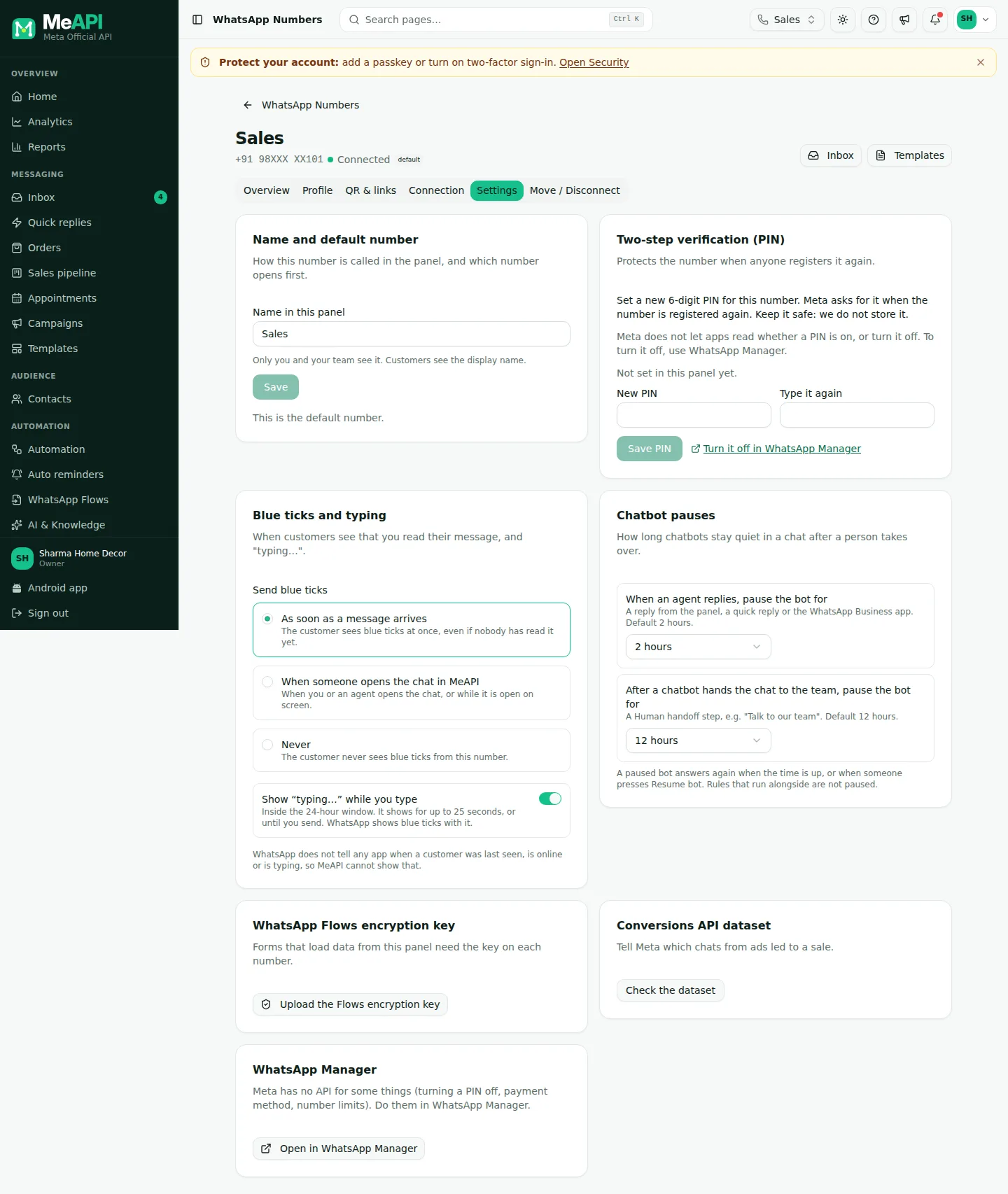
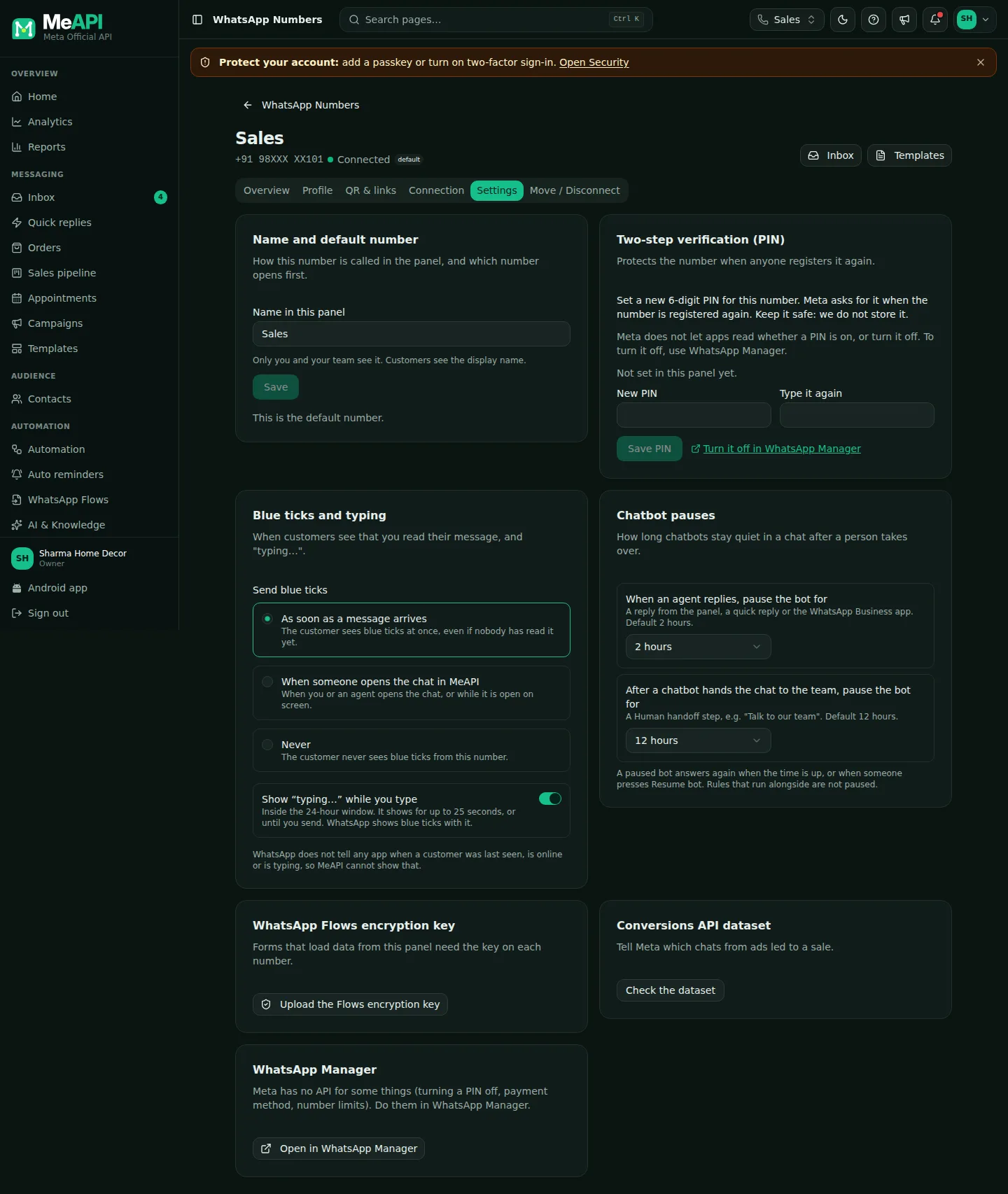
- The Settings tab: name and default number, two-step PIN, blue ticks and typing, Chatbot pauses, the Flows key, the Conversions API dataset and WhatsApp Manager.
- Chatbot pauses: how long chatbots stay quiet in a chat after an agent replies (default 2 hours) and after a chatbot hands the chat to the team (default 12 hours). Off, 30 minutes, 2 hours, 12 hours or Until resumed. See Bot status.
5. Who sees what
Section titled “5. Who sees what”Agents see this page when their role allows it. In Agents & roles the module is called WhatsApp Numbers, with three permissions:
| Permission | What the agent gets |
|---|---|
| Read | The page, the cards, and the Overview, Profile and QR & links tabs. No Meta IDs, no WhatsApp Manager link, no ⋮ menu |
| Number settings | Also the ⋮ menu, the Settings tab, and the Connection and Move / Disconnect tabs |
| Connect / disconnect numbers | Also Add number, Reconnect, the webhook (verify token, App Secret), and the Connection and Move / Disconnect tabs |
Deregister in the Danger zone is for the account owner only.
6. What still needs WhatsApp Manager
Section titled “6. What still needs WhatsApp Manager”Open in WhatsApp Manager (the icon with the arrow on a card, or on the number’s Overview and Settings tabs) opens the number in WhatsApp Manager, on your WhatsApp account. Use it for:
- turning the two-step PIN off
- the Conversions API dataset, if MeAPI says Meta does not let us manage it
What’s next
Section titled “What’s next”Was this page helpful?
Thank you — we read every comment.
Could not send right now. Please try again later.
© 2026 MeAPI by TheWebStore028 · RADHAMADHAV WEBSTORE LLP · GSTIN 27ABJFR6148J1ZO · Contact us ·Cookie settings
Registered Office: 19th Floor, A-1903, Exotica Wing A, Casa Rio Main Road, Lotus Pond, Palava City Phase 1, Kalyan, Thane, Maharashtra 421204, India
Operations: Thaltej, Ahmedabad, Gujarat
Phone / WhatsApp: +91 91676 96213 · Email: support@meapi.in ·Terms · Refund & cancellation · Shipping & delivery