

Get WhatsApp leads with Facebook & Instagram ads (Beta)
🎯 Goal
Run an ad on Facebook or Instagram that opens a WhatsApp chat with you — then see which ad brings chats, leads and sales.
🧰 What you need
- Ads (Beta) switched on for your account
- A WhatsApp number connected to MeAPI
- A Facebook Page and a Meta ad account with your own payment method
What is a Click-to-WhatsApp ad?
Section titled “What is a Click-to-WhatsApp ad?”An ad on Facebook or Instagram with a Send WhatsApp message button. A person taps it, WhatsApp opens with your message already typed, they send it, and the chat lands in your MeAPI Inbox.
- You create the ad in Meta Ads Manager, with your own ad account. Meta bills the ad spend to your payment method — MeAPI never charges for ad spend.
- MeAPI prepares it (the number, the pre-filled message and the chatbot that replies) and measures it (chats, replies, deals won, cost per chat).
- The person messaged you first, so the 24-hour window is open: you and your chatbot can reply freely.
- MeAPI does not connect to your ad account. Nothing is read from or changed in Ads Manager.
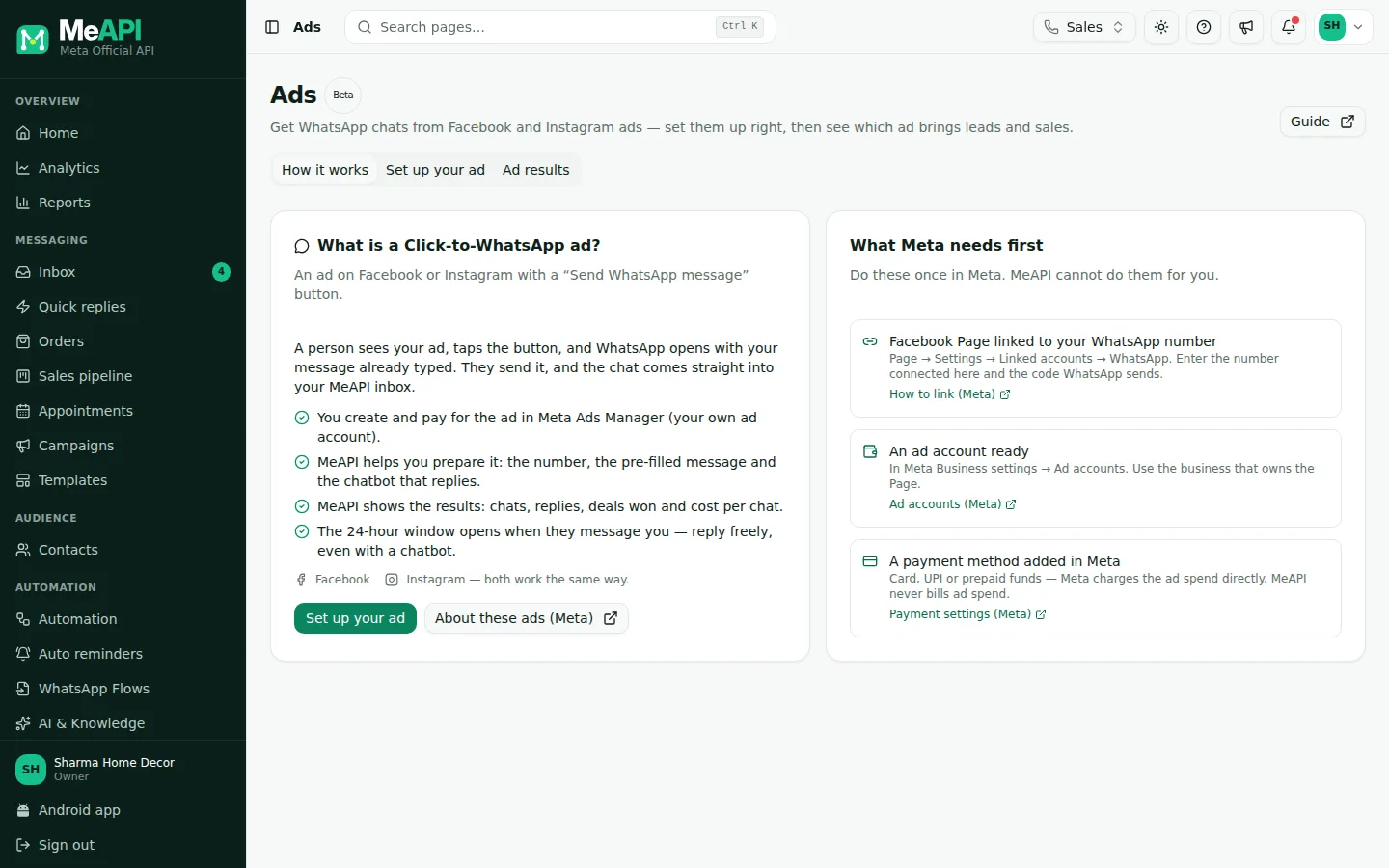
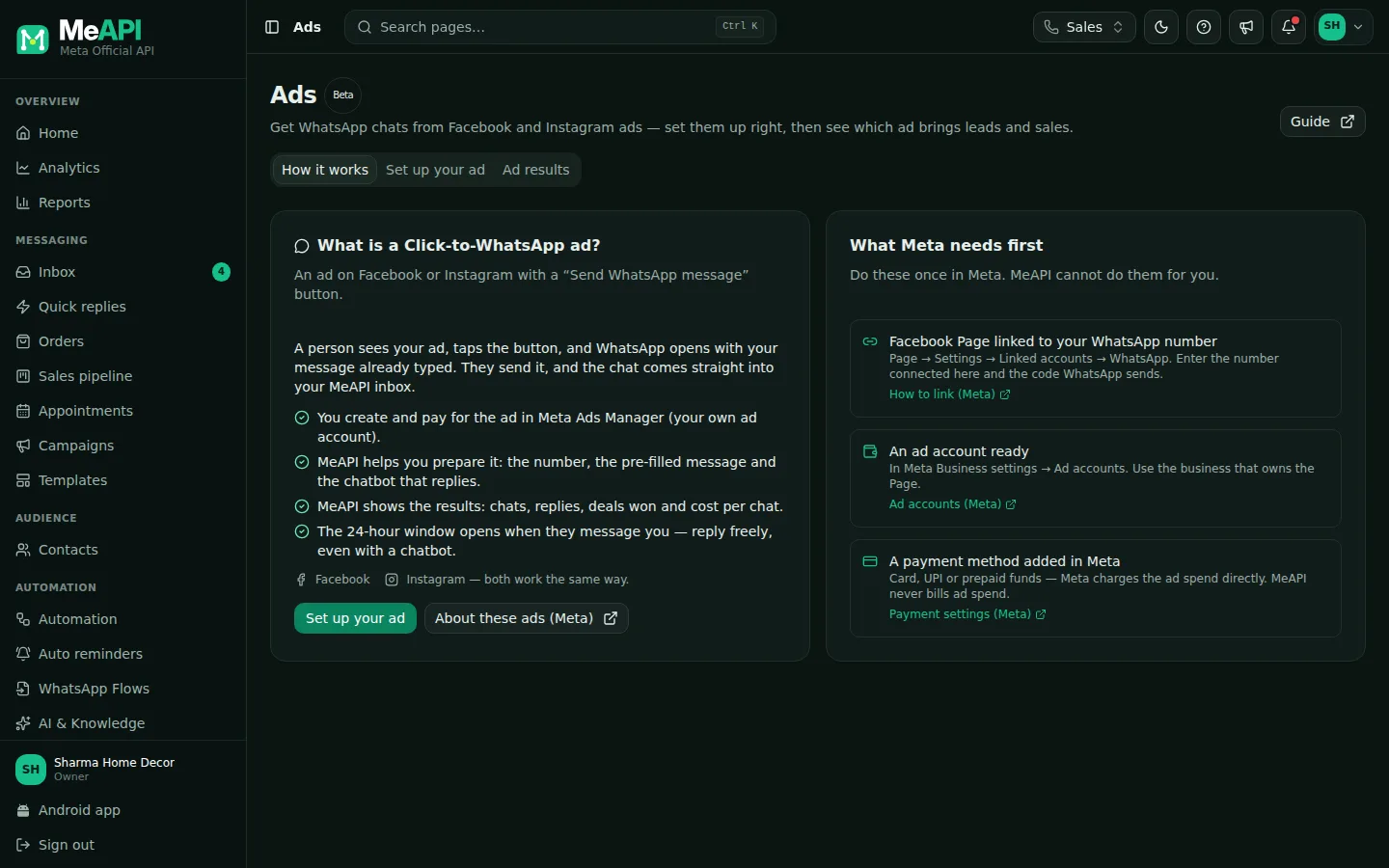
- Four tabs: How it works, Set up your ad, Ad results and Lead follow-up.
- What Meta needs first: the three things to do once in Meta, each with a link to Meta’s own page.
What Meta needs first
Section titled “What Meta needs first”Do these once, in Meta. MeAPI cannot do them for you.
- Link your Facebook Page to your WhatsApp number. Page → Settings → Linked accounts → WhatsApp, enter the same number you connected in MeAPI and the code WhatsApp sends. Meta’s guide.
- An ad account, in Meta Business settings → Ad accounts, under the business that owns the Page.
- A payment method in Meta (card, UPI or prepaid funds). Meta charges the ad spend directly.
Set up your ad
Section titled “Set up your ad”- Open Ads → Set up your ad.
- Which number should the ad open? Pick one of your numbers. Any connected number works, also a Coexistence number.
- The pre-filled message. Choose Your business for ready messages (clinic, salon, coaching, real estate, shop and more), tap one, or write your own. Keep it short and in your customer’s words, for example Hi! I want to book an appointment.
- Reply with a chatbot? (optional)
- No chatbot: the chat simply lands in the inbox.
- Use a chatbot I have: the list shows which of your chatbots already start on ad chats. MeAPI never changes your chatbot — if it does not start on ads yet, add the trigger Click-to-WhatsApp ad (or a keyword with your pre-filled message) in Automation.
- Create a new chatbot: a new draft chatbot with your first reply, starting either when the pre-filled message arrives (a keyword trigger on it) or when anyone comes from any ad on this number. Edit it in the builder and publish it when ready. Your other chatbots are not changed.
- Press Save this ad setup (optional — you can also just copy the text). Saved setups are listed on the right with Copy.
- Press Copy pre-filled text, then Open Meta Ads Manager. Test on my phone opens WhatsApp with the message so you see what your customer will see.
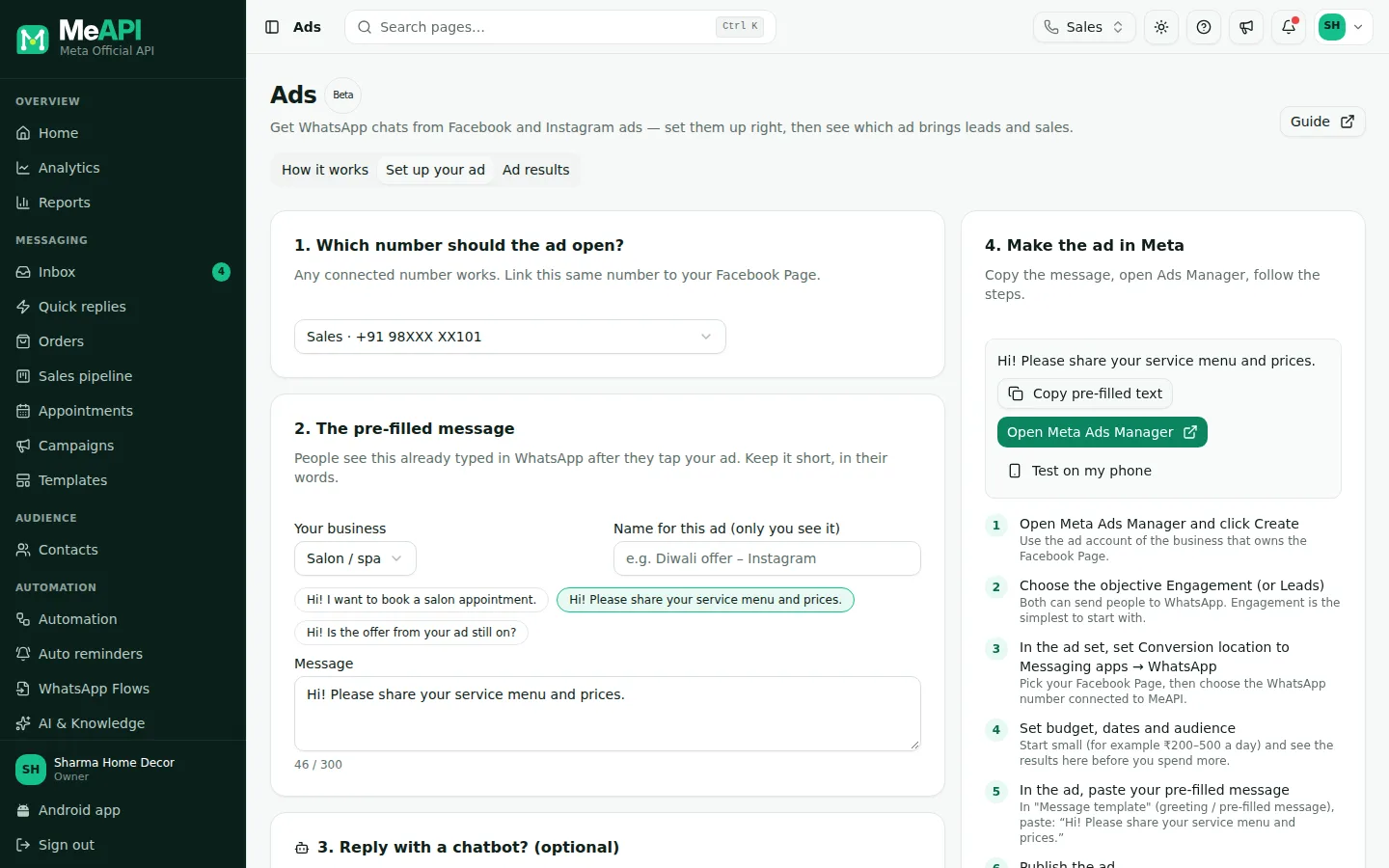
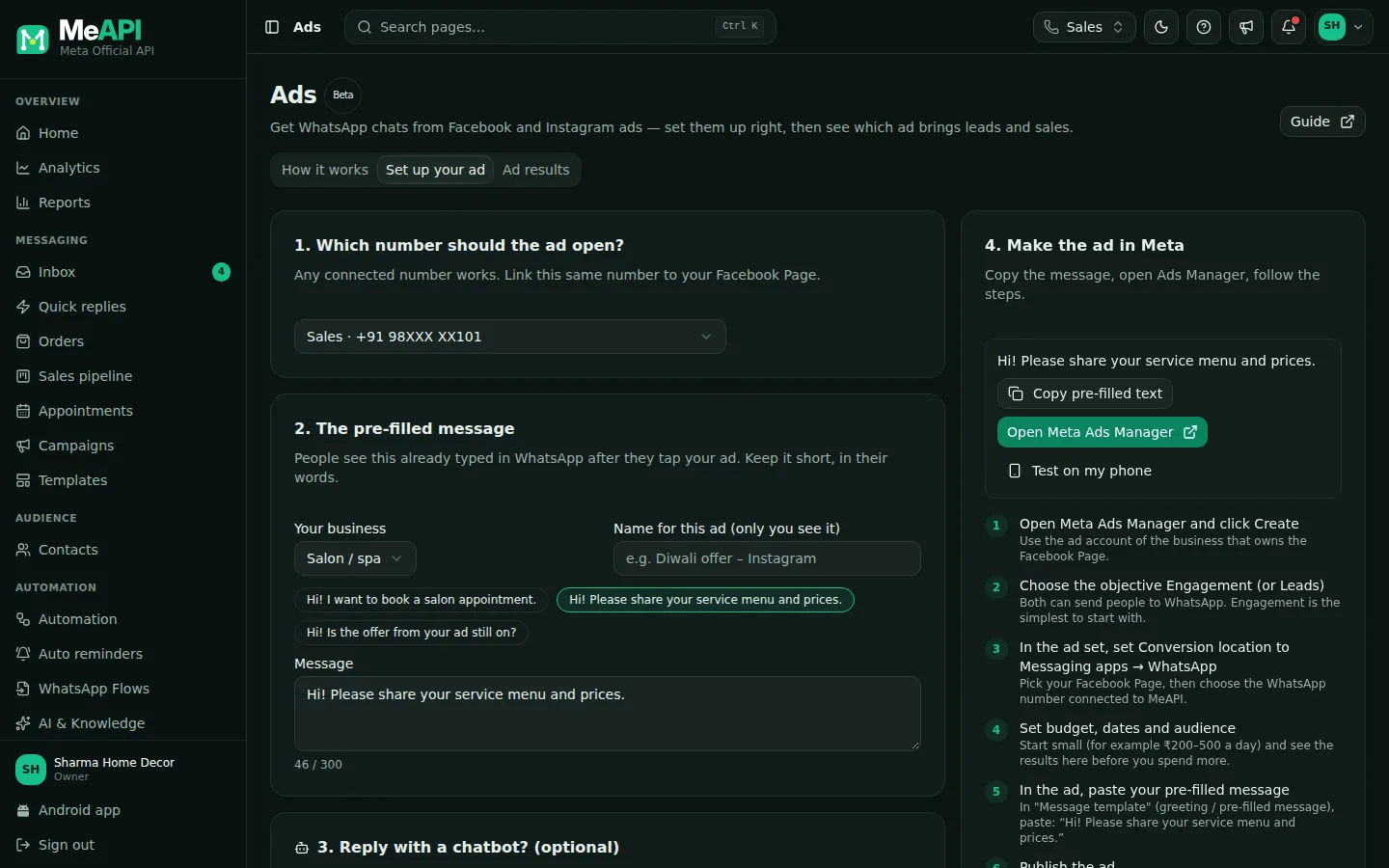
- Number, pre-filled message (ready suggestions per business) and the chatbot choice.
- Make the ad in Meta: the text to copy, Open Meta Ads Manager and the steps.
Make the ad in Meta Ads Manager
Section titled “Make the ad in Meta Ads Manager”- In Ads Manager, click Create.
- Choose the objective Engagement (or Leads).
- In the ad set, set Conversion location to Messaging apps → WhatsApp. Pick your Facebook Page and the WhatsApp number connected to MeAPI.
- Set the budget, dates and audience. Start small (for example ₹200–500 a day) and look at Ad results before you spend more.
- In the ad, open Message template (greeting / pre-filled message) and paste your pre-filled message.
- Publish. Meta reviews the ad, often within a few hours.
Meta changes its screens from time to time; if a name differs, look for WhatsApp under the messaging or conversion settings.
Ad results
Section titled “Ad results”Ads → Ad results shows every chat that came from an ad, read from your inbox:
| Column | What it counts |
|---|---|
| New chats | Messages that came from the ad (Meta marks the first message after a tap). |
| Contacts | Different people. |
| Replied (team · bot) | Chats your team answered, and chats a chatbot or rule answered, after the ad message. |
| Tagged | People with a tag of yours (not counting the automatic ad tags). |
| Deals · Won · Won value | Deals in the Sales pipeline for the same contact, made after their ad message. A person who tapped two ads counts for the last one before the deal. |
| First response | The middle (median) time until your team’s first reply. Bot replies don’t count. |
| Spend · Per chat · Per won deal · ROI | When you type what you spent on the ad (pencil on the row). |
- Group by Ad, Facebook / Instagram (read from the ad’s link; Not known when Meta’s link does not say), or Day. Pick the dates and, with more than one number, the number.
- Rename an ad: Meta only sends an ad ID and its headline. The pencil lets you give it your own name — only you see it.
- Spend: type the total from Ads Manager. Cost per chat uses the chats in the dates you picked, so choose the dates your ad ran.
- A row → its people, newest first, with who replied and their deal. Tap one to open the chat.
- Export CSV: one line per ad, source or day, with a total — no phone numbers.
- The numbers update every 5 minutes. A new name or spend shows at once.
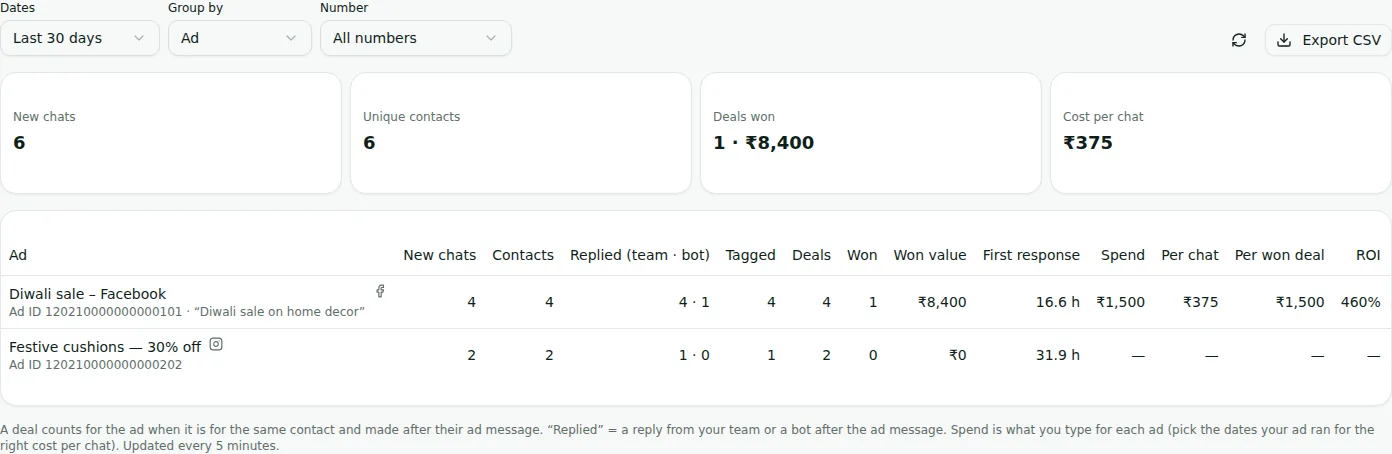
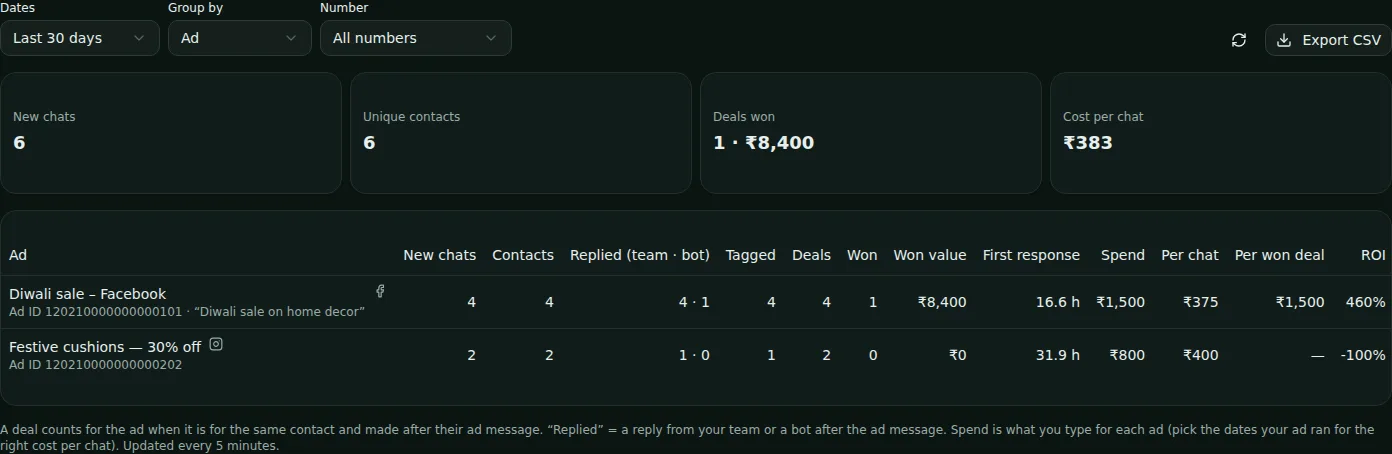
- One row per ad: your own name, the ad ID, Facebook / Instagram, chats, replies, deals and cost per chat.
- The pencil: your name for the ad and what you spent.
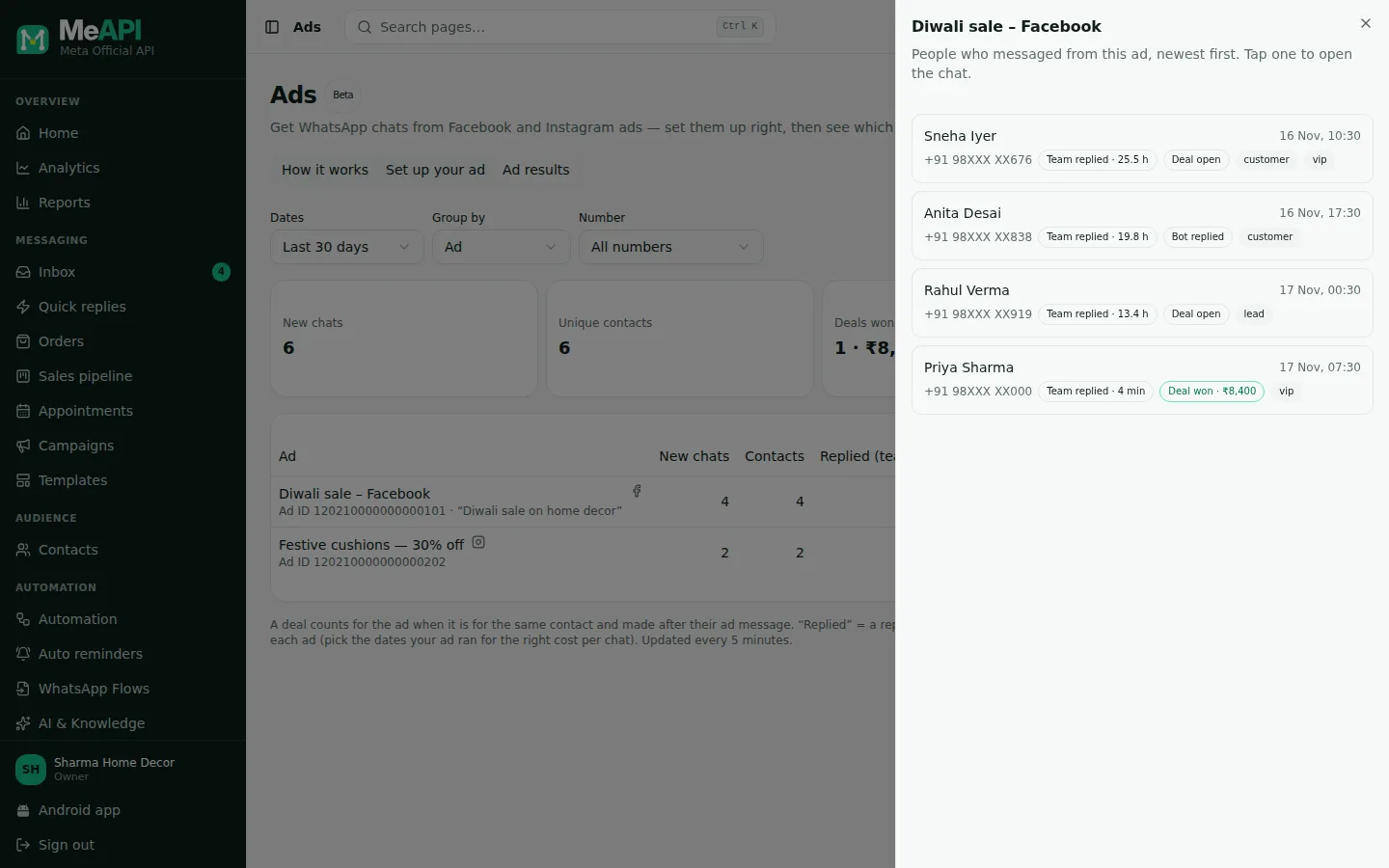
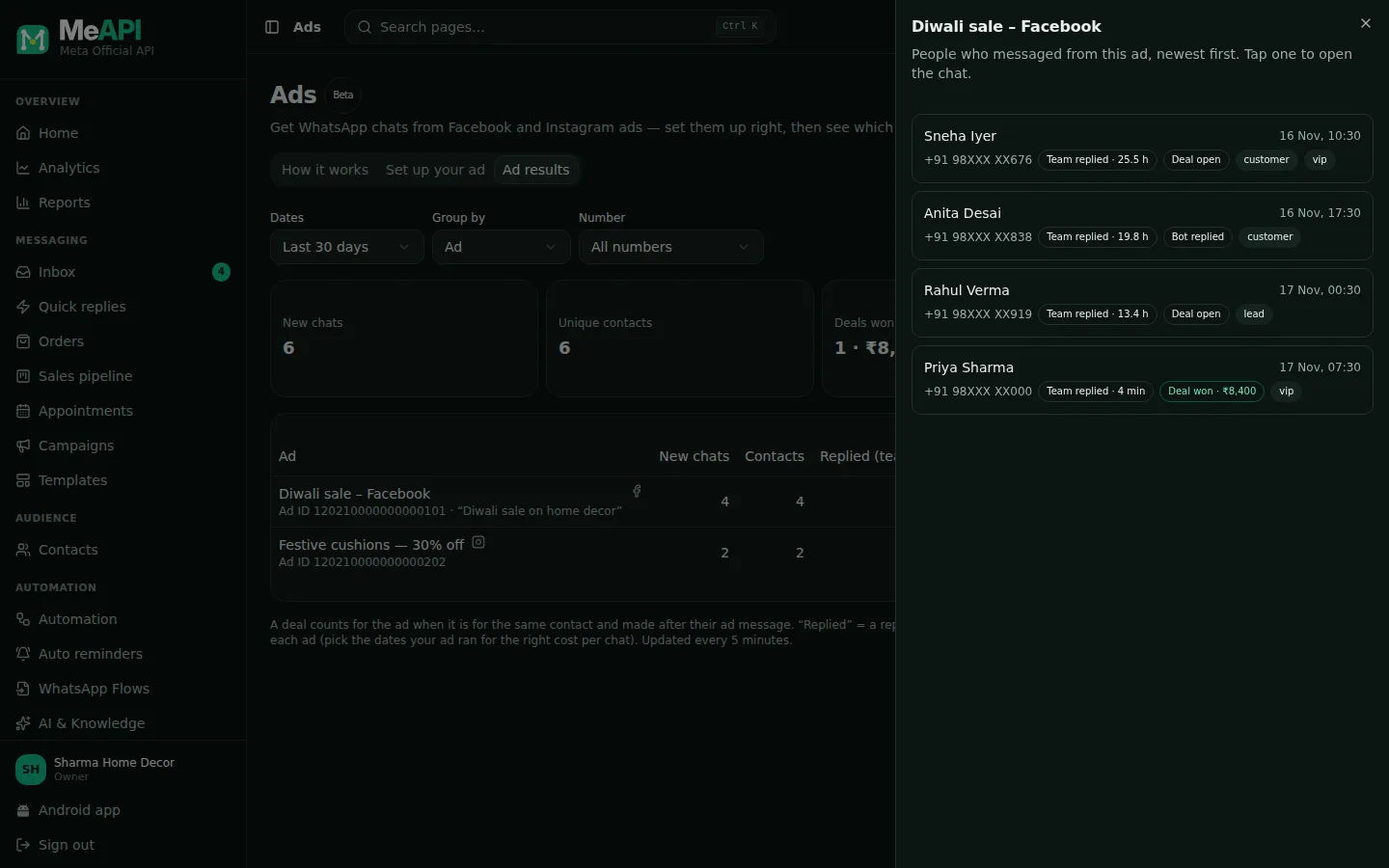
- A row opens the people who came from it. Tap one to open the chat.
Lead follow-up: when an ad lead goes quiet
Section titled “Lead follow-up: when an ad lead goes quiet”Many people tap an ad, get your welcome message and then do nothing. Ads → Lead follow-up sends them a few short messages, stops the moment they react, and marks the rest Cold so you can call them. It is off until you switch it on for a number.
| Step | When (after their first message) | What |
|---|---|---|
| 15-minute nudge | 15 min | Your text with three buttons: Pricing, Start free trial, Talk to a person |
| Value message | 3 hours | A short reason to try, with your trial link |
| One question | 20 hours | One short question, so they reply in their own words |
| Next-day check-in | 26 hours | An approved template you pick |
| Last note | about 69 hours (day 3) | An approved template you pick |
| Cold | a day after the last note | Nothing is sent; the lead goes to Cold leads to call |
- Open Ads → Lead follow-up.
- Under Run it on, switch on the number your ads open. Leads who arrive after that get the follow-ups.
- Read each step and change the text, the time or the buttons. You can use
{{greeting}}(Hi Rahul),{{first_name}},{{trial}}(your free trial length, for example 3-day free trial),{{trial_link}}and{{hours}}(your office hours). - For the two template steps, pick an approved template. A template step with none chosen, or one Meta has not approved yet, is skipped.
- Type your Trial link (where
{{trial_link}}and the templates’ link button go) and, if you like, the answers to the three buttons. - Press Save.
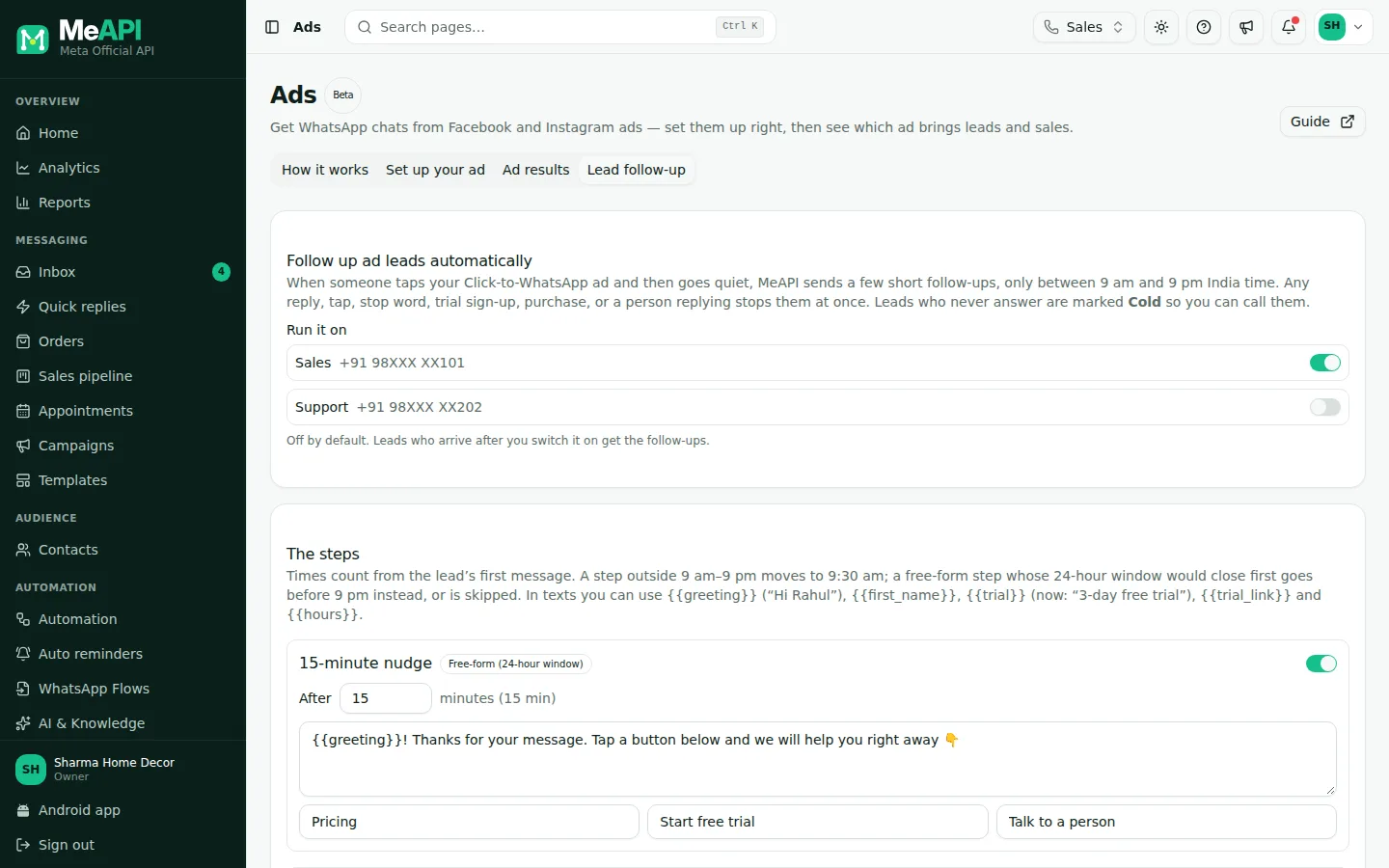
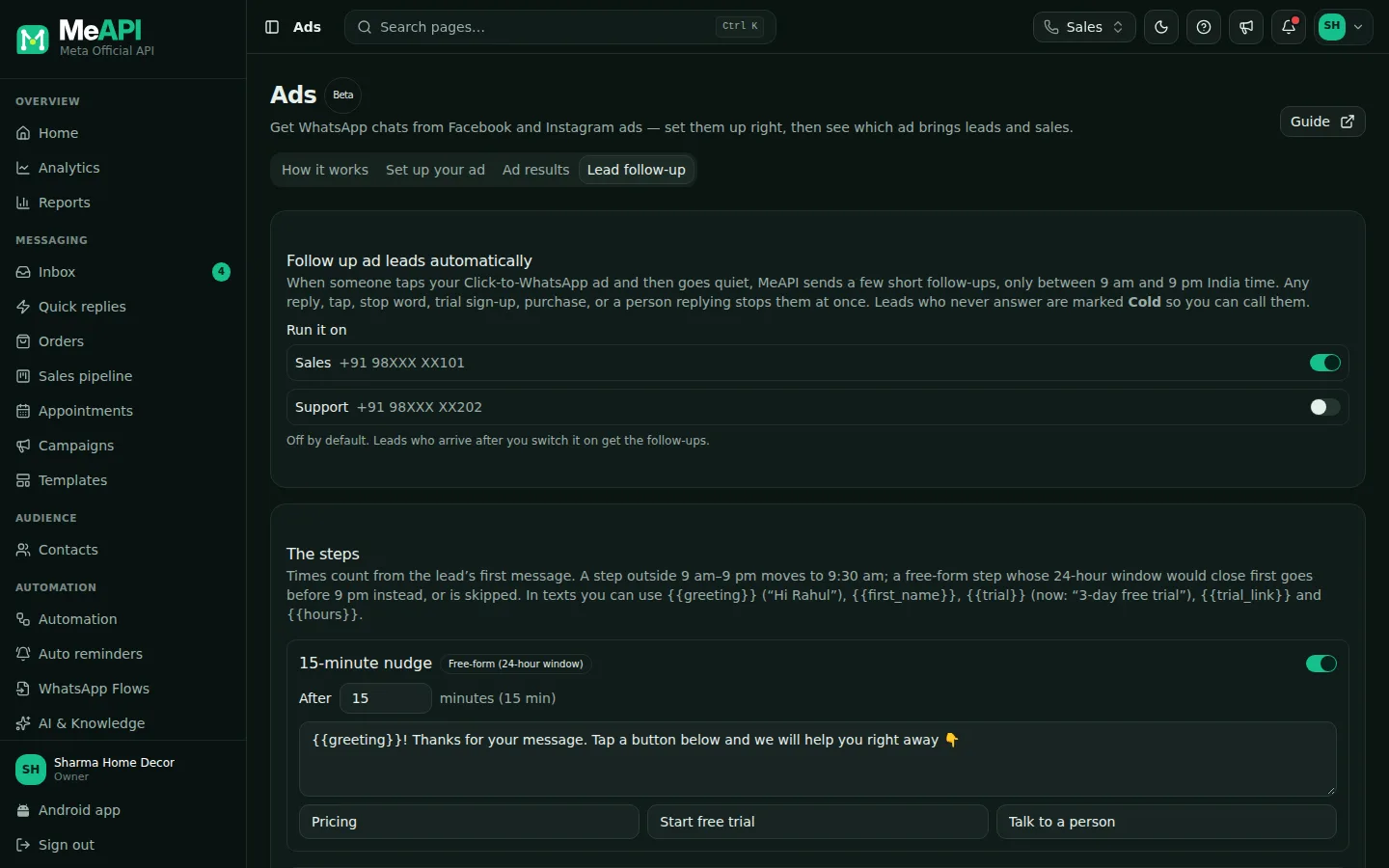
- Run it on: a switch per number, off until you turn it on.
- Each step: on/off, the time after the lead’s first message, the text and, for the nudge, the three buttons.
Only 9 am–9 pm India time
Section titled “Only 9 am–9 pm India time”- A step that falls outside 9 am–9 pm moves to 9:30 am.
- The first three steps are free-form messages, which WhatsApp allows only within 24 hours of the lead’s last message. If 9:30 am would be too late, the step goes out the evening before at 8:50 pm instead, or is skipped.
- Two steps are always at least 45 minutes apart.
- A template step moved to the morning goes the evening before instead when that keeps it inside the first 72 hours, so it stays in Meta’s free window.
What stops it at once
Section titled “What stops it at once”Nothing more is sent to a lead after any of these:
- They write or tap anything, including a reaction or a second ad. The lead moves to Replied and you are told.
- A stop word in their message, in English, Hinglish, Hindi, Gujarati or another Indian language. The lead goes Cold and you are not alerted.
- A clear phrase (STOP, unsubscribe, band karo, mat bhejo, nahi chahiye, मत भेजो, બંધ કરો…) also opts them out of all messages, as STOP always has (opt-out).
- A single word that could mean something else (nahi, नहीं, ના, रुको, रोको, not interested) only stops the follow-up. They stay subscribed.
- A question is a reply, never a stop word: nahi chahiye kya price hai? moves the lead to Replied and alerts you.
- They start a trial or buy: their deal moves to Trial started or your Won stage, by hand or by a chatbot.
- A person replies in the chat, from the panel or from the WhatsApp Business app.
- The bot is paused on the chat (an agent replied, a hand-off, or you paused it).
- You switch the number off, or Ads is switched off for your account.
MeAPI checks all of these again right before every message, so a lead who stopped a moment ago gets nothing.
The buttons
Section titled “The buttons”- Pricing and Start free trial send your answer with the trial link.
- Talk to a person sends your answer, marks the chat Pending for your team and pauses the bot for the number’s hand-off time.
- The lead’s tap goes no further: your chatbots don’t answer it a second time.
Your sales pipeline
Section titled “Your sales pipeline”Each ad lead gets a deal in the pipeline Ad leads (made when you first switch Lead follow-up on): New ad lead → Replied → Trial started → Customer, or Cold. If you already have an Ad leads pipeline, it is kept and gets a Replied stage. A deal never moves backwards past a stage you set yourself; a Cold lead who writes again goes back to Replied.
Alerts and Cold leads to call
Section titled “Alerts and Cold leads to call”- When a lead replies, taps a button or opens your trial link, you get a notification and an email, once per lead, with a note in the chat. Link previews (WhatsApp, Facebook) are not counted as opening the link.
- Every day at 10 am you get an email, Cold leads to call, listing the leads that went Cold since the day before. The same list is at the bottom of the tab, with Open chat.
- Turn either email off under Tell me.
Results
Section titled “Results”Results counts the leads who arrived in the dates you pick: Ad leads, Replied, Opened trial link, Trial started, Customers, Cold and Still in follow-up. For each step it shows how many got it and how many replied after it, so you can see which message works and where people drop off. Why steps were skipped lists the reasons (outside the window, template not approved…). By ad, it shows the spend you typed in Ad results and the cost per trial. If your chatbot saves the contact field business_type (for example with a list Clinic / Salon / Coaching / Shop / Other and an Update contact step), each ad also shows how many leads of each business type it brought, and a line above adds them up for all ads. That tells you which ad brings real businesses, not only how many people tapped it.
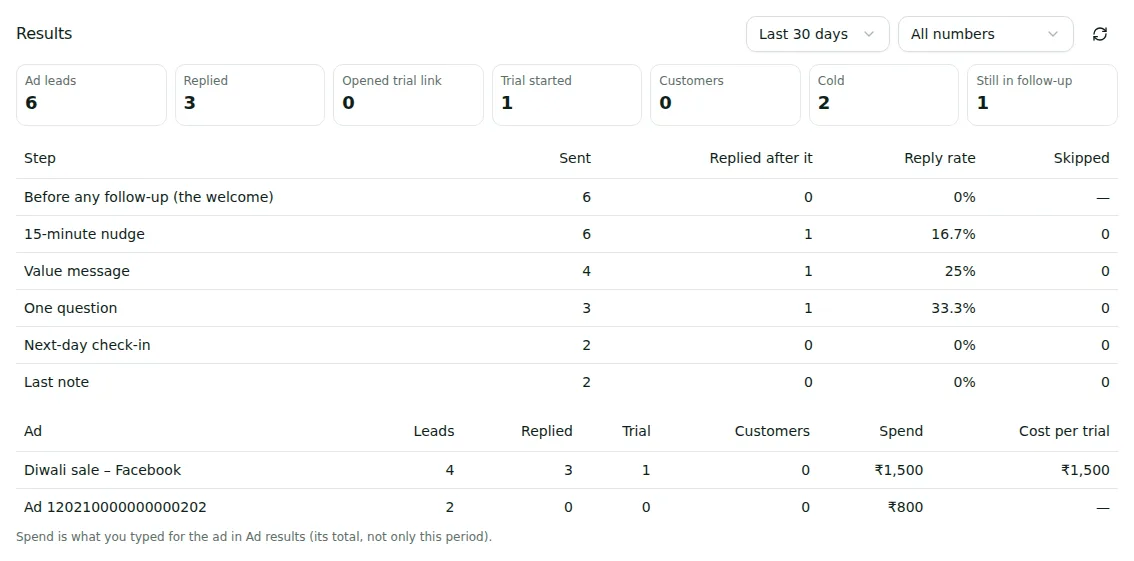
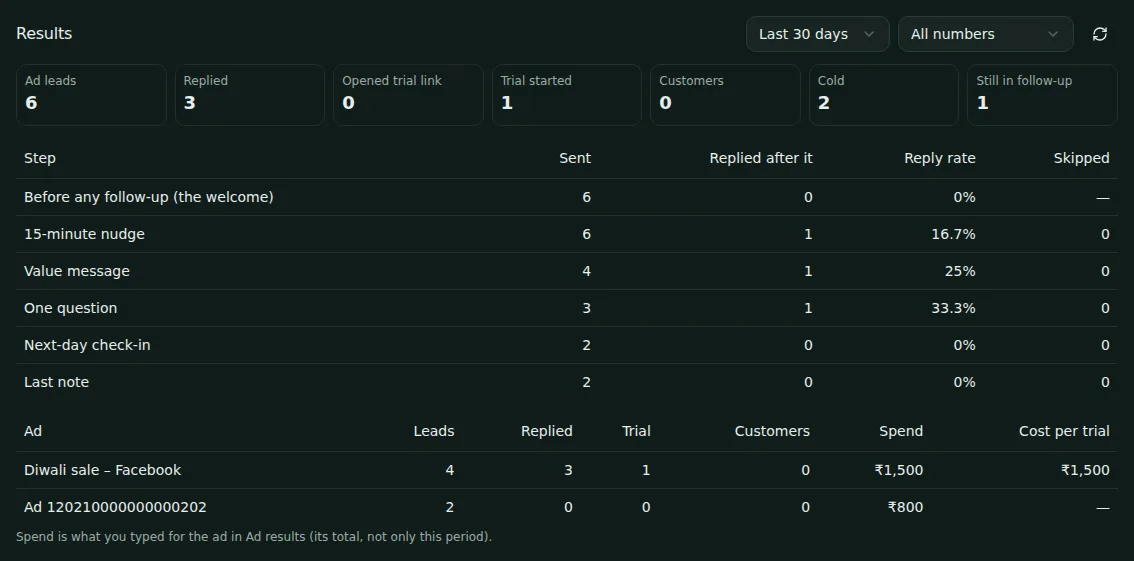
- Totals for the dates you pick, then each step: sent, replied after it, reply rate and skipped.
- By ad: leads, replies, trials, customers, your typed spend and the cost per trial.
In the Inbox and Contacts
Section titled “In the Inbox and Contacts”- A chat that came from an ad has an Ad badge; hover it for the ad’s headline. The chat’s details show the ad too.
- From ads above the chat list shows only those chats.
- A new ad lead (their first ad message) gets two tags: from-ad and ad-<ad ID>. If your account already uses the tag ctwa-ad, that one is used instead of from-ad. Tags are never doubled or renamed. These tags do not start a chatbot by themselves; to reply to ad leads automatically, use the Click-to-WhatsApp ad trigger.
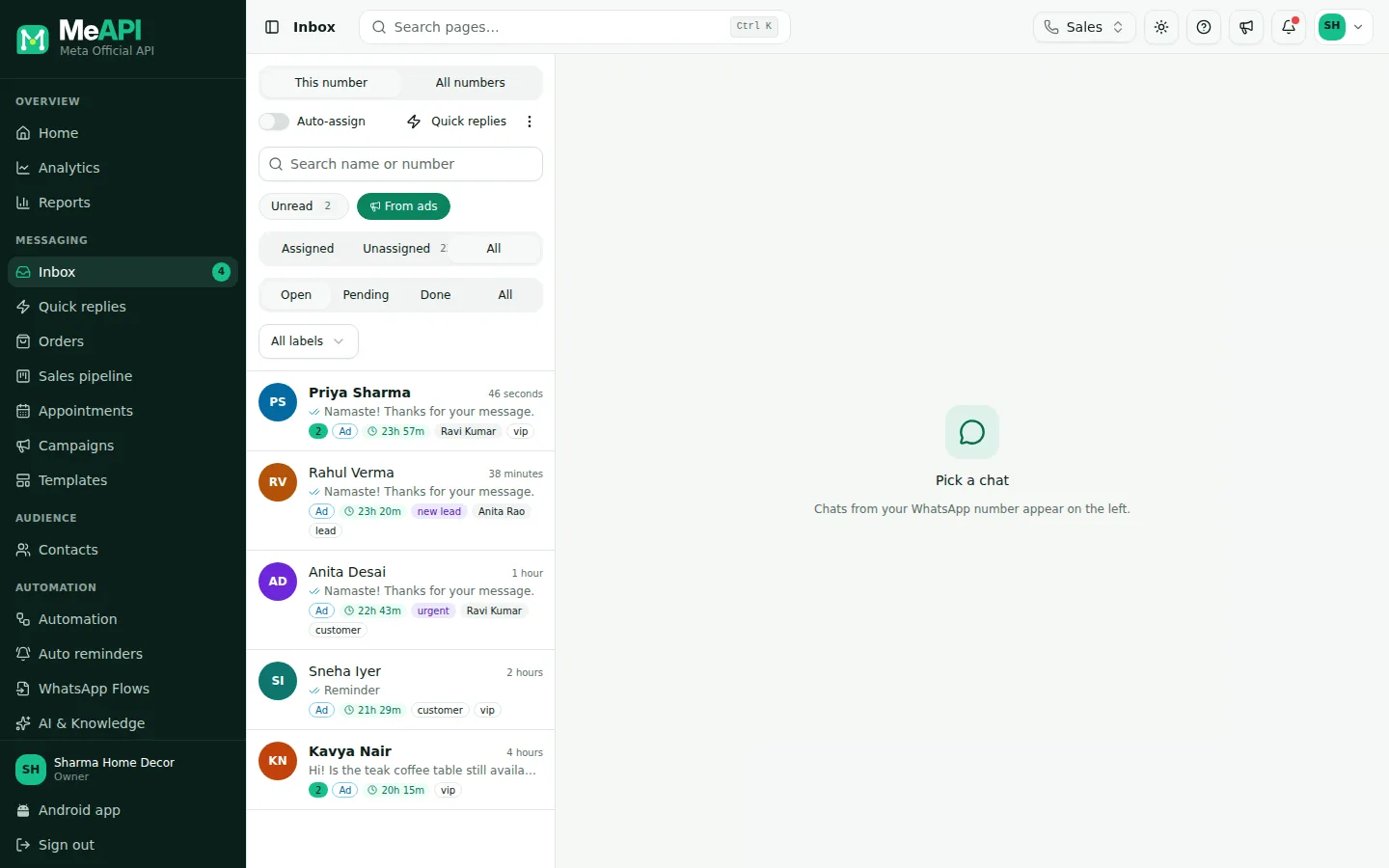
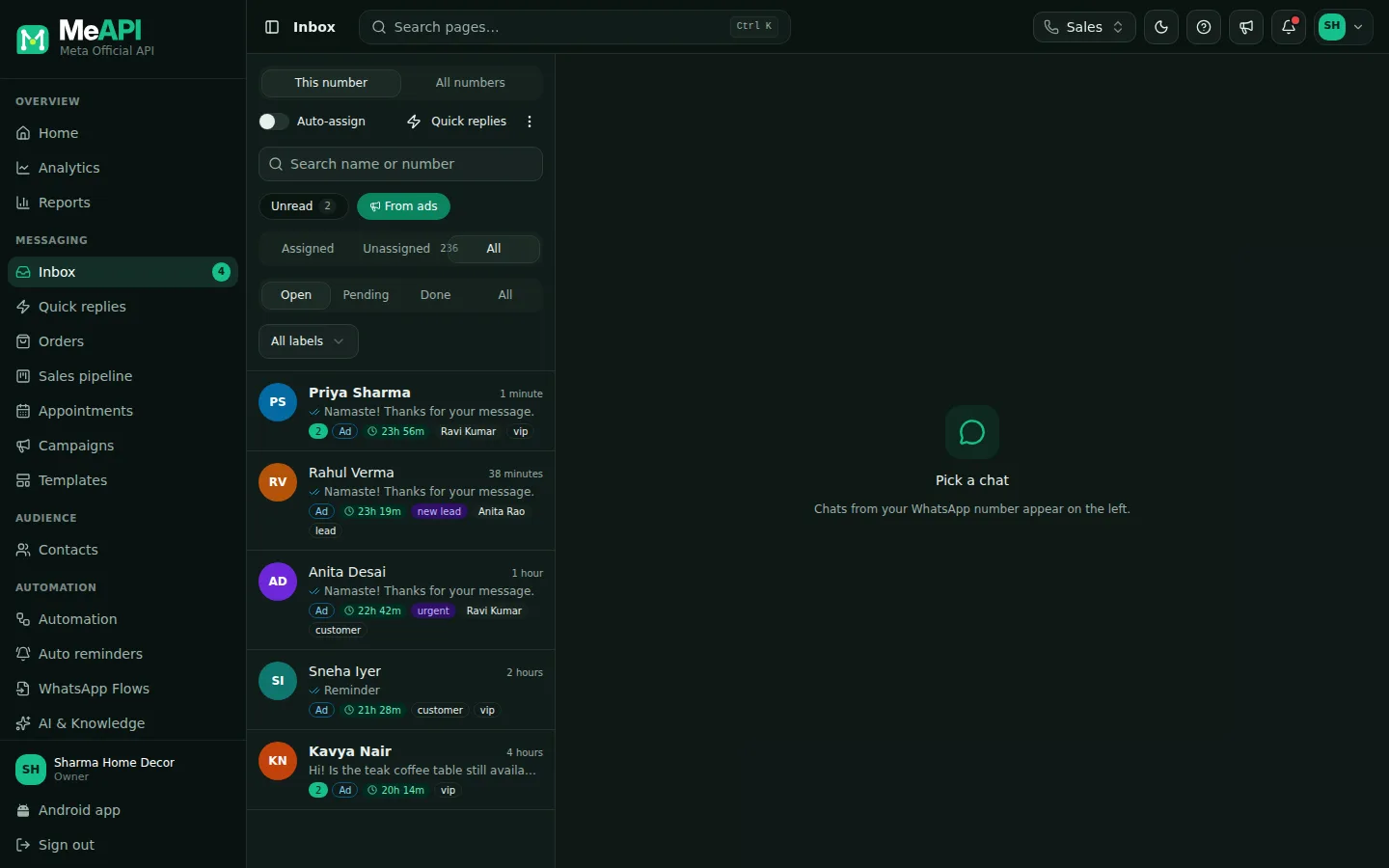
- From ads: only chats that came from an ad, each with its Ad badge.
Who can use it
Section titled “Who can use it”- The account owner always. Agents need Ads page and ad results in their role (Admin, Manager and Marketing have it). Ad names, spend and ad setups lets them rename ads, type spend and save setups. Export CSV needs Export under Analytics; the people list needs Contacts → Read.
- An agent sees only the numbers they work on. With Mask phone numbers in their role, numbers stay masked here too.
Frequently asked questions
Section titled “Frequently asked questions”Does MeAPI charge for my ads?
Section titled “Does MeAPI charge for my ads?”No. You pay Meta for the ad, with your own payment method in your own ad account. The Ads page is part of your MeAPI plan.
Can MeAPI create the ad or read my spend from Meta?
Section titled “Can MeAPI create the ad or read my spend from Meta?”Not yet. MeAPI does not connect to your ad account, so you create the ad in Ads Manager and type the spend yourself.
Why does an ad show only an ID?
Section titled “Why does an ad show only an ID?”Meta sends the ad ID and its headline with the first message. Press the pencil to give it a name you recognise.
Why do Facebook and Instagram show “Not known”?
Section titled “Why do Facebook and Instagram show “Not known”?”MeAPI reads the source from the ad link Meta sends. Some ads send a link that does not say which app it came from.
Can I use a Coexistence number?
Section titled “Can I use a Coexistence number?”Yes. Any connected number can receive chats from a Click-to-WhatsApp ad.
Are the follow-up messages free?
Section titled “Are the follow-up messages free?”Messages to a lead who came from a Click-to-WhatsApp ad on a phone are free while Meta’s free entry point window is open, if you reply within 24 hours (your welcome does). Meta’s pricing page says the window can stay open for up to 7 days, so the day-3 note is planned inside the first 72 hours. Outside the window, Meta’s normal rates apply.
Why are the next-day and day-3 messages templates?
Section titled “Why are the next-day and day-3 messages templates?”WhatsApp allows free-form messages only within 24 hours of the lead’s last message. After that, only a template Meta has approved can be sent. Create the two templates in Templates first, then pick them in the steps.
Will a lead get a follow-up after they reply?
Section titled “Will a lead get a follow-up after they reply?”No. Any message or tap stops the follow-ups at once, and MeAPI checks again right before every send.
What’s next
Section titled “What’s next”Was this page helpful?
Thank you — we read every comment.
Could not send right now. Please try again later.
© 2026 MeAPI by TheWebStore028 · RADHAMADHAV WEBSTORE LLP · GSTIN 27ABJFR6148J1ZO · Contact us ·Cookie settings
Registered Office: 19th Floor, A-1903, Exotica Wing A, Casa Rio Main Road, Lotus Pond, Palava City Phase 1, Kalyan, Thane, Maharashtra 421204, India
Operations: Thaltej, Ahmedabad, Gujarat
Phone / WhatsApp: +91 91676 96213 · Email: support@meapi.in ·Terms · Refund & cancellation · Shipping & delivery