

Quick replies
🎯 Goal
Answer common questions in one tap: opening hours, prices, your location, a price list PDF, a “choose a service” list.
🧰 What you need
- Access to the inbox
- To add or change them: the owner, or a role with Manage quick replies
1. Make a quick reply
Section titled “1. Make a quick reply”-
In the left menu, open Messaging → Quick replies. Or, in the Inbox, press Quick replies above the chat list.
-
Press New quick reply.
-
Give it a Name (for you) and a Shortcut, for example
hours. In a chat you type/hours. -
Choose the Numbers it is for: All numbers, or only some.
-
Choose what happens when you pick it:
- Edit before sending: it opens so you can change it first.
- Send as is: it is sent at once, with one tap.
-
Write the Messages. Change a message’s type in its menu, and press Add a message for more (up to 5, sent in order). The Preview on the right shows what the customer will see.
-
Press Save.
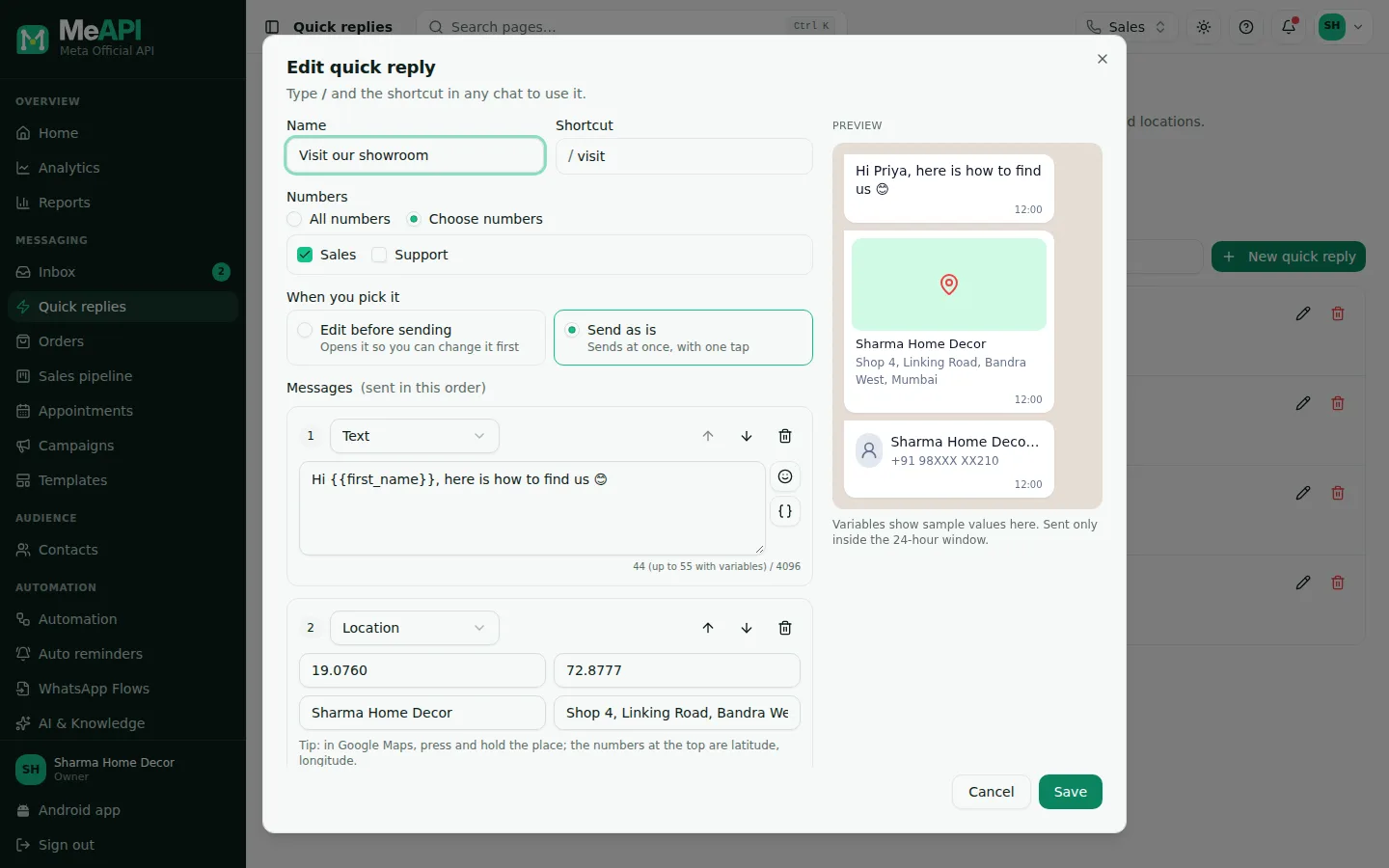
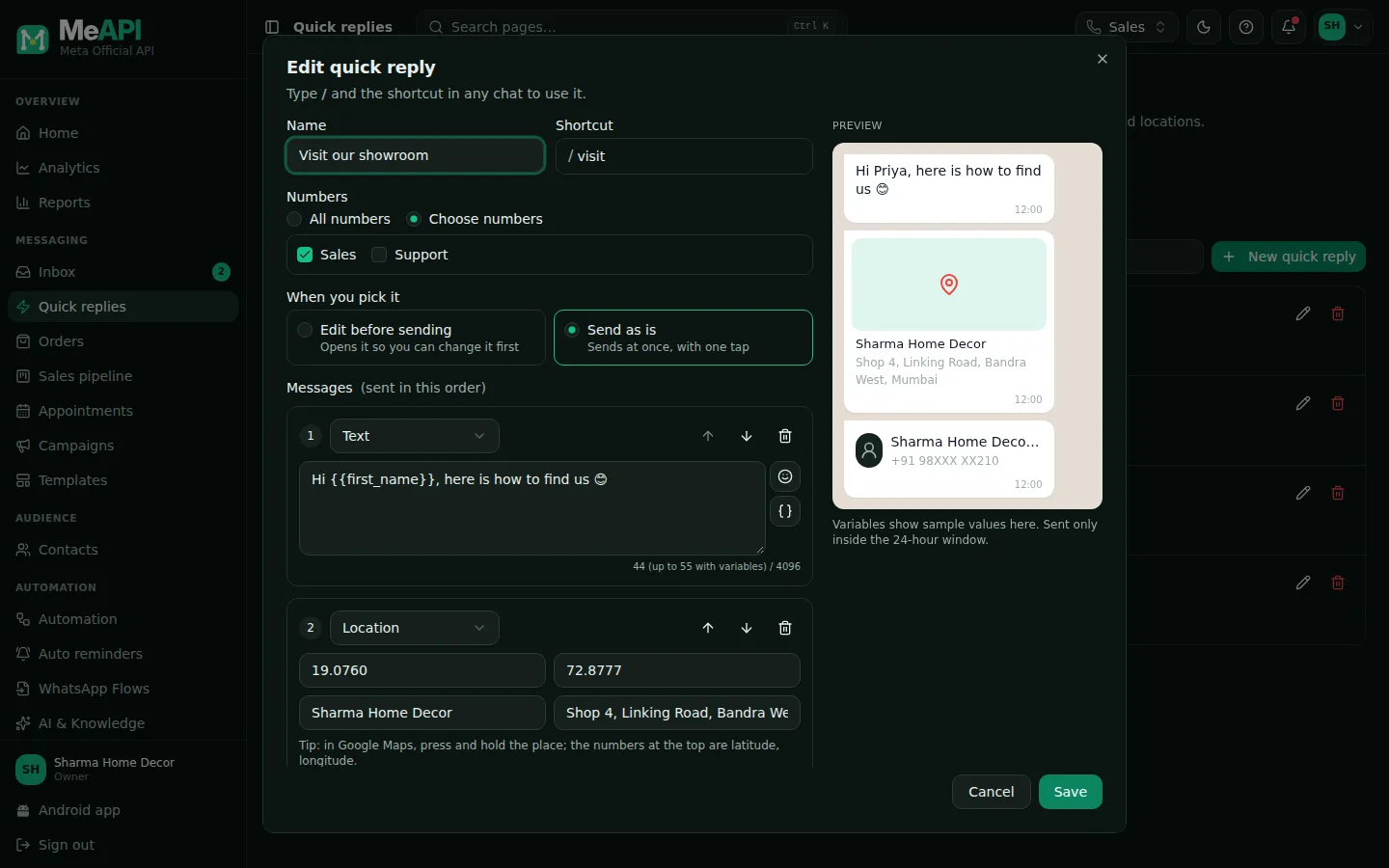
- Name, shortcut, numbers and Edit before sending / Send as is.
- Each message has a type, arrows to change the order, and the bin.
- The preview shows the messages as the customer sees them, with sample values for the variables.
2. Message types
Section titled “2. Message types”| Type | What the customer gets |
|---|---|
| Text | Up to 4,096 characters, with emoji and WhatsApp formatting (*bold*, _italic_) |
| Image, Video, Document | The file with a caption. Upload it, pick it from your media library, or paste an https link |
| Audio | An audio file, no caption |
| Buttons | Your text with up to 3 reply buttons (20 characters each), an optional header and footer |
| List | Your text and a button that opens a list of up to 10 rows, each with an optional description |
| Contact card | A contact they can save: name and phone, optional email and company |
| Location | A pin on the map: latitude, longitude, an optional name and address |
| Ask for location | Your text with a Send location button; their location arrives in the chat |
Variables are filled in for each chat: {{name}} (the customer’s name), {{first_name}}, {{phone}} and {{agent_name}} (your name). Use the button beside a text box, and the 🙂 button for emoji.
3. Use it in a chat
Section titled “3. Use it in a chat”- Type
/in the reply box. Matching quick replies appear above it: type more to narrow them (/ho), move with the arrow keys and press Enter, or tap one. - Or press the ⚡ Quick replies button in the reply box and search.
- Send as is sends at once. Edit before sending puts a one-text reply in the box; one with several messages or a file opens so you can change the texts first, then press Send. What you change is not saved to the quick reply.
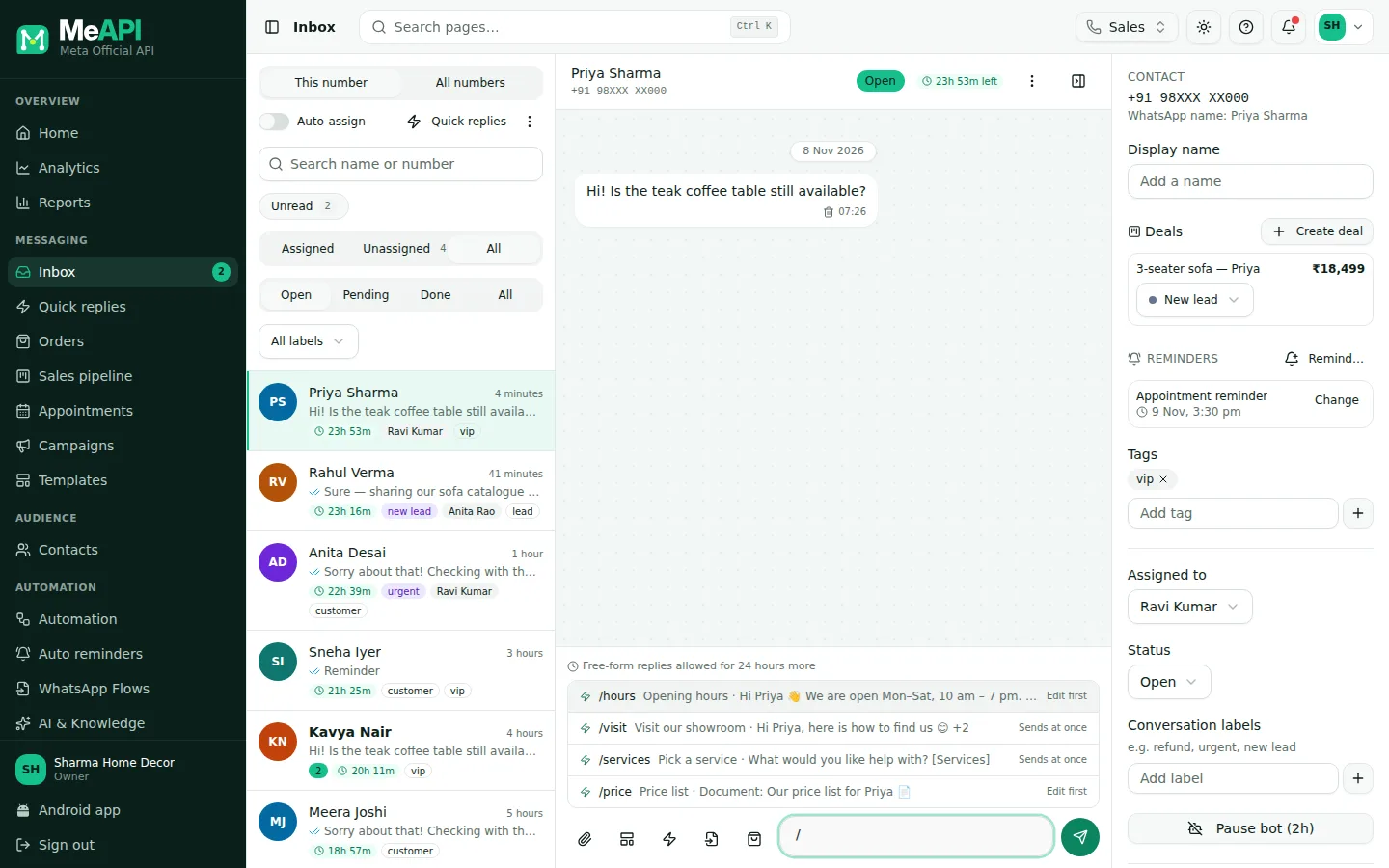
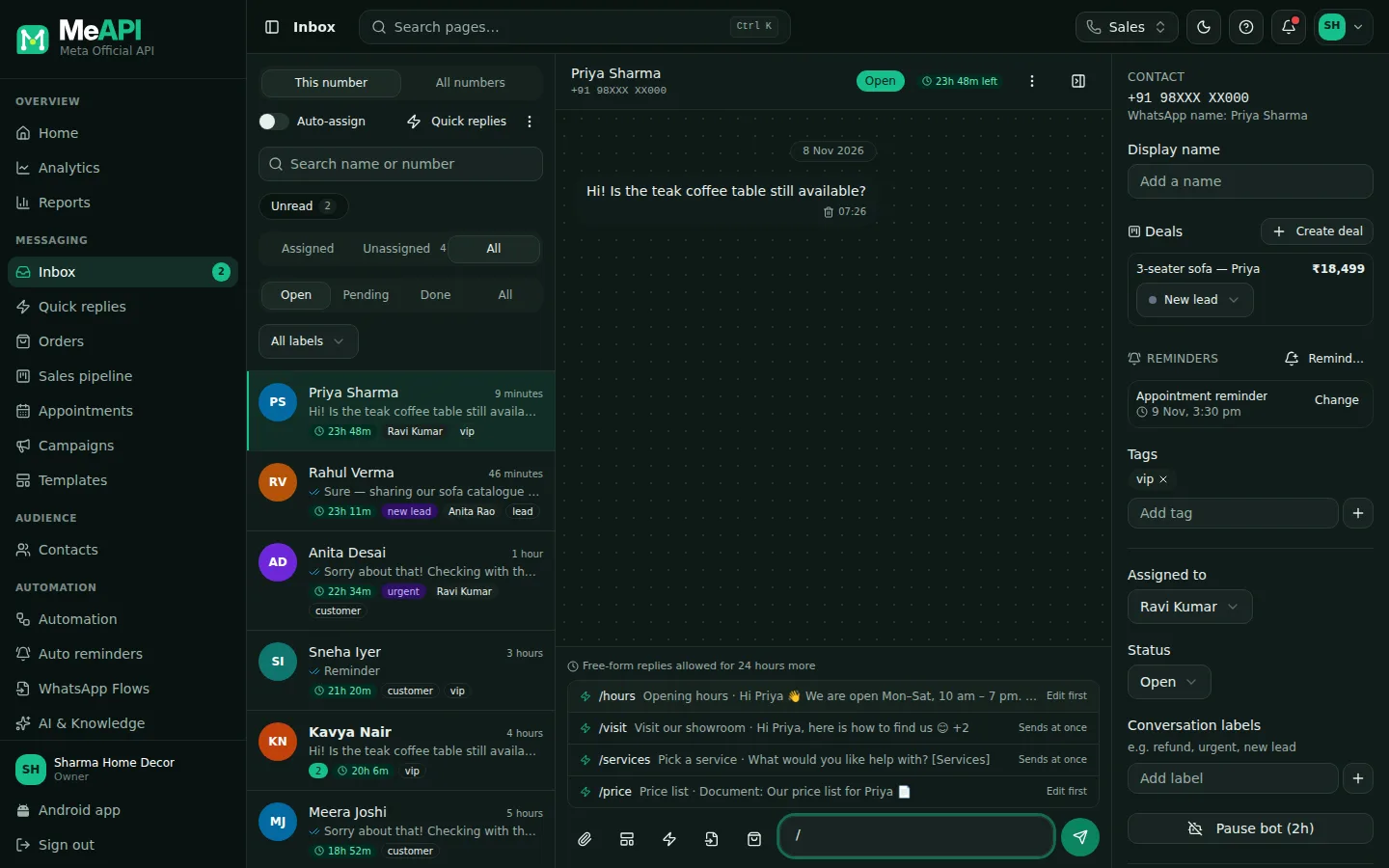
- Typing / shows the quick replies for this chat's number.
- Each one shows its shortcut, name, first message and whether it sends at once.
4. Import and export (CSV)
Section titled “4. Import and export (CSV)”On the Quick replies page, Export downloads every quick reply as a CSV file and Import reads one back. Export first to get a file in the right shape.
- One row per message. Rows with the same
shortcutmake one quick reply, insteporder. mode:send as isoredit before sending.numbers:all, or your numbers’ phone numbers separated by spaces.type:text,image,video,audio,document,buttons,list,contact,locationorlocation_request.- Buttons go in
buttonsseparated by|. List rows go inlist_rowsasTitle - description | Title. - Before anything is saved, MeAPI checks the file and lists what it will add and any problems, by line. A shortcut you already have is skipped unless you tick Replace quick replies that have the same shortcut.
Who can do what
Section titled “Who can do what”Everyone who can open the inbox sees the quick replies for the numbers they work on. Adding, changing, deleting, import and export need Manage quick replies in the role. An agent who works only some numbers can save quick replies for those numbers only. Every change is listed in Agents & roles → Activity tab.
Common mistakes
Section titled “Common mistakes”- Prices and hours that changed. Review your quick replies when they do.
- A file link that is not public. WhatsApp fetches the file from its link: upload the file instead, or use an https link anyone can open.
- Buttons for long answers. A button label is 20 characters at most. For more choices or longer labels, use a List.
What’s next
Section titled “What’s next”Was this page helpful?
Thank you — we read every comment.
Could not send right now. Please try again later.
© 2026 MeAPI by TheWebStore028 · RADHAMADHAV WEBSTORE LLP · GSTIN 27ABJFR6148J1ZO · Contact us ·Cookie settings
Registered Office: 19th Floor, A-1903, Exotica Wing A, Casa Rio Main Road, Lotus Pond, Palava City Phase 1, Kalyan, Thane, Maharashtra 421204, India
Operations: Thaltej, Ahmedabad, Gujarat
Phone / WhatsApp: +91 91676 96213 · Email: support@meapi.in ·Terms · Refund & cancellation · Shipping & delivery