

Disconnect a number or move it to another provider
🎯 Goal
Stop using a number here, or take it to another WhatsApp provider without losing it.
🧰 What you need
- A connected number
- The account owner, or a role with Connect / disconnect numbers. Only the owner can deregister
Which one do you need?
Section titled “Which one do you need?”- Disconnect: the number stops working in MeAPI but stays registered with Meta. Use it to stop using a number, or to move to another provider.
- Move to another provider: the number’s Move / Disconnect tab, with everything your new provider needs, and Disconnect at the end.
- Deregister: the number stops working on the WhatsApp API with every provider. Only when it leaves the API for good, for example to use it in the WhatsApp app again. You do not need it to change provider.
1. Disconnect a number
Section titled “1. Disconnect a number”-
Open WhatsApp Numbers and press ⋮ on the number’s card.
-
Choose Disconnect from MeAPI…. (Or open the number, go to its Move / Disconnect tab and use step 5, Disconnect. That tab has its own export buttons in step 1, so it goes straight to step 4 below.)
-
MeAPI asks: Export your contacts and campaign reports first? Download the CSV files you want, then press Continue.
-
Read what happens, type the number to confirm, and press Disconnect.
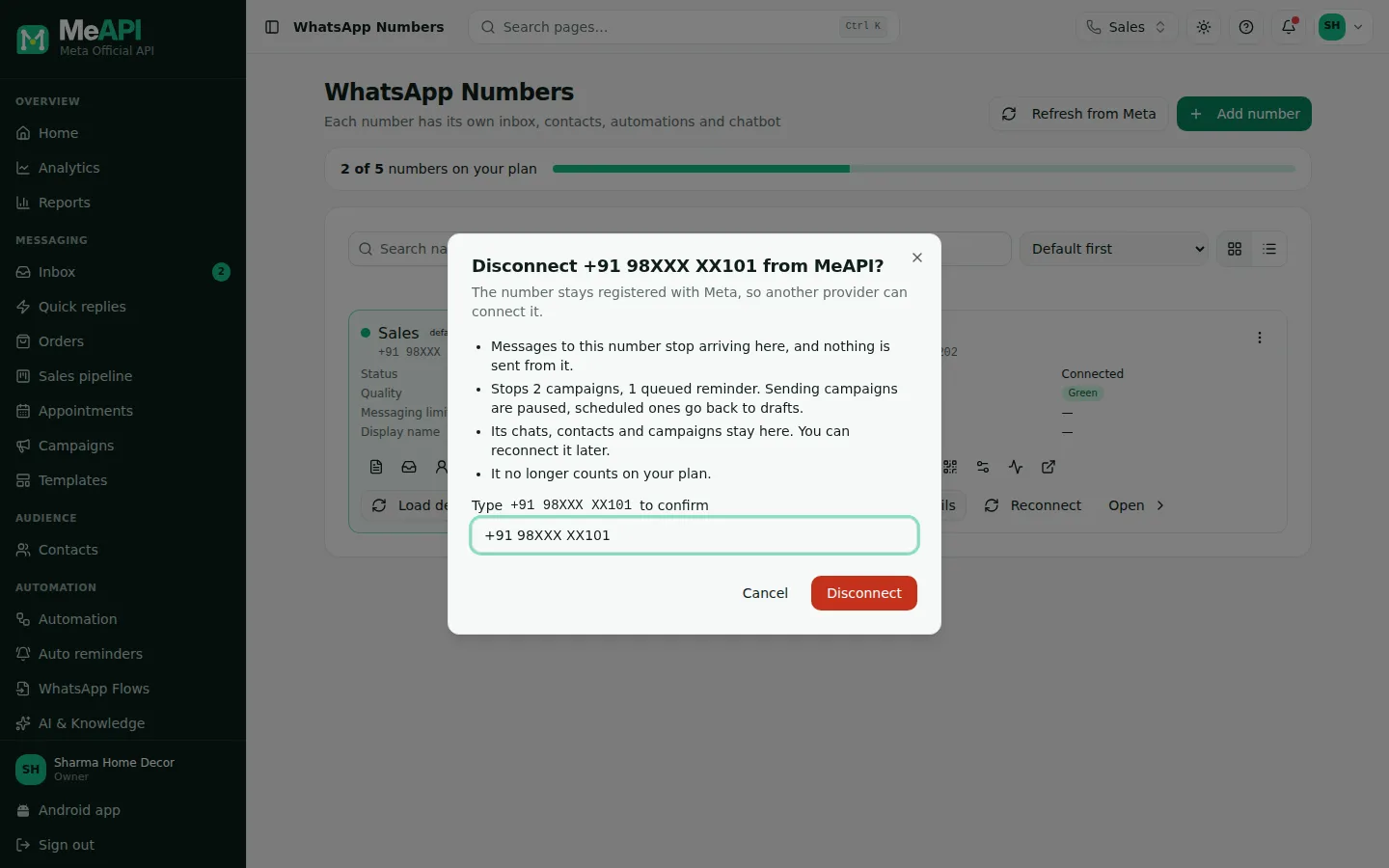
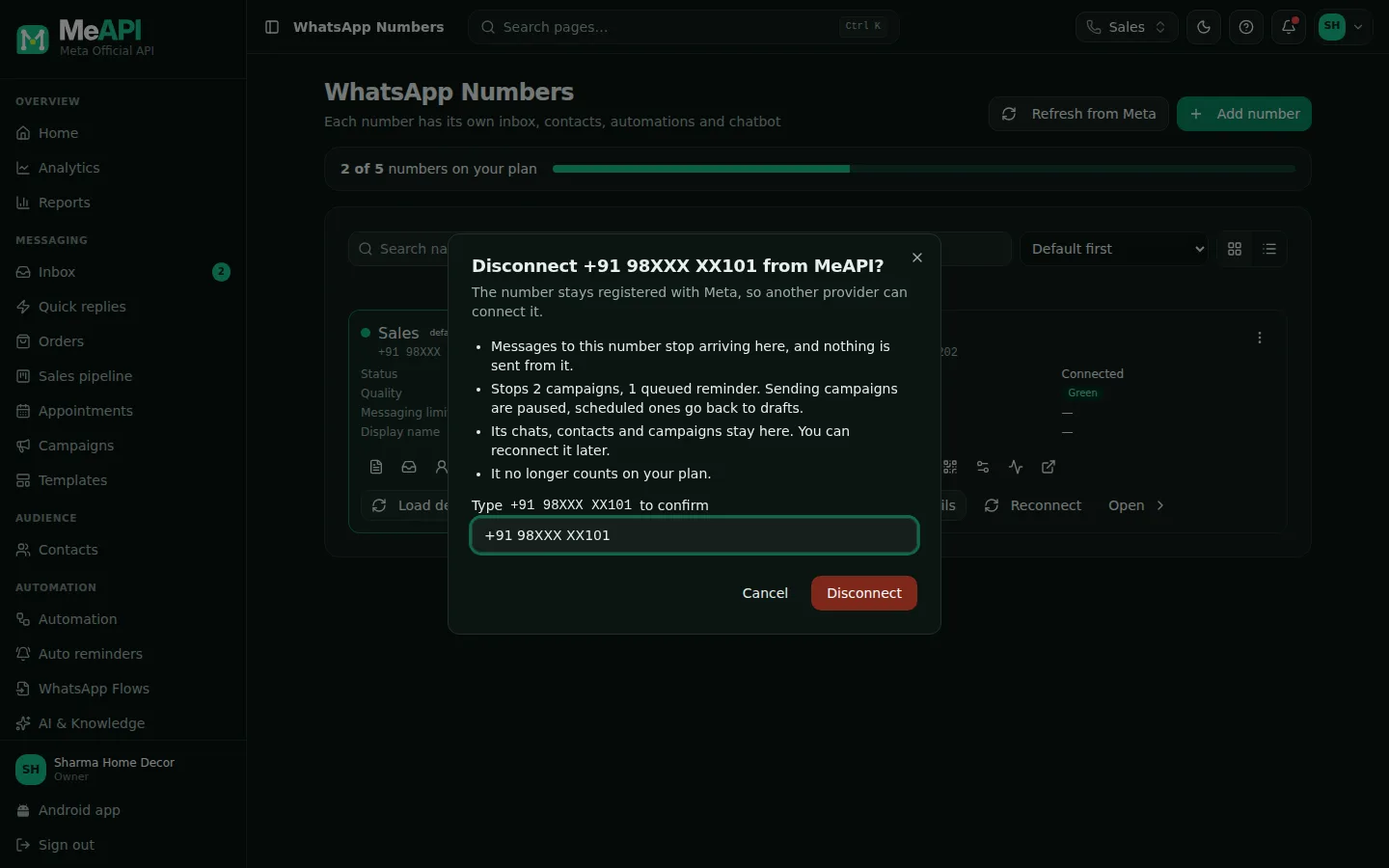
- What stops and what stays. The Disconnect button turns on only when the number you type matches.
What happens:
- Messages to this number stop arriving in MeAPI, and nothing is sent from it.
- Campaigns that were sending are paused. Scheduled campaigns go back to drafts. Queued reminders and waiting chatbot steps are stopped.
- MeAPI stops Meta’s updates for the number. If other numbers on the same WhatsApp account are still connected, Meta keeps sending for those, and this number’s are ignored.
- The number no longer counts on your plan.
- Its chats, contacts and campaigns stay in MeAPI.
Every disconnect is in Agents & roles → Activity, with who did it and when.
2. Move to another provider
Section titled “2. Move to another provider”On the number’s card press ⋮ → Move to another provider, or open the number and choose its Move / Disconnect tab. The tab has five steps.
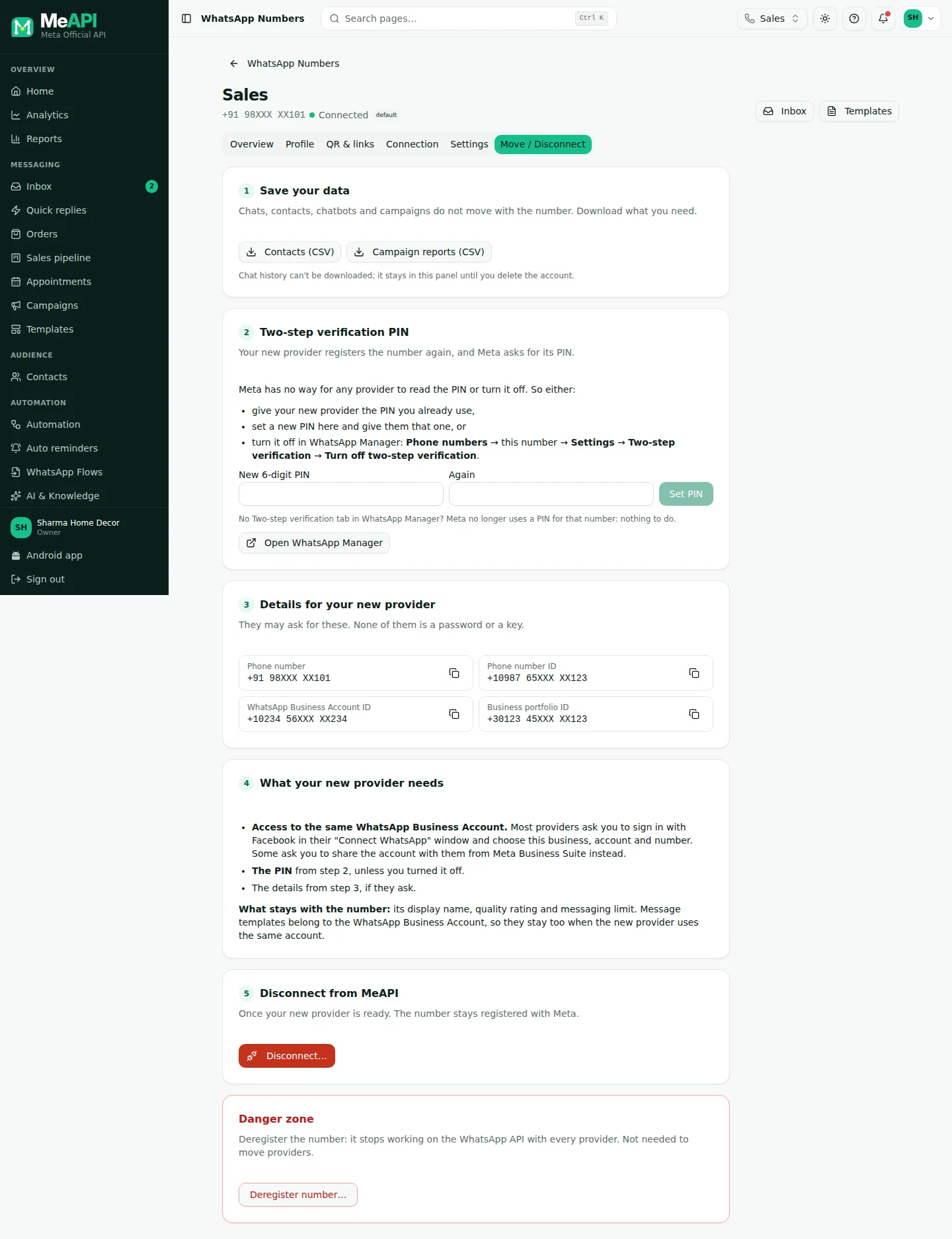
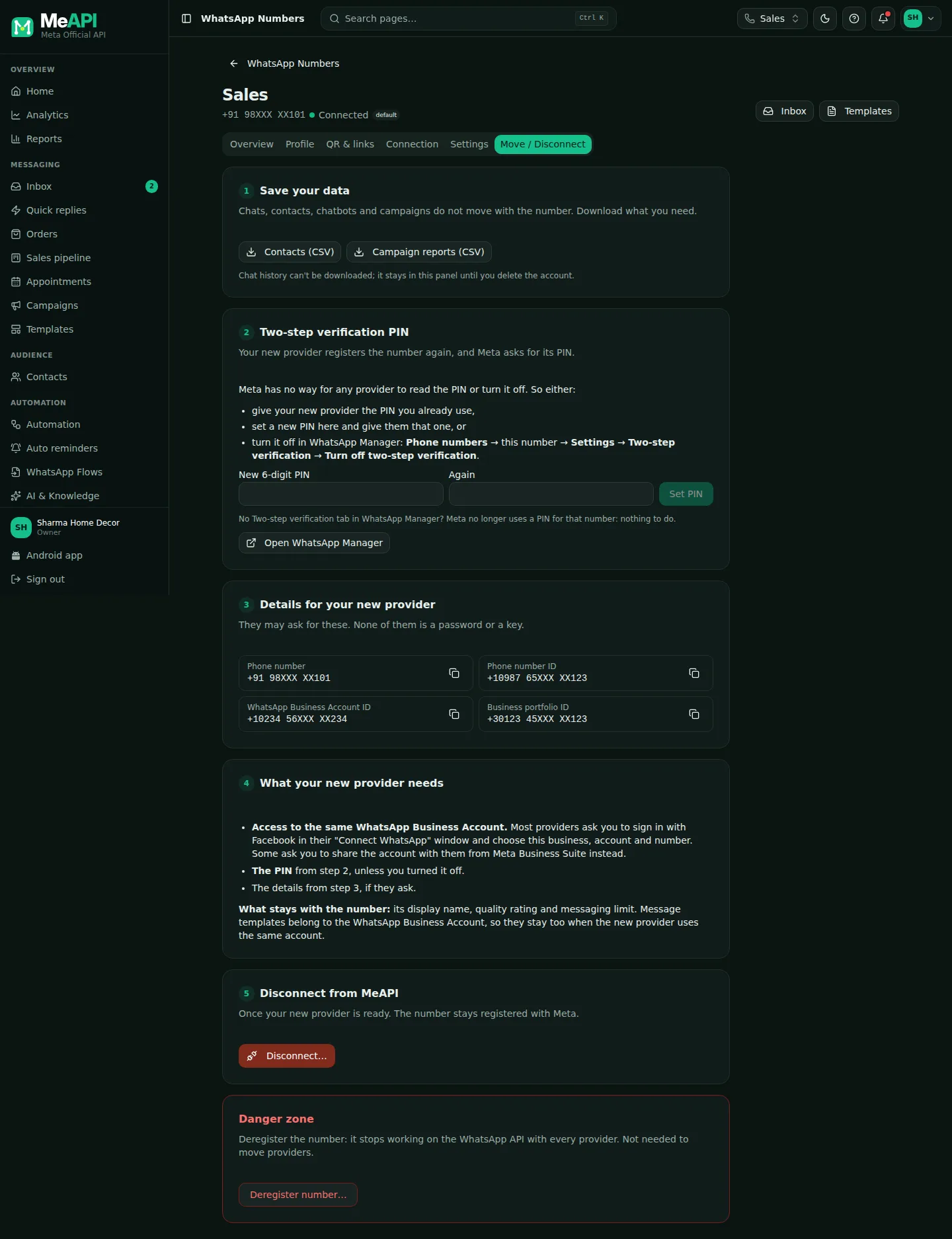
- Save your data, the two-step PIN, the IDs to copy, what the new provider needs, then Disconnect.
- Save your data. Chats, contacts, chatbots and campaigns do not move with the number. Download Contacts (CSV) and Campaign reports (CSV). Chat history can’t be downloaded; it stays in this panel until you delete the account.
- Two-step verification PIN. Your new provider registers the number again, and Meta asks for its PIN. Meta does not let any provider read the PIN or turn it off. Give them the PIN you use, set a new one here (or on the Settings tab), or turn it off in WhatsApp Manager (Phone numbers → your number → Settings → Two-step verification). No such tab? Meta no longer uses a PIN for that number.
- Details for your new provider. Phone number, phone number ID, WhatsApp Business Account ID and business portfolio ID, each with a copy button. None of them is a password.
- What your new provider needs. Usually you sign in with Facebook in their “Connect WhatsApp” window and choose the same business, account and number. The display name, quality rating and messaging limit stay with the number. Templates stay with the WhatsApp account.
- Disconnect from MeAPI, once your new provider is ready.
3. Deregister a number
Section titled “3. Deregister a number”Only the account owner sees the Danger zone at the bottom of the Move / Disconnect tab.
-
Press Deregister number….
-
Read the warning: the number stops working on the WhatsApp API until it is registered again.
-
Type the number and press Deregister.
Meta allows 10 deregistrations per number in 72 hours. If you reach it, MeAPI says so: try again after 72 hours.
Coexistence numbers
Section titled “Coexistence numbers”A number that is also on the WhatsApp Business app is never deregistered from MeAPI, and Meta refuses it too. To take it off a platform, use the app:
-
Open the WhatsApp Business app on the phone with this number.
-
Go to Settings → Account → Business Platform (some versions call it Connected platform).
-
Choose the platform and tap Disconnect. Your chats stay in the app.
A Coexistence number can be linked to one platform at a time, so do this before a new provider connects it. Then disconnect it in MeAPI too. More in Coexistence.
What’s next
Section titled “What’s next”Was this page helpful?
Thank you — we read every comment.
Could not send right now. Please try again later.
© 2026 MeAPI by TheWebStore028 · RADHAMADHAV WEBSTORE LLP · GSTIN 27ABJFR6148J1ZO · Contact us ·Cookie settings
Registered Office: 19th Floor, A-1903, Exotica Wing A, Casa Rio Main Road, Lotus Pond, Palava City Phase 1, Kalyan, Thane, Maharashtra 421204, India
Operations: Thaltej, Ahmedabad, Gujarat
Phone / WhatsApp: +91 91676 96213 · Email: support@meapi.in ·Terms · Refund & cancellation · Shipping & delivery